
Route Optimization in Field Services
Spend less time driving and more time working. Route optimization reorders a staff member's visits for the day to cut drive time, while keeping any visit you lock exactly where it is. You review the proposal first, and nothing changes until you apply it.
Note: Field Services is currently in private beta and is available to selected accounts. Features and screens may change as we improve them.
In this article
- What is route optimization?
- Before you start
- How to optimize a route
- Understanding the route optimization page
- Review and apply the proposed route
- Frequently asked questions
- Related articles
What is route optimization?
Given a staff member and a date, route optimization looks at their visits for that day and suggests a more efficient visit order. It uses drive times, the staff member's working hours, travel buffers and existing bookings. The route starts at the staff member's Route start location and ends at their Route end location.
Note: You always review the proposed route first. Nothing changes on the schedule until you click Apply optimized route.
Before you start
- Set the Route start and Route end for each staff member in Services & staff > Staff > Edit > Dispatch settings. See Staff in Field Services.
- Make sure the visits you want to optimize have a service address and are assigned to the staff member.
How to optimize a route
- Go to Field Services > Schedule > Calendar view.
- Click the Route optimization button, the first icon in the toolbar on the right.
- Choose a Staff member.
- Choose the Date. The time zone is shown next to the field. When you pick a staff member, the date is filled in for you and you can change it.
- The Start location and End location fill in from the staff member's dispatch settings and cannot be edited here.
- Review the Visit schedule. Visits start out locked, so unlock the ones that can move.
- Click Optimize route.
Understanding the route optimization page
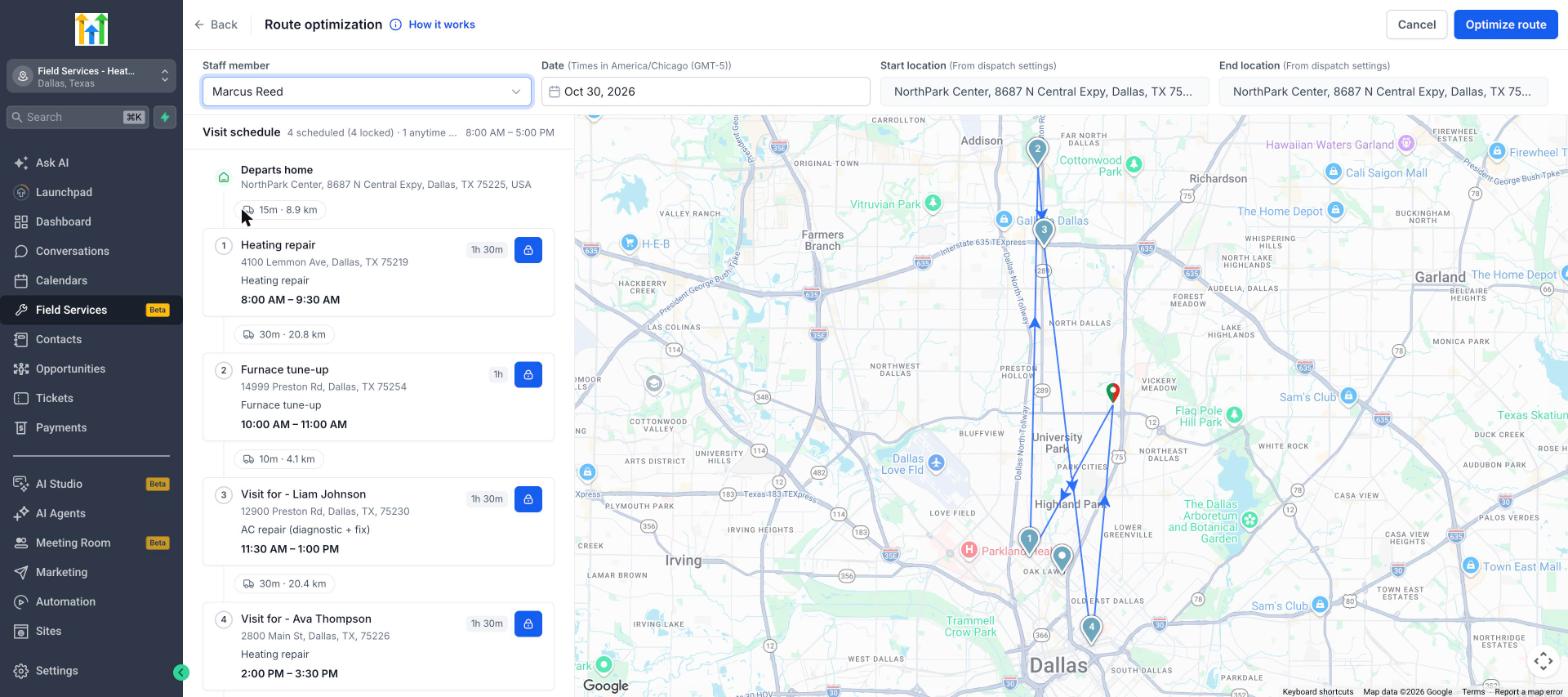
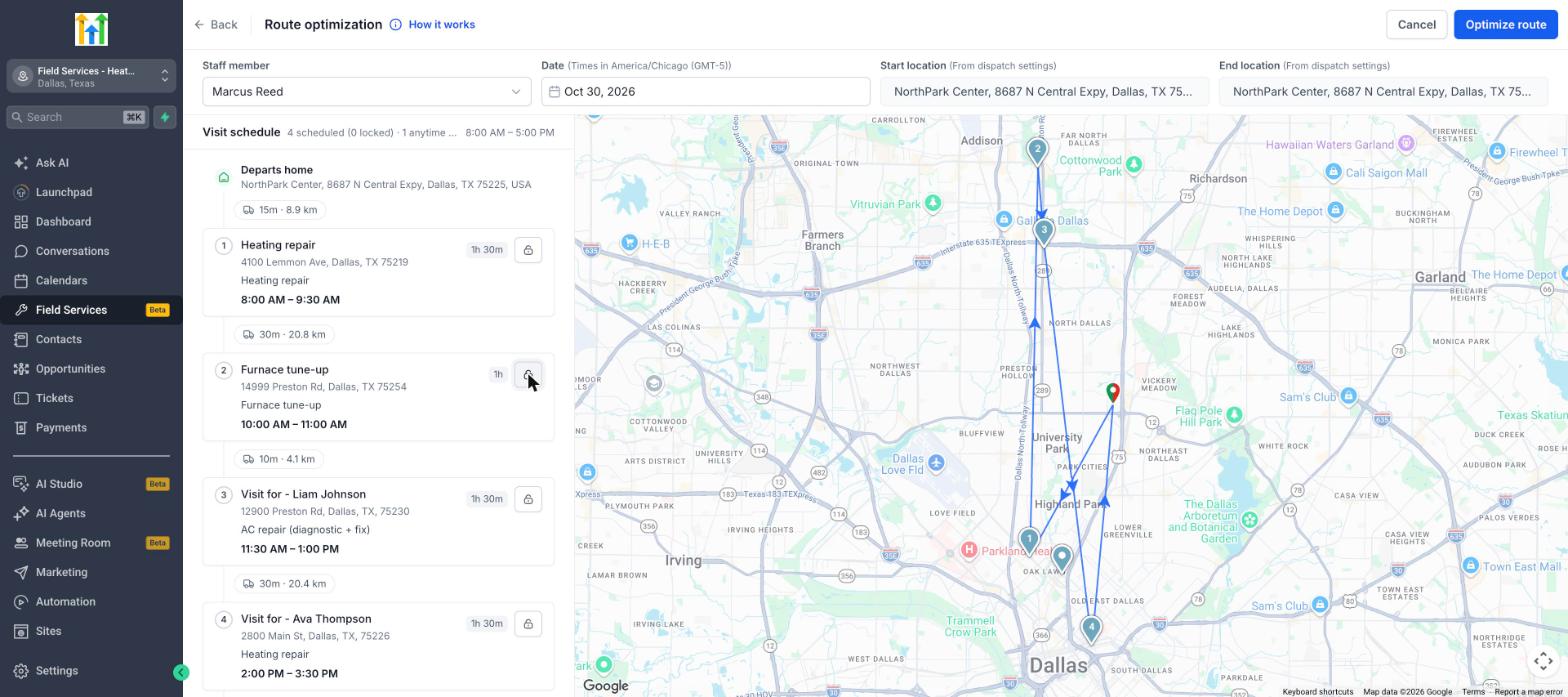
- Visit schedule. The left panel lists the day's route from Departs home to Returns home. The summary line shows how many visits are scheduled, how many are locked, how many are Anytime visits, and the working hours for the day, for example 4 scheduled (4 locked) · 1 anytime · 8:00 AM – 5:00 PM.
- Each visit shows its position in the route, the visit title, duration, service address, service and scheduled time. Between visits you see the estimated drive time and distance, for example 30m · 20.8 km.
- Lock and unlock. Use the lock button on a visit to keep it at its scheduled time. Locked visits do not move. Unlock a visit to let route optimization move it.
- Anytime visits. A visit that has a date but no specific time is shown in the Anytime section below the route. It is not on the route yet and is given a specific time when you optimize.
- Map. The map shows each stop as a numbered pin and draws the route between them from the start location to the end location.
Click How it works next to the page title for a short explanation in the product, including this icon guide:
| Icon | Meaning |
|---|---|
| Locked | The visit stays at its scheduled time. |
| Unlocked | The visit can be moved during optimization. |
| Anytime | The visit can be assigned a specific time. |
| Multiple staff | The visit is not included in optimization. |
| Needs review | The visit could not be included in the optimized schedule. |
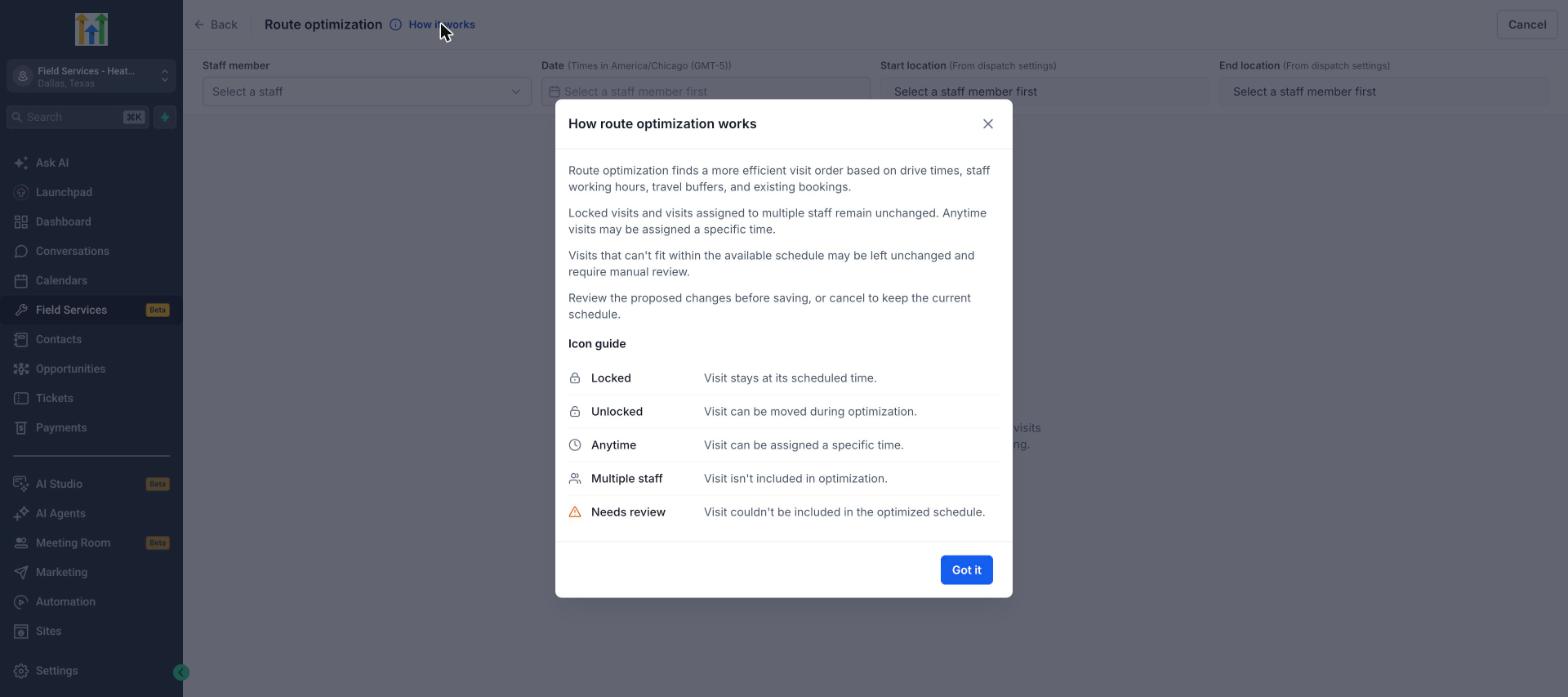
Route optimization leaves locked visits and visits assigned to more than one staff member unchanged. A visit that cannot fit within the available schedule may also be left unchanged and need a manual review.
Review and apply the proposed route
After you click Optimize route, the page shows a Proposed route summary:
| Item | What it shows |
|---|---|
| Drive time | The total estimated driving time for the day. |
| Day ends | When the staff member finishes. The earlier time is shown crossed out next to the new time. |
| Status | For example Route optimized, with the number of visits rescheduled and Anytime visits scheduled. |
Each visit that moved shows its old time crossed out, followed by the new time. Drive times are marked as estimated.
- Review the new order and times.
- Click Apply optimized route to save the new times to the schedule.
- Click Back to current route to return to the current route without saving.
- Click Cancel to leave the schedule as it is.
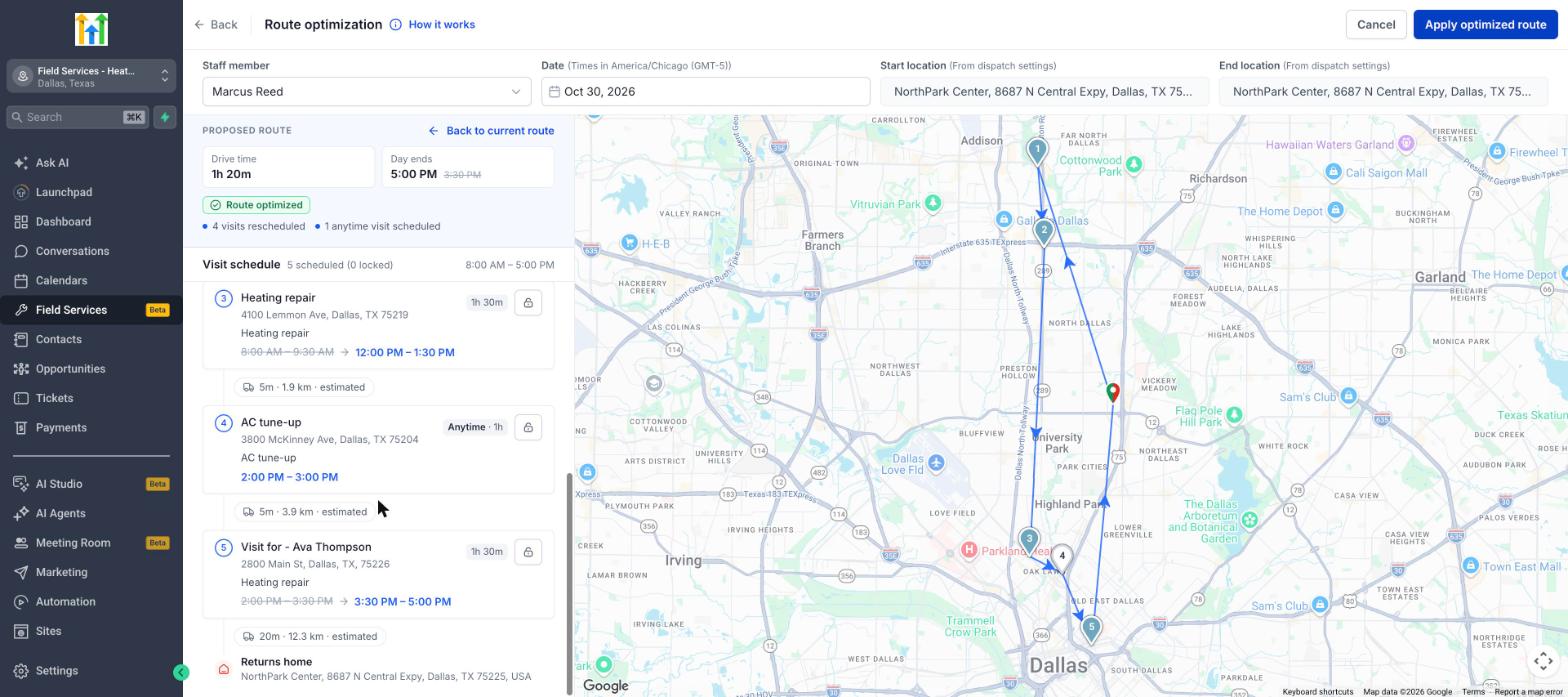
Note: If an Anytime visit is added to the route, the day can end later than before, because the visit now takes up time.
Frequently asked questions
Why are the Start location and End location read-only?
They come from the staff member's dispatch settings. To change them, edit the staff member.
Will optimization move visits that the customer already confirmed?
Only if you leave them unlocked. Lock any visit that must stay at its time before you optimize.
Does it work for visits without an address?
Visits need a service address to be placed on a route.
Are visits with more than one staff member optimized?
No. Visits assigned to multiple staff members are not included and stay as they are.
What if a visit cannot fit in the day?
It may be left unchanged and marked Needs review. Reschedule it manually.
Does anything change if I click Optimize route?
No. You see a proposed route first. The schedule only changes when you click Apply optimized route.