
Schedule in Field Services
The Schedule is your whole day at a glance. See every visit as a list or on a calendar, spot work that still needs a time, view visits on a map, and export what you need, all from one place.
Note: Field Services is currently in private beta and is available to selected accounts. Features and screens may change as we improve them.
In this article
- Where to find the Schedule
- List view
- Calendar view
- Jobs to schedule panel
- Map
- Calendar view settings
- Export the schedule
- Using this on the mobile app
- Frequently asked questions
- Related articles
Where to find the Schedule
- Click Field Services in the left navigation.
- Click Schedule and choose List view or Calendar view.
List view
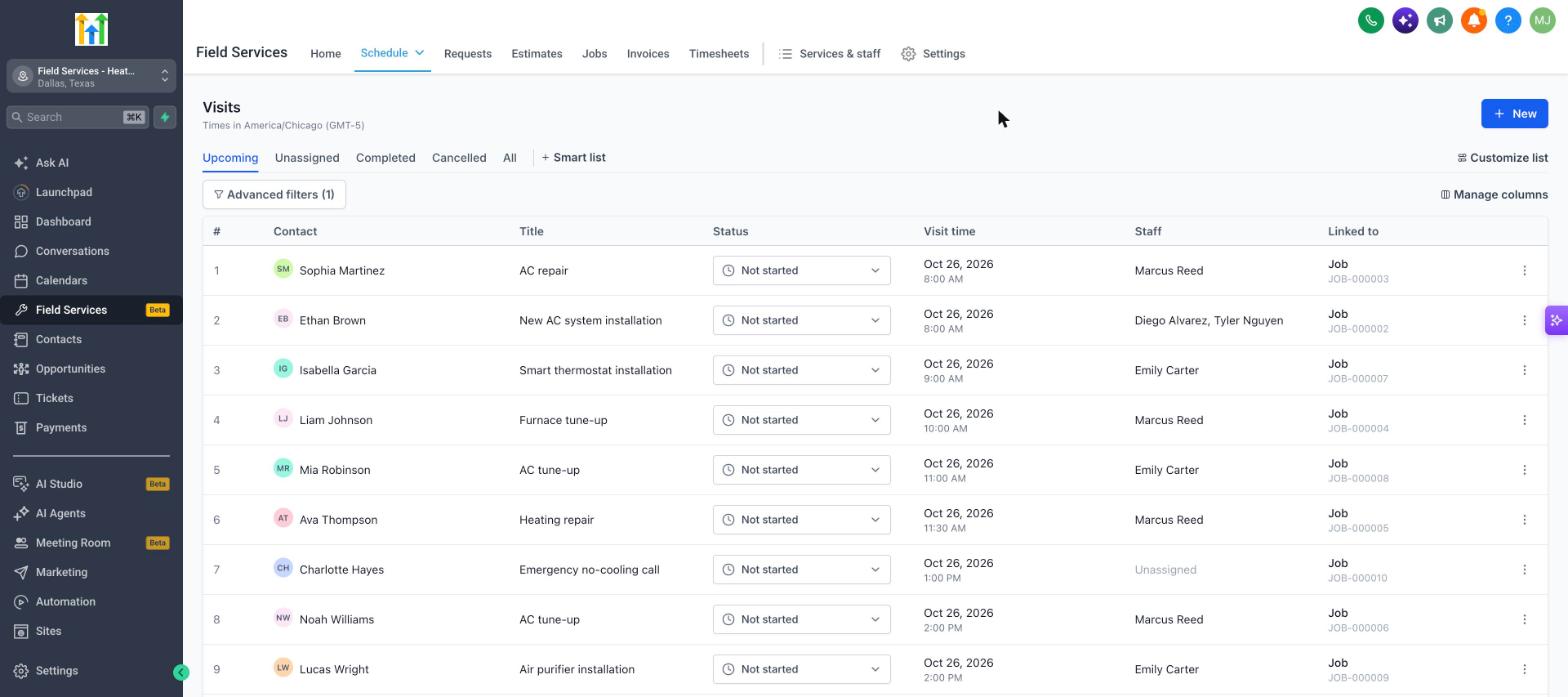
The list view shows every visit as a row with the Contact, title, status, visit time, assigned staff and what it is linked to (a job or a request).
| Control | What it does |
|---|---|
| Tabs | Switch between Upcoming, Unassigned (no staff yet), Completed, Cancelled and All. |
| + Smart list | Save a set of filters as your own tab. |
| Advanced filters | Narrow the list by different fields. |
| Manage columns and Customize list | Choose which columns you see. |
| Status | Change a visit's status right from the list. |
| New | Create a request, job or time block. |
Calendar view
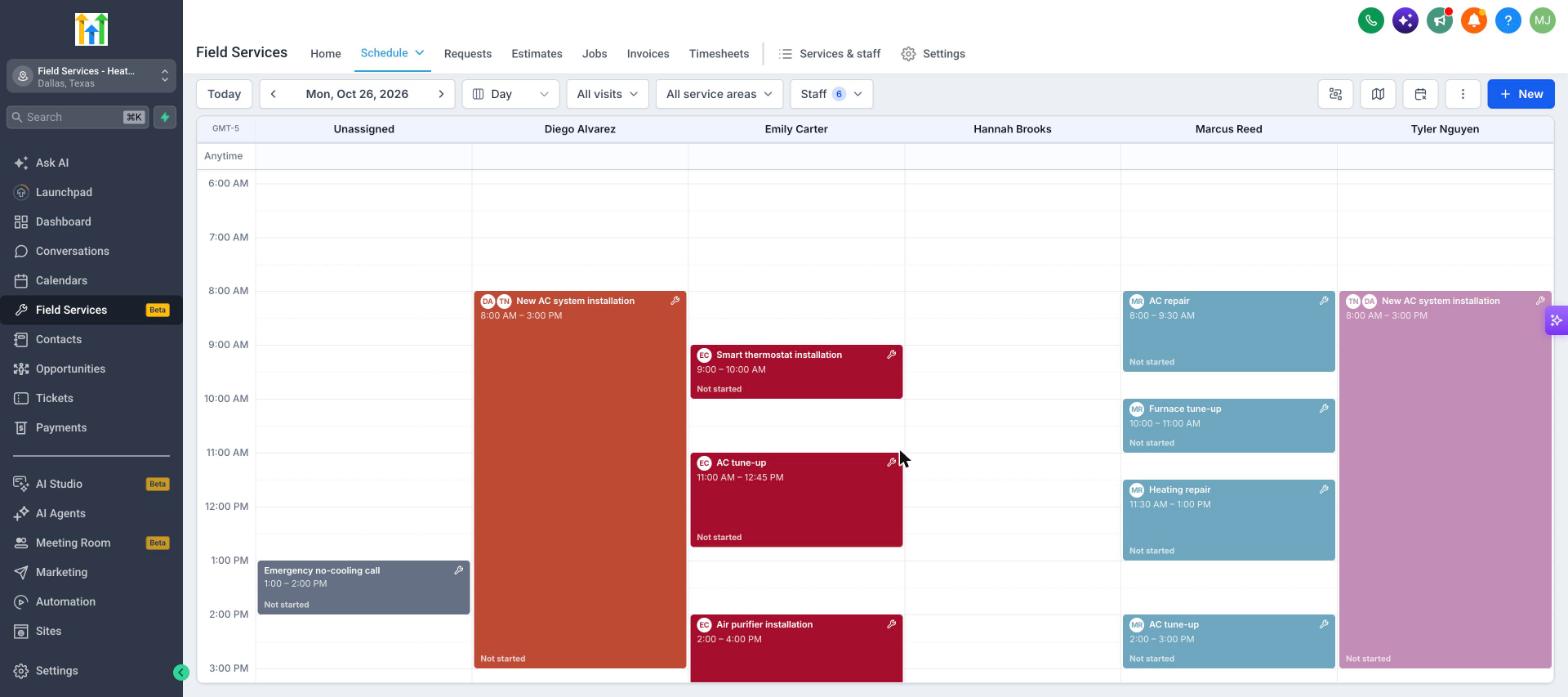
The calendar view lays out visits by day and time, with a column of Unassigned visits for each day.
| Control | What it does |
|---|---|
| Navigation | Click Today, or use the arrows to move between periods. Use the Week menu to change the period. |
| Filters | All visits, All service areas and Staff let you show only what you need. Choose which staff members appear as columns. |
| Anytime row | Visits scheduled without a fixed time appear here. |
| New | Choose Create request, Create job or Block off time. Block off time reserves time on a staff member's schedule so no visits are booked. |
Click a visit to open its details and change its status.
Jobs to schedule panel
Click the Unscheduled button (the calendar icon with a number) to open Jobs to schedule. It lists the jobs that do not have a visit yet, newest first, with the job number, number of services and the customer. Use it as your to-do list for scheduling. See Scheduling Visits and Finding Availability in Field Services.
Map
Click the Map button to open a map next to the calendar. It plots the visits for the period you are viewing so you can see how far apart they are. If no visits can be placed, the map says there are no visits to show.
Calendar view settings
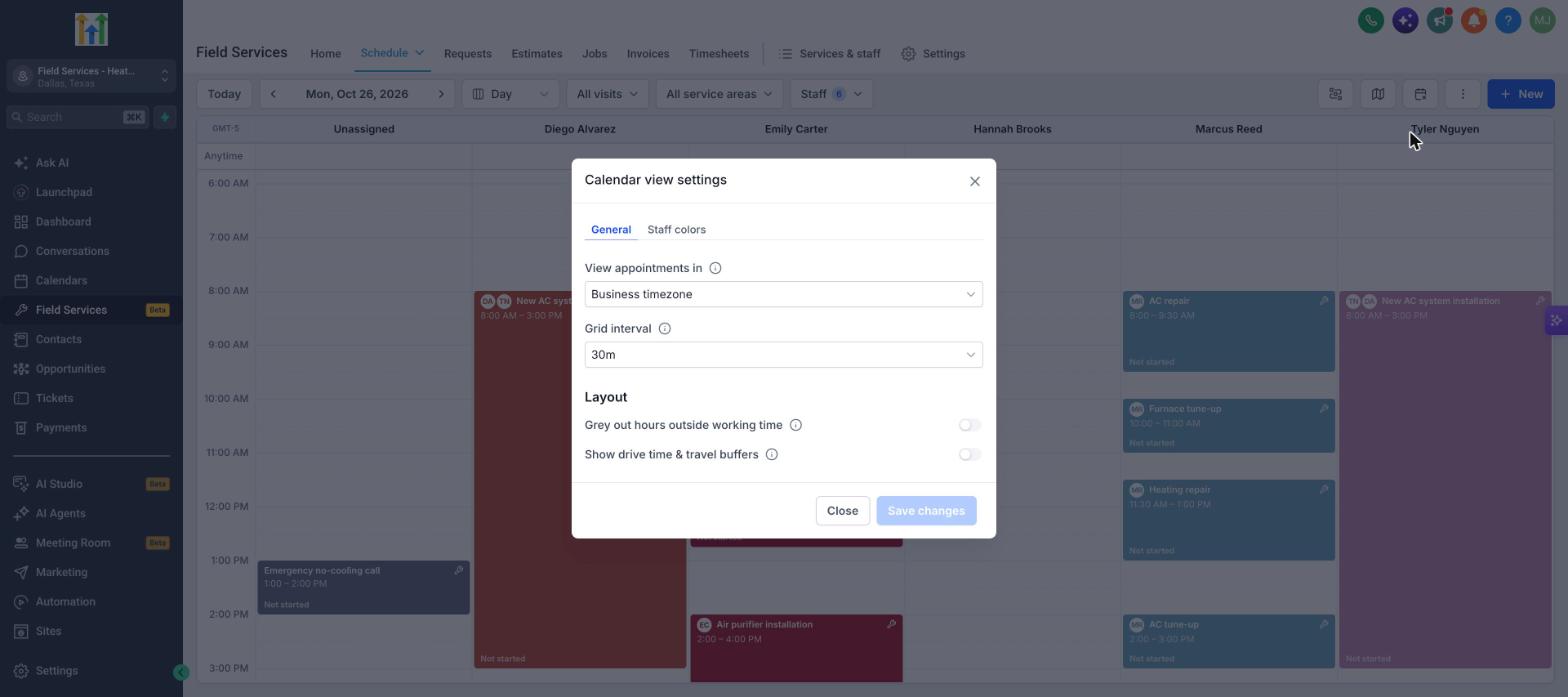
Click the three dots at the top right and choose Calendar view settings.
| Setting | What it does |
|---|---|
| View appointments in | The time zone used to show visits. The default is the business time zone. |
| Grid interval | How many minutes each row of the calendar represents. The default is 30 minutes. |
| Grey out hours outside working time | Shades the hours when a staff member is not working. |
| Show drive time & travel buffers | Shows travel time and extra time before visits on the calendar. |
| Staff colors | Choose the color for each staff member. |
You can also open Scheduling tips from the same menu. To change the first day of the week, use Field Services Settings > Preferences and features > Week starts on. See Field Services Settings: Jobs, Visits and Preferences.
Export the schedule
From the three dots menu, choose Export to PDF or Export to CSV to export the visits in the current view. If the view has no visits, Export to CSV is unavailable.
Using this on the mobile app
Your team can follow the day from the mobile app. Staff can view the schedule and calendar, schedule and reschedule visits, and update visit statuses from the field. Changes sync between the mobile app and the web, so everyone sees the same calendar.
Frequently asked questions
Why does the calendar show only some staff?
The Staff filter controls which staff members appear. Open it to add or remove people.
Can I optimize a staff member's route from the calendar?
Yes. Click the route optimization button. See Route Optimization in Field Services.
What does the Unassigned column mean?
It holds visits that have no staff member yet. Assign staff to move them onto a person's column.