
Scheduling Visits and Finding Availability in Field Services
Scheduling is where a job becomes a day on the calendar. Find availability does the hard part for you: it suggests times that fit your staff, your service areas and the drive between jobs, so you spend less time juggling and more time booking.
Note: Field Services is currently in private beta and is available to selected accounts. Features and screens may change as we improve them.
In this article
- What is a visit?
- How to schedule a visit
- How to use Find availability
- What Find availability checks
- Scheduling manually
- View, edit and delete a visit
- Using this on the mobile app
- Frequently asked questions
- Related articles
What is a visit?
A visit has a date and time, one or more assigned staff, a status, and the services and products being handled. A job can have several visits. A request can also have a site visit, which is a short visit to look at the work before it is agreed.
How to schedule a visit
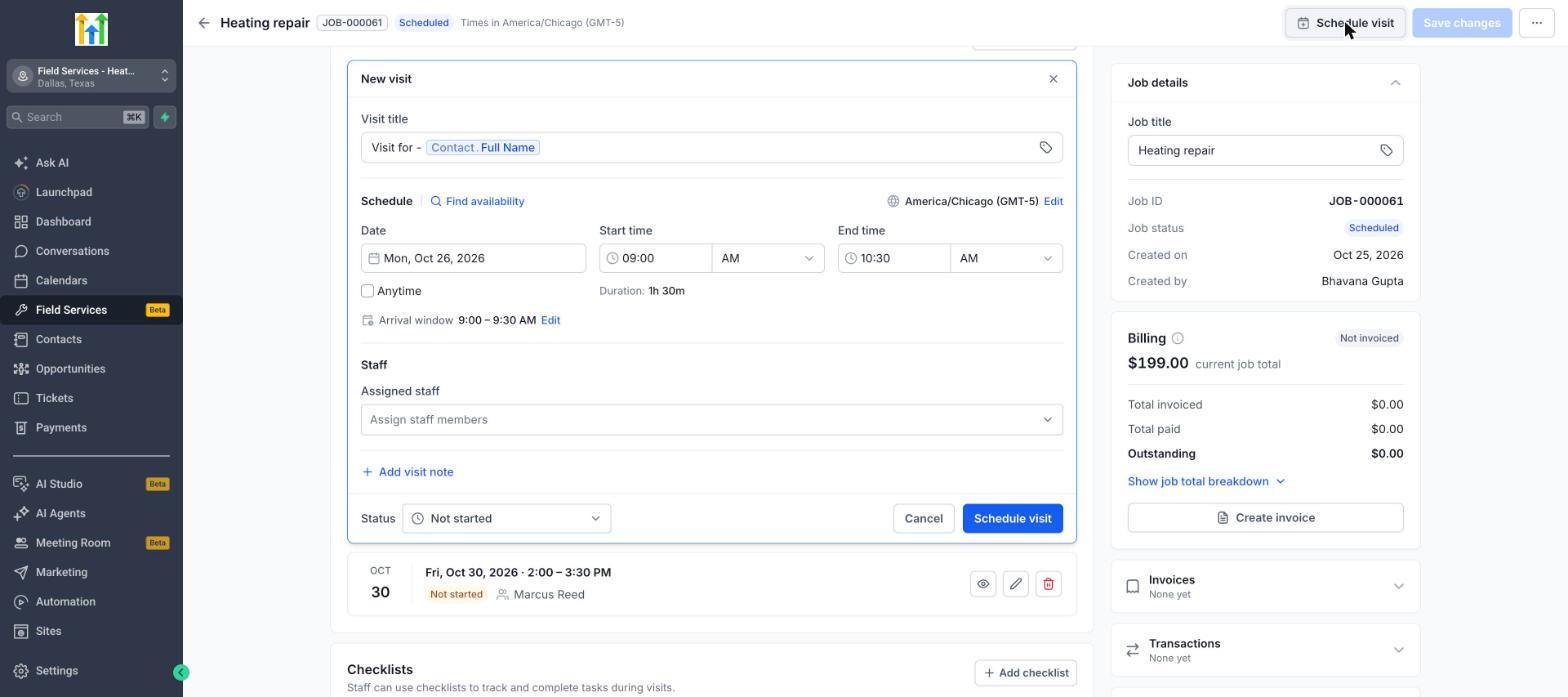
- Open the job and click Schedule visit. You can also start from the Jobs to schedule panel on the calendar, which lists jobs that have no visit yet.
- Review the Visit title. By default it uses the Contact's full name.
- Under Schedule, choose the Date, Start time and End time. The duration comes from the job's services. The time zone is shown at the top right of the section, and you can change it with Edit.
- Tick Anytime if the visit has no fixed time. The visit then sits in the Anytime row on the calendar.
- Click Edit next to Arrival window to change how the visit time is shown to the customer, as an exact time or a time window.
- Under Staff, choose the Assigned staff. You can assign more than one.
- Click Add visit note if you want to add an internal note.
- Choose the visit Status. New visits start as Not started.
- Click Schedule visit.
How to use Find availability
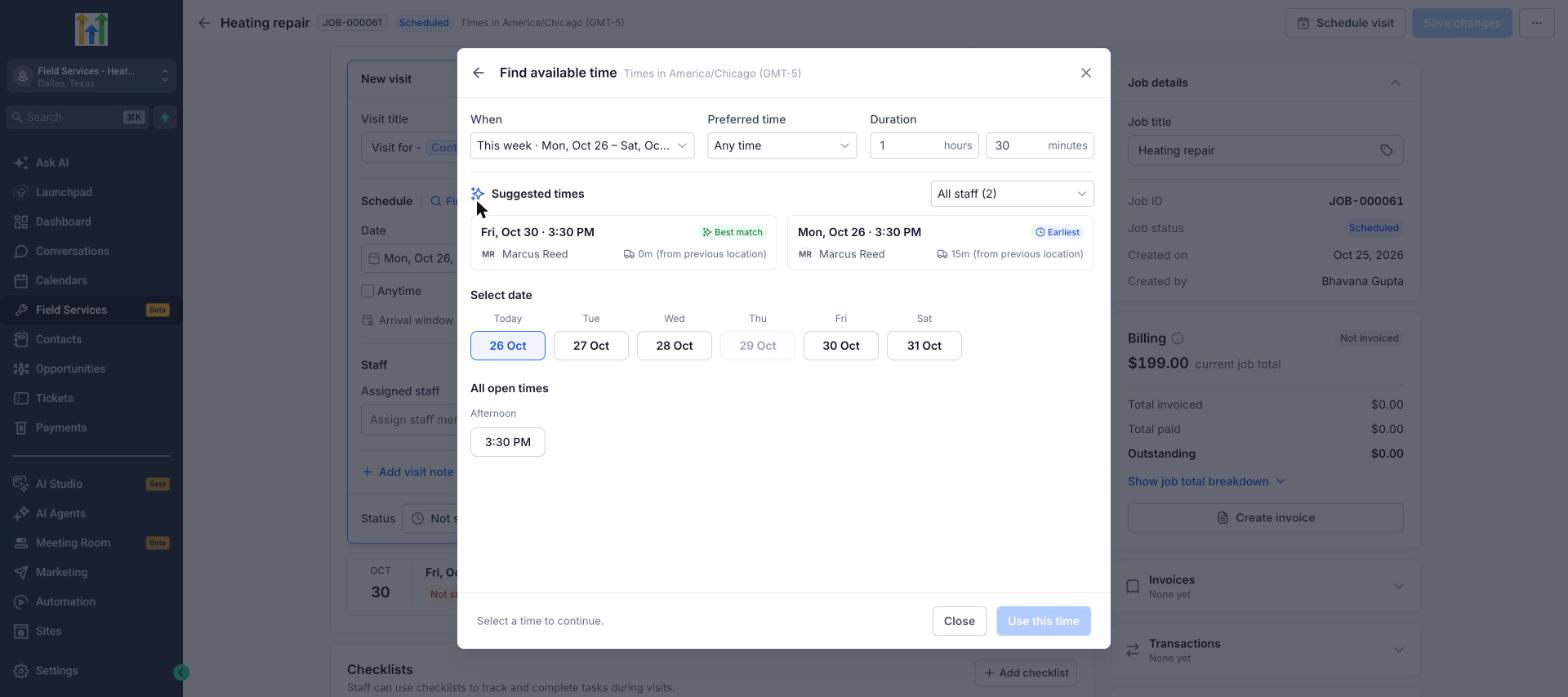
- Click Find availability next to Schedule to open Find available time.
- Under When, choose the week to search. Under Preferred time, choose a part of the day or Any time.
- Check the Duration. It starts from the job's services. You can change the hours and minutes.
- Use the staff filter, for example All staff, to search for everyone or one person.
- Look at Suggested times. The top suggestions are tagged Best match (shortest drive) or Earliest, and show the staff member and the drive time from their previous location.
- Or pick a date under Select date and choose a time from All open times.
- Click Use this time to fill in the visit.
What Find availability checks
Find availability only suggests times that work. It takes into account:
| Check | Why it matters |
|---|---|
| Staff who serve the customer's service area | Sends the right person to the right area. |
| Staff assigned to the selected services | Only qualified staff are suggested. |
| Working hours, time off and blocked time | Respects each person's real availability. |
| Visits already booked | Prevents double booking. |
| Visit duration and your slot interval | Fits the job into a clean slot. |
| Drive time and extra time before visits set on the service area | Leaves room to travel. |
| Daily visit limits for a staff member | Avoids overloading someone. |
| All selected staff free at the same time | Works for multi-person visits. |
Note: Unlike the online booking page, Find availability inside the app does not apply customer-facing rules such as minimum notice and the booking window. This lets your team schedule work sooner or further ahead than customers can.
Scheduling manually
You do not have to use a suggested time. Enter any date and time and choose any staff member yourself, even if they are outside the service area or not assigned to the service. Use this when you need to override the usual rules, for example for an urgent job. If no times are available, Find availability tells you so and you can still schedule manually.
View, edit and delete a visit
On a job, use the icons next to a visit to view, edit or delete it. You can also click a visit on the calendar, or open the visits list, to see its details, change its status, add notes and fill in checklists. See Visit Statuses in Field Services and Checklists, Notes and Forms in Field Services.
Using this on the mobile app
Your team can schedule from the field. On the mobile app, staff can schedule new visits and reschedule existing ones, and change a visit's status as the work progresses. Changes sync between the mobile app and the web, so the schedule is the same for the office and the field.
Frequently asked questions
Why do I see no suggested times?
Check that at least one staff member is assigned to the services on the visit, serves the customer's service area, and has working hours in the week you picked.
Can I schedule a visit in the past?
You can enter a past date manually when you need to record work that already happened. Find availability only suggests future times.
Can I choose the staff the customer prefers?
Choosing a customer's preferred staff is not supported in the private beta. You can assign any staff member manually.
What is the drive time shown in suggestions?
It is the estimated travel time from the staff member's previous visit, or from their route start, to this customer's address.