
Jobs in Field Services
A job is the heart of Field Services. It holds everything about the work for one customer at one address: the scope, the visits, the checklists, the invoices and the payments. This article explains how to create jobs, read the job page and manage a job from start to finish.
Note: Field Services is currently in private beta and is available to selected accounts. Features and screens may change as we improve them.
In this article
- What is a job?
- Where to find jobs
- How to create a job
- Understanding the job page
- Visits on a job
- Billing on a job
- Close, cancel and delete a job
- Job statuses
- Using this on the mobile app
- Frequently asked questions
- Related articles
What is a job?
A job represents the work for one customer at one service address. A job can have one visit or many. For example, a water heater replacement might need a first visit to assess and a second visit to install. Each of those is a visit on the same job.
You can create a job with just a customer, a service address and a title, and add the scope of work later.
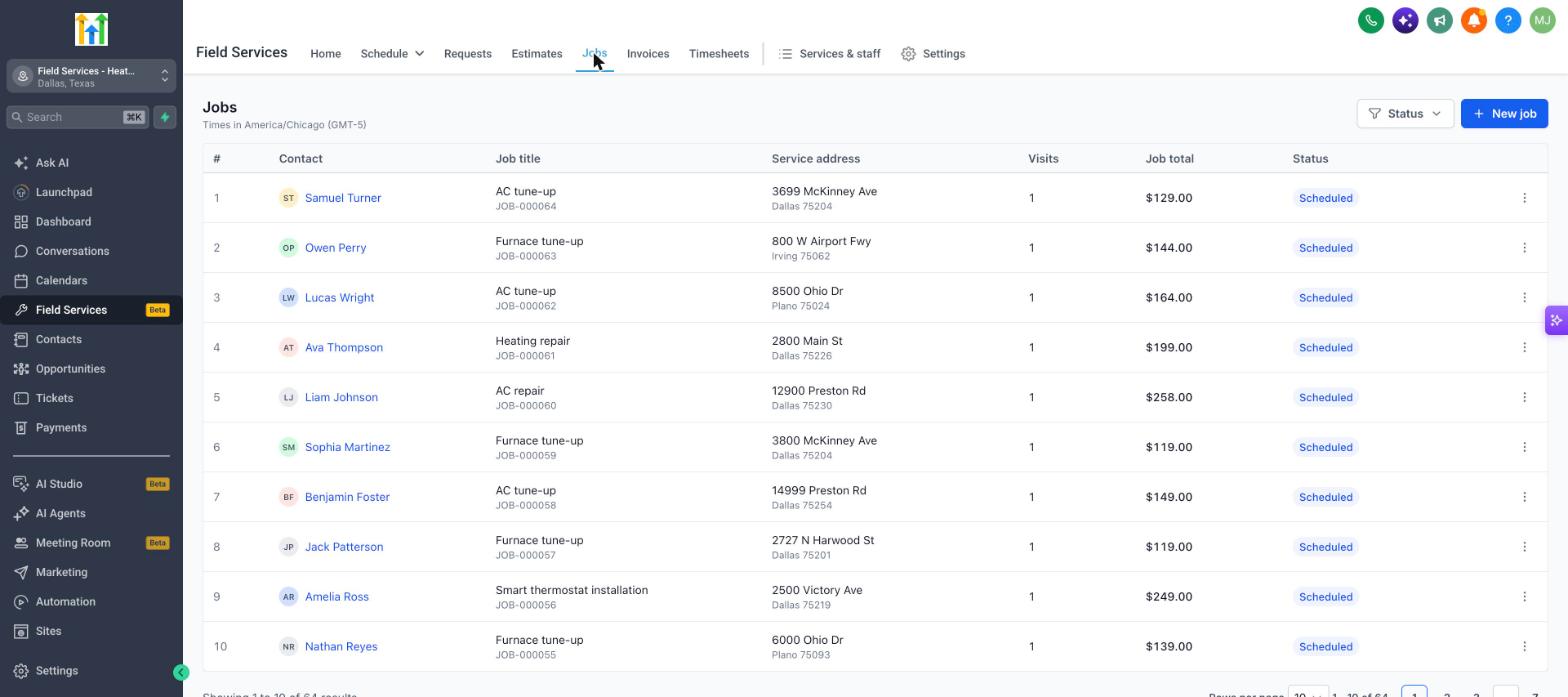
Where to find jobs
- Go to Field Services in the left navigation.
- Click Jobs.
The list shows the Contact, job title and number, service address, number of visits, job total and status. Use the Status filter to narrow the list.
How to create a job
- On the Jobs page, click New job. You can also click New > Create job in the calendar view, or use Convert to job on a request.
- Select the Contact and the Service address.
- Enter a Job title. By default it uses the Contact's full name.
- Add the Services and Products for the job, with quantity and rate.
- Save the job. You can schedule a visit right away or later from the job page.
Note: Services are not required to create a job, but a visit needs at least one service so Field Services can work out the duration and who can do the work.
Understanding the job page
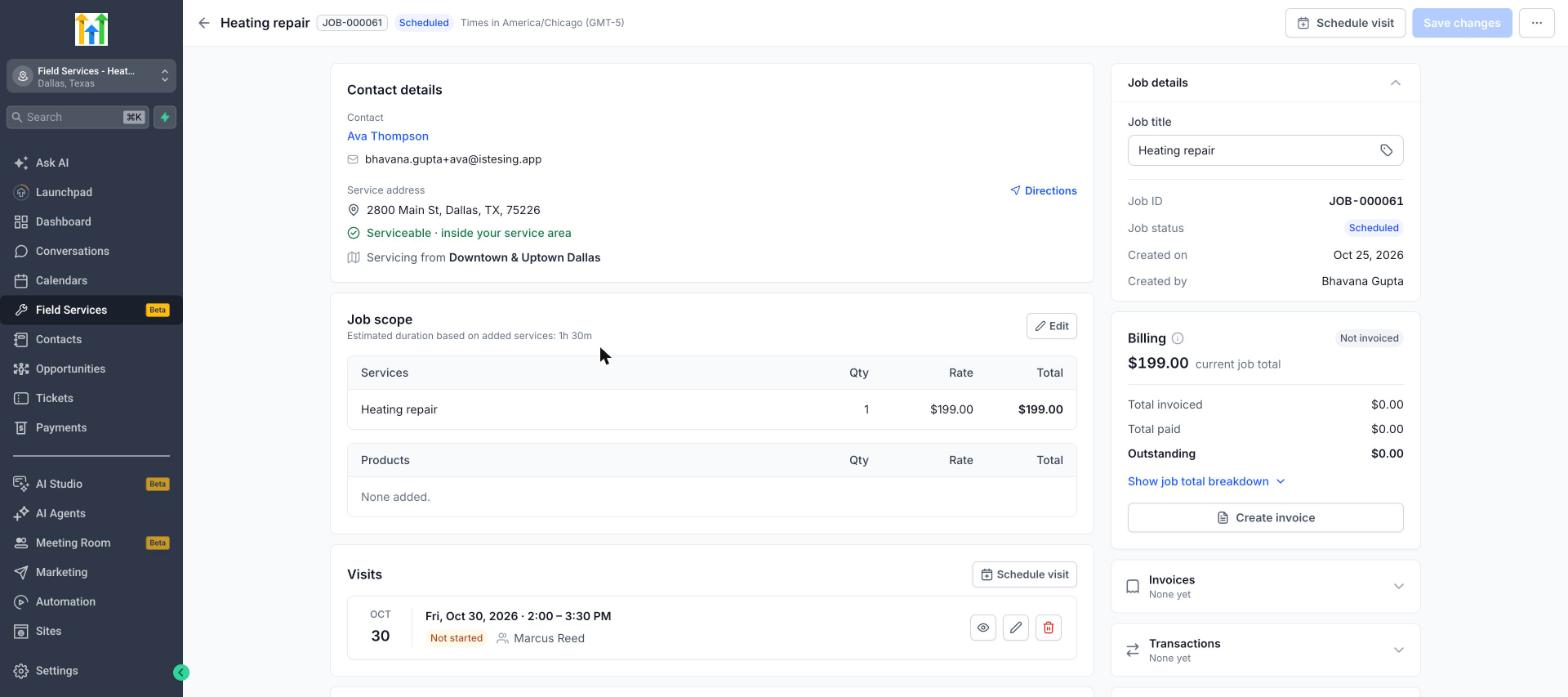
Click a job to open it. The page is organized into cards:
| Section | What it shows |
|---|---|
| Header | The job title, job ID, status and time zone. Use Schedule visit to add a visit, Save changes to save edits, and the three dots for more actions. |
| Contact details | The Contact, their email and the service address. Click Directions to open the address in maps. If the address is outside your service areas, you will see a warning that the job will be flagged for review. Servicing from shows which service area is handling the job. |
| Job scope | The services and products on the job with quantity, rate and total. The estimated duration is based on the services you add. Click Edit to change the scope. |
| Visits | All visits for the job. See Visits on a job below. |
| Checklists | Checklists your staff complete during visits. See Checklists, Notes and Forms in Field Services. |
| Job details | Edit the job title. The job ID, status, created date and creator are shown here. |
| Billing, Invoices, Transactions and Job notes | See Billing on a job below. |
Visits on a job
Each visit on a job shows its date, time, status and assigned staff. Use the icons at the end of a visit to view it, edit it, or delete it. To add a visit, click Schedule visit. See Scheduling Visits and Finding Availability in Field Services.
If you remove a service from the job that is used in a visit, you are asked to confirm first.
Billing on a job
The Billing card shows the current job total, the amount invoiced, the amount paid and the amount outstanding.
- Click Show job total breakdown to see how the total is made up.
- Click Create invoice to invoice the customer.
- Invoices and payment transactions for the job are listed in Invoices and Transactions.
- Internal notes go in Job notes.
See Estimates and Invoices in Field Services.
Close, cancel and delete a job
Click the three dots at the top right of the job page:
| Action | What happens |
|---|---|
| Close job | Use when no more work is expected. If a job still has upcoming or incomplete visits, resolve them first. A closed job keeps its full history. |
| Cancel job | Cancels the job's future visits, keeps the history of completed visits, and stops more visits from being added. |
| Delete job | Permanently removes the job. |
Job statuses
Job status is set by Field Services based on the job's visits and billing. You cannot set it by hand. Use the Status filter on the Jobs page to find jobs.
| Status | Meaning |
|---|---|
| Ready to invoice | The work is done and the job is ready to be invoiced. |
| Unscheduled | No visits are scheduled yet. |
| Scheduled | At least one visit is scheduled. |
| In progress | Work has started. |
| Action required | The job needs attention from your team. |
| Closed | No more work is expected. |
| Cancelled | The job was cancelled. |
Using this on the mobile app
Staff can manage jobs from the mobile app, so the office and the field work from the same job. On mobile, your team can:
- Create new jobs.
- Schedule and reschedule visits.
- Change visit statuses as work progresses.
- Use checklists and notes on the job and its visits.
- Start and stop timers when Timesheets is turned on.
Changes sync between the mobile app and the web, so updates made in the field show up for the office and the other way round.
Frequently asked questions
Can I create a job without a visit?
Yes. A job starts as Unscheduled and appears in the Jobs to schedule panel on the calendar, where you can schedule it.
Do I need a service to schedule a visit?
Yes. A visit needs at least one service so Field Services can work out the duration and which staff can do it. Add a service to the job first.
Can I change the job status manually?
No. The status updates as you schedule, complete and bill visits.
What is the difference between a job and a visit?
The job is the work. A visit is a scheduled trip to do part of it.
Why can I not close my job?
A job cannot be closed while it still has upcoming or incomplete visits. Complete or cancel those visits first.