
Requests in Field Services
Requests are where new work begins. A request captures what a customer needs before anything is agreed, so your team can review it, visit the site if needed, and then convert it into an estimate or a job in one click.
Note: Field Services is currently in private beta and is available to selected accounts. Features and screens may change as we improve them.
In this article
- What is a request?
- Turn requests on or off
- Where to find requests
- How to create a request
- Review a request
- Manage and convert requests
- Request statuses
- Notifications and titles
- Using this on the mobile app
- Frequently asked questions
- Related articles
What is a request?
A request records what a Contact needs help with before any work is agreed. It can include a description, photos, services and products, and an optional site visit so your staff can look at the work first.
Turn requests on or off
The Requests switch is in Field Services Settings > Global settings > Preferences and features. When it is on, Contacts can submit requests and your staff can review them.
When customers book through your booking page, you can also choose whether they book a time directly or send a request. See Field Services Settings: Online Booking and Field Services Settings: Jobs, Visits and Preferences.
Where to find requests
- Go to Field Services in the left navigation.
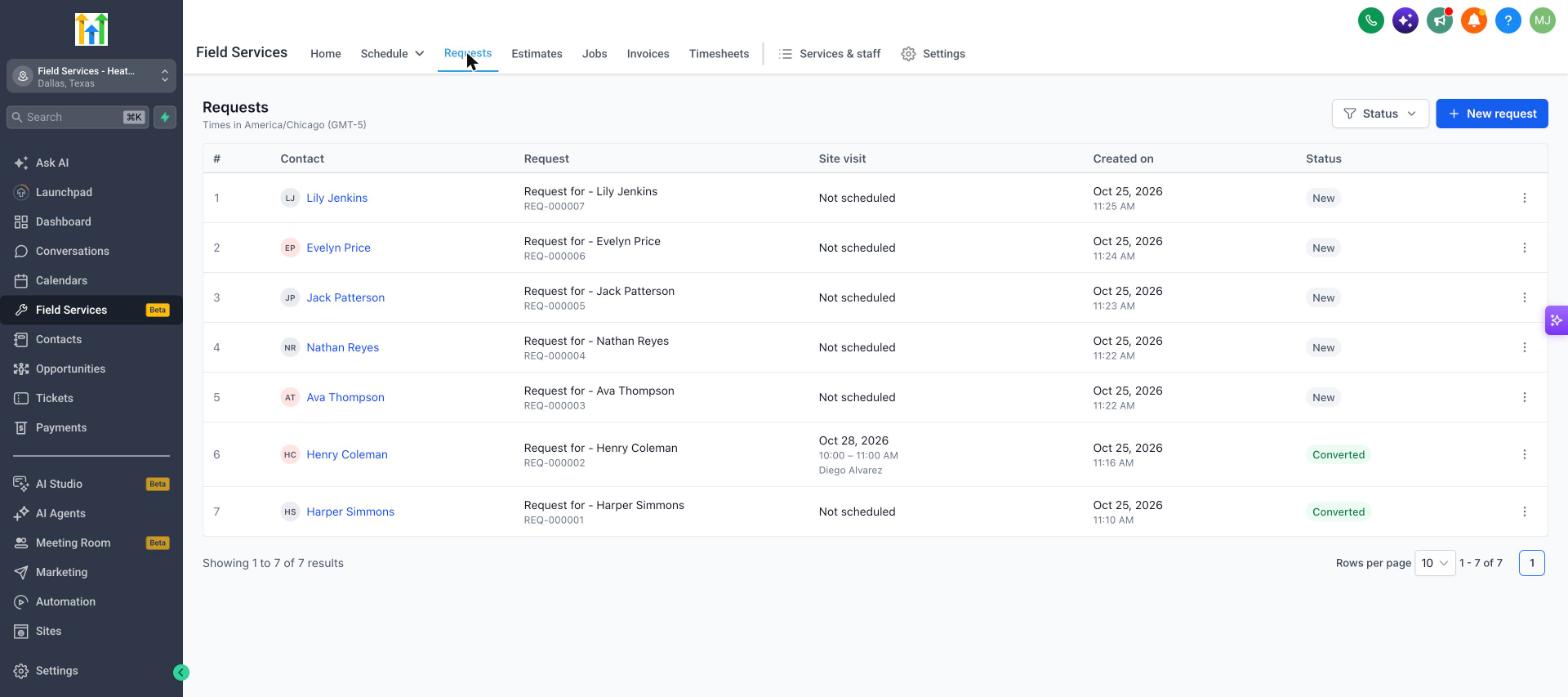
- Click Requests.
The list shows the request number, the Contact, the request title, the site visit date and time, when it was created, and its status.
How to create a request
- On the Requests page, click New request. You can also click New > Create request from the calendar view.
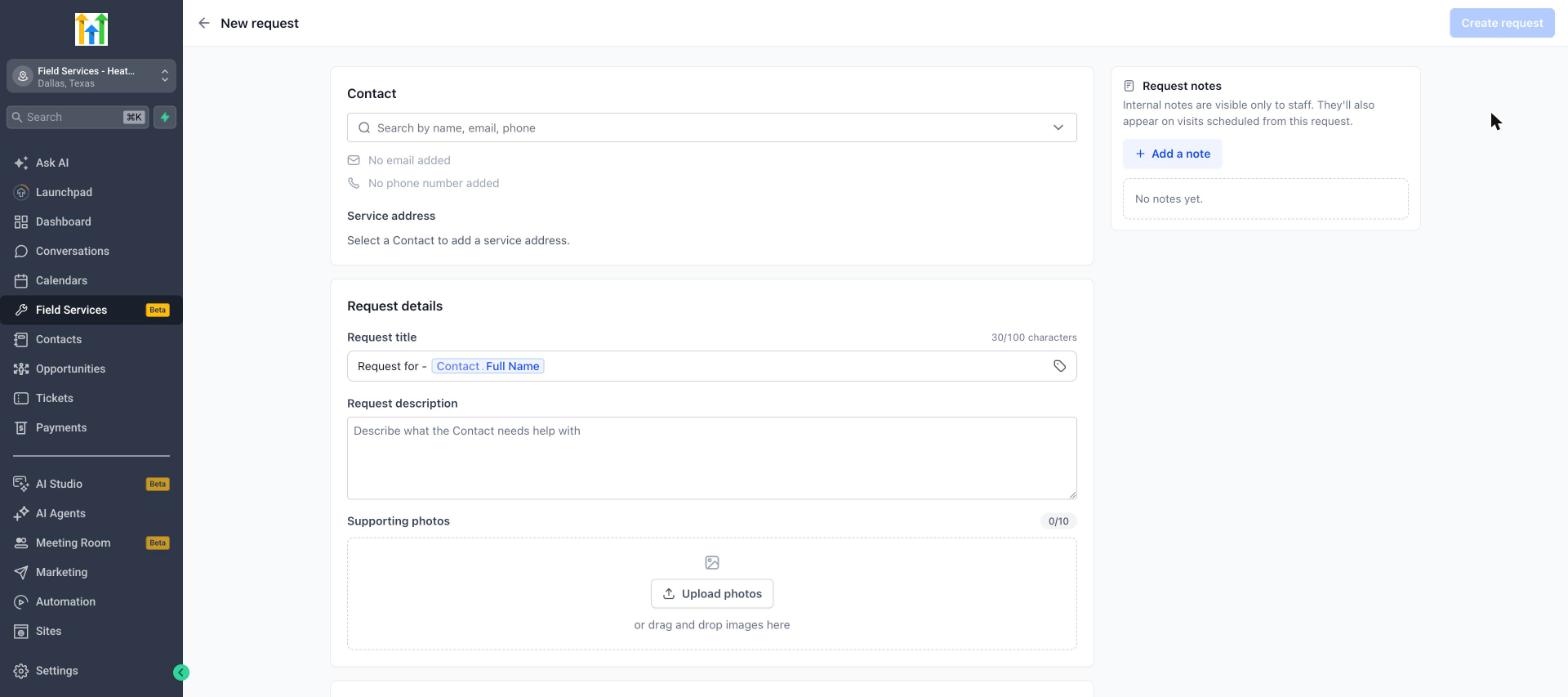
- Under Contact, search by name, email or phone number and select the Contact, or create a new one.
- Check the Service address. Select an address saved on the Contact, or add a new one.
- Under Request details, review the Request title (up to 100 characters). By default it uses the Contact's full name. Add a Request description that explains what the Contact needs.
- Add Supporting photos. You can upload up to 10 images, or drag and drop them.
- Click Add service and Add product to add what the request covers, with quantity, rate and total.
- Turn on Schedule site visit if you want a staff member to visit the Contact before the request is converted, then choose the date, time and staff.
- Use Request notes on the right to add internal notes. Notes are visible only to staff and also appear on visits scheduled from the request.
- Click Create request.
Review a request
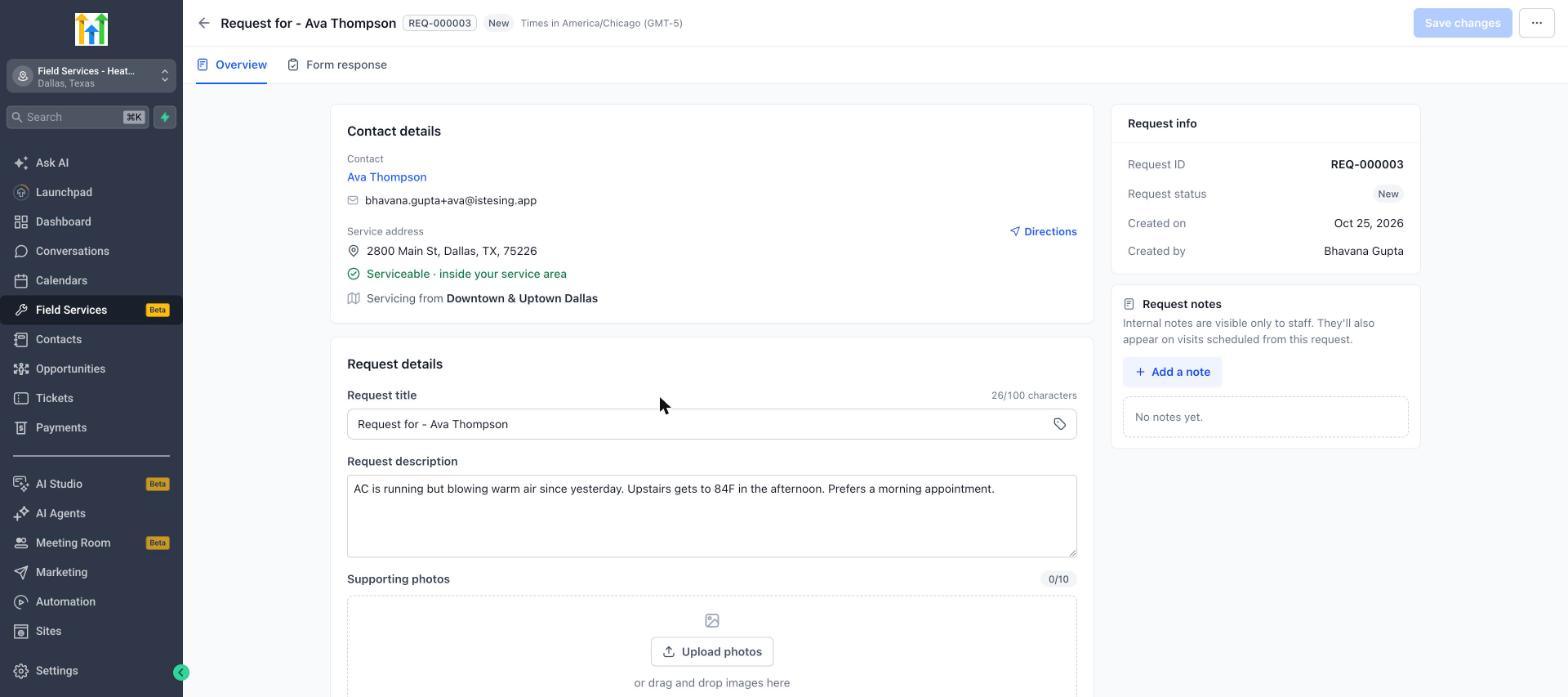
Open a request to see the customer, address, description, photos, services, products, notes and any site visit in one place. From here you can convert the request or update its details.
Manage and convert requests
Click the three dots at the end of a request to:
| Action | What it does |
|---|---|
| Edit | Change the request details. |
| Duplicate | Copy the request. |
| Convert to estimate | Create an estimate for the customer from the request. See Estimates and Invoices in Field Services. |
| Convert to job | Create a job from the request so you can schedule the work. See Jobs in Field Services. |
| Delete | Remove the request. |
Request statuses
Use the Status filter to find requests.
| Status | Meaning |
|---|---|
| All requests | Every request. |
| New | Not reviewed yet. |
| Scheduled | A site visit is scheduled for the request. |
| Action required | The request is waiting on your staff. |
| Converted | The request has been turned into an estimate or a job. |
| Archived | The request is closed without being converted. |
When you archive a request without converting it, your staff choose a reason. Manage the list of reasons in Field Services Settings > Jobs, visits and requests > General > Request archive reasons.
Notifications and titles
You can send the Contact and your team messages when a request is submitted, when it is scheduled for a visit, and as a reminder before the request visit. See Notifications in Field Services.
Change how new request titles are named in Field Services Settings > Jobs, visits and requests > General > Titles.
Using this on the mobile app
Your team can manage requests on the go from the mobile app. Staff can create new requests while they are with a customer, and keep working on them from the field. Changes sync between the mobile app and the web, so the office and the field always see the same information.
Frequently asked questions
Can a request exist without services?
Yes. A request can be just a description of the problem. You can add services and products later or when you convert it.
What is the difference between a request visit and a job visit?
A request visit is a site visit to look at the work before it is agreed. A job visit is scheduled work for a job. They are separate. Scheduling a request visit does not create a job.
Do customers need to submit a request?
No. You can let customers book a time directly, or you can create requests and jobs yourself. See Field Services Settings: Online Booking.