
Importing Services into Field Services
Already have a service catalog? You do not need to rebuild it. Import brings your services into Field Services from a CSV file or from the services you already set up, so you can start taking bookings faster.
Note: Field Services is currently in private beta and is available to selected accounts. Features and screens may change as we improve them.
In this article
- What can I import?
- Where to find Import
- How to import from a CSV file
- How to copy existing services
- Import history
- What to do after importing
- Frequently asked questions
- Related articles
What can I import?
You can import services from two sources:
| Source | What it does |
|---|---|
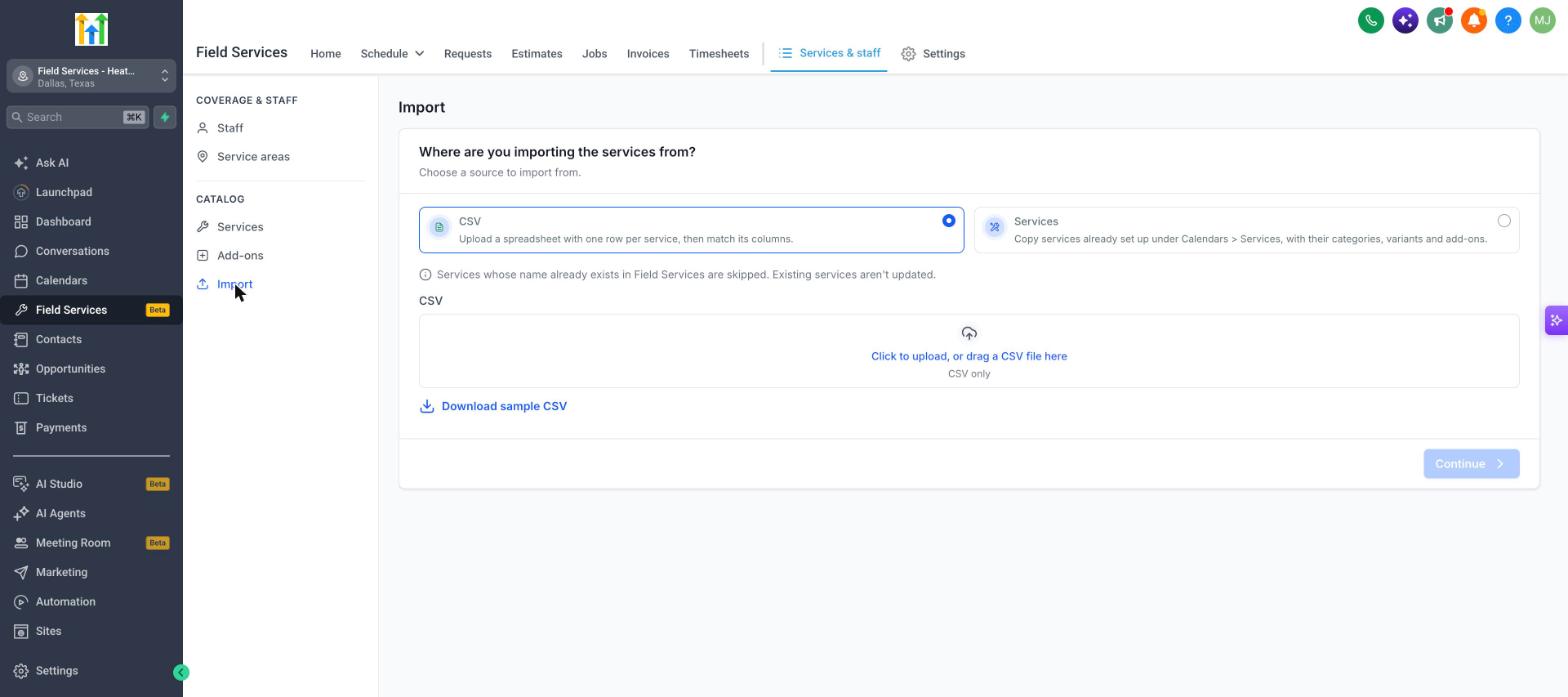
| CSV | Upload a spreadsheet with one row per service, then match its columns to Field Services fields. |
| Services | Copy services you already set up under Calendars > Services, with their categories, variants and add-ons. |
Note: Services whose name already exists in Field Services are skipped. Existing services are not updated.
Where to find Import
- Go to Field Services > Services & staff.
- Click Import under Catalog.
How to import from a CSV file
- On the Import page, click New import.
- Choose CSV as the source.
- Click Download sample CSV to see the format, then fill in your own file with one row per service.
- Click Click to upload, or drag a CSV file here and select your file.
- Click Continue and match your file's columns to the Field Services fields.
- Review and confirm the import.
How to copy existing services
- On the Import page, click New import.
- Choose Services as the source.
- Click Continue and follow the steps to select what to copy.
The copy includes categories, variants and add-ons. Your original services are not changed.
Import history
The Import page lists your past imports with the action label, operation (for example CSV), status, who ran it, when it was created and completed, and statistics.
- Use the date filters and the status filter to narrow the list.
- Click the chart icon under Statistics to see how many items were created, skipped or failed.
What to do after importing
- Open Services and Add-ons in Field Services and check each imported service's price, duration and category.
- Assign staff to the imported services. See Staff in Field Services.
- Test a booking on your booking page. See Field Services Settings: Online Booking.
Frequently asked questions
Will importing change my existing Services?
No. Importing only creates services in Field Services.
I imported again and some services were missing. Why?
Services with a name that already exists in Field Services are skipped. Rename the service or remove the existing one, then import again.
Can I import from other software like Housecall Pro or Jobber?
Not yet. These importers are planned. For now, export your data to a CSV file and use the CSV importer.