
Services and Add-ons in Field Services
Your service catalog is the menu of what you offer. It drives what customers can book on your booking page and what your team can add to requests and jobs. This article shows how to create services, set pricing and duration, and offer optional add-ons.
Note: Field Services is currently in private beta and is available to selected accounts. Features and screens may change as we improve them.
In this article
- What are services and add-ons?
- Where to find services
- How to create a service
- Advanced service settings
- How to manage services
- Add-ons
- Frequently asked questions
- Related articles
What are services and add-ons?
A service is a type of work you perform, such as "AC tune-up". The service you choose also determines how long a visit takes and which staff can be assigned. An add-on is an optional extra, like a filter replacement, that a customer can add to a service.
Where to find services
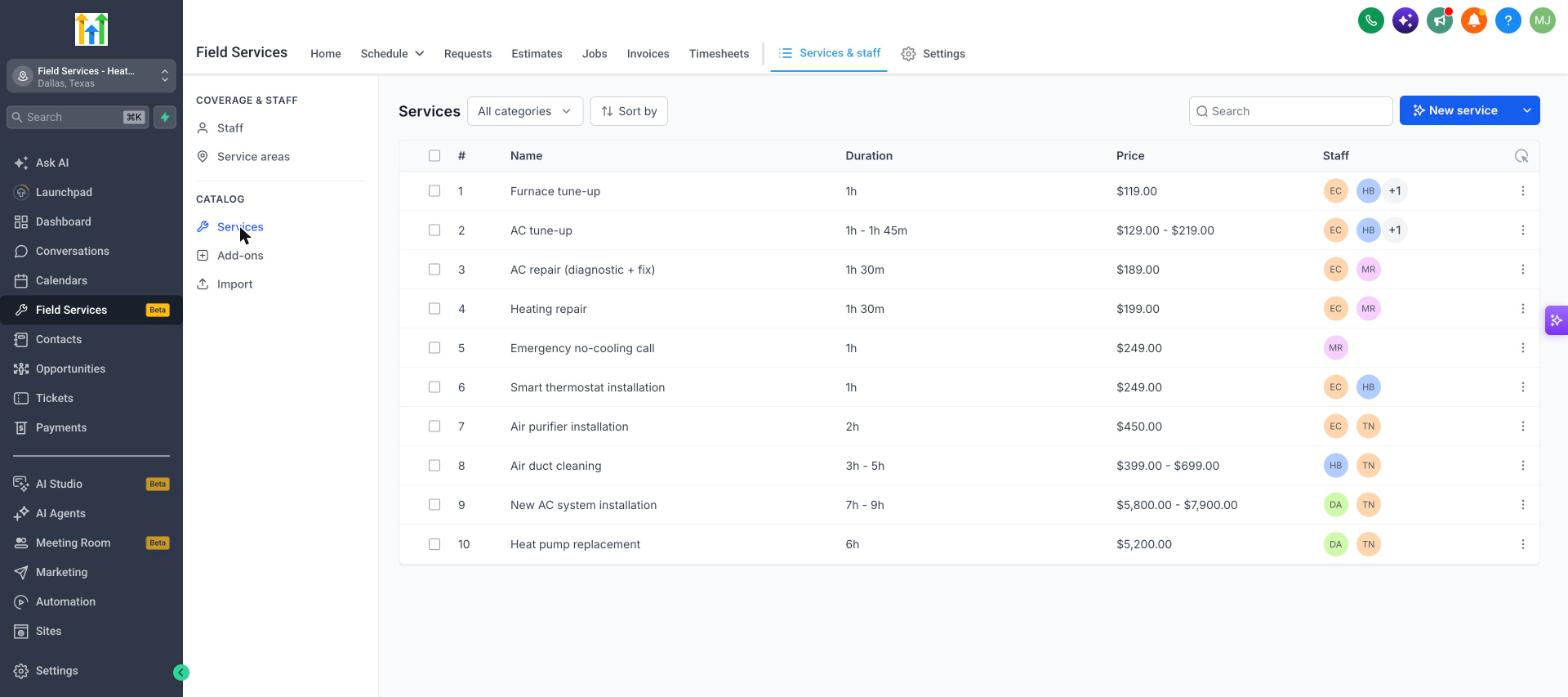
- Go to Field Services > Services & staff.
- Click Services under Catalog.
The list shows each service's name, duration, price and assigned staff. Use All categories to filter, Sort by to reorder, and the search box to find a service.
How to create a service
- On the Services page, click New service.
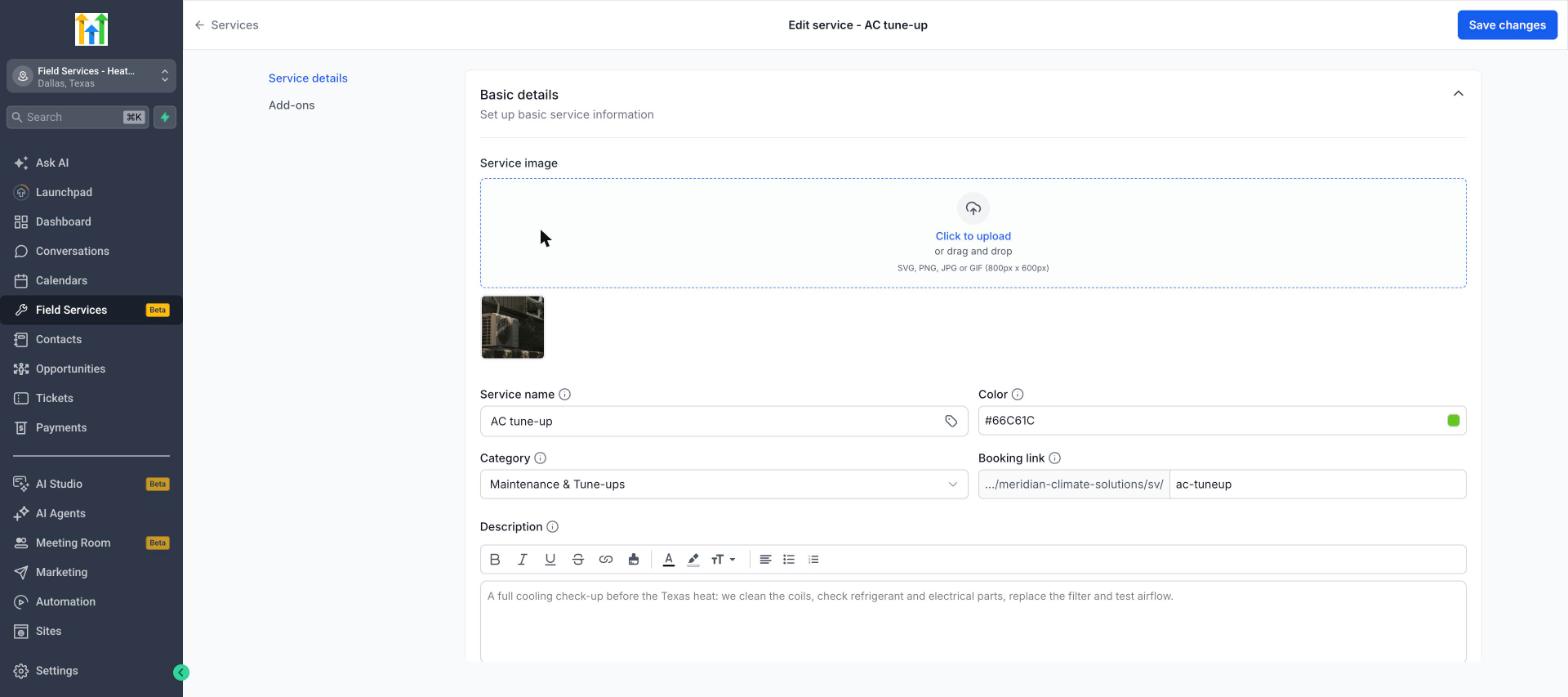
- Upload a Service image (SVG, PNG, JPG or GIF, 800 x 600 px) if you want one.
- Enter the Service name.
- Pick a Color. This color helps you recognize the service in your schedule.
- Choose a Category. New services go into Default unless you pick another.
- Check the Booking link. Customers can use it to book this service directly. You can edit the last part of the link.
- Add a Description. You can format the text and add links.
- Under Service details, select the Staff members who can perform the service.
- Enter the Price and the Duration.
- Click Add service.
Note: Assign at least one staff member to every service. A service with no staff cannot be booked online.
Advanced service settings
Click Advanced settings in the New service window, or edit an existing service, to open the full service editor. It has two tabs on the left, Service details and Add-ons, and these sections:
| Section | What you can do |
|---|---|
| Basic details | Image, name, color, category, booking link and description. |
| Service details | Set the service Duration. |
| Payment | Set the Price and click Configure tax for this service. If no payment provider is connected, you will see No default payment provider found with a Manage payment providers link. Accept partial payment is available once a provider is set up. |
| Service-level form | Use a specific form when the service is booked on its own. When a customer books several services together, the form from the booking page settings is used instead. |
| Variants | Offer different options of the same service, such as sizes or levels, each with its own name, duration and price. |
Click Save changes when you are done.
How to manage services
Click the three dots at the end of a service row to:
| Action | What it does |
|---|---|
| Edit | Open the service editor. |
| Duplicate | Create a copy to use as a starting point. |
| Share booking link | Copy the direct booking link for the service. |
| Delete | Remove the service. |
Add-ons
Add-ons are optional extras that increase the value of each visit. To manage them:
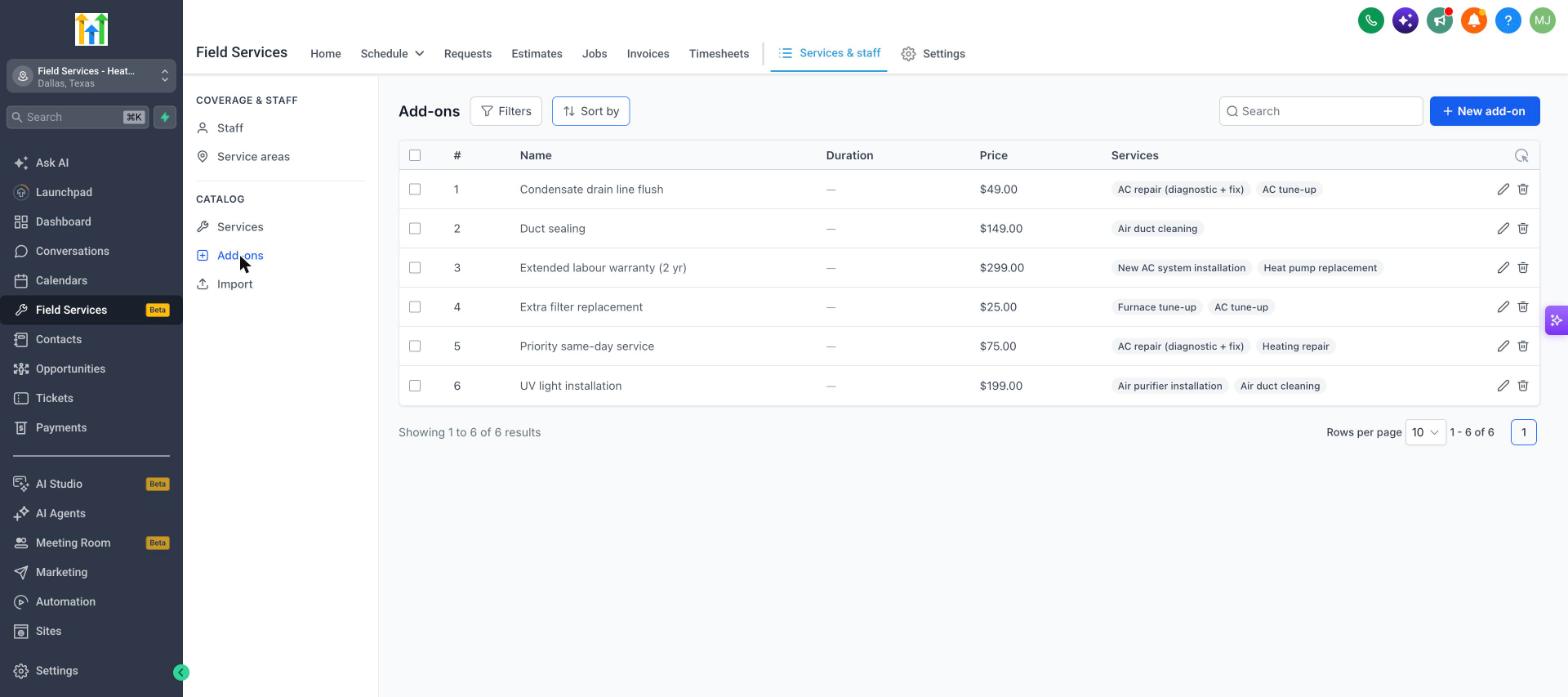
- Go to Field Services > Services & staff > Add-ons.
- Click New add-on and fill in the details, including the services it applies to.
The Add-ons list shows each add-on's name, duration, price and the services it is attached to. You can also open a service in the full editor and use the Add-ons tab to attach add-ons to that service.
Frequently asked questions
Can I bring in services I already have?
Yes. See Importing Services into Field Services.
How do I change the currency?
Currency is set in Field Services Settings > Payments. After you change it, update the price of each service so it matches the new currency.
Why can't customers pay online for a service?
Online payment needs a connected payment provider. Until then, use Pay in-person in your payment settings.
Do services in Field Services appear in my other Services?
No. They are separate catalogs. Use the importer to copy services across.