
Staff in Field Services
Staff are the people you send out on jobs. When a staff member is fully set up, Field Services can suggest them for the right visits, at the right times, in the right places. This article explains how to add staff and configure their working hours, services, service areas and route.
Note: Field Services is currently in private beta and is available to selected accounts. Features and screens may change as we improve them.
In this article
- What is a staff member in Field Services?
- Where to find staff
- How to add a staff member
- Basic details
- Assign services and set a visit limit
- Weekly working hours
- Eligible service areas
- Dispatch settings (route start and end)
- Frequently asked questions
- Related articles
What is a staff member in Field Services?
A staff member is a user in your sub-account who can be assigned to visits. Setting up a staff member completely makes them bookable. A bookable staff member has:
- Working hours.
- At least one assigned service.
- At least one eligible service area.
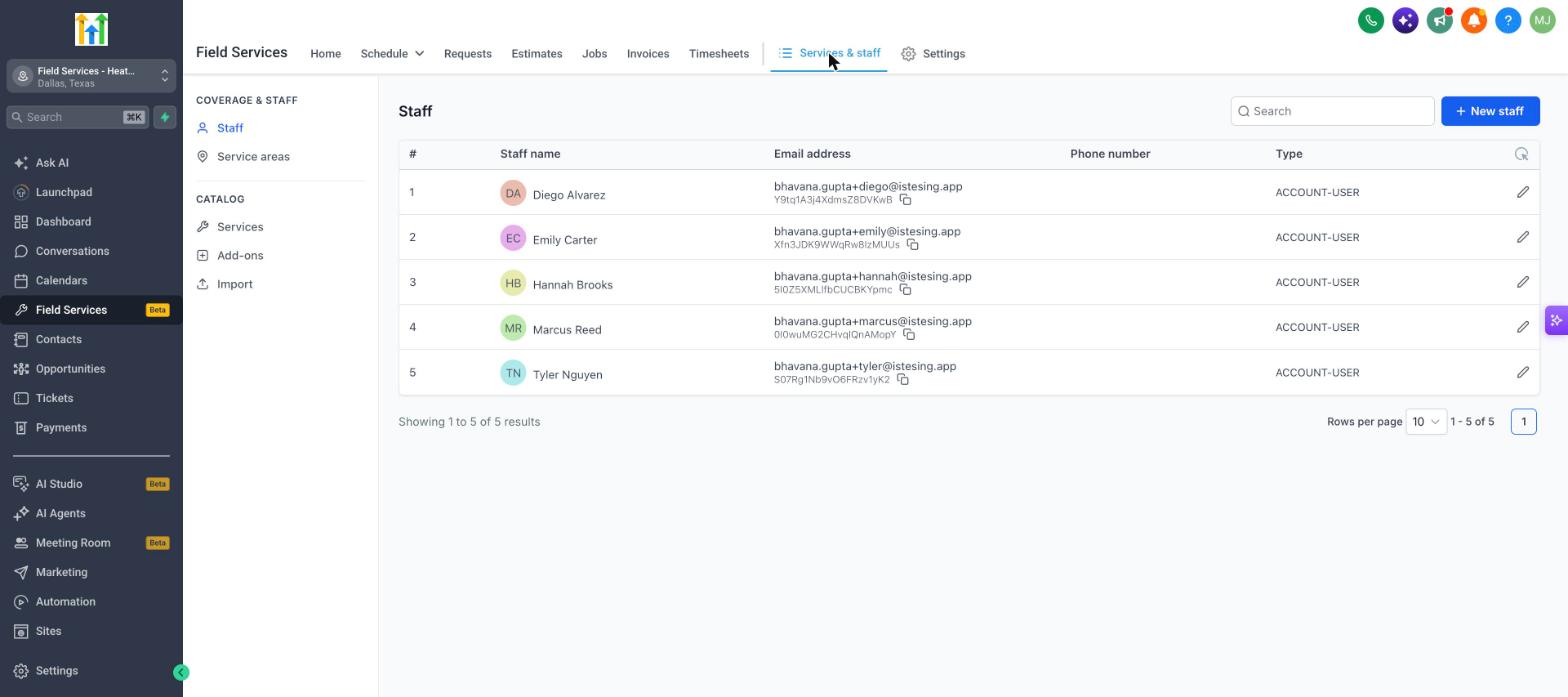
Where to find staff
- Go to Field Services > Services & staff.
- Click Staff under Coverage & staff.
The list shows each staff member's name, email, phone number and type. Use the search box to find someone, and click the pencil icon to edit them.
How to add a staff member
- On the Staff page, click New staff.
- Enter the staff member's details and add them.
- Click the pencil icon next to the new staff member to finish setting up their hours, services, service areas and route.
The staff editor has five sections, described below.
Basic details
- Photo: Upload a PNG, JPG or GIF.
- First name, Last name, Email: Required.
- Phone number: Optional.
- Timezone: The staff member's time zone. Make sure it matches where they work so hours show correctly to customers.
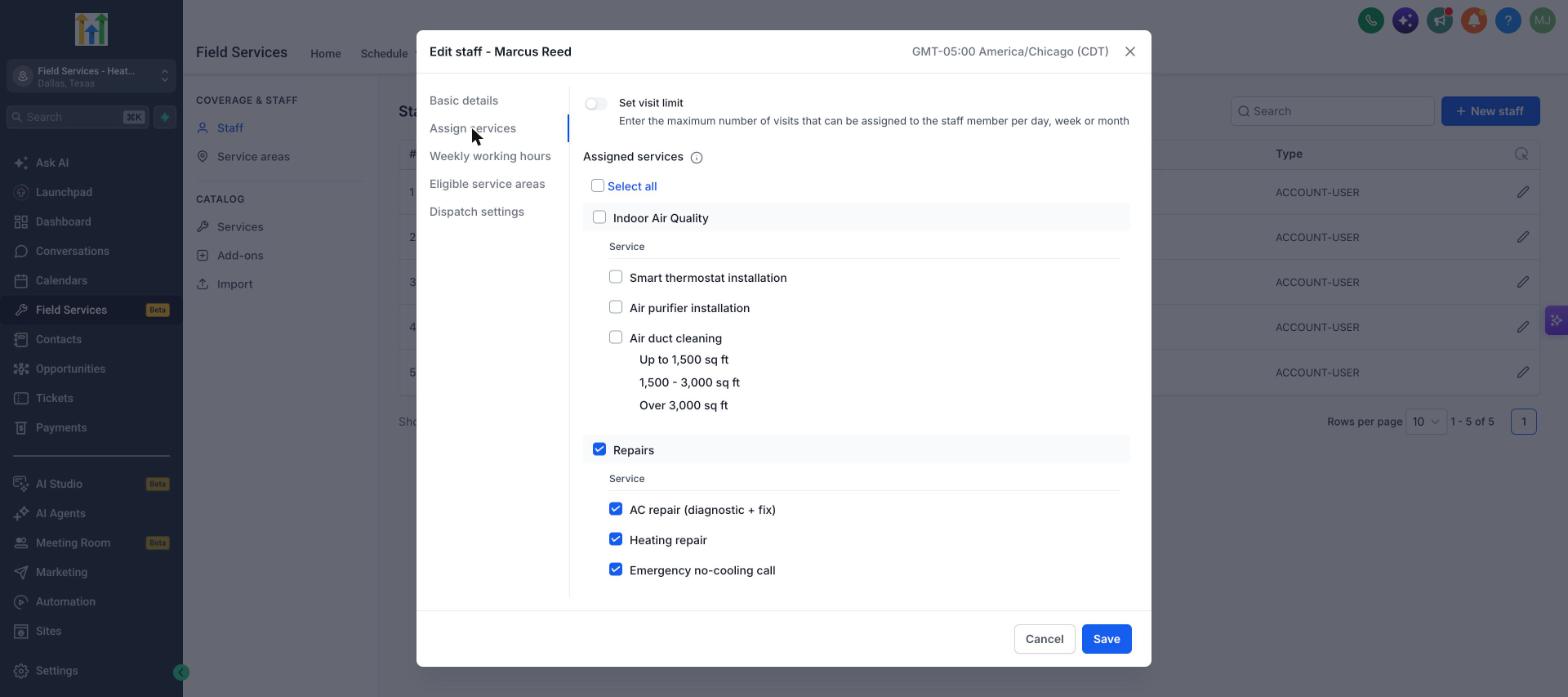
Assign services and set a visit limit
Open Assign services to choose which services the staff member can perform. Services are grouped by category. Tick a category to select all of its services, or use Select all.
Turn on Set visit limit to cap the number of visits that can be assigned to this person per day, week or month.
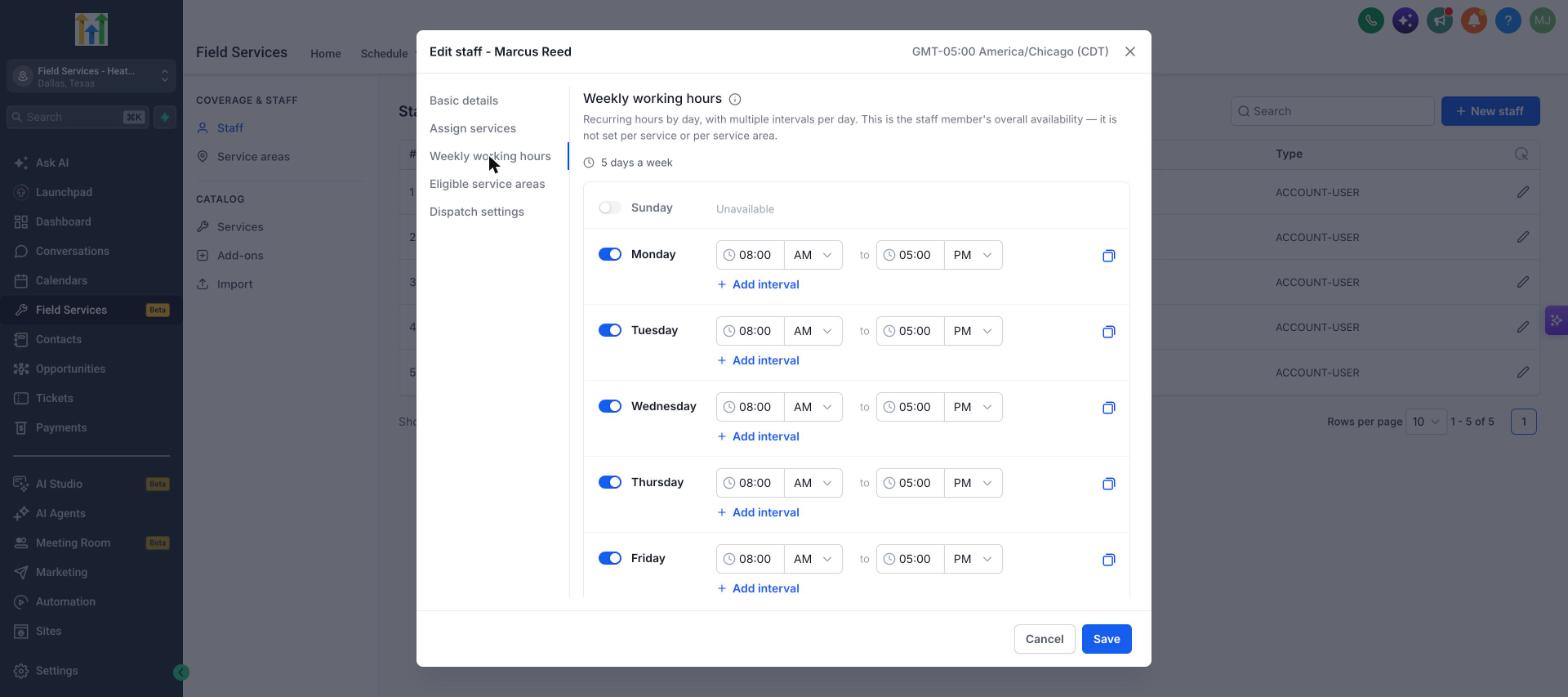
Weekly working hours
Open Weekly working hours to set the days and times the staff member works. These hours describe their overall availability. They are not set per service or per service area.
| Control | What it does |
|---|---|
| Day toggle | Turns a working day on or off. |
| Start and end time | Sets the working block for that day. |
| Add interval | Adds more than one block in a day, for example a morning and an afternoon shift. |
| Copy icon | Applies a day's hours to other days. |
Eligible service areas
Open Eligible service areas and tick the areas where this staff member can be assigned work. The page shows how many areas are assigned, for example "1 of 1 areas assigned". Use Select all or Deselect all to change everything at once. See Service Areas in Field Services.
Dispatch settings (route start and end)
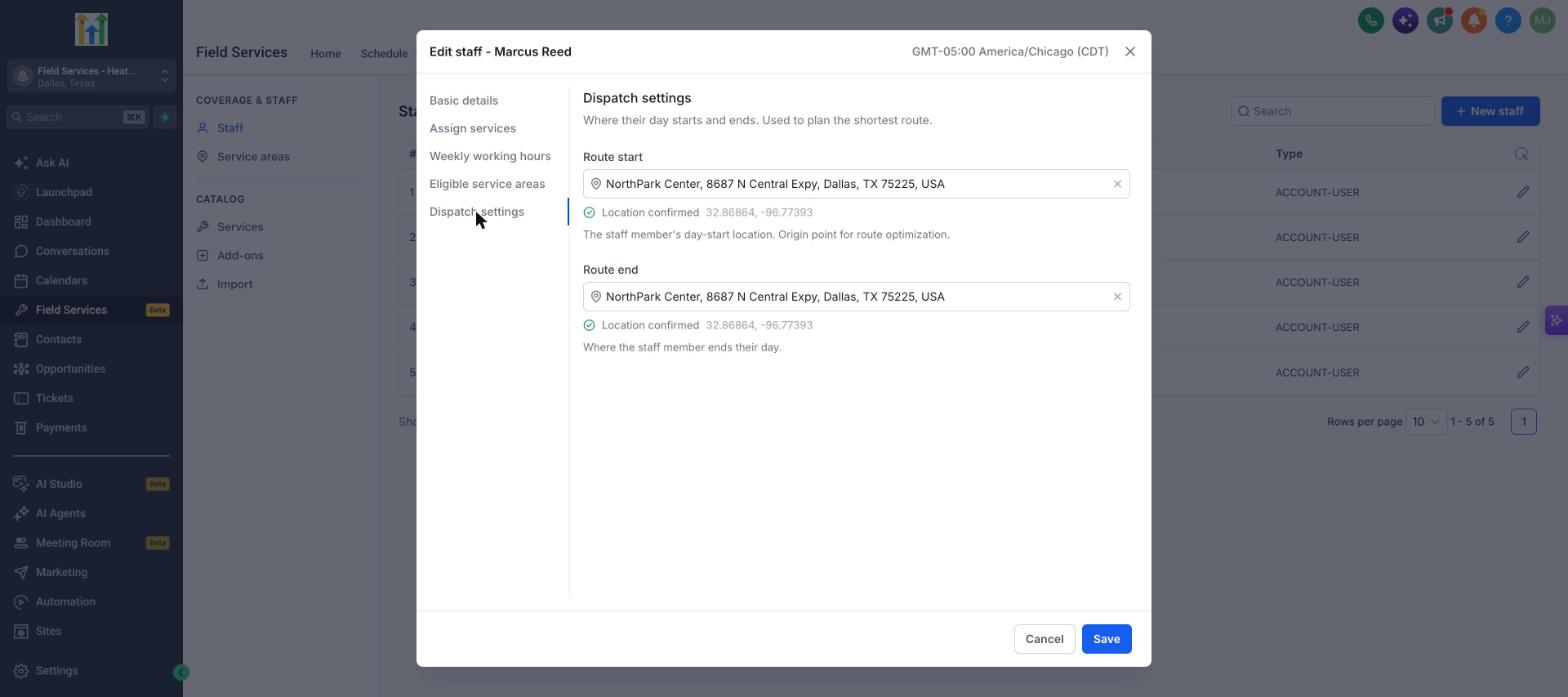
Open Dispatch settings to set where the staff member's day starts and ends. Field Services uses these points to plan the shortest route.
| Field | What it is |
|---|---|
| Route start | The staff member's day-start location. This is the starting point for route optimization. |
| Route end | Where the staff member ends their day. |
Enter an address and select it from the suggestions. A green Location confirmed message tells you the address was recognized. Click Save when you are done.
Note: Route start and end are used by Route optimization. Set them for every staff member who works routes. See the Route Optimization article.
Frequently asked questions
Why is a staff member not showing in suggested times?
Check that they have working hours for that day, are assigned to the selected services, serve the customer's service area, and are not already booked or blocked.
Can I assign someone who is not set up for a service or area?
Yes. When you schedule a visit manually you can choose any staff member. The suggested times only include staff who match the service and service area.
Do office staff and owners need to be added as staff?
No. Add only the people who go out on jobs. Other team members can still use Field Services based on their user permissions.
Can a visit have more than one staff member?
Yes. You can assign more than one staff member to a visit. Field Services checks that all selected staff are available at the same time.