
Service Areas in Field Services
Service areas define where your business works. They control which customer addresses you can serve, which staff can take the work, and whether you charge a travel fee or reserve extra travel time. This article shows you how to create and manage service areas and what happens when a customer is outside them.
Note: Field Services is currently in private beta and is available to selected accounts. Features and screens may change as we improve them.
In this article
- What are service areas?
- Where to find service areas
- How to create a service area
- Travel fee and extra time before visits
- What happens when an address is outside your service areas?
- How service areas affect staff
- Frequently asked questions
- Related articles
What are service areas?
A service area is a geographic region, for example "Downtown" or "North Suburbs". You define it with either a radius around a starting address or a list of ZIP / postal codes, and then assign the staff who can serve it. A Default service area is created for you when you start using Field Services.
Service areas work together with staff and booking rules:
- Customers booking online are checked against your areas.
- Find availability only suggests staff who serve the customer address.
- Travel fees and extra time are applied per area.
Where to find service areas
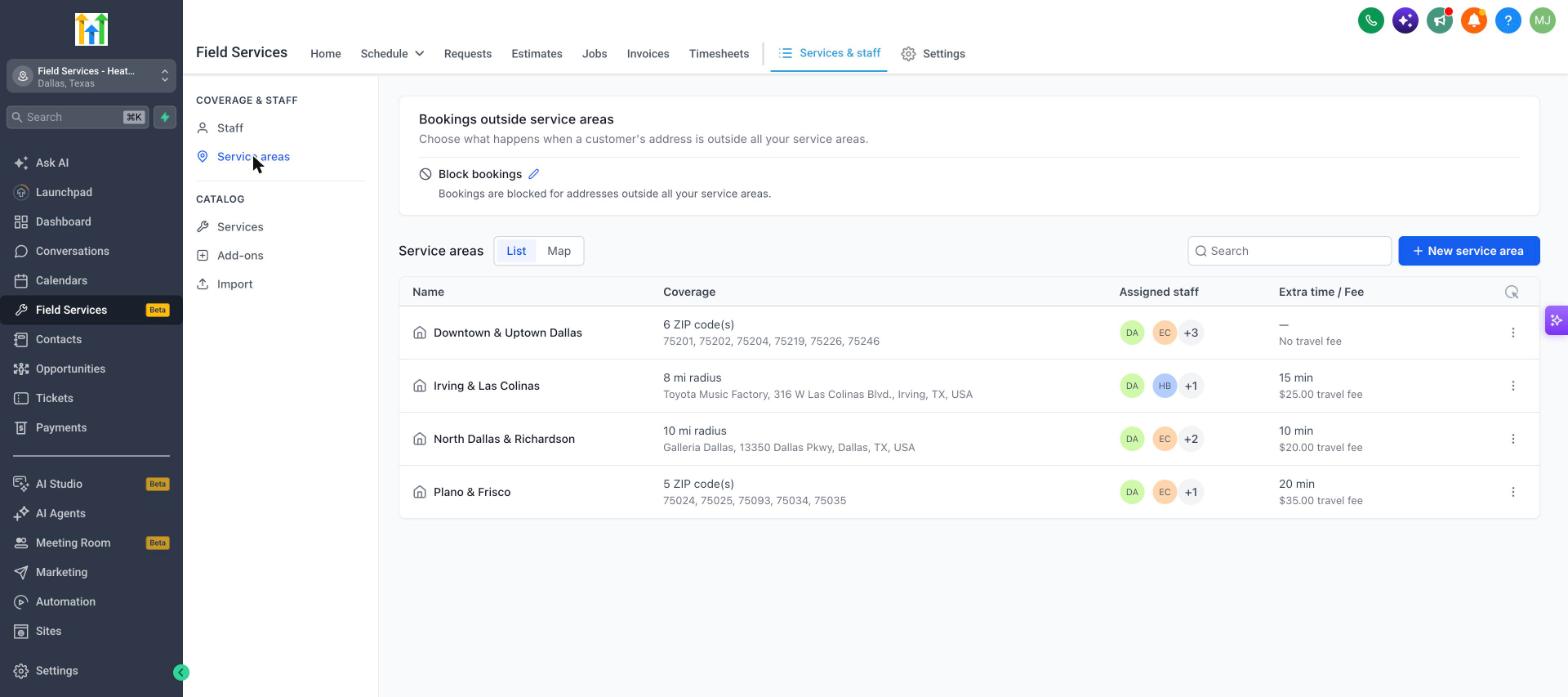
- Go to Field Services > Services & staff.
- Click Service areas under Coverage & staff.
View your areas as a List or on a Map. The list shows each area's name, coverage, assigned staff and any extra time or travel fee.
How to create a service area
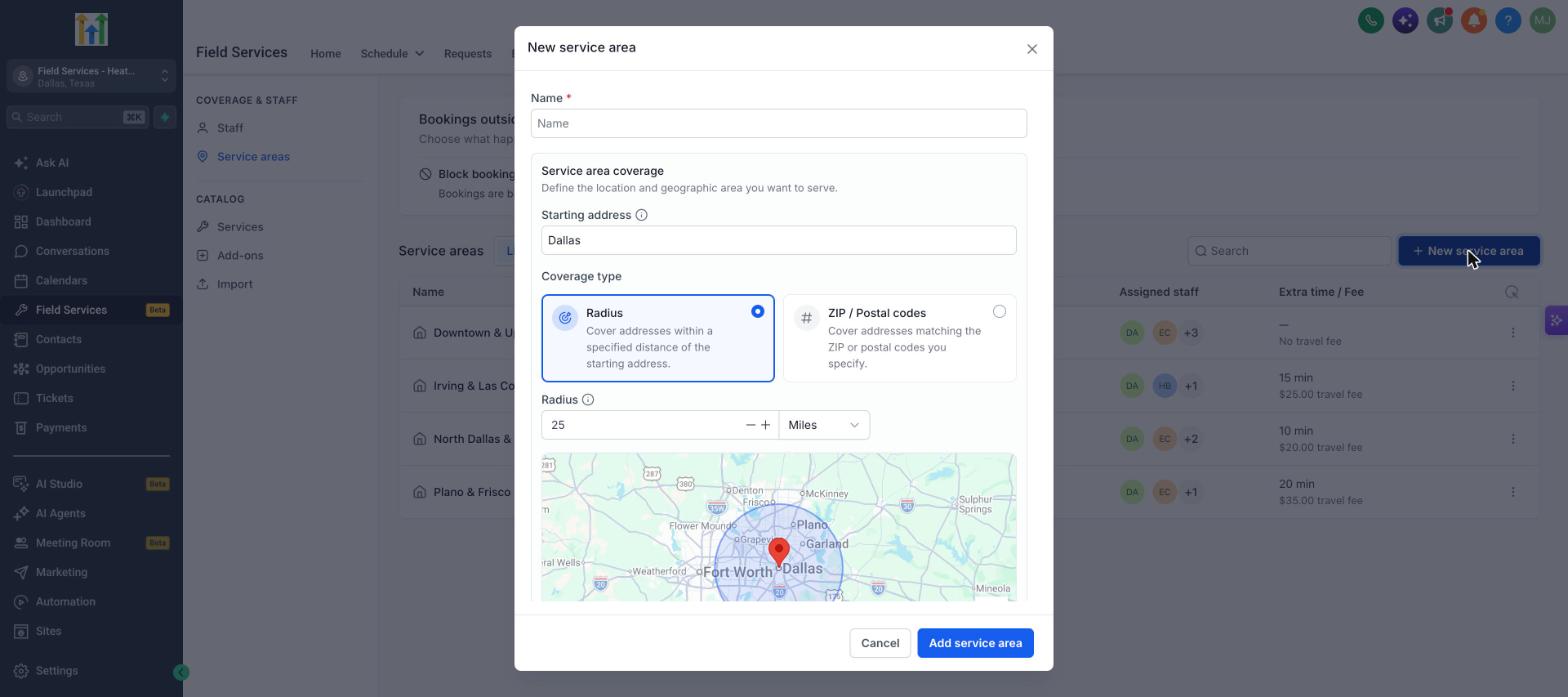
- On the Service areas page, click New service area.
- Enter a Name.
- Under Service area coverage, enter the Starting address. This is the center point for a radius, or the reference location for the area.
- Choose a Coverage type (see the table below).
- Under Assigned staff, select the staff who can serve customers in this area.
- Set the travel options if you need them.
- Click Add service area.
| Coverage type | How it works | Best for |
|---|---|---|
| Radius | Covers addresses within a distance of the starting address. Enter the radius and choose Miles or Kilometers. A map previews the area. | Businesses that travel a set distance from a shop or depot. |
| ZIP / Postal codes | Covers addresses that match the ZIP or postal codes you enter. | Businesses that serve specific towns or neighborhoods. |
Note: Create overlapping areas carefully. Assign staff to every area they can actually reach so availability stays accurate.
Travel fee and extra time before visits
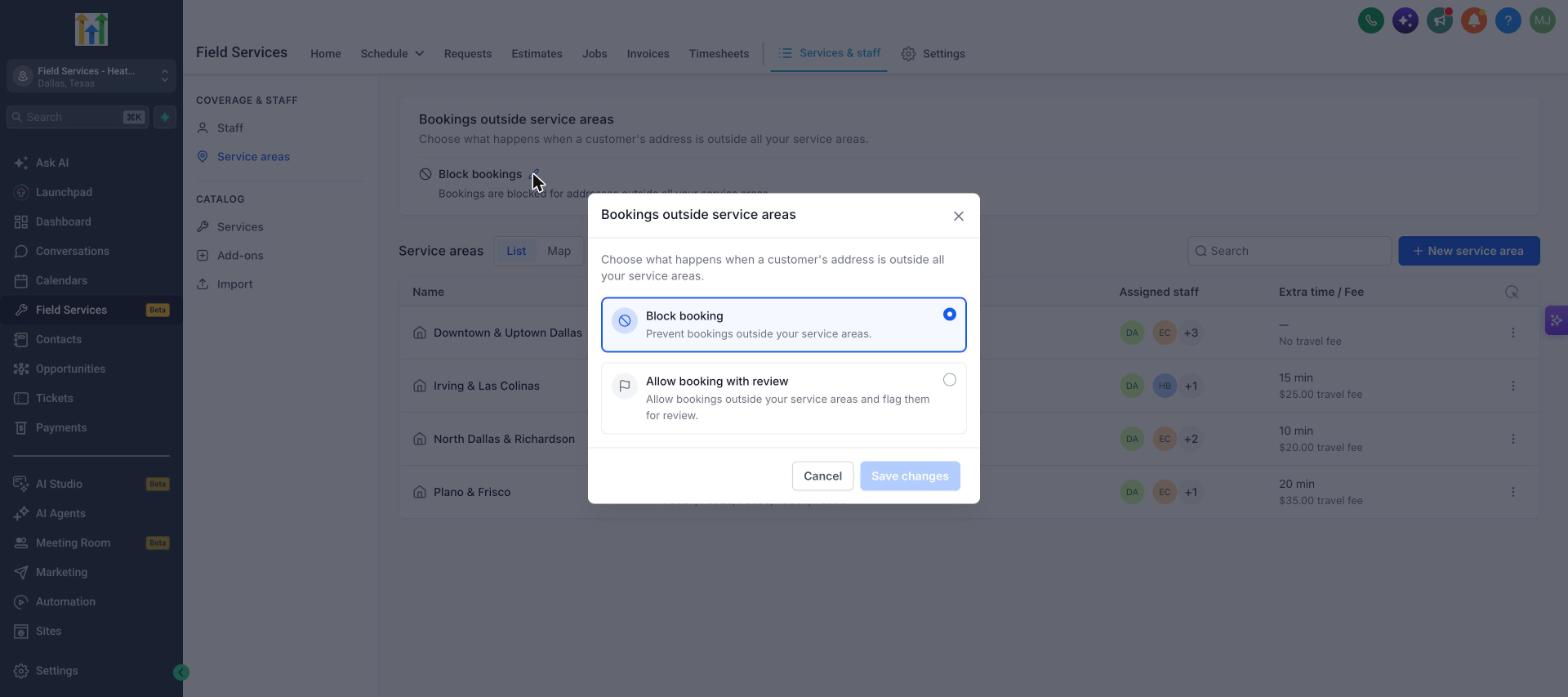
At the bottom of the form, Travel fee & buffer has two options:
| Option | What it does |
|---|---|
| Charge a travel fee | Adds a travel fee for jobs in this area. The fee is charged once per job. |
| Add extra time before visits | Reserves extra time on the staff member's schedule before each visit in this area, on top of the estimated drive time. Use it for parking, traffic or loading up. Customers cannot book this time. |
What happens when an address is outside your service areas?
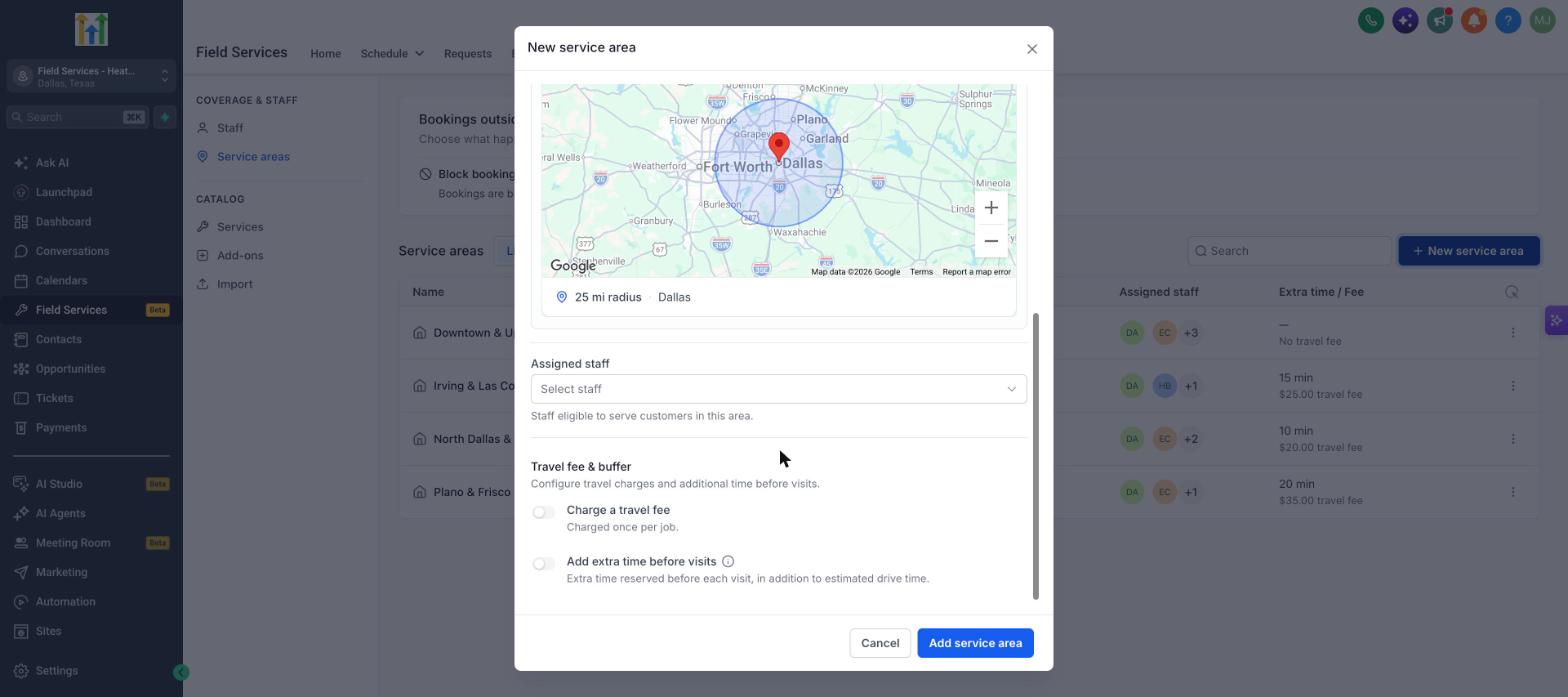
Choose the policy in the Bookings outside service areas card at the top of the Service areas page. Click the pencil icon to change it.
| Policy | What customers and your team see |
|---|---|
| Block booking | Customers cannot book if their address is outside all your service areas. |
| Allow booking with review | Customers can book, and the booking is flagged for your team to review. You can edit the Message to customer (up to 500 characters) and choose which service area manages flagged bookings under Assign flagged bookings to. |
When you create a job for an address outside your service areas, the job shows a warning: Outside your service area. This job will be flagged for review. The job also shows which service area it is being serviced from.
How service areas affect staff
- Assign staff to an area when you create it, or choose areas for each staff member under Staff > Edit > Eligible service areas.
- When you find availability for a visit, Field Services suggests staff who serve the customer's service area.
- Staff who are not assigned to an area can still be chosen manually when you schedule a visit.
See Staff in Field Services and Scheduling Visits and Finding Availability in Field Services.
Frequently asked questions
Can I delete the Default service area?
The Default area is created automatically. You can edit its coverage and assigned staff to match your business.
Can a staff member serve more than one area?
Yes. Select every area they can serve in their Eligible service areas.
Is the travel fee shown to customers?
The travel fee is added to the job when the area applies. Review how it appears on your estimates and invoices before going live.
Why can a customer not book an address I serve?
Check the area's coverage (radius or ZIP codes) and that at least one staff member is assigned to it.