
Field Services Home Overview
The Field Services Home page is your daily command center. In one view you can see money coming in, how the day is going, and the work that needs your attention, so you know where to focus before you open a single job.
Note: Field Services is currently in private beta and is available to selected accounts. Features and screens may change as we improve them.
In this article
- What is the Home page?
- Where to find Home
- The welcome page for new accounts
- Money overview
- Scheduling and dispatch
- Work requiring attention
- Today's visits
- Tips for a daily routine
- Frequently asked questions
- Related articles
What is the Home page?
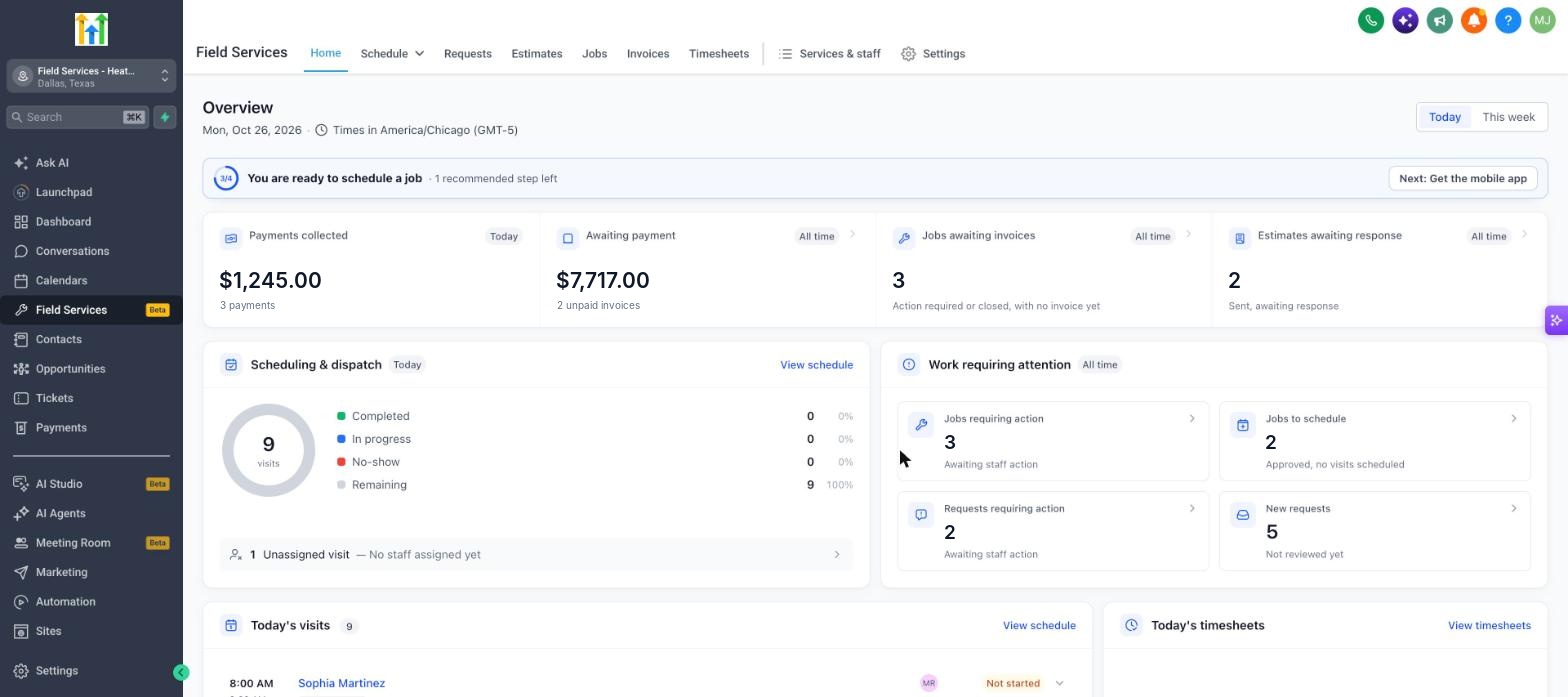
Home summarizes the key numbers for your Field Services business. Switch the view between Today and This week to change the period. Times and counts follow your business time zone, which is shown under the page title.
Where to find Home
- Open your sub-account.
- Click Field Services in the left navigation.
- Click Home.
The welcome page for new accounts
When you open Home for the first time, you land on a welcome page instead of the dashboard. It introduces Field Services and walks you through setup, so you can start taking bookings in about five minutes.
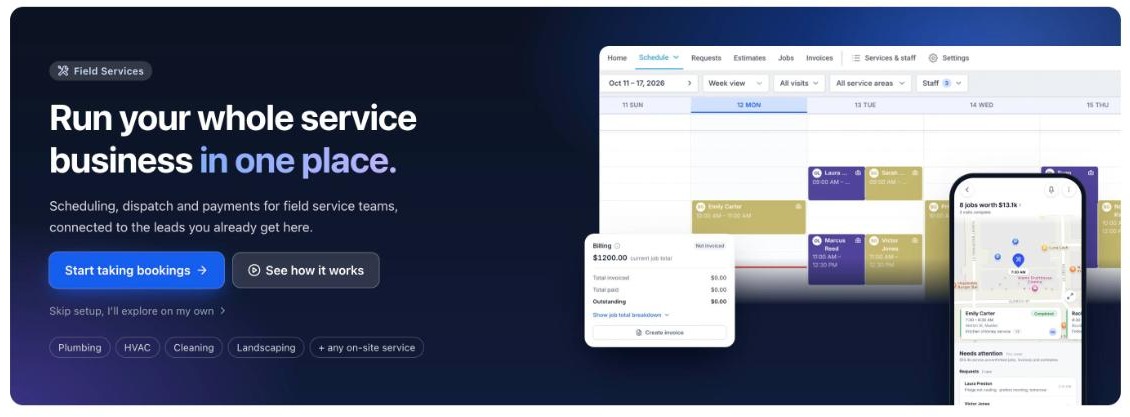
The welcome page includes:
- Getting started options. Choose Start taking bookings to begin setup, choose See how it works to jump to the walkthrough further down the page, or choose Skip setup, I'll explore on my own if you would rather look around first.
- Get ready to take bookings. A three-step checklist with a progress count.
- From first call to getting paid. How work moves from a request to an estimate, a job, a visit and an invoice.
- Everything you need, from booking to payment. A look at scheduling and dispatch, route optimization, estimates and invoices, online booking and timesheets.
- Mobile app for your team. Install links for the mobile app.
Get ready to take bookings
Your business details, such as your name, location and time zone, come from your business profile and can be edited. The checklist then guides you through three steps:
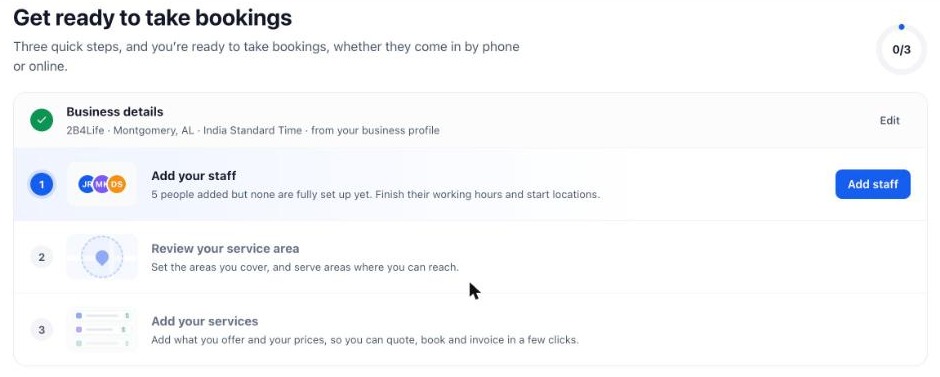
- Add your staff. Add your team and finish each person's working hours and start location. See Staff in Field Services.
- Review your service area. Set the areas you cover, and serve areas where you can reach. See Service Areas in Field Services.
- Add your services. Add what you offer and your prices, so you can quote, book and invoice in a few clicks. See Services and Add-ons in Field Services.
When setup is complete, the welcome page is replaced by the dashboard described in the rest of this article.
Mobile app for your team
The welcome page also shows how to get the mobile app. Scan the QR code for the App Store or Google Play, then sign in with the same login you use on the web. If you already have the app, Field Services set up on the web shows up as Jobs.
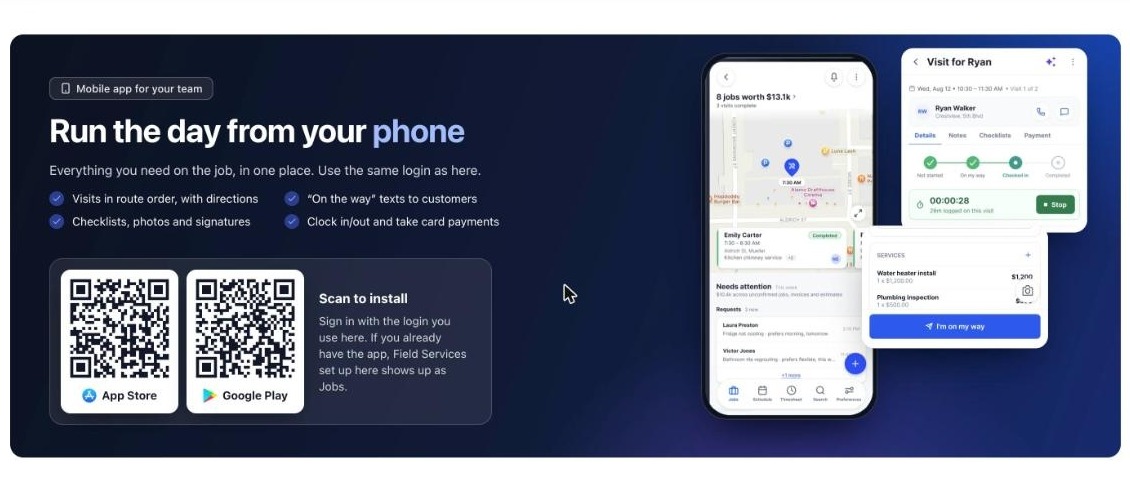
On the app, your team can follow visits in route order with directions, send "On the way" texts to customers, use checklists, photos and signatures, clock in and out, and take card payments.
Money overview
The four cards at the top summarize payments and billing. Each card is a quick way to spot revenue that is waiting on you.
| Card | What it shows | Why it matters |
|---|---|---|
| Payments collected | Payments received in the period, with the number of payments. | Confirm that completed work is being paid. |
| Awaiting payment | The total value of unpaid invoices and how many invoices are unpaid. | Follow up on money you are owed. |
| Jobs awaiting invoices | Jobs that need action or are closed but do not have an invoice yet. | Make sure nothing is finished without being billed. |
| Estimates awaiting response | Estimates you sent that the customer has not answered. | Nudge customers to approve. |
To work through any of them, open Estimates and Invoices. See Estimates and Invoices in Field Services.
Scheduling and dispatch
A chart shows the visits for the selected period, broken down by Completed, In progress, No-show and Remaining.
- Under the chart, Unassigned visits shows how many visits do not have a staff member yet. Click it to see them and assign someone.
- Click View schedule to open the full schedule. See Schedule in Field Services.
Work requiring attention
These cards count the items that are waiting on your team. Click any card to open the matching list.
| Card | What it counts | Learn more |
|---|---|---|
| Jobs requiring action | Jobs that are waiting on your staff. | Jobs in Field Services |
| Jobs to schedule | Approved jobs that do not have any visits scheduled yet. | Scheduling Visits and Finding Availability in Field Services |
| Requests requiring action | Requests that are waiting on your staff. | Requests in Field Services |
| New requests | Requests nobody has reviewed yet. | Requests in Field Services |
Today's visits
This list shows the visits booked for today with their assigned staff and status. If nothing is booked, you will see a message that no visits are scheduled today. Click a visit to open its details.
Tips for a daily routine
- Start with New requests. Responding quickly is the best way to win the job.
- Clear Unassigned visits before the day begins so every visit has an owner.
- Check Jobs to schedule to keep approved work moving.
- Finish with Jobs awaiting invoices so completed work gets billed promptly.
Frequently asked questions
Why are my numbers showing zero?
Home counts the requests, jobs, visits, estimates and invoices created in Field Services. A new account shows zeros until you add work.
Which time zone does Home use?
The time zone is shown under the page title. Visits and counts follow your business time zone.
What is the difference between Today and This week?
Today shows the current day only. This week shows the whole week so you can plan ahead.
Q: Why do I see a welcome page instead of the dashboard?
New accounts start on a welcome page that guides you through setup. When you finish the three setup steps, Home shows the dashboard.
Q: How do I get the mobile app?
Scan the QR code on the welcome page for the App Store or Google Play, then sign in with the same login you use on the web.