
Guide to the Field Services Private Beta
Fill out this form to register your interest for the private beta.
Welcome to the private beta of Field Services, Chat To Clients CRM's new tool for home and field service businesses. Field Services connects requests, jobs, scheduling, dispatch and invoicing in one place, so your office and your field team work from the same picture of the day.
This guide explains what is included in the beta, what to expect, how to get started, and how to share feedback. Your feedback directly shapes what we build next.
TABLE OF CONTENTS
- Overview
- Who is this Beta for?
- What's Included in the Beta?
- How to Get Started
- Suggested Test Plan for Your First Week
- Upcoming Features
- Known Limitations
- How to Provide Feedback
- Frequently Asked Questions (FAQ)
- Related Articles
Overview
Field Services helps businesses that send staff to the customer's location, such as plumbing, HVAC, electrical, cleaning and landscaping. With Field Services you can:
- Capture customer requests from your booking page, or create them in the app.
- Quote and organize by turning requests into estimates and jobs, with services, products and pricing.
- Schedule one or more visits per job, find open times and assign staff.
- Dispatch by seeing every visit on a calendar and map, and optimizing each staff member's route.
- Deliver and bill by sending reminders and updates, tracking visit progress, and invoicing the customer.
Who is this Beta for?
This private beta is designed for agencies and businesses in field and home services. By taking part, you will be among the first to use Field Services and help shape what we build next.
You will get the most from the beta if:
- Your team travels to customers' addresses to do the work.
- You manage jobs that need more than one visit, or more than one technician.
- You want customers to book or request work online, with your coverage rules applied.
- You are willing to try the product with real scenarios and tell us what works and what does not.
What's Included in the Beta?
| Area | What you can do | Learn more |
|---|---|---|
| Home | See a daily overview of payments, scheduling and work that needs attention. | Field Services Home Overview |
| Requests | Receive customer requests and convert them into estimates or jobs. | Requests in Field Services |
| Jobs and visits | Hold the scope of work and pricing on a job, and schedule visits with assigned staff, statuses, checklists and notes. | Jobs in Field Services Visit Statuses in Field Services Checklists, Notes and Forms in Field Services |
| Schedule | Use a list view of visits and a calendar view with a map, a jobs-to-schedule panel and route optimization. | Schedule in Field Services Route Optimization in Field Services |
| Find availability | Get suggested times based on staff working hours, assigned services, service areas, existing bookings and drive time. | Scheduling Visits and Finding Availability in Field Services |
| Mobile app | Manage requests and jobs, schedule and reschedule visits, change visit statuses, and use checklists, notes and timers from the mobile app. Changes sync with the web. | Jobs in Field Services |
| Services and staff | Set up services, add-ons, staff, working hours, service areas, travel fee and extra travel time. | Staff in Field Services Service Areas in Field Services Services and Add-ons in Field Services |
| Import | Bring services over from a CSV file or from your existing Services setup. | Importing Services into Field Services |
| Estimates and invoices | Create estimates and invoices for your jobs and collect payments. | Estimates and Invoices in Field Services |
| Timesheets | Let staff track time against visits. | Timesheets in Field Services |
| Online booking | Give customers a branded booking page and request form, with settings for booking rules and payments. | Field Services Settings: Online Booking Booking Page Editor in Field Services |
| Notifications | Send email, SMS and WhatsApp messages to contacts, assigned staff and admins or dispatchers. | Notifications in Field Services |
| AI receptionist and Google organic booking | Set up a chat AI agent that answers questions and takes requests, and connect your Google Business Profile. | AI Receptionist and Google Organic Booking in Field Services |
| Contact view | See a contact's field service activity from their record. | Field Services in Contacts |
Each area has its own help article. See the Related Articles section at the end of this guide.
How to Get Started
- Fill out this form to register your interest for the private beta.
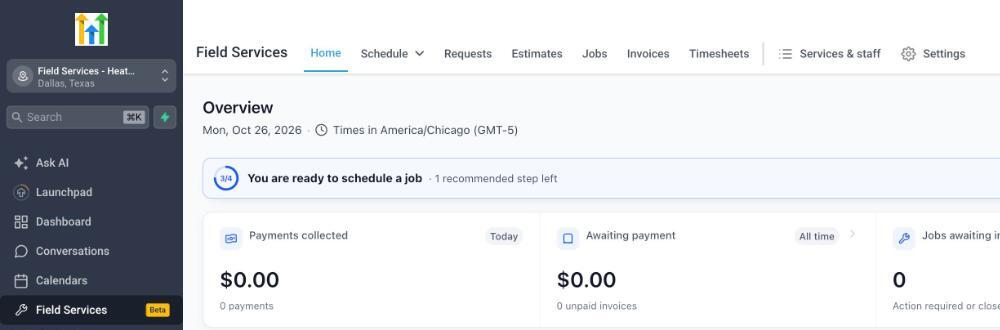
- Once added to the beta, you will see Field Services with a Beta tag in the left navigation of your enrolled sub-account.
- Start on Home. New accounts open on a welcome page with a three-step checklist: add your staff, review your service area and add your services. See Field Services Home Overview.
- Set up your coverage. Review the Default service area and add more if needed under Services & staff > Service areas. See Service Areas in Field Services.
- Add staff. Set working hours, assigned services, service areas and route start and end for each person. See Staff in Field Services.
- Add services. Create services or use Services & staff > Import to copy existing ones. See Services and Add-ons in Field Services and Importing Services into Field Services.
- Review settings. Open Field Services Settings to choose how customers book, how they pay, and which notifications go out. See Field Services Settings: Online Booking.
- Create a test request or job and schedule a visit to see the full flow.
Note: If you already use Services, your existing setup is not changed. You choose what to copy into Field Services with the importer.
Suggested Test Plan for Your First Week
If you are not sure where to begin, this plan covers the full flow in about a week. Adjust it to fit your business.
| When | What to try | What to look for |
|---|---|---|
| Day 1 | Set up service areas, two or three staff and a handful of services. | Is it clear which staff can take which services and where? |
| Day 2 | Open your booking page and test a booking with an address inside your service area and one outside it. | Does the address check and outside-area policy behave the way you expect? |
| Day 3 | Create a request, convert it to an estimate, then create a job. | Does the job hold the right scope and pricing? |
| Day 4 | Schedule visits with Find availability, including a job with two visits. | Are the suggested times sensible? Can you override staff when you need to? |
| Day 5 | Review the day on the calendar and map, run Route optimization and turn on notifications. | Is the proposed route better? Do the messages go out at the right time? |
Upcoming Features
Here is a preview of what we are working on:
- Reporting for jobs, visits and requests
- Workflow triggers and actions for jobs, visits and requests
- Opportunities integration
- Client portal
- Snapshots
- Resources and waitlists
- More AI support, including voice
- More importers
Priorities and timelines can change based on your feedback.
Known Limitations
Field Services is in private beta, so keep the following in mind:
- Some features listed under Upcoming Features are not yet available.
- The AI receptionist supports chat. Voice options are not yet available.
- You may occasionally see minor performance or interface issues as we keep improving the product.
If you run into an issue, share it with us. Your feedback helps us fix things faster.
How to Provide Feedback
Your feedback shapes Field Services. Here is how to reach us:
- Schedule a feedback call: speakwith.us/swadha
- Email us: swadha.bhoj@Chat To Clients CRM.com
When you send feedback, it helps us to know what you were trying to do, what you expected to happen, and what happened instead. Screenshots are always welcome.
Frequently Asked Questions (FAQ)
Q: Who has access to the Field Services beta?
A: Field Services is a private beta for selected customers. This lets us gather feedback and make improvements before a wider release. You can fill out this form to register your interest for the beta.
Q: How can I check if Field Services is active on my account?
A: Open your sub-account and look for Field Services in the left navigation. If you do not see it, contact us using one of the feedback options above.
Q: When will Field Services be available to everyone?
A: We are planning a wider release after the private beta. Watch the Release Notes for updates.
Q: Will Field Services change my existing calendars or Services?
A: No. Field Services is a separate module. Your existing calendars, Services and workflows keep working as they do today.
Q: Can I move my existing services into Field Services?
A: Yes. Use Services & staff > Import and choose CSV or Services as the source. Services whose name already exists in Field Services are skipped, and existing services are not updated. See Importing Services into Field Services.
Q: Do I need a payment provider?
A: Only if you want customers to pay online at booking. You can use Pay in-person without one. See Field Services Settings: Online Booking.
Q: Where can I learn the basics?
A: Start with Field Services - Overview & How to Get Started, then follow the articles in the Related Articles list.
Related Articles
- Field Services - Overview & How to Get Started
- Field Services Home Overview
- Service Areas in Field Services
- Staff in Field Services
- Services and Add-ons in Field Services
- Requests in Field Services
- Jobs in Field Services
- Schedule in Field Services
- Route Optimization in Field Services
- Notifications in Field Services