
Field Services - Overview & How to Get Started
Field Services is Chat To Clients CRM's end-to-end module for businesses that do their work at the customer's location, such as HVAC, plumbing, electrical, cleaning, landscaping and other home services. It brings the whole job lifecycle together in one place: capturing requests, quoting, scheduling and dispatching visits, optimizing routes, tracking the work, invoicing, and keeping customers informed.
This article explains what is included, how the pieces fit together, and the recommended order to set everything up.
Note: Field Services is currently in private beta and is available to selected accounts. Some features are still being built and may change before public release.
TABLE OF CONTENTS
- What is Field Services?
- Key Benefits
- The Field Services Lifecycle
- Where to Find Field Services
- Key Concepts: Requests, Jobs and Visits
- Glossary
- Recommended Setup Order
- Upcoming Features
- Frequently Asked Questions
- Related Articles
What is Field Services?
Field Services is built for teams that travel to the customer. Instead of stitching together a form tool, a calendar, a dispatch spreadsheet and an invoicing app, you run the whole workflow from one place:
- Capture work: Customers submit requests or book directly from your branded booking page, or your team creates requests and jobs in the app.
- Organize the work: A Job holds the customer, service address, services, products and pricing. One job can have several visits.
- Schedule and dispatch: Assign visits to staff, find open times based on working hours, skills, service areas and drive time, view the day on a calendar or map, and optimize each technician's route.
- Do the work: Staff update visit statuses, follow checklists, add notes and, if Timesheets is on, track their time.
- Get paid: Create estimates and invoices from the job and collect payments.
- Keep customers informed: Send confirmations, reminders and "staff on the way" updates by email, SMS or WhatsApp.
Who uses it?
- Owners and managers use Home, Schedule and Invoices to see how the business is running.
- Office staff and dispatchers triage requests, create jobs, schedule visits and optimize routes.
- Field staff see their visits, update statuses, work through checklists and add notes.
Key Benefits
- One workflow from request to invoice: No more switching between tools to quote, schedule and bill a job.
- Smarter scheduling: Availability respects staff working hours, assigned services, service areas, existing bookings and drive time.
- Less time on the road: Route optimization reorders a technician's day for the shortest drive and shows the time you save.
- Clear coverage rules: Define the areas you serve, charge a travel fee, and decide what happens when a customer is outside your area.
- Customers book themselves: A branded booking page checks the customer's address, shows open times and takes the booking or request.
- One picture for the whole team: Office staff, dispatchers, owners and field staff all see the same jobs, visits and statuses.
The Field Services Lifecycle
Most work follows the same path. You can enter at any stage. For example, you can create a job directly without a request, or schedule a visit without an estimate.
| Stage | What happens | Where to find it | Learn more |
|---|---|---|---|
| 1. Set up | Add your service areas, staff and services, then configure booking, payments and notifications. | Services & staff, Settings | Service Areas in Field Services Staff in Field Services Services and Add-ons in Field Services |
| 2. Capture | A customer books or sends a request online, or your team creates one. | Requests, booking page | Requests in Field Services Field Services Settings: Online Booking |
| 3. Quote | Convert a request to an estimate and send it for approval. | Estimates | Estimates and Invoices in Field Services |
| 4. Organize | Create the job with the customer, address, services, products and pricing. | Jobs | Jobs in Field Services |
| 5. Schedule | Schedule one or more visits using Find availability, and assign staff. | Job, Schedule | Scheduling Visits and Finding Availability in Field Services Schedule in Field Services |
| 6. Dispatch | Review the day on the calendar and map, and optimize each technician's route. | Schedule > Calendar view | Route Optimization in Field Services |
| 7. Do the work | Staff update statuses, work through checklists, add notes and log time. | Visit drawer, Timesheets | Visit Statuses in Field Services Checklists, Notes and Forms in Field Services Timesheets in Field Services |
| 8. Get paid | Invoice the job and collect payment. | Invoices | Estimates and Invoices in Field Services |
| 9. Stay in touch | Customers, staff and dispatchers get notified at each milestone. | Settings > Notifications | Notifications in Field Services |
Where to Find Field Services
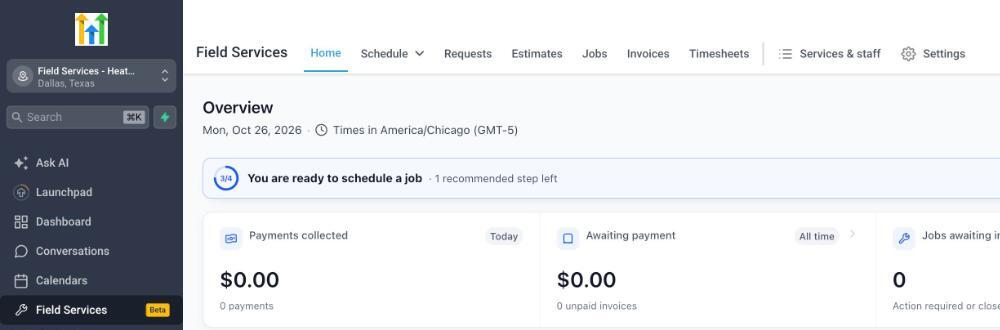
Once Field Services is enabled for your sub-account, a Field Services item with a Beta tag appears in the left navigation. Click it to open the module. The top menu has these tabs:
| Tab | What you will find | Learn more |
|---|---|---|
| Home | Today's overview of payments, scheduling progress and the work that needs attention. | Field Services Home Overview |
| Schedule | All visits in a List view and a Calendar view with Day, Timeline, Week and Month layouts, a map and Route optimization. | Schedule in Field Services |
| Requests | Incoming work requests from customers and your team. | Requests in Field Services |
| Estimates | Quotes created from requests and jobs. | Estimates and Invoices in Field Services |
| Jobs | The work you are doing for each customer, with its visits. | Jobs in Field Services |
| Invoices | Invoices raised from your jobs. | Estimates and Invoices in Field Services |
| Timesheets | Time tracked by staff against visits (when turned on). | Timesheets in Field Services |
| Services & staff | Staff, service areas, services, add-ons and the import tool. | Staff in Field Services Service Areas in Field Services Services and Add-ons in Field Services Importing Services into Field Services |
| Settings | Global settings, notifications, the booking page editor, AI receptionist and Google organic booking. | Field Services Settings: Online Booking Field Services Settings: Jobs, Visits and Preferences Booking Page Editor in Field Services AI Receptionist and Google Organic Booking in Field Services |
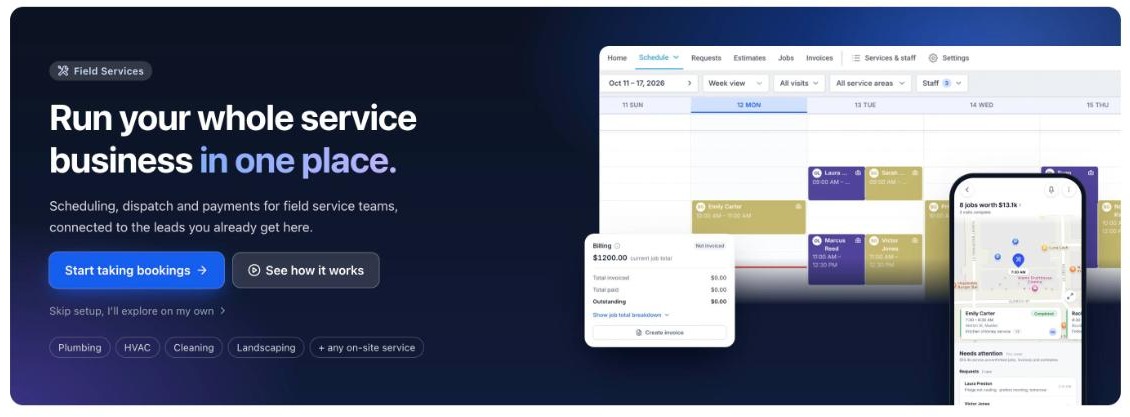
The first time you open Field Services, Home shows a welcome page instead of the dashboard. It introduces the module and guides you through setup, so you can start taking bookings in about five minutes. When setup is complete, Home shows your daily dashboard. See Field Services Home Overview.
Key Concepts: Requests, Jobs and Visits
Three objects sit at the heart of Field Services. Understanding how they relate makes everything else easier.
- Request: A customer's ask for work. A request can include a description, photos, services and products, and an optional site visit to assess the work. You can convert a request into an estimate or a job.
- Job: The overall piece of work for a customer at a service address. A job holds the services, products, pricing, checklists, notes, invoices and payments.
- Visit: A scheduled trip to do part of the work. A job can have one visit or many, and each visit has a date and time, assigned staff and a status.
A few rules to keep in mind:
- A job can exist without a visit. It stays unscheduled until you schedule one.
- A visit must include at least one service, because the service decides the duration and which staff are eligible.
- Adding a service from a visit also adds it to the job.
- The job's status updates automatically as its visits move forward. You do not set it by hand.
Tip: Think of the job as "what we are doing" and the visit as "when and who is doing it".
Glossary
| Term | Meaning |
|---|---|
| Service | Something you sell, such as "AC tune-up", with a duration, price and the staff who can do it. |
| Add-on | An optional extra attached to one or more services, such as "Extra filter replacement". |
| Staff | People who go out on jobs. Each has working hours, assigned services, eligible service areas and route start and end points. |
| Service area | A geographic area you serve, defined by a radius or ZIP / postal codes, with optional travel fee and extra travel time. |
| Find availability | The scheduling helper that suggests times based on working hours, services, areas, existing bookings and drive time. |
| Route optimization | Reorders a technician's visits for a given day to reduce drive time. Visits can be locked in place. |
| Checklist | A reusable list of tasks that staff complete during a visit. |
| Timesheet | A record of time staff track against visits. |
Recommended Setup Order
Set things up in this order so each step has what it needs.
New accounts open Field Services on a welcome page with a Get ready to take bookings checklist. It covers the same setup: add your staff, review your service area and add your services. See Field Services Home Overview for a tour of the welcome page.
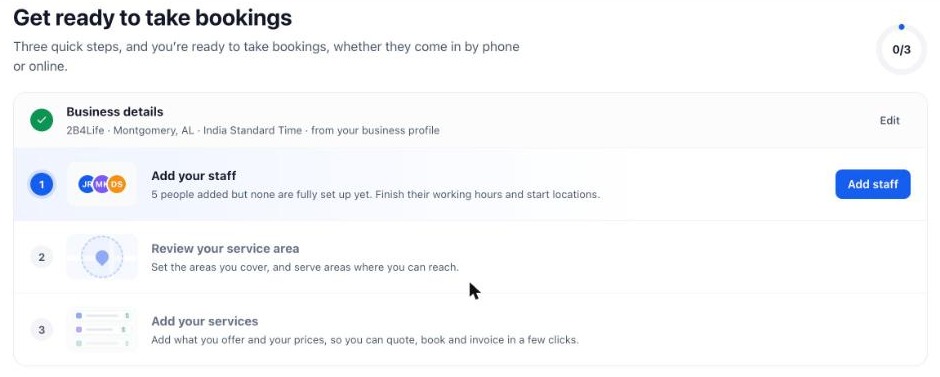
- Create your service areas. Go to Field Services > Services & staff > Service areas. A Default area is created for you. Edit it or add more. See Service Areas in Field Services.
- Add your staff. Go to Services & staff > Staff and set working hours, assigned services, eligible service areas, and route start and end. See Staff in Field Services.
- Create your services and add-ons. Go to Services & staff > Services. You can also import existing services. See Services and Add-ons in Field Services and Importing Services into Field Services.
- Review Field Services Settings. Choose how customers book, set up payments, and review the request form. See Field Services Settings: Online Booking and Field Services Settings: Jobs, Visits and Preferences.
- Customize your booking page. See Booking Page Editor in Field Services.
- Set up notifications for customers, assigned staff and dispatchers. See Notifications in Field Services.
- Create your first request or job and schedule a visit. See Requests in Field Services, Jobs in Field Services and Scheduling Visits and Finding Availability in Field Services.
Tip: Before you invite customers to book online, open your booking page yourself and complete a test booking with an address inside your service area.
Upcoming Features
We are continuing to expand Field Services. Features planned after the private beta include:
- Resources and waitlists
- Reporting
- Client portal
- Voice AI support
- Additional importers, such as Housecall Pro and Jobber
Timelines can change. Features listed here are not available during the private beta unless noted in the related article.
Frequently Asked Questions
Q: How do I get access to Field Services?
Field Services is currently a private beta. Chat To Clients CRM enables it for selected accounts. Once it is enabled, you will see Field Services in the left navigation of your sub-account. See Guide to the Field Services Private Beta.
Q: Is Field Services the same as Services?
No. Services is Chat To Clients CRM's booking tool for appointments that happen at your business or online. Field Services is built for work that happens at the customer's location, with requests, jobs, multi-visit scheduling, dispatch and routing. You can bring your existing services into Field Services with the importer. See Importing Services into Field Services.
Q: Who are "staff" in Field Services?
Staff are the people who go out on jobs. They are users in your sub-account who you set up with working hours, services and service areas. Office staff, owners and dispatchers can use Field Services without being assigned to visits.
Q: Can one job have more than one visit?
Yes. A job can have as many visits as the work needs, for example a diagnosis visit followed by an installation visit.
Q: Can more than one technician be assigned to a visit?
Yes. Staff are assigned per service on a visit, so a larger visit can have several technicians.
Q: Can customers book themselves?
Yes. Your booking page lets customers check their address, choose services and pick a time, or send a request for you to review. See Field Services Settings: Online Booking and Booking Page Editor in Field Services.
Q: Do I need to connect a payment provider?
Not to get started. You need a payment provider only if you want customers to pay online when they book. Until one is connected, use Pay in-person on your booking page. See Field Services Settings: Online Booking.
Q: Can I use Field Services on mobile?
Yes. Your team can manage requests and jobs, schedule and reschedule visits, change visit statuses, and use checklists, notes and timers from the mobile app. Changes sync between the mobile app and the web, so the field stays in step with the office. To install it, scan the QR code on the Field Services welcome page, or find the app in the App Store or Google Play, and sign in with the same login you use on the web.
Related Articles
- Guide to the Field Services Private Beta
- Field Services Home Overview
- Service Areas in Field Services
- Staff in Field Services
- Services and Add-ons in Field Services
- Requests in Field Services
- Jobs in Field Services
- Scheduling Visits and Finding Availability in Field Services
- Schedule in Field Services
- Route Optimization in Field Services
- Estimates and Invoices in Field Services
- Field Services Settings: Online Booking
- Notifications in Field Services