
Use the Companies side panel
The redesigned side panel turns a Company into an account workspace you can act from. It brings the Company's fields, associated contacts and deals, appointments, tasks, notes, and conversations into one place, and lets you start a conversation, book or link an appointment, and manage linked records without leaving the panel. The Companies list stays open in the background.
Note

This feature is available only through a private beta and applies only to locations where it has been enabled.
TABLE OF CONTENTS
- Use a Company as an account hub
- Open a Company
- Review Company details
- Switch between tabs
- Work with Conversations
- Work with Appointments
- Book a meeting
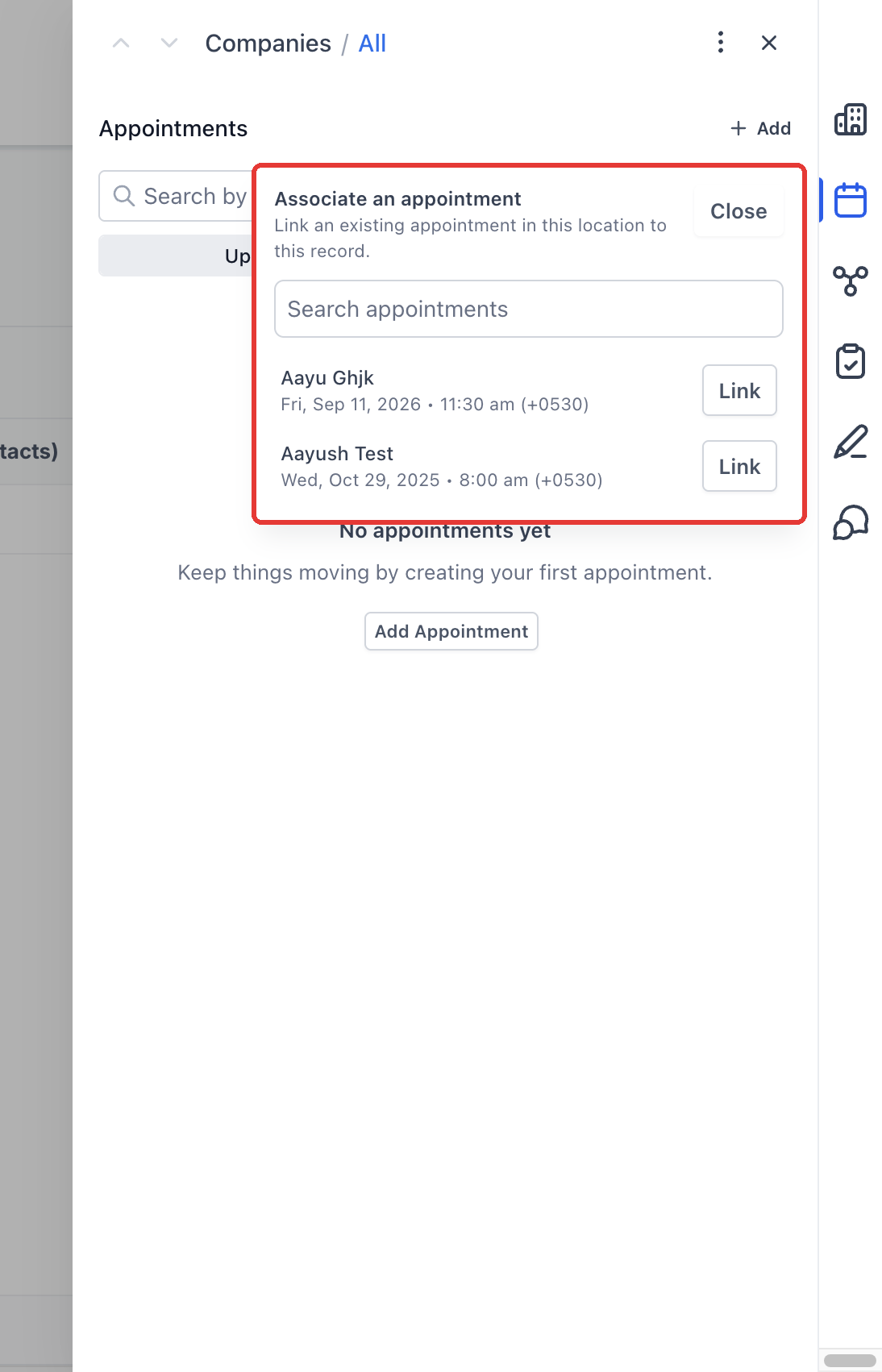
- Link an existing appointment
- Record actions
- Frequently asked questions
- Editorial checks before publication
Use a Company as an account hub
Because each tab lets you take action as well as review, the Company becomes the place your team manages the account from.
- Account context: Review the Company's contacts, opportunities, and other associated records in one view before a call or meeting.
- Follow-up: Start a conversation with a contact at the Company from Conversations, with the Company already linked.
- Meetings: Book a meeting from Appointments with the Company preselected, or link a booking that already exists.
Open a Company
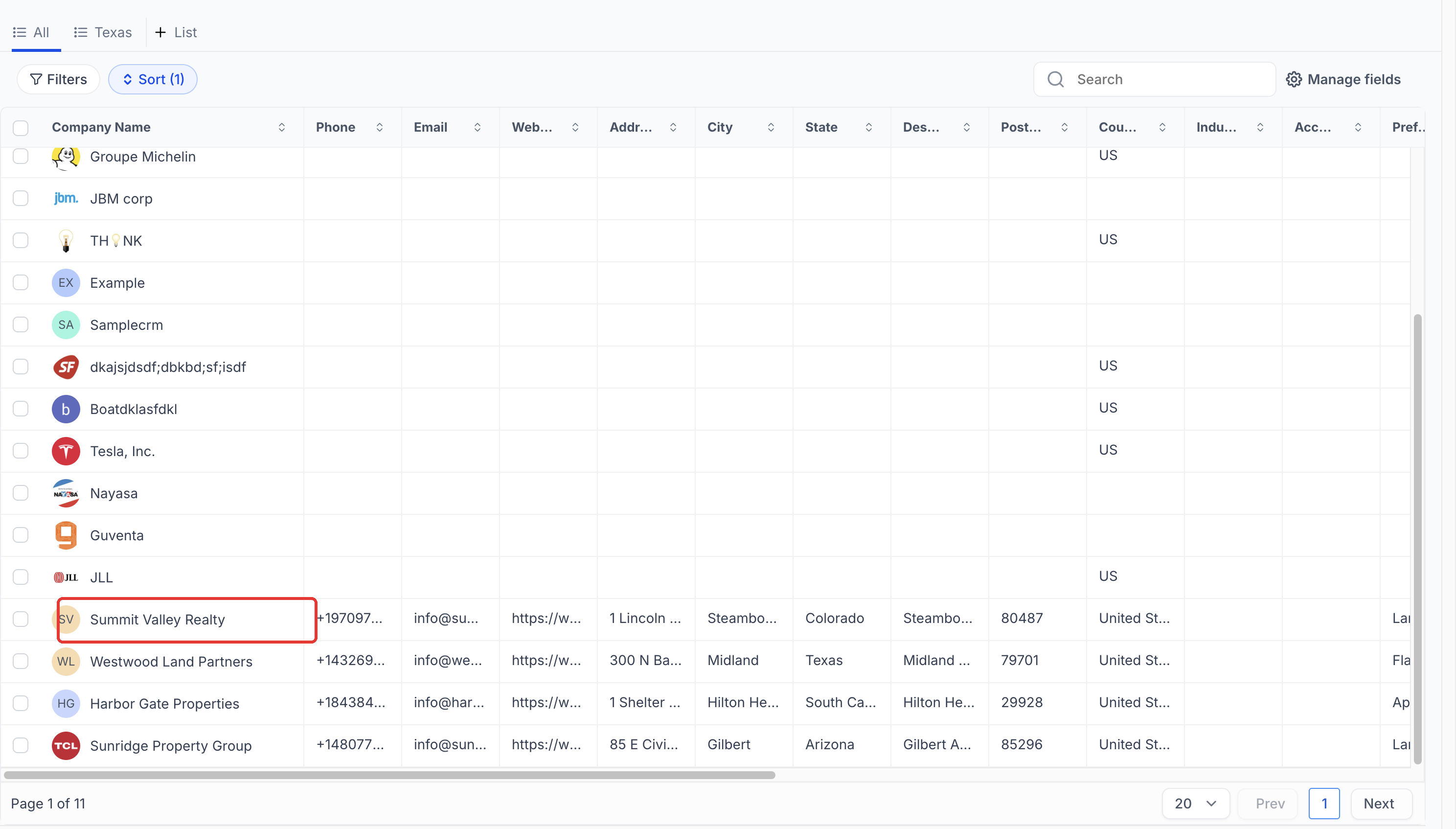
- Go to Contacts → Companies, then click a Company name.
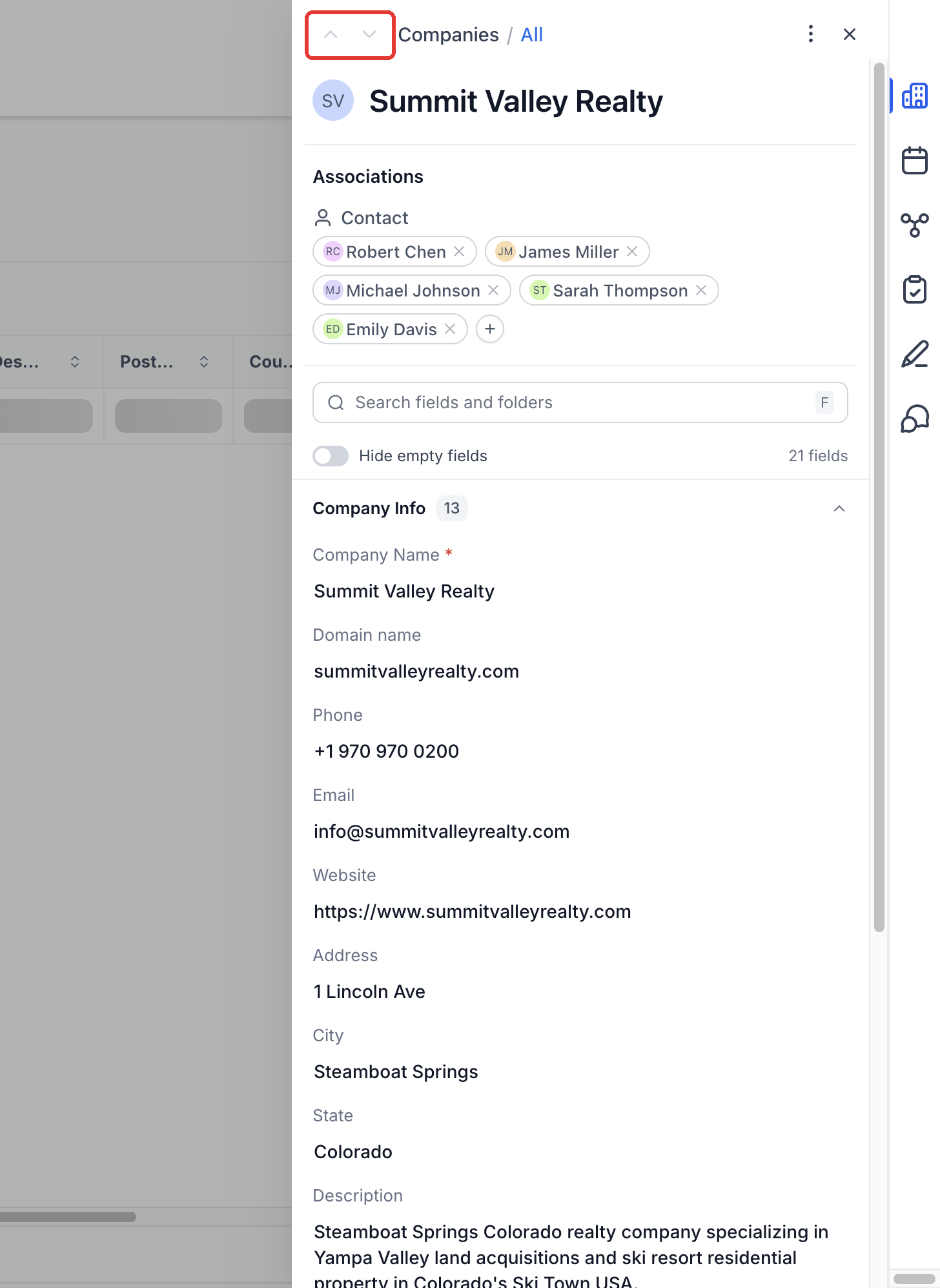
The Company opens in the side panel. Use the arrows at the top to move to the previous or next Company in the current list. Use Close to return to the list.
Review Company details
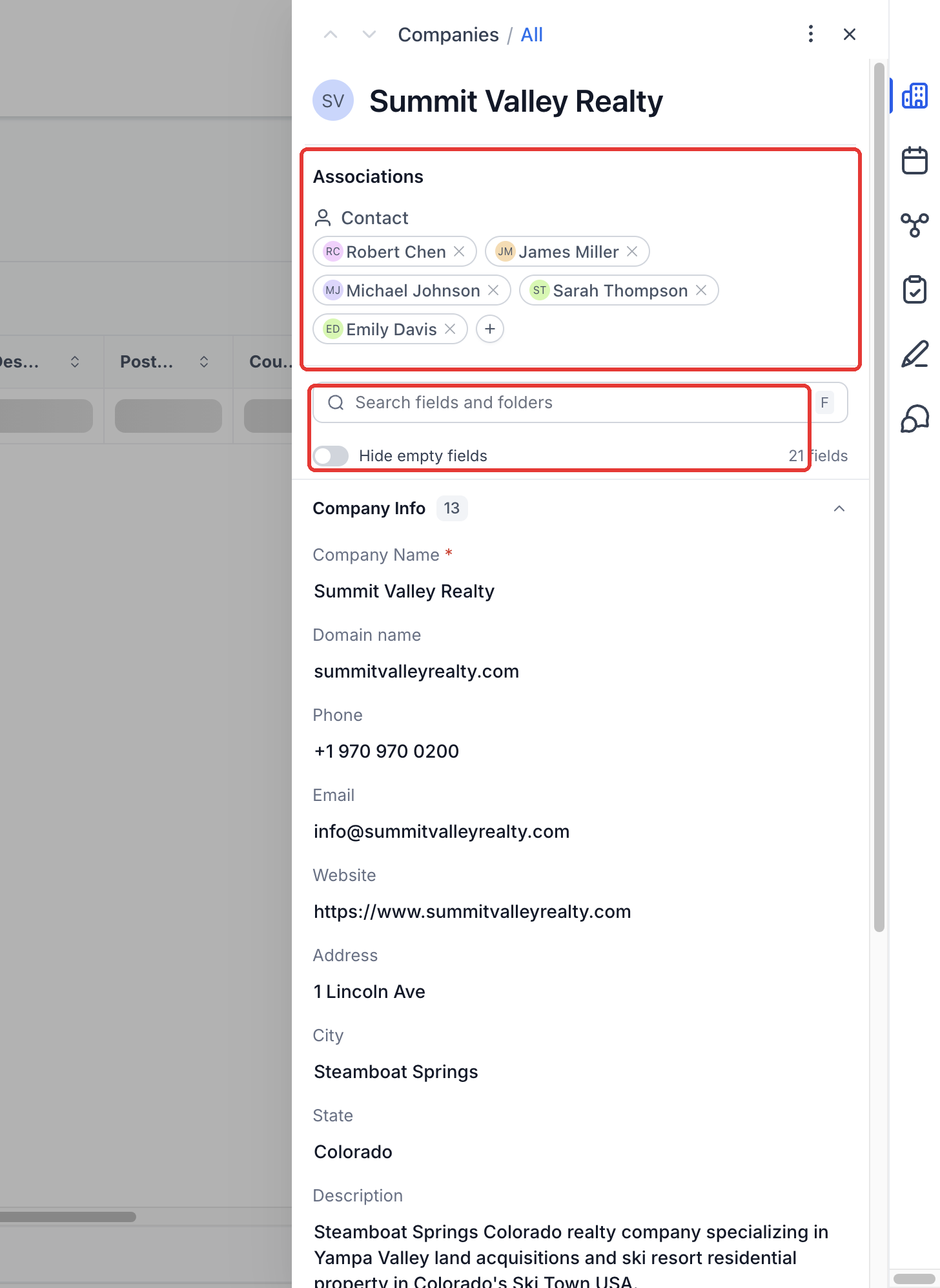
The Details tab shows the Company's name, associations, and fields.
- Associations: Review linked records grouped by relationship. Use the add control beside a relationship to open its association selector, or View all when shown to see more associations.
- Search fields and folders: Find a field or folder without scrolling through the full record.
- Hide empty fields: Focus on fields that have values.
- Folders and counts: Expand folders to find their fields and see the field count.
- Edit fields: Click a field value to open its editor.
Step 1: Go to Contacts > Companies and click a Company name.
Step 2: Review associations and fields in Details. Use field search and Hide empty fields to narrow the view.
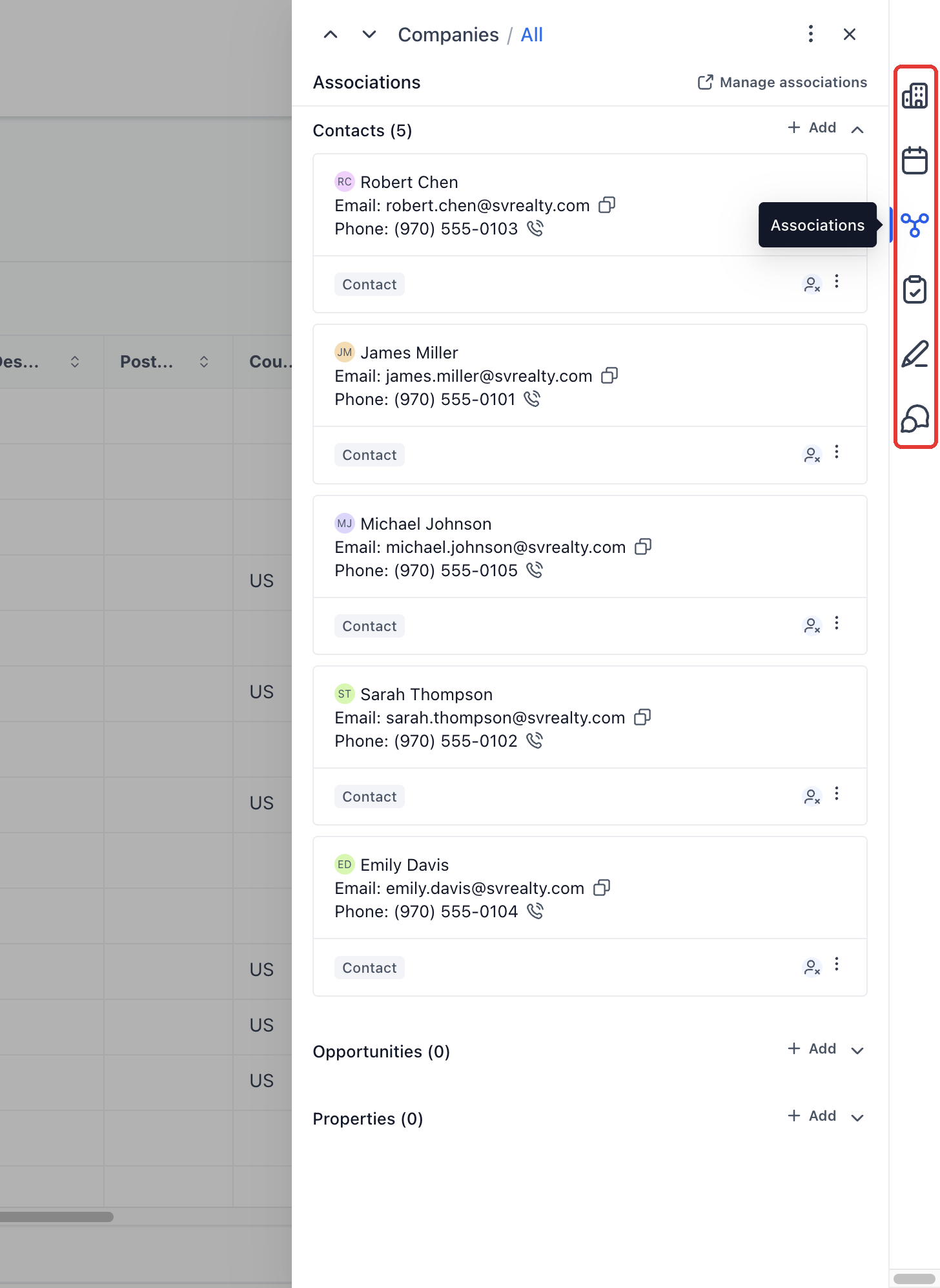
Step 3: Use the icons on the right to switch tabs, such as Associations.
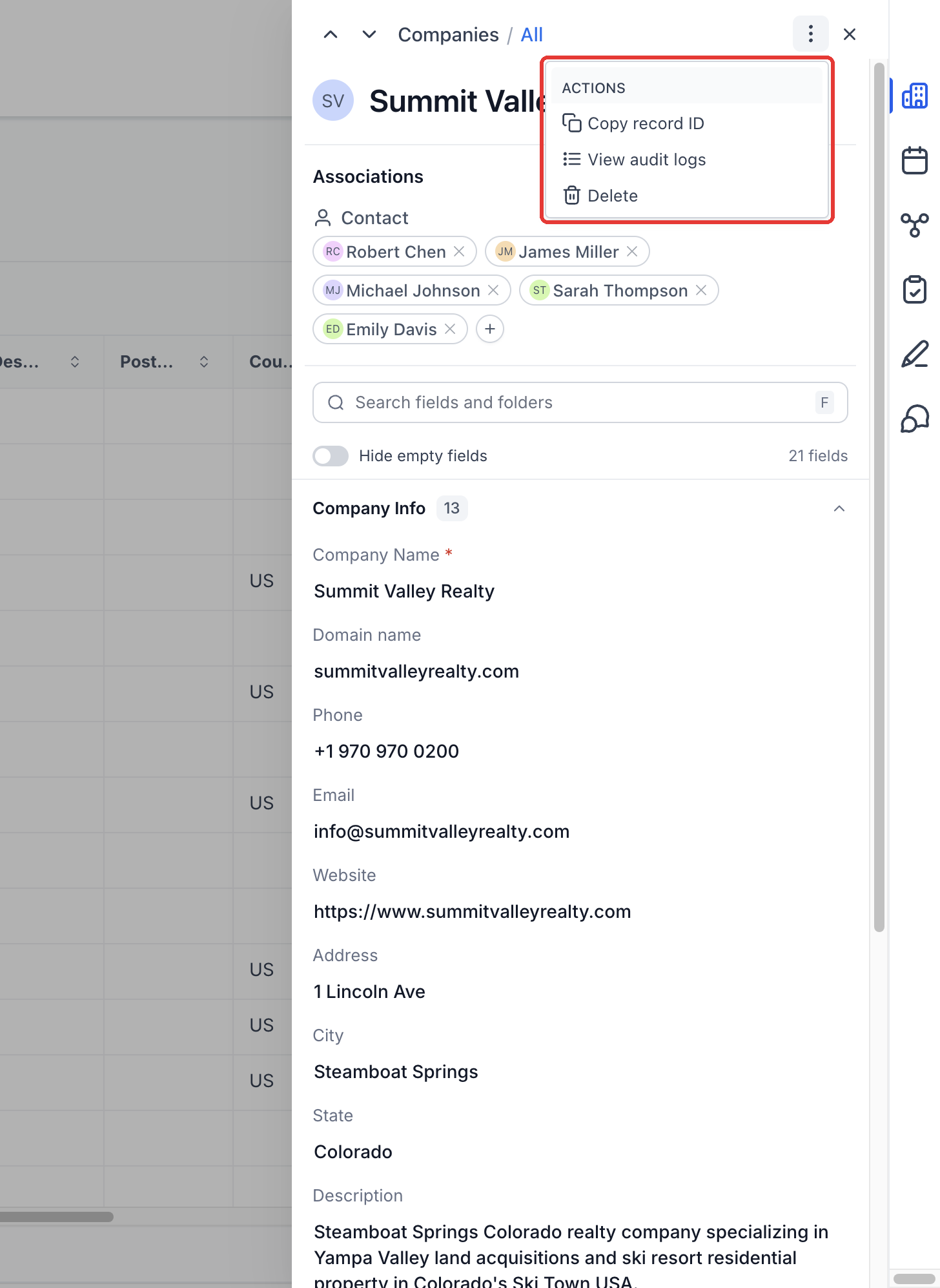
Step 4: Open the three-dot menu to copy the record ID, view audit logs, or delete the record.
Step 5: Use the arrows at the top to move to the previous or next record.
Switch between tabs
Use the icons on the right edge of the panel:
Tab | Purpose |
Details | Review the record's fields and associations |
Appointments | Review appointments linked to the record, book an appointment, or link an existing one |
Associations | Open the record's associations section |
Tasks | Open the record's tasks section |
Notes | Open the record's notes section |
Conversations | Review or create conversations associated with the record |
Work with Conversations
- Open the Company and select Conversations.
- Review the conversation feed. If there are no linked conversations, the panel shows an empty state.
- Click Create a conversation or Create new conversation.
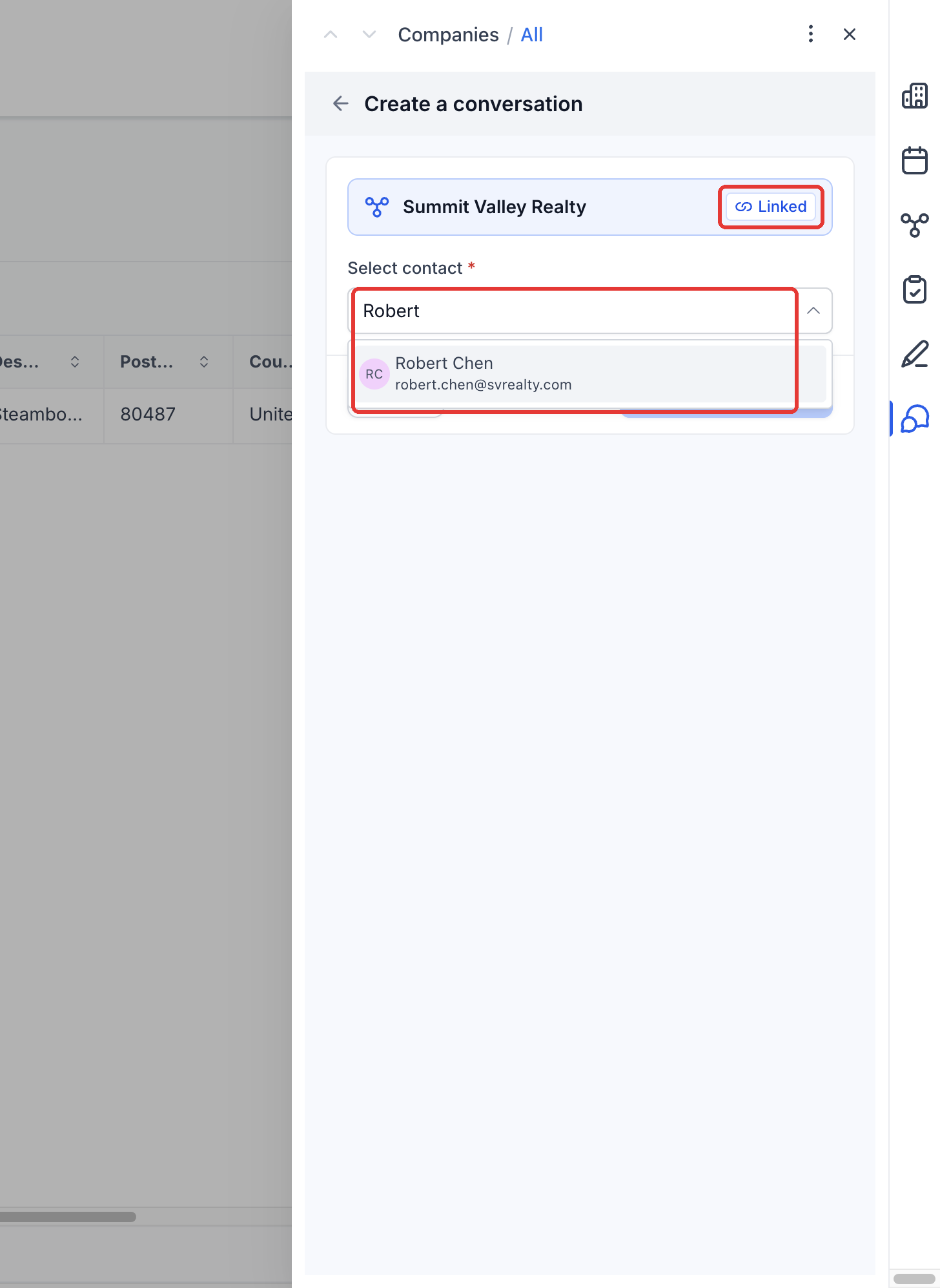
- Select a Contact. The current Company is already marked Linked.
- Click Create conversation to continue.
The Contact is the person involved in the conversation. The linked Company gives the conversation its account context.
Step 6: In Conversations, click Create a conversation. The Company is already Linked. Select a Contact and continue.
Work with Appointments
- Open the Company and select Appointments.
- Switch between Upcoming and Past.
- Use Search by Calendar Name to find appointments.
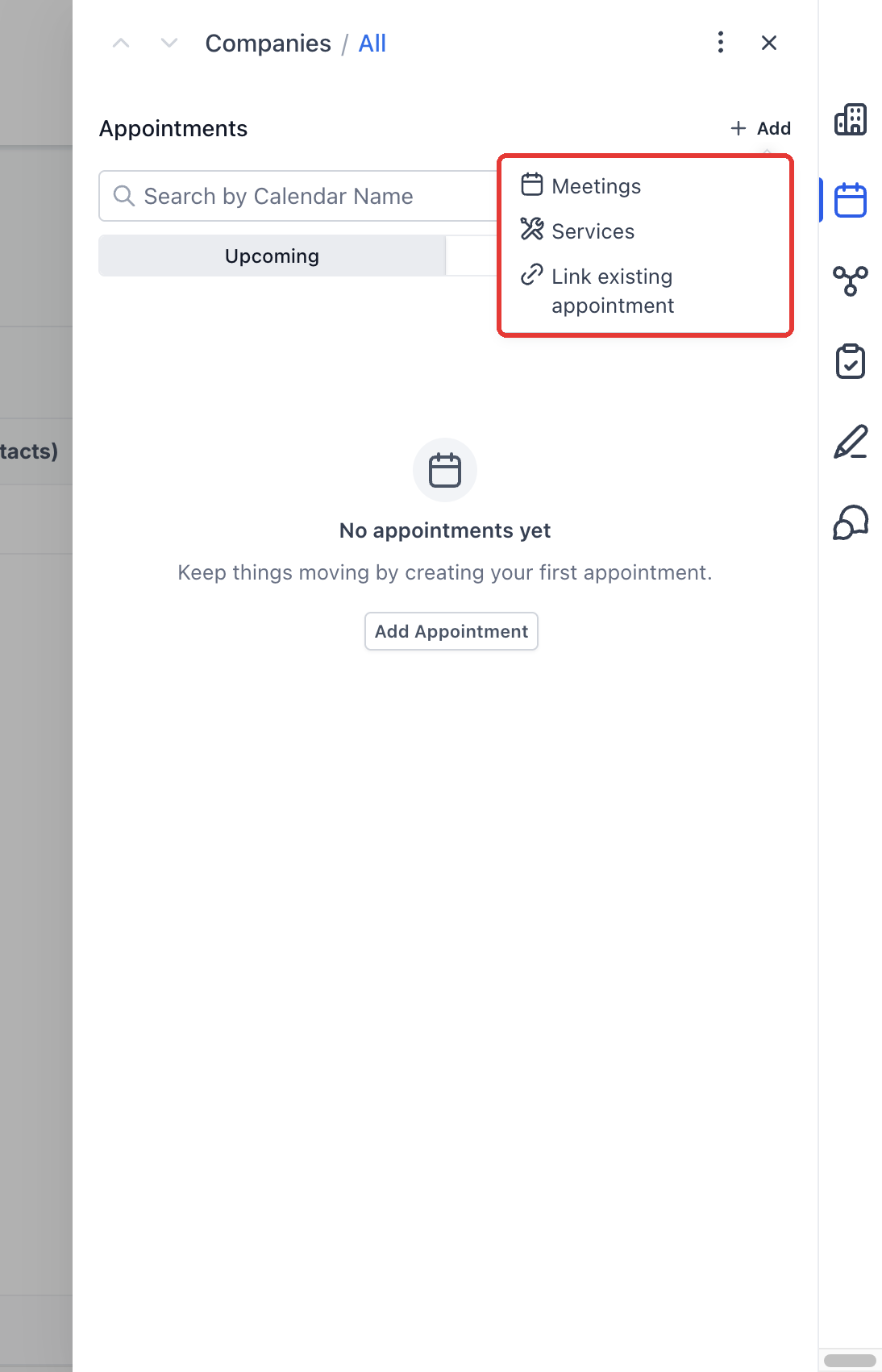
- Click Add to choose Meetings, Services, or Link existing appointment.
Step 7: In Appointments, click Add, then choose Meetings, Services, or Link existing appointment.
Book a meeting
- Select Add → Meetings.
- Choose the calendar, appointment details, date, time, and Contact.
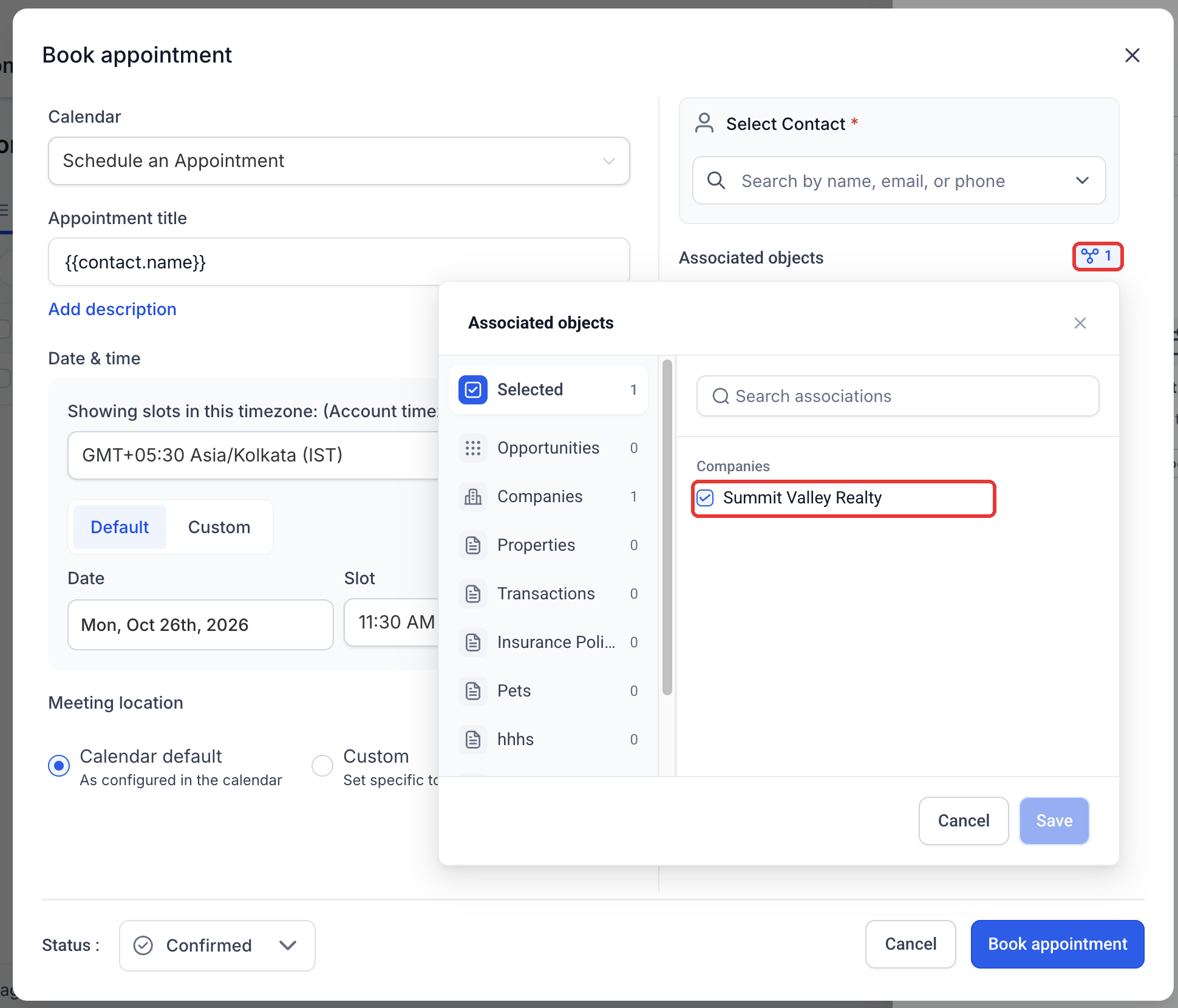
- Review Associated objects. The current Company is preselected.
- Review the remaining booking details, then select Book appointment.
Step 8: When booking a meeting, open Associated objects to confirm the current Company is preselected.
Link an existing appointment
- Select Add → Link existing appointment.
- Search for an appointment in the current location.
- Select Link beside the appointment you want associated with this Company.
Step 9: To use a booking that already exists, choose Link existing appointment, search, and click Link.
Record actions
Open the three-dot menu at the top of the panel to access Copy record ID, View audit logs, or Delete.
Frequently asked questions
Q: Why is the Conversations tab empty?
The selected Company has no conversations in its feed. You can start one from Create a conversation and choose a Contact.
Q: Can I link an appointment that already exists?
Yes. Open Appointments → Add → Link existing appointment, search, and select Link beside the appointment.
Q: Why do I need to choose a Contact?
Conversation creation requires a Contact. The current Company is linked separately to provide account context. The meeting booking form also requires a Contact.
Q: Does this panel include Opportunity pipeline controls or a Payments tab?
The Companies panel has six tabs: Details, Appointments, Associations, Tasks, Notes, and Conversations. Opportunity-specific pipeline controls and a Payments tab are not present in this panel.