
How to Connect and Use Ask AI Through Calls and Texts
Ask AI Phone Dispatch lets you call or text your Ask AI copilot without opening the Chat To Clients CRM app. You can ask questions, manage supported business tasks, and continue conversations across phone calls and text messages. Connect your US phone number, verify it by SMS, and create a six-digit call PIN to secure phone access. This guide covers setting up Phone Dispatch, interacting with Ask AI, and reviewing your conversations in Chat To Clients CRM.
What is Ask AI Phone Dispatch?
Ask AI Phone Dispatch lets you access your existing Ask AI copilot through regular phone calls and text messages. Once you connect your personal US phone number, you receive a dedicated Ask AI number that you can call or text to ask questions and request supported tasks.
Phone Dispatch uses the same Ask AI capabilities available through the Chat To Clients CRM web workspace and other Dispatch channels. You can retrieve business information, manage supported CRM activities, create content, or delegate work through natural-language requests.
Calls and text messages share conversation context. You can begin a request over the phone, follow up by text, or switch back to a call without starting the conversation over.
Key Benefits of Ask AI Phone Dispatch
Phone Dispatch makes Ask AI accessible when you are away from your computer or unable to open the Chat To Clients CRM app. It combines conversational assistance with the convenience of familiar calling and messaging.
Work while away from your screen: Call or text Ask AI while traveling, between appointments, or away from your desk.
Manage business tasks remotely: Look up contacts, add notes, update fields, move opportunity stages, and check upcoming appointments.
Delegate content creation: Request blog drafts through a subagent or create reusable email templates with Email AI.
Keep important details in writing: Ask questions during a call and request the key information by text for future reference.
Continue conversations across channels: Switch between calls and texts while retaining the context of your request.
Share information through messages: Send photos or files in a message for Ask AI to work with.
Start work with a quick text: Submit requests without opening the Chat To Clients CRM web workspace.
Stay connected without app data: Access Ask AI through regular cellular calls or SMS without requiring an internet connection for the Chat To Clients CRM app.
Review previous interactions: Access phone and text conversations in Chat To Clients CRM's Dispatch history.
Prerequisites and Limitations
Before connecting your phone, make sure you have access to a supported US number that can receive verification text messages. Phone Dispatch also applies number ownership and location restrictions to protect individual connections.
US numbers only: Phone Dispatch currently supports US phone numbers with the +1 country code.
One number per location: Only one phone number can be connected to the Phone Dispatch channel for a location at a time.
SMS verification required: You must verify the phone number using a code sent by text.
Six-digit call PIN required: Create a six-digit PIN during setup. The PIN helps verify your identity when making phone calls.
PIN recovery limitation: Your call PIN cannot be recovered later. Choose a PIN you can remember.
User-specific connections: A connected number belongs to the user who connected it. Other users cannot view or manage that user's connection.
Existing connections: If your number is connected to another location or agency under your user, you can move it through the connection process.
How To Setup Ask AI Phone Dispatch
Connecting your phone number allows Ask AI to recognize your number when you call or text the dedicated Ask AI number. Setup includes SMS verification and creating a call PIN to protect voice access.
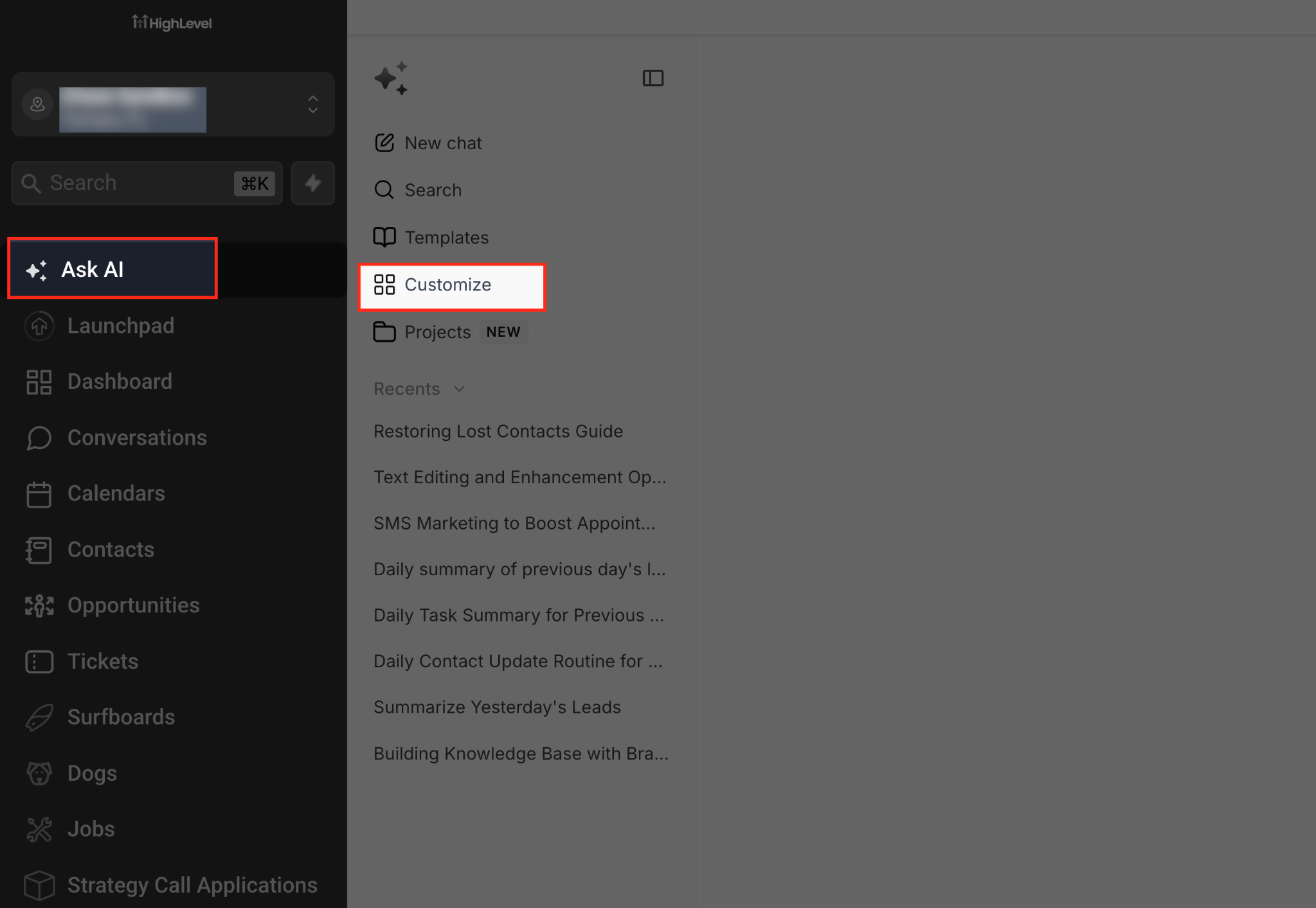
Step 1: Open Ask AI
From your Chat To Clients CRM Sub-Account view, click Ask AI in the left sidebar. Once the Ask AI workspace opens, select Customize to access your copilot settings.
Step 2: Go to Dispatch
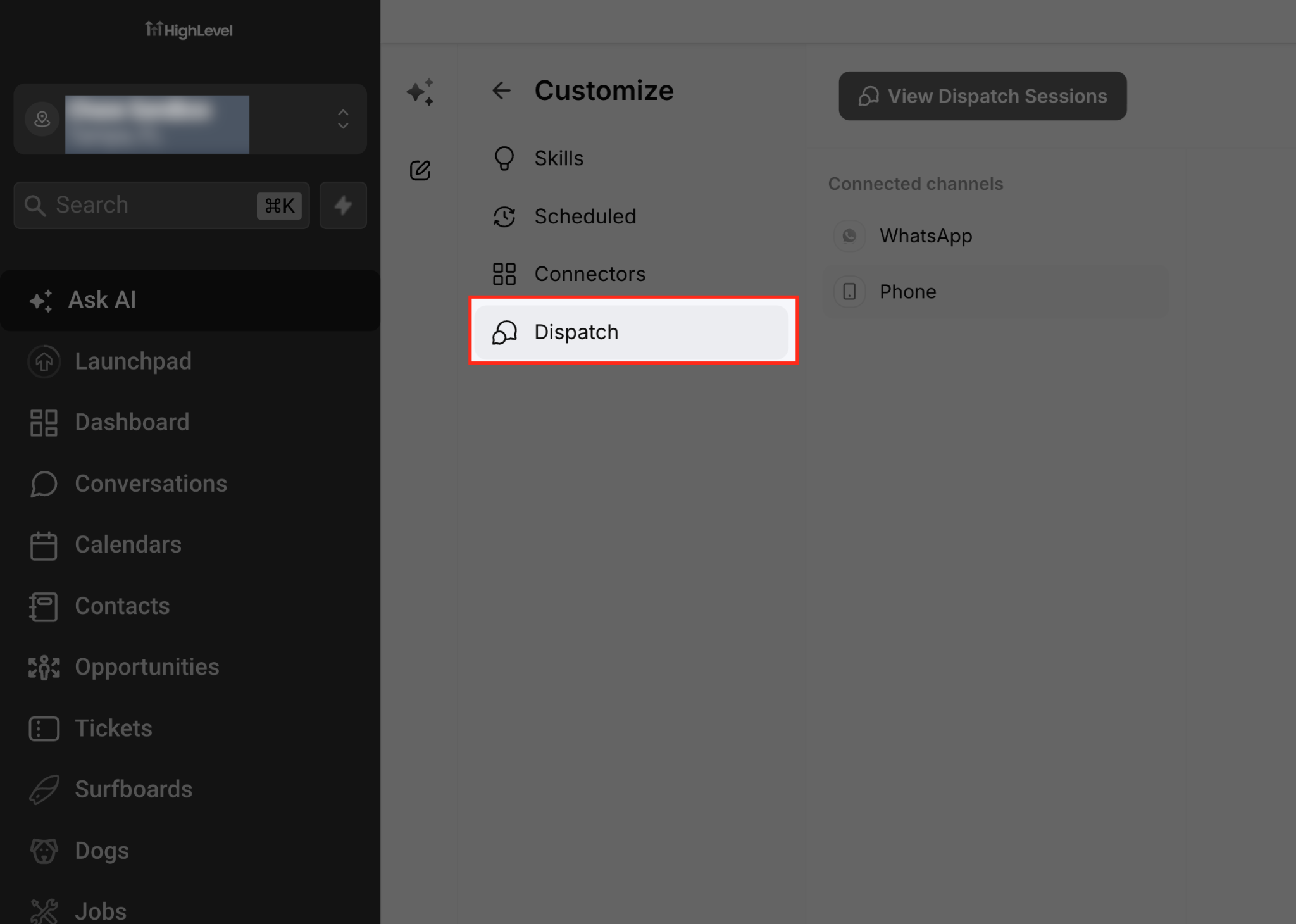
Under Customize, select Dispatch to view the channels you can connect to Ask AI. This is also where you can access your previous Dispatch conversations.
Step 3: Select the Phone Channel
Under Connected channels, click Phone to open the Phone Dispatch settings. From here, you can start connecting your personal phone number to Ask AI.

Step 4: Start Connecting Your Phone
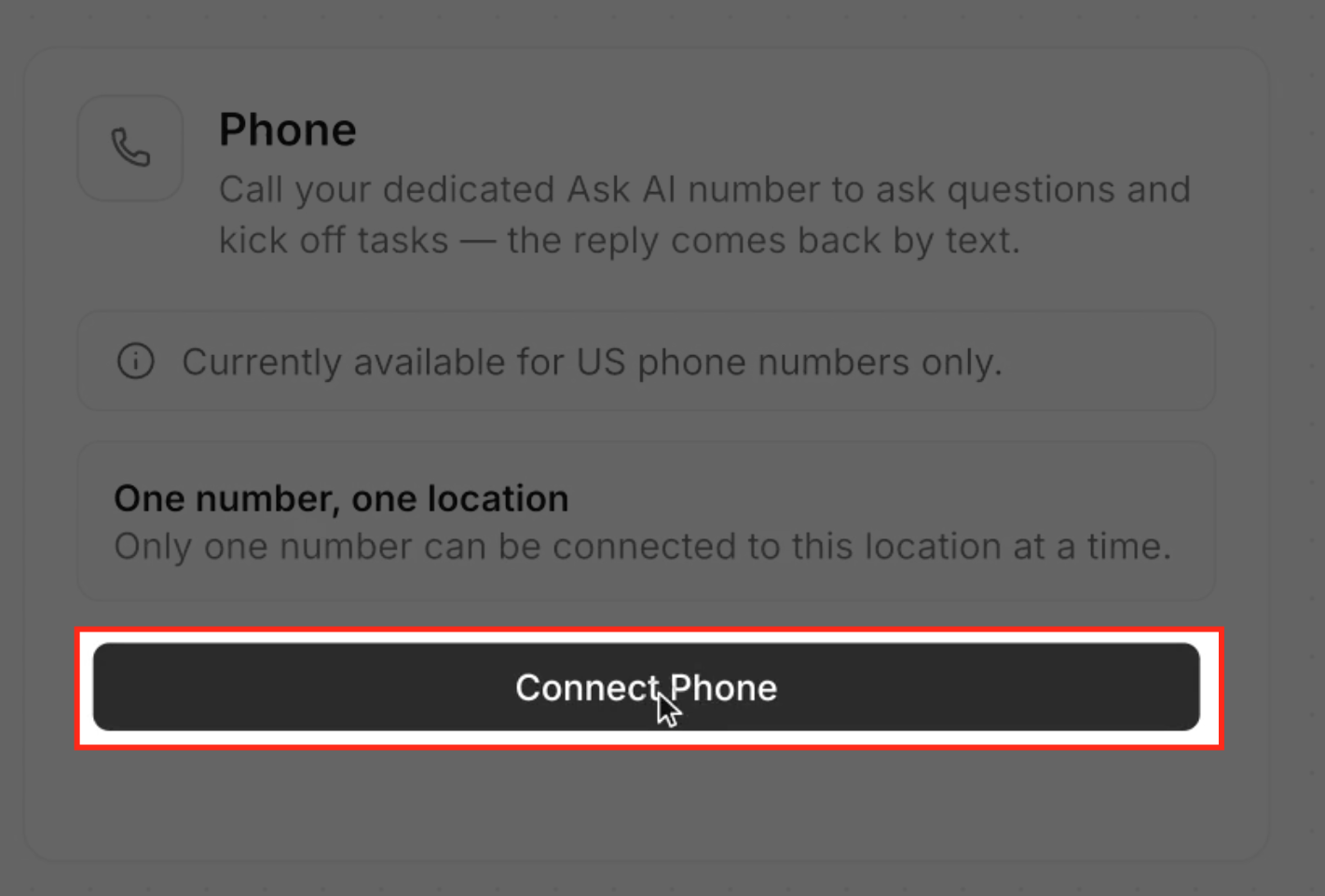
Review the information about supported US phone numbers and the one-number-per-location limit. Click Connect Phone to begin setting up your connection.
Step 5: Enter Your Phone Number
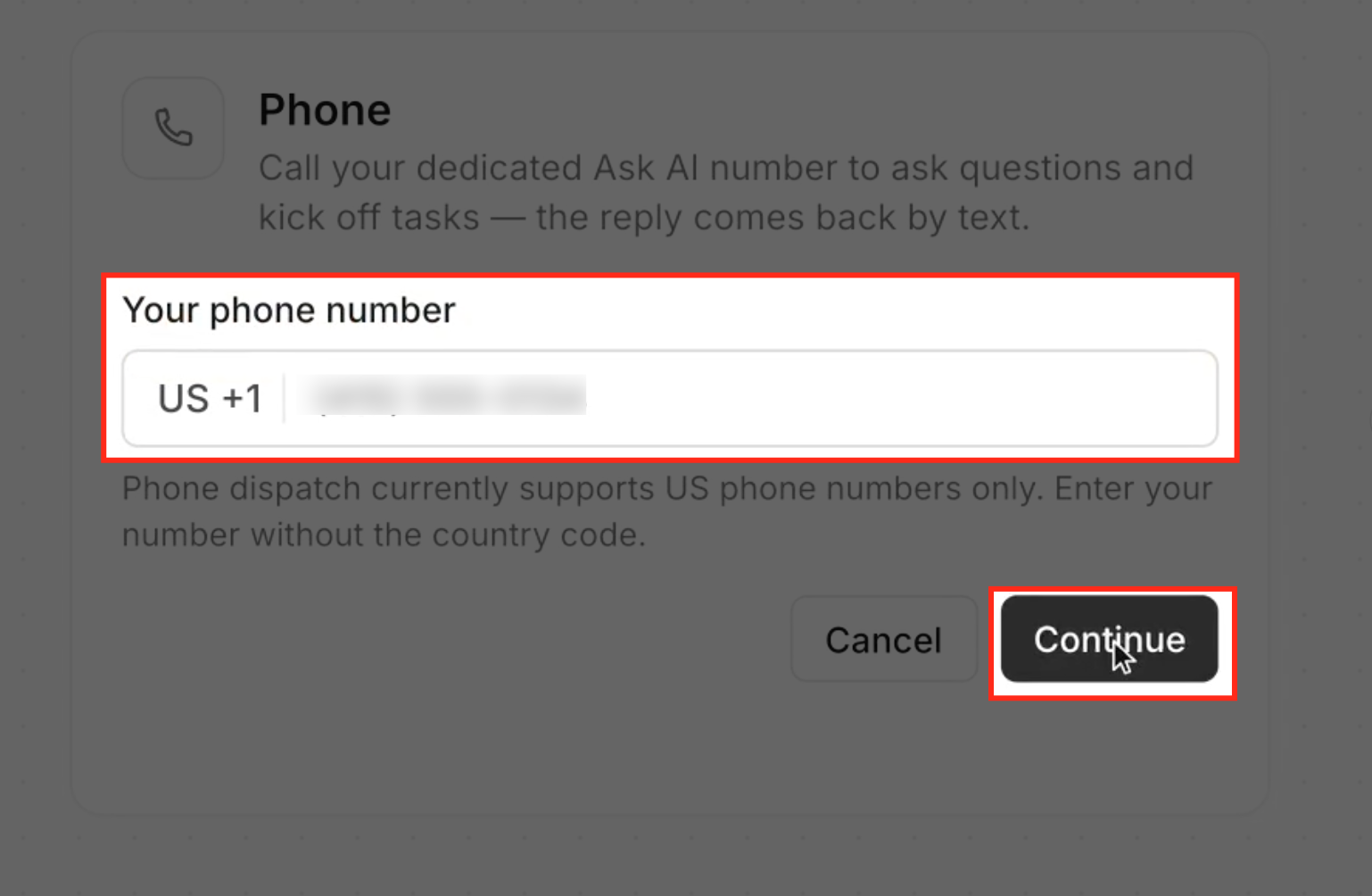
In Your phone number, enter your US mobile number without the country code, since US +1 is already selected. Click Continue to receive a verification code by text.
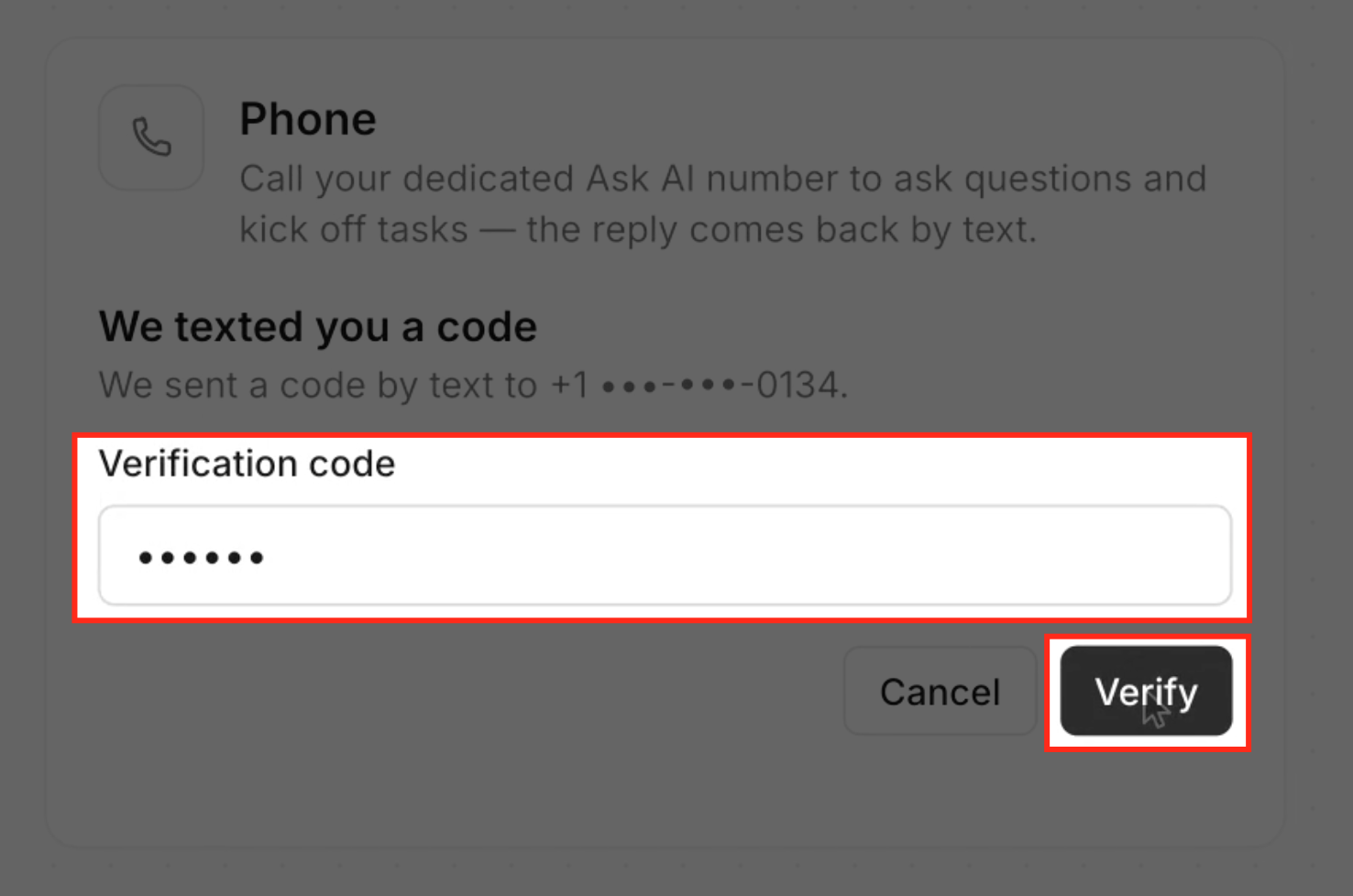
Step 6: Verify Your Phone Number
Check your text messages for the verification code and enter it in the Verification code field. Click Verify to confirm your number and continue to PIN setup.
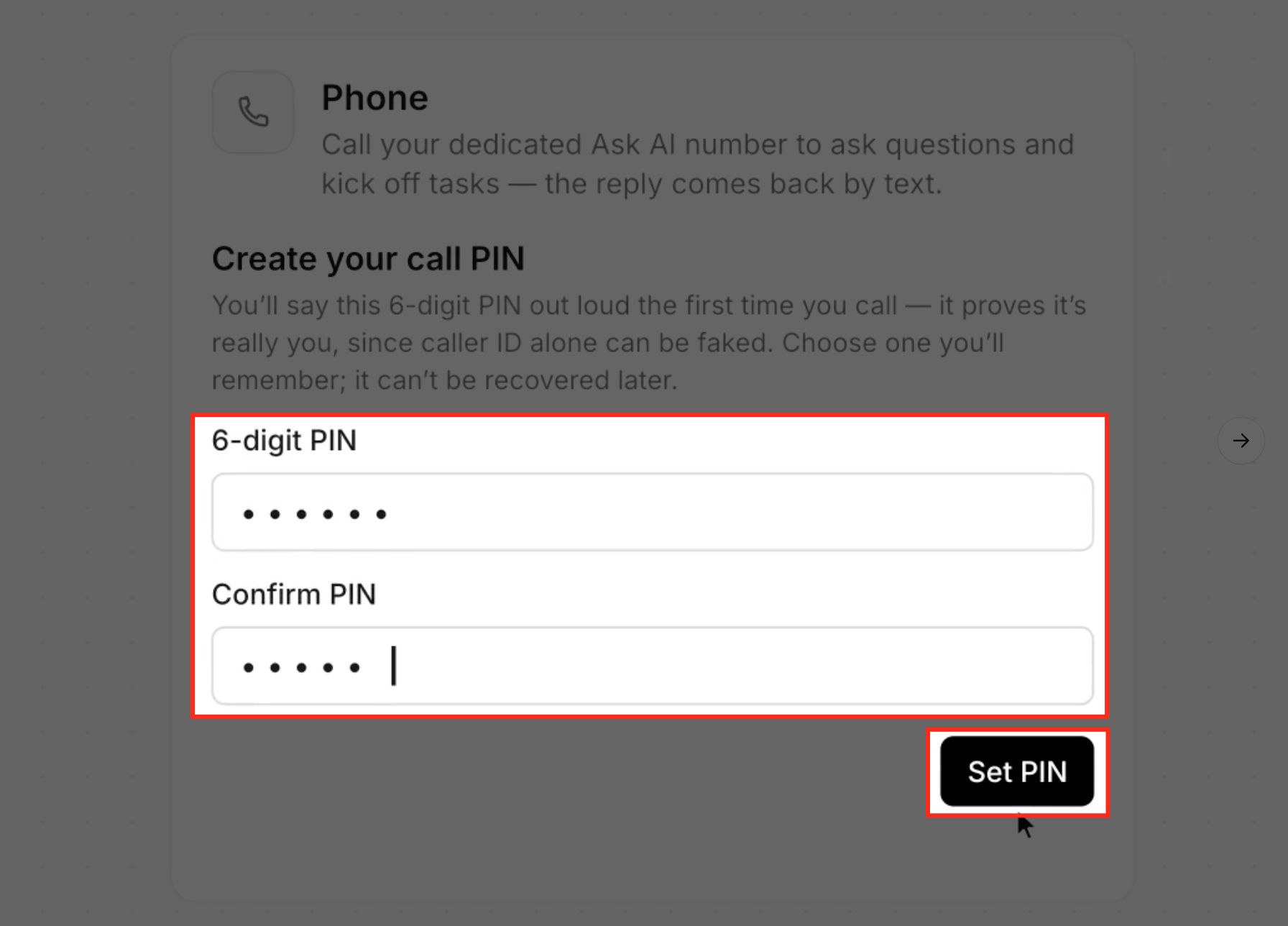
Step 7: Create Your Call PIN
Enter a six-digit PIN in 6-digit PIN and enter it again in Confirm PIN. Click Set PIN to save it, and make sure you remember your PIN because it cannot be recovered later.
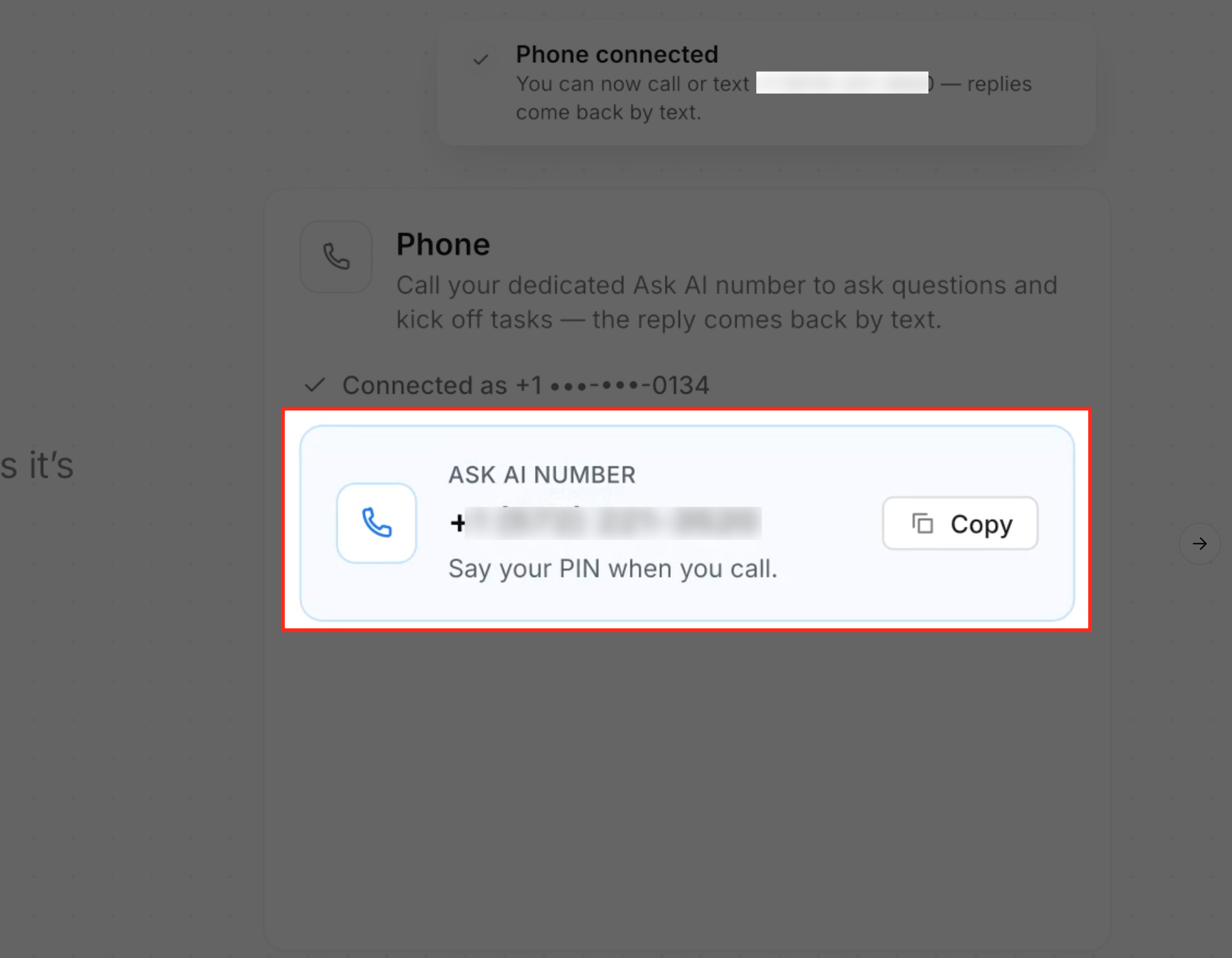
Step 8: Copy Your Ask AI Number
Once your setup is complete, you'll see Phone connected along with your dedicated number under ASK AI NUMBER. Click Copy to save the number, then use it to call or text Ask AI from your connected phone.
Use Ask AI Through Calls and Texts
Once your phone is connected, you can call or text Ask AI to ask questions, manage business tasks, and get information without opening Chat To Clients CRM. Both channels share the same conversation context, so you can switch between calling and texting without starting over.
Call Ask AI
Calling Ask AI lets you speak your requests when typing isn't convenient. You can check appointments, look up contact information, or ask Ask AI to send important details by text.
Open your phone's calling app and dial your dedicated Ask AI number.
When prompted, say your six-digit call PIN to verify your identity.
Tell Ask AI what you need help with, just as you would in the Chat To Clients CRM web app.
If you want to keep the information, ask Ask AI to send the details by text.
For example, you can say:
"What appointments do I have today?"
"Find the contact details for my next appointment."
"Summarize my new leads."
"Text me the details from this conversation."
Text Ask AI and Send Media
Texting Ask AI makes it easy to handle quick requests when you can't make a call or open the web app. You can also send photos or files when your request requires additional information.
Open your phone's messaging app and start a conversation with your dedicated Ask AI number.
Type your question or task request, then send the message.
Continue the conversation by replying to Ask AI's messages.
When needed, attach a photo or file to provide more information for Ask AI to work with.
For example, you can text:
"Add a note to Sarah's contact about our meeting."
"Move the opportunity to the next stage."
"What appointments do I have tomorrow?"
"Create a follow-up email template for new leads."
"Draft a blog post about appointment reminders."
Switch Between Calls and Texts
Phone Dispatch keeps your call and text conversations connected, making it easier to continue working when your situation changes. You can start a request on a call and follow up by text, or begin with a text and continue over the phone.
For example:
Call Ask AI and ask about your upcoming appointments.
During the call, ask Ask AI to text you the appointment details.
Open the text message to review the information.
Reply with a follow-up question or another task.
Ask AI retains the conversation context, so you don't need to repeat your original request.
Review Phone Dispatch Conversations in Chat To Clients CRM
Your Phone Dispatch conversations are saved in Chat To Clients CRM, giving you a place to revisit previous calls and text exchanges. The Dispatch history supports searching, sorting, and pagination to help you find earlier interactions.
From your Chat To Clients CRM Sub-Account view, click Ask AI in the left sidebar.
In the Ask AI workspace, select Customize.
Under Customize, click Dispatch.
Click View Dispatch Sessions to access your conversation history.
Review your saved Dispatch conversations and use the available history controls to find earlier interactions.
Move Your Connected Phone Number
If your phone number is already connected to Ask AI under another location or agency, you can move that connection to your current location. Phone Dispatch recognizes connections owned by you and provides a confirmation before transferring the number.
From the destination Chat To Clients CRM Sub-Account view, click Ask AI in the left sidebar.
Select Customize, then click Dispatch.
Under Connected channels, select Phone.
Click Connect Phone.
Enter your previously connected number in Your phone number, then click Continue.
If the number is already connected under your user, review the transfer confirmation and confirm the move.
Important: You can transfer a number connected under your own user, but you cannot take over a number connected by someone else. If another user owns the connection, Chat To Clients CRM displays an Unauthorized message instead of offering a transfer.
Frequently Asked Questions
Q: Is the SMS verification code the same as my call PIN?
No. The SMS verification code confirms ownership of your phone number during setup. Your six-digit call PIN is created separately and helps verify your identity during phone calls.
Q: Can I ask Ask AI general questions without creating a task?
Yes. You can ask questions, request information, or have a conversation without assigning a specific business task.
Q: Can I use Phone Dispatch to get product or account support answers?
Yes. When you ask a product or account support question, Ask AI can route your request to Support AI within the same conversation.
Q: Can I schedule recurring tasks through Phone Dispatch?
Yes. You can ask Ask AI to create recurring work through calls or texts. For example, you can request, "Every Monday at 9 AM, summarize new leads."
Q: Can I use my custom Ask AI Skills through text messages?
Yes. Custom Skills configured for your copilot can also be used through Phone Dispatch text conversations.