
How to Set Up and Manage Badges in Communities
Badges in Communities help you recognize members for joining, contributing, and staying active. Community administrators can configure badges that are awarded automatically when members meet specific milestones or engagement thresholds. Members can view earned badges, track their progress, and choose an earned badge to display throughout the community. This guide explains badge types, setup, member visibility, filtering, and badge customization in Chat To Clients CRM.
TABLE OF CONTENTS
- What Are Badges in Communities?
- Key Benefits of Badges in Communities
- Prerequisites and Limitations
- How to Set Up Badges in Communities
- Badge Types and Award Conditions
- How Members View and Display Badges
- How to Filter Members by Badge
- How to Create and Customize Badge Templates
- Frequently Asked Questions
- Related Articles
What Are Badges in Communities?
Badges in Communities are recognition tools that automatically reward members when they meet configured milestones or engagement thresholds.Administrators control which badge triggers are active and configure the qualifying conditions. Members can review earned badges and track progress toward additional achievements from their profiles.
Badges generally fall into two categories:
- One-time badges: Recognize specific community milestones or membership events.
- Engagement badges: Recognize ongoing activity such as posting, commenting, reacting, or receiving likes.
Key Benefits of Badges in Communities
Badges provide visible recognition for meaningful participation while helping administrators encourage continued community engagement.
- Automatic recognition: Reward members when they meet configured milestones or activity thresholds.
- Visible achievements: Allow members to display an earned badge next to their name throughout the community.
- Continued engagement: Use engagement badges to encourage ongoing participation.
- Progress visibility: Let members review earned badges and progress toward future achievements.
- Flexible configuration: Enable individual triggers, configure thresholds, and select the badge associated with each trigger.
- Member insights: Filter community members by badge and review badge-holder information.
Prerequisites and Limitations
Badge award settings are configured within a Community group, while badge designs are created and managed through Chat To Clients CRM Credentials.
- You need access to the Chat To Clients CRM sub-account and Community group you want to configure.
- You need the appropriate access to manage Community settings and badge triggers.
- Members can display one selected earned badge next to their name at a time.
- Engagement badges are designed to refresh quarterly.
- Badge designs are managed separately from Community badge triggers.
Note: Available badge settings and controls may depend on your account access and the current Communities experience.
How to Set Up Badges in Communities
Community administrators can enable automatic badge awards for one-time milestones and ongoing engagement activities. Each trigger connects a qualifying condition to the badge a member receives.
- From your Chat To Clients CRM Sub-Account, select Memberships from the left navigation menu.
- Select Communities, then select Groups.
- Open the Community group you want to configure.
- Inside the group, select Settings.
- Select Badges.
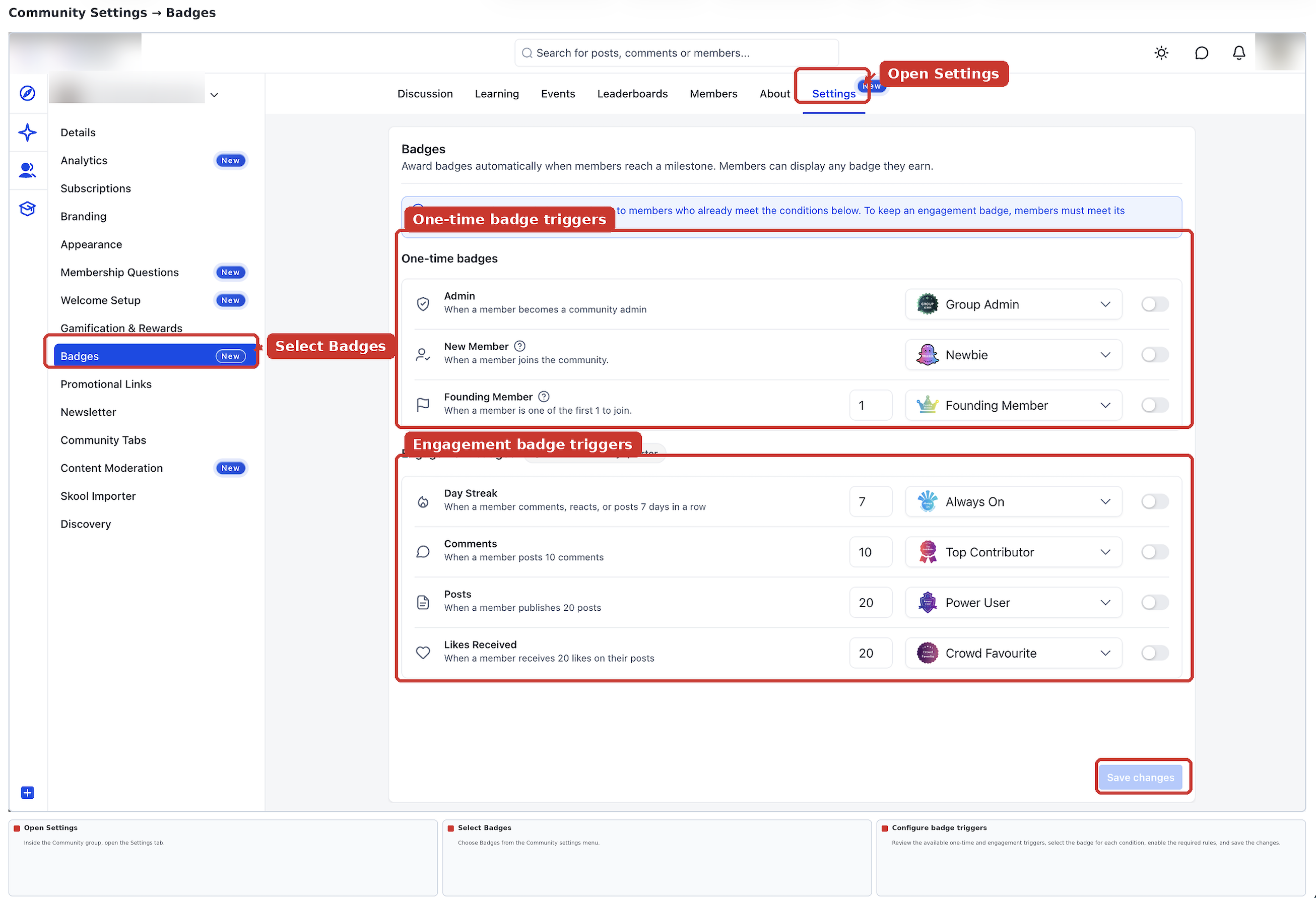
- Locate the one-time or engagement badge trigger you want to configure.
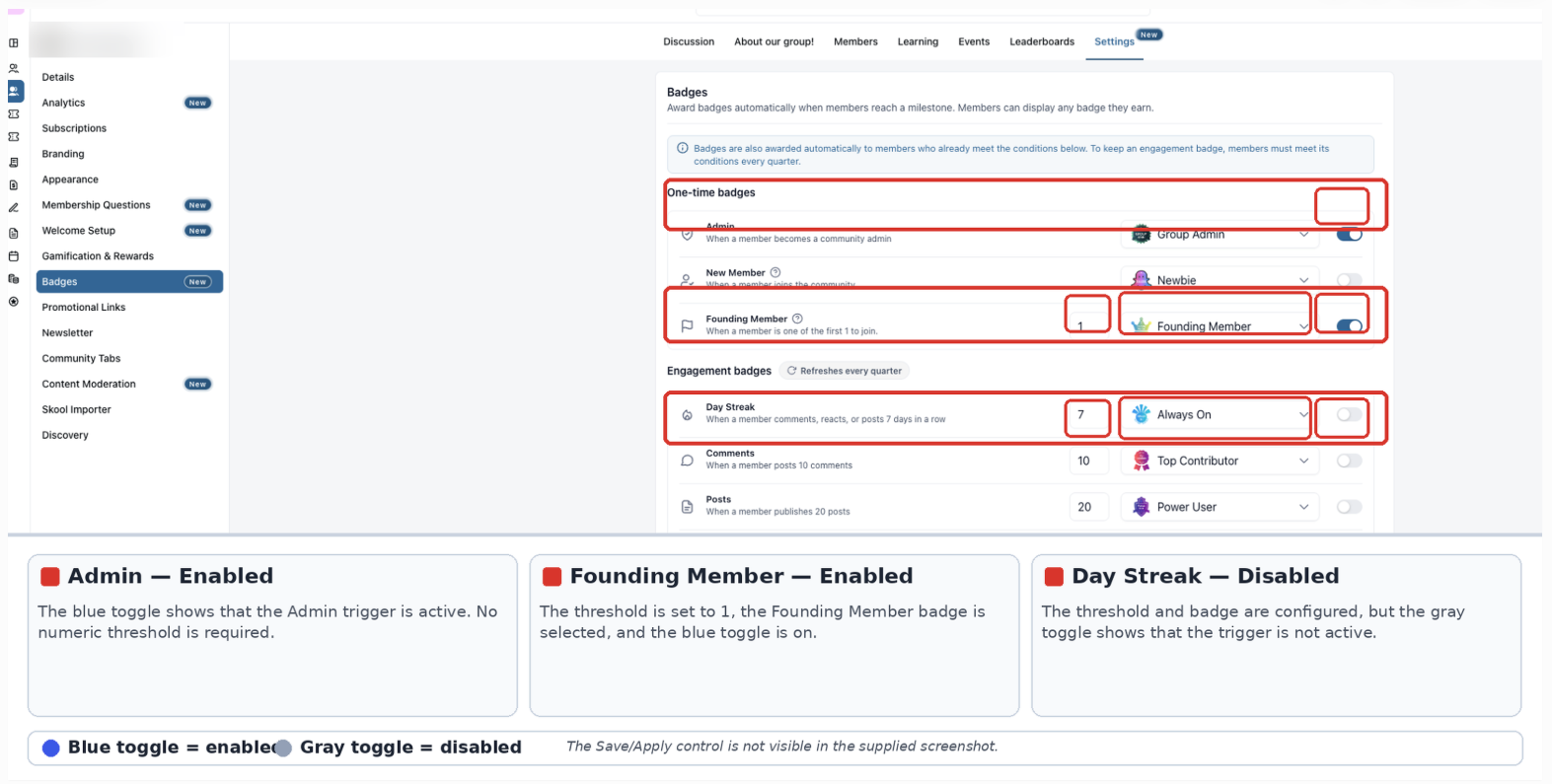
- Enable the trigger.
- If the trigger includes a threshold, configure the required number of qualifying activities or days.
- Select the badge members should receive when they meet the condition.
- Apply or save the configuration using the available control.
Badge Types and Award Conditions
Available badges recognize both Community milestones and ongoing member contributions.
One-Time Badges
| Badge | Award Condition |
|---|---|
| Group Admin | Recognizes a member who becomes a Community administrator. |
| Newbie | Recognizes a member when they join the Community. |
| Founding Member | Recognizes members who qualify as some of the earliest members to join the Community. |
Engagement Badges
| Badge | Award Condition |
|---|---|
| Always On | Post, comment, or react for the configured number of consecutive days. |
| Top Contributor | Post the configured number of comments. |
| Power User | Publish the configured number of posts. |
| Crowd Favourite | Receive the configured number of likes on posts published by the member. |
Administrators configure the applicable engagement thresholds. Engagement badges refresh quarterly.
How Members View and Display Badges
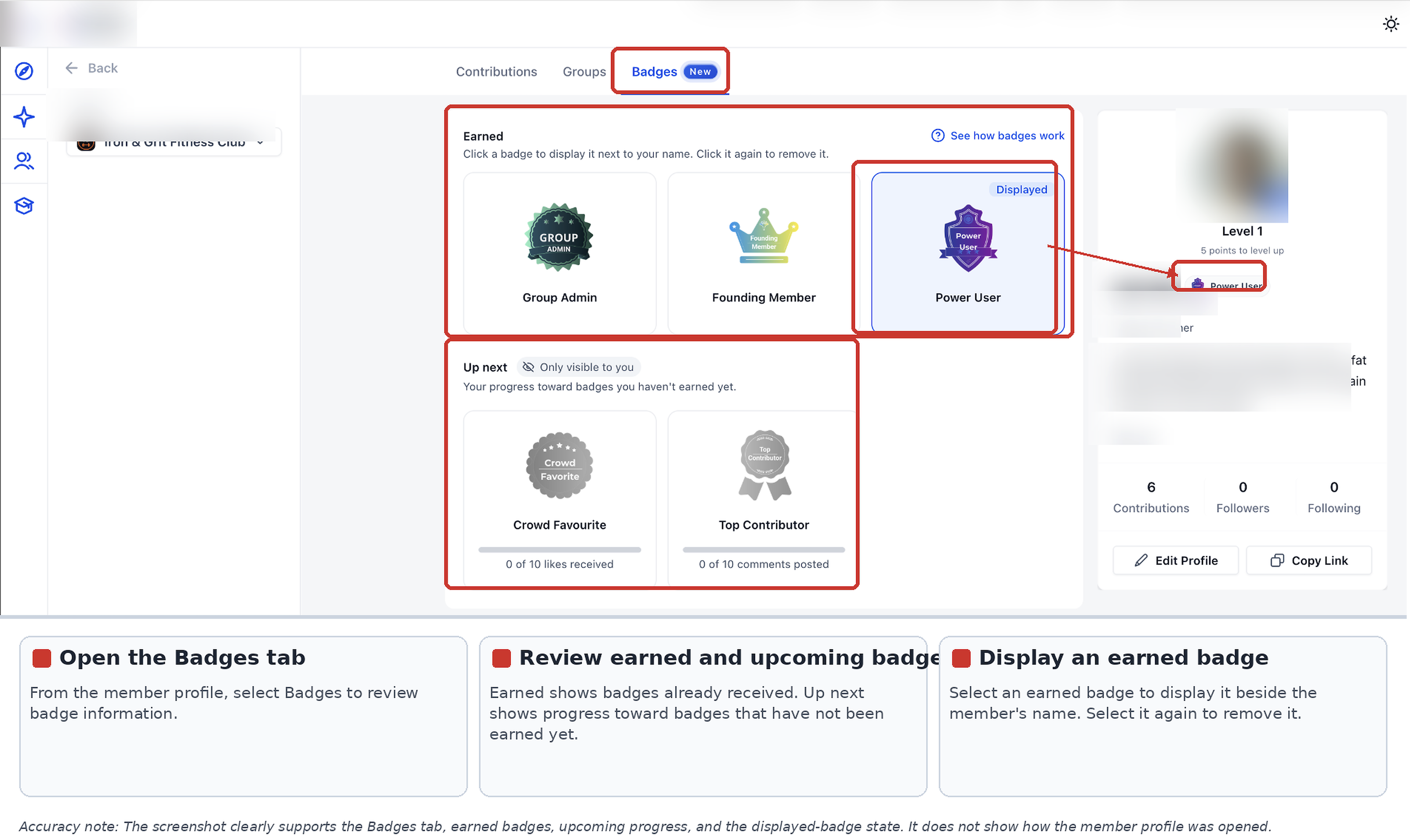
Member profiles provide a central place to review earned badges and progress toward additional achievements. Members can also select an earned badge to display next to their name.
- Access the Community where you have earned badges.
- Open your member profile.
- Select the Badges tab.
- Review your earned badges and progress toward upcoming achievements.
- Select an earned badge to display beside your name using the available badge-selection control.
The selected badge can appear beside the member's name in areas such as the Community feed, Members list, and comments.
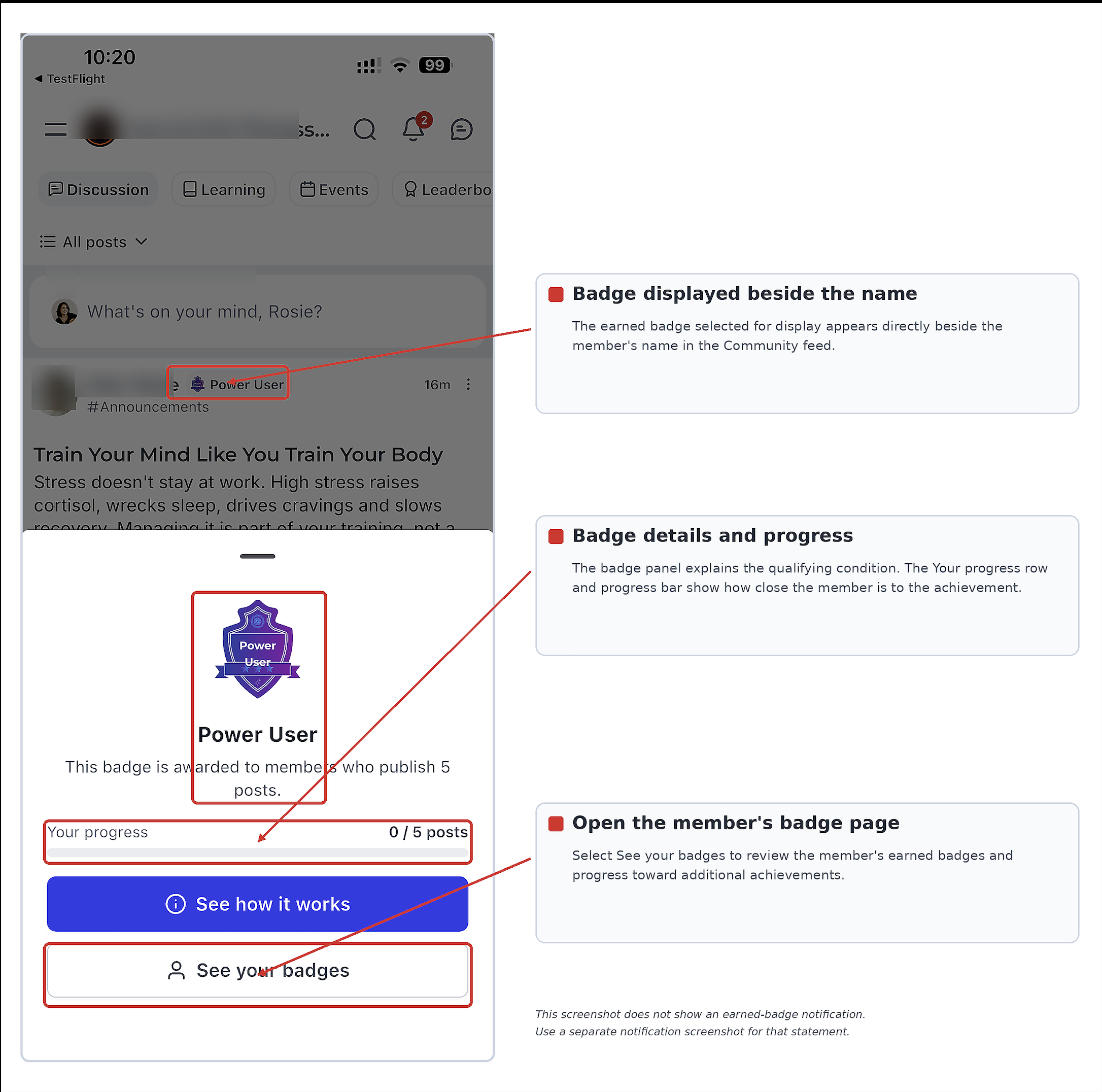
Members can also receive notifications when they earn badges and progress reminders as they approach an achievement.
How to Filter Members by Badge
Badge filtering helps administrators identify members who hold specific achievements and review Community participation.
- From your Chat To Clients CRM Sub-Account, select Memberships.
- Select Communities, then select Groups.
- Open the Community group you want to review.
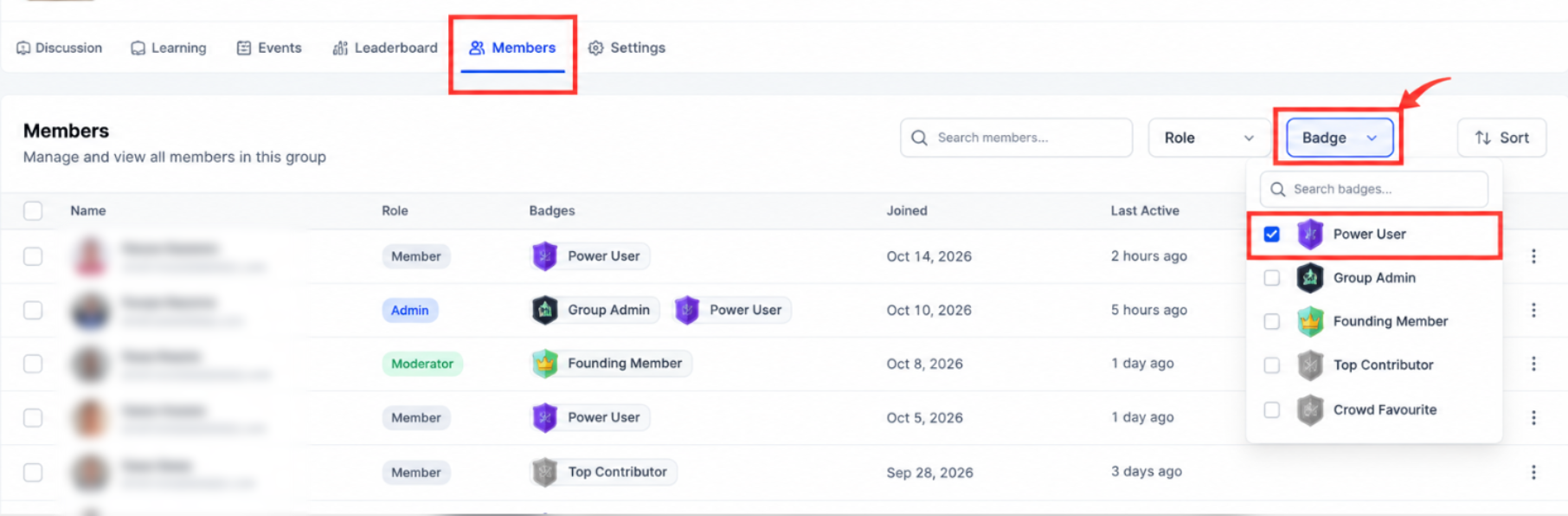
- Select the Members tab.
- Use the available badge filter to narrow the member list by badge.
- Review the matching members and available badge-holder information.
How to Create and Customize Badge Templates
Chat To Clients CRM's Credentials area provides tools for designing badge templates. After creating a badge, administrators can select it when configuring a Community badge trigger.
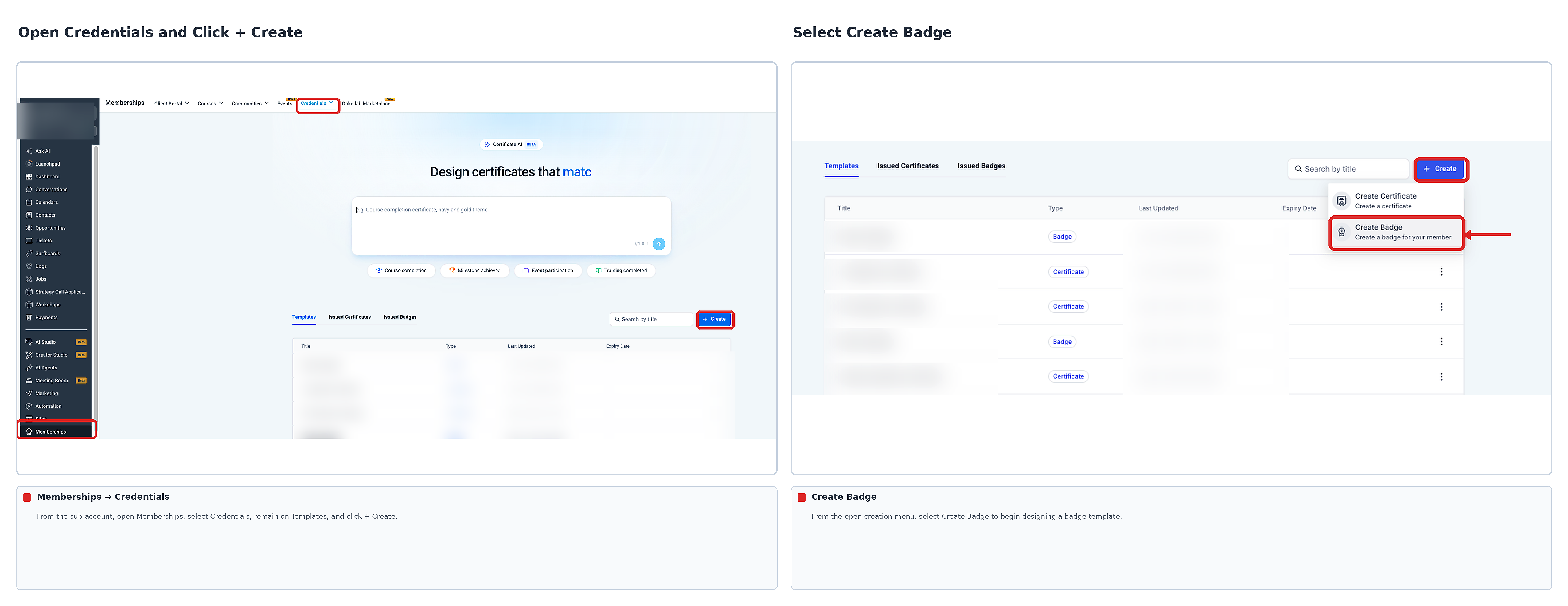
- From your Chat To Clients CRM Sub-Account, select Memberships from the left navigation menu.
- Select Credentials.
- Click + Create in the upper-right corner.
- Select Create Badge.
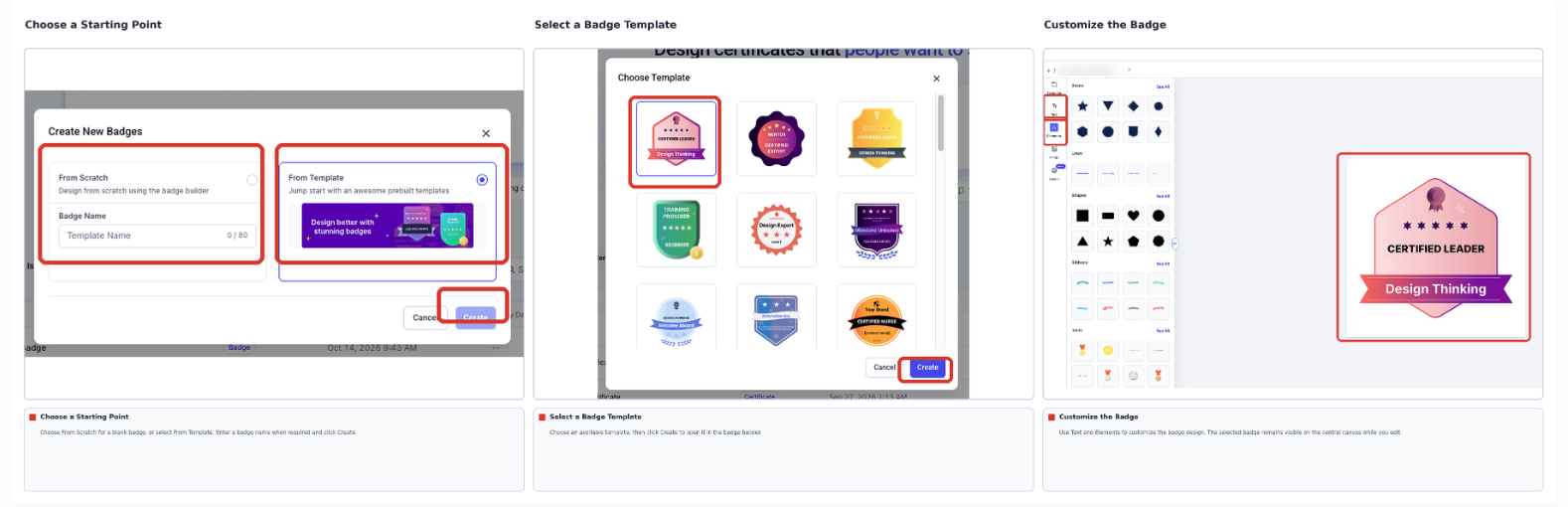
- Choose an available template or begin with a blank design.
- If you select a template, click Create to open the builder.
- Customize the badge using the available Text and Elements tools.
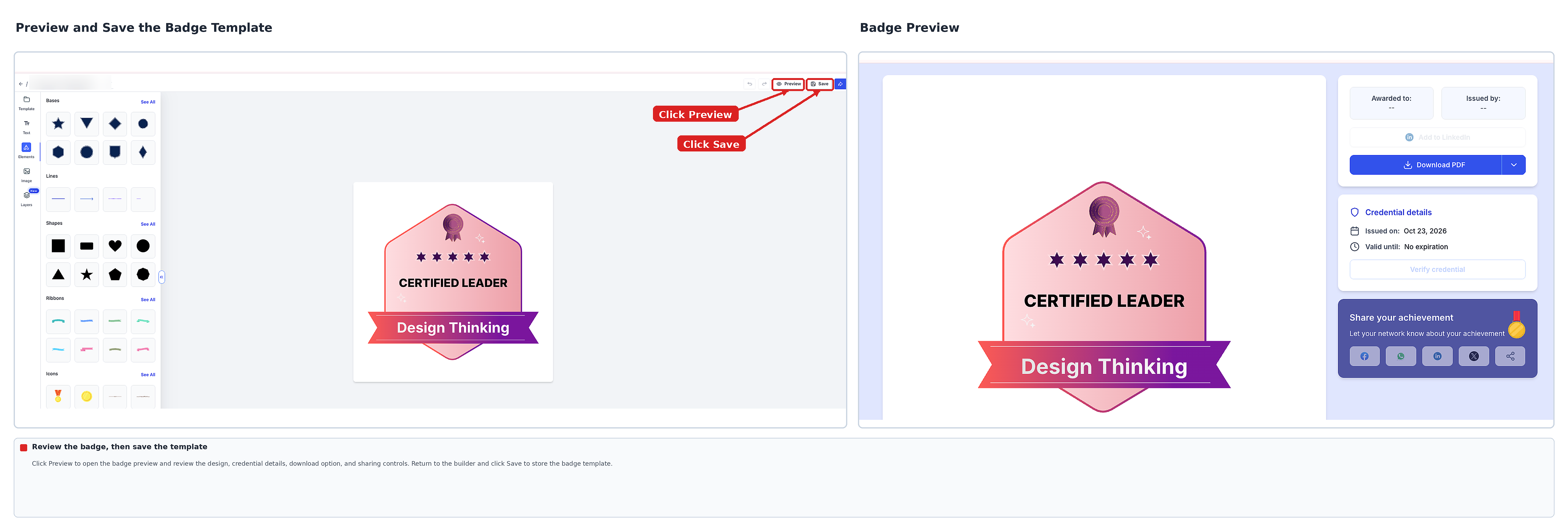
- Click Preview to review the badge.
- Click Save to store the badge template.
To associate the badge with a Community trigger, return to Memberships → Communities → Groups, open the group, and select Settings → Badges. Choose the appropriate badge when configuring the trigger.
Frequently Asked Questions
Q: Will members receive a badge if they already qualify when I enable the trigger?
Yes. Members who already meet the qualifying condition can receive the badge when the corresponding trigger is enabled.
Q: Can administrators enable or disable individual badge triggers?
Yes. Badge triggers can be configured independently, allowing administrators to enable only the achievements they want to use.
Q: Can members choose which badge appears next to their name?
Yes. Members can select one of their earned badges to display beside their name.
Q: Do engagement badges refresh?
Yes. Engagement badges are designed to refresh quarterly to encourage continued participation.
Q: When do members receive a progress reminder?
Members can receive an "almost there" notification when they reach 80% of the progress required for a badge.