
Integrate Tab in Chat To Clients CRM's Form, Survey & Quizzes
Learn how to embed, share, and connect Forms, Surveys, and Quizzes using the Integrate tab in Chat To Clients CRM. The centralized experience provides live embed previews, prebuilt QR codes, email integration, and Workflow connections. You can configure and distribute your content without switching between multiple areas of the platform.
What is the Integrate Tab for Forms, Surveys & Quizzes?
The Integrate tab brings all distribution and integration options into one place within the Form, Survey, and Quiz Builders. It replaces the previous Integrate button and provides four integration options.
| Integration | Description |
|---|---|
| Embed | Customize embed layouts, preview changes, and copy embed code. |
| Share | Share direct links, use social sharing options, and customize QR codes. |
| Email | Add Forms, Surveys, and Quizzes to existing or new emails. |
| Connections | View associated Workflows and initiate new ones. |
Embed
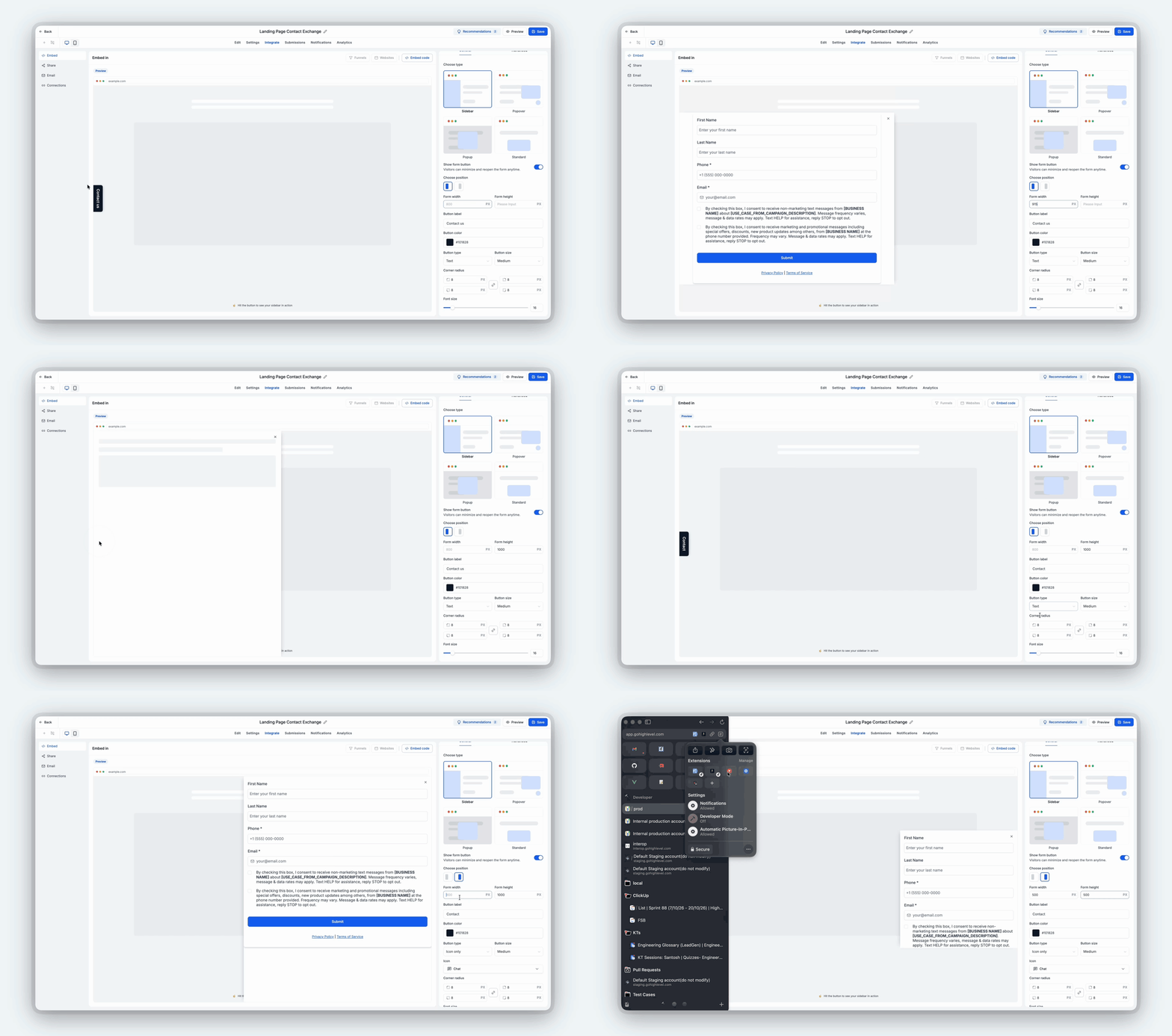
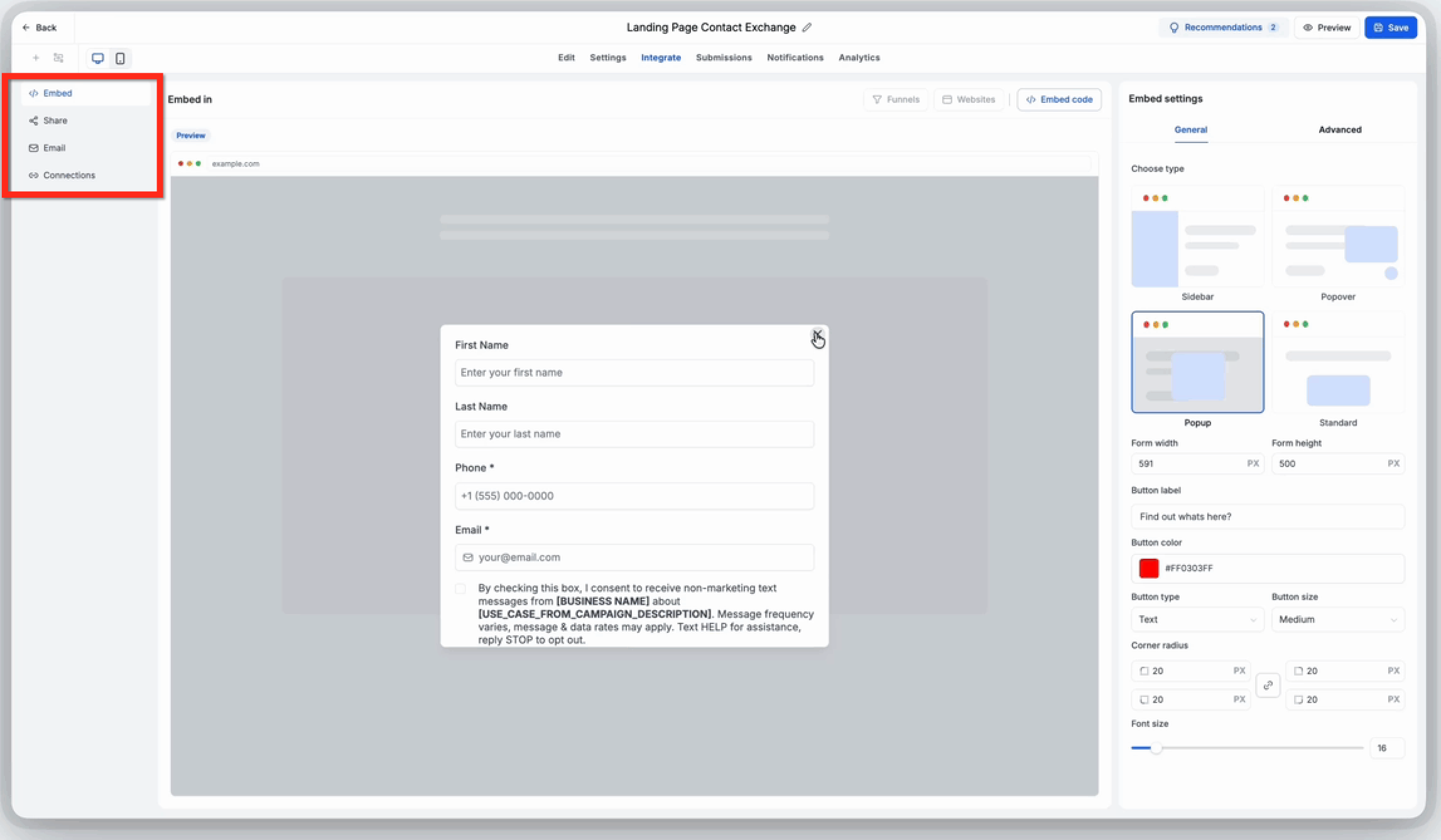
The Embed option lets you configure how a Form, Survey, or Quiz appears on a webpage. Live previews reflect supported setting changes, helping you select the appropriate layout before copying the embed code.
Embed Types
| Type | Description | Best for |
|---|---|---|
| Standard | Displays directly within a webpage. | Contact and registration forms |
| Popup | Opens as an overlay. | Promotions and lead capture |
| Popover | Opens from a floating button. | Quick inquiries |
| Sidebar | Opens in a side panel. | Feedback and support forms |
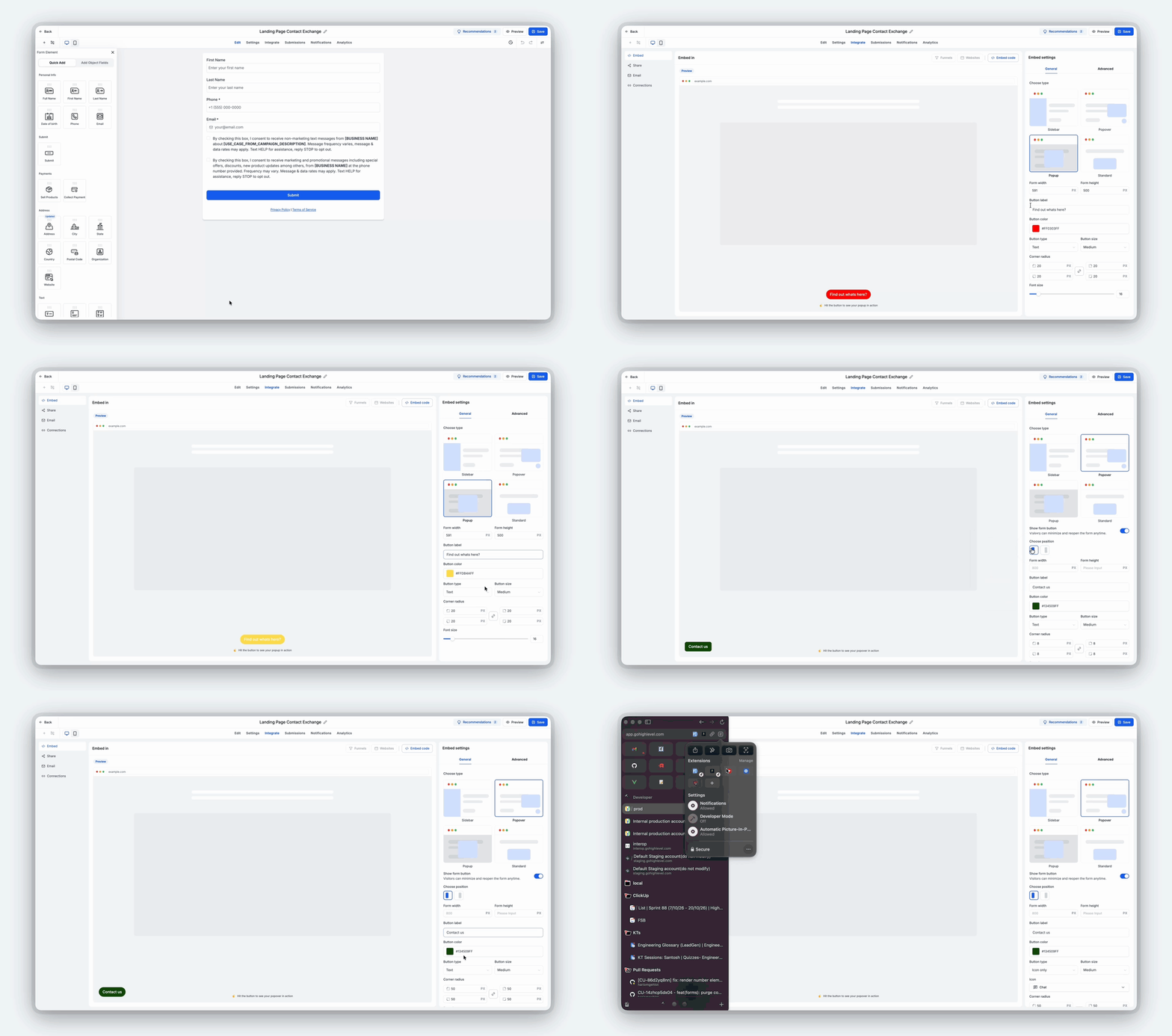
Customize the selected layout using the available settings.
| Setting | Description |
|---|---|
| Choose Type | Select Standard, Popup, Popover, or Sidebar. |
| Position | Adjust the supported display or button position. |
| Width and Height | Configure available form dimensions. |
| Button Settings | Customize the label, color, type, and size. |
| Appearance | Adjust supported corner radius and font settings. |
Settings vary depending on the selected embed type. Additional configuration options may be available under the Advanced tab.
Share
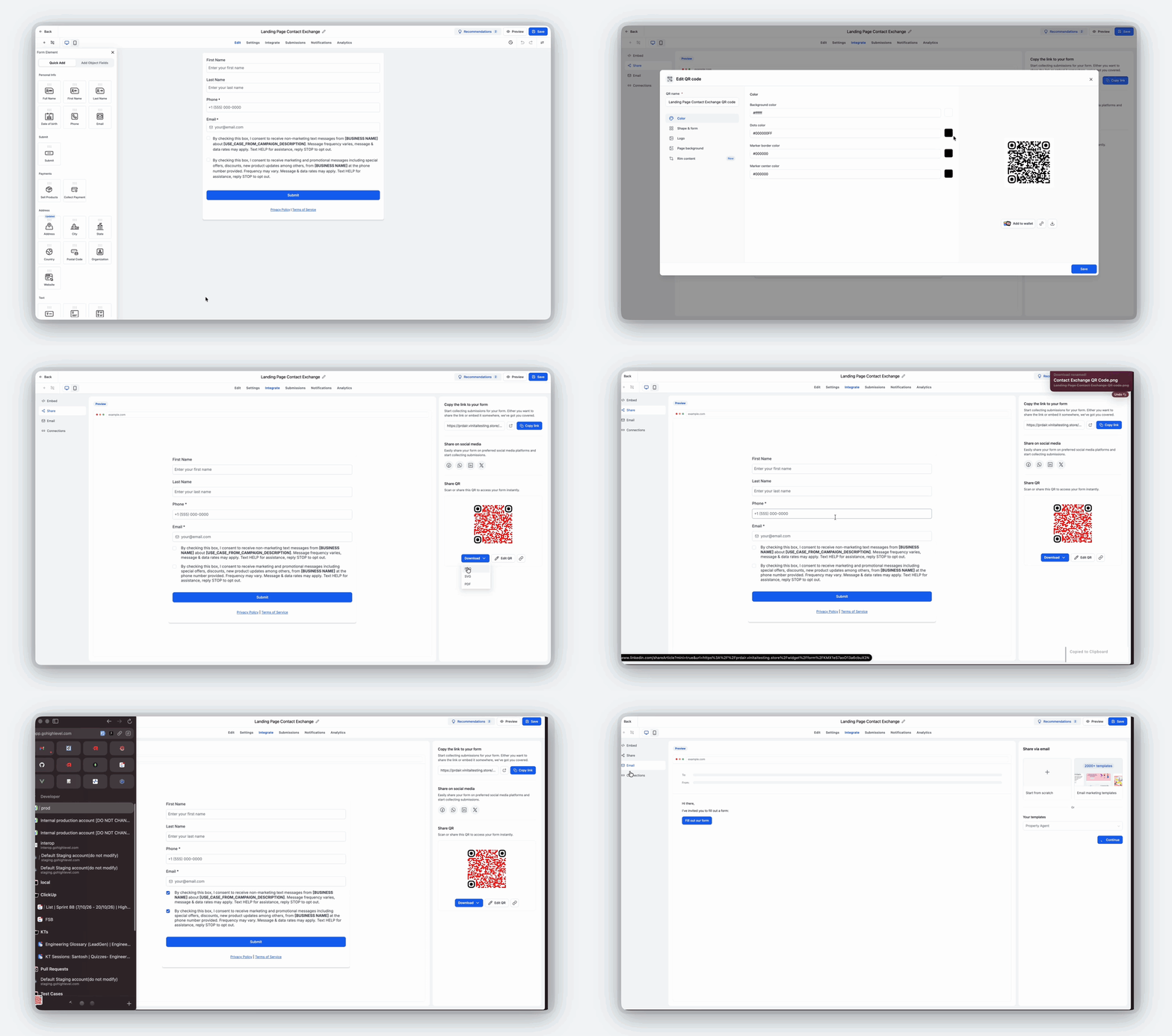
The Share option provides multiple ways to distribute Forms, Surveys, and Quizzes. Each item includes a direct link and a prebuilt QR code, making it easier to share content across digital and printed materials.
| Sharing Option | Description |
|---|---|
| Direct Link | Copy the URL to share through messages, emails, or other channels. |
| Social Sharing | Share through supported social platforms. |
| QR Code | Customize and download the automatically generated QR code. |
Prebuilt QR codes eliminate the need to manually create a separate code for each Form, Survey, or Quiz.
For additional QR code customization and management options, see the QR Code Generation and Download Guide.
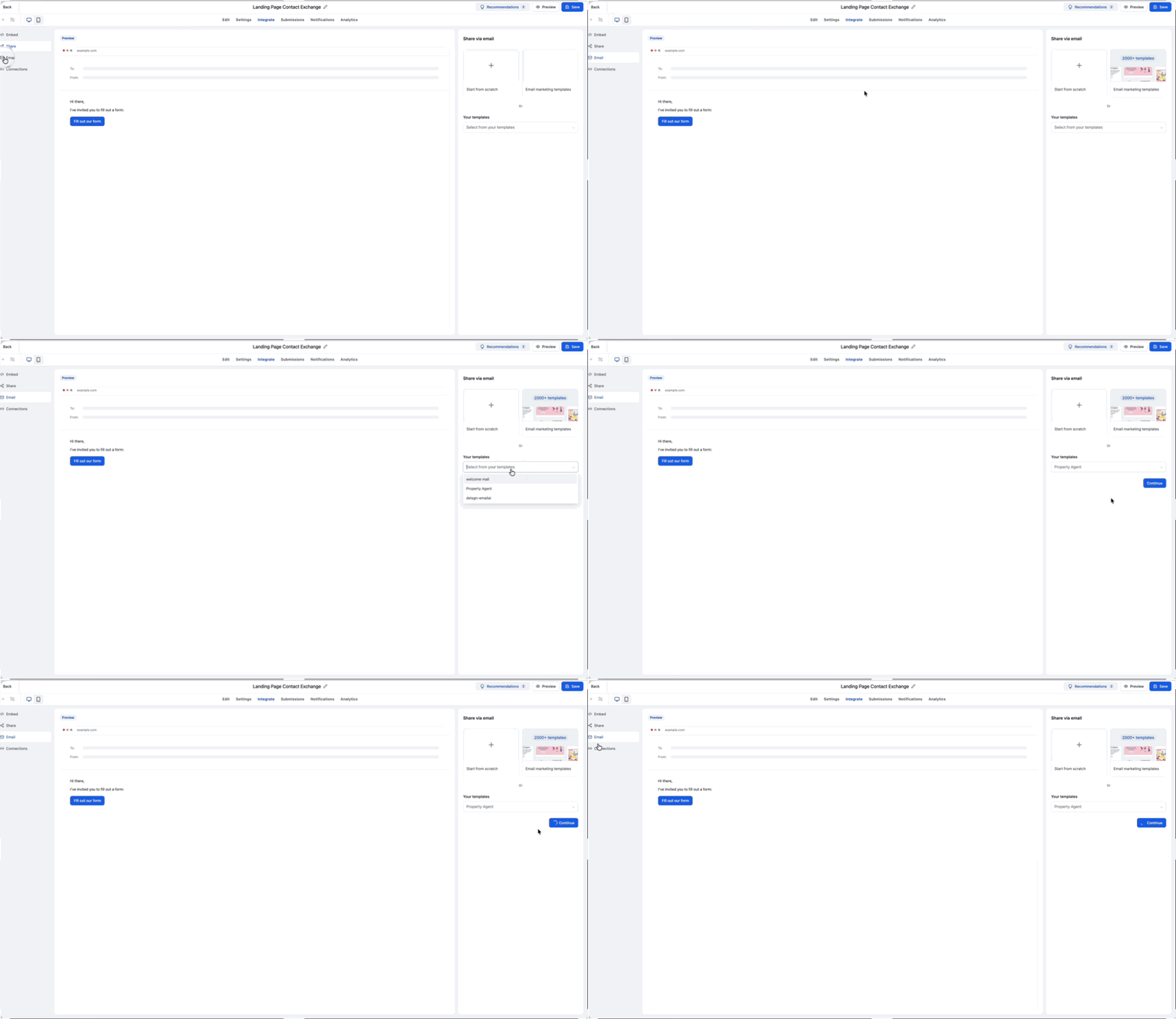
The Email option allows you to include a Form, Survey, or Quiz in email communications directly from the Integrate tab. The existing email integration functionality remains unchanged.
| Option | Description |
|---|---|
| Use Existing Template | Select an existing email template to include your Form, Survey, or Quiz. |
| Create New Email | Start a new email and add your Form, Survey, or Quiz. |
Connections
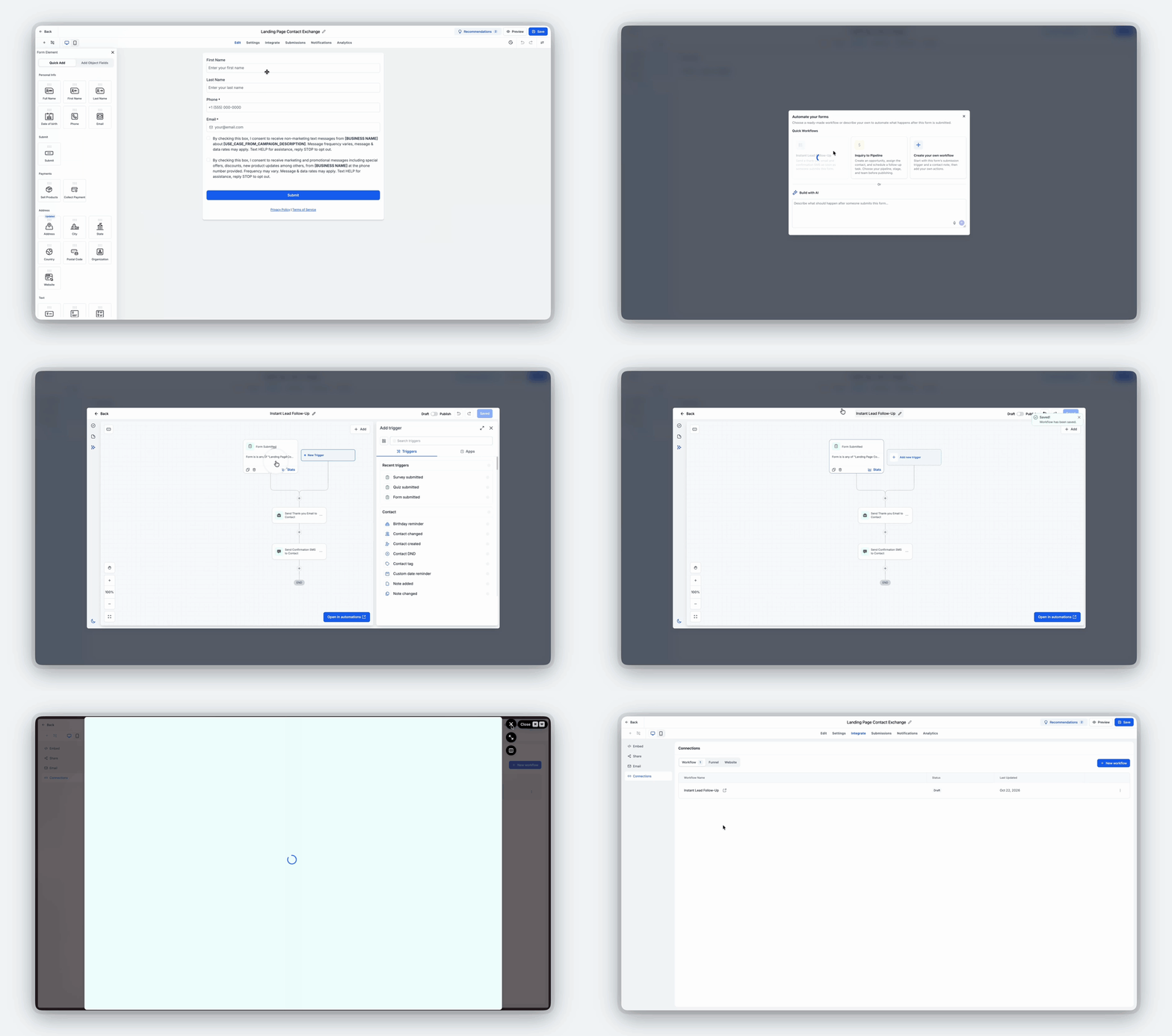
The Connections option helps you identify Workflows associated with a Form, Survey, or Quiz. You can review existing connections or initiate a new Workflow without manually searching through the Automation area.
| Option | Description |
|---|---|
| Connected Workflows | View Workflows associated with the selected Form, Survey, or Quiz. |
| Create Workflow | Initiate the creation of a new Workflow. |
When creating a Workflow, configure the appropriate submission trigger, filters, and actions before publishing.
Note: Visibility into connected Funnel steps and Website pages is an upcoming enhancement and is not included in the initial release.How to Set Up and Use the Integrate Tab
The Integrate tab allows you to embed, share, email, and connect Forms, Surveys, and Quizzes from one location. Choose the integration option that fits your goal and follow the steps below.
- Go to Sites > Forms, Surveys, or Quizzes and open the item you want to integrate.
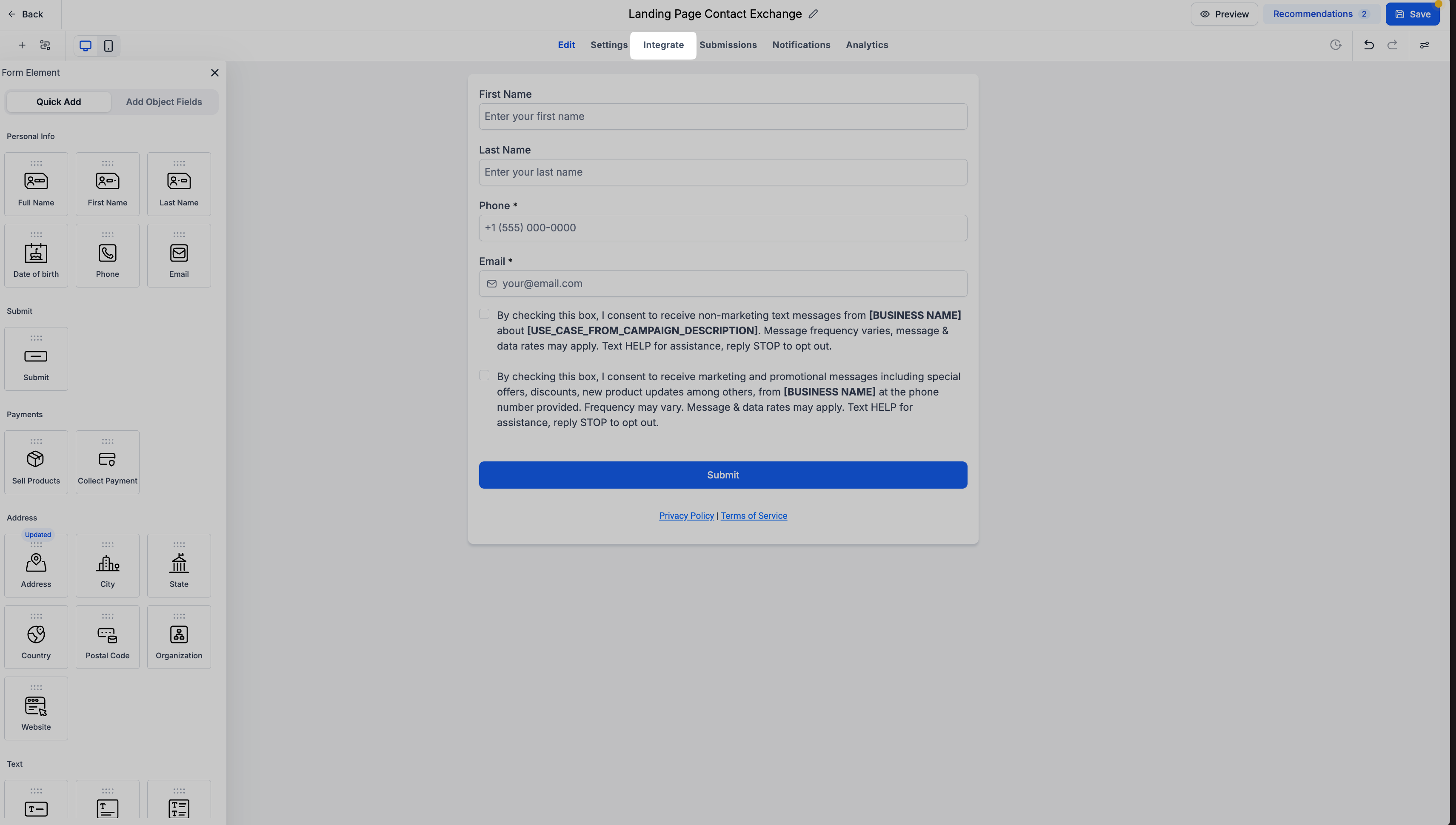
- Select the Integrate tab in the builder.
- Choose your preferred integration option:
- Embed: Select an embed type (Sidebar, Popover, Popup, or Standard), customize settings under General or Advanced, and review the live preview. Click Embed code > Copy code, then paste the code into your website editor and publish.
- Share: Copy the direct link, select a social sharing option, or customize and download the prebuilt QR code.
- Email: Select an existing email template or create a new email to include your Form, Survey, or Quiz.
- Connections: View associated Workflows or click Create Workflow to configure a new automation.
- Embed: Select an embed type (Sidebar, Popover, Popup, or Standard), customize settings under General or Advanced, and review the live preview. Click Embed code > Copy code, then paste the code into your website editor and publish.
- Click Save to save your Form, Survey, or Quiz. The post-save modal provides options to Share, Embed, or Create a Workflow.
Frequently Asked Questions
Q: Can I preview my Form, Survey, or Quiz before embedding it?
Yes. The Embed tab provides live previews for all existing embed options. You can adjust supported settings and see the changes reflected in real time.
Q: Do I need to manually create a QR code for each Form, Survey, or Quiz?
No. Chat To Clients CRM automatically provides a prebuilt QR code for each Form, Survey, or Quiz. You can customize and download it directly from the Share tab.
Q: Has the Email integration functionality changed?
No. The existing Email integration functionality remains unchanged. It is now accessible from the dedicated Integrate tab.
Q: Can I see which Workflows are connected to my Form, Survey, or Quiz?
Yes. The Connections tab displays associated Workflows and allows you to initiate the creation of new Workflows directly from the builder.