
How to Use Rich Elements in Conversation AI
Chat To Clients CRM Conversation AI supports Rich Elements, allowing agents to send interactive replies with buttons, lists, images, files, links, and formatted text. Instead of relying only on plain text, agents can automatically select suitable message elements to help contacts interact more easily.
You can also control which elements are available and create Response Rules for specific conversation scenarios.
TABLE OF CONTENTS
- What are Rich Elements in Conversation AI?
- Types of Rich Elements
- Supported Channels and Message Behavior
- Response Rules
- Response Rule Settings
- How to Set Up Rich Elements in Conversation AI
- Frequently Asked Questions
- Related Articles
What are Rich Elements in Conversation AI?
Rich Elements are interactive message components that help Conversation AI agents present information and guide customer interactions beyond plain text. The AI automatically selects appropriate elements based on the conversation, while optional Response Rules provide additional control over when specific elements are used.
For example, a real estate agent can display neighborhoods as a list, provide booking buttons, or share property images and listing links.
Rich Elements are available on WhatsApp, Facebook Messenger, Instagram (mobile app), and Live Chat. Other channels continue using plain-text responses.
Types of Rich Elements
Conversation AI provides six Rich Element types, each designed to make information easier to present or interact with.
You can enable the elements that best support your customer conversations.
Formatted Text
Uses bold or italic formatting to emphasize important information, such as pricing, business hours, or instructions. The release specifically supports formatted text on WhatsApp; behavior on other channels may vary.
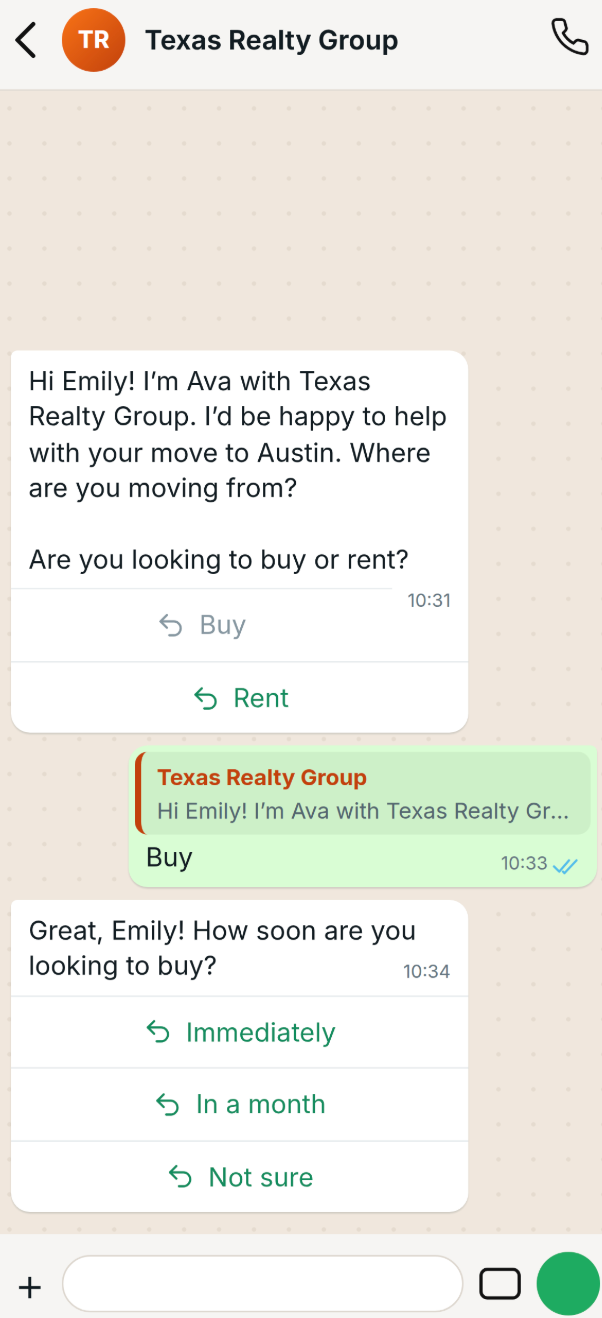
Quick Replies
Displays tappable response options, such as Buy or Rent, so contacts can answer questions without typing.
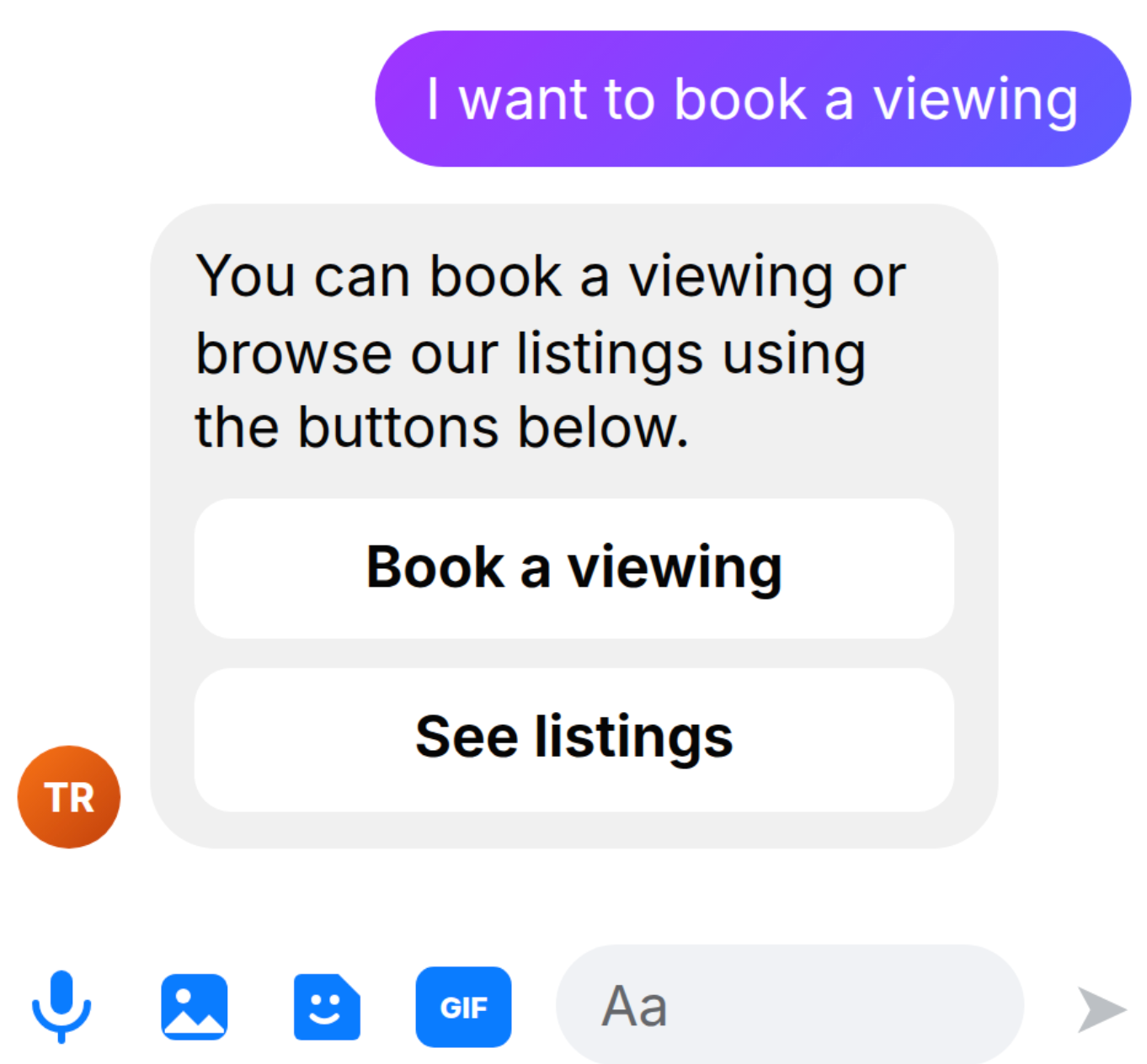
Link Buttons
Provides clickable buttons that open webpages, such as booking pages, property listings, or product catalogs.
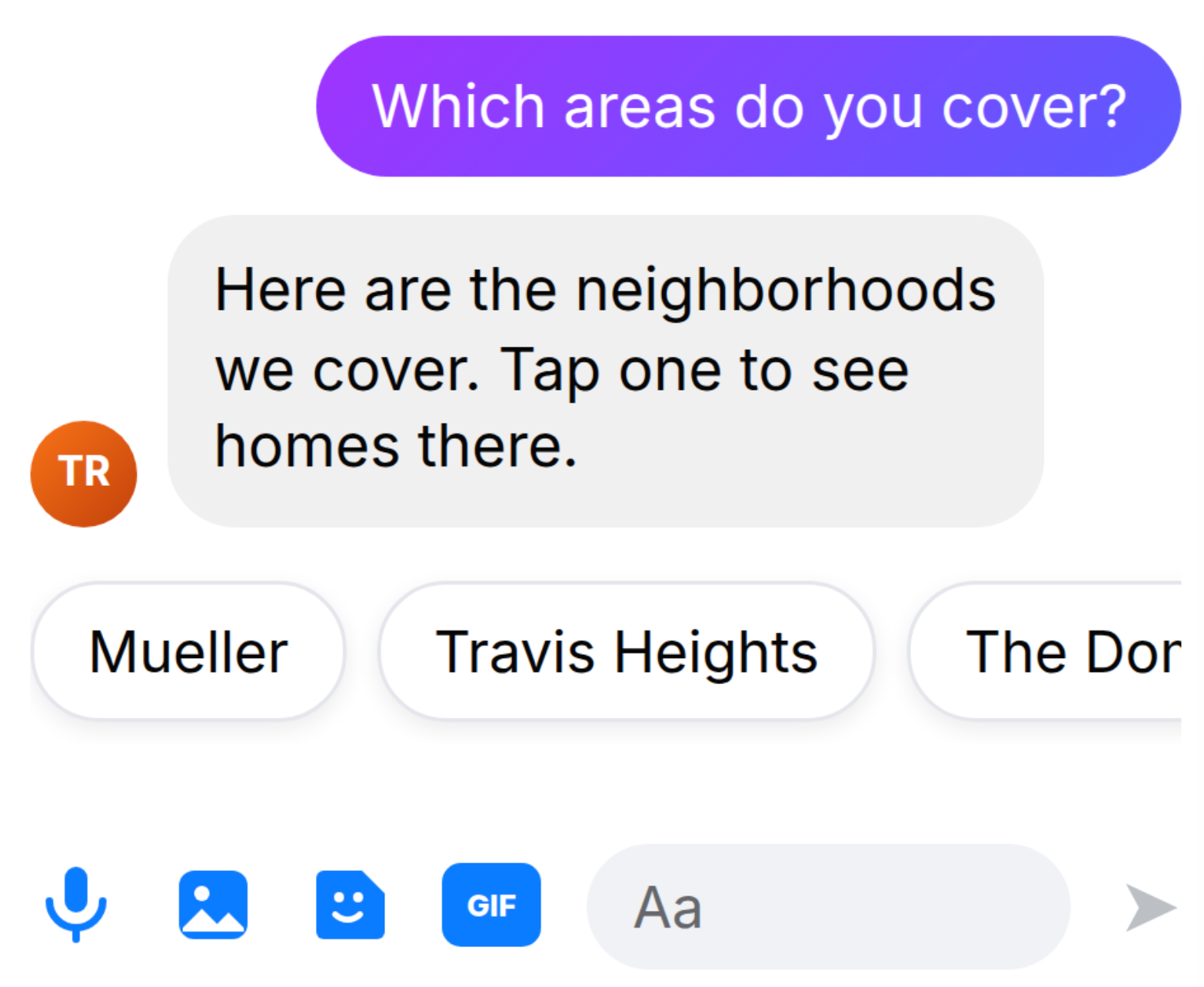
Lists
Organizes multiple choices into a selectable menu, making it easier for contacts to choose neighborhoods, services, products, or other options.
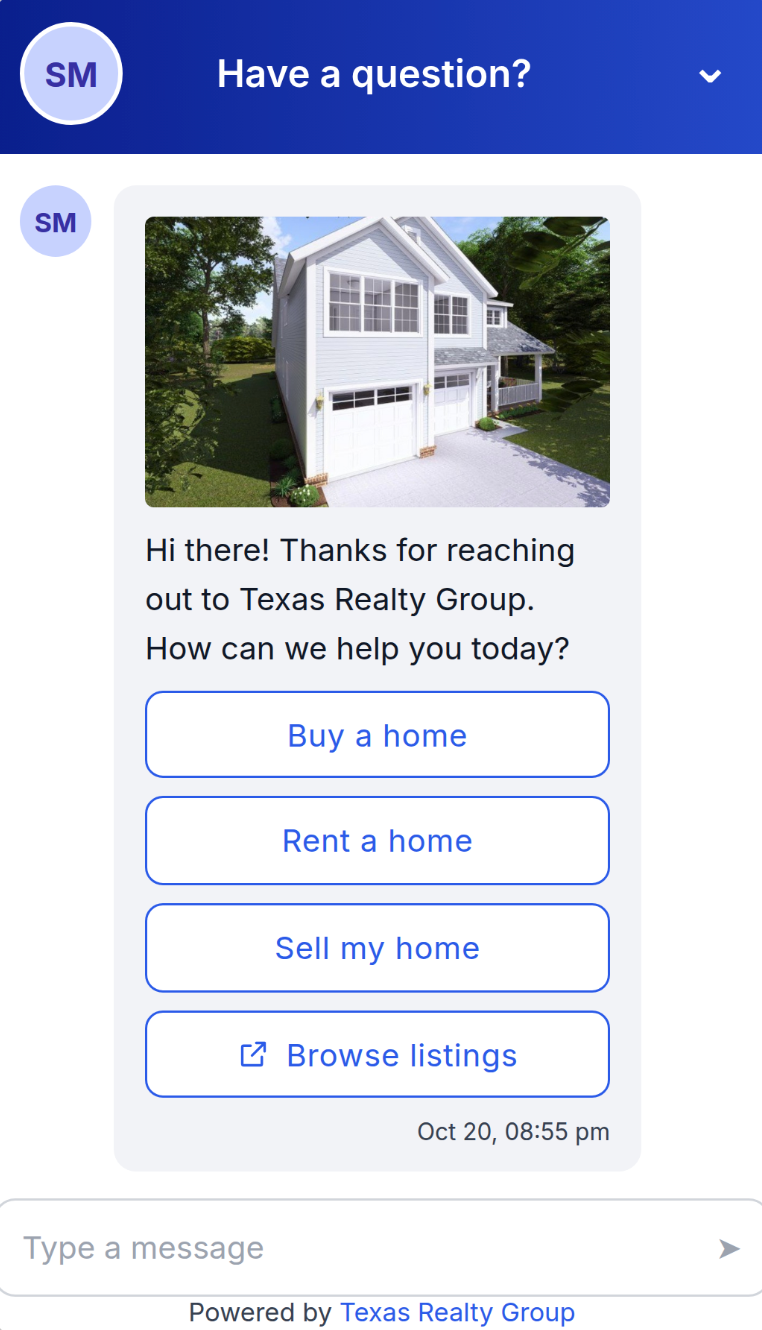
Images
Displays images directly in conversations, helping contacts view products, properties, or other visual information without leaving the chat.
Files
Allows agents to share supported PDFs, documents, spreadsheets, and presentations when contacts request additional information.
The agent needs access to an appropriate supported file URL. Specific extensions, file-size limits, and hosting restrictions require verification.
Supported Channels and Message Behavior
Rich Elements work across supported messaging channels, although individual elements may display differently depending on the platform. Knowing these differences helps ensure contacts can still access important information.
| Channel | Availability |
|---|---|
| Supported | |
| Facebook Messenger | Supported |
| Supported in the mobile app | |
| Live Chat | Supported |
| Other channels | Plain text |
Automatic Selection: Conversation AI can choose a suitable enabled element based on the conversation without requiring a separate template for every message.
Plain-Text Fallback: If a channel cannot display an element or a response exceeds channel limits, the content is moved into message text.
Note: Individual element availability and fallback formatting may vary by channel. Test important scenarios on the platforms your business uses.
Response Rules
Response Rules provide situation-specific instructions that guide Conversation AI toward a particular Rich Element.
They are useful when you want to control message presentation without manually configuring every response.
For example, you can instruct the agent to display a list whenever a contact asks which neighborhoods your business serves.
Response Rule Settings
Each rule includes the following controls:
| Setting | Purpose |
|---|---|
| Rule Name | Identifies the rule. |
| Rule Toggle | Enables or disables the rule. |
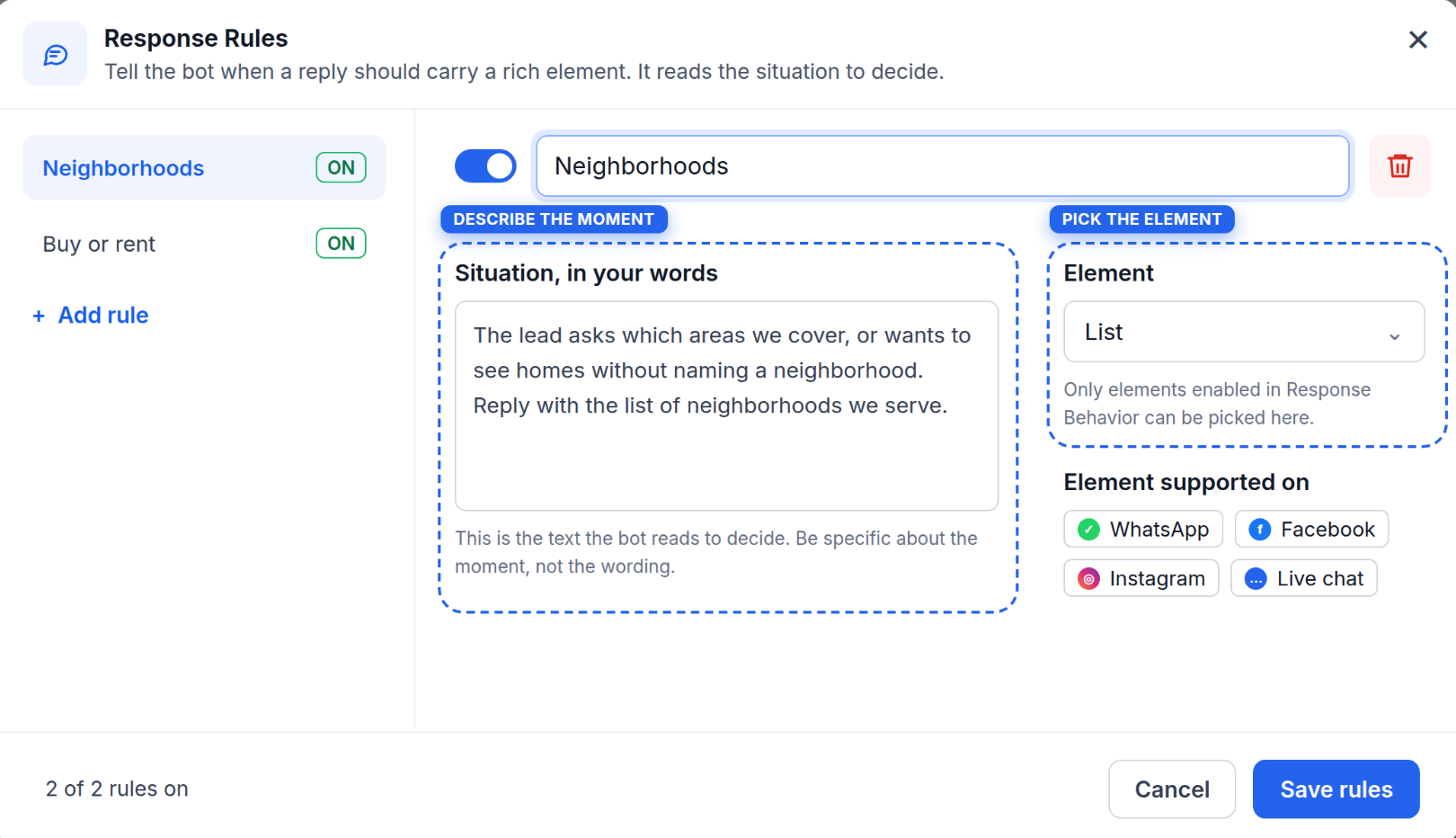
| Situation, in your words | Describes when the element should be used. |
| Element | Selects the Rich Element for the situation. |
| Element supported on | Displays supported messaging channels. |
| Save rules | Saves the configuration. |
Additional controls let you add, edit, or delete rules. Only enabled Rich Elements are available for selection.
Example: Neighborhood Selection
Rule Name: Neighborhoods
Situation: "The lead asks which areas we cover or wants to see homes without naming a neighborhood. Reply with the list of neighborhoods we serve."
Element: List
The interface also includes an Only honor these rules toggle. Its exact enforcement behavior requires verification before relying on it to restrict automatic element selection.
How to Set Up Rich Elements in Conversation AI
Setting up Rich Elements involves enabling the feature, choosing permitted message types, and optionally adding media URLs or Response Rules. Proper configuration helps your agent deliver useful interactive responses on supported channels.
Step 1: Enable Rich Elements in Labs
Activate the feature before configuring it in your agent.
Open your Chat To Clients CRM account and navigate to Labs.
Find Conversations AI Rich Elements.
Turn the feature ON.
Note: Confirm whether Labs activation is still required at publication time.
Step 2: Open Your Conversation AI Agent
Rich Elements are configured in the agent's Response Behavior settings.
Navigate to AI Agents → Conversation AI → Agents List.
Open the prompt-based agent you want to edit.
Locate Response Behavior in the Build interface.
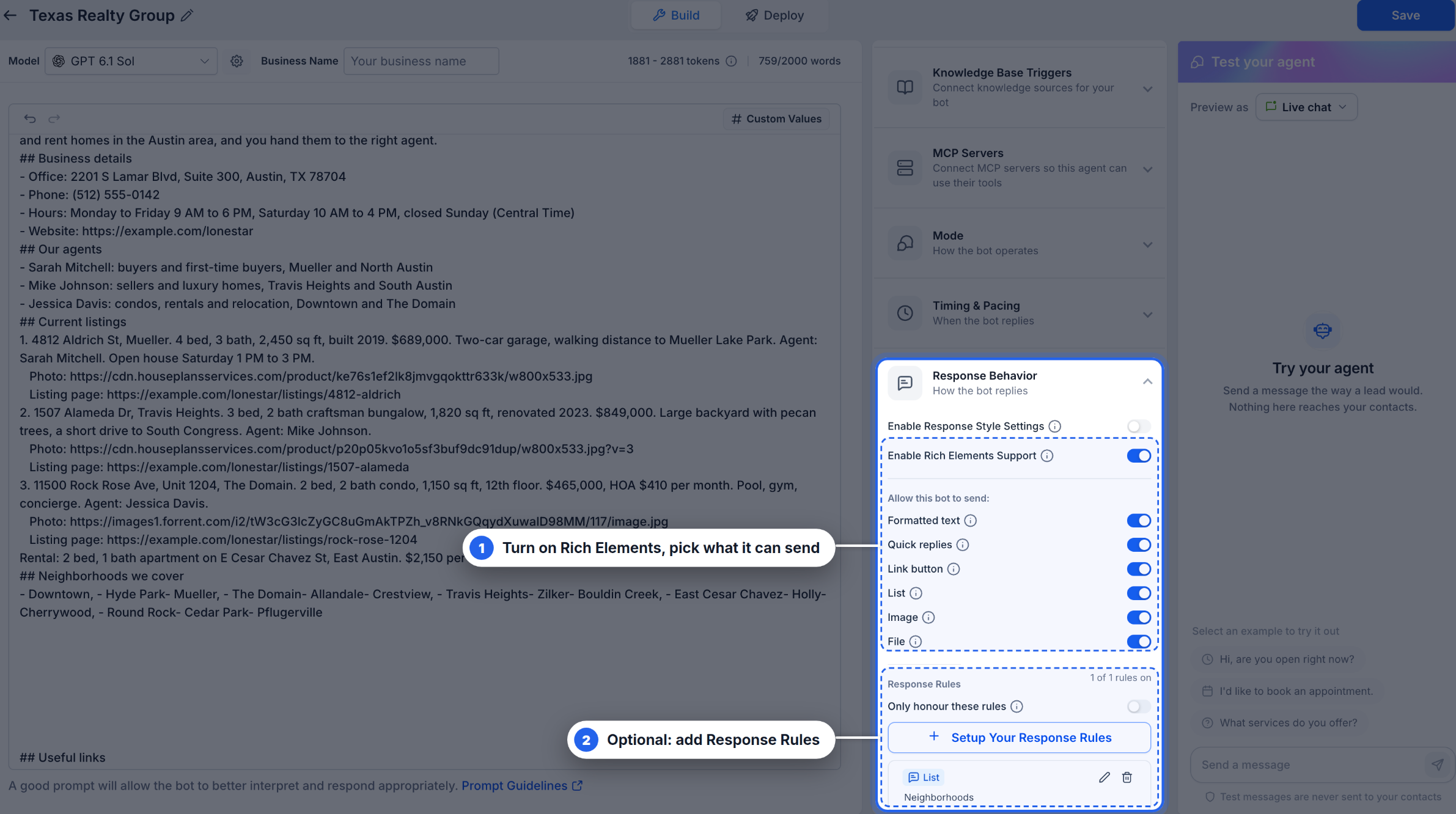
Note: The release documents setup for prompt-based agents. Support for other agent types requires confirmation.
Step 3: Enable and Configure Rich Elements
Choose which interactive message formats the agent is allowed to send.
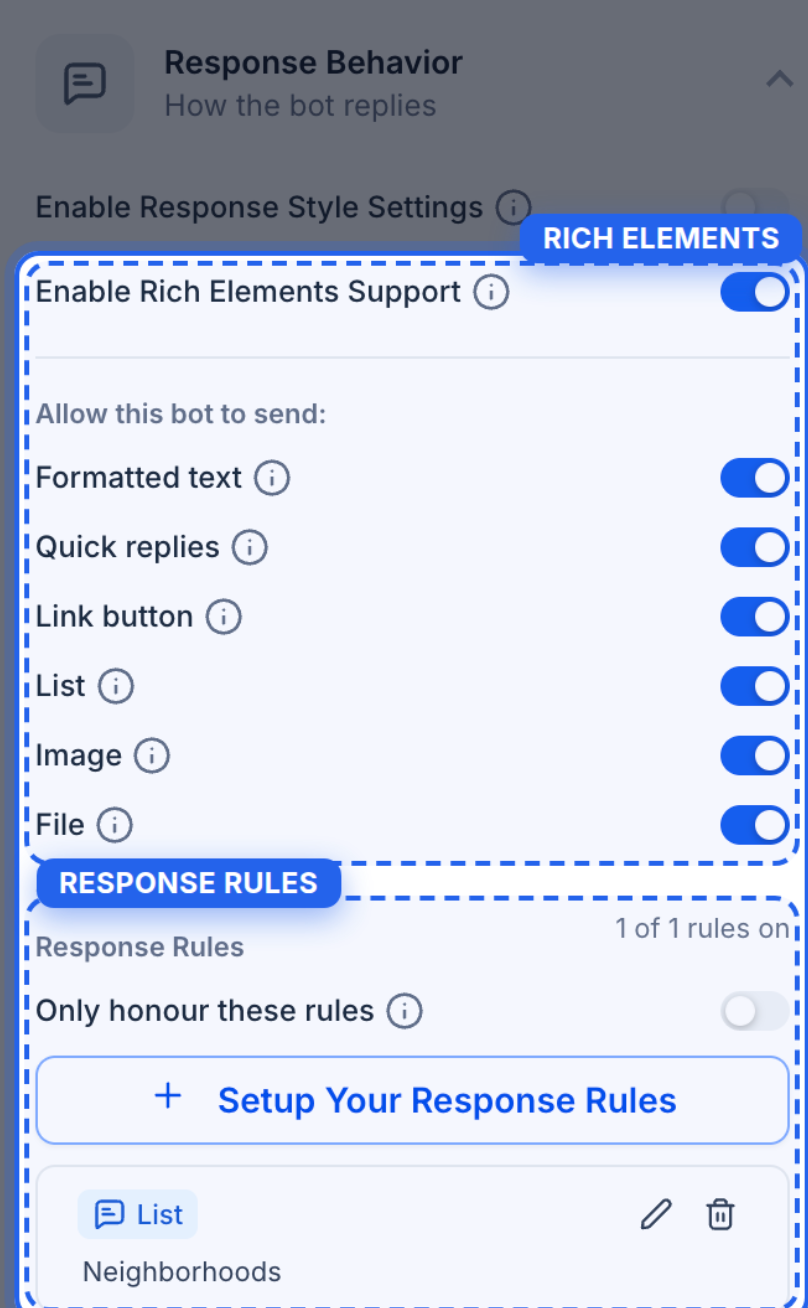
Expand Response Behavior.
Turn Enable Rich Elements Support ON.
Under Allow this bot to send, enable or disable the following elements:
Formatted text
Quick replies
Link button
List
Image
File
Only enabled elements can be selected when creating Response Rules.
Step 4: Add Media URLs (Optional)
Provide publicly accessible URLs when you want the agent to share specific images or files.
Open the agent's prompt editor.
Add URLs for supported images or documents.
Include context explaining what each resource represents.
Save the updated prompt.
For example:
Property: 4812 Aldrich Street
Description: Four-bedroom home with a two-car garage.
Image: https://example.com/images/4812-aldrich.jpg
Listing: https://example.com/listings/4812-aldrich
Note: Media URLs are optional. Supported formats, maximum file sizes, and URL restrictions should be verified.
Step 5: Configure Response Rules (Optional)
Add rules when you want the agent to use a particular element in specific situations.
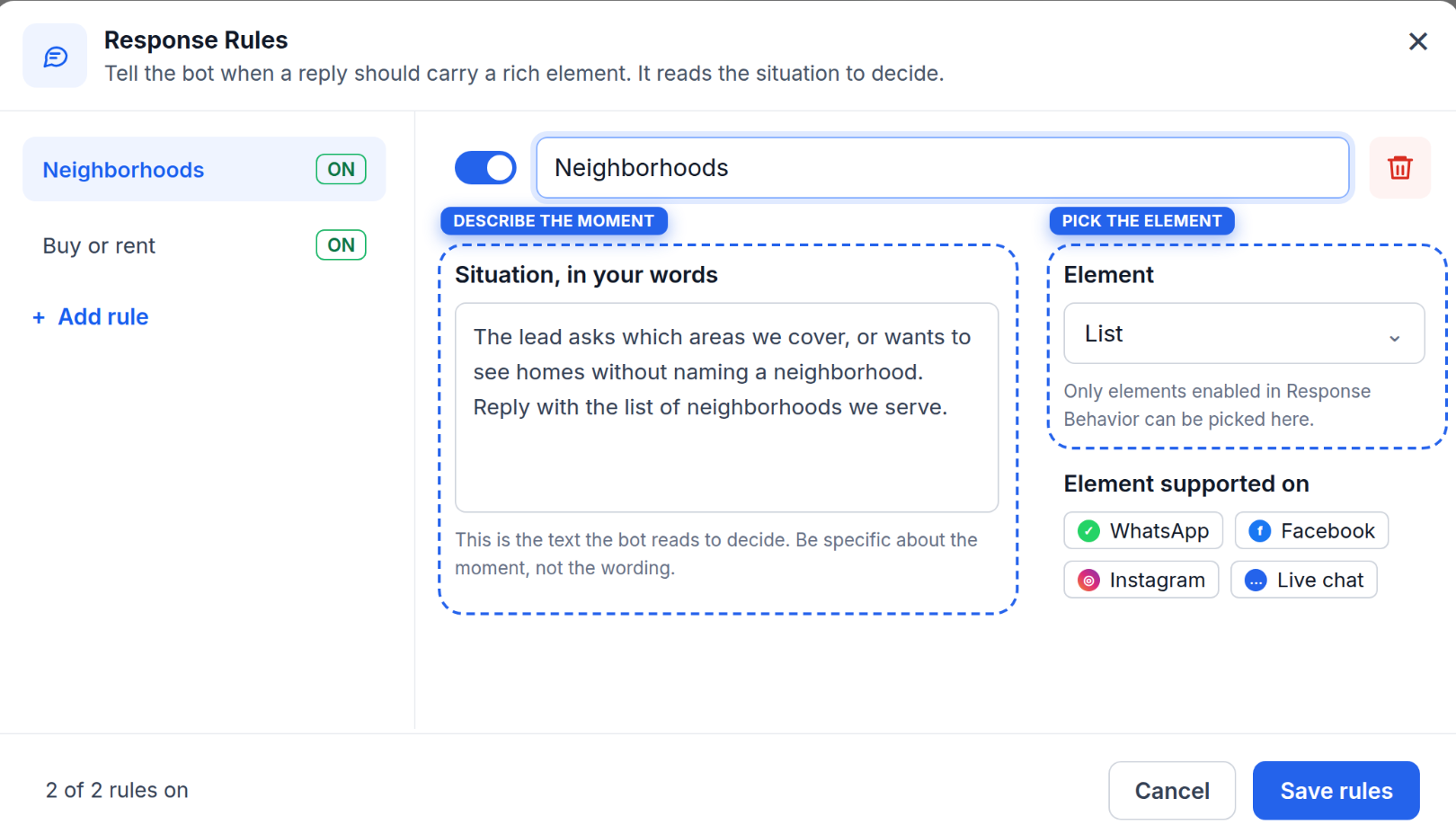
Under Response Behavior, click Setup Your Response Rules.
Click Add rule.
Enter a Rule Name and describe the Situation, in your words.
Choose an Element from the dropdown.
Review the Element supported on indicators.
Enable the rule if necessary, then click Save rules.
Example: Create a rule named Book a Viewing with the instruction: "When a contact asks to schedule a property viewing, offer the booking link using a link button." Select Link button as the element.
Tip: Describe situations naturally rather than relying on exact customer phrases.
Step 6: Save and Test Your Agent
Testing confirms that enabled elements and Response Rules produce appropriate replies before customers interact with the agent.
Click Save in the agent editor after reviewing your settings.
Open Test your agent and select an available preview option.
Send test messages such as:
"Which neighborhoods do you cover?"
"I want to book a viewing."
"Can you show me available properties?"
"Do you have a brochure?"
Confirm the agent uses suitable elements and accurate information.
Repeat on the messaging channels your business uses.
Tip: A successful Live Chat preview does not guarantee identical behavior on other messaging channels.
Frequently Asked Questions
Q: Do I need Response Rules for every Rich Element?
No. Conversation AI can automatically select enabled elements. Response Rules provide additional guidance for specific situations.
Q: Why is an element missing from the Response Rules dropdown?
Only enabled Rich Elements can be selected. Check the individual toggles under Response Behavior.
Q: Can I enable Rich Elements without changing my agent prompt?
Yes. Prompt changes are optional, although adding relevant image, file, or webpage URLs can help the agent share specific resources.
Q: Can Rich Elements analyze images sent by contacts?
Not by themselves. Outgoing image messages and incoming image analysis are separate Conversation AI capabilities.
Q: Are Response Rules different from prompt instructions?
Yes. Prompts guide overall conversational behavior, while Response Rules provide instructions for using specific interactive message formats.
Q: Does a booking link button automatically schedule an appointment?
No. A link button directs contacts to a booking page. Actual appointment scheduling depends on the configured booking functionality.