
How to Enable Advanced Time Zone Support in Conversation AI
Advanced Time Zone Support in Chat To Clients CRM helps Conversation AI agents schedule appointments using the contact's local time zone. Agents can confirm time zones before displaying available slots, reducing booking confusion and missed appointments. Confirmed time zones are saved to contact records and reused for future bookings and rescheduling.
What Is Advanced Time Zone Support in Conversation AI?
Advanced Time Zone Support allows prompt-based Conversation AI agents in Auto-Pilot mode to identify and confirm a contact's time zone before offering appointment slots. The agent can determine a time zone from a city or location, ask for clarification when necessary, and save the confirmed time zone to the contact record.
This feature supports Single and Multi Calendar Booking, including appointment booking and rescheduling.
Key Benefits of Advanced Time Zone Support
Confirming time zones during conversations helps contacts select appointment times accurately, regardless of where the business is located.
Accurate Appointment Times: Display available slots in the contact's time zone.
Fewer Missed Appointments: Reduce scheduling errors caused by time zone differences.
Automatic Time Zone Detection: Identify time zones from cities and supported locations.
Contact Information Updates: Save confirmed time zones directly to contact records.
Consistent Rescheduling: Reuse saved time zones for future appointments.
Flexible Booking: Continue scheduling in the business time zone when contacts decline to share their location.
How Time Zone Detection and Confirmation Works
Conversation AI determines the appropriate time zone before presenting available appointment slots. This ensures contacts understand the time associated with their booking.
Ask for Time Zone: When the time zone is unknown, the agent asks the contact for their location or time zone.
Identify from Location: A response such as "I'm in Denver" can resolve to
America/Denver.Clarify Ambiguous Locations: For locations such as Texas or Australia, the agent asks for a nearby city.
Reuse Existing Information: If a valid time zone is already saved or mentioned earlier in the conversation, the agent uses it without asking again.
Display Local Availability: Appointment slots are presented in the contact's time zone, and the agent identifies that time zone in its response.
Saving and Reusing Contact Time Zones
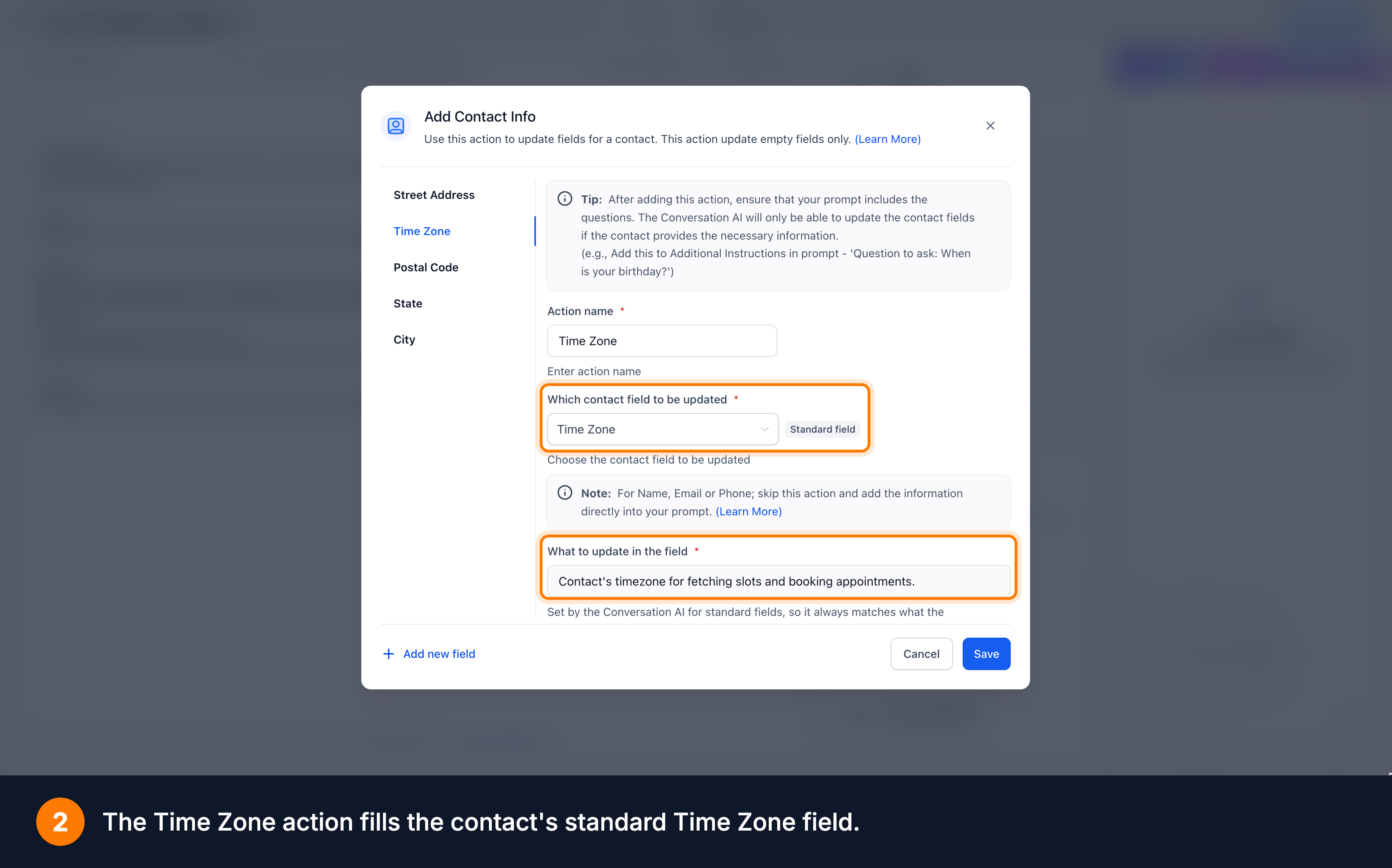
Once a time zone is confirmed, Conversation AI saves it to the contact's standard Time Zone field. This allows future bookings and rescheduling to use the same information automatically.
If the contact declines to share their time zone:
Booking continues using the business time zone.
The agent identifies the time zone used for the displayed slots.
No time zone is saved to the contact record.
This fallback prevents booking interruptions while ensuring the contact knows which time zone applies.
Time Zone Support for Appointment Booking
Advanced Time Zone Support works with prompt-based Conversation AI agents in Auto-Pilot mode. It supports Single and Multi Calendar Booking, including slot retrieval, appointment booking, and rescheduling. The agent uses the contact's confirmed time zone when presenting availability, even when the business operates in another time zone.
For more information, see Appointment Booking in Conversation AI.
How to Enable Advanced Time Zone Support in Conversation AI
Enabling the feature and configuring the correct agent actions ensures time zones can be collected, saved, and used during appointment booking.
Navigate to Settings > Labs.
Enable Conversations AI | Advanced Time Zone Support.
Open your prompt-based Conversation AI agent.
Go to Actions > Contact Info.
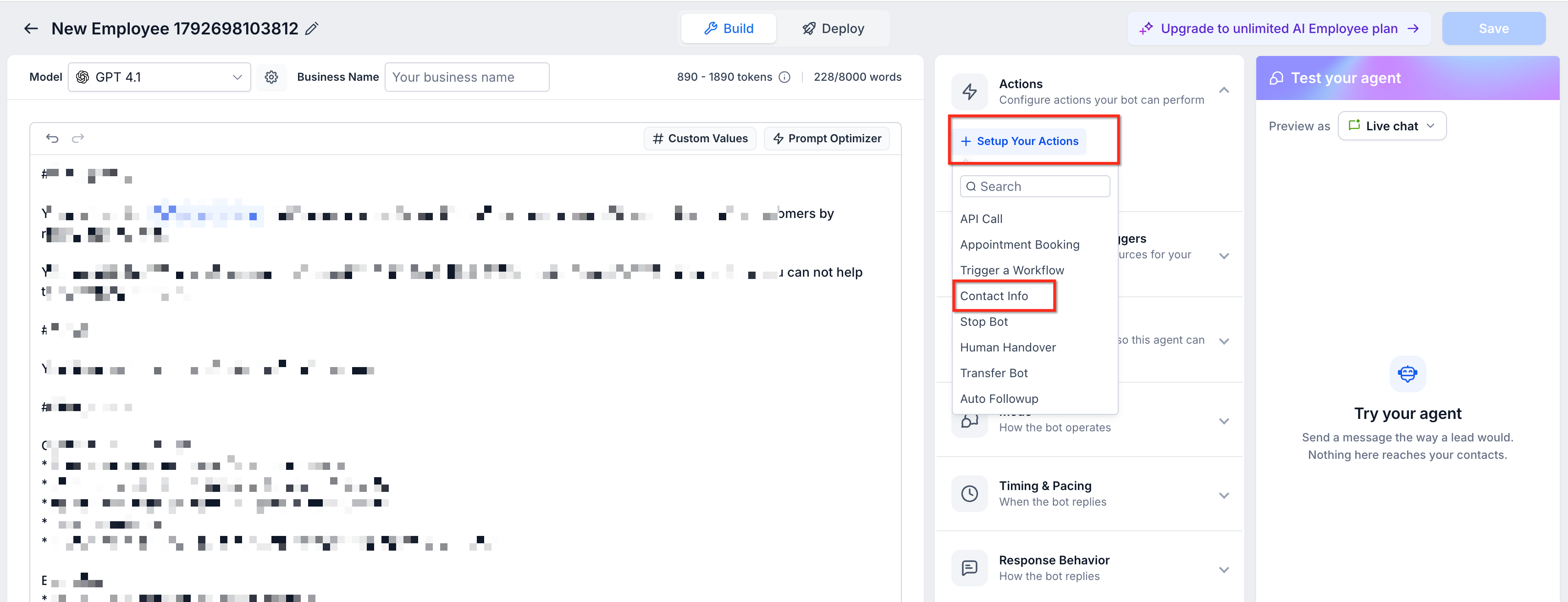
Add the standard Time Zone field and save.
Ensure the Appointment Booking action is enabled.
Update the agent prompt to confirm the contact's time zone before displaying appointment slots.
Save your changes and test the agent using different contact locations.
Example Prompt:
"Before showing appointment availability, confirm the contact's time zone if it is not already known. Ask for their nearest city if the location is unclear. Display available slots in their time zone and identify the zone. If they decline to provide it, use the business time zone and clearly identify it."
Tip: Test with contacts in different time zones and locations spanning multiple time zones to confirm the agent presents appointment availability correctly.Frequently Asked Questions
Q: Does the agent ask for the time zone during every booking?
No. If a valid time zone is already saved or mentioned earlier in the conversation, the agent reuses it.
Q: Can the agent identify a time zone from a city?
Yes. For example, Denver can be resolved to America/Denver.
Q: What happens if a location has multiple time zones?
The agent asks for a nearby city to identify the correct time zone.
Q: What if a contact refuses to provide their time zone?
The agent continues booking using the business time zone, clearly identifies it, and does not save a time zone to the contact record.
Q: Does this feature support Multi Calendar Booking?
Yes. Both Single and Multi Calendar Booking are supported for prompt-based agents in Auto-Pilot mode.
Q: Will the saved time zone be used when rescheduling?
Yes. The agent reuses the saved contact time zone for subsequent bookings and rescheduling.
Q: Is this available for all Conversation AI agents?
The release specifies support for prompt-based Conversation AI agents in Auto-Pilot mode. Availability for other configurations is not established.