How to Use Inbox Preview in Email Builder
The Inbox Preview feature in Chat To Clients CRM lets you see how your emails appear in Gmail, Outlook, Apple Mail, and other email clients before sending. This article explains how Inbox Preview works and walks you through generating and reviewing email previews to catch formatting and design issues.
TABLE OF CONTENTS
What Is Inbox Preview?
Inbox Preview is an email testing feature that shows how your email renders across different email clients.
Unlike standard Desktop, Tablet, and Mobile previews, Inbox Preview displays email-client-specific rendering, helping you identify issues that may not appear in the regular Email Builder preview.
With Inbox Preview, you can:
Preview multiple email clients: See how your email appears in Gmail, Outlook, Apple Mail, and other supported inboxes.
Choose specific environments: Select email clients, device types, versions, and light or dark modes.
Compare email layouts: Identify formatting problems, broken layouts, dark mode inconsistencies, or Gmail content clipping.
Inspect full-size previews: Open individual previews for a closer look at your email's appearance.
This helps you make adjustments before sending your email to customers.
How to Use Inbox Preview in Email Builder
Note: Each selected email client uses one preview. You can see the number of previews required and your remaining previews in the Inbox Preview interface.
Go to Marketing > Emails > Campaigns.
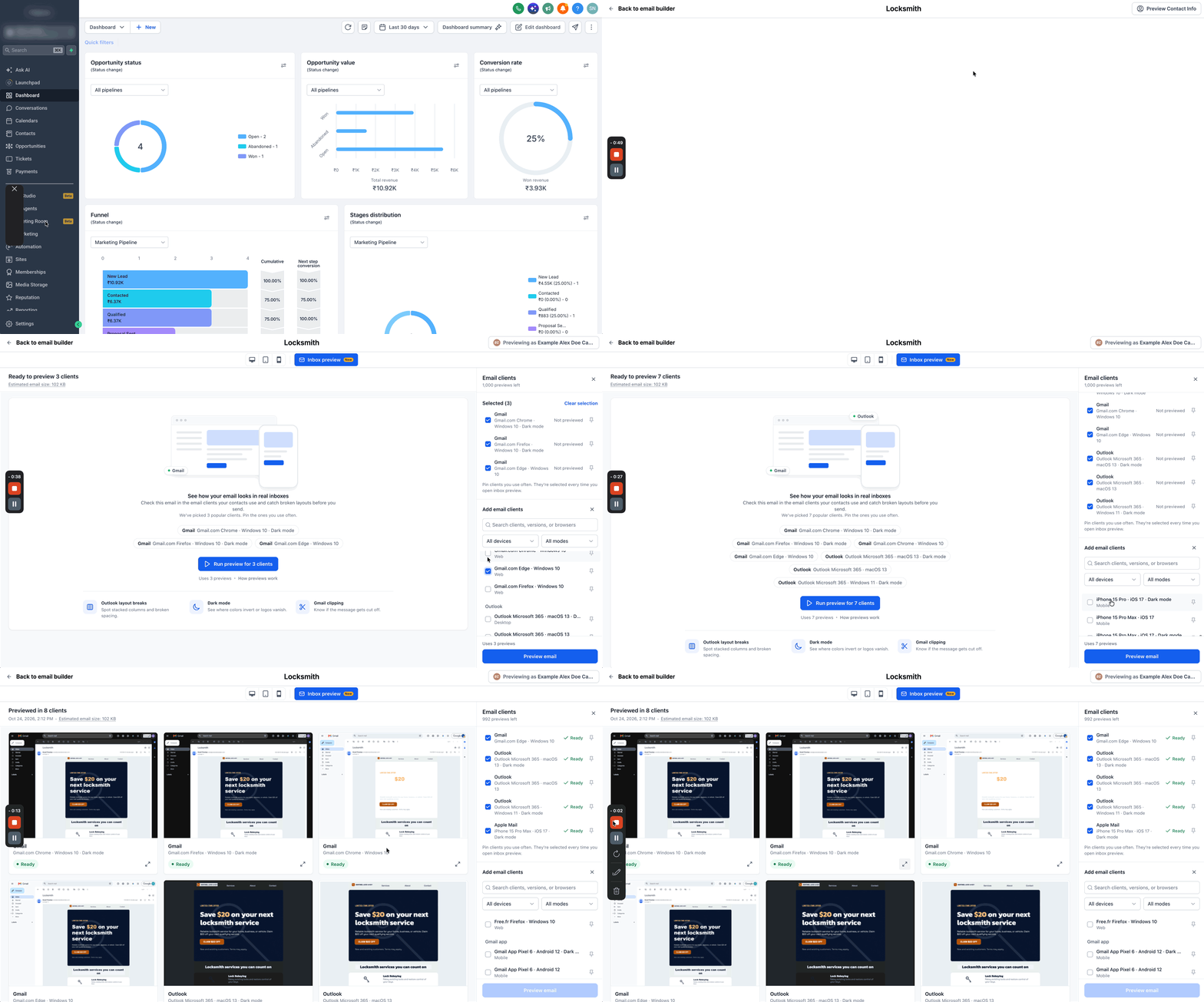
In the Email Builder, click Inbox preview next to the Desktop, Tablet, and Mobile preview options.
Under Email clients, review the preselected clients or choose additional ones. You can search for specific clients and filter by device or display mode.
Click Run preview for [number] clients to generate previews for your selected email clients.
Once the previews are ready, compare how your email appears across different inboxes. Open any individual preview to inspect it in full size.
If you notice formatting or rendering issues, return to the Email Builder, make the necessary changes, and run the previews again before sending.