
How to Use Custom Values in Managed Agent Instructions
Managed Agents in Chat To Clients CRM can use Custom Values and Business Profile details directly in their instructions. These values automatically update when the agent runs, allowing you to reuse the same agent across sub-accounts, templates, and snapshots without manually changing business information. This article explains how to insert, manage, and publish Custom Values in Managed Agent Instructions.
TABLE OF CONTENTS
- What Are Custom Values in Managed Agent Instructions?
- Key Benefits of Custom Values in Managed Agents
- Supported Custom Values and Business Details
- Creating and Inserting Custom Values
- Missing Custom Values and Publishing Validation
- AI Builder and Automatic Value Updates
- How to Use Custom Values in Managed Agent Instructions
- Frequently Asked Questions
- Related Articles
What Are Custom Values in Managed Agent Instructions?
Custom Values are reusable placeholders that pull information from a sub-account into Managed Agent Instructions. Instead of entering booking links, email addresses, or business details manually, you can insert references that automatically retrieve the current values whenever the agent runs.
Values can be updated under Settings > Custom Values without republishing the agent.
Key Benefits of Custom Values in Managed Agents
Custom Values simplify agent management by keeping business information consistent and reducing manual updates.
Reusable Agents: Use the same agent across sub-accounts, templates, and snapshots with location-specific values.
Automatic Updates: Changes to stored values are reflected on the agent's next run without republishing.
Easy Insertion: Add Custom Values and Business Profile details directly from the Instructions editor.
Simplified Publishing: Identify and resolve missing values before publishing.
Consistent Information: Maintain booking links, contact details, and business information in one place.
No Additional Cost: Standard Custom Values and Business Profile details cost the same as entering their text directly.
Supported Custom Values and Business Details
Managed Agent Instructions support reusable information from the sub-account, making it easier to personalize agents without maintaining separate instructions for each business. Click Insert value in the Instructions header to access two searchable categories:
Custom values: Saved values such as booking links, support emails, and other reusable information.
Business profile: Business name, email, phone number, website, address, owner details, and other supported information.
Inserted values appear as pills displaying their names. Hovering over a Custom Value shows its current value.
Creating and Inserting Custom Values
Custom Values can be inserted directly into the Instructions editor. You can also create a new value without navigating to Settings.
Insert Existing Values: Search for and select a saved Custom Value or Business Profile detail.
Create New Values: Select New custom value… to create and insert a value in one step.
Position Values: Inserted values appear at the current cursor position.
Preview Values: Hover over a Custom Value pill to view its stored information.
For more information, see How to Use Custom Values.
Missing Custom Values and Publishing Validation
Managed Agents check whether referenced Custom Values exist in the current sub-account. This helps prevent agents from being published with missing business information.
Missing Value Warning: Unavailable values display Not set in this sub-account.
Set Missing Values: Enter missing information in the fields displayed below the instructions.
Publish Validation: Publishing opens Set custom values to publish when values are missing.
Save and Publish: Creates the missing values and publishes the agent in one step.
API Validation: Publishing through the API also checks for missing values and returns an error identifying each missing value.
Text intended to remain literal, such as Dear {{name}},, is preserved instead of being removed.
AI Builder and Automatic Value Updates
The AI builder can recognize existing Custom Values when generating Managed Agent Instructions. This helps users create reusable instructions without manually locating every value.
When asked to use a saved link or business detail, the builder looks for a matching Custom Value by name.
If a matching value exists, the builder uses it.
If no matching value exists, the builder uses the information provided or asks for clarification.
The builder does not invent Custom Values that are unavailable.
Managed Agents retrieve the current stored values whenever they run. Updating a Custom Value in Settings > Custom Values automatically updates the information used by the agent on its next run.
Note: Standard Custom Values and Business Profile details support prompt caching without additional cost compared with entering the same text manually. Date/time placeholders change during execution, can increase costs, and are not included in the Insert value picker.How to Use Custom Values in Managed Agent Instructions
Adding Custom Values to Managed Agent Instructions helps ensure each agent uses accurate, sub-account-specific information.
Navigate to AI Agents > Agent Studio.
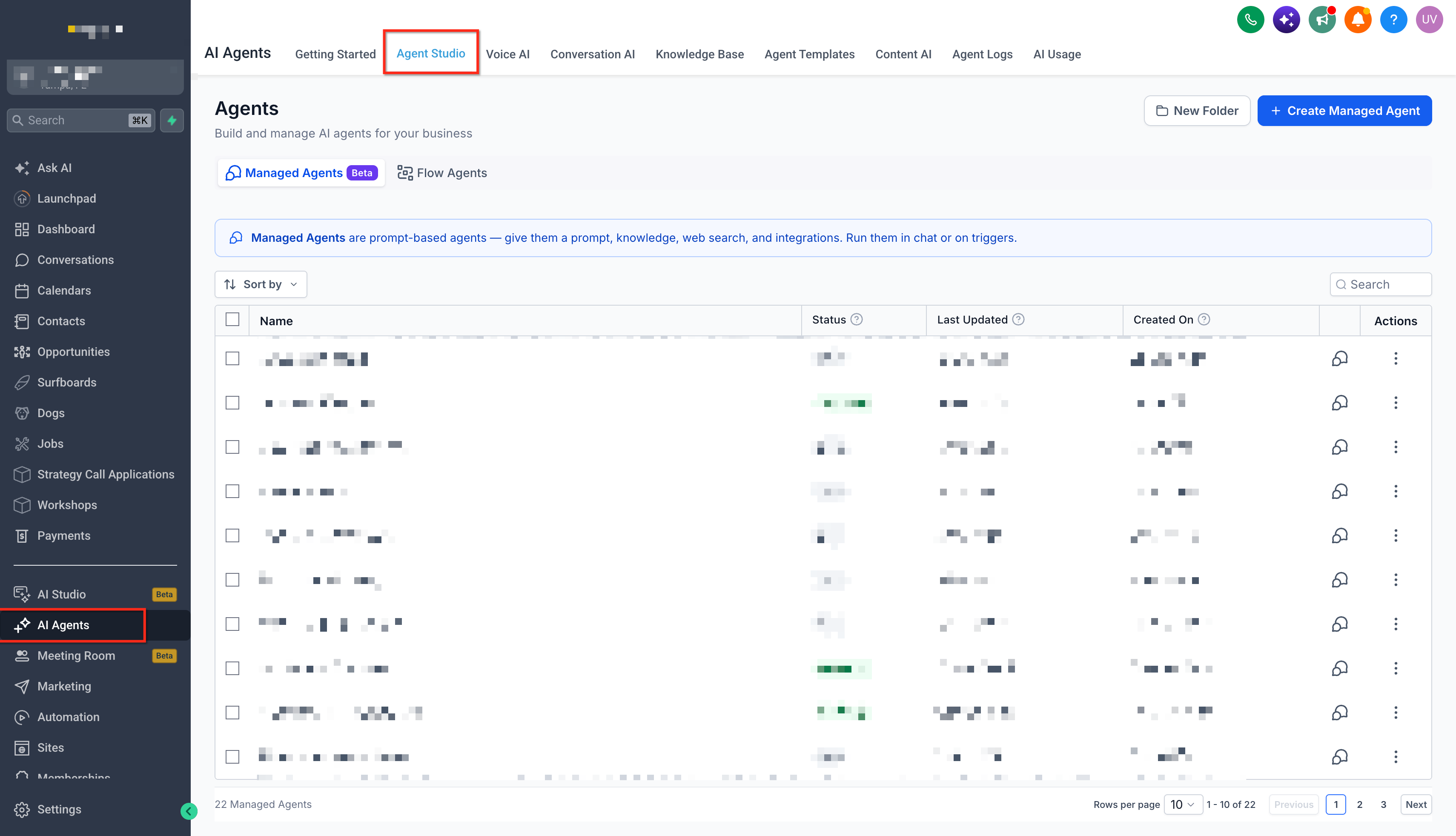
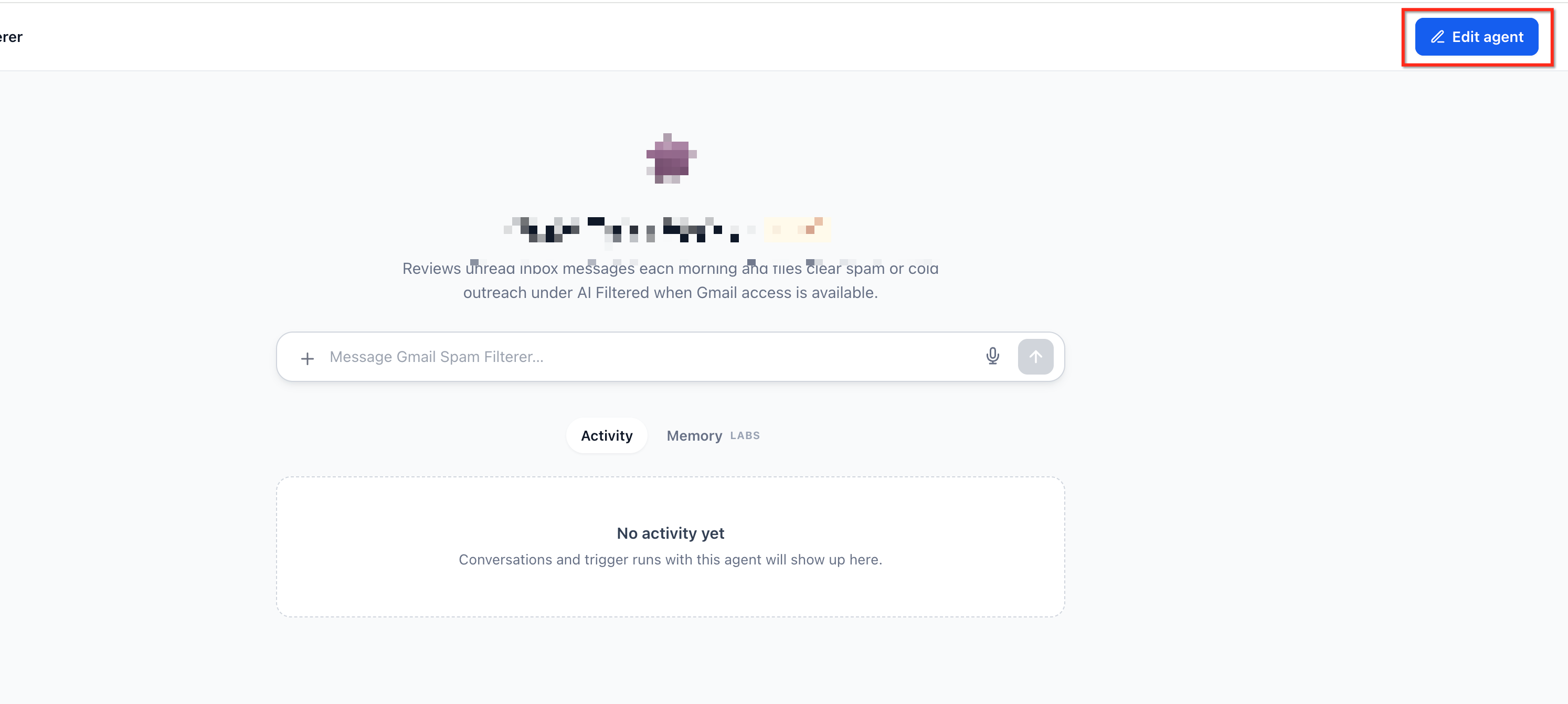
Open a Managed Agent. Click Edit Agent to make changes in the saved agents.
Locate the Instructions editor and position your cursor where the value should appear.
Click Insert value in the Instructions header.
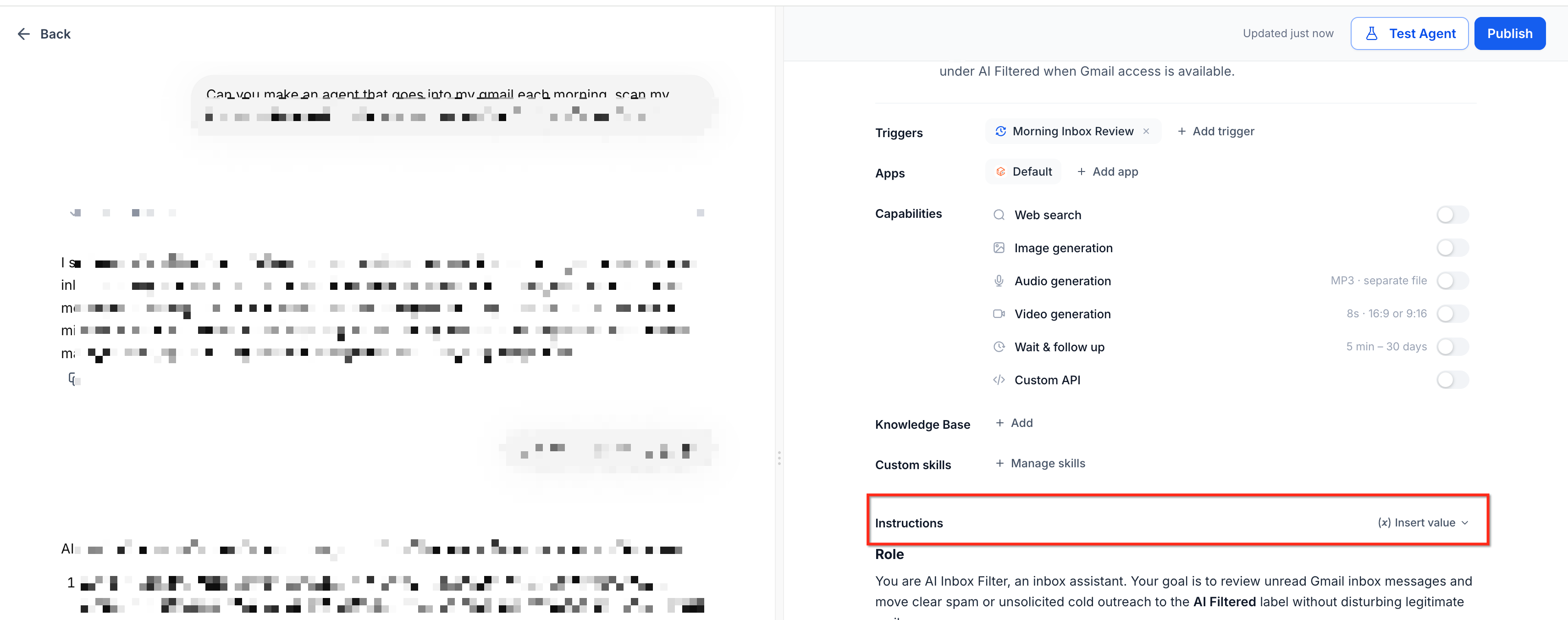
Search under Custom values or Business profile and select the required value.
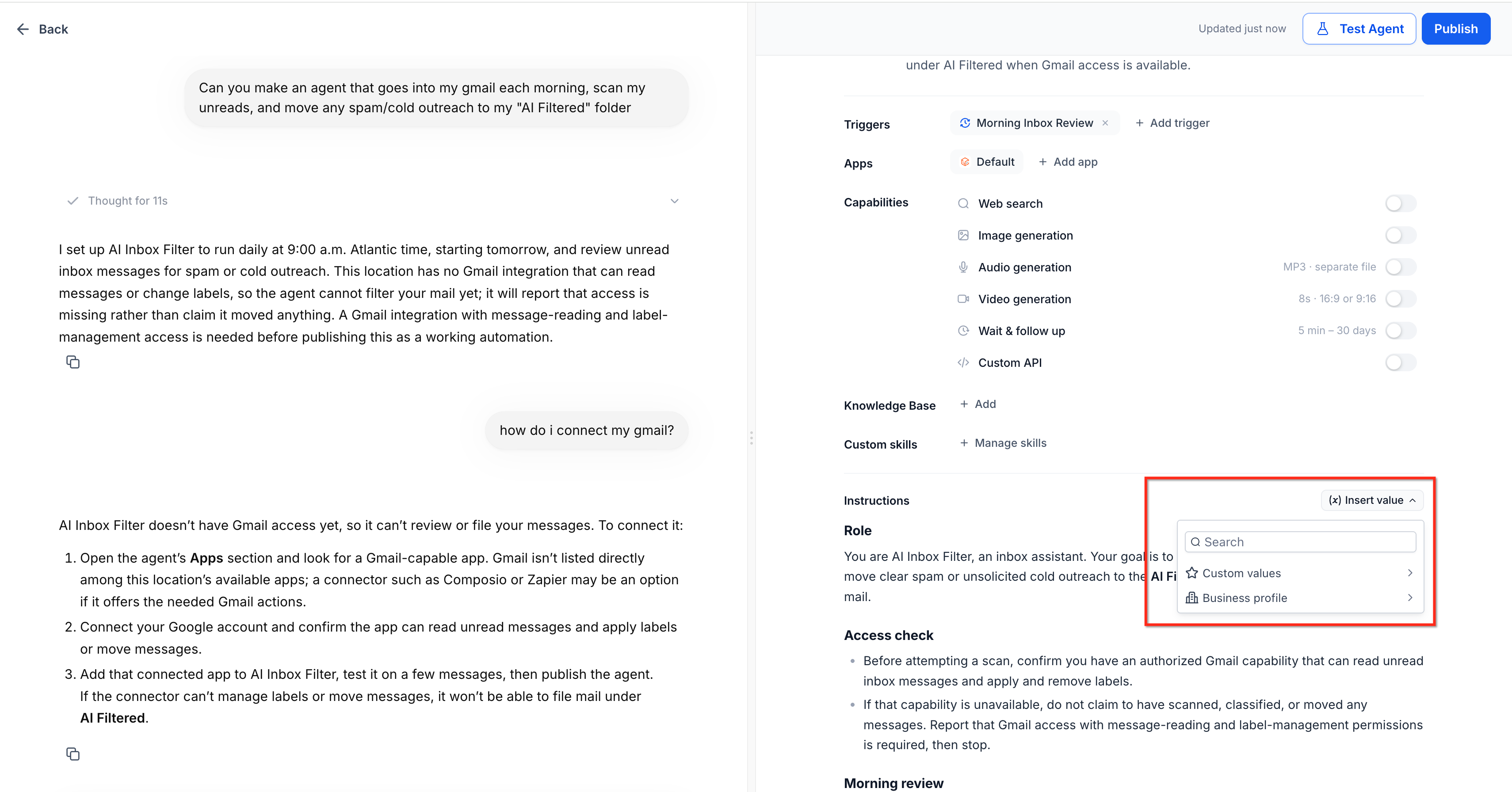
Alternatively, select New custom value… to create and insert a new value.
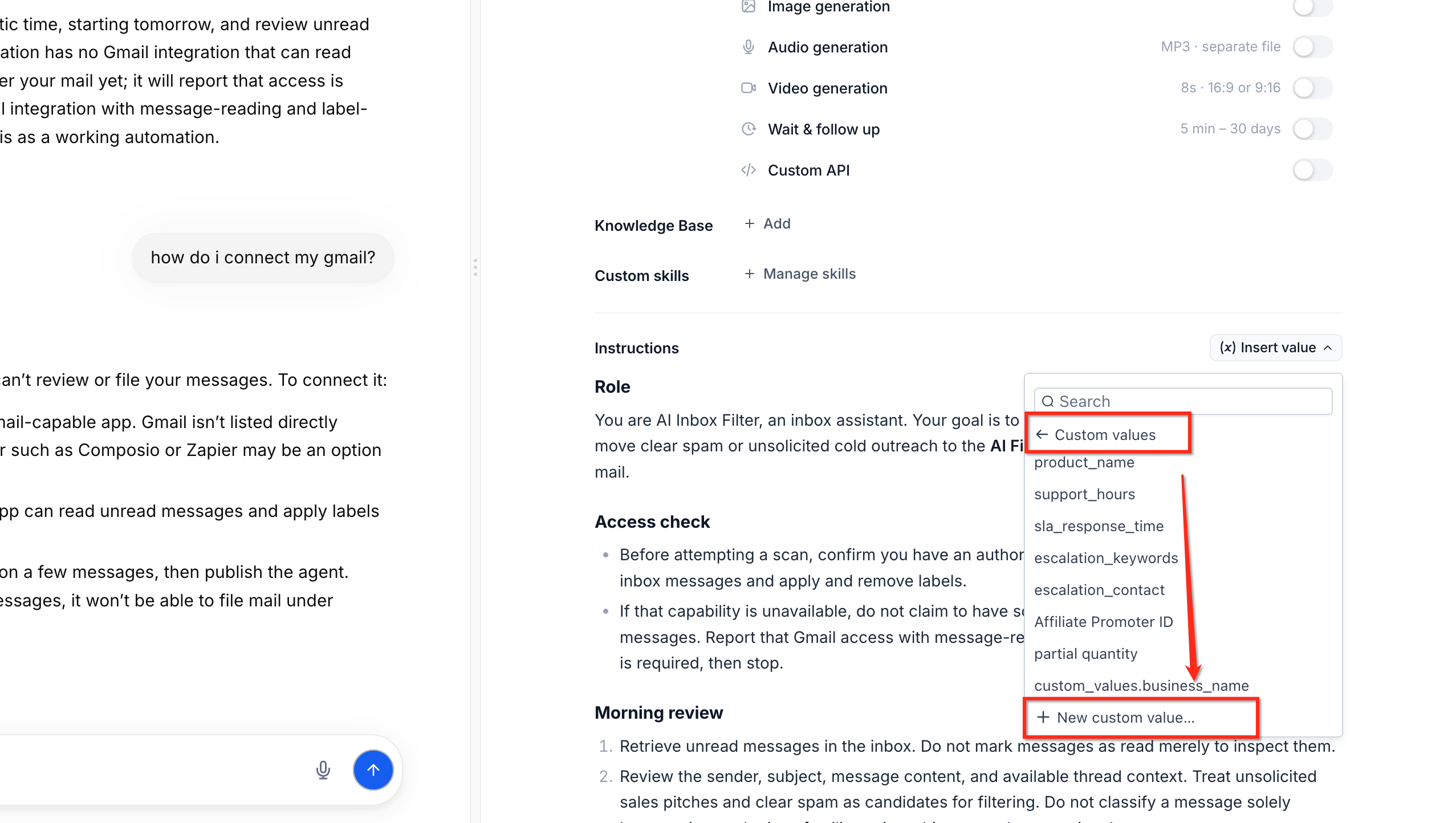
Review the inserted value pills and resolve any Not set in this sub-account warnings.
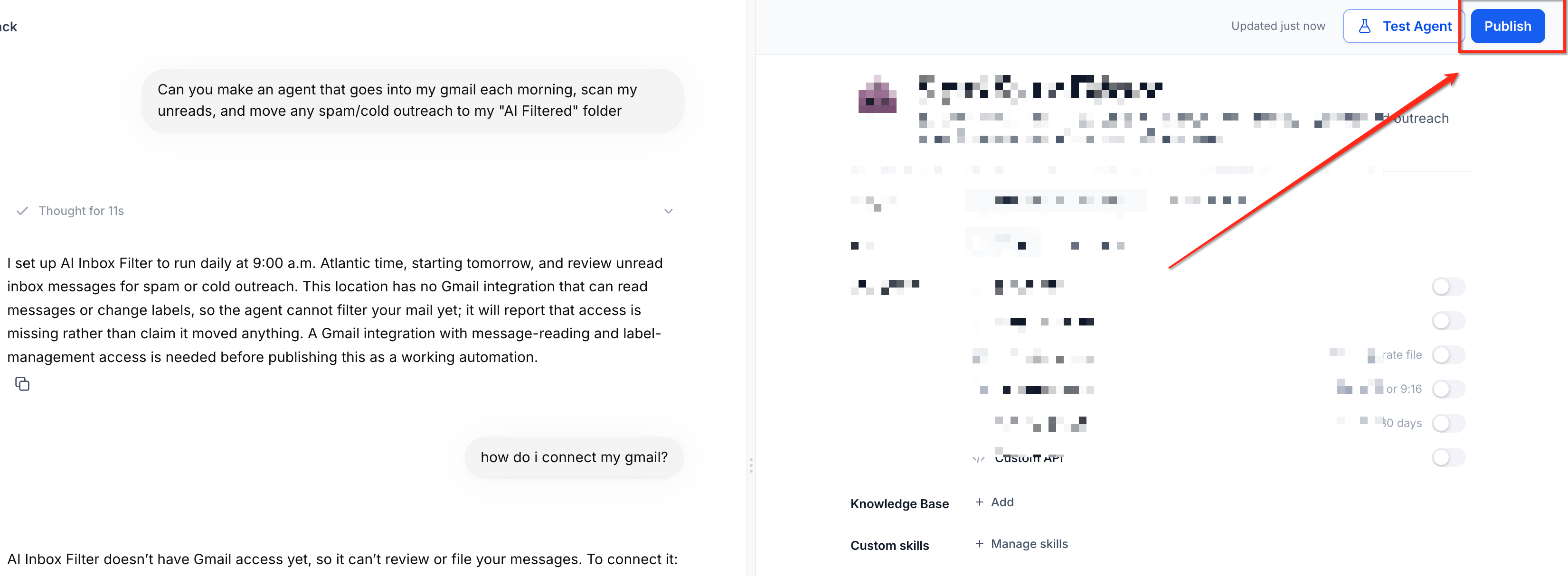
Click Publish. If prompted, enter missing values and select Save and publish.
The agent will use the current values from the sub-account whenever it runs.
Frequently Asked Questions
Q: Do I need to republish an agent after updating a Custom Value?
No. The agent retrieves the updated value on its next run.
Q: Can I reuse the same Managed Agent across multiple sub-accounts?
Yes. Each sub-account supplies its own stored values, allowing the same agent instructions to work with different business information.
Q: What happens if a Custom Value is missing?
Chat To Clients CRM flags the missing value and asks you to provide it before publishing.
Q: Can the AI builder create missing Custom Values automatically?
The builder only references existing Custom Values. If no matching value exists, it uses the information provided or asks for clarification.
Q: Do Custom Values increase agent usage costs?
Standard Custom Values and Business Profile details do not add costs beyond entering the same text directly. Date/time placeholders may increase costs because their values change during execution.
Q: Can I create Custom Values without leaving Agent Studio?
Yes. Select New custom value… from the Insert value menu to create and insert a value directly.