
How to Use and Customize the Add Opportunity Side Panel
The Add Opportunity side panel in Chat To Clients CRM makes it easier to create opportunities without requiring a contact first. Users can create deals, add contact details, and link related records in one place. Administrators can customize the form by selecting fields, setting requirements, and managing associations.
Note: This feature is currently part of the Opportunity-First private beta. Locations must be enrolled through the beta access form.TABLE OF CONTENTS
- What is the Add Opportunity Side Panel?
- Key Benefits of the Add Opportunity Side Panel
- Opportunity-First Creation
- Contact Selection and Inline Contact Creation
- Customizable Opportunity Fields
- Opportunity Associations
- Save Options and Unsaved Changes Protection
- How to Create an Opportunity Using the Side Panel
- How to Customize the Add Opportunity Form
- Frequently Asked Questions
- Related Articles
What is the Add Opportunity Side Panel?
The Add Opportunity side panel is a configurable form that allows users to create opportunities with just three required fields: Opportunity Name, Pipeline, and Stage. Contacts are optional, so users can capture deals before contact information is available. The panel also supports inline contact creation, custom fields, record associations, and multiple save options.
Key Benefits of the Add Opportunity Side Panel
The new panel simplifies opportunity creation while allowing administrators to control what information is collected.
Faster Deal Creation: Create opportunities using only essential information.
Optional Contacts: Save opportunities without selecting a contact.
Inline Contact Management: Select or create contacts without leaving the panel.
Customizable Fields: Add, remove, reorder, and require fields.
Flexible Associations: Link contacts, companies, and custom objects during creation.
Multiple Opportunity Entry: Use Save and add another to create deals consecutively.
Unsaved Changes Protection: Receive a confirmation before closing the panel with unsaved changes.
Opportunity-First Creation
Opportunity-first creation allows users to capture deals even when contact details are unavailable. This is useful for early-stage opportunities, inbound inquiries, and company-level deals. Only three fields are required by default:
Opportunity Name: Identifies the deal.
Pipeline: Determines where the opportunity belongs.
Stage: Defines the opportunity's current position.
Administrators can make additional fields required, but these three fields are locked and cannot be removed.
Contact Selection and Inline Contact Creation
Contacts can be selected or created directly from the Add Opportunity panel, reducing the need to navigate between screens.
Select Existing Contact: Search for and select an existing contact.
Create Contact: Enter a name and select Create Contact.
Contact Details: Once selected, Primary Email, Primary Phone, Business Name, and Tags become available.
Opportunity Name: Automatically prefills when a contact is selected.
Important: Selecting Create Contact immediately creates the contact, even if the opportunity is not saved.
Customizable Opportunity Fields
Administrators can tailor the Add Opportunity form to match their business processes and collect consistent information.
Navigate to Settings > Objects > Opportunities > Customize fields for add Opportunity.
Available customization options include:
Reorder Fields: Drag fields into the preferred order.
Required Fields: Mark additional fields as required.
Remove Fields: Hide unnecessary fields from the form.
Manage Fields: Add standard opportunity fields, custom fields, and primary contact fields organized by folder.
Opportunity Name, Pipeline, and Stage cannot be removed. For more information, see How to Use Custom Fields for Opportunities.
Opportunity Associations
Associations connect opportunities to related CRM records. Administrators can use Add associations to choose which relationships users can establish during opportunity creation.
Supported associations include:
Primary Contact and Additional Contacts
Custom contact labels
Companies and Primary Company
Custom objects
For more information, see Associations Between Opportunities, Companies & Custom Objects.
Save Options and Unsaved Changes Protection
The side panel provides flexible save options to support individual and consecutive opportunity creation.
Save: Creates the current opportunity.
Save and add another: Saves the opportunity and allows you to create another.
Unsaved Changes: Closing the panel with unsaved information displays options to Discard, Keep Editing, or Save.
How to Create an Opportunity Using the Side Panel
Creating an opportunity takes only a few steps. Contacts and additional fields can be included when needed.
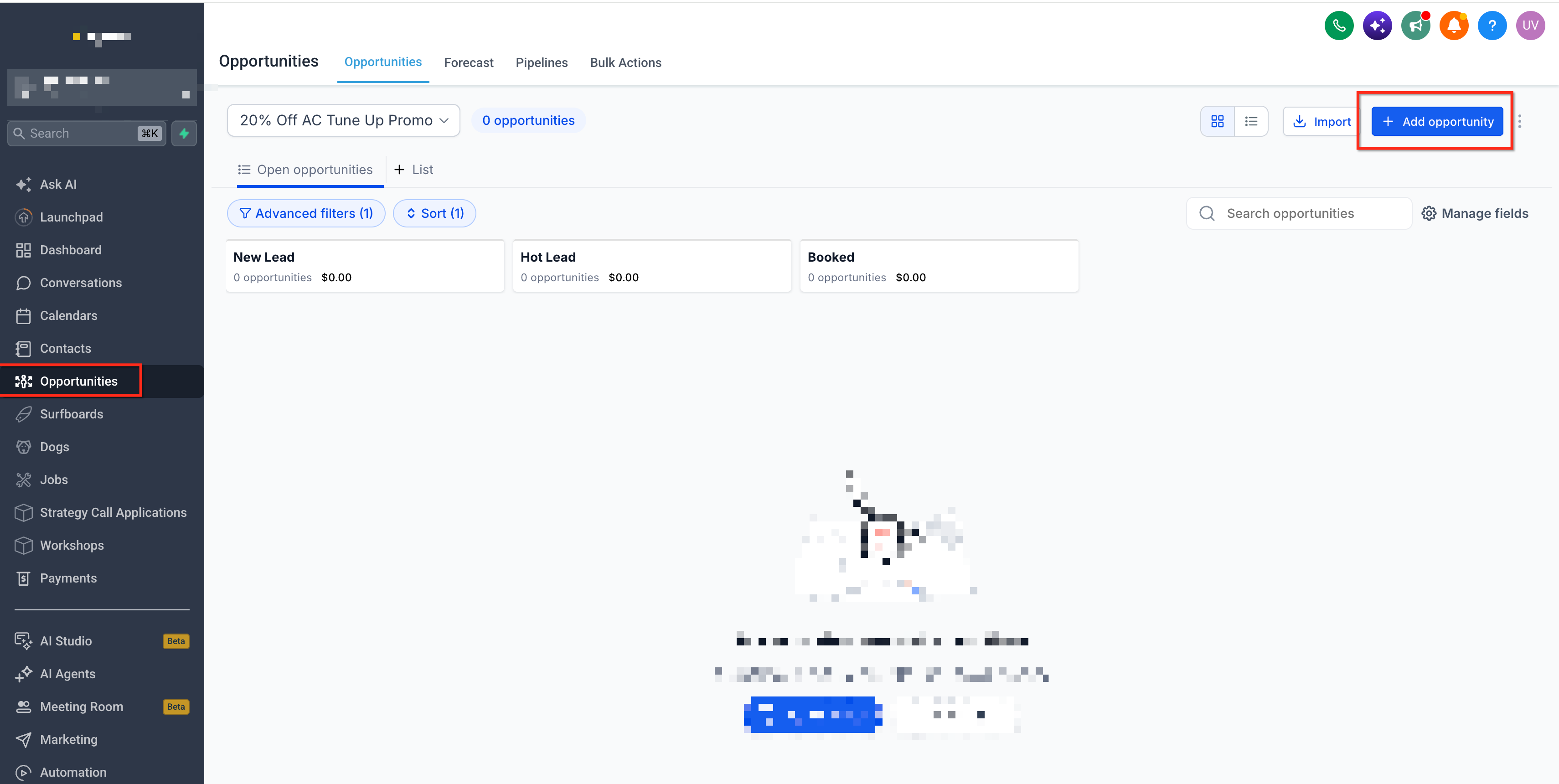
Navigate to Opportunities and click Add opportunity.
Enter the Opportunity Name.
Select the Pipeline and Stage.
Optionally select an existing Primary Contact or choose Create Contact.
Complete any contact details, additional required fields, or associations.
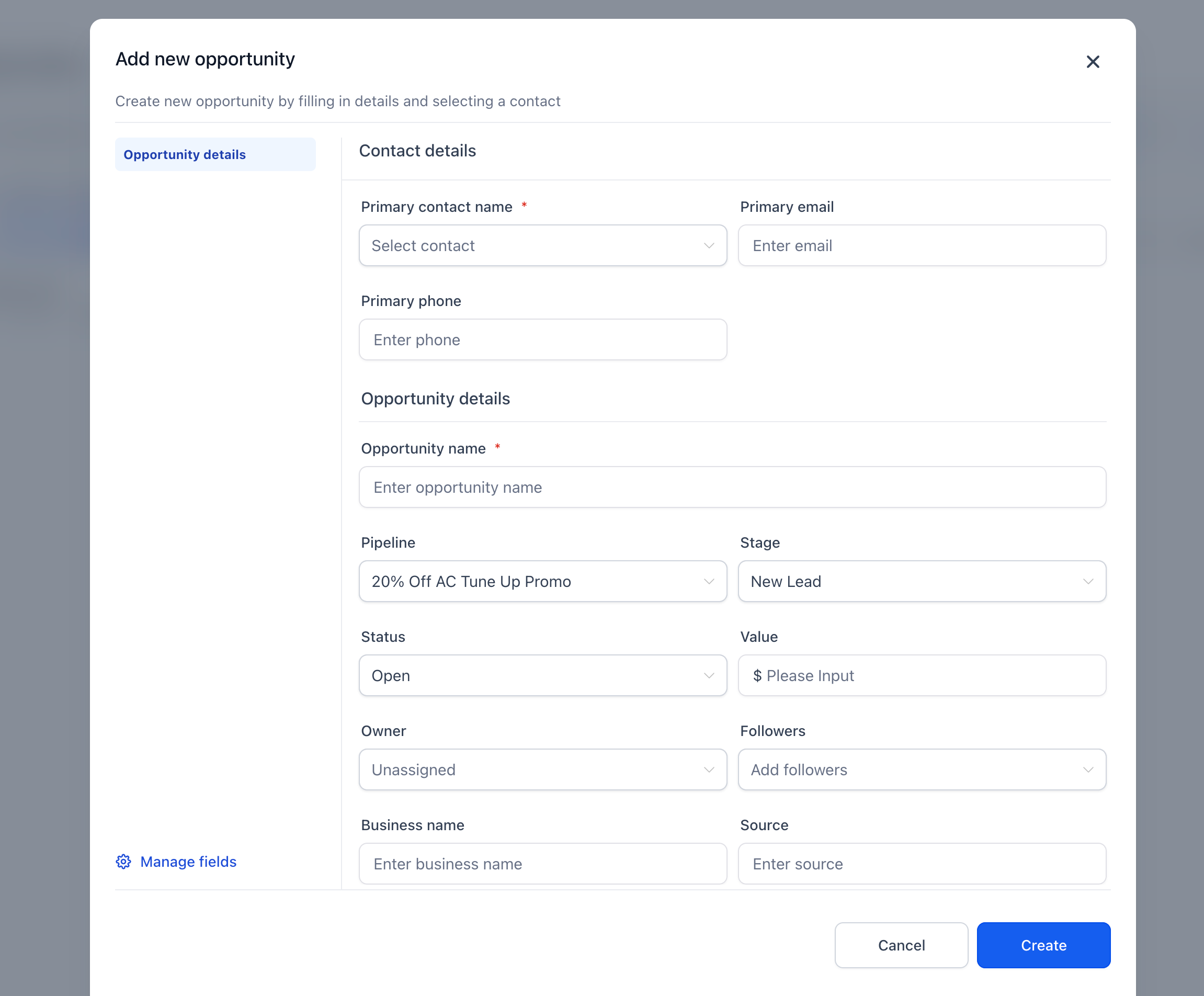
Click Save or Save and add another.
How to Customize the Add Opportunity Form
Administrators can customize the form to ensure users collect relevant opportunity information without unnecessary fields.
Open Settings > Objects > Opportunities > Customize fields for add Opportunity.
Drag fields to reorder them.
Mark fields as Required or remove unnecessary fields.
Select Manage fields to add opportunity, custom, or primary contact fields.
Click Add associations to include contact, company, or custom object relationships.
Click Preview to review the form.
Click Save to apply the configuration.
Frequently Asked Questions
Q: Can I create an opportunity without a contact?
Yes. Only Opportunity Name, Pipeline, and Stage are required by default.
Q: What happens if I create a contact but don't save the opportunity?
The contact is created immediately when you select Create Contact, independently of saving the opportunity.
Q: Can I remove the default required fields?
No. Opportunity Name, Pipeline, and Stage are locked.
Q: Can I add custom fields to the form?
Yes. Administrators can use Manage fields to add opportunity custom fields.
Q: Does customizing the form change opportunity cards or List View?
The new settings configure the Add Opportunity form. Opportunity cards and List View have separate customization options.
Q: Why can't I see the new side panel?
The feature is currently part of the Opportunity-First private beta. Your location must have beta access.