
Workflow Action - A/B Test
The A/B Test action in Chat To Clients CRM lets you compare different paths within a workflow to identify which sequence performs best. You can split contacts evenly across multiple paths, measure conversions using specific goals, and automatically identify the winning variation. Based on the results, you can route future contacts to the winning path or continue testing.
TABLE OF CONTENTS
- What is the A/B Test Action in Workflows?
- Key Benefits of A/B Testing
- A/B Test Settings
- Winning Criteria
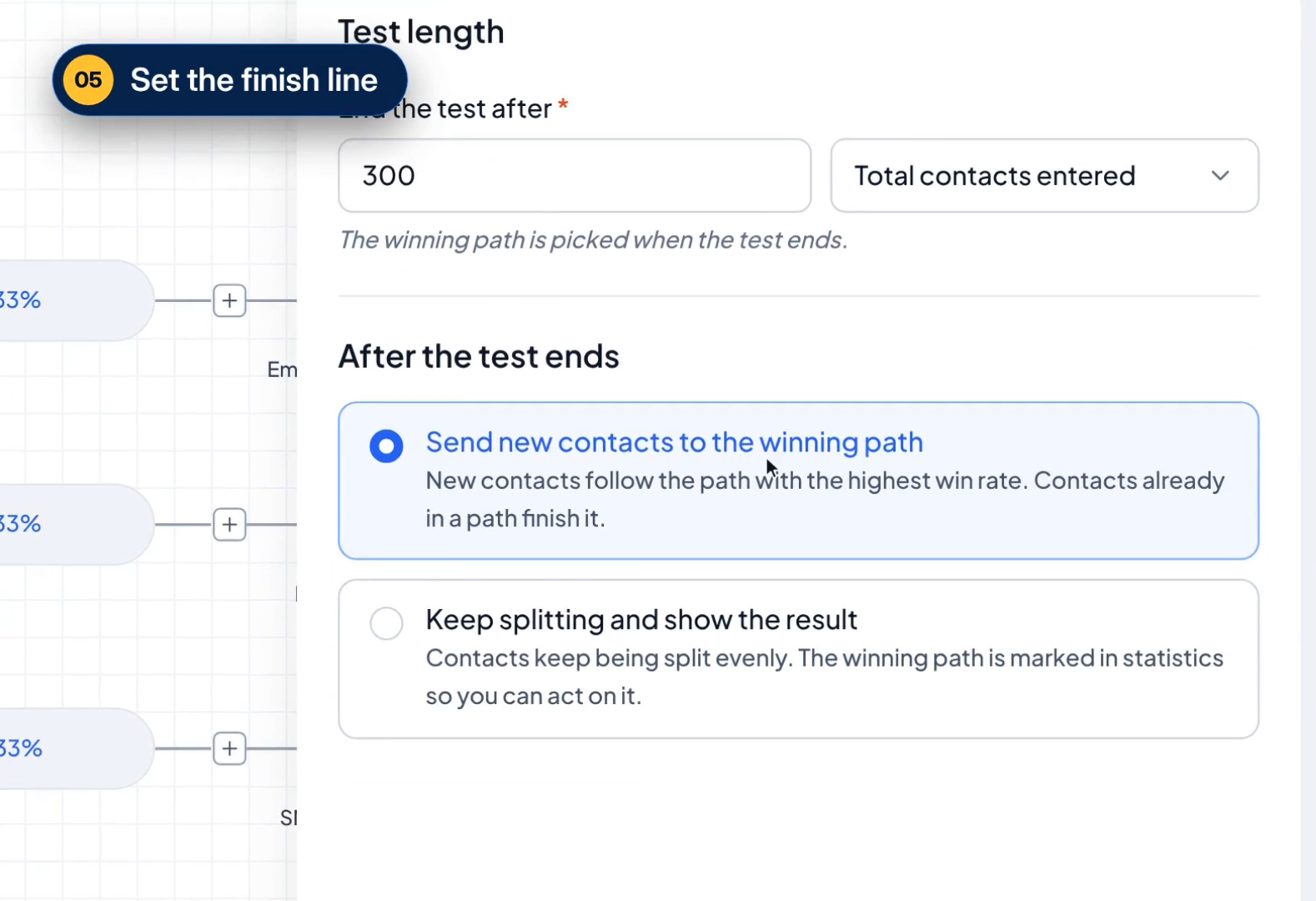
- Test Length
- After the Test Ends
- How to Set Up an A/B Test in Workflows
- A/B Test Statistics and Winner Selection
- Resetting an A/B Test
- Frequently Asked Questions
- Related Articles
What is the A/B Test Action in Workflows?
The A/B Test action allows you to compare 2–10 workflow paths using a shared conversion goal. Contacts are distributed evenly across the paths, and Chat To Clients CRM tracks their performance to determine which variation generates the highest conversion rate.
Unlike the standard Split action, A/B Test provides conversion tracking, winner selection, and post-test routing options.
Key Benefits of A/B Testing
A/B testing helps you make data-driven decisions about your automated follow-up sequences. Instead of guessing which approach works best, you can compare actual conversion results and optimize how contacts move through your workflows.
- Compare Multiple Paths: Test 2–10 workflow variations while distributing contacts evenly between them.
- Measure Conversions: Track performance using goal events or custom conditions that define a successful outcome.
- Identify Winning Paths: Automatically determine the best-performing variation based on conversion percentage.
- Optimize Contact Routing: Send new contacts to the winning path or continue splitting them evenly after the test ends.
A/B Test Settings
The A/B Test action includes settings for configuring the paths, defining conversions, controlling test duration, and deciding what happens after the test ends. Understanding these options helps you design a meaningful comparison and manage contact routing.
| Setting | Description |
|---|---|
| Action Name | Enter a name to identify the test within your workflow. |
| Paths | Configure 2–10 paths. Contacts are distributed evenly across the available paths. |
| Winning Criteria | Choose the conversion goal used to evaluate each path. |
| Test Length | Specify when the test should end based on contacts entered, goal completions, or a date and time. |
| After the Test Ends | Choose whether new contacts follow the winning path or continue splitting evenly. |
Winning Criteria
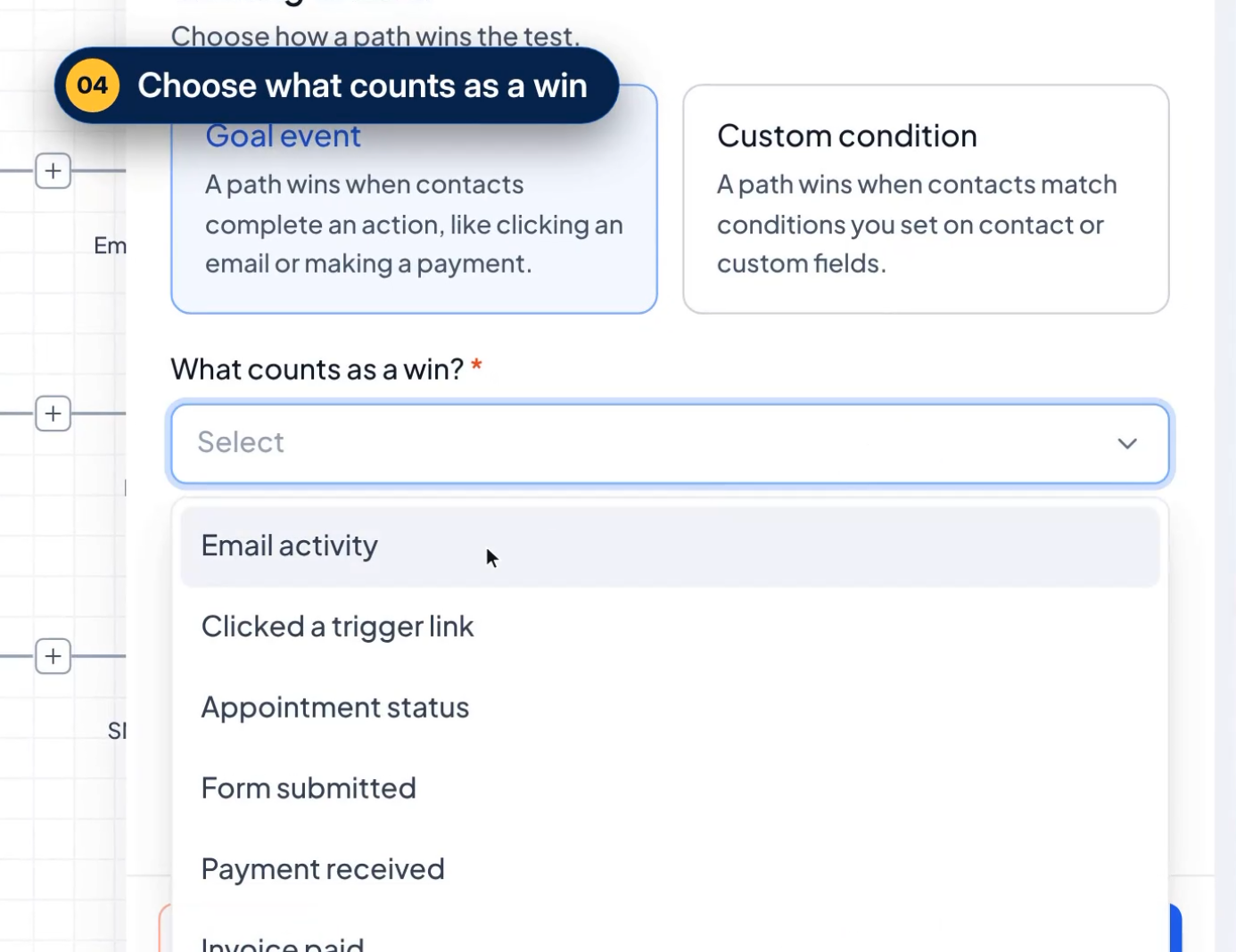
Winning criteria determine what counts as a conversion for each workflow path. Choose an event or condition that reflects the outcome you want to improve, such as booking appointments, engaging with emails, or completing payments.
| Criteria | Description |
|---|---|
| Goal Event | Measure conversions using events such as Email activity, Clicked a trigger link, Appointment status, Form submitted, Payment received, or Invoice paid. Select the relevant item when prompted. |
| Custom Condition | Define a conversion using contact fields or custom field conditions, such as a lead qualification status. |
Important: Winning criteria measure whether contacts convert. They do not determine which path a contact enters.Test Length
Test length determines when Chat To Clients CRM ends the comparison and identifies the winning path. Choose an ending condition based on the amount of data you want to collect or the timeframe available for testing.
| Option | Description |
|---|---|
| Total Contacts Entered | End the test after a specified number of contacts enter the A/B Test action. |
| Goal Completions | End the test after the configured number of goal completions. |
| Date and Time | End the test at a specified date and time using the account's time zone. |
For example, you can configure the test to end after 200 contacts have entered.
After the Test Ends
Once a winner is identified, you can choose how the workflow handles new contacts. This allows you to automatically use the most successful path or maintain the original distribution while reviewing the results.
| Option | Behavior |
|---|---|
| Send New Contacts to the Winning Path | New contacts follow the path with the highest conversion rate. Contacts already in other paths complete their existing sequences. |
| Keep Splitting and Show the Result | New contacts continue being distributed evenly, while the winning path is identified in Statistics. |
When winner routing is selected, the winning path displays a Winner badge on the workflow canvas, and the other paths appear muted.
How to Set Up an A/B Test in Workflows
Setting up an A/B Test requires configuring the paths, selecting a consistent conversion goal, and defining when the comparison ends. Proper configuration ensures each path is evaluated using the same winning criteria.
- Navigate to Automation > Workflows and open an existing workflow or create a new one.
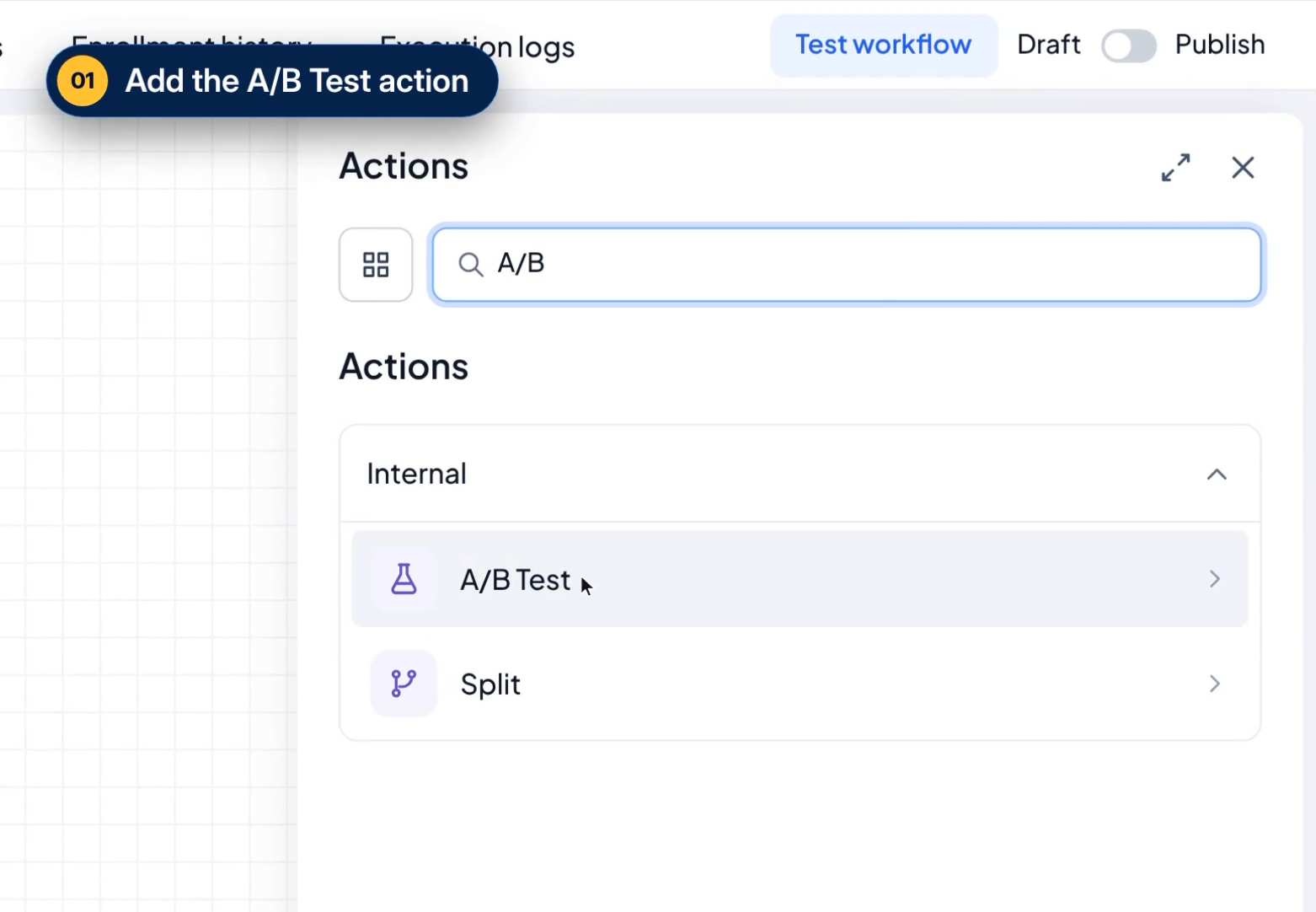
- Click the + icon (add action) in the workflow builder and select A/B Test.
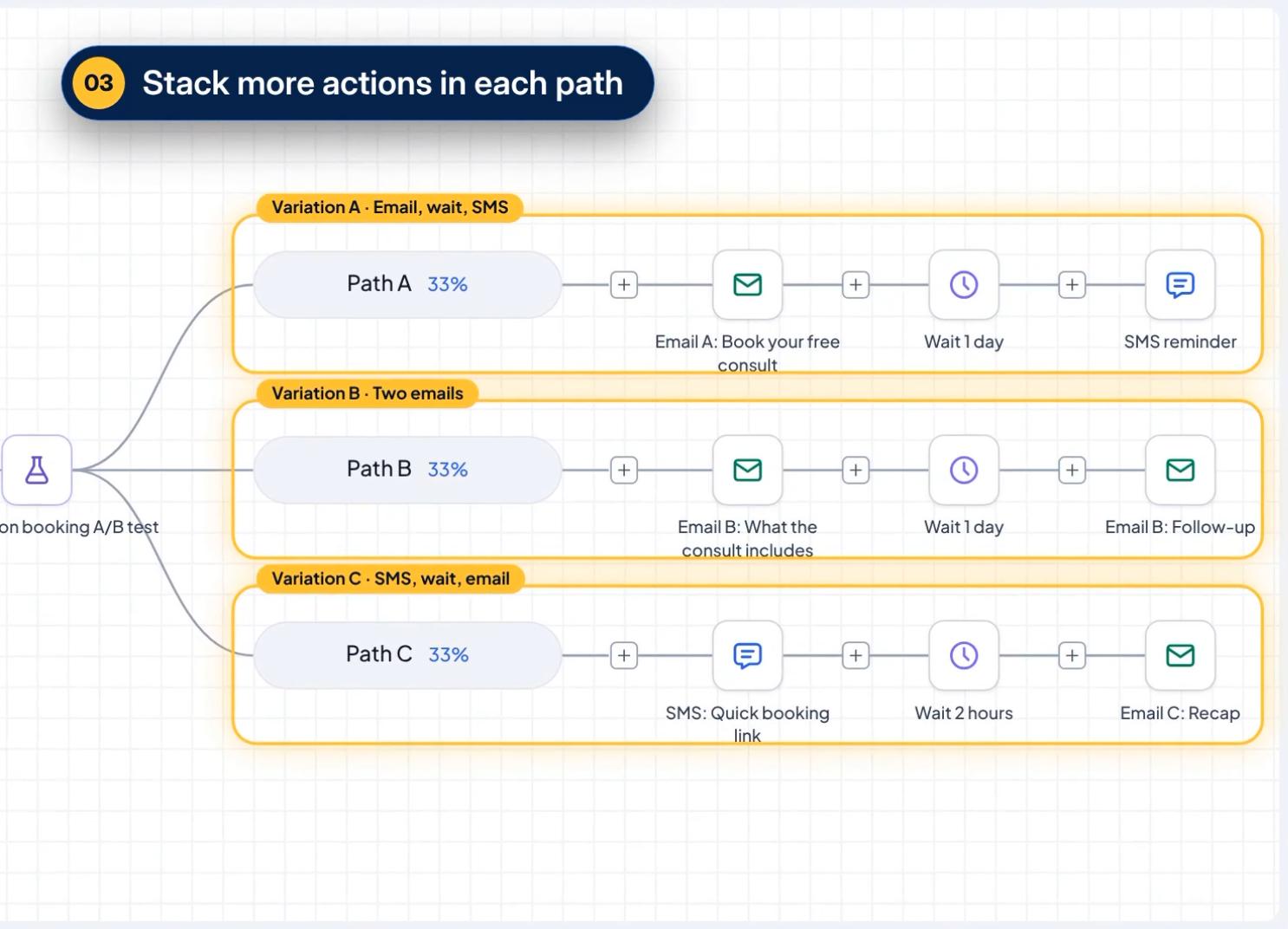
- Enter an Action name, then configure 2–10 paths using Add path. Rename the paths if needed.
- Under Winning Criteria, select Goal event or Custom condition and configure the desired conversion goal.
- Under Test length, choose when the comparison should end.
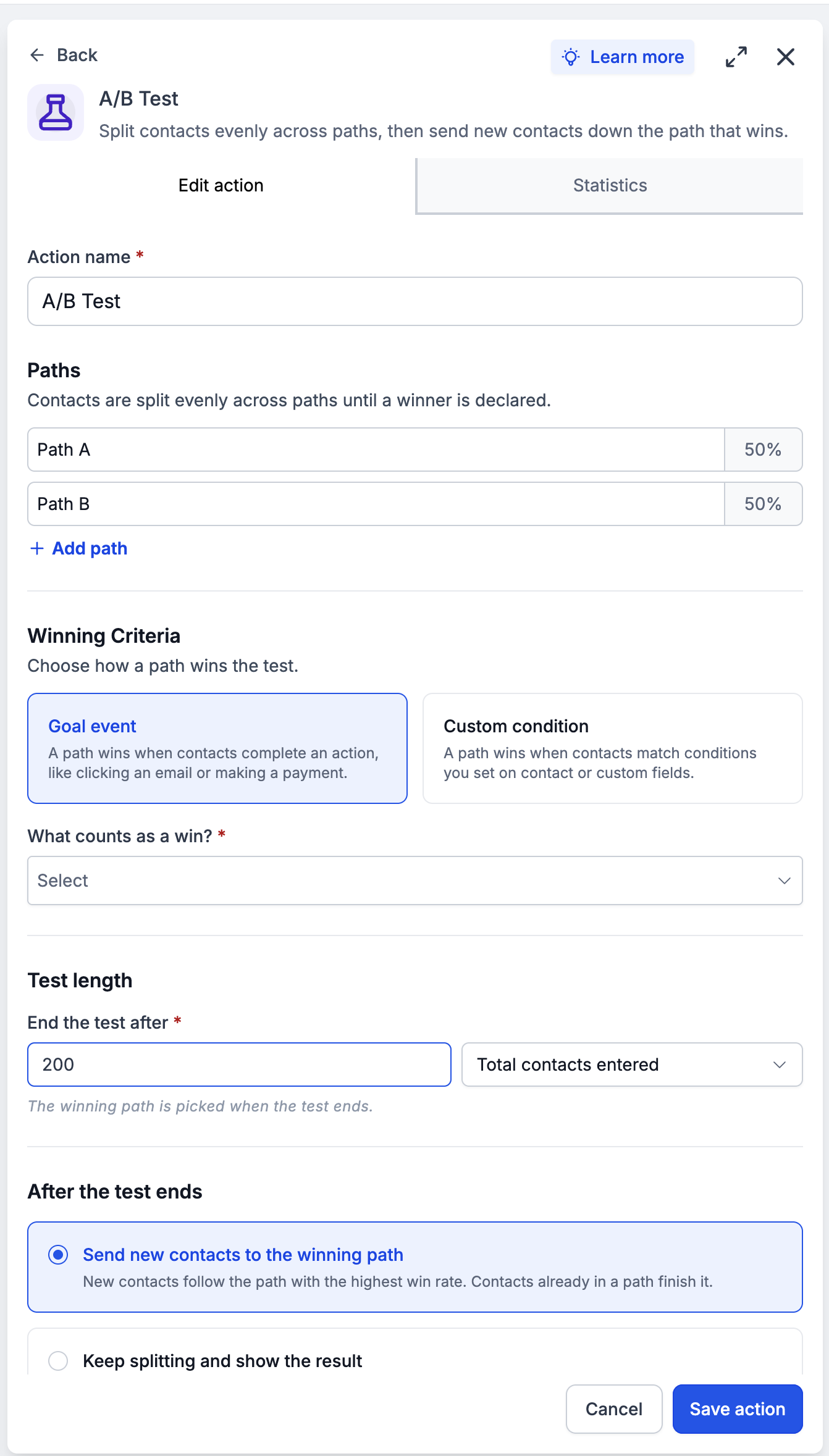
- Under After the test ends, choose Send new contacts to the winning path or Keep splitting and show the result.
- Click Save action, add the actions you want to compare under each path, and save or publish your workflow as appropriate.
A/B Test Statistics and Winner Selection
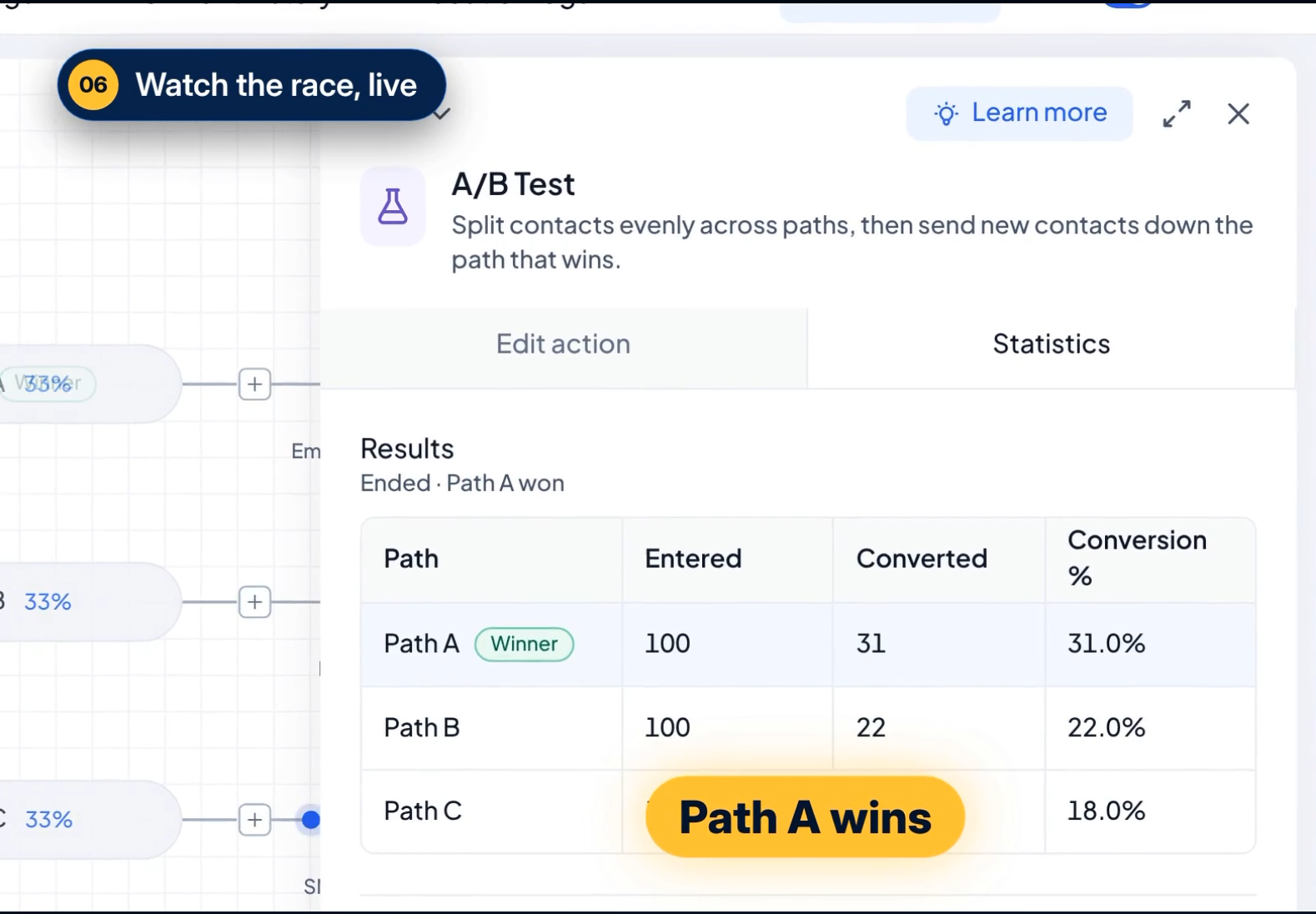
The Statistics tab displays how each path performs against the selected conversion goal. Comparing entrants, conversions, and conversion percentages helps you identify the most effective variation.
| Metric | Description |
|---|---|
| Path | Name of the tested workflow path. |
| Entered | Number of contacts that entered the path. |
| Converted | Number of contacts that completed the conversion goal. |
| Conversion % | Percentage of contacts who converted within that path. |
| Winner | Identifies the path with the highest conversion rate when the winner is selected. |
The conversion percentage is calculated as:
Conversion % = (Converted ÷ Entered) × 100
Declaring a Winner
A winner is determined when the configured test-ending condition is reached. You can also end the test early using Declare winner in the Statistics tab.
Chat To Clients CRM selects the path with the highest conversion percentage. If multiple paths tie for the highest rate, the first path among them is treated as the winner.
Resetting an A/B Test
Resetting an A/B Test allows you to run a new comparison after reviewing previous results. This is useful when testing updated messages, follow-up sequences, or different approaches.
Use Reset test within the A/B Test action to prepare a new comparison.
Important: Saving after resetting clears previous test results. Contacts returning to the test may also enter a different path than they followed previously.Frequently Asked Questions
Q: Can I compare email and SMS sequences in the same A/B Test?
Yes. Each path can contain a different combination of workflow actions, such as emails, SMS messages, and waits. Use a conversion goal that measures the outcome you want across all paths.
Q: Do all A/B Test paths use the same winning criteria?
Yes. The A/B Test action evaluates its paths against the winning criteria configured for that test, so variations can be compared using a consistent goal.
Q: Why do paths sometimes show different numbers of contacts?
Even distribution is the intended allocation. Actual path entry counts can vary, especially when relatively few contacts have entered the test.
Q: Can I measure lead qualification using custom fields?
Yes. Select Custom condition under Winning Criteria and define the contact or custom field conditions that indicate a qualified lead.