
What Are Dynamic QR Code Usage Limits?
Dynamic QR Code Usage Limits in Chat To Clients CRM let you control how many times a QR code can be scanned and when it remains valid. Set scan limits, configure expiration periods, or schedule specific start and end times. Because these rules are enforced at scan time, you can update existing QR codes without reprinting them.
TABLE OF CONTENTS
- Key Benefits of Dynamic QR Code Usage Limits
- Scan Limits for Dynamic QR Codes
- Duration-Based Expiration
- Date Range and Timezone Settings
- QR Code Builder Navigation
- QR Code Status Indicators
- How to Set Up Scan Limits and Expiration for Dynamic QR Codes
- Frequently Asked Questions
- Related Articles
Key Benefits of Dynamic QR Code Usage Limits
Usage limits help you manage time-sensitive promotions, event check-ins, and limited-access resources while maintaining control over QR code availability.
Controlled Access: Limit how many times a QR code can be scanned, including one-time use.
Flexible Expiration: Set a duration or specific start and end time.
Timezone-Aware Scheduling: Apply validity periods using your selected timezone.
No Reprinting Required: Update restrictions without replacing an existing QR image.
Clear Status Indicators: Quickly identify limited or inactive QR codes.
Simplified Management: Configure settings through the redesigned QR Code Builder.
Scan Limits for Dynamic QR Codes
Scan limits determine how many scans a QR code accepts before becoming unavailable. This is useful for single-use promotions, event access, and limited redemptions.
For example:
1 scan: One-time redemption.
10 scans: Limited-access resource.
100 scans: Promotion with a fixed scan allowance.
Once the limit is reached, scanners see an explanatory message instead of being redirected to the destination.
Duration-Based Expiration
Duration-based expiration keeps a QR code valid for a specified period starting from its creation. This is useful for temporary check-ins, short promotions, and time-sensitive access. For example, a QR code created at 10:00 AM with a 30-minute duration expires at 10:30 AM.
After expiration, the QR code stops accepting scans and displays an explanatory message.
Important: The countdown begins when the QR code is created, not when it is first scanned.
Date Range and Timezone Settings
Date Range expiration lets you schedule when a QR code becomes active and when it expires. This is ideal for events or promotions that must remain available during specific hours.
Configure:
Start Date and Time: When the QR code begins accepting scans.
End Date and Time: When access expires.
Timezone: The timezone used to enforce the schedule.
A QR code with a future start time remains inactive until its scheduled validity window begins. Chat To Clients CRM automatically handles daylight saving time changes, and the selected timezone applies regardless of where the code is scanned.
QR Code Builder Navigation
The redesigned QR Code Builder organizes settings into sections using a side navigation rail. This makes it easier to configure and review QR codes without scrolling through a long form.
Key improvements include:
Side Navigation: Jump directly between configuration sections.
Next Button: Navigate to settings that still require attention.
Clearer Labels: Understand configuration options through improved helper text.
Language Support: Access new labels and tooltips in all 13 supported languages.
QR Code Status Indicators
The QR Codes List displays status indicators to help you identify restricted or unavailable QR codes without opening their settings.
Limited: The QR code has active usage restrictions.
Inactive: The QR code is not currently accepting scans.
Inactive QR codes appear greyed out. Hovering over a status tag displays information about the applicable restrictions, such as scan limits or expiration details.
How to Set Up Scan Limits and Expiration for Dynamic QR Codes
Configuring usage limits helps ensure QR codes remain available only for the intended number of scans or validity period. Follow these steps to create a restricted QR code or update an existing one.
Step 1: Open the QR Code Builder
Navigate to Sites → QR Codes in your Chat To Clients CRM sub-account.
Click Create QR Code, or select Edit on an existing QR code.
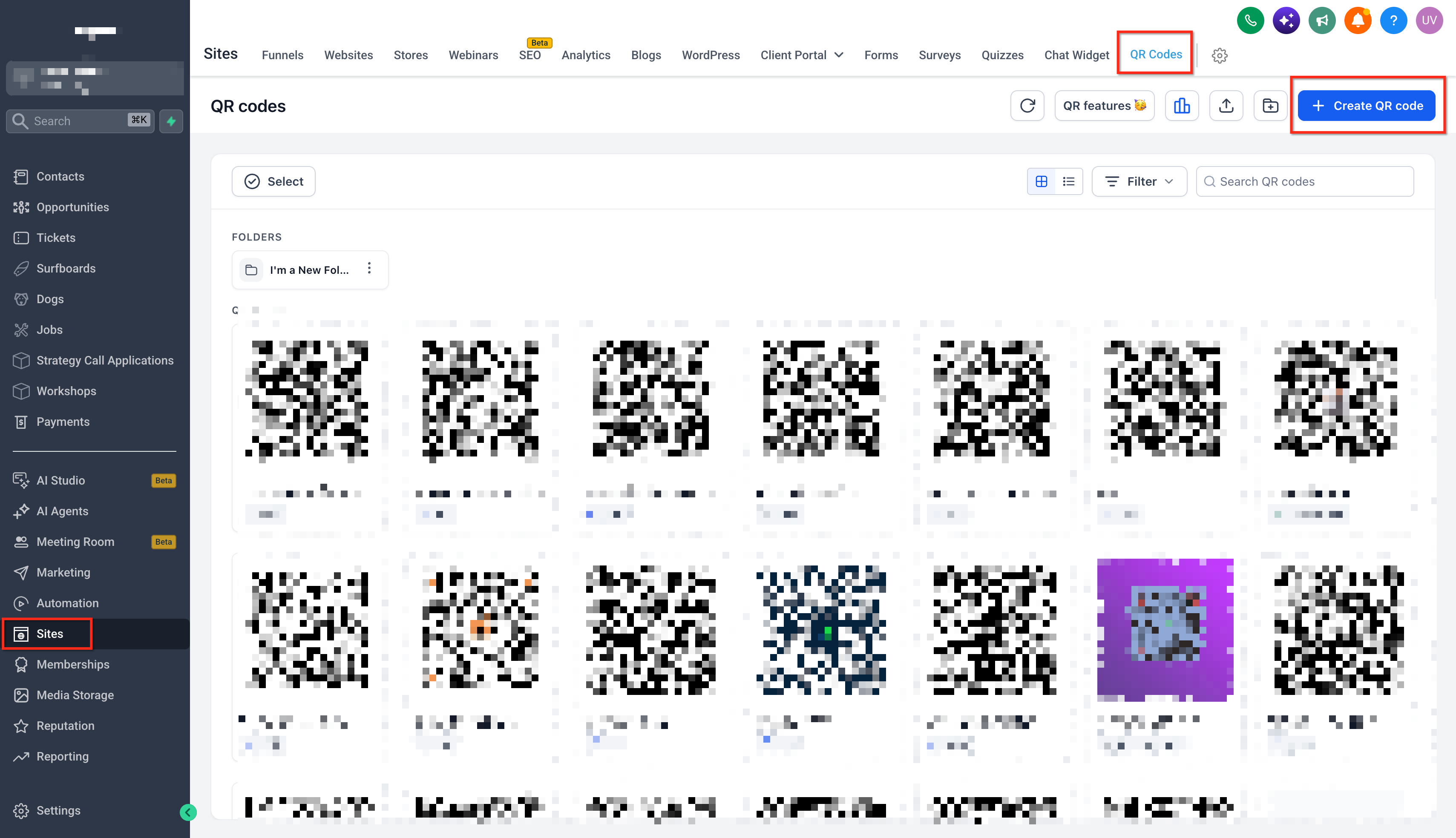
Enter the QR code name and destination details.
Step 2: Set a Scan Limit
Navigate to the usage-limit settings.
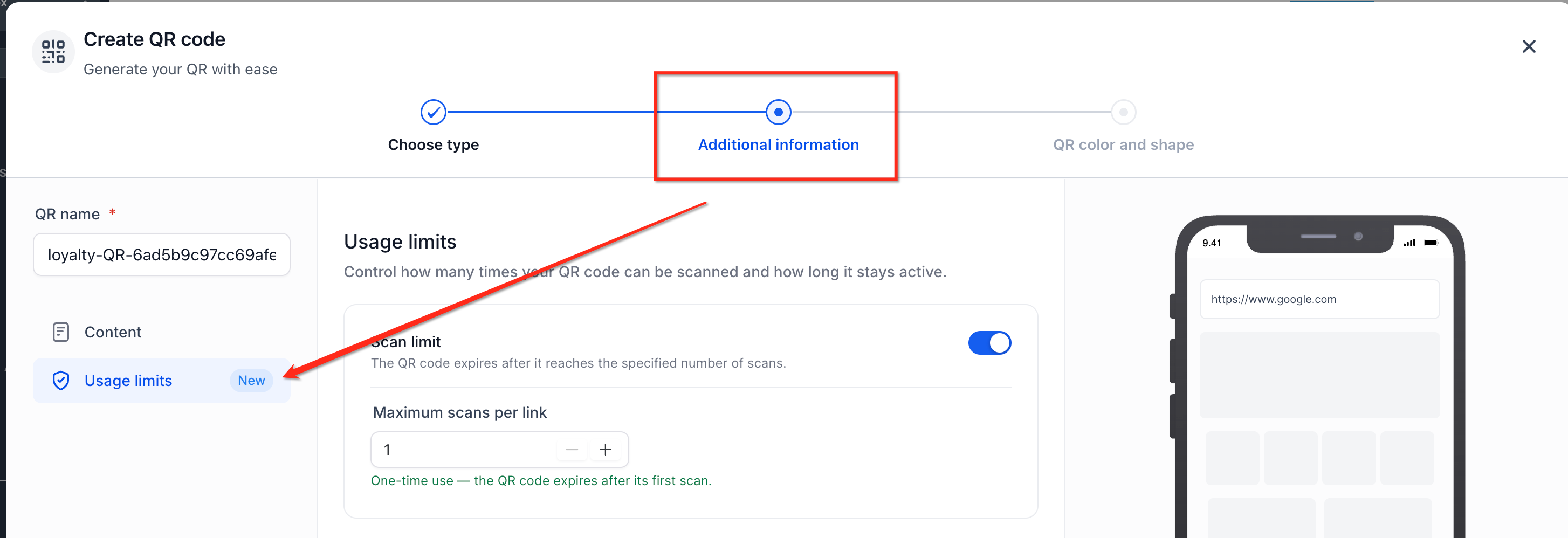
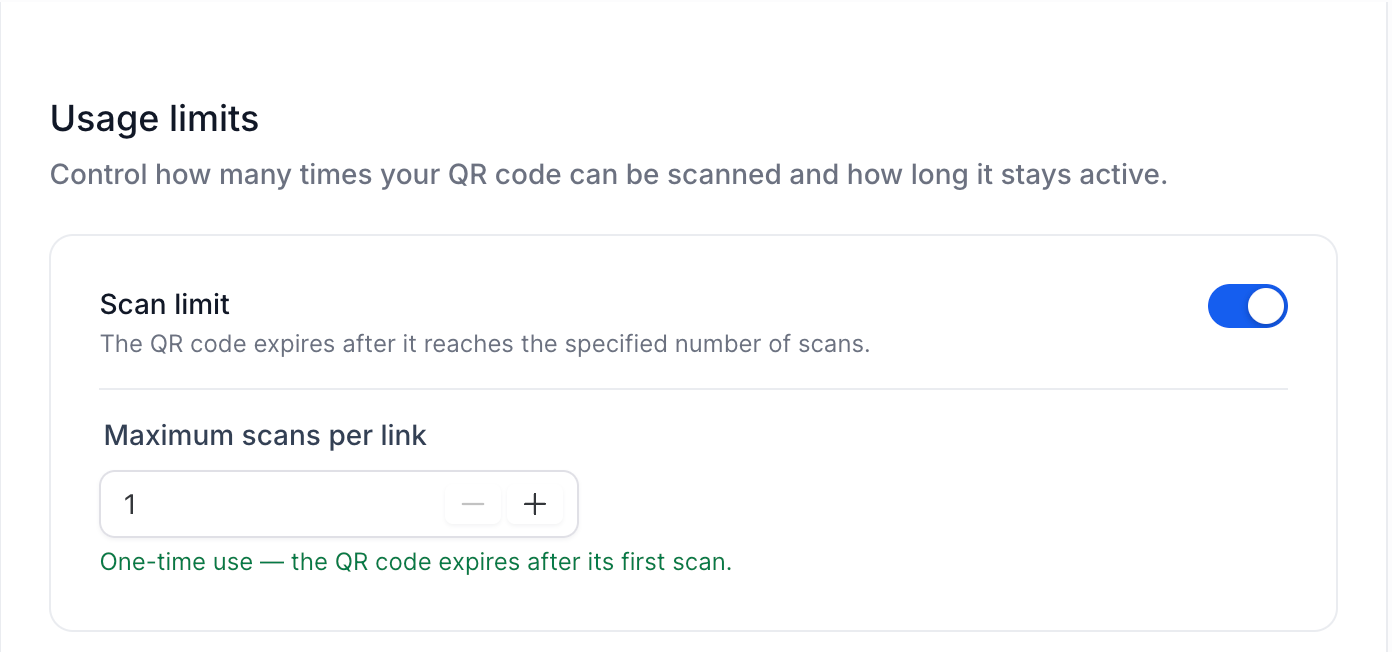
Configure the maximum number of allowed scans.
Enter 1 for a one-time-use QR code or a higher number for multiple scans.
Step 3: Configure Expiration
Choose your preferred expiration method:
Duration: Specify how long the QR code remains valid after creation.
Date Range: Set the start date, end date, time, and timezone.
QR codes with future start times remain inactive until their scheduled window begins.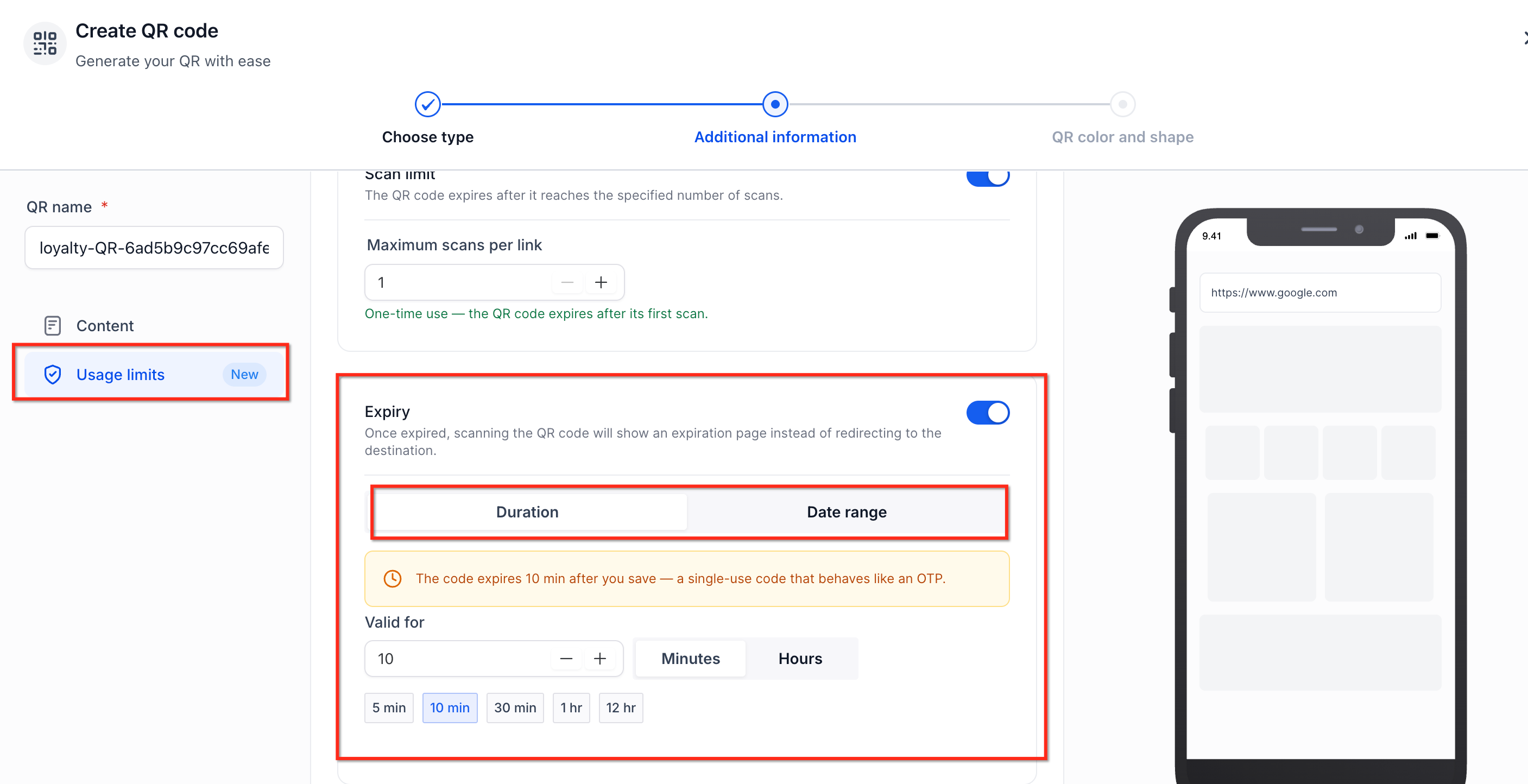
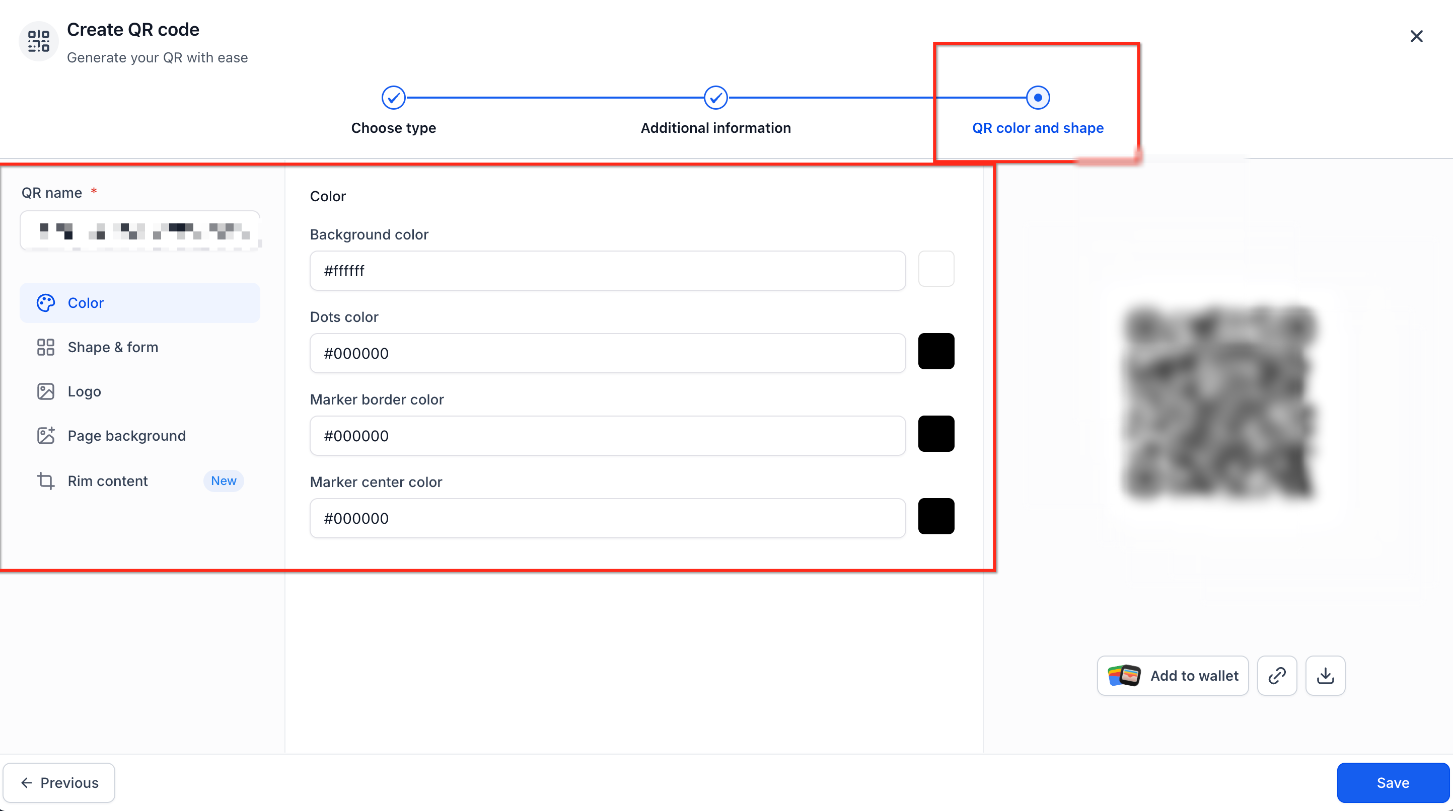
Step 4: Customize and Save
Customize the QR code's appearance using the available design settings.
Review the destination, scan limit, and expiration settings.
Click Save.
Download the QR code in an available format.
Step 5: Review QR Code Status
Return to Sites → QR Codes.
Locate your saved QR code.
Check for Limited or Inactive status tags.
Hover over a tag to view its restrictions.
Important: Updating scan limits or expiration does not require reprinting the existing QR image. However, changing its underlying API or branded domain may affect existing printed codes.Frequently Asked Questions
Q: What happens when a QR code reaches its scan limit?
The QR code stops accepting scans and displays a message explaining why it is unavailable.
Q: Can someone scan a QR code before its scheduled start time?
The QR code remains inactive until its configured start time.
Q: Does the scanner's timezone affect expiration?
No. Date Range scheduling follows the timezone selected during configuration.
Q: Does a Limited status mean the QR code is inactive?
No. Limited indicates active usage restrictions, while Inactive means the code is not currently accepting scans.
Q: Can I update restrictions without reprinting my QR code?
Yes. Restrictions are enforced at scan time, so the printed QR image remains unchanged.
Q: Why might an existing QR code stop working after a domain change?
Changing the underlying API or branded domain can invalidate the QR code's existing URL, even when its usage
restrictions are valid.