How to Use Brand Board Colors in QR Codes
You can now use your saved Brand Board colors and Global Custom Colors directly in Chat To Clients CRM's QR Code Builder. This article explains how the integration works and shows you how to apply your saved colors to QR codes without manually entering color codes.
TABLE OF CONTENTS
What Are Brand Board Colors in QR Codes?
The Brand Board Colors integration connects your saved brand colors to the QR Code Builder's color picker, making it easier to create QR codes that match your branding.
When creating or editing a QR code, you can choose colors from:
Brand Colors: Colors saved in your location's Brand Board.
Global Custom Colors: Reusable colors saved in your Brand Board's Global Settings.
You can apply these colors to different parts of your QR code, including:
Background
Dots
Marker border
Marker center
Rim content
Your selected colors appear in the QR code preview, so you can see how your design looks before saving.
How to Use Brand Board Colors in QR Codes
Note: Your saved colors must already exist in your Brand Board or Global Settings to appear in the color picker. Global Custom Colors are only displayed after you've saved at least one color.
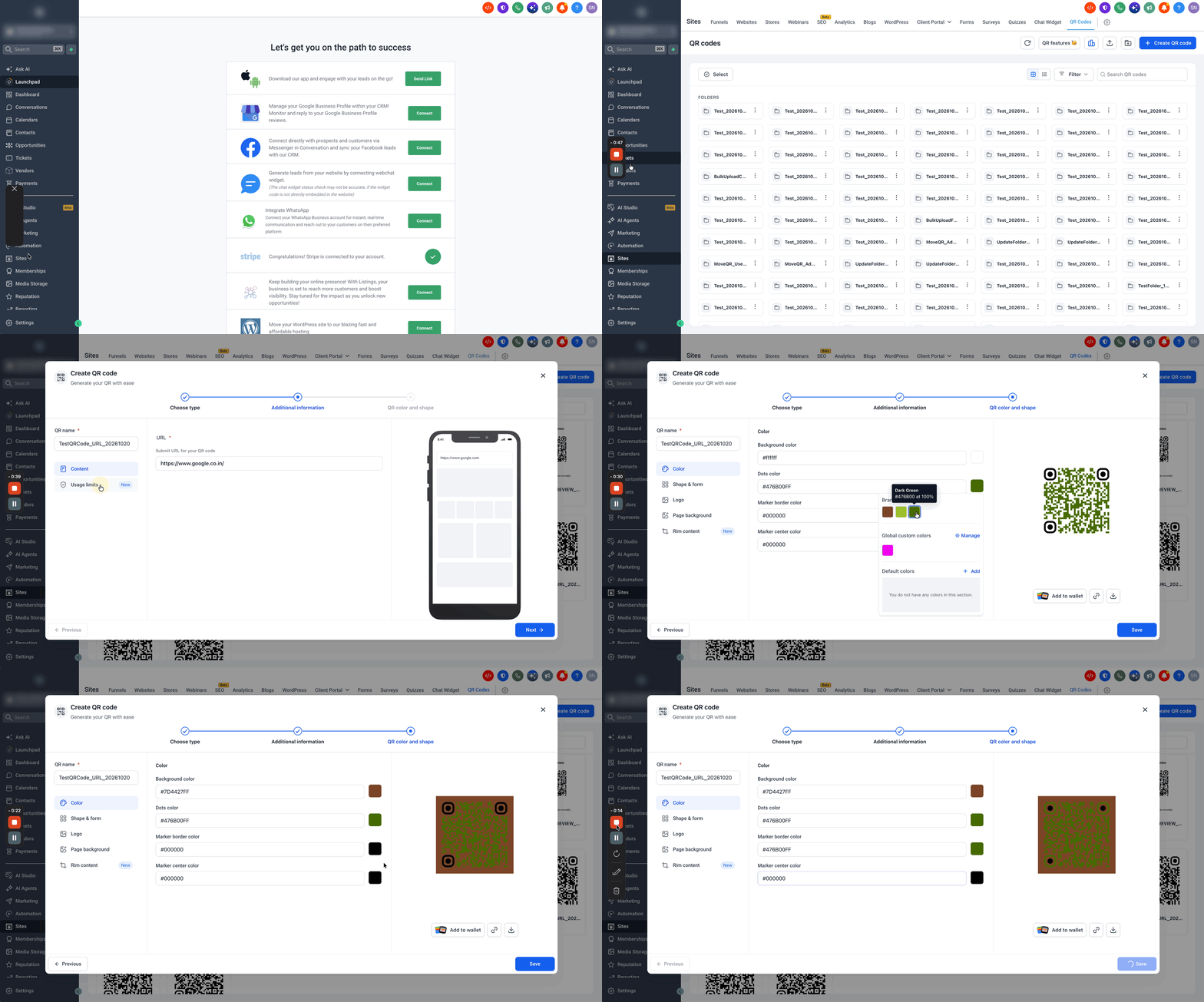
Go to Sites > QR Codes and click Create QR Code, or edit an existing QR code.
If creating a new QR code, choose your QR code type, enter the required information, and proceed to the QR color and shape step.
Under Color, open the color picker for the element you want to customize, such as Background color, Dots color, Marker border color, or Marker center color.
Select your preferred color from Brand Colors or Global Custom Colors.
Repeat for any other elements you want to customize, including rim content where applicable.
Review the updated QR code preview and click Save.