
How to Connect and Use MCP Servers in Conversation AI
Conversation AI bots can now connect to MCP (Model Context Protocol) servers to use external applications and tools during supported customer conversations. This allows bots to perform actions such as booking appointments through Cal.com, sending Stripe payment links, and updating Google Sheets without leaving the conversation. You can connect ready-made MCP servers from the Marketplace or add your own custom server. This guide covers connecting servers, configuring usage instructions, managing tool access, and monitoring MCP activity in Agent Logs.
Table of Contents
What is MCP Servers Support in Conversation AI?
MCP Servers Support allows prompt-based Conversation AI bots to connect with external applications and use their available tools while responding to customers. Instead of only providing information, a bot can perform supported actions in connected systems based on the customer's request and the instructions you configure.
Model Context Protocol (MCP) provides a standardized way for AI agents to interact with external tools and services.
For example, a Conversation AI bot can check appointment availability through Cal.com, create a booking, or use Stripe to send a payment link. It can also work with external applications such as Google Sheets and Notion, depending on the connected server and its available tools.
MCP tools work alongside existing Conversation AI capabilities, including Custom API actions, Knowledge Base retrieval, and Workflows.
Key Benefits of MCP Servers in Conversation AI
MCP servers extend what Conversation AI bots can accomplish during customer conversations. By connecting external applications and configuring their available tools, you can support more tasks without creating a separate custom integration for every application.
Perform external actions: Allow bots to complete supported tasks such as booking appointments, sending payment links, and updating external records during conversations.
Connect ready-made applications: Choose from 40+ Marketplace MCP servers, including Stripe, Google Sheets, Google Calendar, Notion, and Zapier.
Connect custom tools: Add your own MCP server using its name and HTTPS URL, with optional authentication credentials.
Control tool access: Choose which tools each connected MCP server makes available to your Conversation AI bot.
Configure when tools are used: Define the situations in which the bot should call each server and optionally specify what it should say afterward.
Monitor execution: Review MCP tool calls in Agent Logs, including their Success or Failed status.
Prerequisites and Limitations
Before connecting MCP servers, make sure your Conversation AI bot meets the supported configuration requirements. MCP availability depends on the bot type, operating mode, and Labs activation.
Prerequisites
Enable MCP support for Conversation AI in Labs.
Use a Prompt Based Bot in Conversation AI.
Configure the bot to operate in Auto-Pilot mode for inbound conversations.
Have an account with the external application you want to connect, when required by that application's connection flow.
For custom MCP servers, have the server's HTTPS URL and any required authentication details.
Limitations
Supported mode: MCP servers currently work with prompt-based bots in Auto-Pilot mode on inbound conversations.
Unsupported modes: MCP servers are not yet supported in Suggestive mode or Flow bots.
Server limit: You can connect up to five MCP servers per bot.
Tool limit: The release specifies a maximum of 100 tools.
Tool availability: The actions available to the bot depend on the tools exposed by each connected MCP server.
How To Setup MCP Servers in Conversation AI
Setting up MCP support involves enabling the Labs feature, connecting an external or custom server, and defining which tools your bot can use. Complete these steps before testing MCP activity through a supported conversation.
Step 1: Enable MCP Support in Labs
MCP support must be enabled in Labs before the new MCP Servers section becomes available in the Conversation AI bot builder.
From the Sub-Account View, select Settings in the left-hand navigation menu.
Select Labs.
Locate the feature named MCP support for Conversation AI.
Turn on the feature.
Return to Conversation AI and reopen the relevant bot editor.
Step 2: Open MCP Servers in the Conversation AI Bot Builder
The MCP Servers section appears inside the prompt-based bot editor. This is where you connect external applications and manage the servers available to the bot.
From the Sub-Account View, select AI Agents in the left-hand navigation menu.
Select Conversation AI.
Open Agent List.
Select the existing prompt-based bot you want to configure.
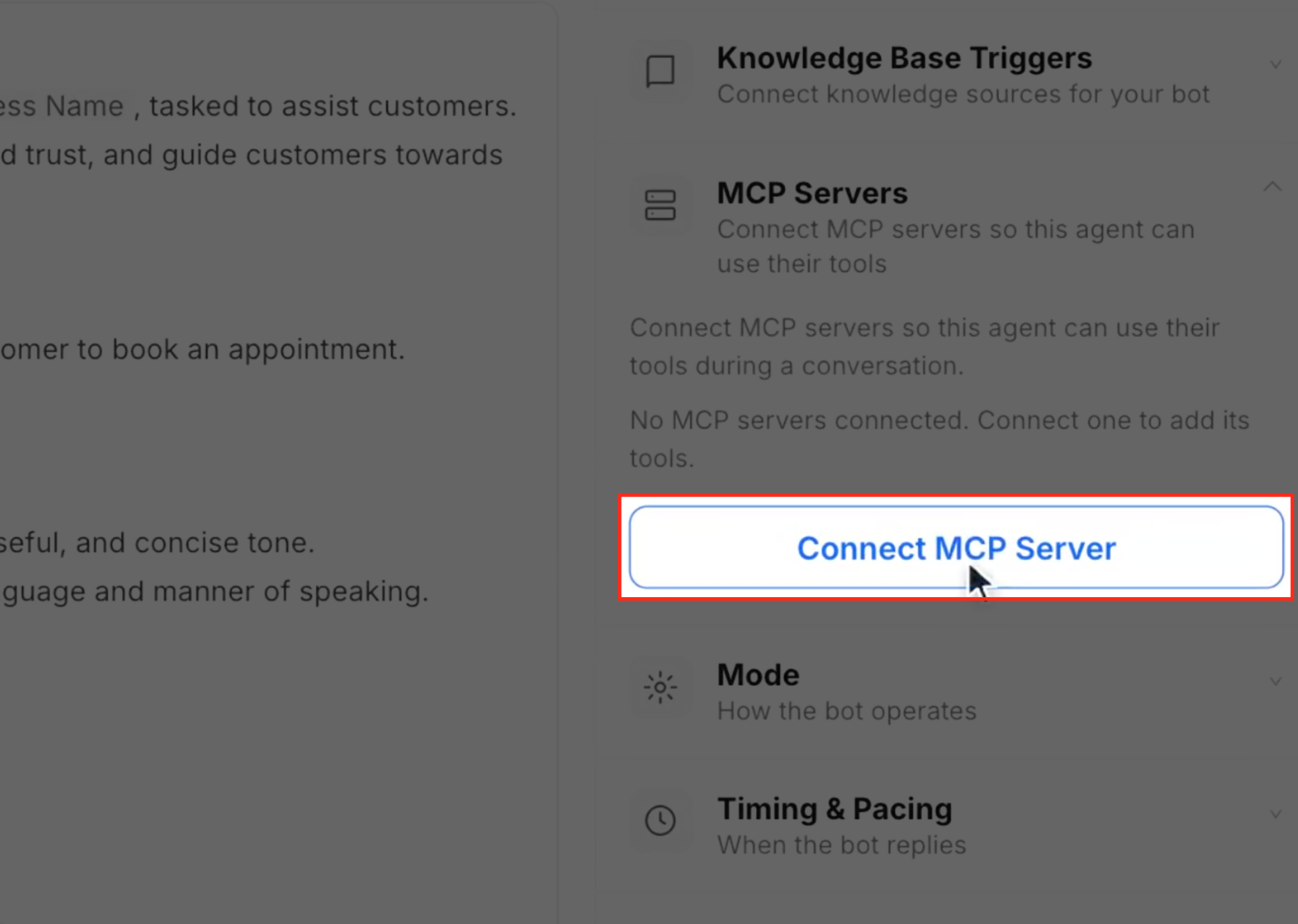
In the right-hand configuration panel, locate and expand MCP Servers.
Click Connect MCP Server.
The MCP server selection window opens, allowing you to choose an existing Marketplace connector or add a custom server.
Step 3: Connect an MCP Server from the Marketplace
The MCP Marketplace provides ready-made connectors for supported external applications. You can search the list, review a server's details, and connect the external account you want the bot to use.
In the MCP server selection window, locate the Search apps... field.
Search for the application you want to connect, such as Cal.com, Stripe, or Google Sheets.
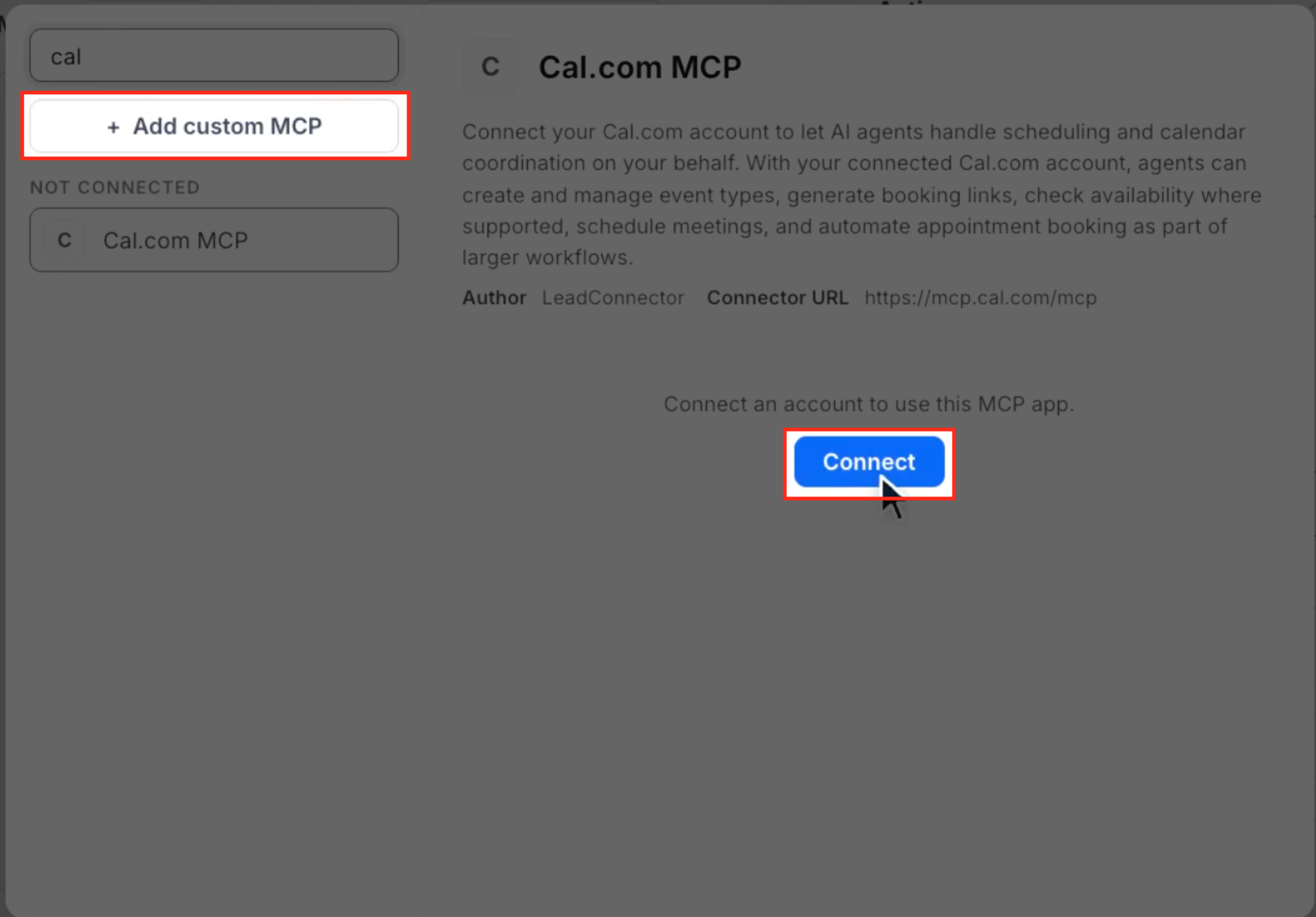
Select the application from the NOT CONNECTED list.
Review its description, author, and connector URL.
Click Connect.
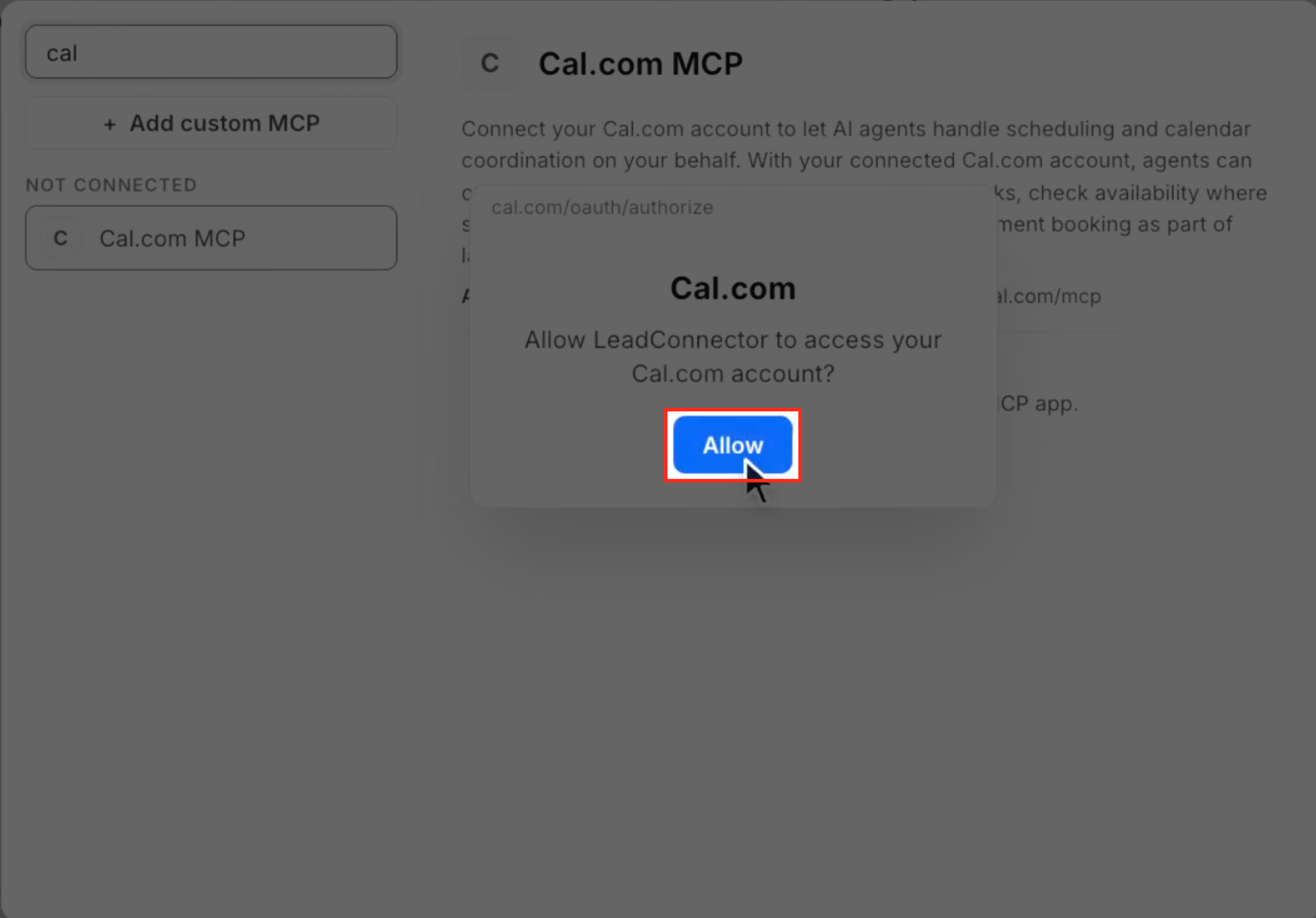
Complete the application's connection or authorization process.
For example, the Cal.com connector displays an authorization prompt asking whether Chat To Clients CRM can access your Cal.com account.
If prompted, review the authorization request and select Allow to authorize the connection.
Return to the MCP server window and verify that the application appears under CONNECTED.
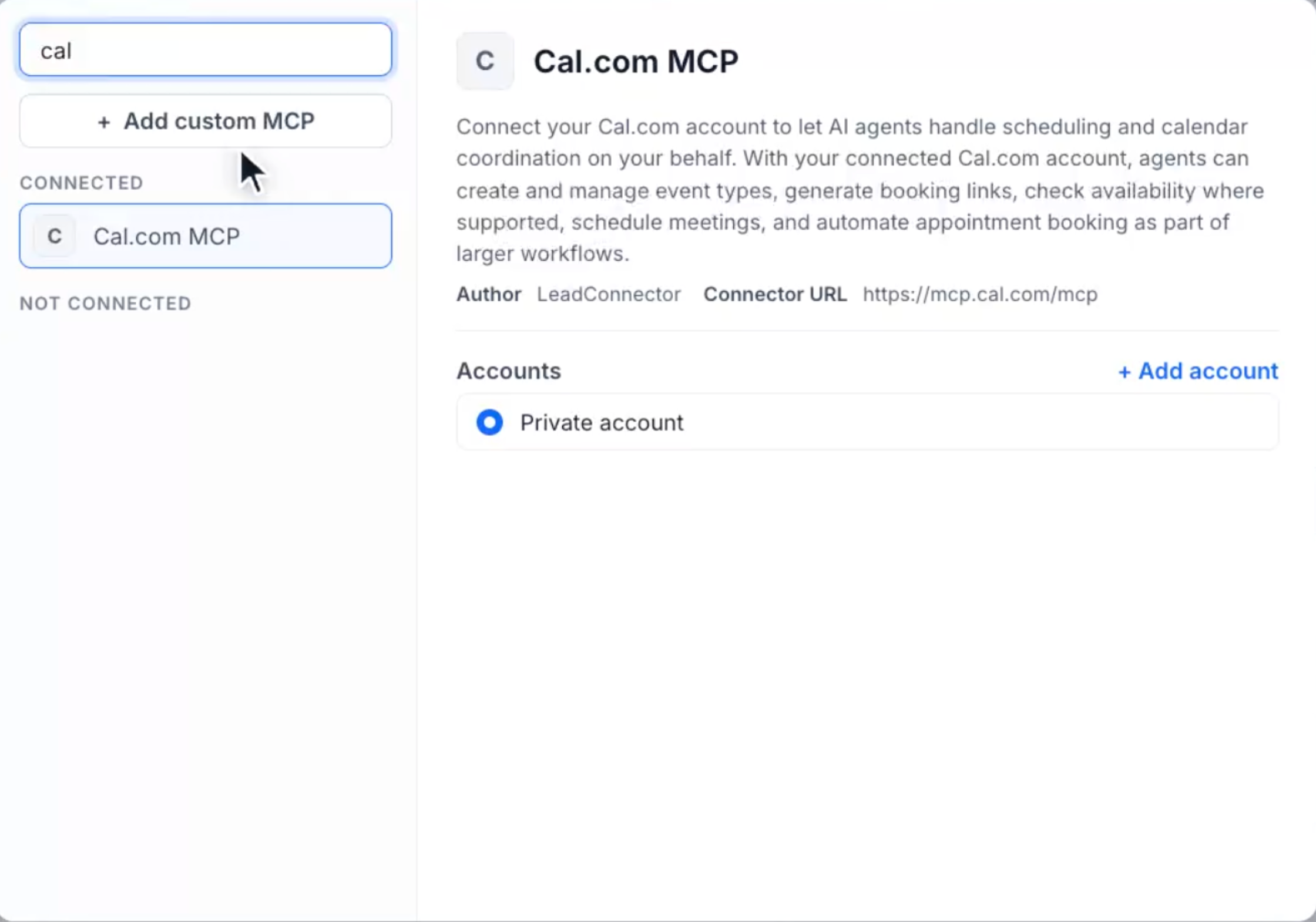
Step 4: Add a Custom MCP Server
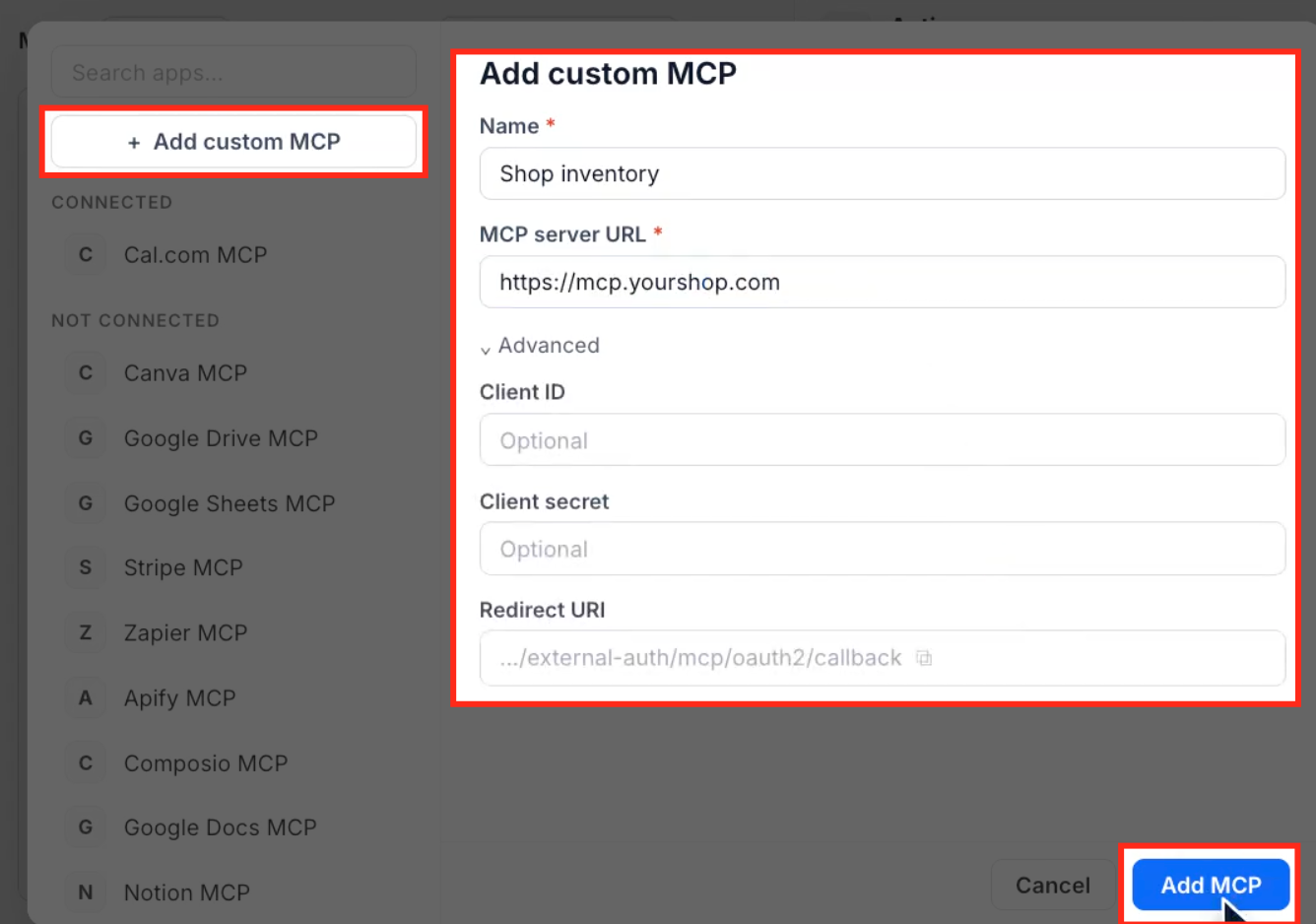
If the application you need is not available as a ready-made Marketplace connector, you can add a custom MCP server using its HTTPS URL. This lets you connect a compatible external or internally managed server and use its exposed tools.
To add a custom server:
From the Sub-Account View, select AI Agents in the left-hand navigation menu.
Select Conversation AI.
Open Agent List.
Select the prompt-based bot you want to configure.
Expand MCP Servers and click Connect MCP Server.
In the server selection window, select + Add custom MCP.
Enter the required details:
Name: Enter a descriptive name for the custom MCP server.
MCP server URL: Enter the server's HTTPS URL.
If your connection requires additional authentication configuration, expand Advanced.
Review or enter the applicable fields:
Client ID: Optional.
Client secret: Optional.
Redirect URI: Review the URI displayed by the interface for the applicable authentication setup.
Click Add MCP.
The custom server is then available in the MCP server configuration interface.
Step 5: Configure When the Bot Should Use the MCP Server
After selecting a connected MCP server, define when the bot should call it. Clear instructions help the bot associate customer requests with the external tools needed to complete them.
In the selected server's configuration panel, locate When should this MCP be used?
Enter instructions describing when the bot should use the server.
This field is required and supports up to 500 characters.
Example: When a customer wants a visit, check open slots and book the one they pick.
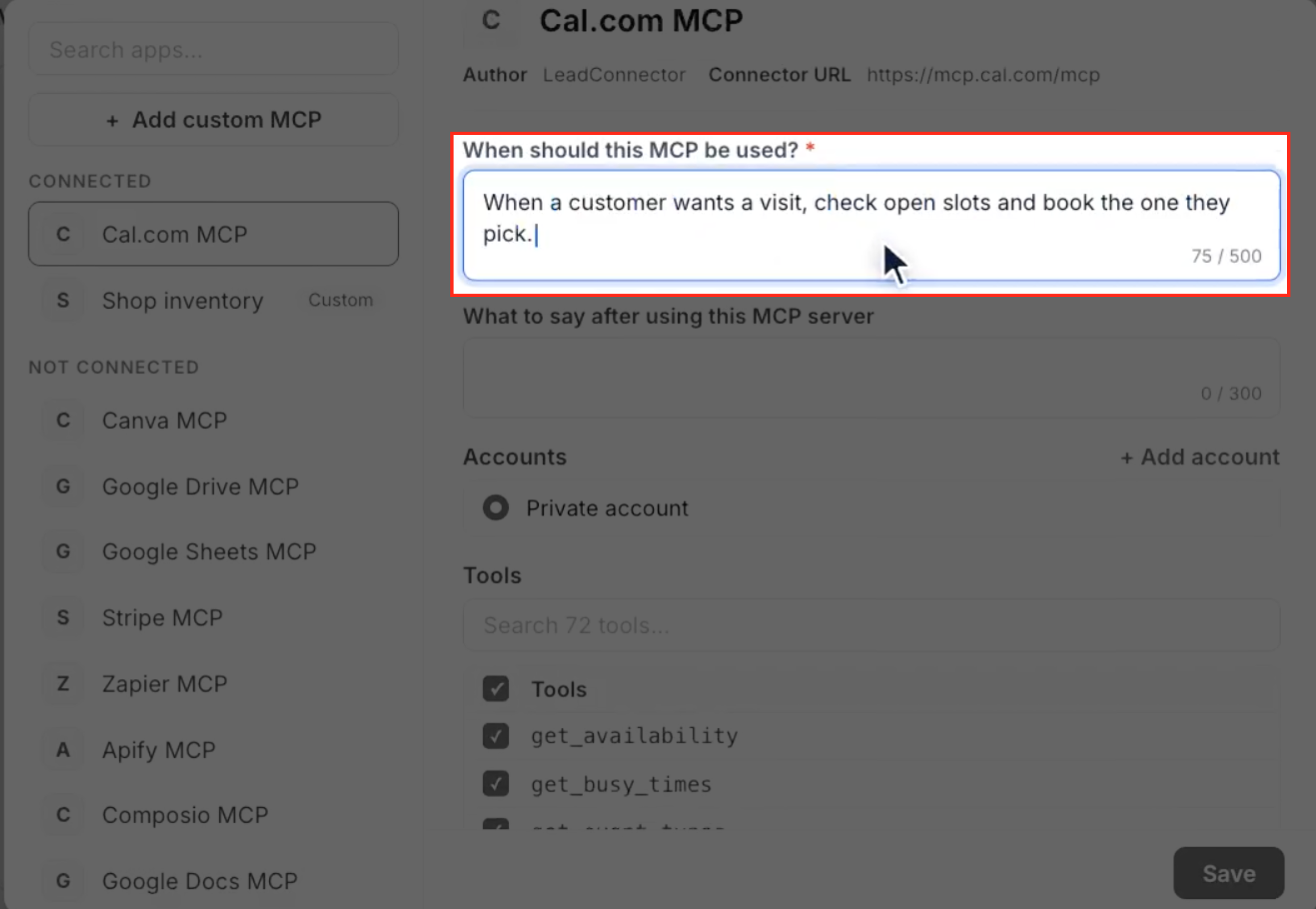
When a customer wants a visit, check open slots and book the one they pick.
Locate What to say after using this MCP server.
Optionally enter instructions describing what the bot should communicate after using the server.
This field supports up to 300 characters.
Step 6: Choose the Connected Account and Configure Tools
Each MCP server exposes a list of tools that the bot can use. Reviewing this list helps ensure the bot only has access to the operations needed for its assigned tasks.
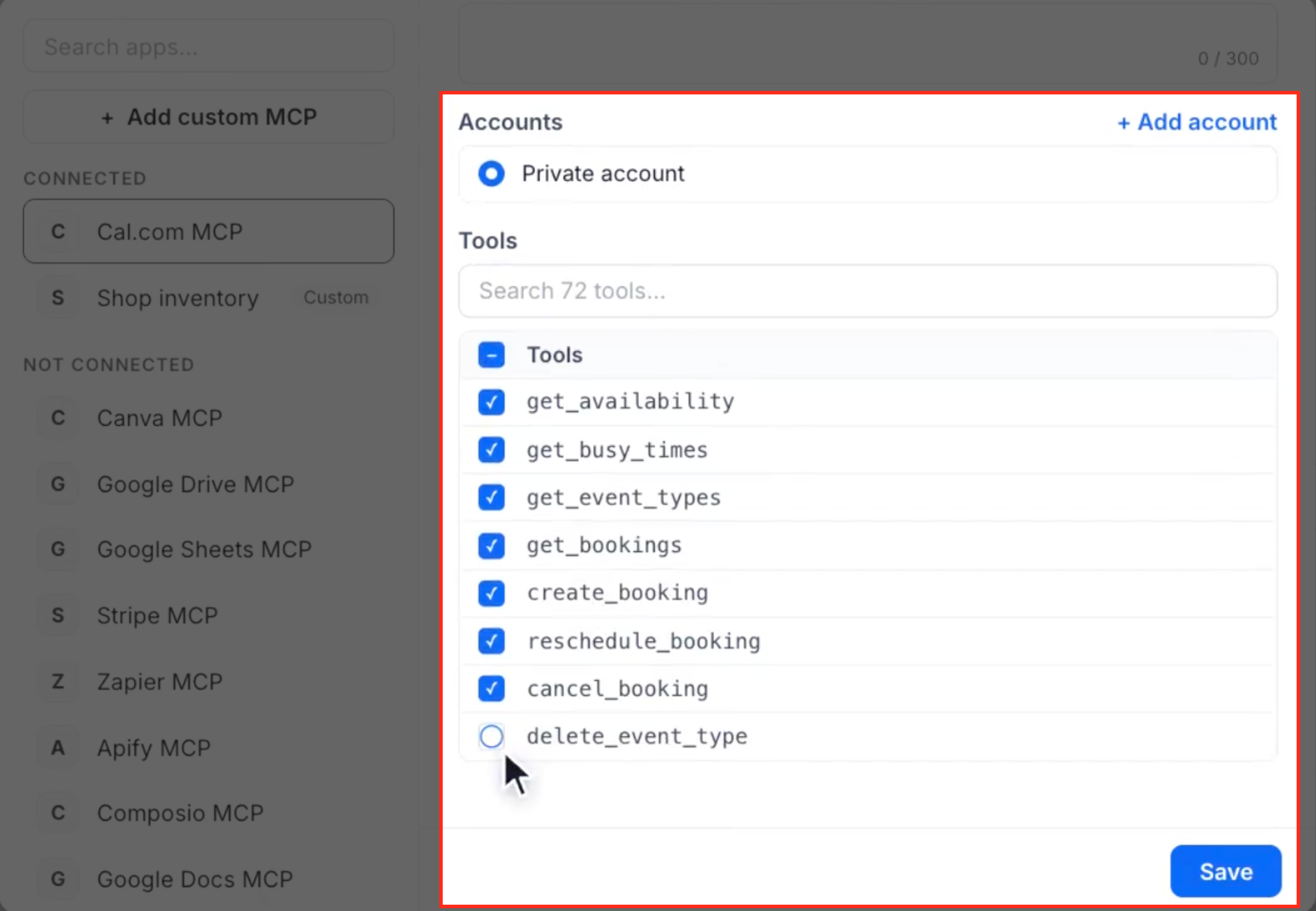
In the selected MCP server's configuration panel, locate Accounts.
Select the connected account you want to use.
The interface also provides + Add account for connecting another account.
Scroll to the Tools section.
Review the tools available from the connected server.
Use the tool search field if you need to locate a specific tool.
By default, all available tools are selected.
Clear the checkbox beside any tool the bot should not use.
For example, a Cal.com MCP server can expose tools such as:
get_availabilityget_busy_timesget_event_typesget_bookingscreate_bookingreschedule_bookingcancel_booking
If the bot only needs to check availability and create bookings, you can deselect other tools that are not needed for that task.
Important: Available tools depend on the connected MCP server. Review the current tool list rather than assuming every integration offers the same operations.
Step 7: Save and Test the MCP Configuration
Saving the configuration applies your selected server instructions, account, and tool choices. Testing helps you check whether the bot follows the intended instructions before using the setup in customer conversations.
Review the selected MCP server's usage instructions.
Confirm that the correct connected account is selected.
Check that only the intended tools remain enabled.
Click Save at the bottom of the MCP configuration panel.
From the Sub-Account View, select AI Agents, then Conversation AI.
Open Agent List, select the configured prompt-based bot, and open Bot Goals.
Locate Test Your Bot and enter a sample customer request related to the MCP server.
For example, test an appointment request when using a Cal.com connector.
Review the bot's response against the instructions you configured.
Validate MCP execution through a controlled inbound conversation handled by the bot in Auto-Pilot mode.
Review the resulting MCP tool calls in Agent Logs.
How to Monitor MCP Tool Calls in Agent Logs
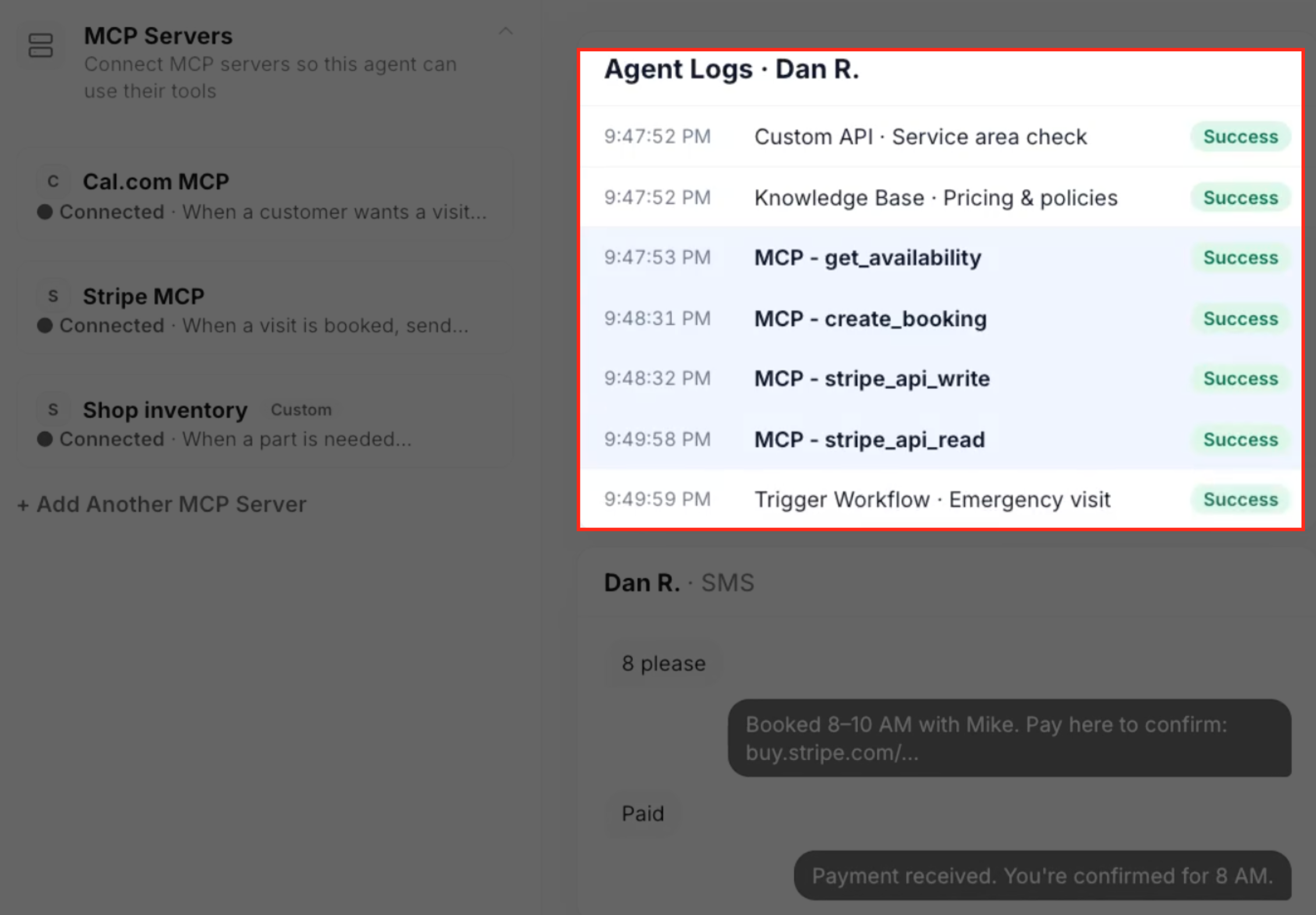
Agent Logs provide visibility into the actions a Conversation AI bot performs during a conversation. For MCP servers, the logs identify which external tool was called and whether the call succeeded or failed.
To review MCP activity:
From the Sub-Account View, select AI Agents in the left-hand navigation menu.
Select Agent Logs.
Open the Sessions view.
Locate the session you want to review. Use the available filters to narrow the results by contact, agent, channel, or time range.
Open the relevant session.
Review the conversation and its execution timeline.
Locate entries beginning with MCP -, followed by the tool name.
Check whether each call displays Success or Failed.
For example, an appointment-booking conversation may produce entries such as:
MCP - get_availabilityMCP - create_booking
A conversation involving Stripe may also show a payment-related tool call.
The logs help identify which external tools were called while processing the conversation. They can also be used to investigate failed calls or unexpected results.
Frequently Asked Questions
Q: Can I connect Marketplace MCP servers and custom MCP servers to the same Conversation AI bot?
Yes. A bot can have Marketplace connectors and custom MCP servers in its configuration. The supplied example shows Cal.com and Stripe alongside a custom Shop inventory server.
Q: Can a bot use tools from multiple MCP servers during the same conversation?
Yes. The release demonstrates a conversation where the bot uses Cal.com for appointment scheduling and Stripe for payment-related actions, alongside other Conversation AI capabilities.
Q: Does every custom MCP server require a Client ID and Client secret?
No. The custom MCP configuration lists both fields as optional. Enter them when required by the authentication configuration of the MCP server you are connecting.
Q: Does the bot call every enabled MCP tool during every conversation?
No. The When should this MCP be used? field defines when the bot should use a server. Tool selection determines which operations are available when the bot calls that server.