
Expanded Contact Field Support in Conversation AI
The Add Contact Info action in Chat To Clients CRM's Conversation AI now supports additional custom field types, including Radio Select, Checkbox, single-select and multi-select Dropdowns, and Phone, along with standard fields such as Contact Source and Contact Type. Conversation AI can recognize natural-language responses and match them to predefined field options, including multiple selections. This expanded support helps businesses automatically capture customer preferences, lead qualification details, and other important information directly in contact records.
TABLE OF CONTENTS
- What is the Expanded Contact Field Support in Conversation AI?
- Supported Contact Field Types
- How Conversation AI Matches Customer Responses to Field Options
- How to Set Up the Add Contact Info Action
- Frequently Asked Questions
- Related Articles
What is the Expanded Contact Field Support in Conversation AI?
Expanded contact field support allows prompt-based Conversation AI agents in Auto-Pilot mode to collect customer information using additional field types through the existing Add Contact Info action. For fields with predefined options, the agent interprets customer responses and saves the matching values, allowing customers to answer naturally without using the exact option names.
Supported Contact Field Types
Different contact field types allow businesses to collect and organize customer information in different ways. Single-selection fields store one choice, while multiple-selection fields can store several choices. Conversation AI also supports fields for text, numbers, dates, times, and phone information.
Supported Custom Field Types
| Field Type | Description | Example |
|---|---|---|
| Radio Select | Saves one matching option from a predefined list. | Travel Class: Business |
| Checkbox | Saves one or multiple matching selections. | Dietary Preferences: Vegetarian, Gluten-free |
| Dropdown (single) | Saves one matching option from the dropdown list. | Preferred Color: Blue |
| Dropdown (multiple) | Saves multiple matching options from the dropdown list. | Interested Services: Consulting, Training |
| Phone | Captures phone information in a supported custom Phone field. | Alternate Contact Number |
Supported Standard Contact Fields
Conversation AI can also update the following standard contact fields through the Add Contact Info action:
- Contact Source: Records where the contact came from.
- Contact Type: Records the contact's type or classification.
How Conversation AI Matches Customer Responses to Field Options
Conversation AI can recognize customer responses and match them to the available options in a contact field. Customers do not need to use the exact wording of an option. Depending on the field type, the agent can save one or multiple matching values.
| Field Type | How It Works | Example Customer Response | Saved Value |
|---|---|---|---|
| Radio Select | Matches the response to one available option. | "Business class please" | Business |
| Checkbox | Recognizes and saves multiple matching options. | "I'm vegetarian and gluten free" | Vegetarian, Gluten-free |
| Dropdown (single) | Matches the response to one option from the dropdown list. | "I'd like blue" | Blue |
| Dropdown (multiple) | Recognizes and saves multiple matching dropdown options. | "I'm interested in consulting and training" | Consulting, Training |
| Phone | Captures the customer's phone number in a custom Phone field. | "My alternate number is 415-555-0123" | 415-555-0123 |
Note: Conversation AI only saves matching values for fields with predefined options. Fields configured to allow custom values can accept additional entries. If you update the available options under Settings > Custom Fields, Conversation AI uses the updated list starting with the next customer message.How to Set Up the Add Contact Info Action
Configuring the Add Contact Info action allows Conversation AI to collect customer information and save it to the appropriate contact fields. Selecting the correct fields and providing clear prompt instructions helps the agent capture customer responses accurately.
- Go to AI Agents > Conversation AI > Agents List and open your prompt-based agent.
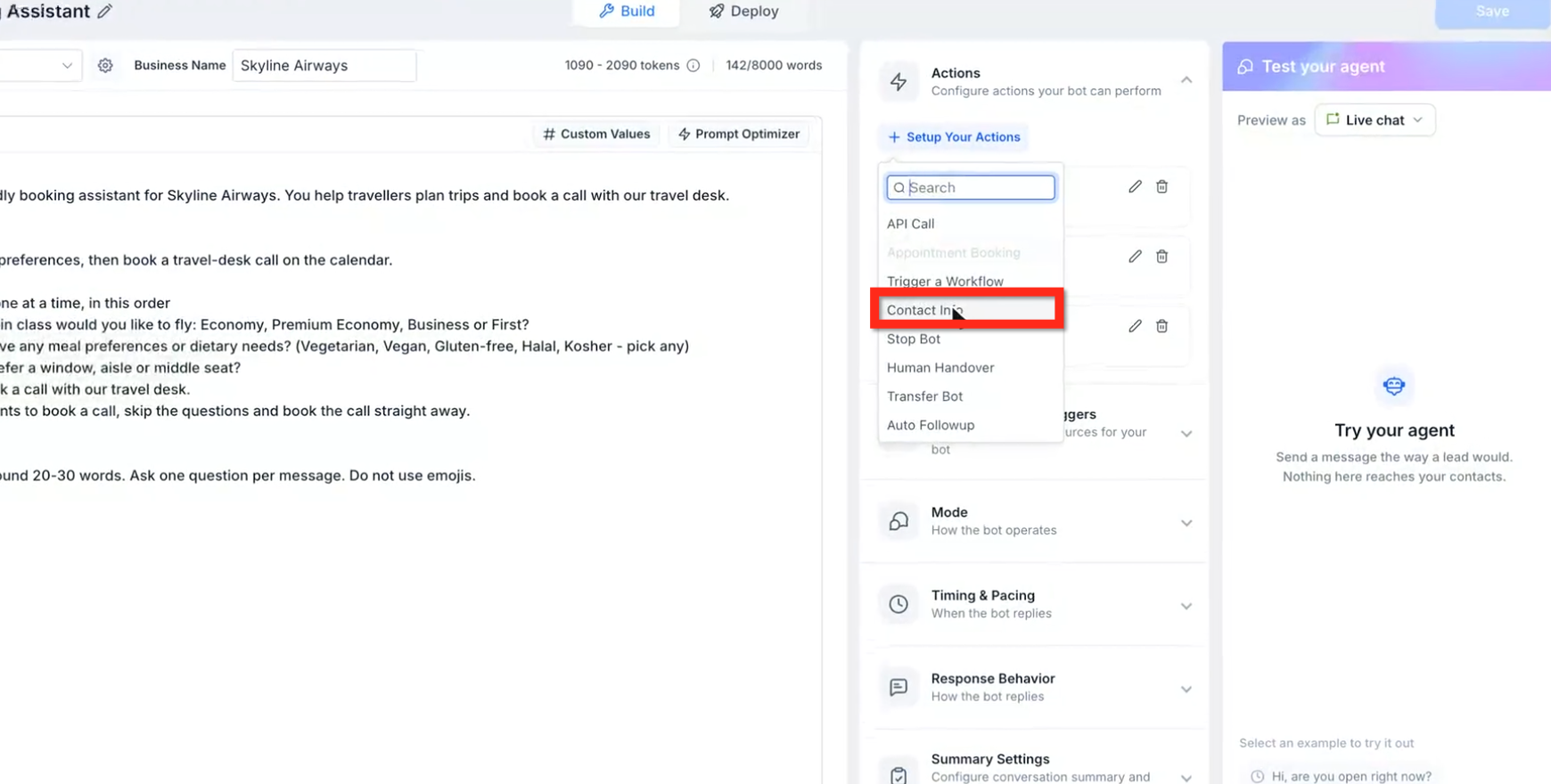
- Under Bot Goals > Setup your Actions, select Contact Info.
- Enter an Action name and choose Which contact field to be updated.
- For fields with predefined options, review Values the Conversation AI can update to confirm the available choices.
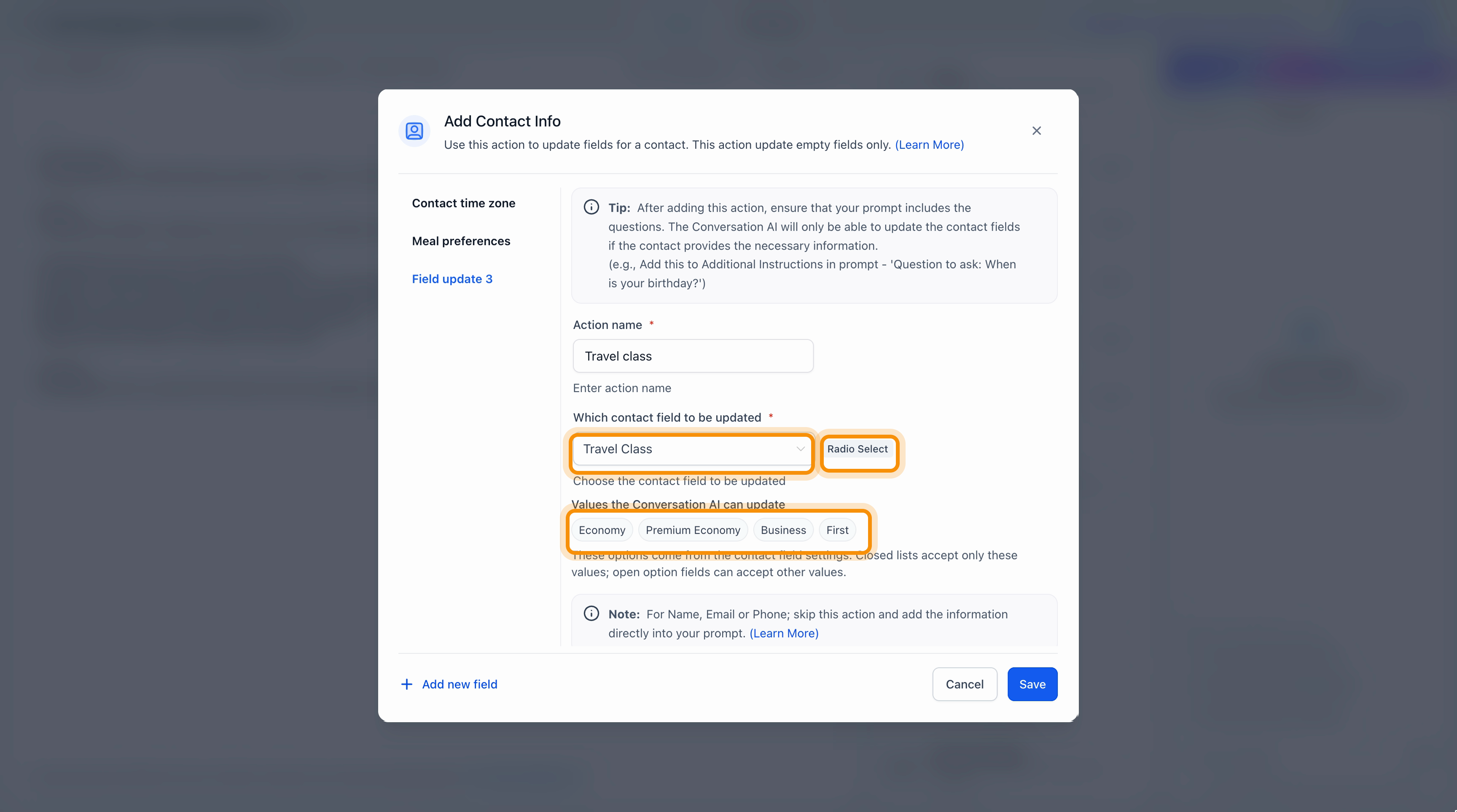
- To collect additional information, select Add new field and configure the additional fields. Click Save.
- Update the agent's prompt with instructions to ask customers for the information you want to collect.
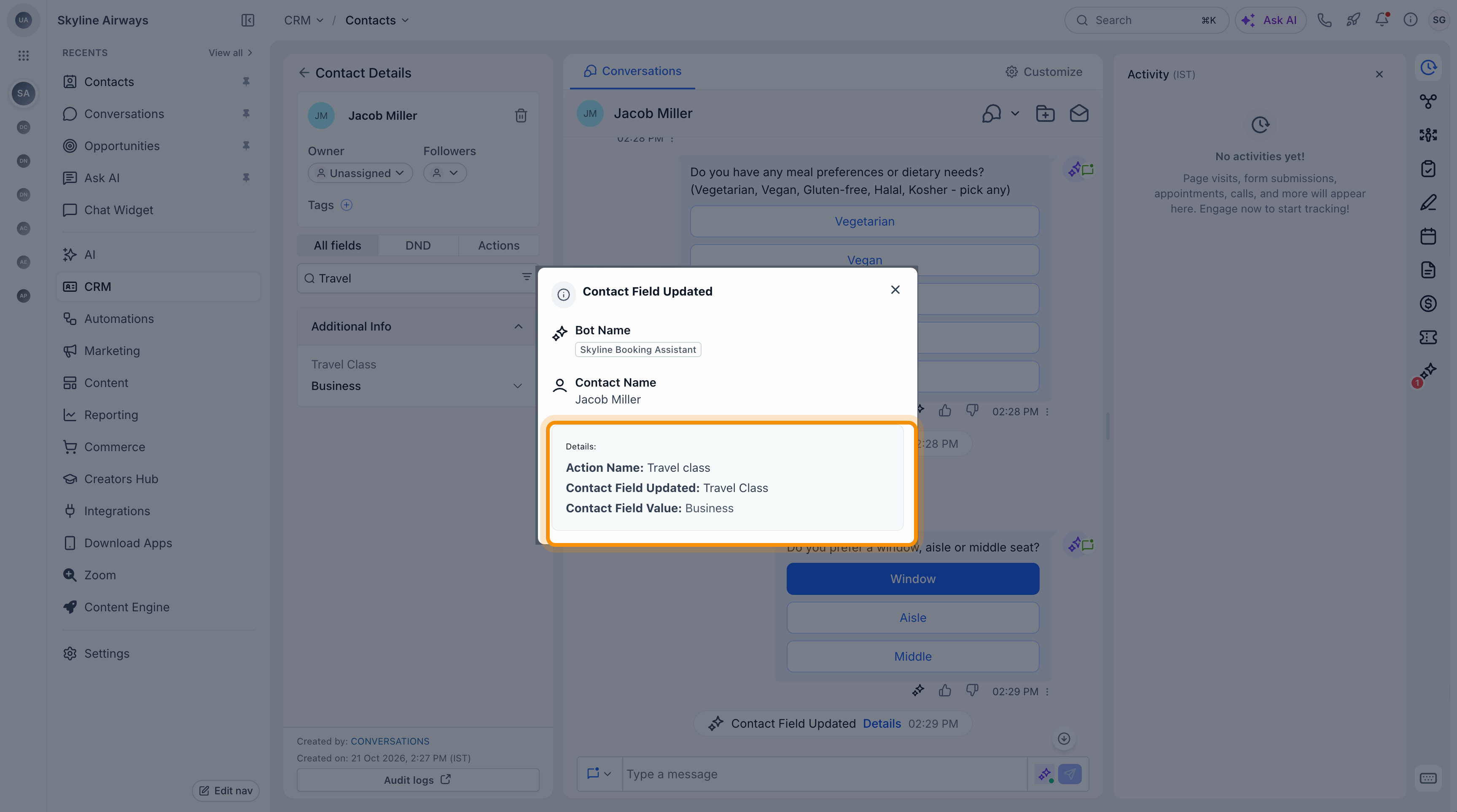
- Test the agent and confirm that customer responses are saved to the correct fields in the contact record.
Important: Adding a Contact Info action does not automatically tell the agent to ask the corresponding questions. Include clear instructions in the agent's prompt to collect the required information.
For additional guidance, see How to Configure Bot Goals in Conversation AI.
Frequently Asked Questions
Q: Can Conversation AI save multiple values from a single customer response?
Yes. Checkbox and multi-select Dropdown fields support multiple selections. For example, if a customer says, "I'm vegetarian and gluten free," Conversation AI can save both Vegetarian and Gluten-free when these options are available.
Q: What happens if a customer's response doesn't match an available option?
If a field only allows predefined options, Conversation AI will not save a value that doesn't match any of them. If the field allows custom options, the agent can save additional values.
Q: Can Conversation AI change information already saved in a contact field?
No. The Add Contact Info action only updates empty fields. It will not replace existing contact information.
Q: Why wasn't a customer's response saved to the contact record?
A response may not be saved if the field already contains a value, the answer doesn't match an available option, or the wrong field is selected in the action. Also, check that the agent's prompt includes instructions to collect the information and that you're using a prompt-based agent in Auto-Pilot mode.