
Rentals — Partial Payments
What Are Partial Payments for Rentals?
Partial Payments helps rental businesses accept a smaller payment at checkout and collect the remainder closer to the rental date. This is especially useful for high-value rentals such as vehicles, vacation homes, and equipment.
Partial Payments lets customers split their rental cost into two scheduled payments: a deposit collected at booking and the remaining balance due before the rental starts, with optional automatic collection. This reduces the amount due at booking and helps convert higher-value rentals that customers might otherwise abandon at checkout.
When enabled, a Chat To Clients CRM invoice is created with a two-installment payment schedule for each booking. The deposit row is charged immediately. When auto-collection is enabled, Chat To Clients CRM attempts to charge the balance on the configured due date using the card saved at booking.
Note: Partial Payments requires Require Payment at Booking to be turned on. When Require Payment is off, installment schedules cannot be created — the booking is confirmed without charge and payment is collected manually.
TABLE OF CONTENTS
- What Are Partial Payments for Rentals?
- Key Benefits of Partial Payments for Rentals
- How It Works
- Prerequisites
- How to Configure
- Security Deposit and Partial Payments
- What Customers See at Checkout
- Viewing and Managing Payments
- Payment Failure
- Booking Changes and Additional Charges
- Non-Card Payments
- Frequently Asked Questions
- Related Articles
Key Benefits of Partial Payments for Rentals
Flexible payment schedules make higher-value bookings easier to reserve while helping businesses keep payment timing and outstanding balances clear.
- Lower upfront cost: Customers secure a rental by paying a configured deposit rather than the entire rental price.
- Clear checkout amounts: Customers see what is due today and when the remaining payment is due.
- Optional automatic collection: Businesses can enable balance charging on the scheduled due date.
- Payment visibility: Booking details show each scheduled payment's amount, due date, and status.
- Flexible security deposit timing: Eligible security deposits can be collected with the booking deposit or final balance.
How It Works
The payment schedule separates the booking deposit from the remaining rental balance. Understanding when each installment is created and due helps you predict what customers will pay.
Payment schedule
When a customer books with Partial Payments enabled, a Chat To Clients CRM invoice is created with two payment schedules:
- Schedule 1 — Deposit: Payable immediately at checkout. Amount = the deposit percentage × rental total.
- Schedule 2 — Balance: Payable on the configured due date. Amount = remaining rental total
Security deposit can be due along with the deposit or with the balance, depending upon how it is configured.
Collapse rule — late bookings
If a booking is made within the configured threshold, both installments are collapsed into a single full payment payable immediately at checkout.
If the balance due date has already passed at the time of booking, the same collapse applies.
Example :
Balance is set to be collected 7 days before the rental start date, however the booking is being made 2 days before the rental start date, in this case, the payment not be split into two installments.
Payment methods
Auto-charge on the balance due date requires a card saved at booking. Cash and offline payments cannot be auto-charged — see Non-Card Payments below.
ACH bank transfer support will be extended soon.
Prerequisites
Payment collection must be configured before installment schedules can be created. Confirm the booking payment setting and available payment methods before switching on Partial Payments.
Before enabling Partial Payments, confirm the following:
- Require Payment at Booking is on. Partial Payments is not available when Require Payment is off. The toggle will not appear.
- Card or ACH payment methods are available. Auto-charge on the balance due date only works when the customer saves a card at checkout. If your location accepts cash only, Partial Payments will not auto-charge the balance.
When partial payments is enabled, other payment methods are not allowed at checkout as they can't be auto-charged.
How to Configure
Global payment settings determine the deposit percentage and how far ahead of the rental the balance becomes due. Review these values carefully because they apply to new bookings across your listings.
All Partial Payments settings live in Calendars → Calendar Settings → Rentals → Global Settings → Payment settings.
Step 1 — Enable Partial Payments
- Go to Global Settings → Payment settings.
- Confirm Require payment at booking is turned on.
- Toggle Partial paymentsON.
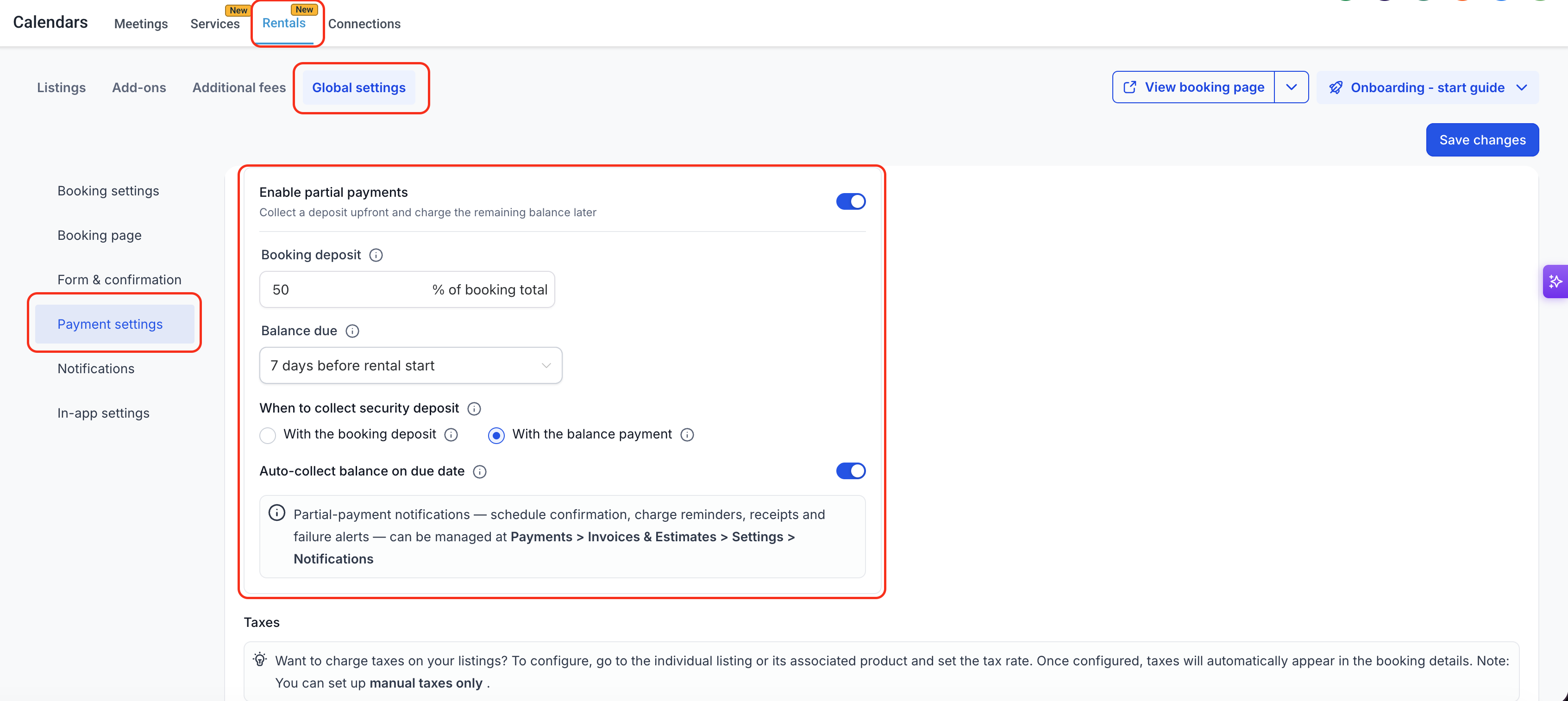
Show Rentals → Global Settings → Payment Settings, with Require Payment at Booking, Enable Partial Payments, the deposit field, balance due setting, auto-collect toggle, and Save Changes highlighted.
Step 2 — Configure the payment schedule
Setting | What it does |
|---|---|
Deposit amount | 1–99% of booking total (including applicable taxes and fees, but excluding the refundable security deposit) charged at booking |
Balance due | When is the remaining balance due |
Auto-collect balance on due date | Automatically charges the saved card on the balance due date. When on, only card-based payment methods appear at checkout. |
Auto-charge timing: Scheduled installments are charged at 11:00 AM ET / 10:00 AM CT / 9:00 AM MT / 8:00 AM PT on the due date.
Step 3 — Security deposit timing (if applicable)
This option appears only when Require payment at booking is ON, Security deposit is ON, Collect upfront is selected, and Partial Payments is ON.
- With the booking deposit —The security deposit is collected with the deposit at booking. Choose this for maximum early protection on high-value assets.
- With the balance payment — The security deposit is collected alongside the balance. This minimises the amount due at booking.
Applies to new bookings only: Saving or changing the global payment plan does not recalculate existing bookings. Existing bookings keep the schedule established when they were created.
Security Deposit and Partial Payments
Refundable security deposits are separate from the rental deposit percentage. Choosing when they are collected affects the amounts customers see due today and later.
When Security deposit is set to Collect upfront and Partial Payments is on, the security deposit is always collected as a single full amount — it is never split proportionally across installments.
Security deposit timing options
Option | When SD is charged | Due today (example: $1,200 rental, $300 SD, 25% deposit) |
|---|---|---|
With the balance payment | Alongside the balance, before rental start | $300 (deposit only) |
With the booking deposit | With the first installment at booking | $600 (deposit + SD) |
Card on File mode
When Security Deposits is set to Card on File, the deposit is not included until charged explicitly later. Partial payments works normally on the rental total only. The card saved at booking is used for both the balance auto-charge and as the card on file for the security deposit.
What Customers See at Checkout
The order summary makes future charges visible before a customer confirms a rental. The displayed amounts reflect the selected booking deposit, balance due date, and security deposit timing.
The booking page payment summary updates automatically based on your configuration. Customers always see:
- Due today — the deposit amount payable while booking
- Upcoming payment — the balance amount and due date
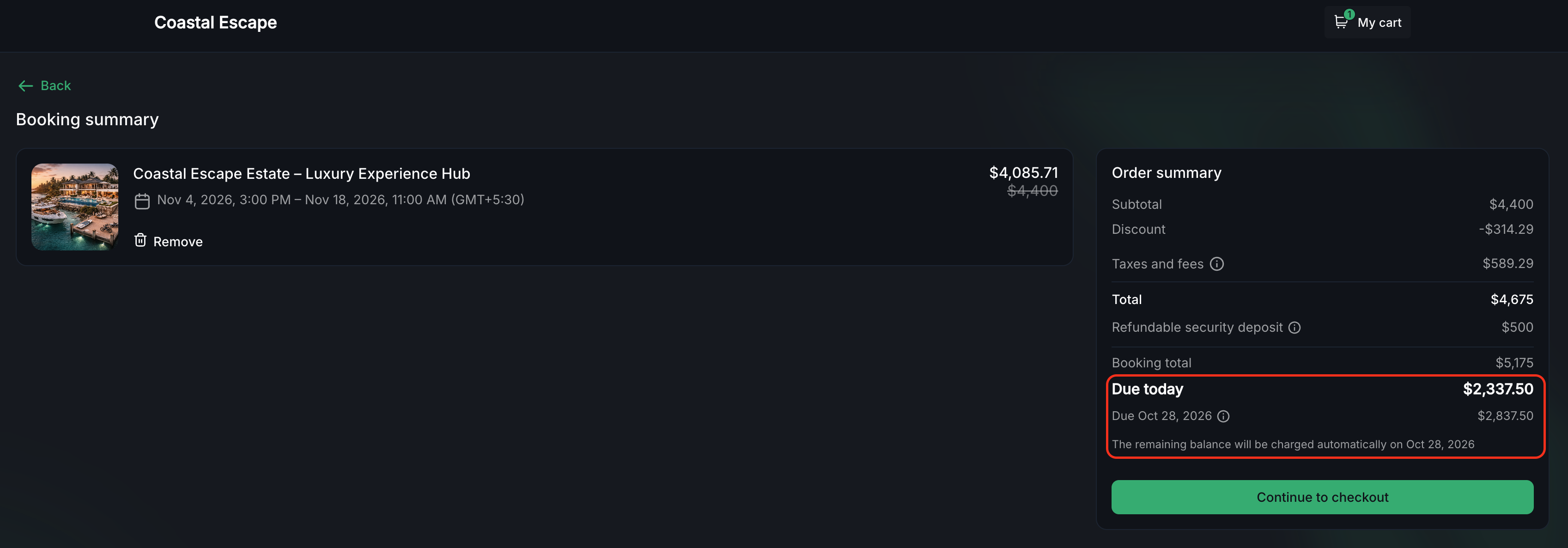
Highlight the customer order summary showing “Due today,” the future payment amount and due date, and the automatic charge explanation where applicable.
If the booking is within the collapse window
The installment schedule is replaced with a single full payment.
If Require Payment at Booking is off
No charge is collected.
Viewing and Managing Payments
The booking payment summary separates installments so you can see which amounts are already paid and which still need attention. Use the booking view to confirm the due date and status before collecting a payment manually.
- Open Calendars → Appointment List View, select Rentals, and open the booking.
- Review the payment summary for each installment's amount, due date, and status (for example, Payment 1 of 2 · Paid and Payment 2 of 2 · Pending).
- To collect an outstanding installment early or when no card is available for auto-collection, use Actions → Collect Payment from the booking sidebar.
- Select one scheduled payment or multiple outstanding payments to collect together. Scheduled payments are collected for their full scheduled amounts.
- Return to the payment summary to verify the updated status.
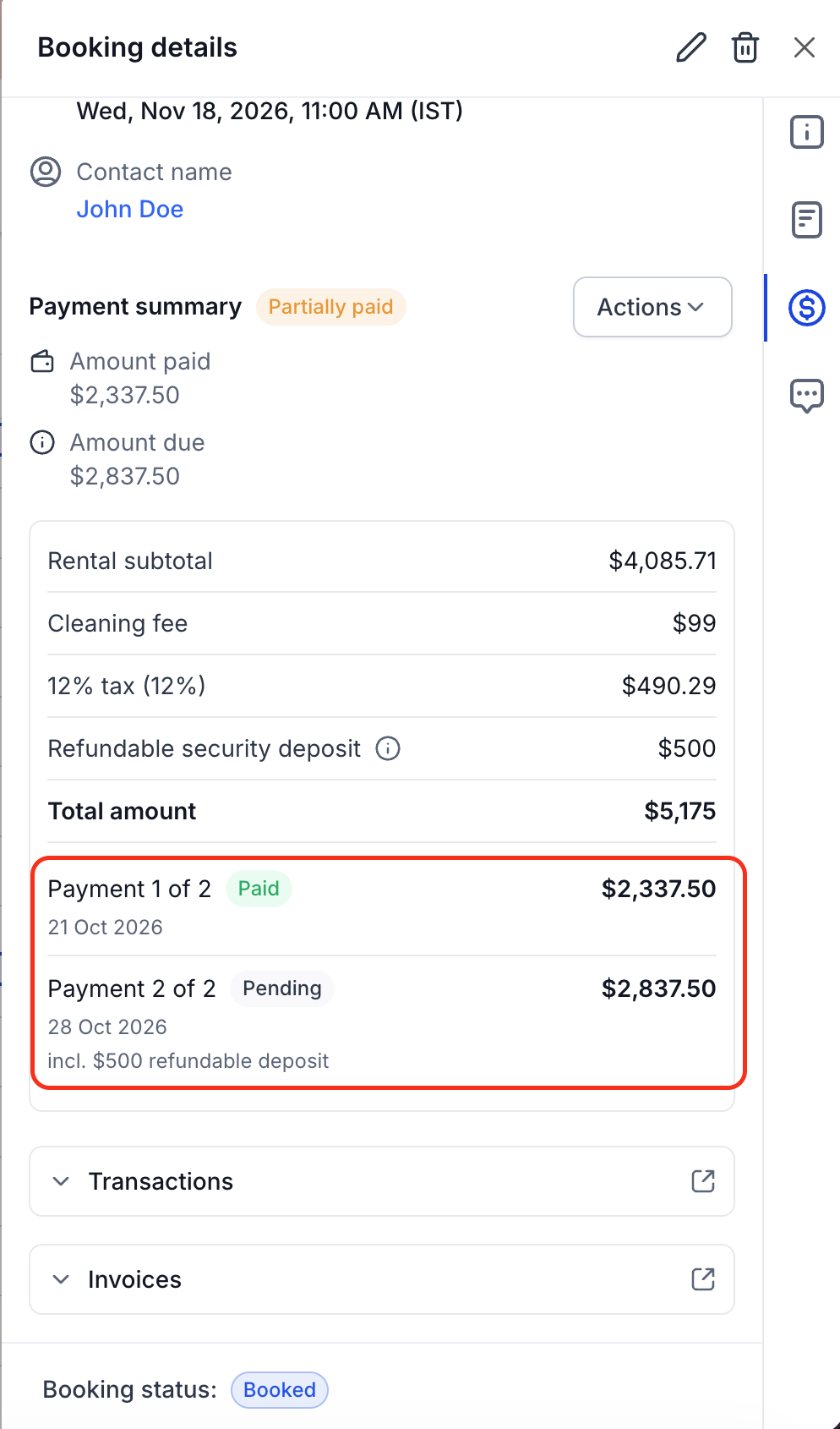
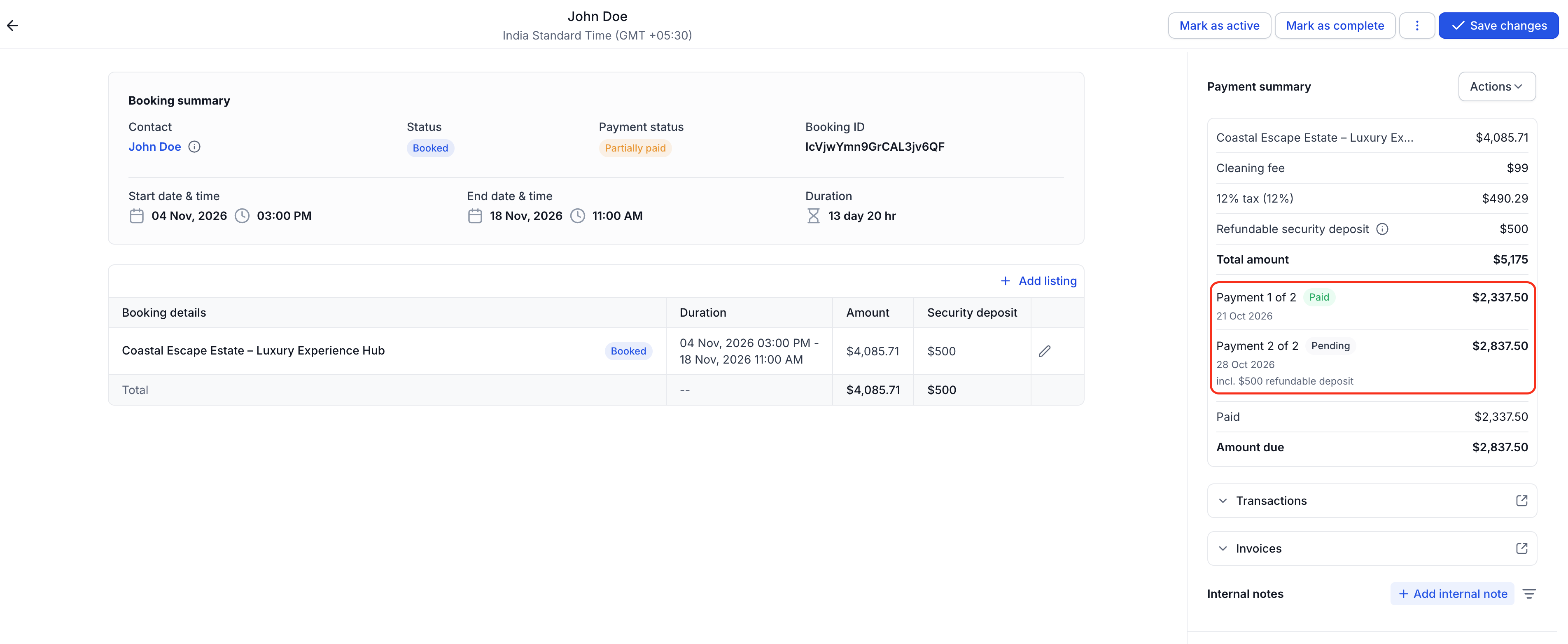
Payment Failure
A failed scheduled payment can leave a balance outstanding even after a rental was booked successfully. Review the payment status and invoice notification settings to follow up appropriately.
Payment failure handling for scheduled installments is managed natively by our invoices. No additional setup is needed.
What happens when a balance charge fails
- It attempts to charge the saved card on the due date.
- We retry the charge automatically — up to 3 attempts, 24 hours apart.
- After all retries fail, the payment needs to collected manually.
Configure reminder and failure email templates in Chat To Clients CRM Invoice Settings (Payments → Invoices & Estimates → Settings → Notifications). These templates control the reminder sent before each installment and the failure email sent after a failed charge. These templates are not overridden by the booking system.
Note: Bookings are not auto-cancelled after a payment failure. Cancellation is always an operator action.
Booking Changes and Additional Charges
Editing dates or prices can change what remains payable. Review the updated payment schedule after every modification so charges and due dates stay aligned with the rental.
When a booking is updated, the payment schedule is recalculated based on when the update happens.
Rental date changes: If the rental start date changes, the outstanding balance due date moves with the new start date according to the configured number of days before the rental.
If auto-collect was on, it is turned off for the booking if it is updated.
Before the deposit is paid
The invoice is updated with the new total and a fresh payment schedule is calculated using the same configured percentages.
After the deposit is paid, before the balance is due
- If the total increases, the balance due in the 2nd installment is increased.
- If the total decreases, the balance due is decreased. [Note : Balance due can never fall below what has been already paid].
After all installments are paid
- Total increases — An Additional charges row is added to the booking. This creates another payment schedule row in the backend on the invoice.
- If you keep adding more listings/updates after complete payment, the Additional charges row updates to reflect the new totals, while on the invoice, a new schedule row gets added everytime.
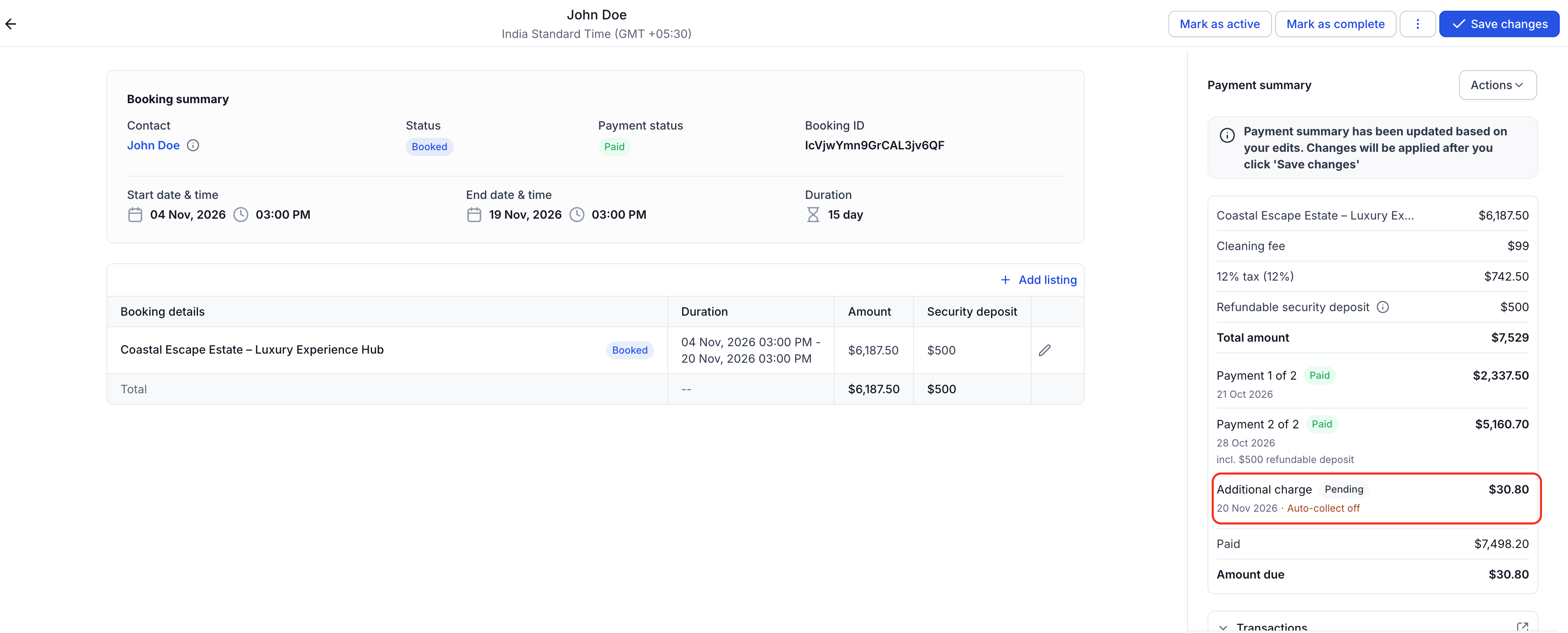
Show the separate Additional Charge row and Pending status created after the booking amount increases following full payment.
Note: Changes to a booking total after the invoice is fully paid do not trigger automatic refunds. The operator must initiate any refund manually from the booking detail.
Non-Card Payments
Future automatic collection depends on a payment method that supports charging the customer later. Check the checkout payment options before relying on scheduled auto-collection.
Auto-charge on the balance due date requires a card saved for the contact. Cash and other offline payment methods cannot be stored for future auto-charge.
When partial payments are enabled, all other payment methods are disabled.
Note: When Require Payment at Booking is off, all payment is collected manually regardless of payment method. Partial Payments is not available in this mode.
Frequently Asked Questions
Can I set different payment plans for different listings?
No. Global Settings defines the default for all listings.
What happens if a customer cancels after paying the deposit but before the balance is due?
The unpaid balance row is voided immediately — it is never charged. The deposit refund follows your cancellation policy. The security deposit (if collected upfront) is always refunded in full on pre-rental cancellations, regardless of the cancellation policy.
Can a customer pay the balance early?
Yes. The customer can click Pay Now on the invoice at any time to pay the balance before the due date. Alternatively, the user/admin can also collect the payment via the booking view early on.
What if I change the deposit % after bookings have already been made?
Changes to Global Settings apply to new bookings only. Existing bookings retain the schedule that was created at the time of booking.
What if I add an extra charge after the customer has fully paid?
An additional row is created on the booking and the invoice for the extra amount. The original payment schedule is not modified. Send a payment request from the booking detail to collect the additional charge.
At what time does auto-charge fire on the due date?
Auto-charge runs at 11:00 AM ET / 10:00 AM CT / 9:00 AM MT / 8:00 AM PT on the configured due date.
Can I charge custom amounts when partial payments are enabled?
No. When partial payments are enabled, you can only collect the configured schedule amounts in full. [Ex : 25%, 75% or both schedules together].
Does changing the rental start date change the balance due date?
Yes. The balance due date adjusts with the new rental start date using the configured lead time.