
How to Create and Manage Custom Appointment Statuses
Custom Appointment Statuses in Chat To Clients CRM Calendars let you track appointment stages using labels that match how your business operates. Instead of relying on fixed statuses, you can create labels such as Checked in, Waiting for doctor, or Ready for pickup. Each custom status belongs to one of six predefined states that control scheduling, connected calendars, and notifications. This guide covers how to enable, create, manage, and use custom appointment statuses across Calendars and workflow automation.
TABLE OF CONTENTS
- What are Custom Appointment Statuses?
- Key Benefits of Custom Appointment Statuses
- How To Manage Your Statuses
- How To Use Statuses on Appointments
- Frequently Asked Questions
- Related Articles
What are Custom Appointment Statuses?
Custom appointment statuses let you name each stage of an appointment in your own words, such as Checked in, Waiting for doctor or Ready for pickup. Every status belongs to one of six fixed states. The state decides what happens to the time slot, your connected calendars and your notifications; the status is the label your team sees and picks.
To enable this, turn on Custom Appointment Statuses from Labs for your location.
Key Benefits of Custom Appointment Statuses
- Use your own terms: track appointments the way your business works, not with fixed labels.
- No surprises: scheduling, calendar sync and notifications keep working because they follow the state, not the name.
- Cleaner automation: trigger workflows on the exact stage you care about, such as Checked in.
- Safe to tidy up: archive statuses you no longer use without losing history.
States and what they do
State | Time slot | Connected calendars (Google, Outlook) | Default status |
|---|---|---|---|
Pending | Held; no one else can book it | Not added yet | Unconfirmed |
Active | Held; no one else can book it | Added, with a meeting link if the calendar uses one | Confirmed |
Completed | Freed for new bookings | Stays as a record | Showed |
No show | Freed for new bookings | Stays as a record | No Show |
Cancelled | Freed for new bookings | Removed | Cancelled |
Invalid | Freed for new bookings | Removed | Invalid |
You can't add, rename or remove states. Each state always keeps at least one active status.
Your existing appointments
When custom statuses are turned on, your six current statuses become the default statuses above. Existing appointments, workflows and calendar settings keep working with no changes.
How To Manage Your Statuses
Go to Settings › Calendars › Preferences › Appointment Status. Statuses are grouped by state. Click Learn more at the top of the page for a summary of each state.
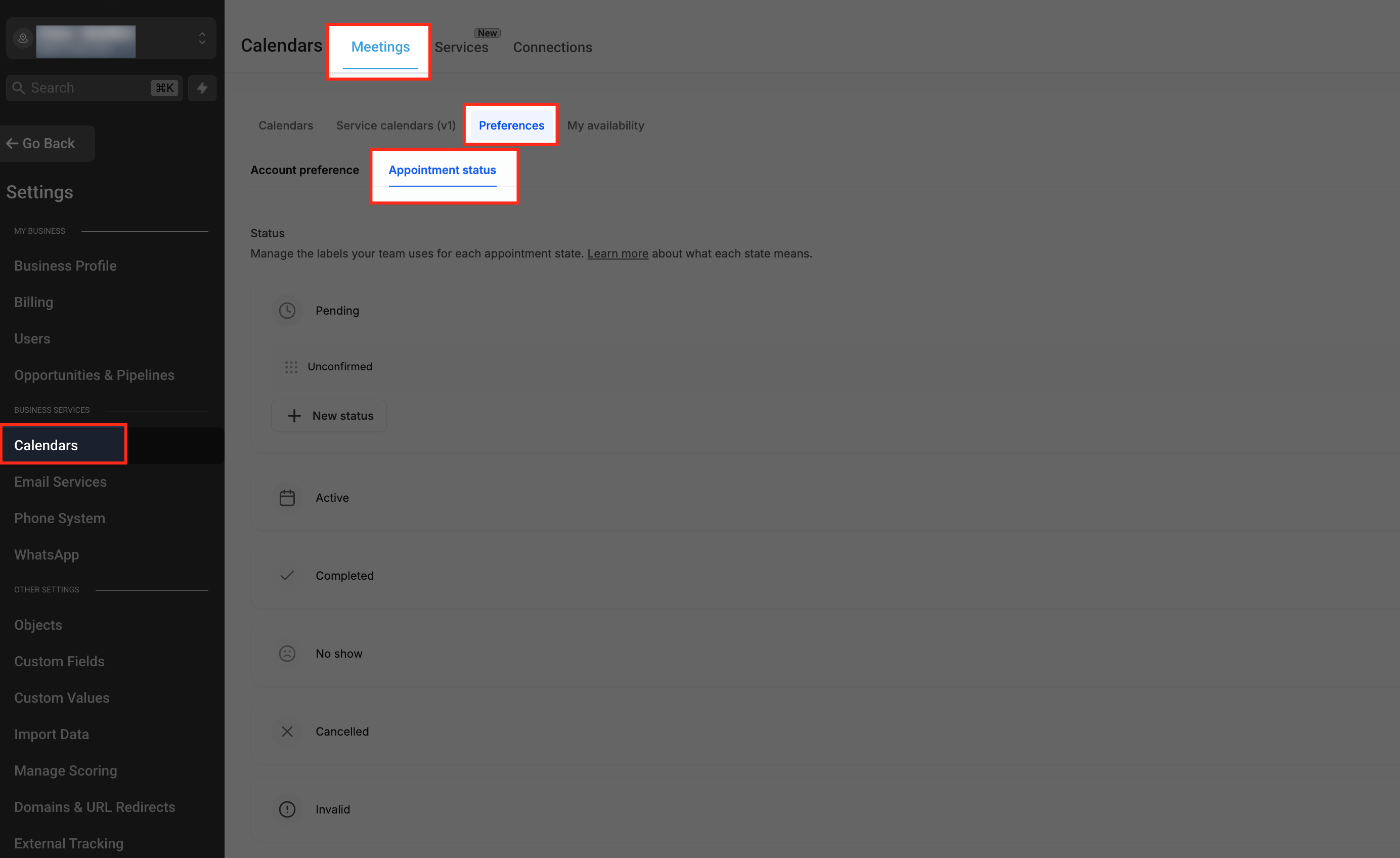
Add a status
- Open the state you want, for example Active.
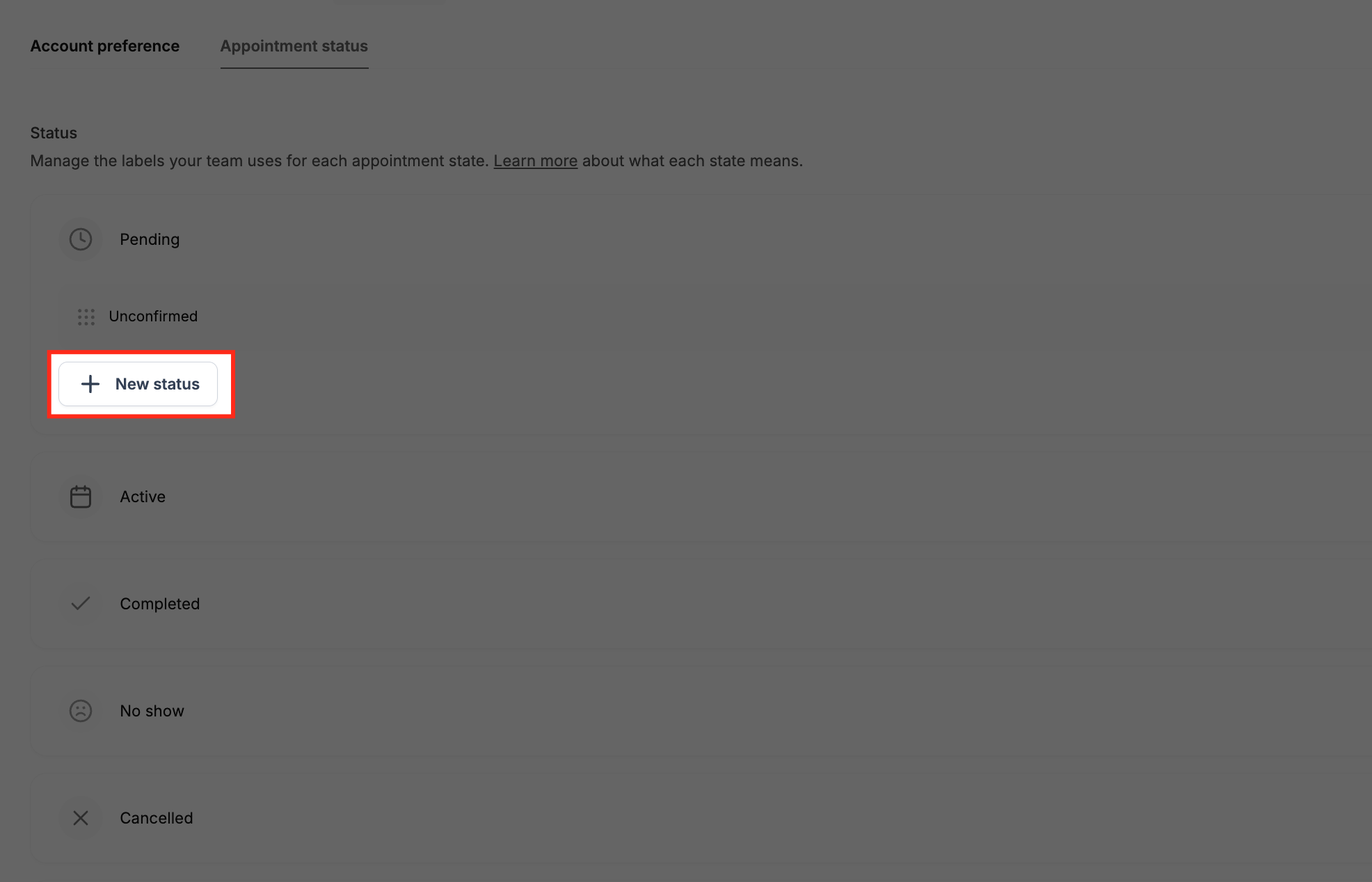
- Click New status, type a name and press Enter.
- The status is added at the bottom of that state and is ready to use.
Names can be up to 40 characters and must be unique, ignoring capital letters and extra spaces. A state can hold up to 25 statuses.
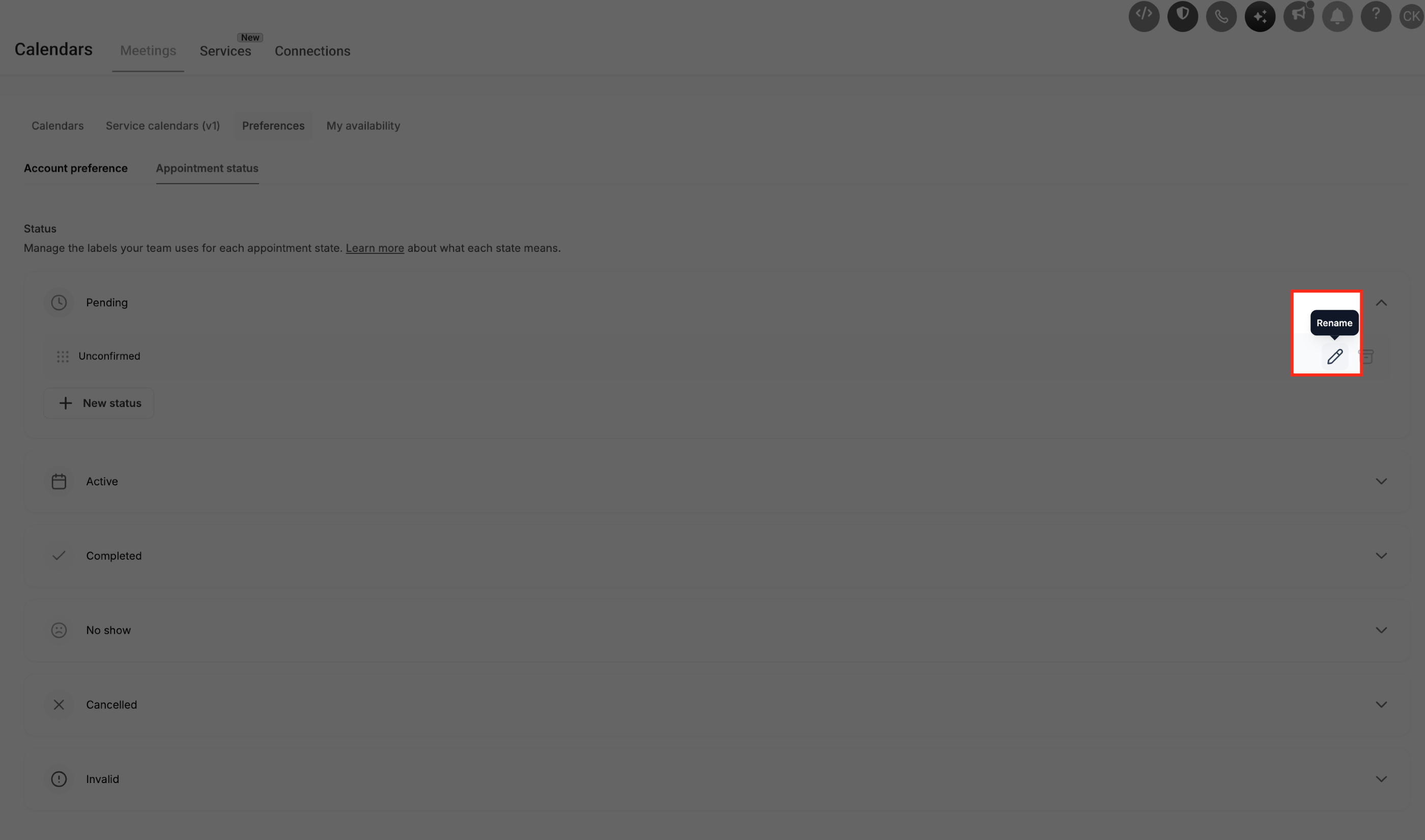
Rename a status
Hover over the status, click the pencil icon, edit the name and confirm. Every appointment and workflow using the status shows the new name; nothing else changes. If you want a different stage rather than a new name, add a new status instead.
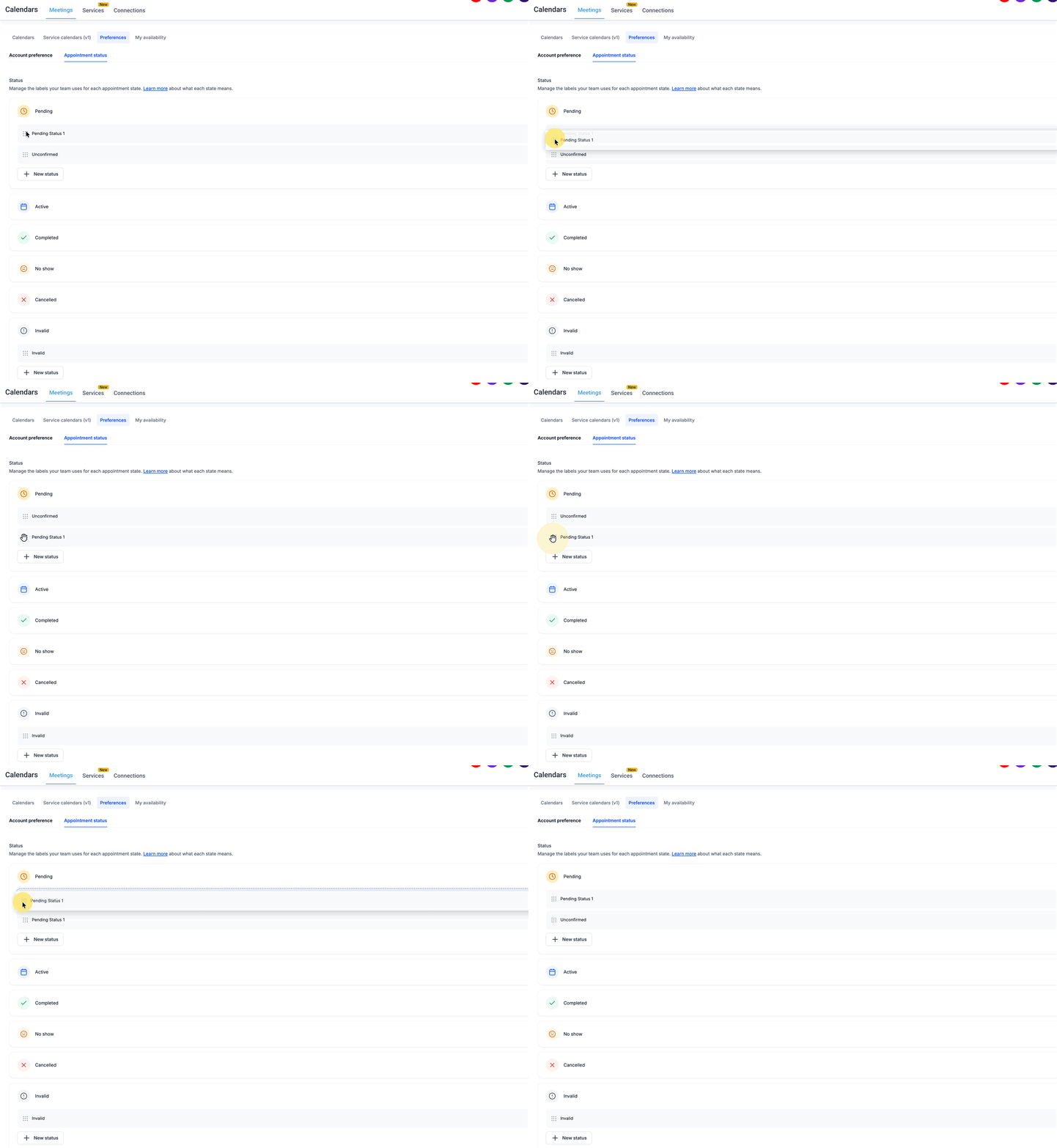
Reorder statuses
Drag a status by its handle to move it up or down within its state. Status pickers show statuses in this order. Statuses can't be moved to another state; add a new status in the right state instead.
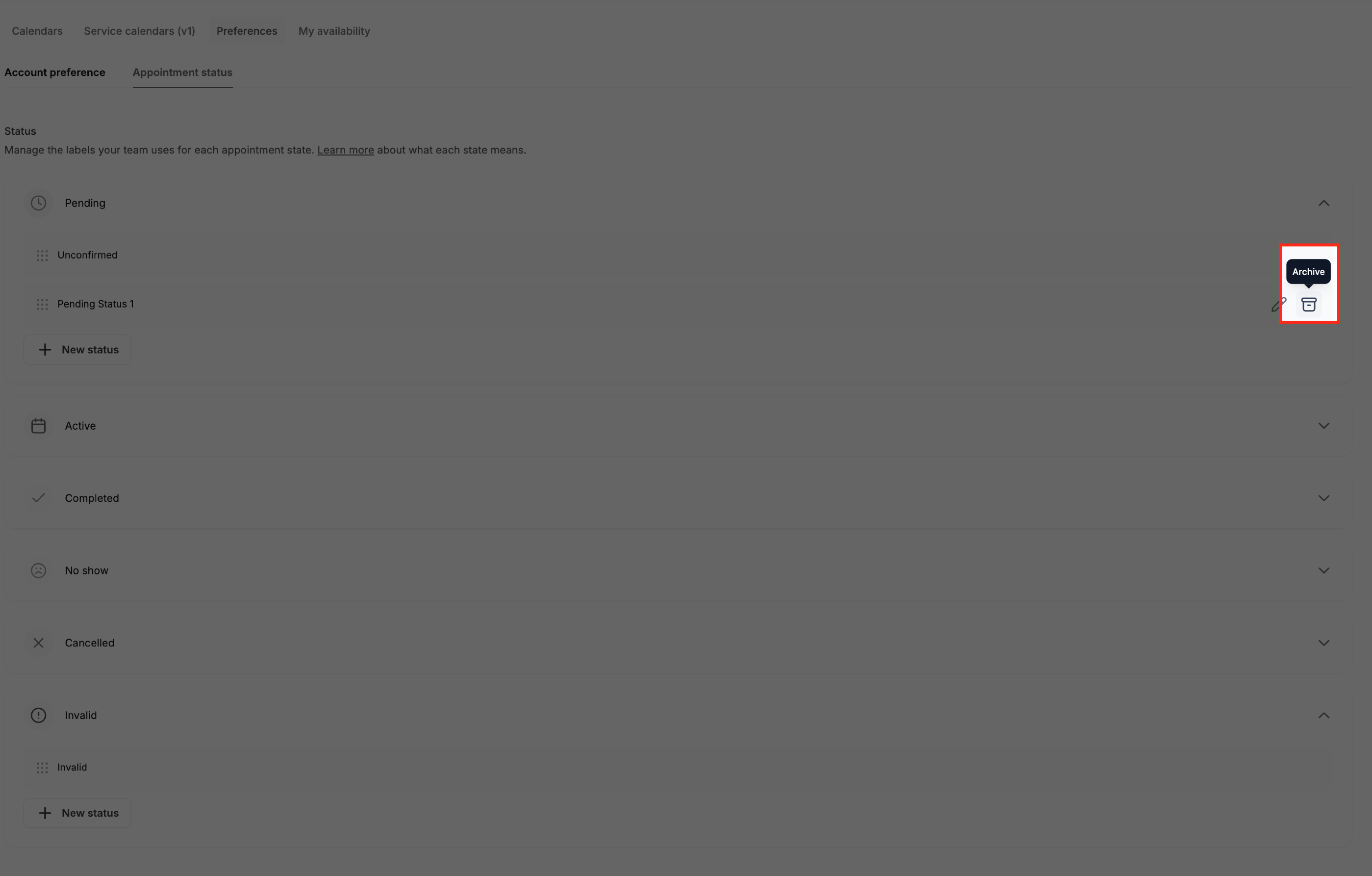
Archive a status
Hover over the status and click the archive icon. Review the impact, tick the checkbox and click Archive.
- New appointments can't be set to the archived status. Appointments that already have it keep it.
- Workflows that set appointments to this status will fail at that step until you pick another status.
- The last active status in a state can't be archived.
Restore a status
Open the state, expand Archived and click the restore icon. The status returns to its original position and can be used again.
How To Use Statuses on Appointments
Pick a status wherever you book or update an appointment: the New appointment window, the Status dropdown in the Appointment list view, and the appointment details panel. Statuses are grouped by state, and you can search by name.
- Changing between statuses in the same state, such as Confirmed to Checked in, only changes the label. The slot, connected calendars and notifications stay as they are.
- Changing to a status in a different state, such as Checked in to Showed, applies that state's behaviour right away.
- To find appointments by status, use Advanced filters › Status in the Appointment list view.
Auto-confirm and new appointments
With Auto-confirm new calendar meetings on, new bookings start in the Active state. With it off, they start in Pending. Both hold the time slot.
Workflows and Notifications
- Workflows: the Appointment Status trigger, the If/Else appointment filter and the Update Appointment Status action list your statuses. Renamed statuses update automatically.
- Calendar notifications follow states. The Appointment booked (Pending), Appointment booked (Active) and Cancellation notifications are sent only when an appointment enters that state, not when it moves between statuses in the same state.
- To message customers when an appointment reaches a specific status, create a workflow with the Appointment Status trigger and filter on that status.
Public API support will be extended soon.
Frequently Asked Questions
Q: Will my existing workflows break when this is turned on?
A: No. Your current statuses become default statuses, so existing workflows keep working.
Q: Can I delete a status?
A: No. Archive it instead, so past appointments and reports keep their history.
Q: Why can't I archive a status?
A: Each state needs at least one active status. Add another status to that state first.
Q: Why can't I create a status with a name I've used before?
A: Names must be unique across all states, including archived statuses. Restore or rename the archived one.
Q: Do my customers see these statuses?
A: Only where you show them, for example in messages using appointment details. The state names are never shown to customers.
Q: Can I give statuses colours?
A: Not yet. Each status uses its state's colour.
Q: Does this work for Services or Rentals?
A: Not yet. Custom statuses are available for Calendars (meeting calendars) only.
Related Articles
- How to Manage Appointments with Appointment List View
- Calendar: Email, In-App, SMS & WhatsApp Appointment Notifications
- Workflow Trigger - Appointment Status
- Workflow Action - Update Appointment Status