
How to Find Unread Messages in Mobile Conversations
Finding unread messages in Chat To Clients CRM's mobile Conversations is easier with the new New divider. When you open a conversation with unread messages, the app automatically takes you to the first unread message instead of the bottom of the chat. Scrolling is also smoother, especially in long conversations. This article explains how to find unread messages, use the divider, and navigate conversations more efficiently.
TABLE OF CONTENTS
- What is the Unread Message Divider in Mobile Conversations?
- Key Benefits of the Unread Message Divider
- How the New Divider Works
- When the New Divider Disappears
- Improved Scrolling in Long Conversations
- Supported Mobile Applications
- How to Find Unread Messages in Mobile Conversations
- Frequently Asked Questions
- Related Articles
What is the Unread Message Divider in Mobile Conversations?
The New divider shows where unread messages begin in a conversation. It appears directly above the first unread incoming message, helping you pick up where you left off.
When you open an unread conversation, the app automatically scrolls to this divider, even if the unread messages are far back in the conversation history.
The feature works automatically and does not require additional setup.
How the New Divider Works
When you open a conversation with unread activity, Chat To Clients CRM places the New divider above the first unread incoming message.
You can scroll upward to view older messages or downward to reach the latest activity.
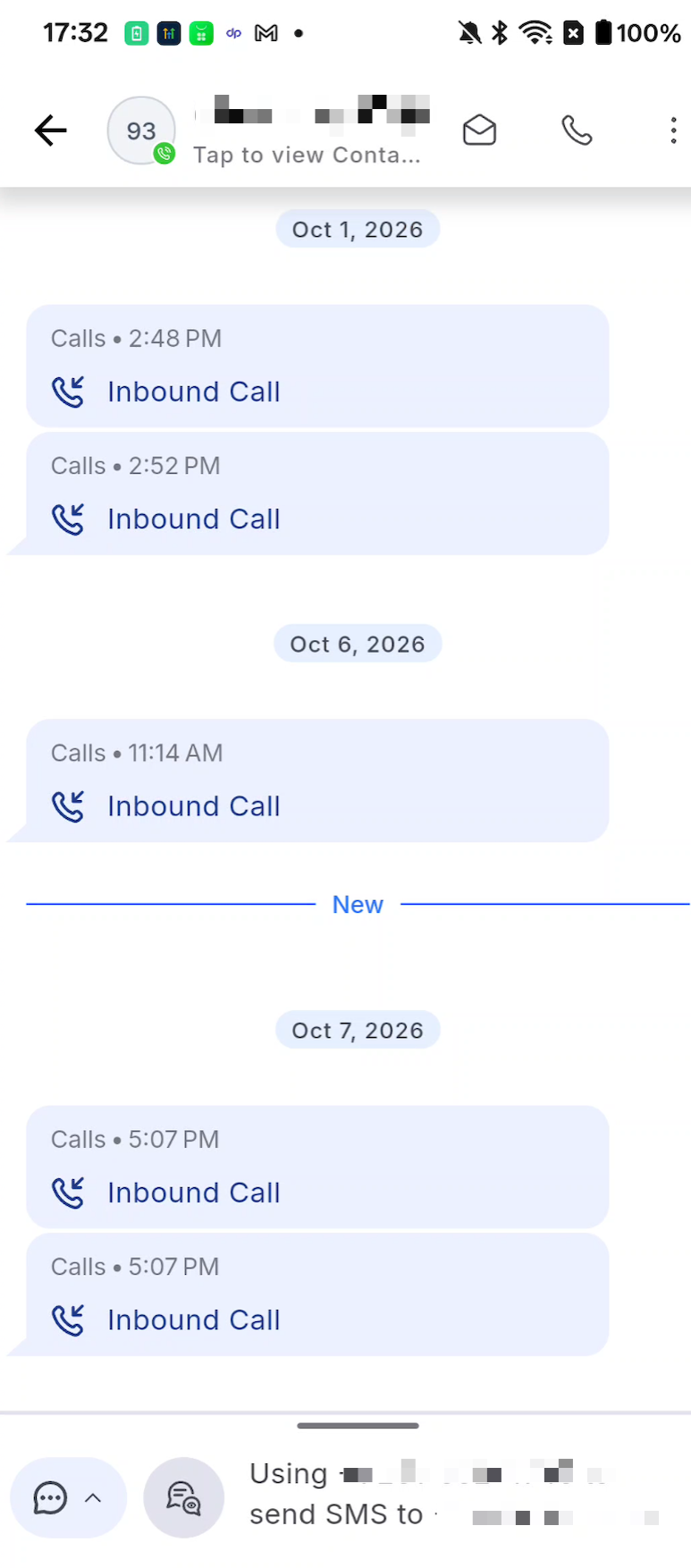
Note: Opening a conversation does not automatically mark it as read. The divider remains until the conversation's unread status is cleared.
When the New Divider Disappears
The divider automatically disappears when the conversation becomes read.
This can happen when you:
Send a reply from the message composer.
Send an AI-suggested reply.
Manually mark the conversation as read.
Reply through the web application or another device.
You do not need to remove the divider manually.
For more information, see How to Mark a Conversation as Read.
Improved Scrolling in Long Conversations
Mobile Conversations now scroll more smoothly, even when a chat contains a long message history.
On supported devices with 120 Hz displays, scrolling performance can reach approximately 120 FPS, compared with approximately 90 FPS previously.
Actual performance may vary depending on the device.
Supported Mobile Applications
The release is intended for these mobile applications:
Chat To Clients CRM
Chat To Clients CRM
White-label mobile apps
Availability: The supplied release note lists the feature as In QA. The official release date and supported app versions are not yet confirmed.
How to Find Unread Messages in Mobile Conversations
The New divider appears automatically in supported mobile app versions. No special settings or filters are required.
Open the mobile app. Sign in to Chat To Clients CRM, Chat To Clients CRM, or your supported white-label app.
Go to Conversations. Open your conversation list.
Select an unread conversation. Tap the conversation you want to review.
Find the New divider. The chat opens at the first unread incoming message, with the divider directly above it.
Read and reply. Review the new messages, then respond or mark the conversation as read when appropriate.
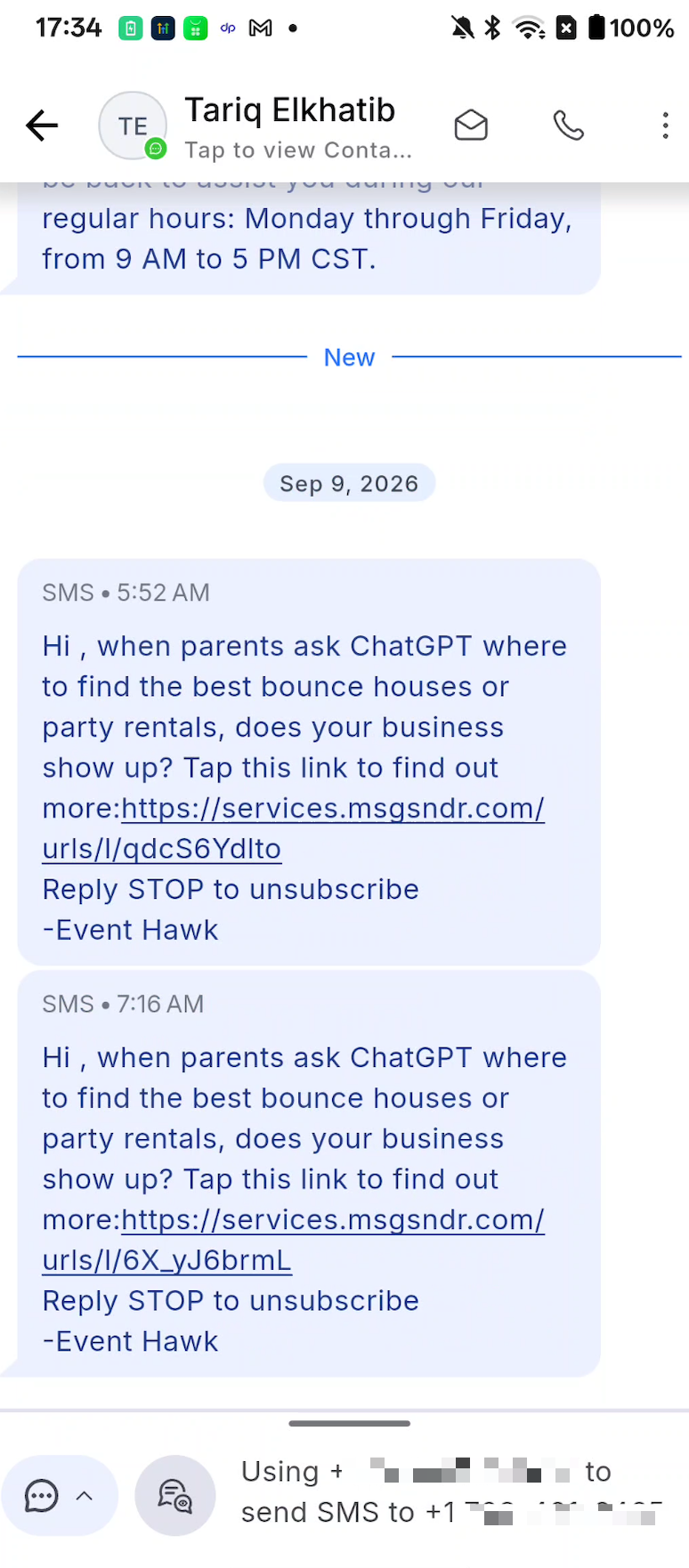
Tip: Scroll upward for earlier messages or downward for the latest activity.
Frequently Asked Questions
Q: Do I need to enable the New divider?
A: No. It appears automatically in supported app versions when a conversation contains unread messages.
Q: Why does a conversation open in the middle of the chat?
A: The app opens at the first unread message so you can review what you missed.
Q: Does opening a conversation mark it as read?
A: No. Simply opening the conversation does not necessarily clear its unread status.
Q: When does the New divider disappear?
A: It disappears when the conversation becomes read, such as after sending a reply or marking it as read.
Q: Does replying from another device remove the divider?
A: Yes. The release supports clearing unread status through replies from the web or another device.
Q: Can I still see older messages?
A: Yes. Scroll upward to view earlier messages.
Q: Does the divider work in long conversations?
A: Yes. The app can open at the unread position even when it is far back in the history.
Q: Will scrolling reach 120 FPS on every phone?
A: No. Actual scrolling performance depends on the device and its display capabilities.
Q: When will this feature be available?
A: The release date and supported app versions have not yet been confirmed.