
How to Import n8n Workflows into Managed Agents
Bring your existing n8n automations into Chat To Clients CRM without manually rebuilding every workflow step. The Import from n8n feature analyzes an n8n workflow export and prepares a Managed Agent using its triggers, logic, and actions. You can review what carried over, what changed, and what still needs configuration before creating the agent. This guide covers importing your workflow, reviewing the conversion, completing setup, and saving or publishing your Managed Agent.
TABLE OF CONTENTS
- What is n8n Workflow Import for Managed Agents?
- Key Benefits of n8n Workflow Import
- Prerequisites and Limitations
- How To Setup n8n Workflow Import in Managed Agents
- Frequently Asked Questions
What is n8n Workflow Import for Managed Agents?
n8n Workflow Import lets you convert an existing n8n automation into a Chat To Clients CRM Managed Agent using its exported JSON file. Instead of recreating each node, the importer analyzes the workflow and prepares an agent with instructions, starting conditions, decision rules, and connected actions.
The importer identifies how individual workflow steps can operate within Chat To Clients CRM. For example, conditional branches become agent decision rules, AI nodes become part of the agent's reasoning, and supported app actions use Chat To Clients CRM integrations, CRM actions, or API calls.
Before creating the agent, you can review which steps carried over, which were adapted, and which items need additional attention.
The Review & set up screen also identifies required app connections, configuration values, and starting conditions. Once you complete the review, you can save the agent as a draft or create and publish it.
Imported agents are organized in the Imported from n8n folder in Agent Studio.
Key Benefits of n8n Workflow Import
Importing an existing automation gives you a starting point based on a workflow you have already built. The review process helps you understand how that automation translates into a Managed Agent before you use it in Chat To Clients CRM.
Less manual rebuilding: Convert an exported n8n workflow into a Managed Agent without recreating every node and connection individually.
Transparent workflow conversion: Review the steps that carried over, were adapted, or require additional attention. Adapted steps include explanations of how their behavior changed.
Guided configuration: Review triggers, connect required apps, and provide missing values directly within the import experience.
Natural-language decision rules: Conditional logic and supported AI operations become agent instructions and reasoning rather than remaining separate workflow nodes.
Chat To Clients CRM integration: Imported agents can use supported Chat To Clients CRM CRM actions, Conversations, forms, calendars, Knowledge Bases, and app connections.
Controlled agent creation: Review the proposed agent before saving a draft or publishing it. Analyzing the workflow alone does not create an agent.
Prerequisites and Limitations
Before importing a workflow, prepare its JSON export and review the connections it depends on. Some workflow behavior may require adaptation or manual configuration to work within Chat To Clients CRM.
Prerequisites
An existing n8n workflow: Have an n8n workflow available for export.
Workflow JSON: Export the workflow as a
.jsonfile or have its JSON content ready to paste.
File size: The importer accepts JSON file uploads up to 10 MB.
Managed Agents access: Open the Managed Agents area in Agent Studio and look for Import from → n8n (Beta).
Required integrations: Be prepared to connect external apps that the imported workflow needs.
Configuration details: Have any required IDs, values, or account-specific information available to finish setup.
Limitations and important considerations
Beta feature: The n8n import option is labeled Beta in the supplied interface. [NEEDS CONFIRMATION: Verify current Beta availability, rollout eligibility, and any importer-specific permissions.]
Credentials are not transferred: The importer does not import n8n credentials or API keys. Required apps must be connected through Chat To Clients CRM.
Some steps are adapted: The importer may convert fixed workflow logic into agent instructions or use a different Chat To Clients CRM action. Results can vary when behavior depends on the agent's reasoning.
Manual review may be required: The importer highlights items such as inferred decision rules and setup details that need confirmation before publishing.
Existing resource IDs need verification: IDs from the original workflow, such as sheet, channel, or list IDs, are flagged for review instead of being silently trusted.
Analysis does not create an agent: An agent is created only after you select Save as draft or Create & publish.
How To Setup n8n Workflow Import in Managed Agents
The import process takes you from an n8n JSON export to a configured Managed Agent. You can review the generated instructions, verify conversions, and complete required connections before deciding whether to save a draft or publish.
Step 1: Open the n8n Importer
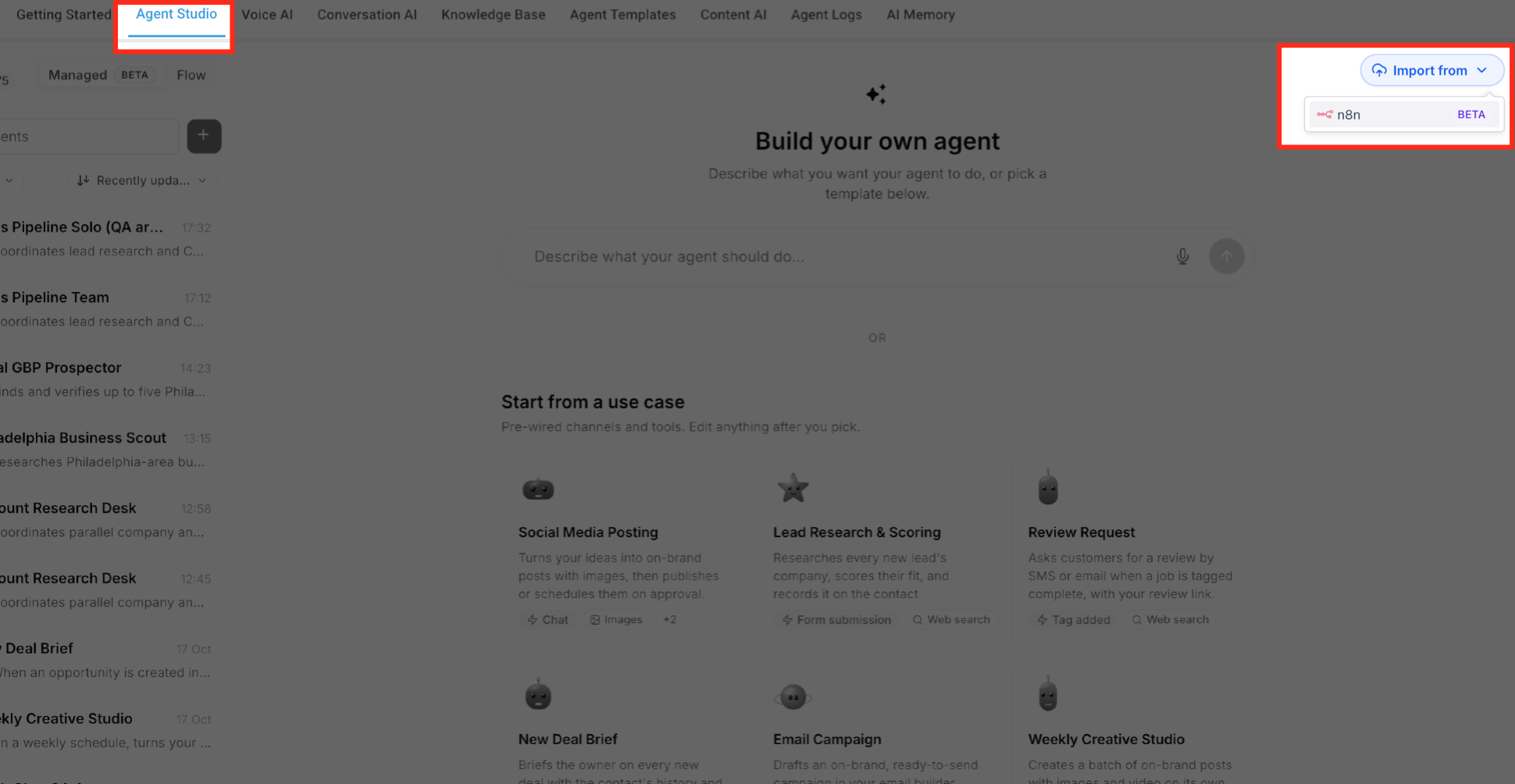
Start in the Chat To Clients CRM sub-account where you want to create the Managed Agent. The importer is available from the Managed Agents tab in Agent Studio.
Log in to Chat To Clients CRM and open the appropriate Sub-Account.
Select AI Agents from the navigation menu.
Select Agent Studio.
Select the Managed Agents tab.
Click Import from in the upper-right area of the Agents page.
Select n8n (Beta) from the dropdown menu.
The Import from n8n window opens.
Step 2: Upload or Paste the n8n Workflow JSON
The importer accepts an exported n8n workflow as a JSON file or pasted JSON content. This allows you to start from the workflow definition without manually recreating its nodes.
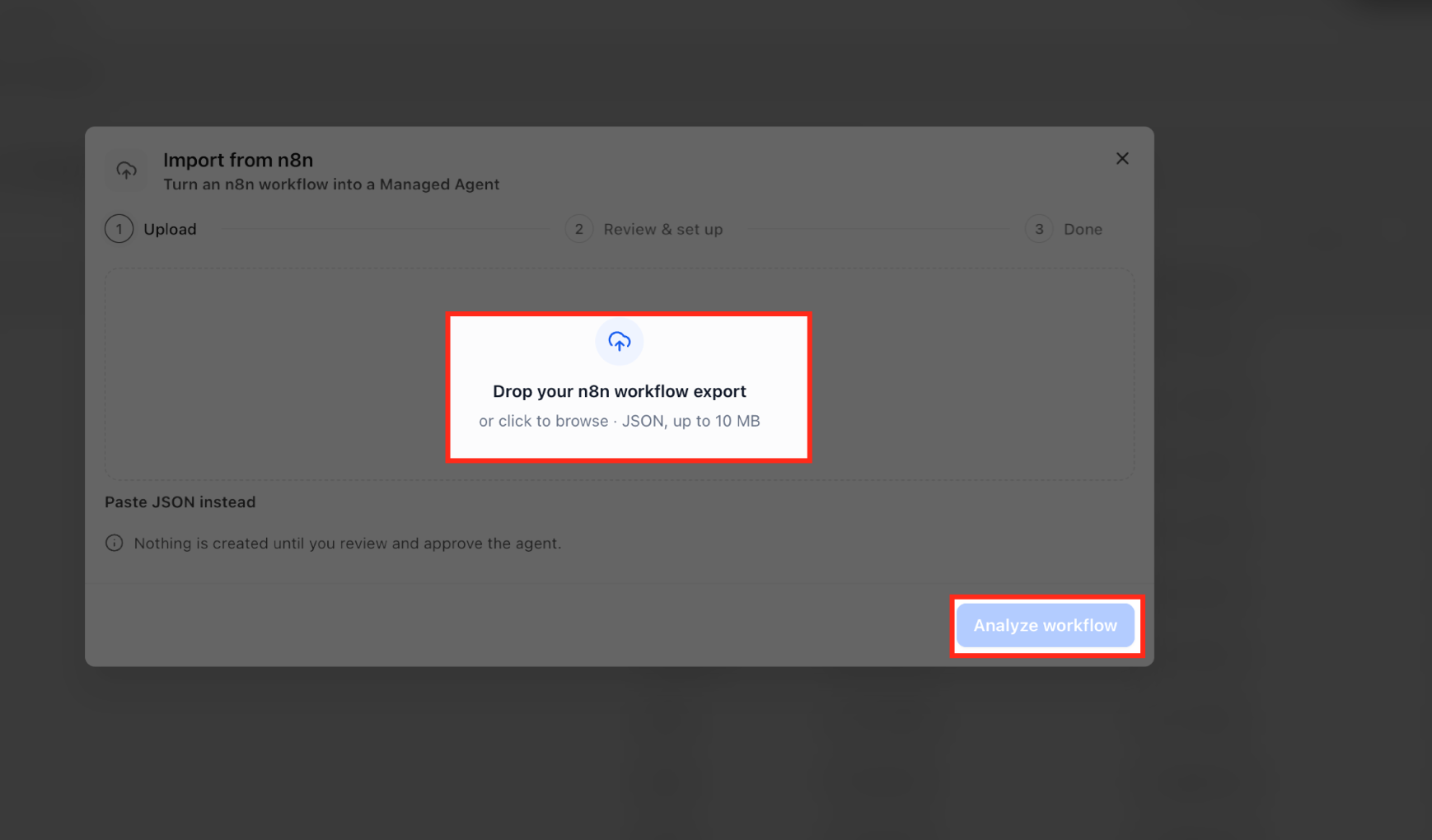
In the Import from n8n window, locate the upload area labeled Drop your n8n workflow export.
Add your workflow using either option:
Drag and drop the exported
.jsonfile into the upload area, or click the area to browse for the file.Select Paste JSON instead to provide the workflow JSON directly.
If uploading a file, make sure it is a JSON export no larger than 10 MB.
After providing the workflow JSON, click Analyze workflow.
The importer begins analyzing the workflow. No agent is created at this stage.
Step 3: Analyze the Workflow
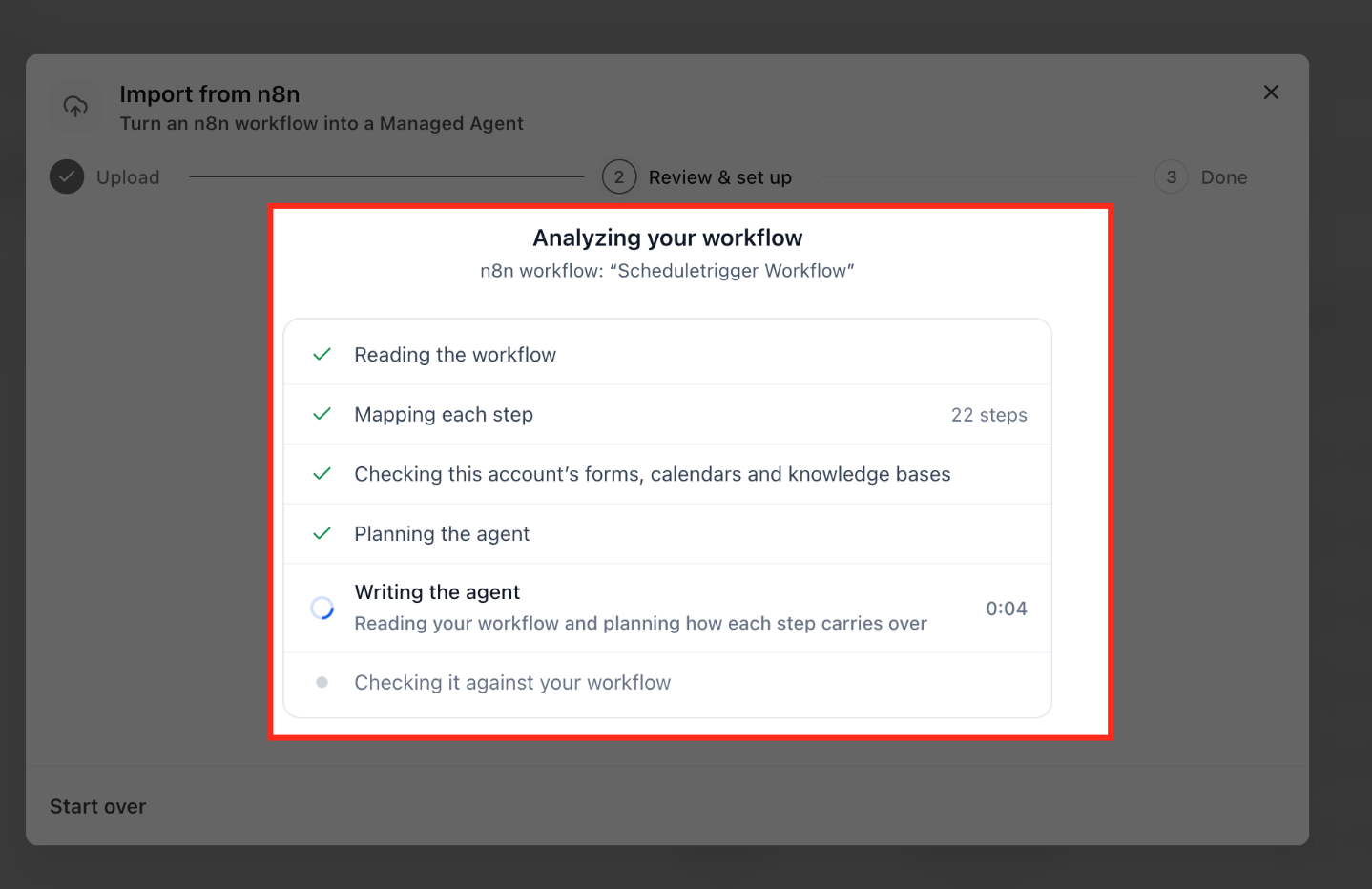
Chat To Clients CRM analyzes the exported workflow to identify its steps, required resources, and potential Managed Agent configuration. The progress screen shows how the importer processes the original automation.
The analysis follows these stages:
Reading the workflow: Reads the uploaded n8n workflow definition.
Mapping each step: Identifies the workflow steps that need conversion.
Checking this account's forms, calendars and knowledge bases: Reviews relevant Chat To Clients CRM resources available in the sub-account.
Planning the agent: Determines how the workflow can be represented as a Managed Agent.
Writing the agent: Creates the proposed agent instructions and behavior from the analyzed workflow.
Checking it against your workflow: Compares the generated agent plan with the original workflow.
The analysis screen also displays the number of workflow steps identified.
After analysis finishes, the importer presents the generated agent for review.
Step 4: Review the Generated Agent and Conversion Results
Reviewing the generated agent helps you identify differences between the original n8n workflow and its proposed Chat To Clients CRM implementation.
Review the generated agent
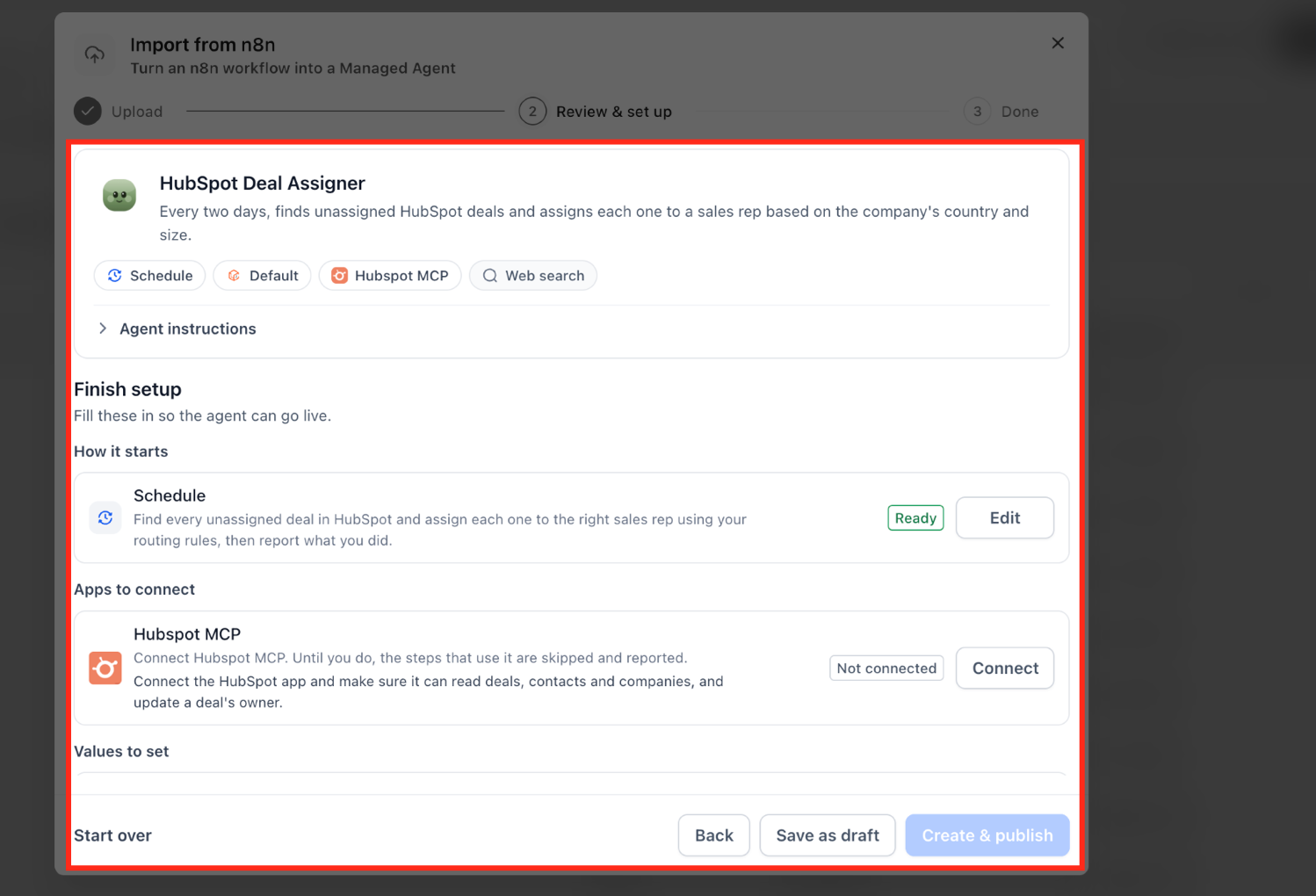
In Review & set up, locate the generated agent summary.
Review the agent's name and description to confirm that they match the workflow's intended purpose.
Review the displayed starting condition, app connections, and capabilities.
You can expand Agent instructions to inspect the generated instructions. The instructions describe what starts the agent, its actions, decision rules, follow-ups, and stopping conditions.
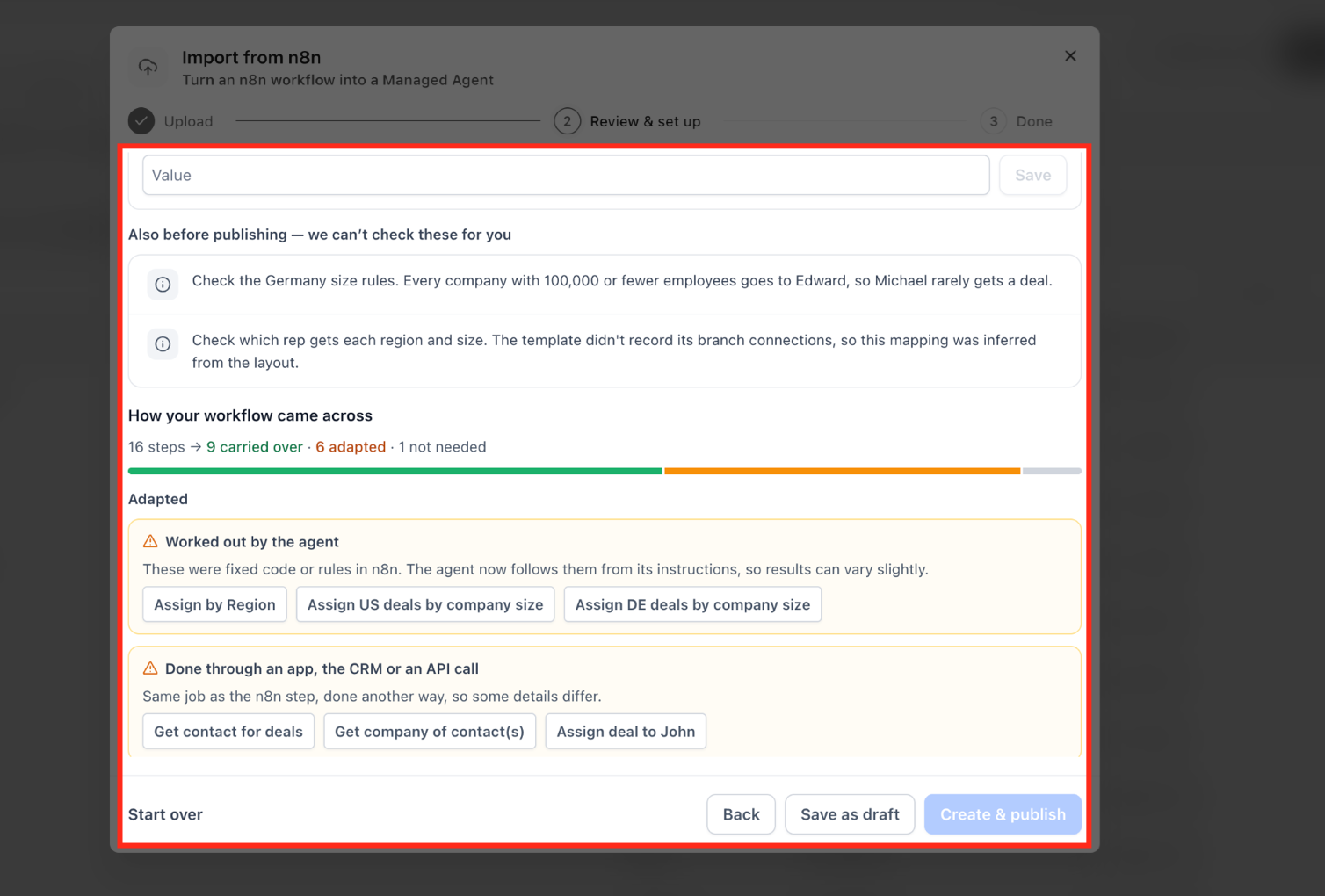
Review how the workflow was converted
Scroll to How your workflow came across.
Review the conversion summary showing how many steps were carried over or adapted.
Inspect the conversion results:
Carried over: Steps the importer retained in the converted agent.
Adapted: Steps implemented differently within the Managed Agent.
Not possible / Not needed: Review any steps the importer identifies as unsupported or unnecessary.
Review the reasons shown for adapted steps.
Adaptations may include changes to how a workflow starts, when a step runs, or whether an action is completed through an app, the CRM, or an API call.
Review any warnings or items identified for human verification.
Some original workflow rules may become agent instructions instead of fixed code. These rules may produce slightly different results and should be checked against the intended behavior.
Step 5: Complete the Required Agent Setup
The Review & set up screen groups the configuration items needed before the imported agent can run as intended. The required items depend on the workflow's triggers, integrations, and data references.
Configure how the agent starts
Locate Finish setup in the import window.
Under How it starts, review the generated starting condition.
If an Edit button appears, select it to review or adjust the starting condition as needed.
For example, an n8n workflow that runs periodically may be converted to a Schedule trigger.
Confirm that the trigger matches the original automation's intended timing or starting event.
Connect required apps
Locate Apps to connect.
Review each listed app and its connection status.
Select Connect when an app is marked Not connected.
If an app is already connected, use Manage when available to review its connection.
The supplied example shows a HubSpot MCP connection. Until that app is connected, steps requiring it are skipped and reported.
Set required values
Locate Values to set.
Review any fields marked Needs input.
Enter the required value in the corresponding input field.
Click Save to store the value.
For example, an imported workflow may require a sales representative owner ID to complete its configuration.
Review any original resource IDs flagged by the importer. Confirm whether to keep the existing reference or replace it with an appropriate link or ID.
Review additional requirements
Complete any Knowledge Base configuration requested by the importer.
- Review any remaining warnings or setup requirements before publishing.
Step 6: Save as Draft or Create and Publish
After reviewing the converted workflow and its configuration, choose whether to save the imported agent for later setup or publish it.
Return to the bottom of the Review & set up window.
Review any remaining configuration requirements.
Choose one of the available actions:
Save as draft: Create the Managed Agent as a draft so you can complete or refine its setup later.
Create & publish: Create and publish the Managed Agent after the required setup items are completed.
If required configuration items are incomplete, Create & publish may remain unavailable until those items are resolved.
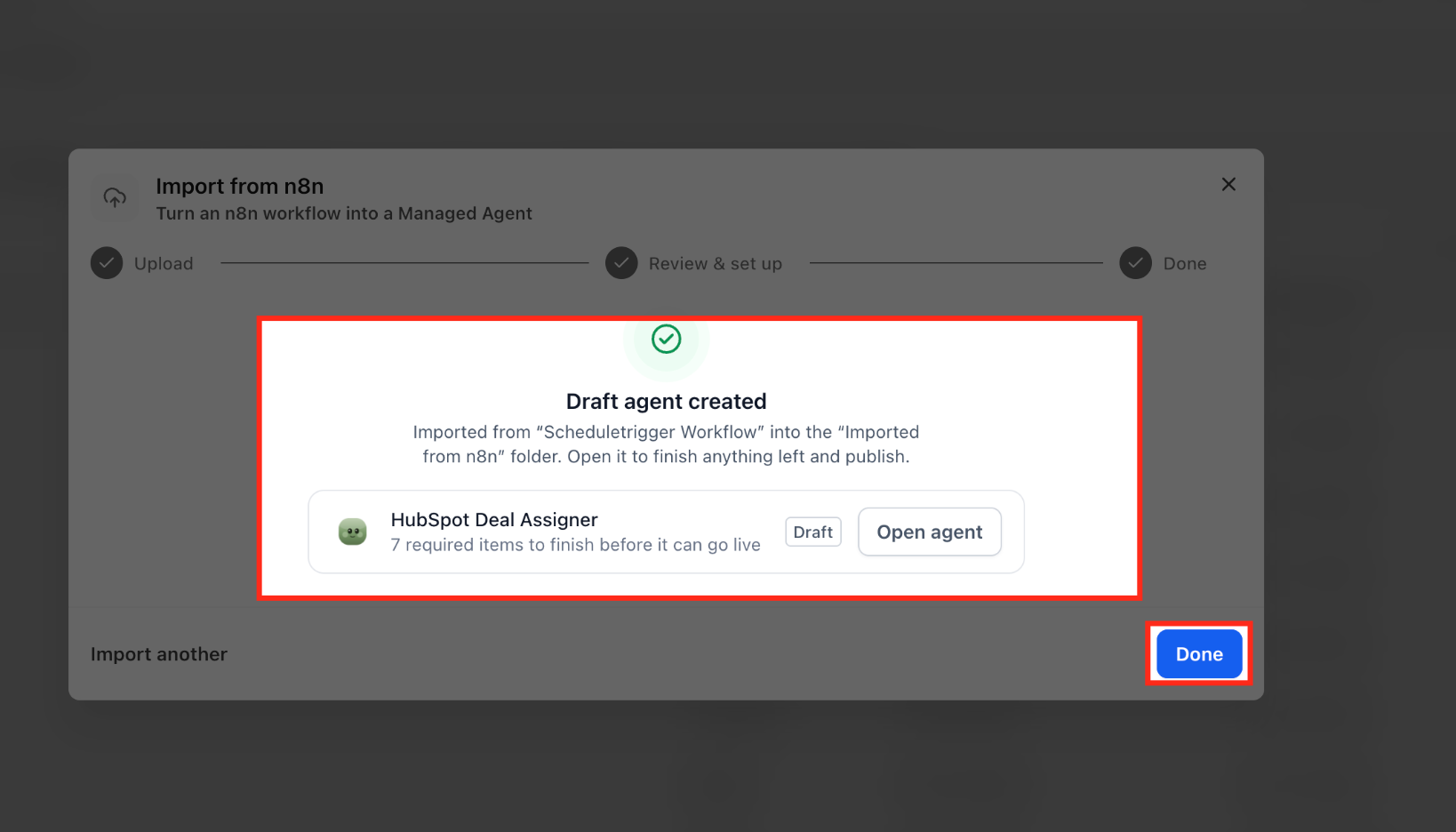
After selecting Save as draft, review the Done screen.
The supplied draft completion screen displays Draft agent created, the agent's name, its Draft status, and any remaining required items.
Select Open agent to continue configuring the new agent, or select Done to finish the import flow.
Step 7: Locate the Imported Agent and Finish Setup
Imported agents are organized in a dedicated folder in Agent Studio. If you save an agent as a draft, you can open it and complete the remaining configuration using the AI builder.
From the Sub-Account view, select AI Agents → Agent Studio → Managed Agents.
Locate the Imported from n8n folder.
Open the folder and select the imported Managed Agent.
Alternatively, select Open agent directly from the import completion screen.
If the agent has outstanding configuration items, review the Finish setup notice.
Use the available links or Replace option to address the remaining requirements.
You can also ask the AI builder:
"What's left to set up?"
The builder can identify outstanding configuration items and present them as a checklist.
After completing the outstanding tasks, you can dismiss the Finish setup notice.
For agents using an inbound webhook

An imported workflow that begins with an external webhook requires the sending system to use the Managed Agent's webhook URL.
Copy the provided URL and register it in the external system that sends the events.
How n8n Workflow Steps Are Converted
The importer translates n8n components into Managed Agent behavior rather than recreating the original node graph. Understanding these conversions helps you verify that the agent's starting conditions, decisions, and actions match your automation's intended purpose.
Triggers and Starting Conditions
The importer evaluates what starts the original workflow and maps it to a supported Managed Agent trigger.
| n8n Workflow Component | Managed Agent Conversion |
|---|---|
| Webhook node | Inbound webhook trigger with its own URL |
| Periodic checks | Scheduled trigger |
| Form-based events | Chat To Clients CRM forms |
| Booking events | Chat To Clients CRM calendars |
| Message-based events | Chat To Clients CRM Conversations |
External services such as Stripe, Shopify, HubSpot, and Pipedrive can send supported events to an inbound webhook.
For webhook-based imports, the agent receives instructions about where to register the URL and which events the sending system should deliver.
Decision Logic, Wait Steps, and AI Nodes
The importer converts workflow logic into agent instructions and follow-up behavior. This reduces the need to maintain the original visual node structure within the Managed Agent.
| n8n Workflow Component | Managed Agent Conversion |
|---|---|
| IF nodes | Decision rules in the agent's instructions |
| Switch nodes | Decision rules that describe how the agent selects a path |
| Wait nodes | Follow-ups at defined points |
| OpenAI nodes | Agent reasoning |
| LLM chains | Agent reasoning and instructions |
| AI Agent nodes | Agent reasoning and instructions |
AI components become part of the Managed Agent's own reasoning rather than requiring the original model-node structure.
When fixed logic is adapted into instructions, behavior may differ slightly from the original node-based execution.
Review the importer's adaptation notes and manually verify any rules identified for additional checking.
App Connections, CRM Actions, APIs, and Knowledge Bases
The importer evaluates external application actions and data lookups to identify how the Managed Agent can perform those tasks through Chat To Clients CRM.
| n8n Workflow Component | Managed Agent Conversion |
|---|---|
| Supported app nodes | Marketplace app connections |
| CRM-related actions | Chat To Clients CRM CRM actions |
| External API operations | API calls |
| Knowledge lookups | Chat To Clients CRM Knowledge Bases |
Some actions may be implemented differently from their original n8n nodes.
The importer identifies these adaptations and explains when an operation will run through an app, the CRM, or an API call.
Required integrations and account-specific values still need to be configured before the affected operations can work as intended.
Frequently Asked Questions
Q: Is importing an n8n workflow the same as connecting n8n through Chat To Clients CRM MCP?
No. The n8n importer converts an exported workflow into a Chat To Clients CRM Managed Agent.
The existing Chat To Clients CRM MCP integration connects Chat To Clients CRM with workflows that continue to run in n8n. These are different integration approaches.
Q: What happens if an imported workflow requires an app that is not connected?
The importer identifies required app connections during Review & set up.
In the supplied HubSpot MCP example, steps that require the connection are skipped and reported until the app is connected.
Review the connection requirements before publishing your agent.
Q: What happens to sheet IDs, channel IDs, or other references from the original workflow?
The importer flags these references for review rather than automatically trusting them.
You can confirm whether the existing reference is appropriate or replace it with another link or ID.
This helps you avoid carrying account-specific references into the wrong configuration.
Q: Why might an imported agent behave differently from the original n8n workflow?
Some n8n steps use fixed code or explicit branching rules. The importer may adapt these operations into agent instructions and decision rules.
The review screen identifies these adaptations and may highlight inferred logic that needs manual verification.
Check those rules carefully to make sure the generated agent follows the intended business process.