
How to Set Up and Use Agent Logs Monitor in Chat To Clients CRM
Agent Logs Monitor helps you track AI agent performance against measurable goals over a selected period. Instead of reviewing activity logs or historical metrics alone, you can see whether your agents are on pace to reach a target. With scheduled daily checks, progress charts, and email or webhook notifications, Monitor helps you stay informed about important outcomes. This guide covers creating monitors, configuring notification channels, reviewing daily checks, and managing monitor history in Chat To Clients CRM.
TABLE OF CONTENTS
- What is Agent Logs Monitor?
- Key Benefits of Agent Logs Monitor
- How To Setup Agent Logs Monitor
- Configure Email and Webhook Notification Channels
- Manage Existing Monitors
- Frequently Asked Questions
What is Agent Logs Monitor?
Agent Logs Monitor is a goal-tracking feature that measures recorded AI agent activity against a defined target within a selected time window. It helps you understand not only how much activity has occurred, but also whether your agents are progressing at the pace needed to reach their goal.
Unlike the Agent Logs Metrics dashboard, which focuses on historical performance and activity trends, Monitor evaluates specific goals through scheduled daily checks.
For example, you can create a monitor to track 50 appointments booked within 30 days, include only Conversation AI activity, and schedule a daily check at 9:00 AM. You can also configure notifications when progress falls behind or the target is reached.
Monitor supports different types of recorded AI activity, including:
Appointment activity: Appointments booked, rescheduled, and canceled.
Conversation activity: Conversations handled, conversation volume, and contacts reached.
Call activity: Calls completed and supported Voice AI call metrics.
Automation activity: Workflows triggered, SMS sent, and bot transfers.
Knowledge base activity: Knowledge base lookups.
Performance rates: Success rate, booking conversion, and supported voice call rates.
Count-based goals can track a target number or a maximum limit. Rate-based goals can track percentage targets. Certain metrics automatically determine the available comparison type.
Key Benefits of Agent Logs Monitor
Monitoring AI agent outcomes against specific targets helps you identify performance gaps while there is still time to respond. With goal tracking, scheduled evaluations, and configurable notifications, you can review progress without manually calculating whether your agents are on schedule.
Goal-based performance tracking: Set measurable targets for appointments, conversations, calls, and other AI agent outcomes.
Daily progress visibility: Compare current performance against the expected pace required to finish within the selected tracking window.
Flexible monitoring periods: Choose a predefined duration or configure a custom tracking window to match your business goals.
AI product-specific monitoring: Track activity across all supported AI products or narrow a monitor to selected products.
Automated progress notifications: Receive updates when a monitor becomes at risk, reaches its target, or completes its tracking window.
Email and webhook delivery: Configure reusable notification channels to send updates to selected recipients or webhook endpoints.
Monitor history and version management: Review previous monitor configurations, switch between versions, and retain historical results when goals change.
How To Setup Agent Logs Monitor
Creating a monitor begins with selecting the outcome you want to measure. You then define the target, tracking period, AI product scope, and daily check schedule. The New monitor form provides a preview of your configuration before you create the monitor.
Access the Monitor Tab
The Monitor tab is available within Agent Logs, alongside the existing agent activity and performance reporting views. Opening this tab gives you access to the Monitor dashboard and notification channel settings.
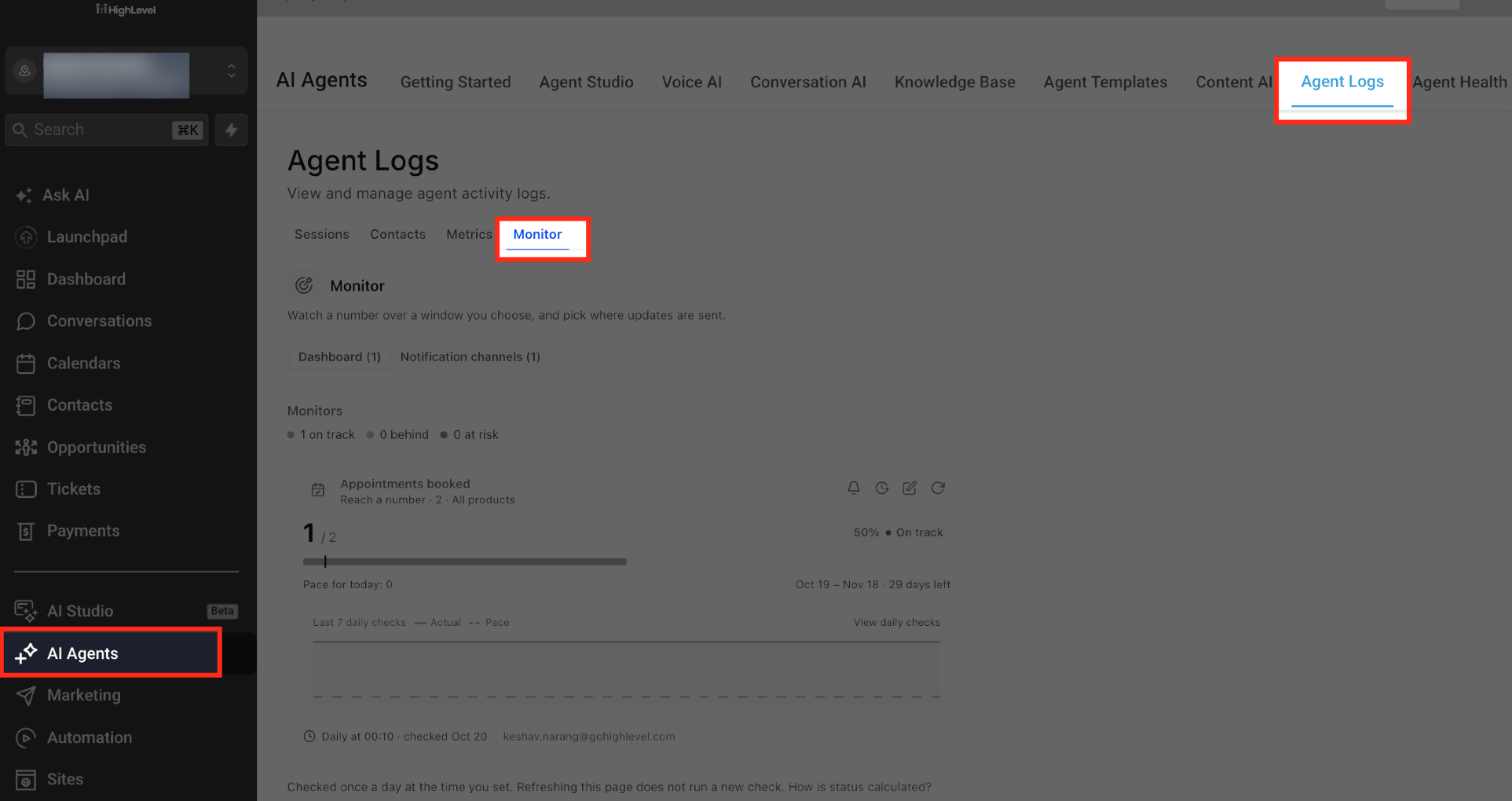
From the Sub-Account view, select AI Agents in the left navigation menu.
Select Agent Logs from the top navigation.
Click the Monitor tab.
Select Dashboard to view your existing monitors.
Create a New Monitor
Each monitor begins with a metric and a comparison target. The metric determines which recorded AI agent activity is measured, while the comparison defines the result you want to achieve or maintain.
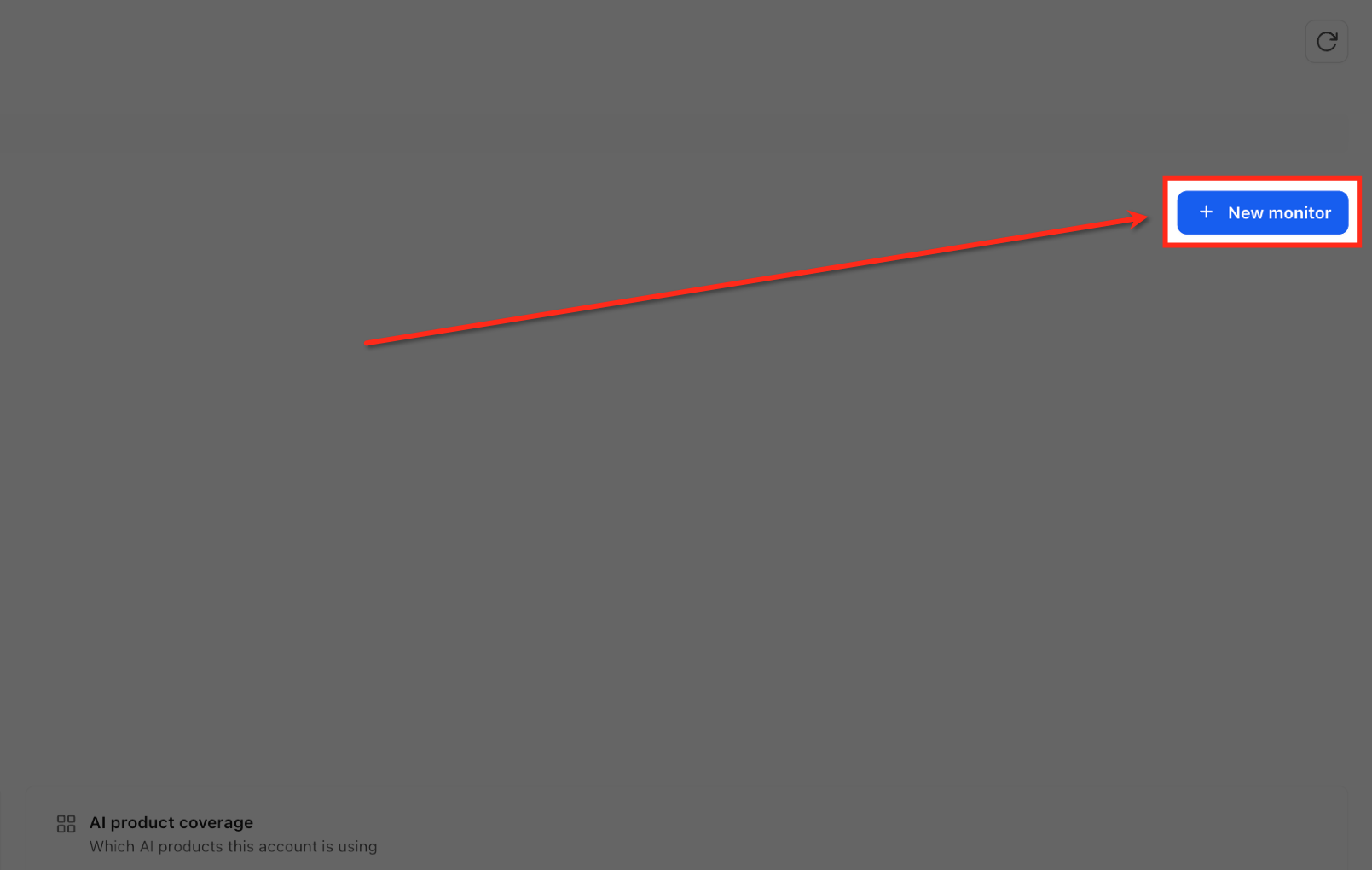
From the Monitor → Dashboard view, select "New Monitor"
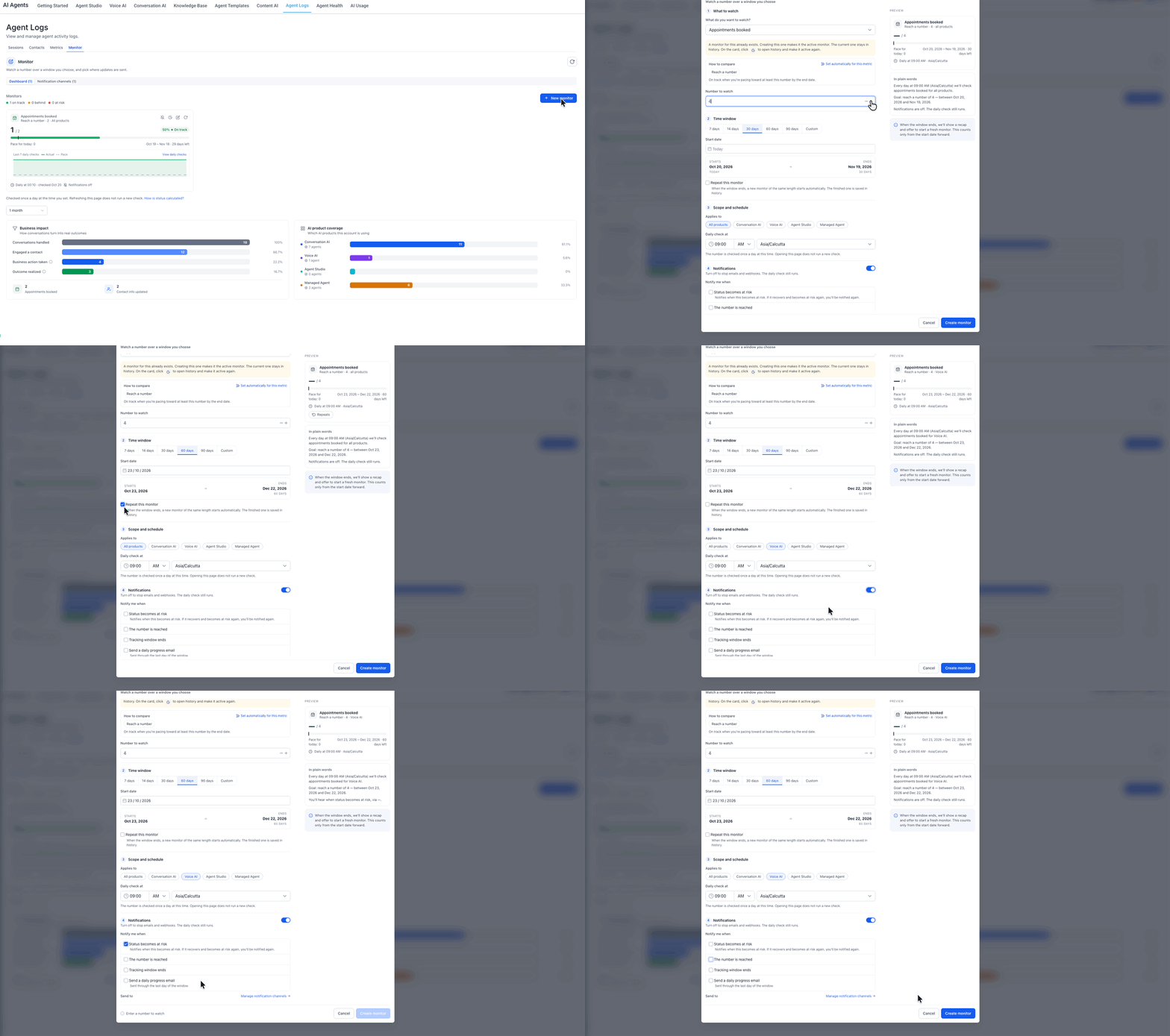
In the New monitor form, select the metric you want to track.
Review the comparison type associated with the metric. Depending on the selected metric, the monitor can use:
Reach a number: Track progress toward a target count.
Stay under a cap: Keep the measured count below a specified limit.
Percentage target: Track performance against a target rate.
In Number to watch, enter the target value or percentage supported by the selected metric.
Configure the Tracking Window
The tracking window determines when a monitor begins and ends measuring activity toward its goal. Only activity recorded within the selected window contributes to progress, so earlier activity is not included automatically.
Under Time window, select a duration:
7 days
14 days
30 days
60 days
90 days
Custom
Choose the Start date. You can begin monitoring today or schedule a future start date. The end date is calculated from the selected duration.
To continue monitoring across consecutive periods, select Repeat this monitor.
When repetition is enabled, a new monitoring window starts automatically after the current window closes. The completed window remains available in history.
Choose AI Products and Schedule Daily Checks
Product scope determines which AI activity contributes to the target. The daily schedule determines when Monitor evaluates that activity and updates the saved progress.
Under Applies to, choose All products or select the AI products you want to include. The available product options shown in the release include:
Conversation AI
Voice AI
Agent Studio
Managed Agent
Under Daily check at, select the time when the monitor should evaluate progress.
Select the appropriate Timezone.
Monitor evaluates the goal once daily at the scheduled time. Opening the Monitor page does not automatically trigger another check.
Configure Monitor Notifications
Monitor notifications help you receive updates when significant changes occur. You can select which events should generate notifications and where those messages should be delivered.
In Notify me when, configure the notification events you want to monitor:
Status becomes at risk: Sends an alert when progress enters the at-risk state.
Goal reached: Sends an alert when the monitored target is achieved.
Tracking window ends: Sends an update when the monitoring period closes.
Daily progress email: Sends a recurring progress summary during the tracking window.
For daily progress emails, choose whether to send them at the scheduled check time or at another selected time.
Select the configured email or webhook notification channels that should receive the applicable updates.
Review the Preview and Create the Monitor
The preview summarizes how the monitor will evaluate your selected goal. Reviewing it before saving helps confirm that the measurement, schedule, and notification destinations match your intended configuration.
Review the Preview panel on the right side of the New monitor form. Confirm:
Selected metric and comparison type.
Target number or percentage.
Tracking window and dates.
Included AI products.
Daily check time and timezone.
Selected notification settings and channels.
Click Create monitor to save the configuration.
The monitor appears as an active card on the Monitor dashboard when its tracking window has started. A monitor with a future start date remains scheduled until that date.
Configure Email and Webhook Notification Channels
Notification channels define where Monitor sends updates. You can configure email recipients or webhook endpoints once and select those channels when setting up individual monitors. Each channel has its own configuration and can be managed from the Notification channels tab.
Create an Email Notification Channel
Email channels let you send monitor notifications to a specified group of email addresses. Giving each channel a descriptive name helps you identify the correct recipient list when configuring a monitor.
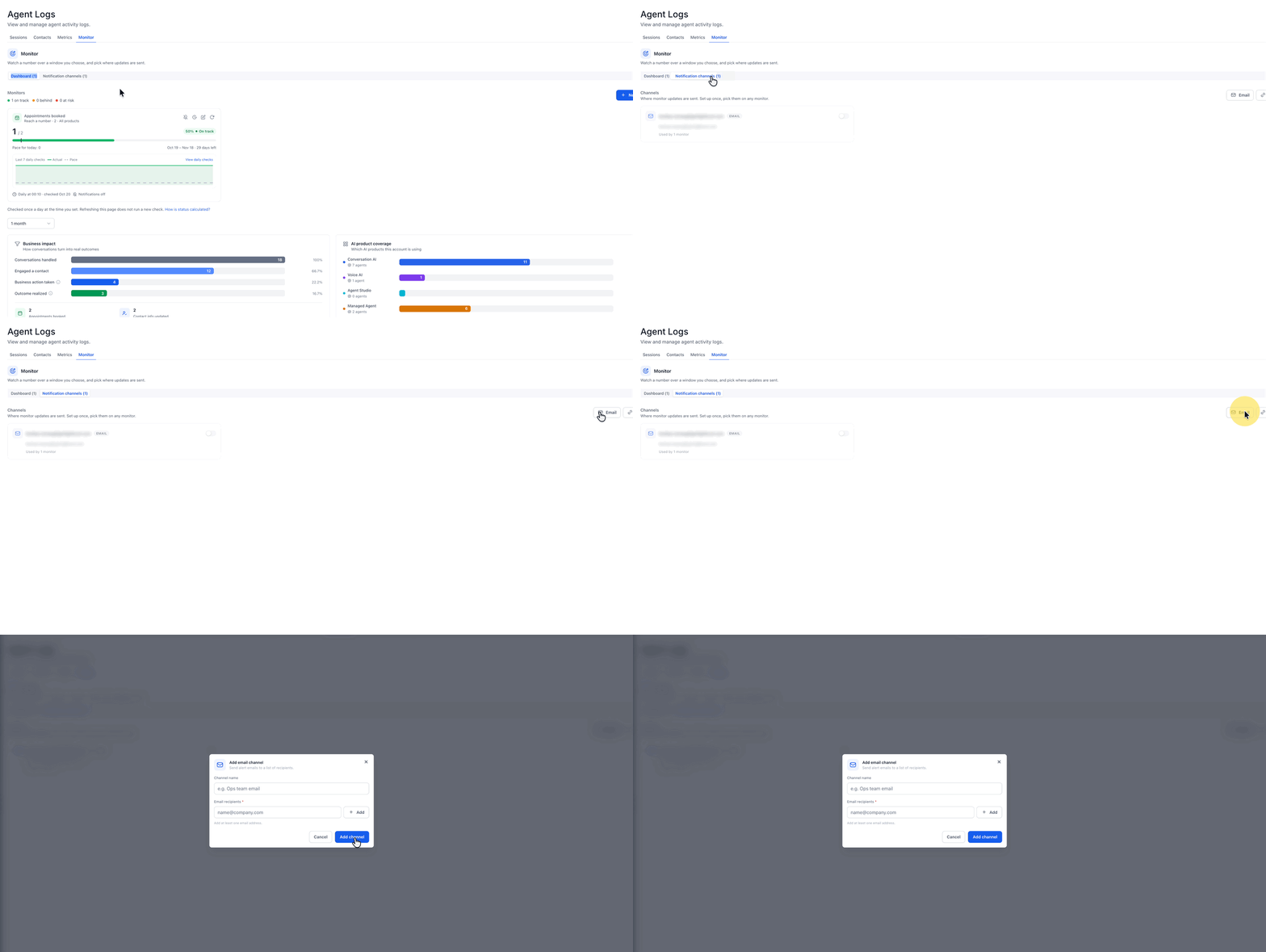
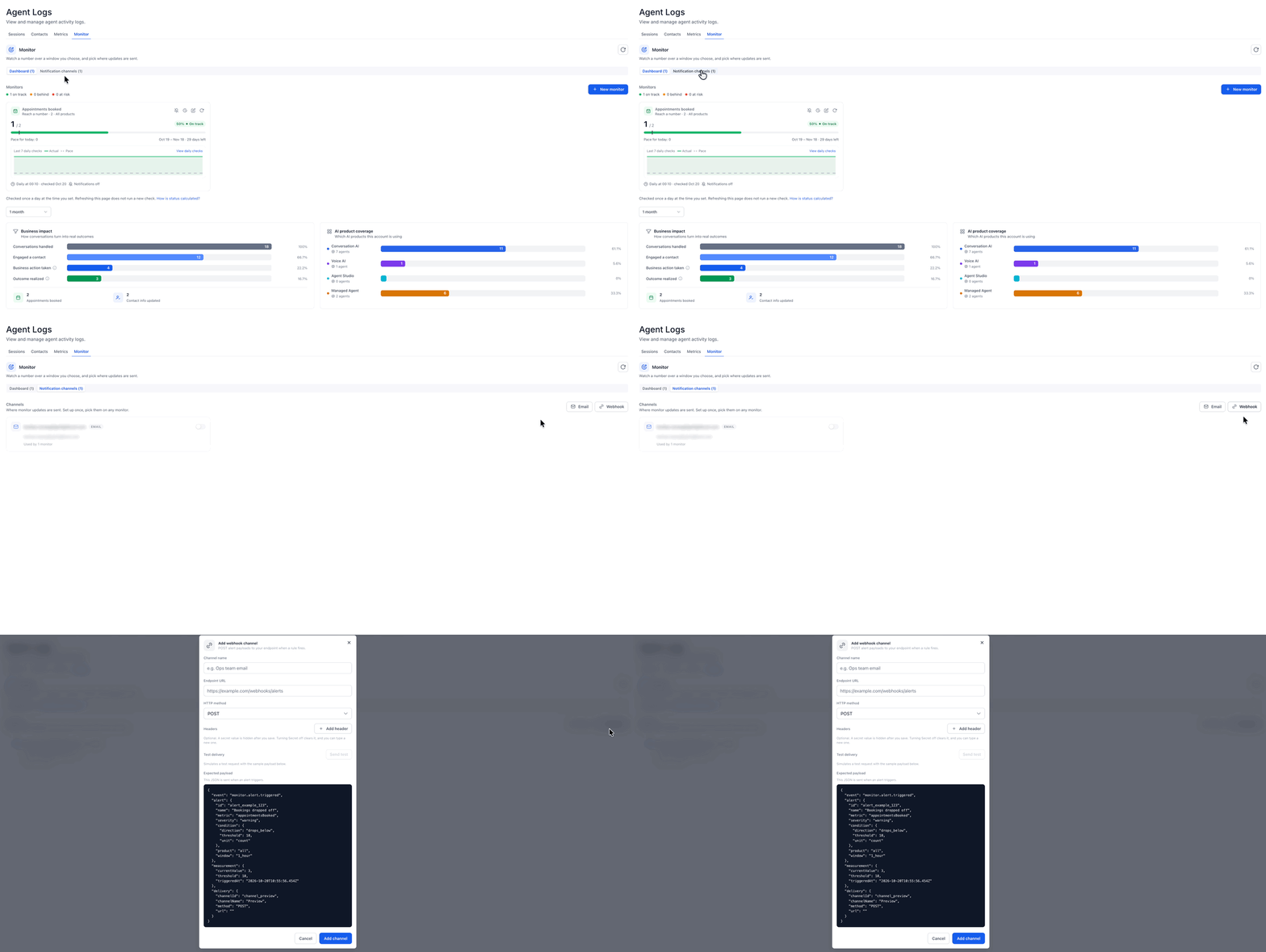
Select Notification channels.
Click Email to open the Add email channel dialog.
Enter a descriptive name in Channel name.
Under Email recipients, enter the first recipient's email address.
Click Add to include the address. Repeat this step for additional recipients.
Click Add channel to save the email notification channel.
Create a Webhook Notification Channel
Webhook channels send monitor updates to a configured endpoint. They provide a way to deliver selected monitoring events to systems that accept webhook requests.
Select Notification channels.
Click Webhook to open the Add webhook channel dialog.
Enter a descriptive Channel name.
In Endpoint URL, enter the destination URL that will receive webhook requests.
Select the appropriate HTTP method. The supplied interface shows POST.
To include additional request headers, click Add header and enter the required header details.
Mark a header as secret when it contains a value that should be treated as sensitive.
Review the Expected payload section to see the webhook data structure.
Optionally, click Send test under Test delivery to test the configured endpoint.
Click Add channel to save the webhook notification channel.
Manage Existing Notification Channels
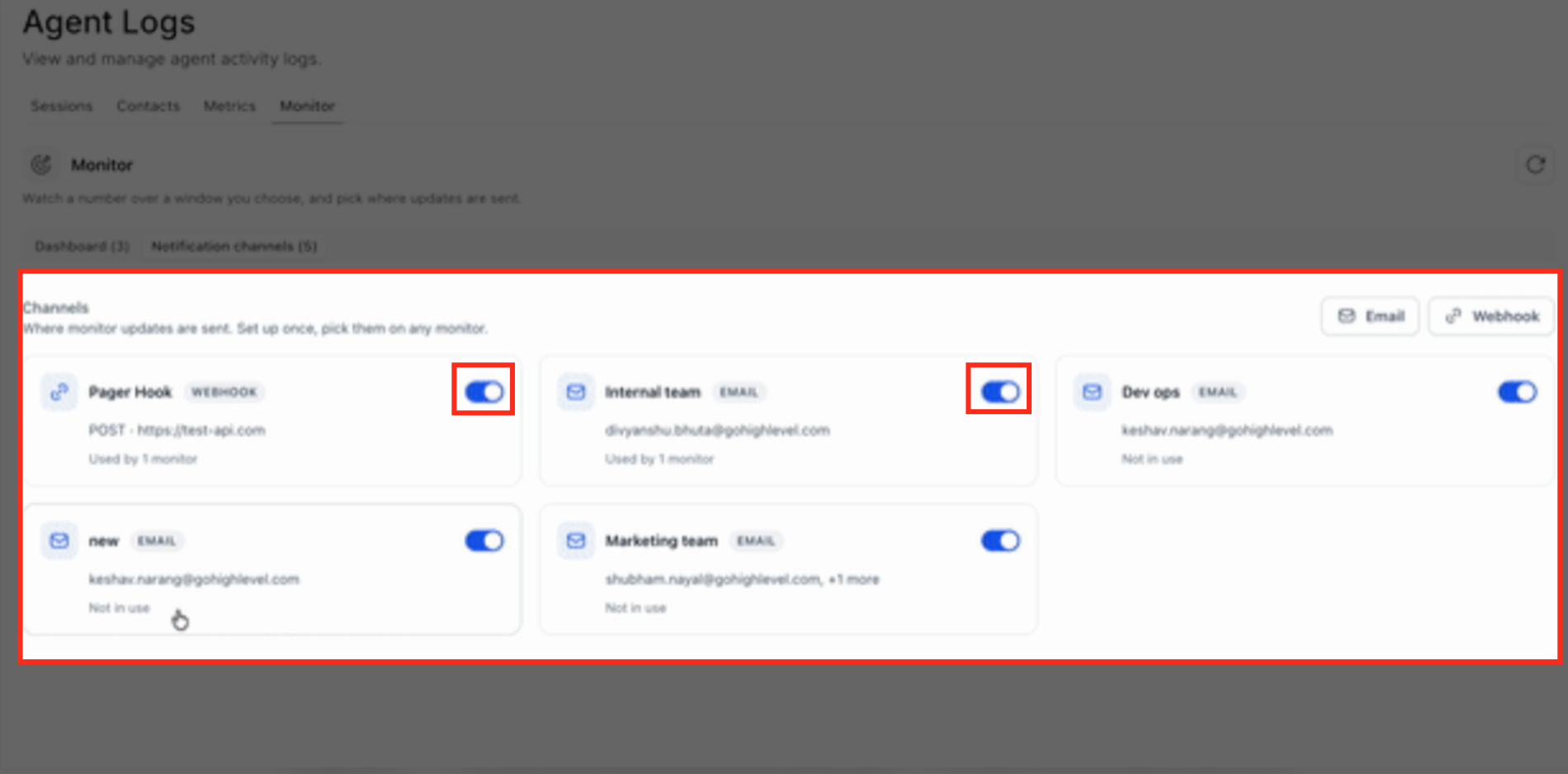
The Notification channels dashboard provides a centralized view of configured delivery destinations. You can identify channel types, review whether a channel is associated with a monitor, and control enabled states.
Click Notification channels.
Review the existing channel cards. Each card identifies the channel type, such as EMAIL or WEBHOOK, and its monitor usage.
Use the channel's toggle to enable or disable it.
The tab count reflects the number of configured channels, including channels marked Not in use. It does not represent the number of active monitoring alerts.
You can also edit existing channels and delete channels you no longer need.
Understand Monitor Status and Daily Checks
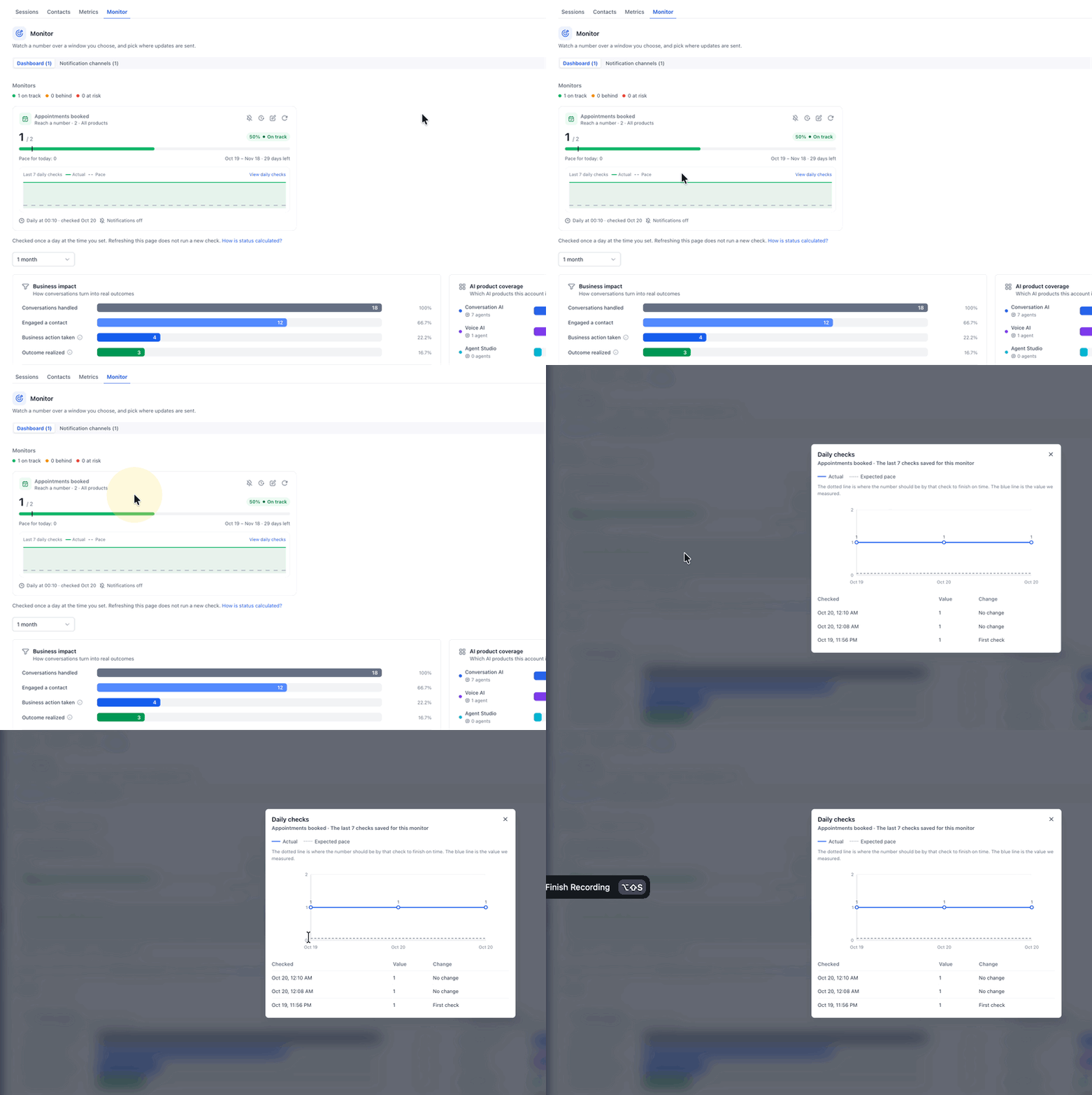
The Monitor dashboard shows whether your AI agents are making sufficient progress toward their targets. Each monitor card combines the measured value, goal, time remaining, and expected pace so you can identify which goals may need attention.
Read Monitor Cards and Status Indicators
Monitor cards display saved evaluation results rather than running a new evaluation every time you visit the page. This provides a consistent view of the latest measured performance.
Open Dashboard.
Locate the monitor card for the metric you want to review.
- Metric: The outcome being tracked, such as Appointments booked.
- Goal: The configured target count, cap, or rate.
- Current value: Progress measured within the tracking window.
- Progress percentage: Progress toward the configured target.
- Status: Whether the monitor is on track, behind, at risk, or in another applicable state.
- Pace for today: The expected progress for the current point in the tracking window.
- Tracking window: Start and end dates, with the remaining time.
- Daily check schedule: When the monitor evaluates progress and when it was last checked.
- Last 7 daily checks: A compact chart of recent saved evaluations.
Understanding Monitor Status
Monitor uses status indicators to show how the measured value compares with the configured target and expected pace.
| Status | Meaning |
|---|---|
| On track | For a reach-a-number goal, progress is at or above the expected steady pace for the current day. |
| Behind | Progress is below the expected pace but within 15% of that pace. |
| At risk | Progress is more than 15% below the expected pace, exceeds a configured limit, or falls below an applicable rate target. |
| Achieved | The monitored goal has been reached. |
| Under the number | Indicates that the measured value is below the specified number for an applicable limit-based comparison. |
| Scheduled | The configured tracking window has not started. |
| Missed | The monitoring window has ended without the configured goal being met. |
Status calculations depend on the goal's comparison type. Count-based targets use expected pacing, while cap-based and rate-based goals use their configured thresholds.
Review the Last Seven Daily Checks
Daily checks provide a more detailed view of how monitor performance changes over time. Comparing actual results with expected pace helps you understand whether the goal is progressing steadily.
Select Dashboard.
Locate the monitor you want to inspect.
In Last 7 daily checks, click View daily checks.
Review the Daily checks dialog.
The dialog contains a chart with two lines:
Actual: The solid blue line showing the measured metric value at each saved check.
Expected pace: The dotted line showing where the metric should be by that point to finish on time.
Below the chart, a table provides:
| Column | Description |
|---|---|
| Checked | The date and time of the saved evaluation. |
| Value | The metric value recorded during the check. |
| Change | The difference from the previous saved check, including entries such as First check or No change. |
The history shows the last seven saved checks. It can include both scheduled checks and additional checks triggered manually.
Manage Existing Monitors
Monitor settings can be updated as tracking goals change. You can adjust targets, modify schedules, review historical versions, and manually refresh measurements without losing the previous monitoring configurations.
Edit Monitor Settings and Notifications
Editing a monitor lets you adjust its tracking configuration without creating an entirely separate metric. Previous versions remain accessible through monitor history.
Inside the Monitor Dashboard, Find the monitor you want to modify.
Click the Edit (pencil) icon on the monitor card.
In the Edit monitor dialog, update the relevant settings:
Comparison type and target value, where supported.
Tracking window and repeat settings.
AI products included in the calculation.
Daily check time and timezone.
Notification events and assigned channels.
Review the updated preview.
Click Save changes.
Turn Monitor Notifications On or Off
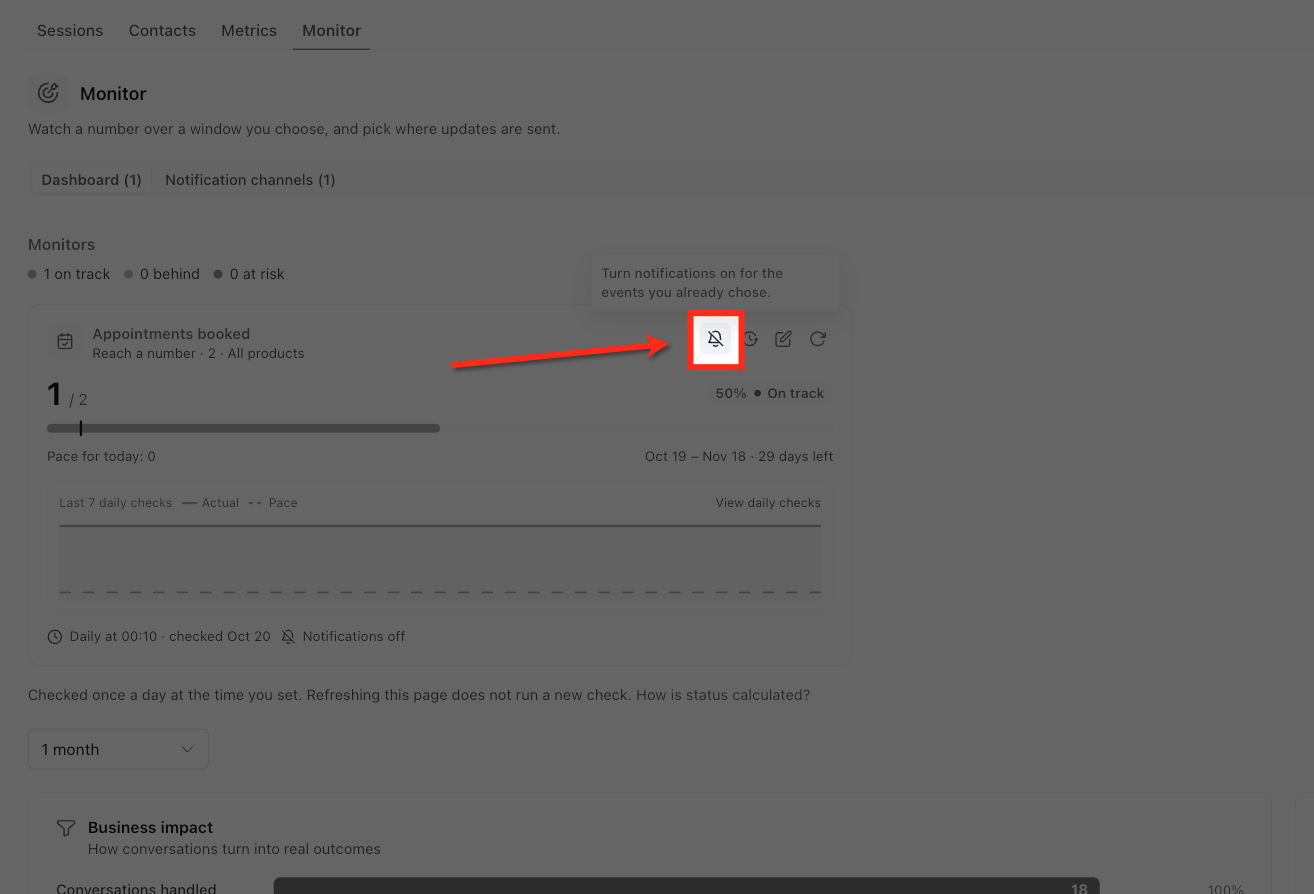
You can also control notification delivery directly from the monitor card.
From the Sub-Account view, select AI Agents → Agent Logs → Monitor → Dashboard.
Locate the monitor card.
Click the bell icon to turn notifications on or off.
Turning notifications off stops the monitor's email and webhook notifications without deleting the previously configured notification events. Scheduled daily checks continue to run.
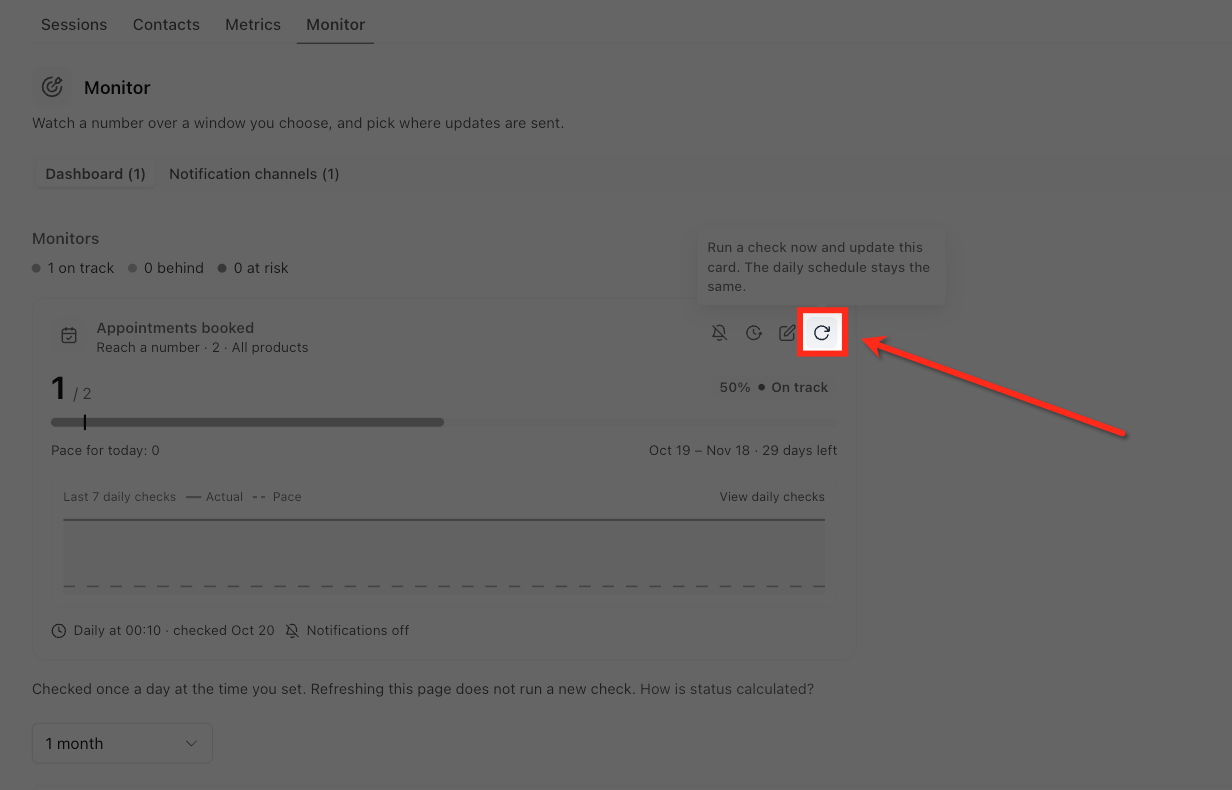
Run a Manual Check
Manual refresh is useful when you want to review updated progress before the next scheduled evaluation. Running a manual check updates the saved result but does not change the existing daily check schedule.
From the Sub-Account view, select AI Agents.
Click Agent Logs.
Select Monitor.
Open Dashboard.
Find the monitor you want to check.
Click the Refresh icon on the monitor card.
Review the updated value and status after the check completes.
The new saved check can also appear in the monitor's daily check history.
View Monitor History and Switch Versions
Monitor history retains earlier configurations of the same tracked metric. You can review previous targets and activate another version without deleting the saved versions.
From the Monitor Dashboard, Locate the monitor whose history you want to review.
Click the History icon on its card.
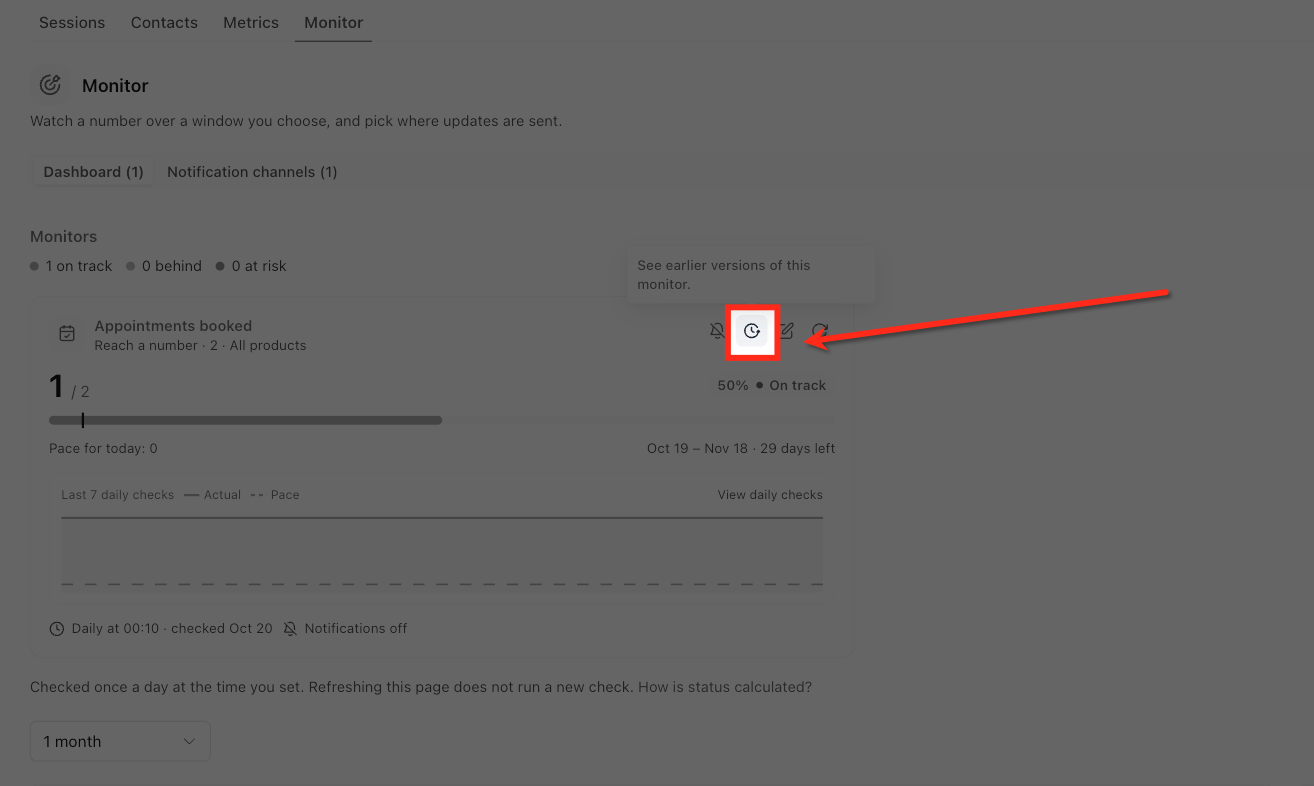
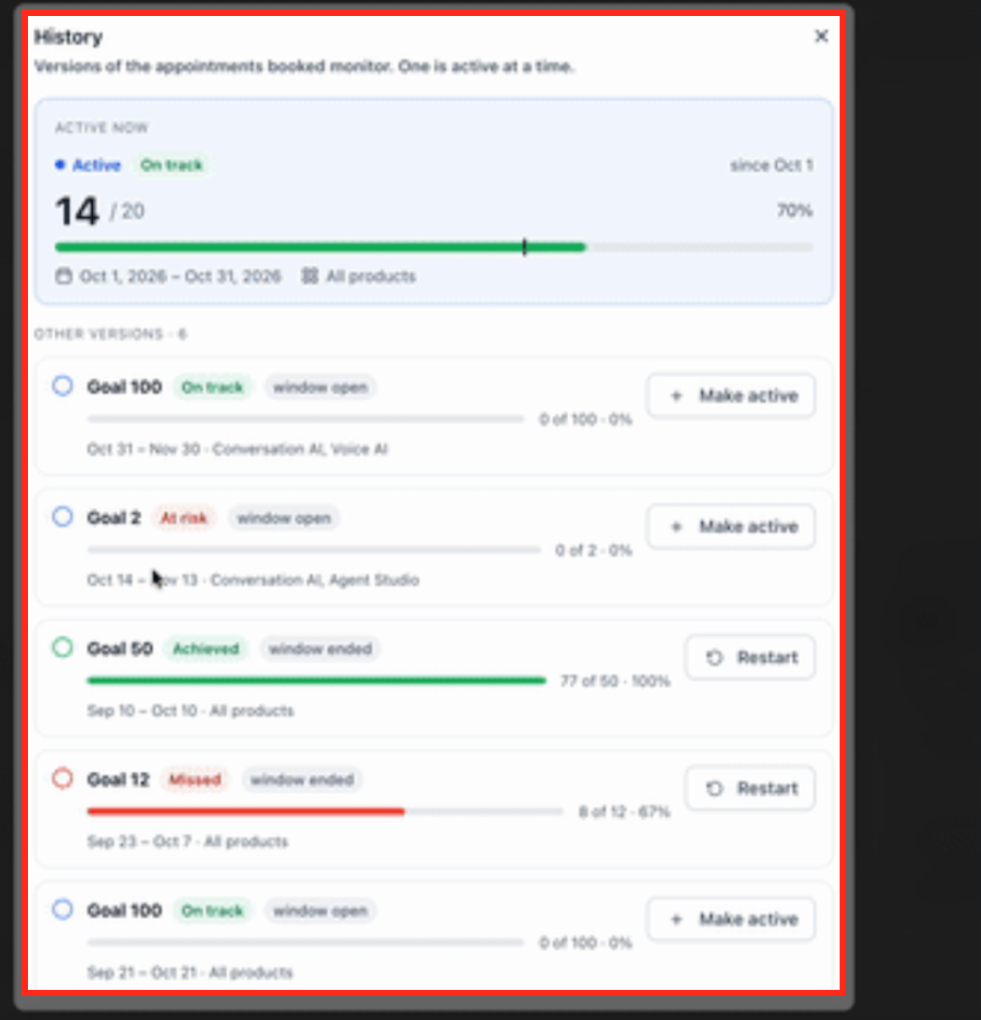
In the History dialog, review:
ACTIVE NOW: The currently active version, its goal, progress, status, tracking dates, and product scope.
OTHER VERSIONS: Previous configurations and their recorded outcomes.
To switch to an eligible previous version, click Make active for that version.
Only one version of a metric is active at a time. Changing the active version does not delete the other saved versions.
The History dialog can also display Restart for completed versions.
Repeat, Restart, or Finish Monitoring Windows
Monitoring windows define the period during which a goal is evaluated. You can configure a monitor to repeat automatically or manage it manually after its current window closes.
Repeat a monitor automatically
From the Sub-Account view, select AI Agents.
Click Agent Logs, then Monitor.
Select Dashboard.
Locate the monitor and click its Edit icon.
Under Time window, enable Repeat this monitor.
Click Save changes.
When the current tracking window closes, Monitor starts another window of the same duration automatically. The completed window remains in history.
Restart a completed version
From the Sub-Account view, select AI Agents.
Click Agent Logs, then Monitor.
Open Dashboard.
Find the relevant monitor and click its History icon.
Locate the completed version under OTHER VERSIONS.
Click Restart for that version.
Manage a completed monitor
When a non-repeating monitoring window ends, its completed card remains visible. The card displays the measured outcome, whether the goal was achieved or missed, and the dates of the completed window.
The completed card provides two actions:
Start new: Begin another monitoring window.
Dismiss: Clear the completed monitor card from the dashboard.
Frequently Asked Questions
Q: Will Monitor send another at-risk notification if performance recovers and later falls behind again?
Yes. If the monitor leaves the at-risk state and subsequently becomes at risk again, another at-risk notification is sent when that event is enabled.
Q: Can I use the same email or webhook notification channel for multiple monitors?
Yes. A notification channel can be assigned to more than one monitor, allowing you to reuse an existing delivery destination.
Q: What happens when I create a new monitor for a metric that already has one?
The newly created monitor becomes the active version for that metric. The previous version remains available in History and can be made active again.
Q: Do daily progress emails continue until the tracking window closes?
Yes. When daily progress emails are enabled, they continue through the final day of the monitoring window. You can schedule them at the daily check time or another selected time.