
TikTok Ads - Launch Lead-Gen Campaigns in Ad Manager
Reach TikTok audiences and generate leads directly from Chat To Clients CRM Ad Manager. Create, publish, and manage TikTok Lead Generation campaigns using Instant Forms or Direct Messages without switching between advertising platforms. Configure audience targeting, budgets, schedules, and ad creatives in one place while monitoring campaign performance alongside your other advertising channels.
This guide covers connecting your TikTok ad account, building campaigns, publishing ads, and managing their performance.
TABLE OF CONTENTS
- What is TikTok Ads in Ad Manager?
- TikTok Lead Generation Destinations
- TikTok Campaign Structure
- Ad Group Budget, Schedule, and Audience Targeting
- TikTok Ad Creatives and Live Preview
- TikTok Campaign Management and Reporting
- How to Set Up and Launch TikTok Lead Generation Campaigns
- Frequently Asked Questions
- Related Articles
What is TikTok Ads in Ad Manager?
TikTok Ads in Chat To Clients CRM Ad Manager allows businesses and agencies to create and manage TikTok Lead Generation campaigns within the same advertising workspace used for Meta, Google, and LinkedIn. By bringing TikTok campaign creation and performance monitoring into Chat To Clients CRM, advertisers can manage their lead-generation efforts without navigating between multiple advertising tools.
TikTok Ads supports the Lead Generation campaign objective, enabling advertisers to collect prospect information through TikTok Instant Forms or Direct Messages.
You can use TikTok Ads in Ad Manager to:
Connect and manage a TikTok Business Center and ad account.
Create TikTok Lead Generation campaigns from scratch.
Configure campaign budgets, schedules, and audience targeting.
Collect leads through Instant Forms or Direct Messages.
Create carousel image ads and video ads.
Preview ad creatives before publishing.
Edit, pause, resume, and duplicate supported campaigns.
Monitor TikTok campaign performance alongside other advertising platforms.
Important: TikTok Ads in Ad Manager currently supports Lead Generation campaigns only. Additional campaign objectives and campaign creation methods are planned for future releases.TikTok Lead Generation Destinations
Lead Generation destinations determine how people express interest in your business after interacting with a TikTok advertisement. Choosing the appropriate destination helps align the lead collection experience with your campaign goals and preferred method of engaging potential customers.
TikTok Ads in Ad Manager supports two lead-generation destinations.
Instant Forms
Instant Forms allow users to submit their contact information directly within TikTok without navigating to an external website.
When creating an Instant Form advertisement, select an existing published TikTok Instant Form as the ad destination.
Key considerations:
Instant Forms must be created in TikTok Ads Manager before they can be selected in Chat To Clients CRM.
Creating a new TikTok Instant Form directly within Chat To Clients CRM Ad Manager is not supported in this release.
The selected form serves as the destination for collecting prospect information.
Form field mapping and lead synchronization should be configured and verified using the applicable TikTok lead integration process.
For instructions on connecting TikTok lead forms to Chat To Clients CRM's CRM, refer to How to Integrate TikTok Lead Ads.
Direct Messages
Direct Message lead generation allows interested prospects to start a conversation with your TikTok account after interacting with an advertisement.
This destination supports two messaging approaches:
Message Templates: Create a predefined greeting and suggested questions to help initiate conversations.
Automated Chat: Configure a guided conversation designed to collect contact information from interested prospects.
Direct Messages can be useful for businesses that prefer conversational lead qualification instead of collecting information through a form.
Note: TikTok Direct Message lead destinations within Ad Manager are distinct from Chat To Clients CRM's general TikTok messaging and comment automation features. Account eligibility and any additional messaging integration requirements should be verified for the intended advertising workflow.
TikTok Campaign Structure
Understanding how TikTok campaigns are organized makes it easier to configure advertising objectives, audience settings, and ad creatives. Each level of the campaign hierarchy controls a different part of the advertising experience, helping you manage campaigns without mixing campaign-wide settings with individual ad configurations.
TikTok campaigns in Chat To Clients CRM use three levels:
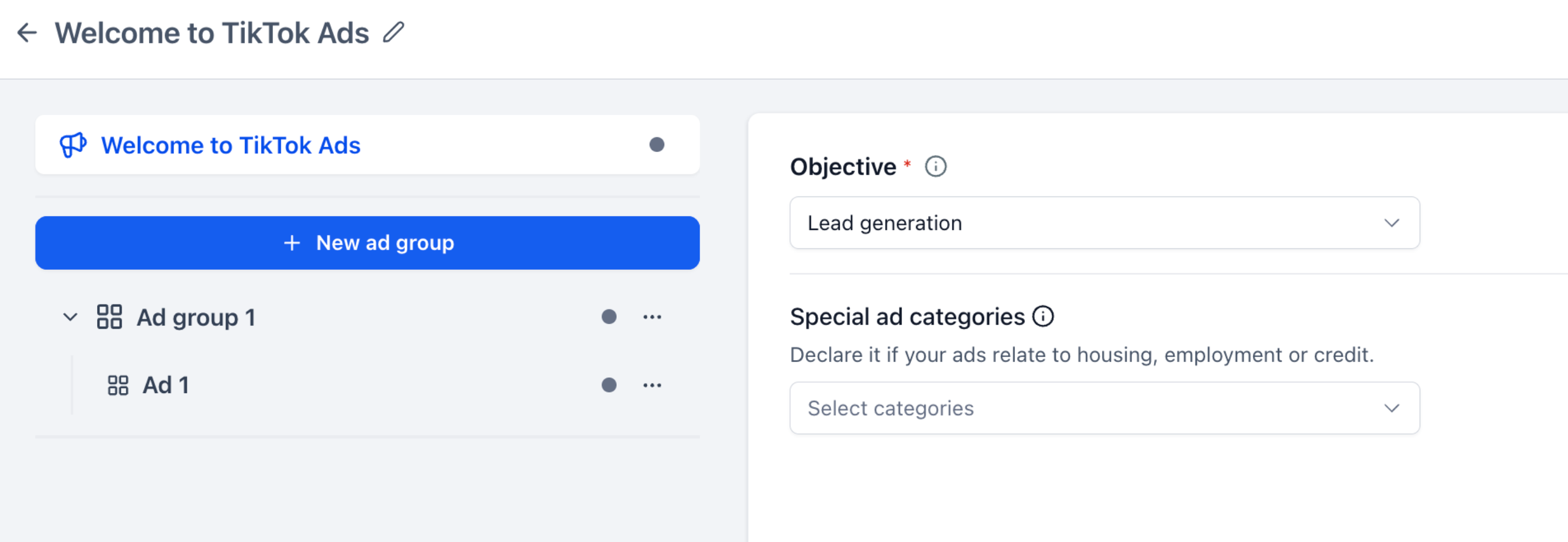
Campaign
The campaign level defines the overall advertising objective.
Enter or edit the campaign name.
Select the Lead Generation objective.
Declare applicable Special Ad Categories.
Ad Group
The Ad Group level controls how advertisements are delivered.
Configure the lead-generation destination.
Set the budget and schedule.
Select audience locations.
Configure demographic targeting.
Set interest and behavior targeting.
Ad
The Ad level defines what potential customers see and how they respond.
Enter an ad name.
Select the lead destination and applicable form or messaging configuration.
Choose the TikTok account identity.
Add advertising text and a call to action.
Upload carousel images or a video.
Preview the advertisement.
Multiple Ad Groups and ads can be organized within the campaign builder.
Ad Group Budget, Schedule, and Audience Targeting
Ad Group settings determine when advertisements run, how much the campaign can spend, and which audiences TikTok should consider when delivering ads. Configuring these settings carefully helps advertisers align campaign delivery with their marketing goals and available budget.
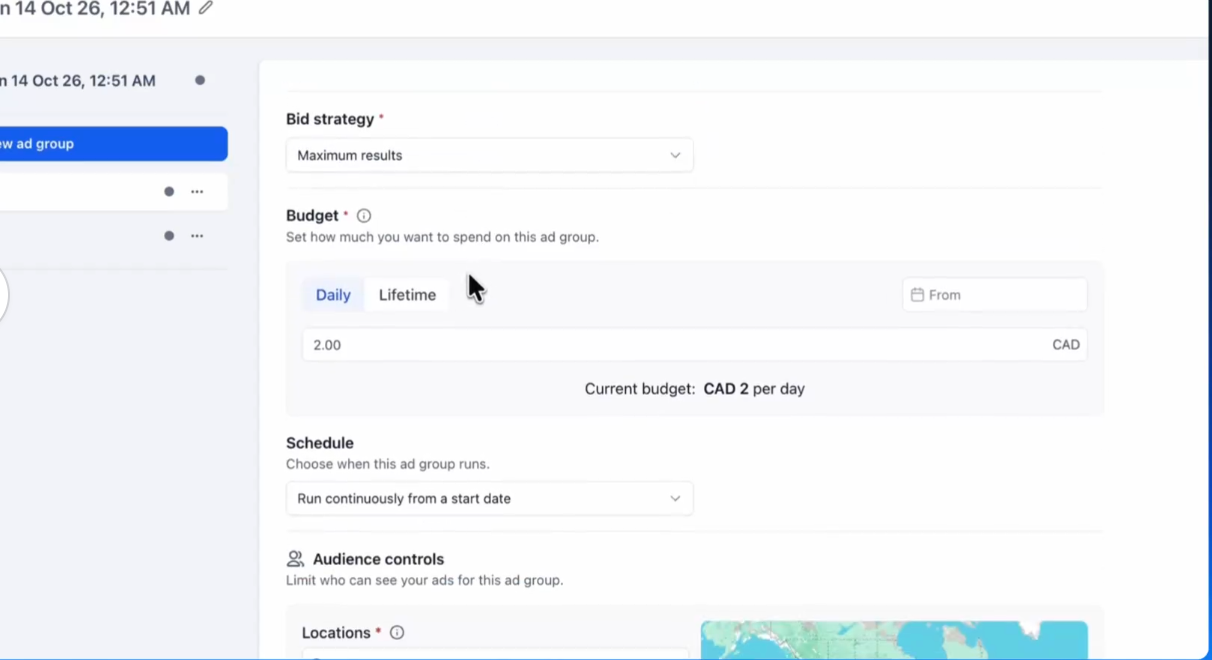
Budget and Schedule
Budget and scheduling controls allow advertisers to manage spending and campaign timing at the Ad Group level.
Configure the available settings based on your advertising requirements, including the budget and schedule presented in the campaign builder.
Review the selected budget and campaign timing before publishing to ensure they match your advertising plan.
Audience Controls
Audience controls allow advertisers to define audience characteristics that affect campaign delivery.
Available settings include:
Locations: Select the geographic areas where your advertisements should be delivered.
Minimum Age: Configure the minimum eligible age for your target audience.
Languages: Choose the language settings applicable to your campaign.
Automatic Targeting Guidance
Automatic targeting guidance lets you provide additional audience preferences that TikTok uses to guide ad delivery.
Depending on the available configuration, these preferences include:
Age Groups: Select preferred audience age ranges.
Gender: Specify the gender preferences for your target audience.
Platform: Select the available platform targeting option.
Interests and Behaviors: Choose relevant interests, professional categories, or user behaviors.
Hashtag Interactions: Select available hashtag-related audience interests.
Important: Automatic targeting guidance is treated as guidance rather than a strict delivery restriction. TikTok may deliver advertisements beyond the suggested audience preferences.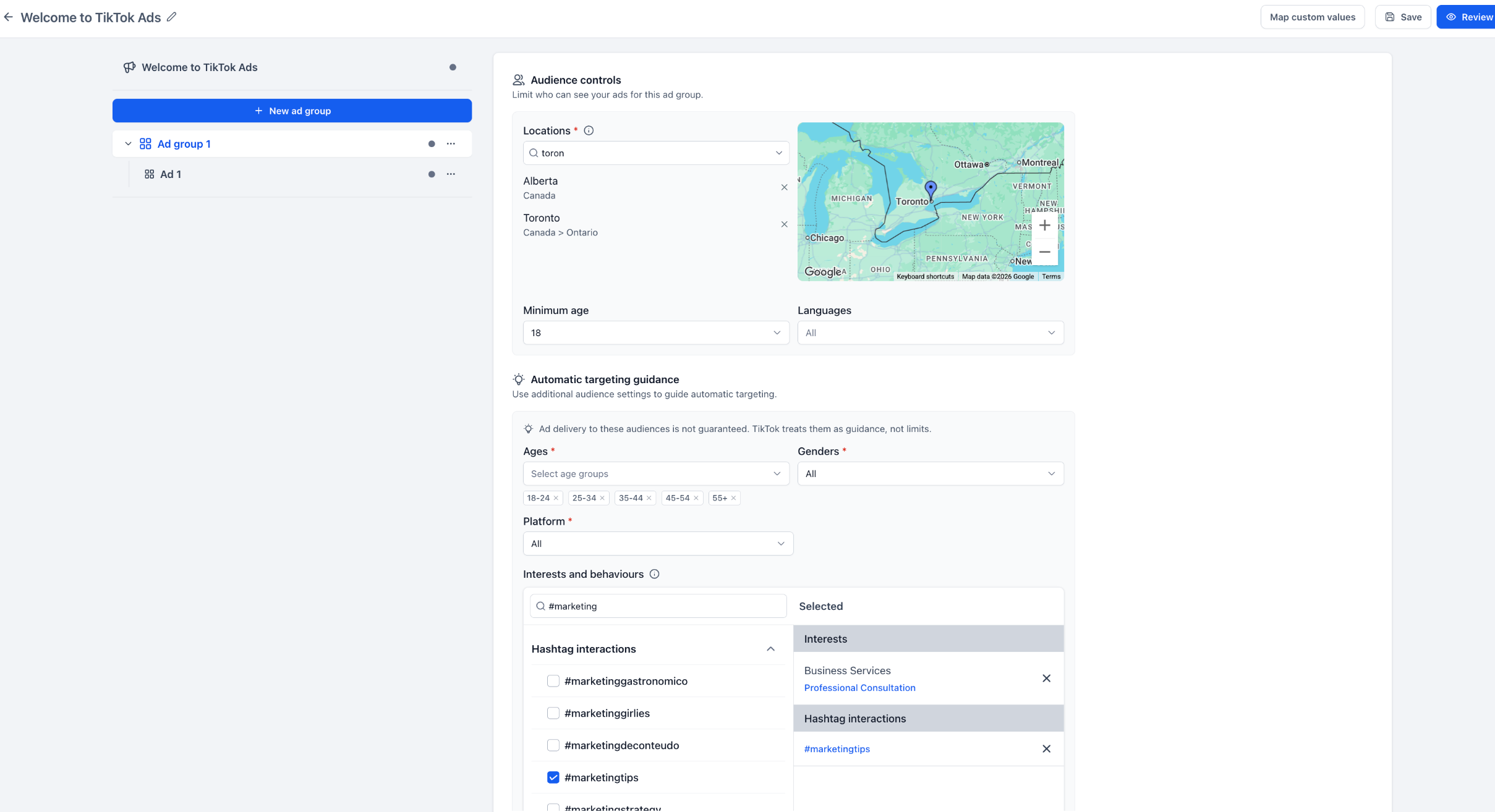
TikTok Ad Creatives and Live Preview
Ad creatives are the visual and written elements that people see when they encounter your advertisement. Selecting the right media format, call to action, and lead destination helps create a consistent experience between the advertisement and the action you want potential customers to take.
Supported Creative Formats
Chat To Clients CRM Ad Manager supports the following TikTok ad creative formats in this release:
Carousel Images: Upload multiple images to create a carousel advertisement.
Video Ads: Upload one video for an individual advertisement.
Choose the creative format that best communicates your offer and meets TikTok's applicable advertising requirements.
Ad Text and Call to Action
Ad text communicates the value of your offer, while the call-to-action button encourages users to take the next step.
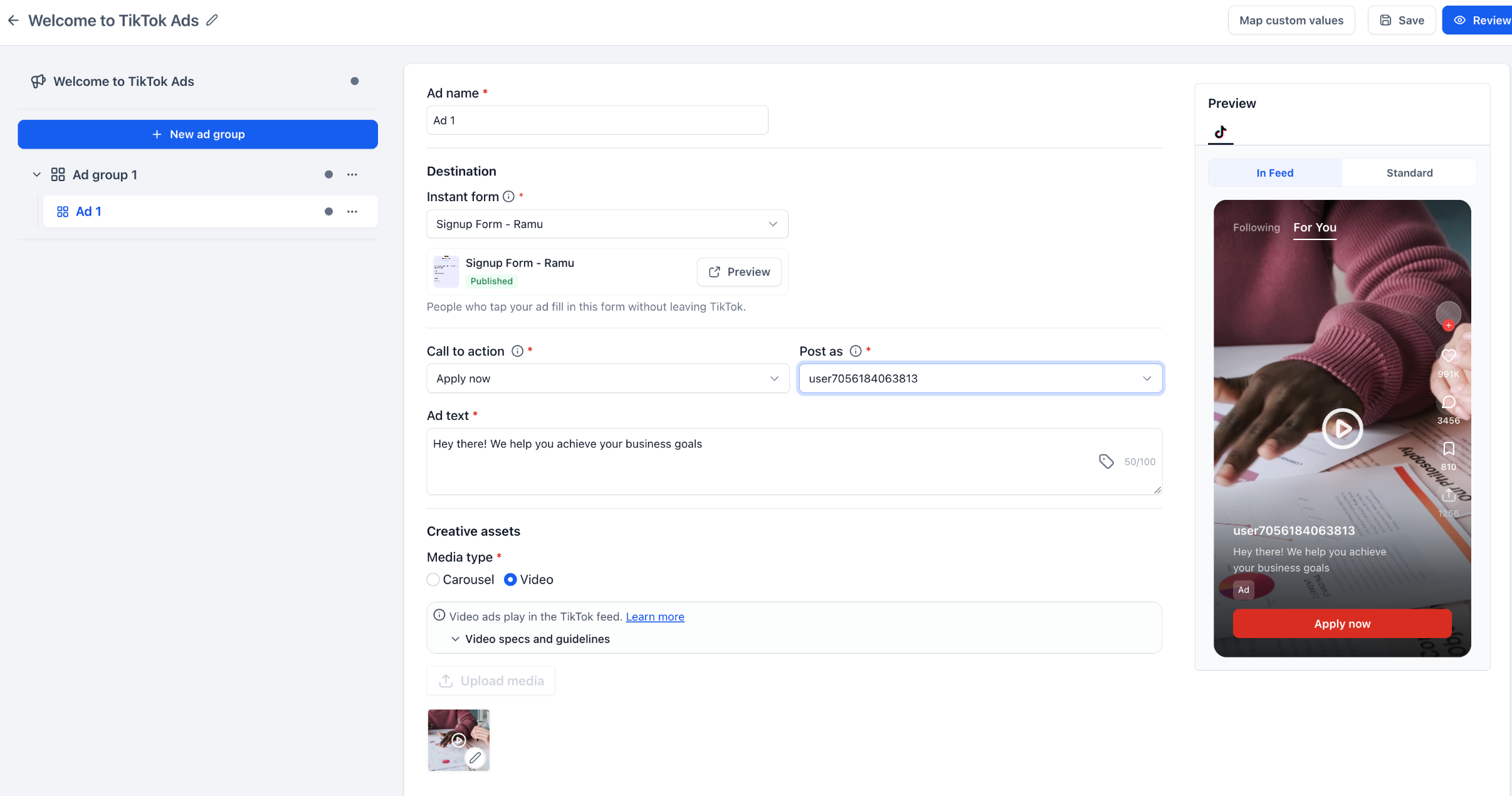
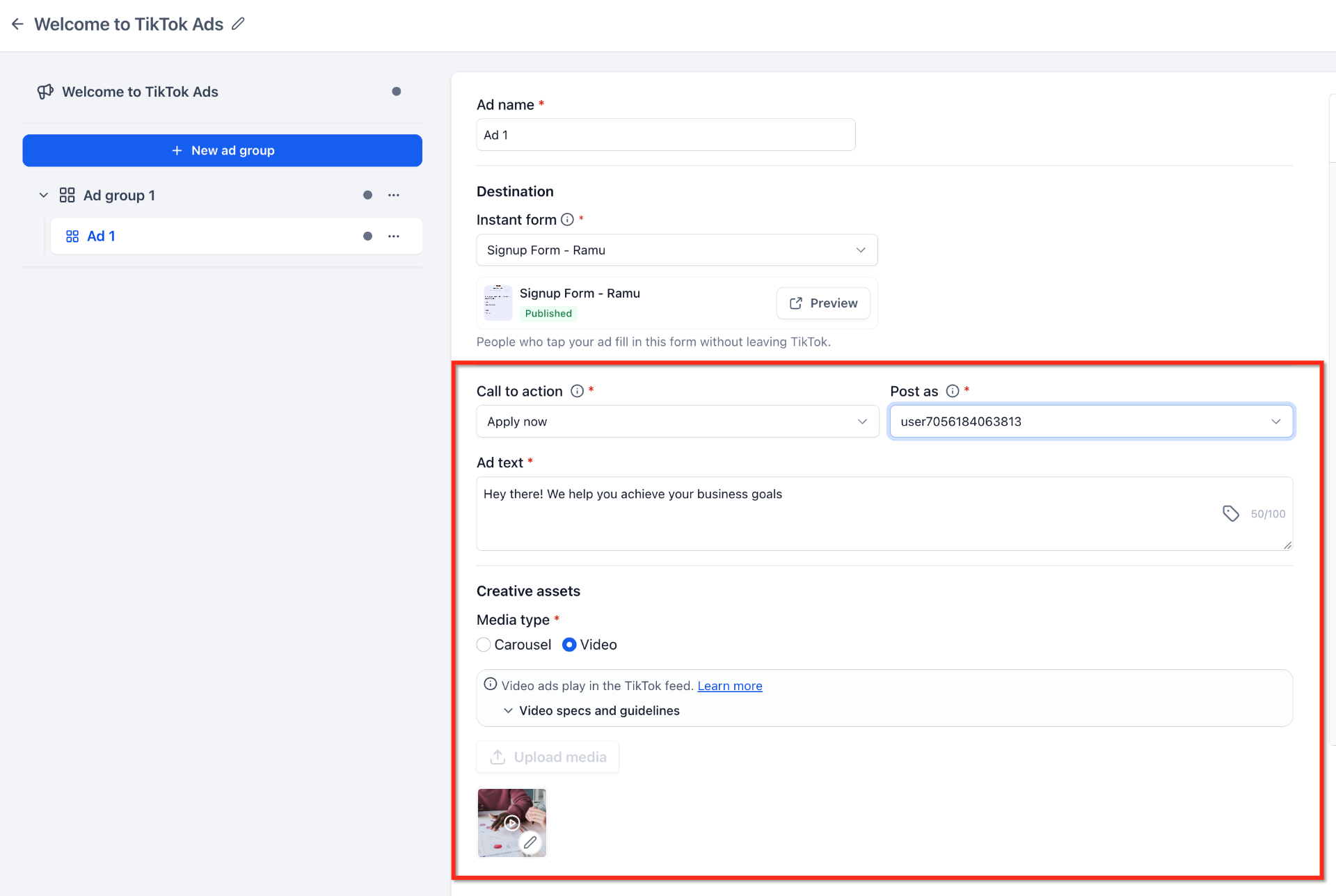
At the Ad level, configure:
Ad Name: Enter a descriptive name for the advertisement.
Destination: Select the appropriate lead-generation destination.
Instant Form: Choose an existing published form when using Instant Forms.
Call to Action: Select an available action that matches your offer, such as Apply Now.
Post As: Choose the available TikTok account identity.
Ad Text: Enter the message you want to display with the advertisement.
Creative Assets: Upload the selected image carousel or video.
Live Ad Preview
The live preview allows advertisers to inspect how their creative appears in supported TikTok placements before publishing.
Use the preview to check the media, text, TikTok identity, and call-to-action button.
The preview may offer different display options based on the selected creative format and available placement.
TikTok Campaign Management and Reporting
Campaign management and reporting tools help advertisers monitor ongoing advertising activity and make adjustments without switching between platforms. Once a TikTok campaign has been published through Chat To Clients CRM, it becomes available within the existing Ad Manager campaign management experience.
Managing Published Campaigns
TikTok campaigns created through Chat To Clients CRM appear in the Campaigns table.
Supported campaign actions include:
Edit: Modify supported campaign settings.
Pause: Temporarily stop campaign delivery.
Resume: Restart a paused campaign.
Duplicate: Create a copy of an existing campaign configuration.
These actions allow advertisers to manage existing TikTok campaigns while keeping their advertising activities organized within Chat To Clients CRM.
Viewing TikTok Campaign Statistics
TikTok performance information is available alongside statistics for other supported advertising platforms.
To access the reporting workspace:
Navigate to Marketing → Ad Manager.
Select Statistics.
Use the available platform filters to find TikTok campaign performance.
Select the applicable campaign or reporting view.
Review the available performance information and adjust your campaign strategy as needed.
The available TikTok metrics and reporting detail may differ from those shown for other advertising platforms.
For information about Ad Manager reporting, refer to Ad Manager – Statistics of Ad Campaigns.
Important: Only TikTok campaigns created through Chat To Clients CRM are currently supported for management and reporting in Chat To Clients CRM Ad Manager. Campaigns created directly in TikTok Ads Manager are not automatically available for these Ad Manager functions.How to Set Up and Launch TikTok Lead Generation Campaigns
Connecting the correct TikTok advertising account and completing campaign configuration are essential for successfully publishing your advertisements. The setup process involves authorizing your account, defining a Lead Generation campaign, configuring the audience, creating the advertisement, and reviewing the campaign before publication.
Step 1: Connect Your TikTok Ad Account
Connect the TikTok Business Center and advertising account you want to use for campaign creation.
Log in to the appropriate Chat To Clients CRM sub-account.
Navigate to Marketing → Ad Manager.
Open Settings → TikTok → Ad Accounts.
Click Connect Account.
Sign in to TikTok when prompted.
Review and approve the requested permissions through the TikTok authorization process.
Select the appropriate Business Center.
Select the Ad Account you want to connect.
Click Save.
Once connected, the selected TikTok ad account is available for supported campaign creation and management.
Important: Each Chat To Clients CRM sub-account supports one active TikTok Business Center and ad account at a time.
Step 2: Create a TikTok Campaign
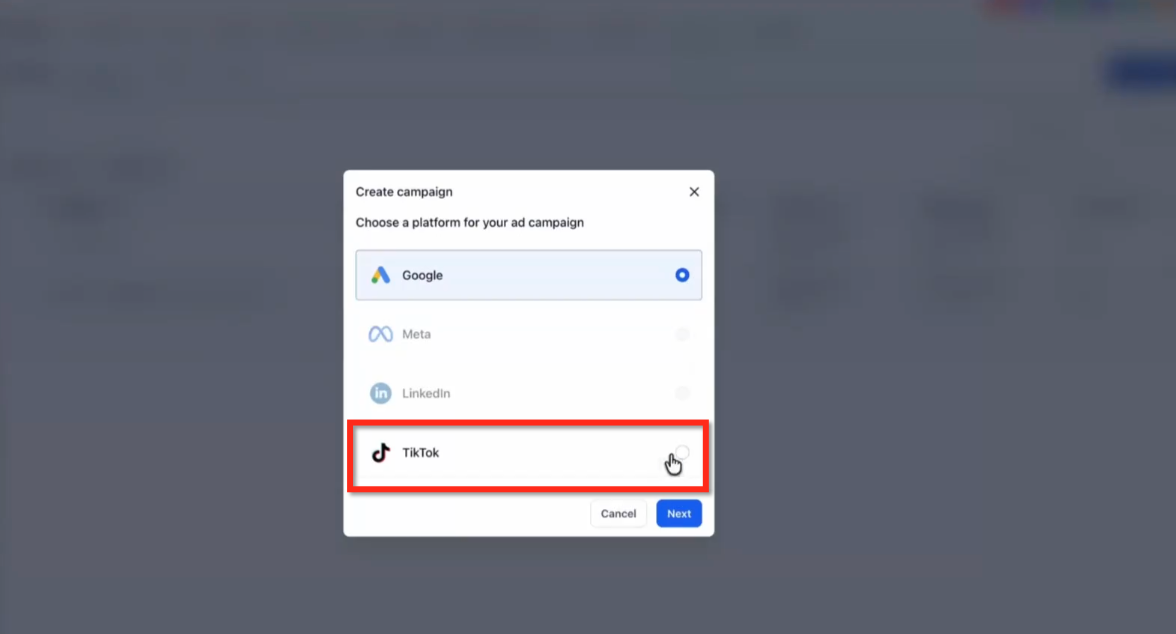
Create a new campaign and select TikTok as the advertising platform.
In Ad Manager, navigate to Campaigns.
Click Create Campaign.
Select TikTok from the available advertising platforms.
Select Start from Scratch.
Enter a descriptive campaign name.
Confirm that the campaign objective is Lead Generation.
Select any applicable Special Ad Categories if your advertisement relates to housing, employment, or credit.
TikTok currently supports Lead Generation as the campaign objective in Chat To Clients CRM Ad Manager.
Step 3: Configure the Ad Group
Ad Group configuration determines how TikTok delivers your advertisement and which audience preferences apply.
Select Ad Group 1 in the campaign navigation panel or create a new Ad Group.
Choose the supported lead-generation destination, such as Instant Form or Direct Messages, where prompted.
Configure the available Budget settings.
Set the appropriate Schedule.
Select the desired geographic Locations.
Configure the Minimum Age and Languages under Audience Controls.
Under Automatic Targeting Guidance, choose applicable age groups, gender preferences, and platform settings.
Add relevant interests, behaviors, or hashtag interactions where applicable.
Review the audience controls and targeting guidance carefully. Automatic targeting preferences may guide delivery without strictly limiting who sees the advertisement.
Step 4: Configure the Lead Destination
The lead destination determines how interested prospects submit their details or initiate conversations after interacting with the advertisement.
Option A: Instant Forms
Open the Ad configuration.
Locate the Destination settings.
Select the applicable Instant Form.
Choose an existing published TikTok Instant Form from the available dropdown.
Use Preview, if available, to confirm that the correct form is selected.
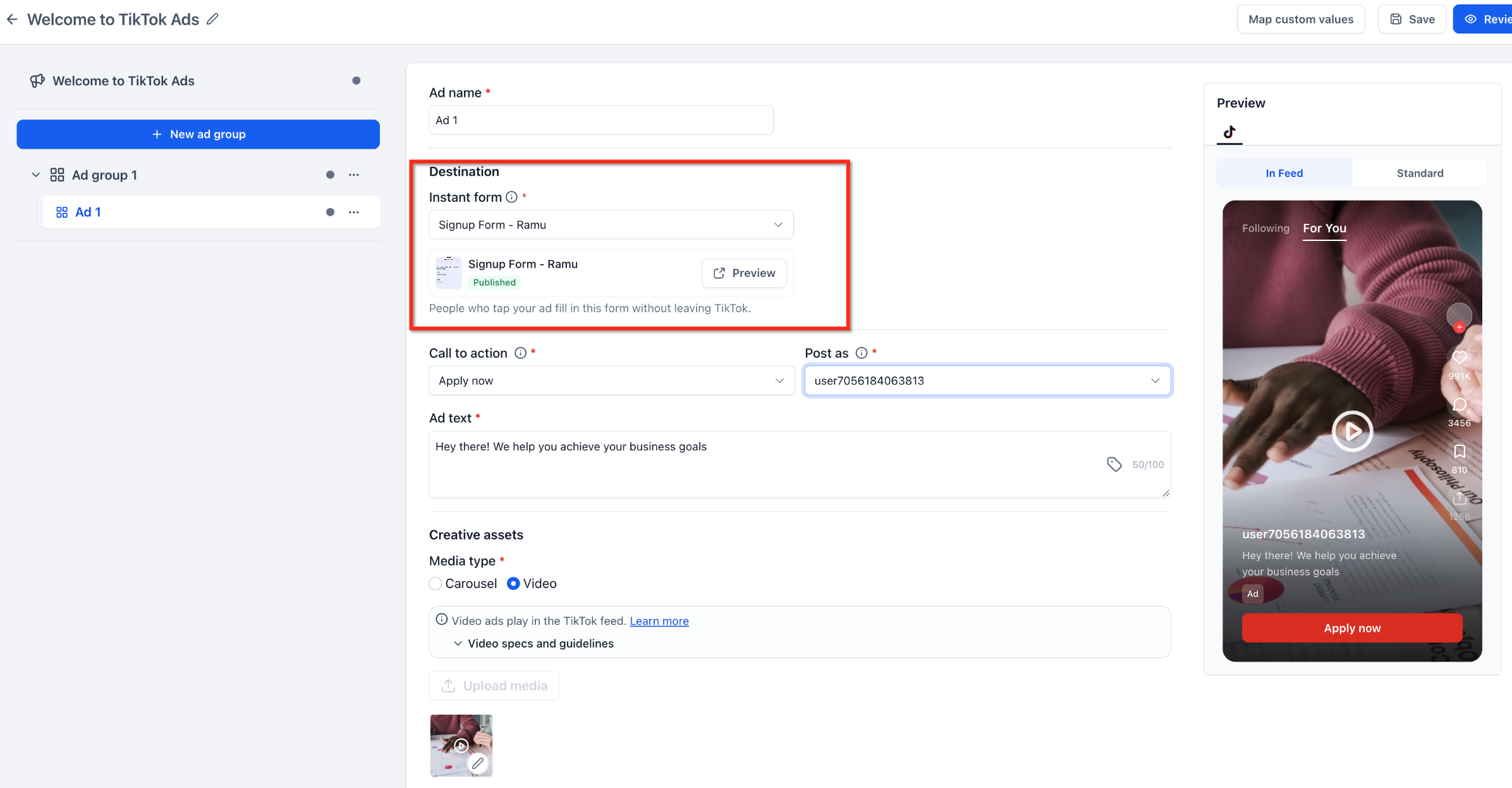
Note: Instant Forms must be created in TikTok Ads Manager before they can be selected in Chat To Clients CRM.
For CRM lead capture, verify the necessary integration and field mapping using the TikTok Lead Ads integration guide.
Option B: Direct Messages
Select the Direct Messages lead-generation destination in the applicable campaign configuration.
Choose the available messaging configuration.
Configure a message template with a greeting and suggested questions, or set up an automated chat.
If using an automated chat, configure the prompts needed to collect the intended contact information.
Review the available messaging settings before continuing.
The exact options displayed depend on the selected lead destination and available TikTok configuration.
Step 5: Create the TikTok Advertisement
Configure the creative elements that will appear in the TikTok advertisement.
Select Ad 1 or create an additional ad within the Ad Group.
Enter an Ad Name.
Confirm the selected lead destination and applicable form or messaging configuration.
Choose the desired Call to Action.
Under Post As, select the TikTok account identity.
Enter your advertising message in the Ad Text field.
Under Creative Assets, choose the media format:
Carousel: Upload multiple images.
Video: Upload one video.
Upload the creative assets.
Review the live advertisement preview.
Make sure the selected call to action is consistent with your campaign offer and lead destination.
Step 6: Review and Publish the Campaign
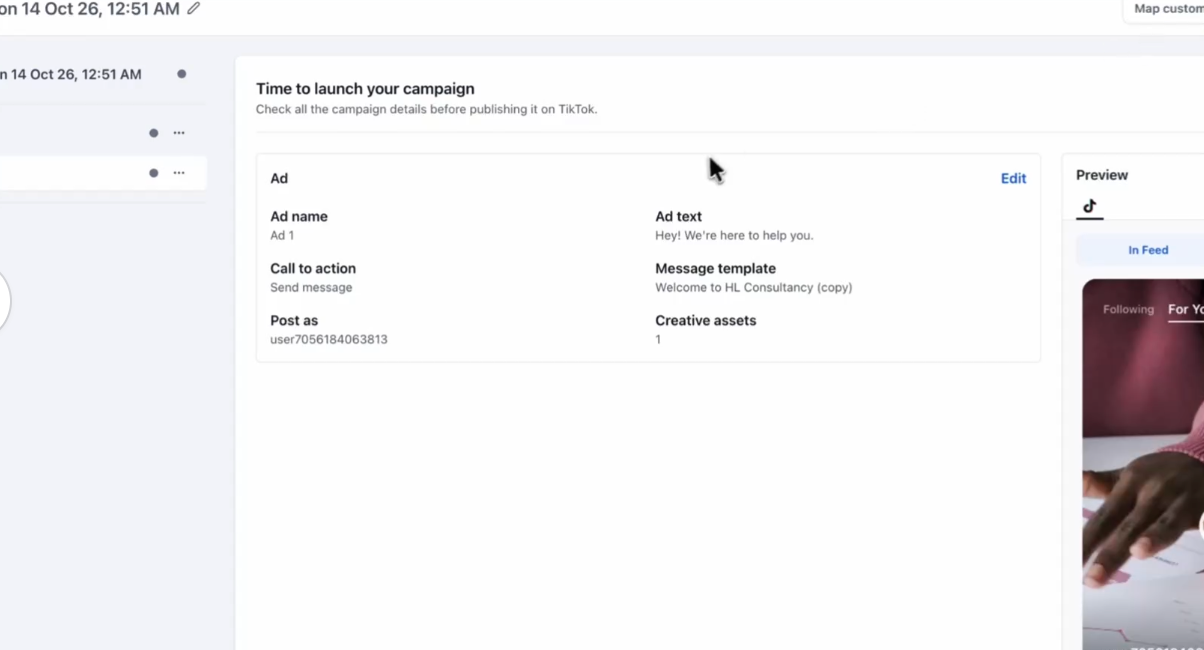
Reviewing the campaign before publication helps identify incomplete settings and configuration issues that could prevent the advertisement from being published successfully.
Review the Campaign, Ad Group, and Ad configurations.
Click Review in the campaign builder.
Check for missing required fields or validation messages.
Resolve any identified account configuration or form mapping issues.
Confirm the selected ad account, budget, schedule, targeting, destination, and creative assets.
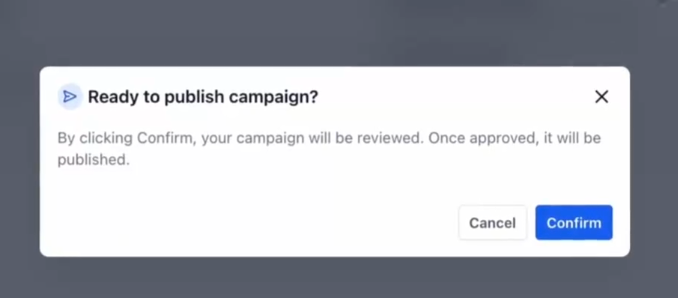
Click Publish to submit the campaign.
Step 7: Manage and Monitor the Campaign
After publishing, use the existing Ad Manager interface to manage your TikTok campaign and review its available performance statistics.
Return to Marketing → Ad Manager → Campaigns.
Locate the TikTok campaign in the Campaigns table.
Open the available campaign actions to edit, pause, resume, or duplicate the campaign.
Navigate to Statistics to review available performance data.
Adjust supported campaign settings based on your advertising goals and results.
Frequently Asked Questions
Q: Can I use an existing TikTok campaign created outside Chat To Clients CRM?
No. This release supports managing and reporting on TikTok campaigns created through Chat To Clients CRM Ad Manager. Existing campaigns created directly in TikTok Ads Manager are not currently imported for management or reporting.
Q: What happens if I connect a different TikTok ad account?
Each sub-account can have only one active TikTok Business Center and ad account at a time. If you need to change accounts, review your existing campaign requirements before switching. The effect on previously created campaigns should be confirmed before making the change.
Q: Why can't I find my TikTok Instant Form in the destination dropdown?
Make sure the form exists and is published in TikTok Ads Manager. Also confirm that you selected the intended advertising account. If the form is still unavailable, review the TikTok integration and account permissions.
Q: Can I automatically follow up with people who submit a TikTok Instant Form?
Chat To Clients CRM provides a TikTok Form Submitted workflow trigger for supported integrated forms. Configure the required CRM integration and form mapping, then test that submissions from your selected form are received before relying on automated follow-up.
Q: Can I use TikTok Direct Messages and Instant Forms within the same campaign?
Both lead destinations are supported, but the available destination configuration is selected within the campaign-building workflow. The ability to combine different destinations in one campaign should be verified against the available Ad Group settings.
Q: Do TikTok audience targeting selections guarantee that only those users will see my ads?
Not all targeting selections are strict limits. Automatic Targeting Guidance provides audience preferences that TikTok may use to guide ad delivery, whereas Audience Controls define separate targeting restrictions.
Q: Can I create TikTok campaigns from templates, Snapshots, or Social Planner posts?
Not in this initial release. These capabilities are planned as future enhancements, along with additional campaign objectives.
Q: Why might my campaign fail validation before publishing?
Validation may identify missing required fields, unmapped forms, or advertising accounts that are not ready. Review the displayed message, correct the relevant configuration, and run the review again.
Q: Will all my TikTok Ads Manager performance data appear in Chat To Clients CRM?
No. Chat To Clients CRM Ad Manager currently reports on TikTok campaigns created through Chat To Clients CRM. The available performance metrics and reporting detail depend on the supported TikTok integration.