
How to Create and Use Calculated Custom Fields
Calculated Fields in Chat To Clients CRM automatically generate values using existing CRM data. You can create formulas to calculate lead scores, track important dates, and monitor customer milestones without manually updating records. With built-in formula testing and automatic recalculation, Calculated Fields help keep your CRM data accurate and consistent.
TABLE OF CONTENTS
- What Are Calculated Fields?
- Key Benefits of Calculated Fields
- Calculation Types
- Output Types and Supported Functions
- Using Calculated Fields in Smart Lists
- How to Set Up Calculated Fields
- Frequently Asked Questions
- Related Articles
What Are Calculated Fields?
Calculated Fields are a custom field type that automatically calculates values using existing data from the same CRM record. They support Contacts, Opportunities, and Custom Objects, allowing you to calculate numeric, text, and date-based results.
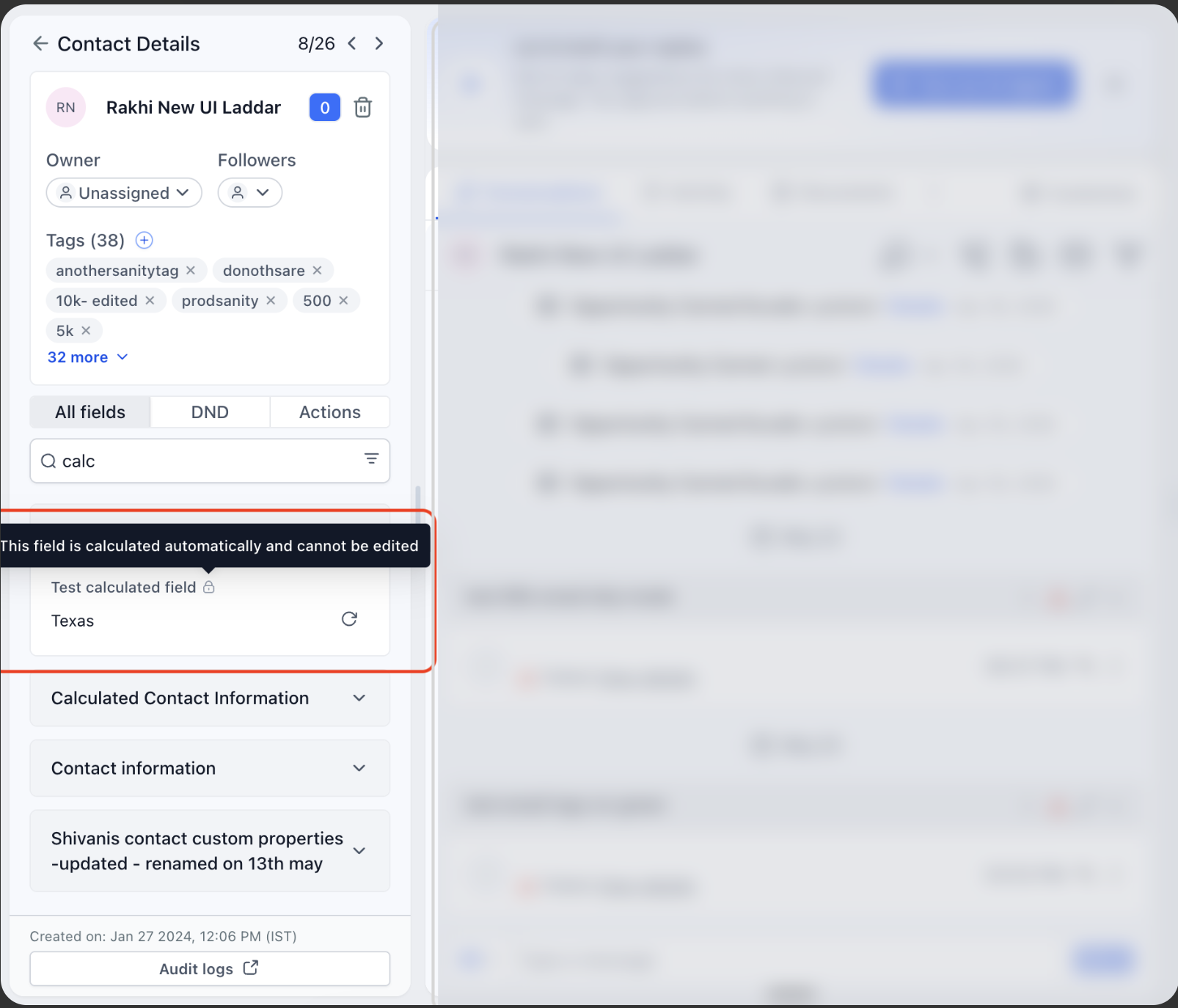
Note: Calculated Fields are read-only and automatically recalculate when dependent source fields change. Their results cannot be manually overwritten through record edits, imports, or workflows.
Key Benefits of Calculated Fields
Calculated Fields simplify data management by automatically updating information based on predefined calculations, reducing manual work and helping maintain consistent records.
- Automatic Calculations: Keep calculated values accurate and up to date as source fields change, without manual updates.
- Flexible Calculations: Perform math, text, date, and conditional calculations, including time-based tracking.
- Reliable Results: Test formulas before saving and protect calculated values from manual changes.
- Smart List Integration: Display calculated values as columns and filter contacts using supported fields.
Calculation Types
Chat To Clients CRM provides four calculation types for different business needs. Choose a calculation based on whether you want to create a custom expression or measure time between important dates.
| Calculation Type | Description | Example |
|---|---|---|
| Custom Formula | Calculate values using mathematical operators, functions, and conditional logic. | Calculate lead scores or combine text fields. |
| Time Between | Measure the duration between two date fields. | Time between lead creation and conversion. |
| Time Since | Track the time elapsed since a selected date. | Days since the last purchase. |
| Time Until | Calculate the time remaining until a selected date. | Days until contract renewal. |
Custom Formula
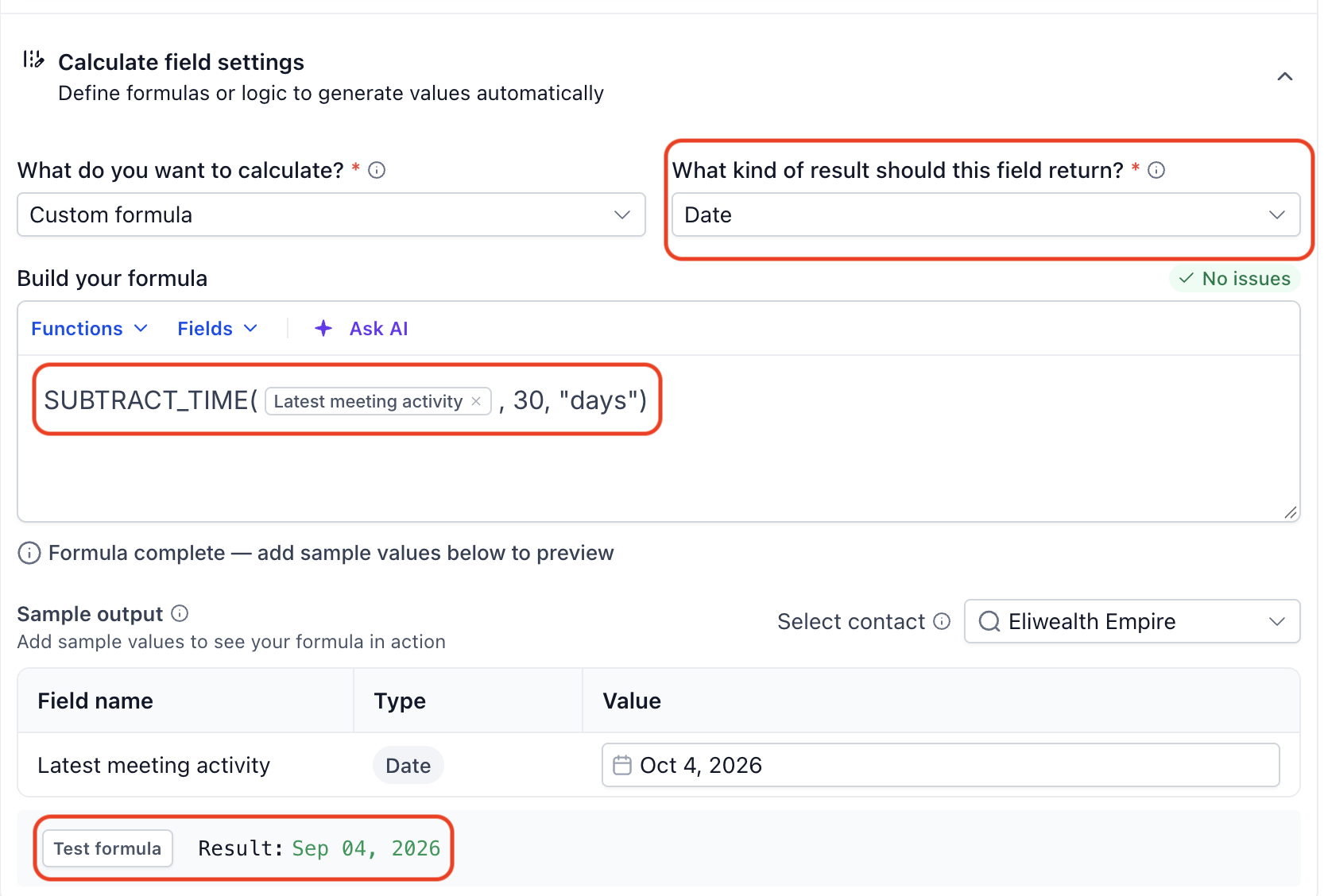
Create calculations using mathematical operators, text functions, date functions, or conditional logic. Use the Formula Builder to insert existing CRM fields and functions, or Ask AI to help generate a formula.
Time Between
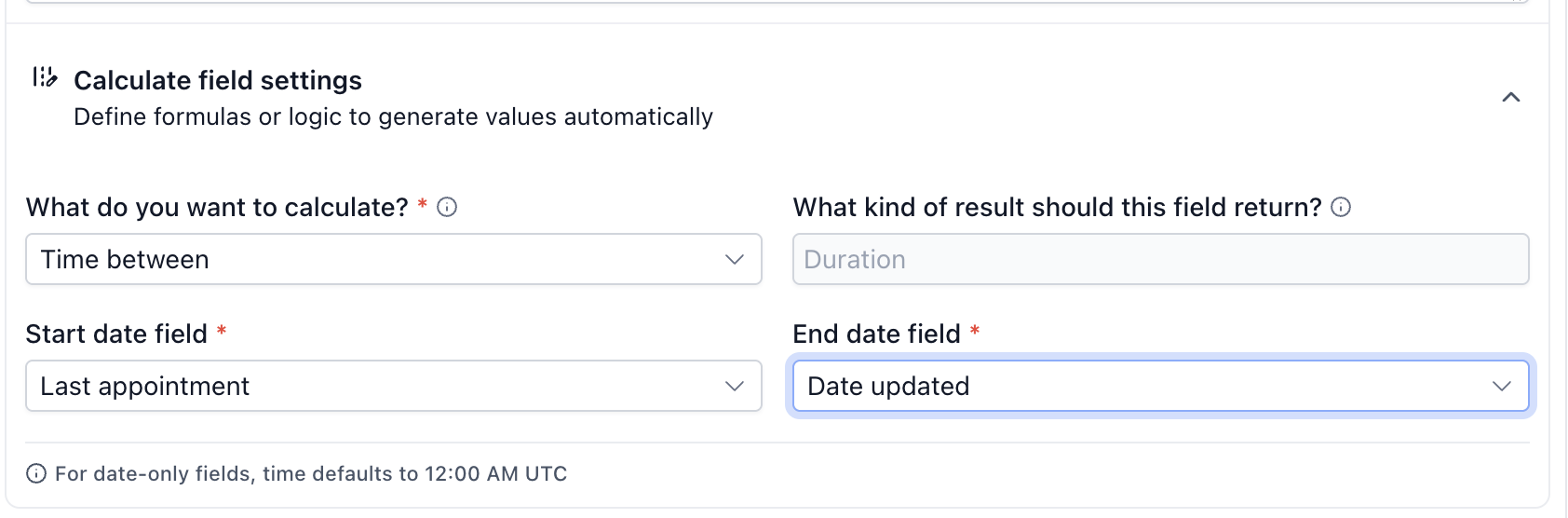
Select a Start Date Field and an End Date Field to calculate the duration between them.
Time Since
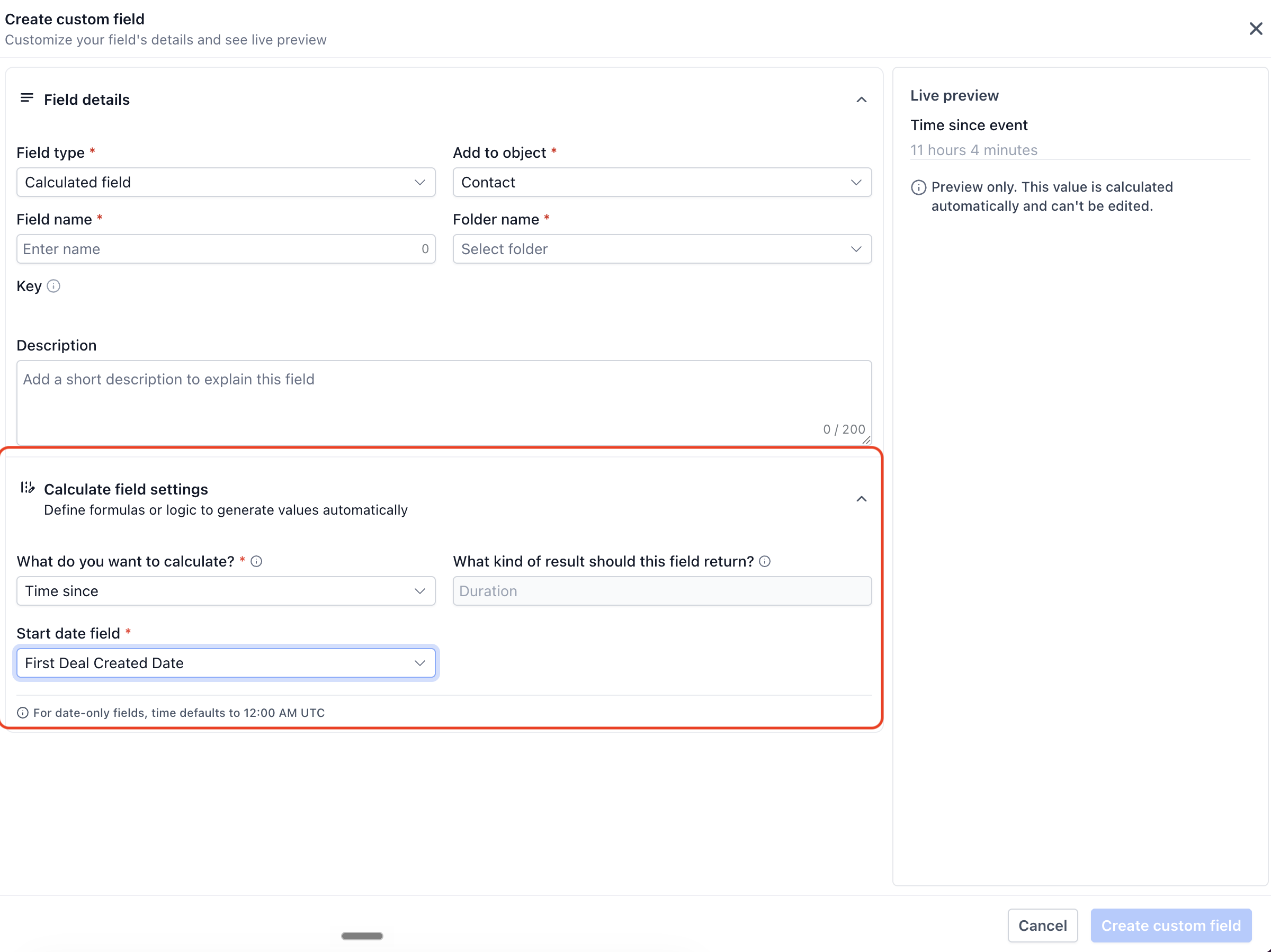
Select a Start Date Field to calculate the time elapsed from that date.
Time Until
Select an End Date Field to calculate the remaining time until that date.
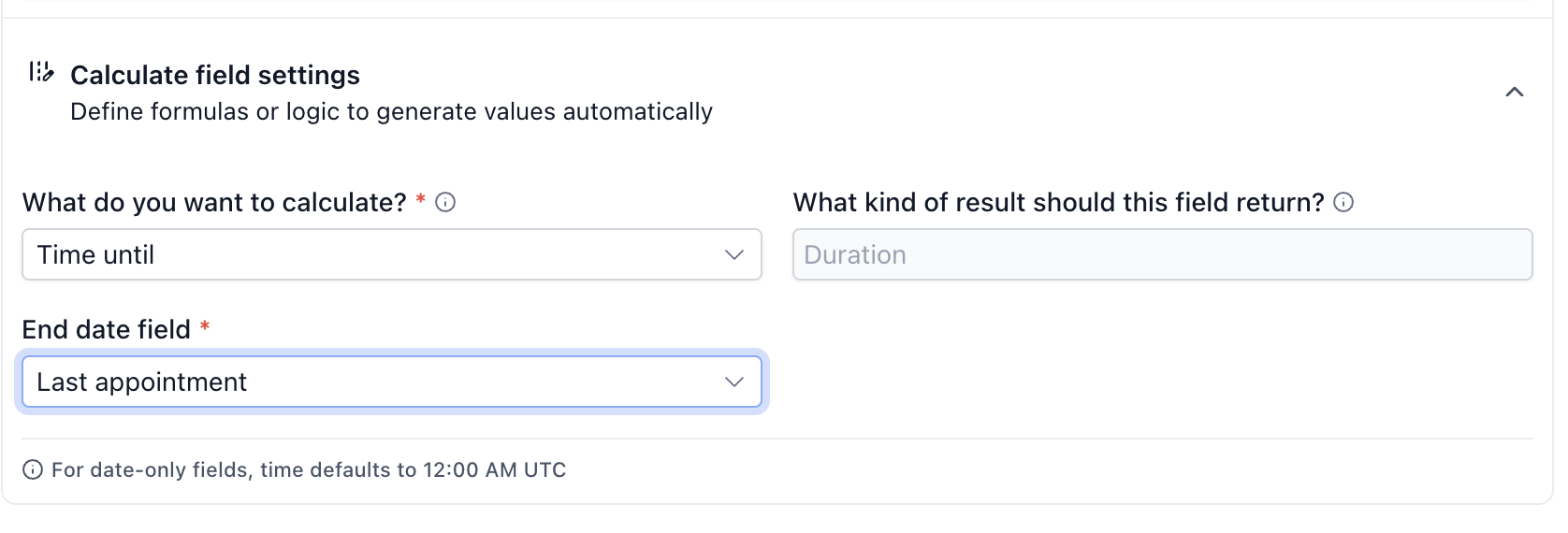
Note: Date-only fields default to 12:00 AM UTC for time calculations.Output Types and Supported Functions
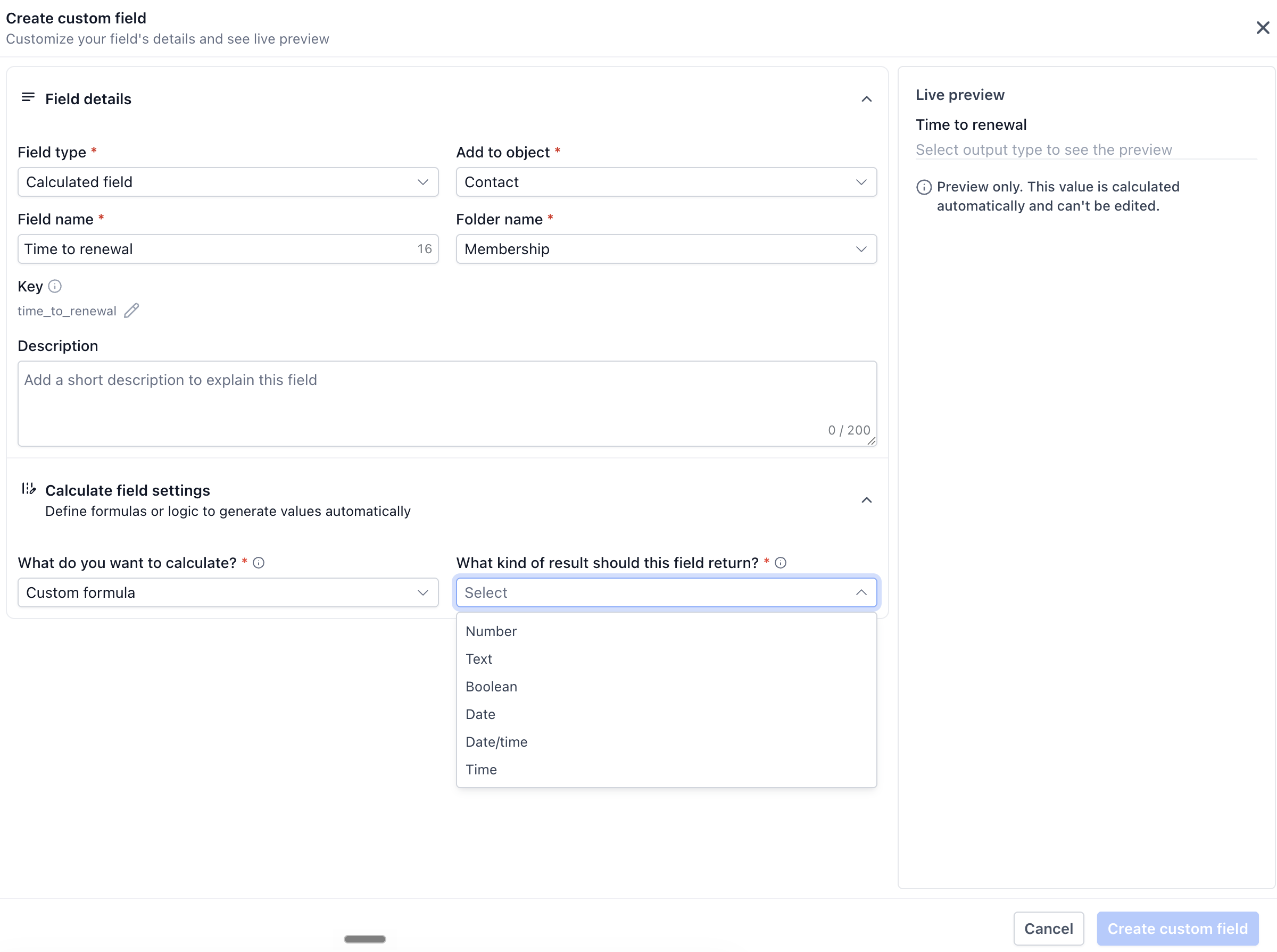
Calculated Fields support multiple output types and built-in functions, allowing you to control how results are calculated and displayed.
Output Types
| Output Type | Description |
|---|---|
| Number | Numeric values such as totals, averages, and scores. |
| Boolean | True or false results based on conditions. |
| Text | Combined, transformed, or formatted text. |
| Date | Calendar date results. |
| Date/Time | Results containing both date and time. |
| Time | Returns a time value without a calendar date, such as 10:30 AM. |
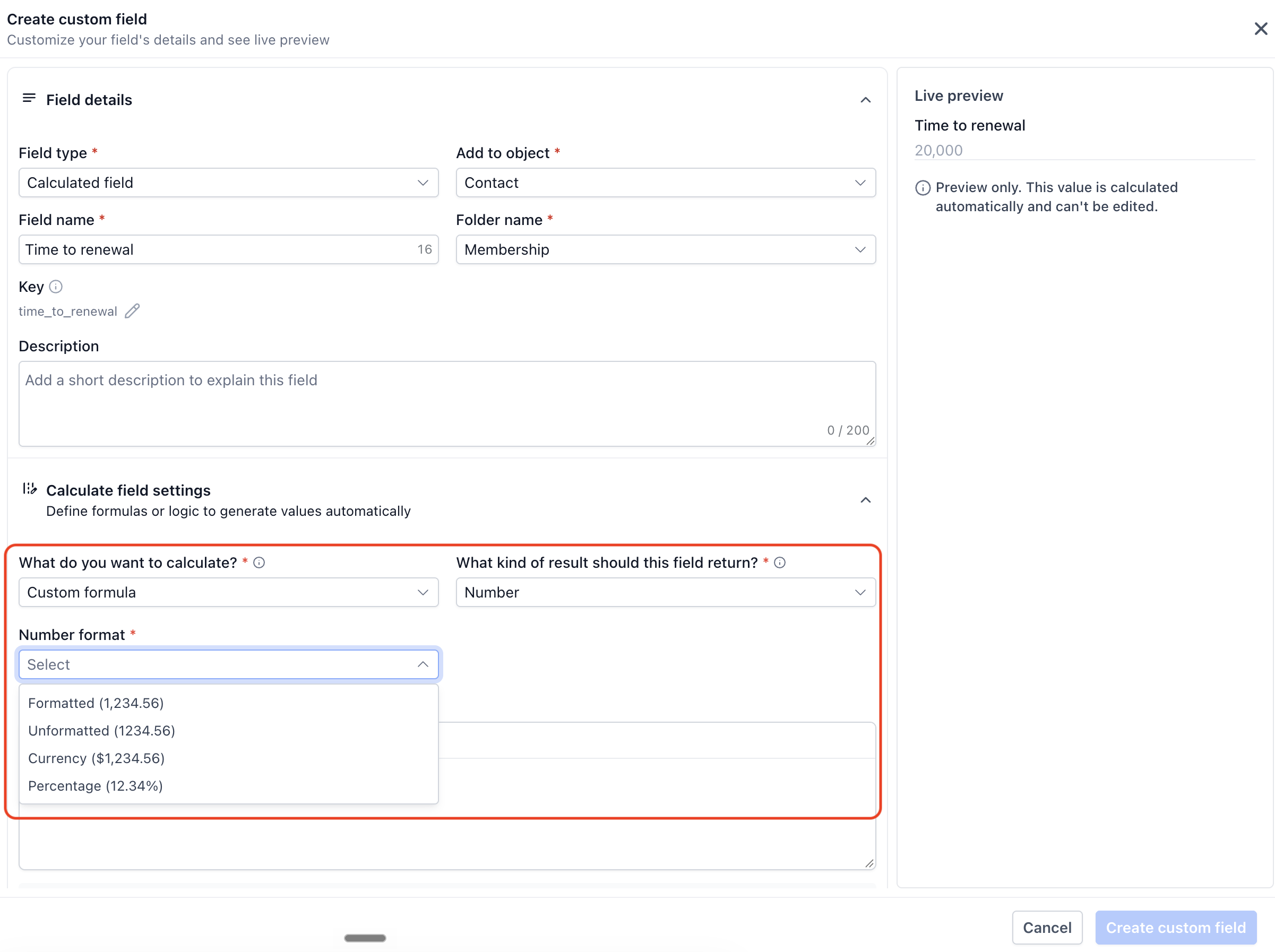
For Number outputs, you can choose Formatted, Unformatted, Currency, or Percentage. Time-based calculation types automatically use a Duration output.
Supported Functions
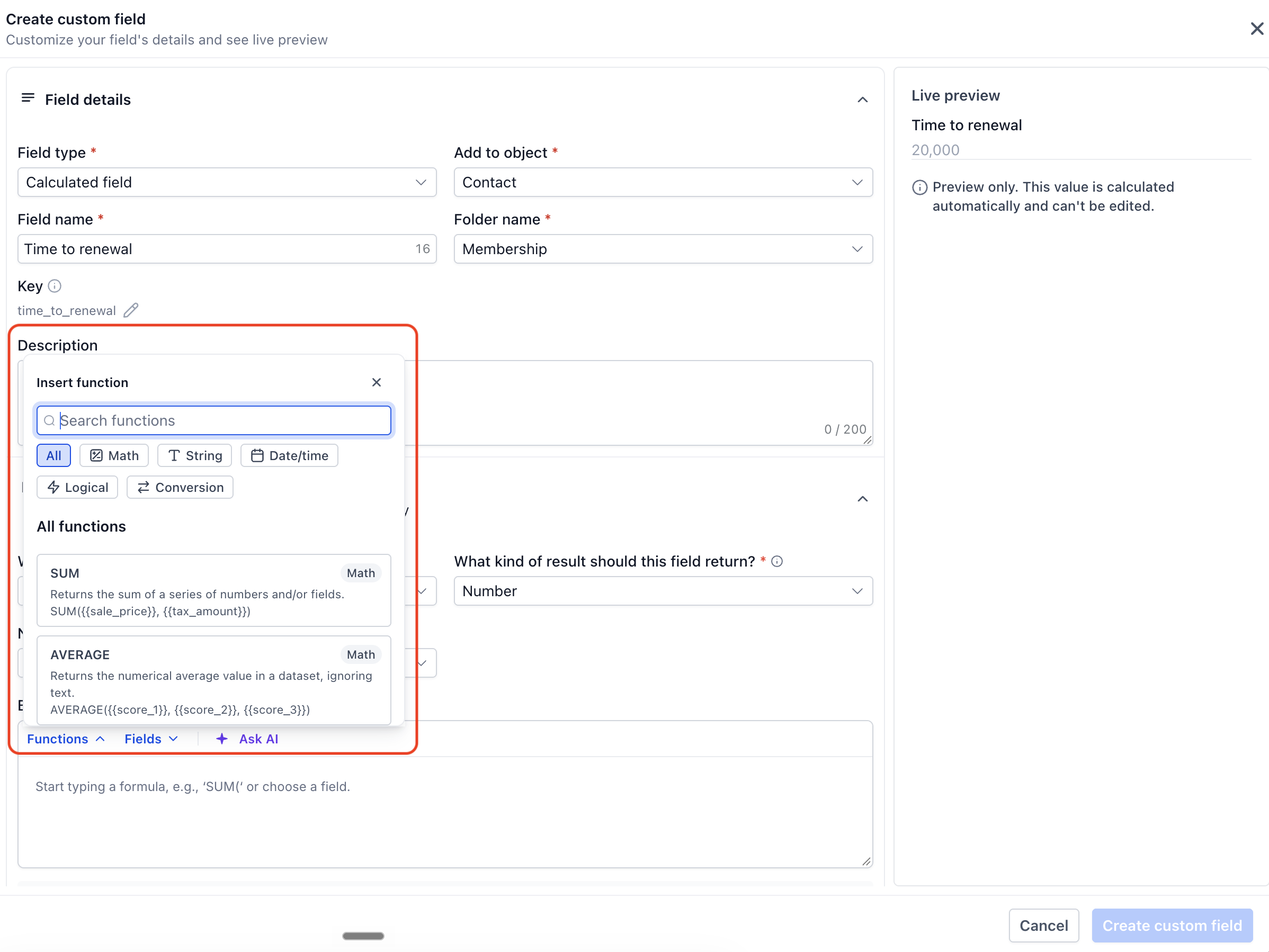
The Formula Builder includes functions for different calculations.
| Category | Supported Functions |
|---|---|
| Math | SUM, AVERAGE, ROUND, MIN, MAX, ABS |
| Text | CONCAT, UPPER, LOWER, TRIM, LEFT, RIGHT, REPLACE |
| Date/Time | ADD_TIME, YEAR, MONTH, DAY, WEEKDAY |
| Logic | IF, AND, OR, IS_KNOWN |
The Formula Builder also provides a Conversion category and Ask AI, which helps generate formulas from natural-language instructions.
Using Calculated Fields in Smart Lists
Calculated Fields can be displayed as columns in Contact Smart Lists, allowing you to view computed information alongside other contact details. Supported calculation types can also be used as filters for more precise segmentation.
| Calculation Type | Smart List Column | Smart List Filter |
|---|---|---|
| Custom Formula | Yes | Yes, where supported |
| Time Between | Yes | Yes, where supported |
| Time Since | Yes | No |
| Time Until | Yes | No |
Important: Time Since and Time Until fields can be displayed as Smart List columns but cannot be used as filters.
To manage columns or filters, navigate to Contacts → Smart Lists and configure the relevant Smart List.
For additional filtering options, see Advanced Filters in Smart Lists.
How to Set Up Calculated Fields
Creating a Calculated Field involves selecting the field type, configuring the calculation, and validating the result. Testing formulas before saving helps ensure that the generated values match your requirements.
Navigate to Custom Fields: Go to Settings → Custom Fields, select the CRM object, and click Create Field.
Select the Field Type: Choose Calculated and enter the Field Name, Folder, and other required field details.
Choose a Calculation Type: Under Calculate Field Settings, select Custom Formula, Time Between, Time Since, or Time Until.
Configure the Calculation: For Custom Formula, select the output type and build a formula using Functions, Fields, or Ask AI; for time-based calculations, select the required date fields.
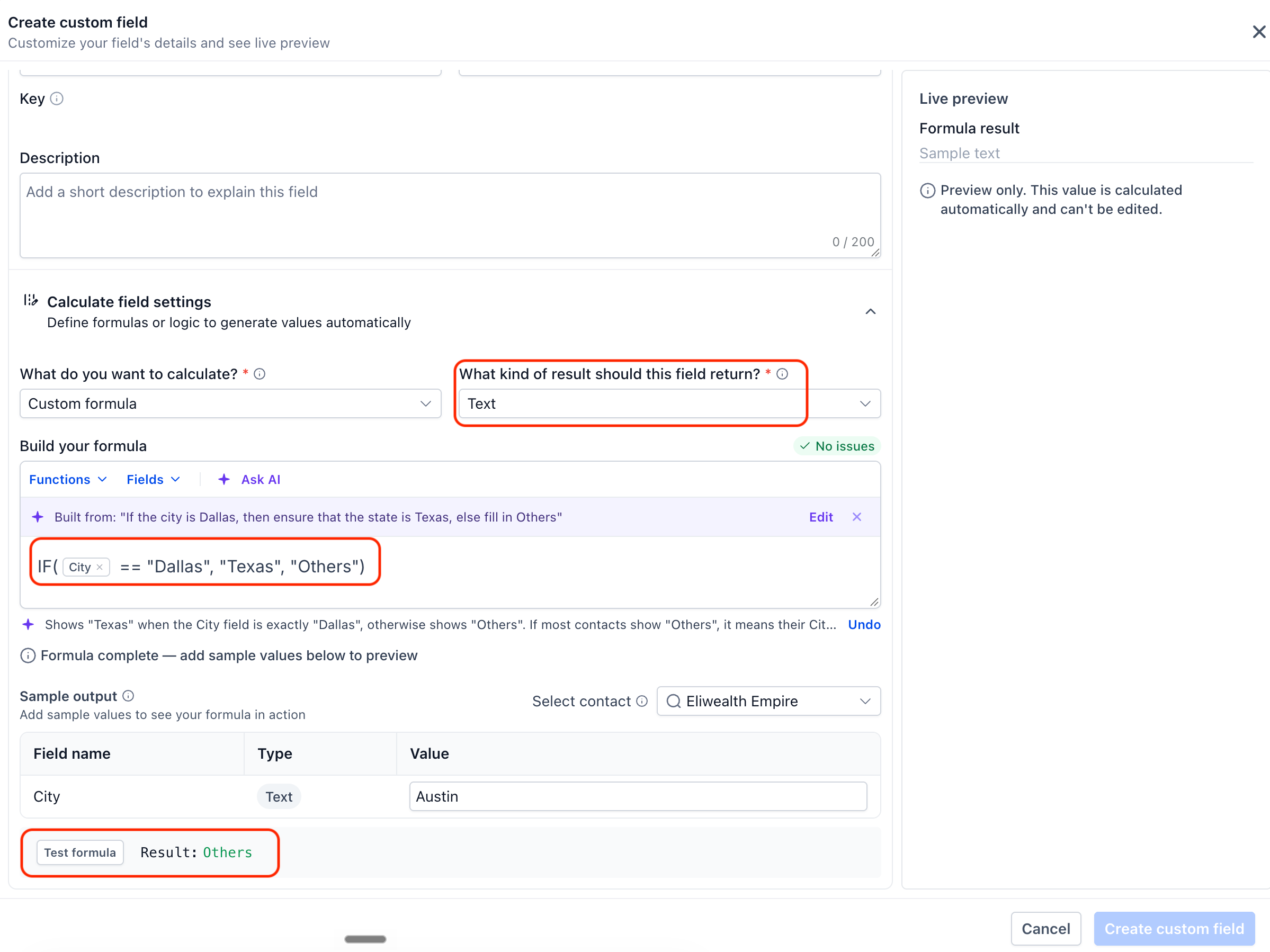
Test and Preview: For Custom Formula, enter sample values, click Test Formula, review any errors, and check the Live Preview.
Save the Field: Click Create Custom Field to save the configuration and display the calculated, read-only value on the corresponding CRM record.
Frequently Asked Questions
Q: Do Calculated Fields require workflows to update their values?
No. Calculated Fields automatically recalculate when their dependent source fields change, without requiring workflows.
Q: Why is my formula returning an incorrect result even though validation passes?
Formula validation checks for errors, but the calculation may still produce unexpected results. Verify the source fields, selected output type, and formula logic, then use Test Formula with sample values.
Q: Why is my time-based calculation showing a different duration than expected?
Date-only fields default to 12:00 AM UTC when calculating durations. Check the selected date fields and their values to ensure the calculation uses the intended dates.
Q: Can Ask AI create a formula for me?
Yes. You can describe the calculation you want using Ask AI in the Formula Builder. Review the generated formula and test it with sample values before saving.