
Two-Way Campaign Sync in Ad Manager (Meta Ads)
Meta Ads two-way sync lets you import existing supported Meta campaigns into Chat To Clients CRM Ad Manager and keep eligible changes updated across both platforms. Manage campaign settings, monitor performance, and choose which campaigns to sync without rebuilding them. Learn how to enable synchronization, adjust preferences, and manage imported campaigns.
TABLE OF CONTENTS
- What is Meta Ads Two-Way Sync?
- Campaign Synchronization Options
- Campaign Origin and Visibility in Ad Manager
- Synchronization Timing and Manual Refresh
- How to Enable Sync for a New Meta Ad Account
- How to Enable Sync for an Already Connected Meta Ad Account
- How to Refresh Synced Campaigns
- Frequently Asked Questions
- Related Articles
What is Meta Ads Two-Way Sync?
Meta Ads Two-Way Sync connects Chat To Clients CRM Ad Manager with Meta Ads Manager, allowing supported campaign information to stay synchronized across both platforms. This gives advertisers the flexibility to create or manage campaigns in either platform while maintaining a centralized view of their advertising activity in Chat To Clients CRM.
When you connect a Meta ad account and configure synchronization preferences, Chat To Clients CRM automatically imports eligible existing Meta campaigns, including their supported ad sets and ads.
After synchronization is enabled:
- Campaigns created in Meta Ads Manager can appear in Chat To Clients CRM Ad Manager.
- Changes to supported campaign fields made in Chat To Clients CRM or Meta Ads Manager synchronize in both directions.
- Imported campaigns can be opened in Chat To Clients CRM's existing campaign builder for supported editing operations.
- Campaigns created in Chat To Clients CRM and campaigns imported from Meta can be viewed and monitored together.
- Synchronization runs automatically in the background, with manual refresh available when needed.
Important: Two-way synchronization applies only to campaign objectives, configurations, and fields supported by Chat To Clients CRM Ad Manager. Advanced Meta-only settings remain managed in Meta Ads Manager and are not overwritten by synchronization.Campaign Synchronization Options
Selecting the appropriate synchronization preferences helps you control which existing Meta campaigns are brought into Chat To Clients CRM. You can import all supported campaigns, focus on recently updated campaigns, or define specific statuses and time ranges that align with your advertising workflow.
Chat To Clients CRM offers three campaign synchronization options:
| Option | Description | Configuration |
|---|---|---|
| All Existing Campaigns | Syncs all eligible Meta campaigns. | No filters required. |
| Last X Days Only | Syncs eligible campaigns updated within the selected period. | Enter the number of days (e.g., 14). |
| Custom | Syncs campaigns matching selected filters. | Choose statuses (Published, Paused, In review, With issues, Rejected) and a time range (Any time or Last X days). |
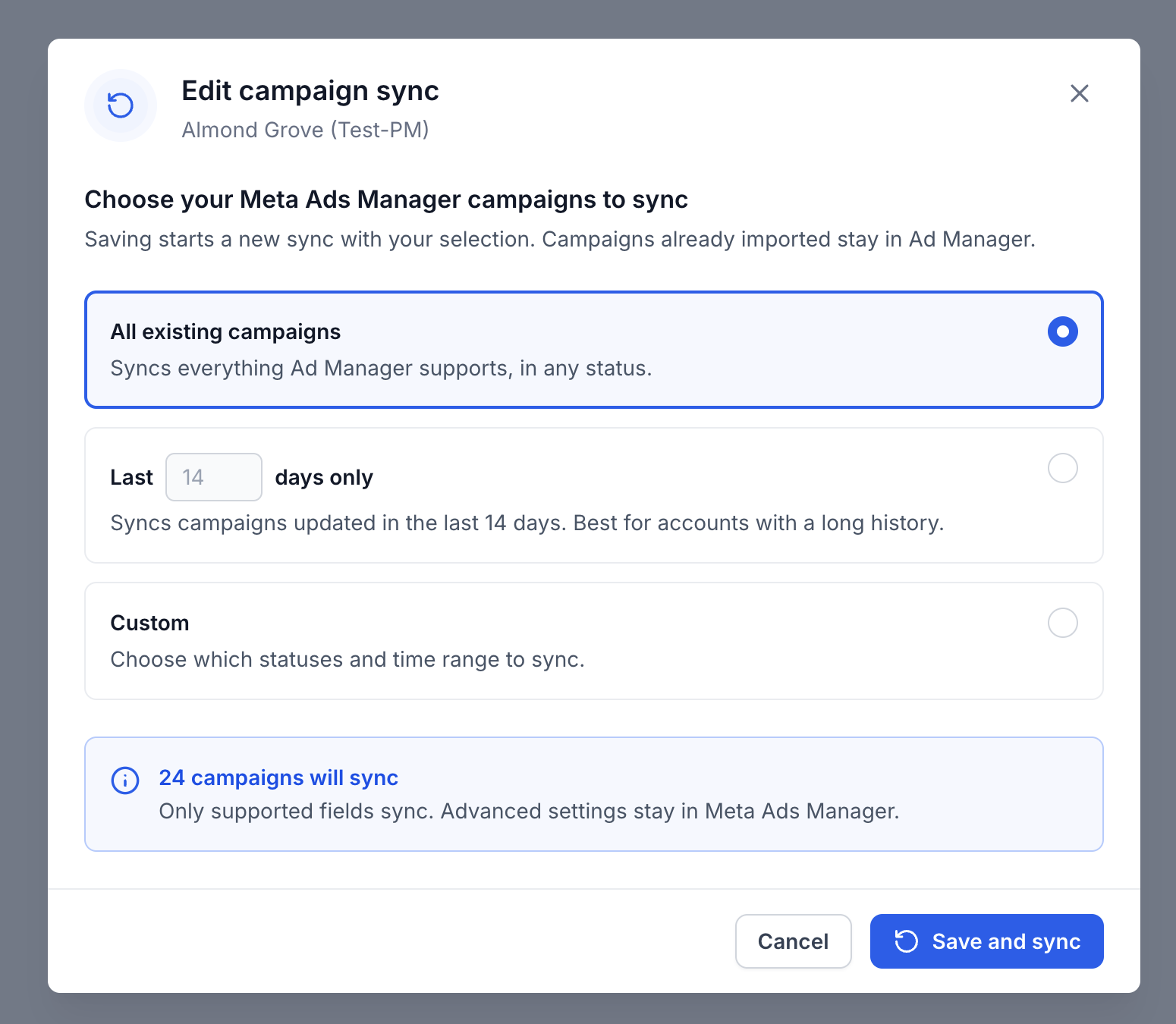
Campaign Selection Count
The synchronization window displays an estimated number of campaigns matching your selection. This helps you review the expected import scope before starting synchronization.
Unsupported campaign objectives are excluded from synchronization, even when they match your selected status and date filters.
Campaign Origin and Visibility in Ad Manager
Campaign origin indicators help you distinguish campaigns originally created in Chat To Clients CRM from those imported from Meta Ads Manager. This is especially useful when multiple team members manage campaigns across both platforms and need to understand where each campaign was initially created.
Chat To Clients CRM organizes campaigns into the following views:
- All Campaigns: Displays campaigns created in Chat To Clients CRM and eligible campaigns synchronized from Meta.
- Created in Chat To Clients CRM: Displays campaigns originally created using Chat To Clients CRM Ad Manager.
- Synced from Meta: Displays campaigns originally created in Meta Ads Manager and imported into Chat To Clients CRM.
Campaigns also display an origin indicator in the campaign listing. The Created in column identifies the campaign's original platform. For campaigns imported from Meta, hovering over the Meta indicator displays additional information about their origin.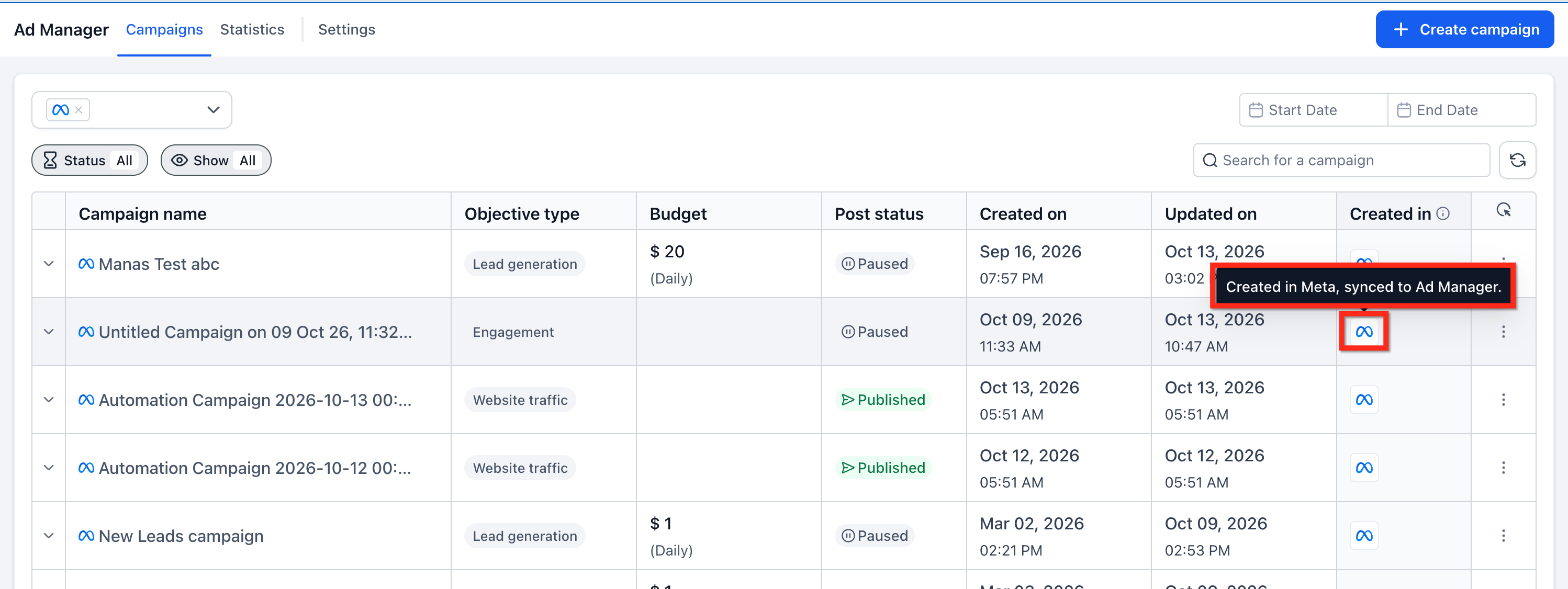
Note: A campaign's origin badge remains unchanged, regardless of whether the campaign is later edited in Chat To Clients CRM or Meta Ads Manager.
Synchronization Timing and Manual Refresh
Automatic synchronization keeps supported campaign information updated without requiring users to manually import campaigns after every change. Because synchronization operates in the background, understanding refresh behavior helps you distinguish normal processing delays from issues that require attention.
| Method | How It Works | Action |
|---|---|---|
| Automatic Sync | Syncs supported changes near real-time, with automatic retries for failures. | No action required. |
| Manual Refresh | Pulls the latest Meta campaign updates on demand. | Ad Manager → Campaigns → Refresh. |
| Edit Sync Preferences | Syncs using updated filters while retaining previously imported campaigns. | Settings → Meta → Ad account → Edit sync settings → Save and sync. |
How to Enable Sync for a New Meta Ad Account
- Go to Marketing > Ad Manager in your Chat To Clients CRM sub-account.
- Follow the setup prompts to connect your Facebook profile and select your Meta ad account.
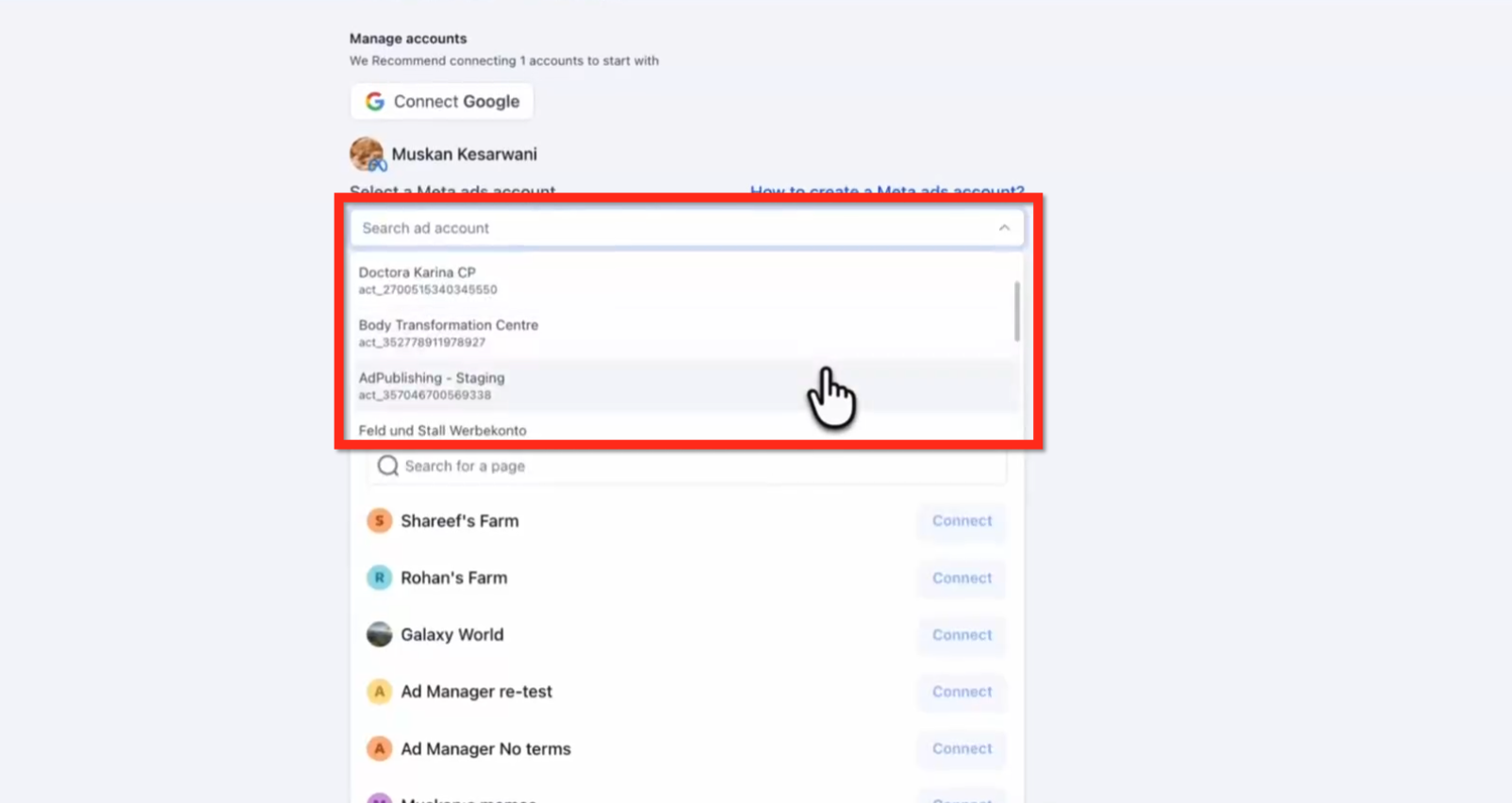
- Enable Choose which campaigns to sync.
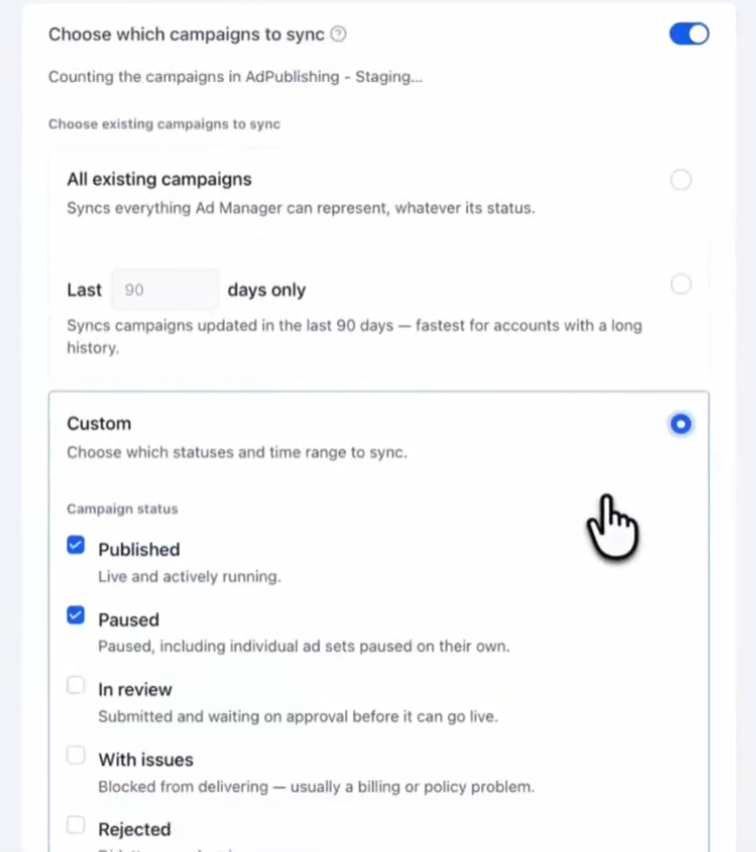
- Select which campaigns to import:
- All existing campaigns: Sync all supported campaigns, regardless of status.
- Last X days only: Sync campaigns updated within your selected number of days.
- Custom: Choose specific campaign statuses and a time range.
- All existing campaigns: Sync all supported campaigns, regardless of status.
- Connect your Facebook Page and complete the account setup.
Your selected campaigns will begin syncing automatically in the background.
How to Enable Sync for an Already Connected Meta Ad Account
If your Meta ad account is already connected, you can enable campaign sync from Ad Manager settings.
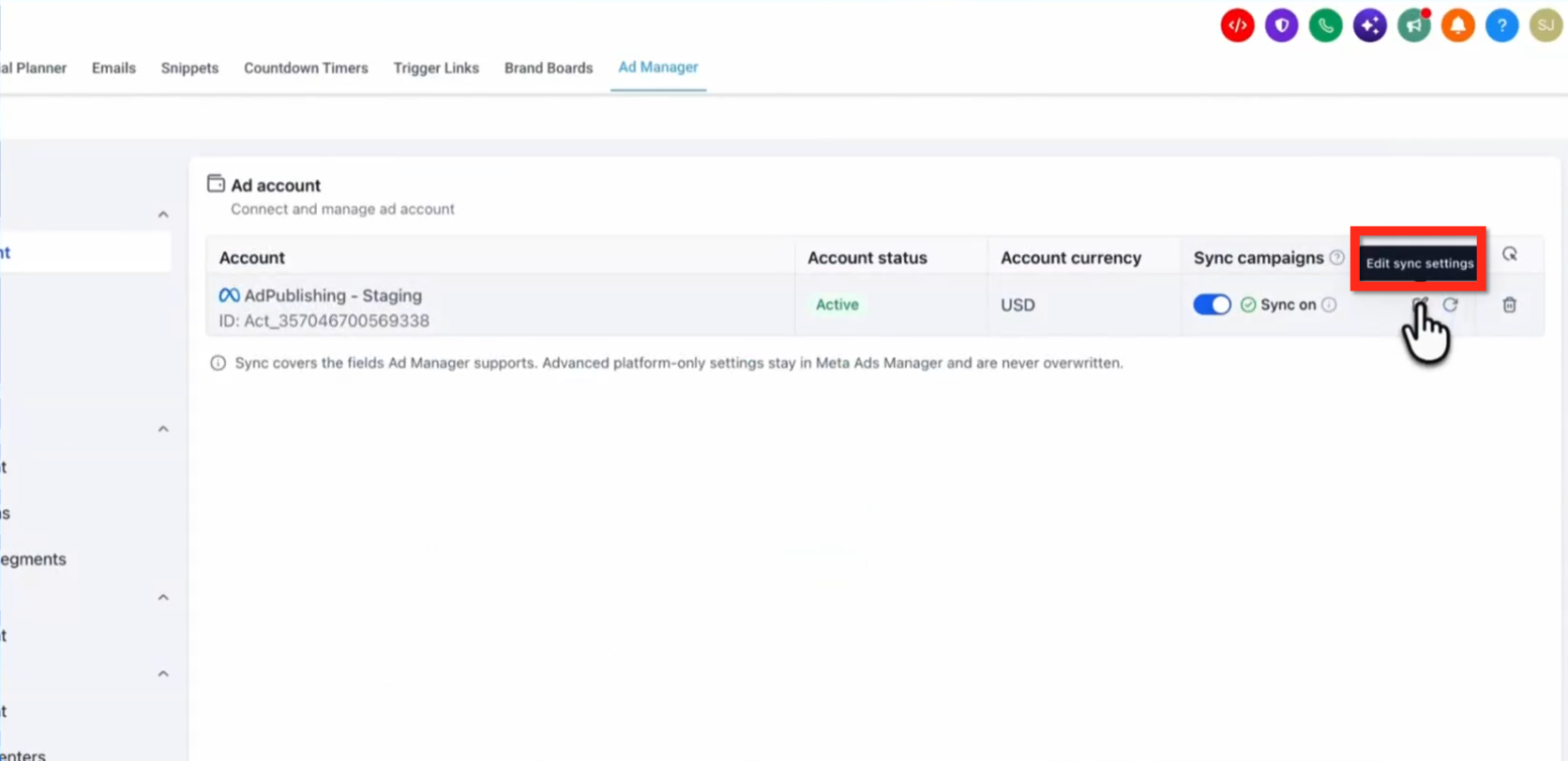
- Go to Marketing > Ad Manager > Settings > Platform settings > Meta > Ad account.
- Find your connected Meta ad account and enable the Sync campaigns toggle. Click on Edit Sync settings.
- Choose which campaigns you want to sync.
- Click Save and sync.
Chat To Clients CRM will begin importing the selected campaigns while you continue using Ad Manager.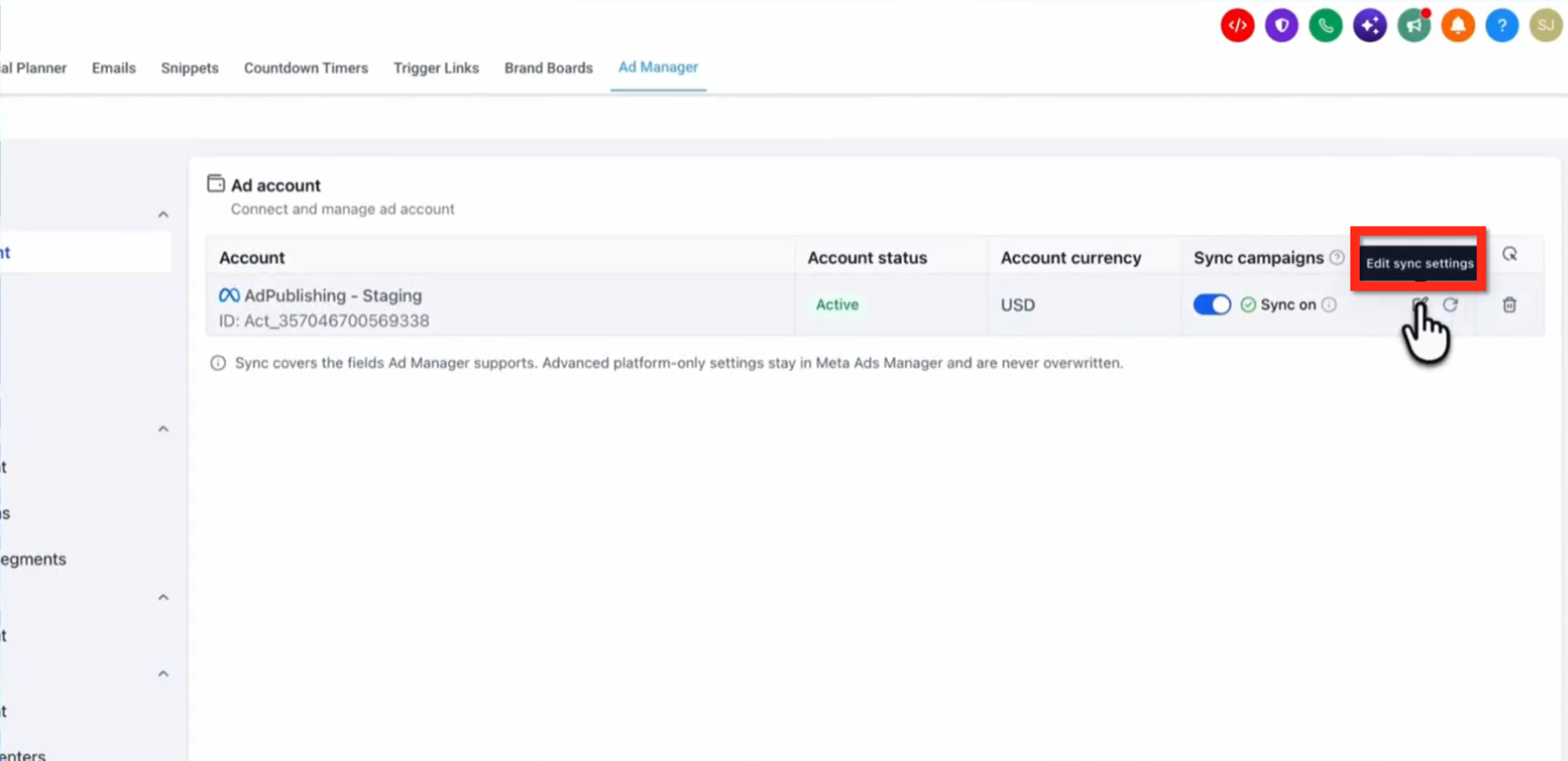
How to Refresh Synced Campaigns
- Go to Marketing > Ad Manager > Campaigns.
- Click the Refresh icon above the campaign list to pull the latest changes from Meta.
Frequently Asked Questions
Q: Why isn't one of my existing Meta campaigns appearing in Chat To Clients CRM after synchronization?
Confirm that the correct Meta ad account is connected and that the campaign matches your selected status and date filters. Campaigns with unsupported objectives are not imported. If the campaign is eligible, allow the background sync to complete and use Refresh to check for updates.
Q: Can I view performance statistics for campaigns synced from Meta?
Yes. Meta-synced campaigns appear in Chat To Clients CRM Ad Manager Statistics alongside campaigns created in Chat To Clients CRM, allowing you to monitor their performance in one place.
Q: Why are some fields unavailable when I edit an imported Meta campaign?
The campaign may contain advanced Meta configurations or settings that Chat To Clients CRM does not support for editing. Some fields are also restricted after publication. Manage unsupported settings directly in Meta Ads Manager.
Q: Does two-way campaign synchronization also support Google Ads?
No. This release provides two-way campaign synchronization for Meta Ads Manager. Google Ads two-way synchronization is planned separately and is not included in this release.