
How to Verify Emails During Contact Import in Chat To Clients CRM
Verify email addresses as part of the Contact Import process in Chat To Clients CRM to help identify invalid addresses before using them for email communication. This feature allows you to import contacts and initiate email verification in a single workflow, reducing the need for separate verification steps. You can also monitor verification progress through Bulk Actions, making it easier to maintain cleaner contact lists and improve email deliverability.
TABLE OF CONTENTS
- What is Email Verification During Contact Import?
- Key Benefits of Email Verification During Contact Import
- How Email Verification Works During Contact Import
- Tracking Email Verification Progress in Bulk Actions
- How to Enable Email Verification During Contact Import
- Frequently Asked Questions
- Related Articles
What is Email Verification During Contact Import?
Email Verification During Contact Import is a feature that allows you to initiate email verification when importing contacts into Chat To Clients CRM. By checking email addresses as part of the import process, you can identify potentially invalid addresses before using your contact lists for email campaigns and other communications.
The feature adds an optional verification checkbox to the final step of the existing Contact Import workflow.
Instead of importing contacts and initiating verification as separate tasks, you can enable both within the same process.
Once the import is initiated, you can monitor verification progress through Bulk Actions, where the process displays Processing and Completed statuses.
Important: Email verification helps identify invalid addresses but does not guarantee that every email will be delivered to the recipient's inbox.Key Benefits of Email Verification During Contact Import
Verifying email addresses as contacts enter Chat To Clients CRM helps improve data quality and reduces the effort required to prepare contact lists for email communication. By incorporating verification into the import workflow, you can identify potential problems earlier and maintain more reliable contact information.
Improved Email Deliverability: Identify invalid email addresses before using them for email communication, helping reduce potential delivery failures and bounce rates.
Cleaner Contact Lists: Identify problematic email addresses during import to maintain better contact data quality.
Simplified Import Process: Initiate contact import and email verification within the same workflow instead of managing them as separate tasks.
Reduced Manual Effort: Eliminate the need to manually initiate a separate verification process after importing contacts.
Better Sender Reputation Protection: Reduce the risk of sending emails to invalid addresses that could negatively affect your sender reputation.
Easy Progress Tracking: Monitor verification progress from Bulk Actions using Processing and Completed statuses.
How Email Verification Works During Contact Import
Email Verification During Contact Import introduces an optional verification step into the existing CSV import workflow. Understanding when this option appears and how it connects to contact import helps you prepare your contact lists for future email communication. The process follows the standard Contact Import workflow, with an additional option available before starting the import.
Email Verification Checkbox
The final step of Contact Import includes a new checkbox for enabling email verification. When selected, this checkbox allows you to initiate email verification as part of the import process.
The verification option is available during the final step of Contact Import.
You can choose to enable verification before starting the import.
Email verification is initiated as part of the same workflow.
Verification progress can be monitored from Bulk Actions.
Email Verification and Contact Import
Email verification and CSV validation serve different purposes.
Email Verification: Checks email addresses to help determine whether they appear valid for email communication.
For example, an email address may have the correct format but still belong to an inactive or nonexistent mailbox.
Email verification provides an additional check beyond basic CSV formatting.
For more information about preparing contact data, refer to Importing Contacts using a CSV File.
Tracking Email Verification Progress in Bulk Actions
Bulk Actions provides a centralized location for monitoring contact import operations and their progress. When you enable email verification during import, you can use Bulk Actions to follow the verification process and identify when processing has finished.
Accessing Bulk Actions
After initiating a contact import with email verification enabled, navigate to:
Contacts → Bulk Actions
Locate the relevant action to monitor its status.
The verification process displays the following statuses:
| Status | Description |
|---|---|
| Processing | Email verification is currently being processed. |
| Completed | The verification process has finished. |
Reviewing Bulk Action Details
The Bulk Actions interface also provides general reporting tools for tracking contact import operations. Depending on the action type, you may be able to:
View the status of a bulk operation.
Filter actions by status, type, user, or date.
Select Show Stats to review available job statistics.
Download available import error logs for troubleshooting.
Note: The availability and format of verification-specific results may differ from standard contact import statistics. A
Completed status confirms that processing has finished; it does not mean every email address passed verification.
For additional information, refer to Bulk Actions For Contacts & SmartLists.
How to Enable Email Verification During Contact Import
Enabling email verification during Contact Import allows you to initiate verification while uploading contact information into Chat To Clients CRM. Preparing your CSV file correctly, mapping the appropriate fields, and selecting the verification option help ensure that the import is configured as intended.
Follow these steps to enable email verification when importing contacts.
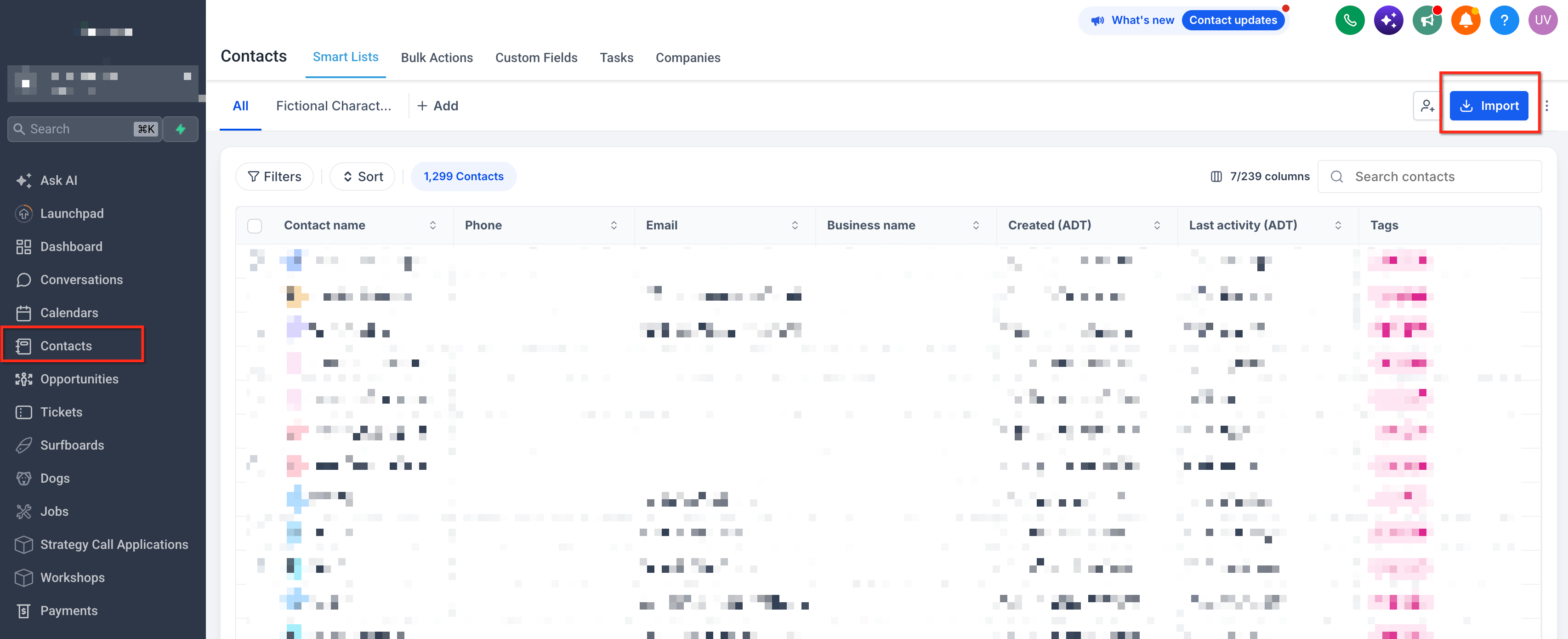
Step 1: Navigate to Contacts
Log in to your Chat To Clients CRM sub-account.
Select Contacts from the left navigation menu.
Click Import to open the import workflow.
Step 2: Select Contacts to Import
Upload the CSV file containing your contact information.
Select the appropriate import option, such as creating new contacts or updating existing contacts.
Continue to the field mapping step.
Note: Chat To Clients CRM supports CSV files for contact imports. Ensure your file includes the contact information you want to import and that the Email column contains the appropriate email addresses.
For more information about CSV preparation, refer to Importing Contacts and Opportunities via CSV.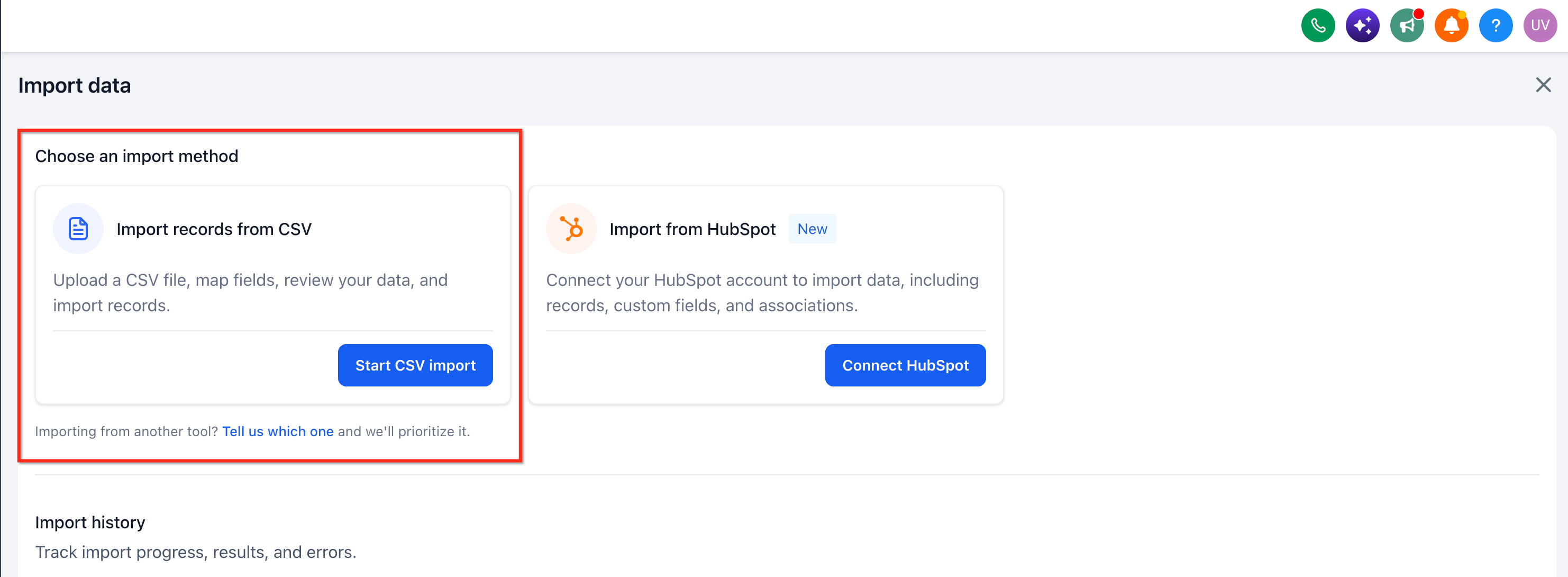
Step 3: Map Your Contact Fields
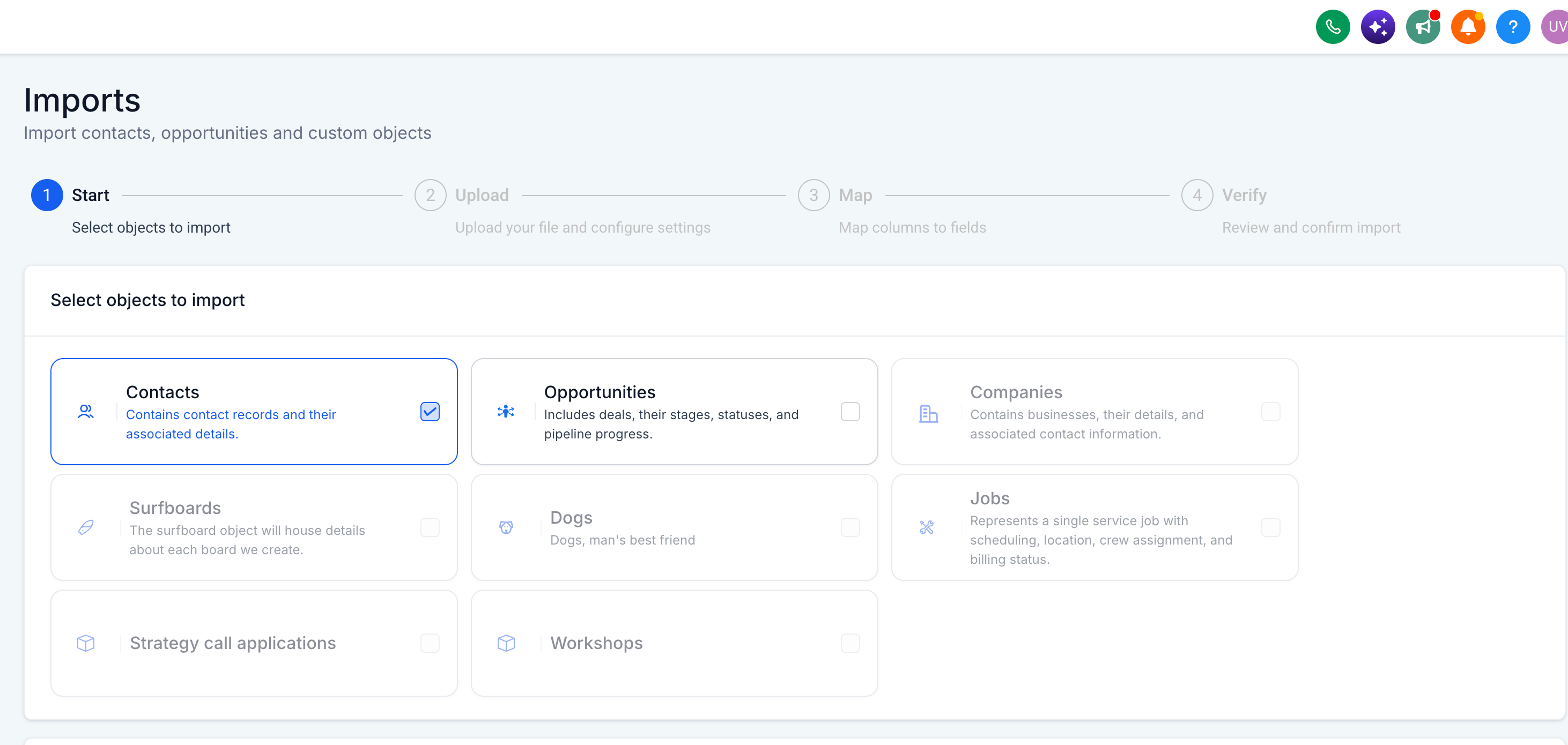
Review the columns detected from your CSV file.
Map each column to the corresponding Chat To Clients CRM contact field.
Ensure the column containing email addresses is mapped to Email.
Review the remaining field mappings.
Continue to the final import step.
Correct field mapping helps Chat To Clients CRM place imported information in the appropriate contact fields.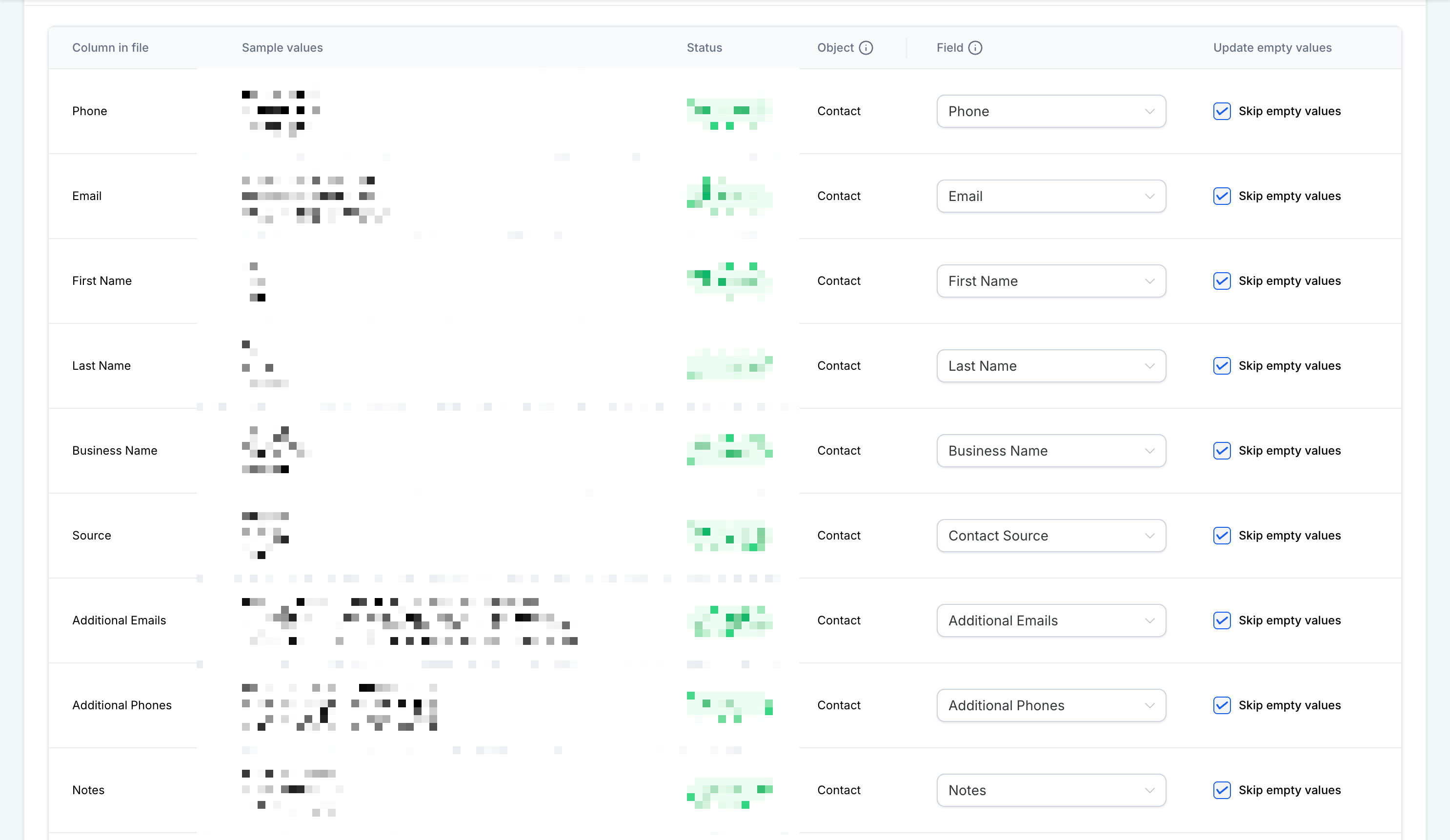
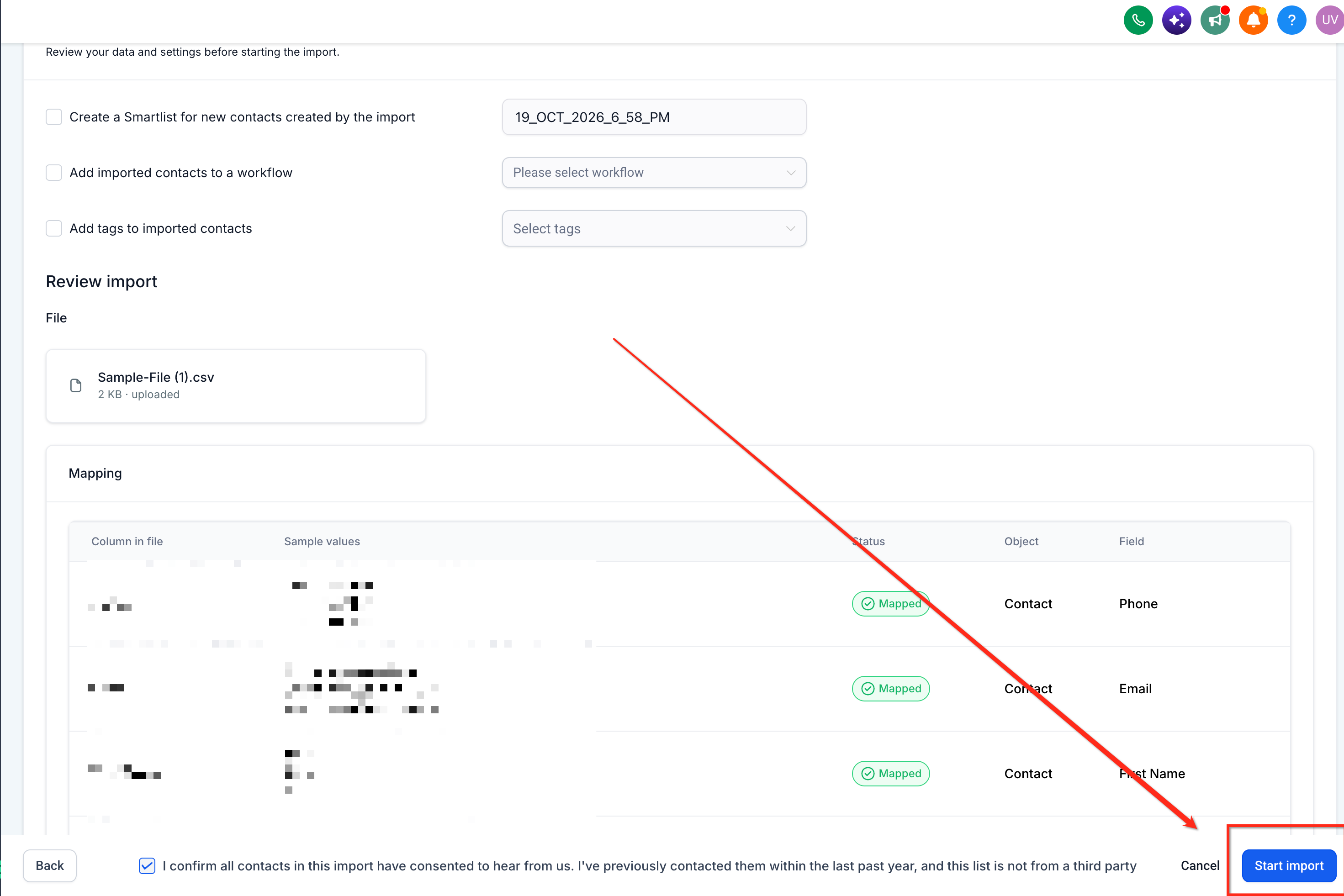
Step 4: Enable Email Verification
On the final step of Contact Import, review your import settings.
Locate the new email verification checkbox.
Select the checkbox to enable email verification during the import process.
Review any remaining import preferences and required confirmations.
Selecting this option allows Chat To Clients CRM to initiate email verification as part of the contact import workflow.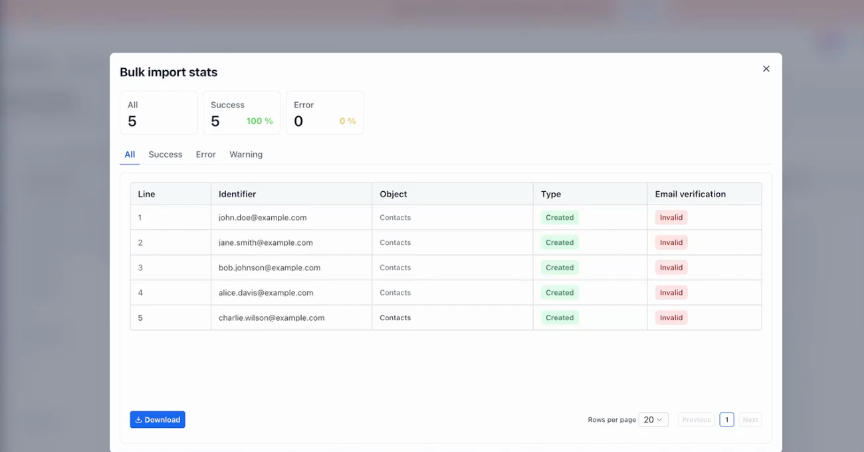
Step 5: Start the Contact Import
Confirm that your import settings are correct.
Click the button to begin the bulk import.
Allow the import and verification processes to proceed.
Email verification is initiated as part of the import workflow when the option is enabled.
Step 6: Monitor Verification Progress
Navigate to Contacts → Bulk Actions.
Locate the corresponding import-related verification action.
Review its status.
Monitor the action until its status changes from Processing to Completed.
Review any available action details or results.
Important: Completing verification does not guarantee that every verified address will accept email. Continue following email deliverability best practices, including obtaining appropriate consent before communicating with imported contacts.Frequently Asked Questions
Q: Does email verification guarantee that an email will reach the recipient's inbox?
No. Email verification helps identify potentially invalid addresses, but delivery also depends on factors such as sender reputation, recipient mail server settings, spam filters, and mailbox availability.
Q: Is Email Verification During Contact Import the same as automatic verification before sending an email?
No. Import-time verification is initiated from the Contact Import workflow. Chat To Clients CRM also supports email verification before sending and verification through workflow actions. These are different entry points for checking email addresses.
Q: Does enabling email verification during import automatically remove invalid contacts?
The release does not specify whether invalid email addresses cause contacts to be excluded from the import or whether the contacts remain available with their verification results. Do not assume that enabling verification automatically removes invalid contacts.
Q: Can I download a report of valid and invalid email addresses after verification?
Bulk Actions provides statistics and downloadable error logs for supported operations. The availability of a dedicated report for the new import-time email verification process has not been confirmed.
Q: Can I use email verification when importing both Contacts and Opportunities?
Chat To Clients CRM supports importing Contacts and Opportunities together. However, the release only confirms the new verification option within Contact Import, and does not specifically establish its availability for combined imports.