
Create and Manage Rental Add-ons
How to Create and Manage Rental Add-ons in Chat To Clients CRM
Rental Add-ons let businesses offer optional extras, such as pet fees, equipment rentals, or insurance, alongside rental bookings. Admins can create reusable add-ons, configure pricing and taxes, and assign them to multiple listings. Customers can select extras during booking and see updated totals, while admins can manage add-ons on existing reservations.
TABLE OF CONTENTS
- How to Create and Manage Rental Add-ons in Chat To Clients CRM
- What Are Rental Add-ons?
- Key Benefits of Rental Add-ons
- Rental Add-on Pricing and Settings
- How to Create and Manage Rental Add-ons
- Assigning Add-ons to Rental Listings
- Add-ons During the Booking Process
- Add-on Taxes
- Frequently Asked Questions
- Related Articles
What Are Rental Add-ons?
Rental Add-ons are optional products or services that customers can include with their rental reservations. They are managed through a global catalog and can be reused across multiple rental listings, eliminating the need for separate listings or manual charges.
For example, a vacation rental may offer a BBQ station or heated pool, while a vehicle rental may offer GPS navigation or equipment insurance.
Note: Add-ons are always optional. For mandatory charges, use Additional fees instead.
Key Benefits of Rental Add-ons
Rental Add-ons simplify how businesses offer and manage optional services while giving customers more flexibility and transparency during booking.
- Centralized Management: Create reusable add-ons and assign them to multiple listings.
- Flexible Pricing: Configure fixed or percentage-based charges with quantity limits.
- Additional Revenue: Offer optional equipment and services alongside rentals.
- Transparent Booking Experience: Display available extras, update totals in real time, and include itemized charges on invoices.
Rental Add-on Pricing and Settings
Add-ons support different pricing methods, quantities, and visibility configurations. Choosing the correct settings ensures customers are charged accurately and can select only the extras intended for their bookings.
Pricing Options
| Pricing Type | Description | Example |
|---|---|---|
| Flat – Per booking | Fixed charge per selected add-on quantity, regardless of rental duration. | BBQ Station: $150/booking |
| Flat – Per booking unit | Charged for each hour, day, week, or month based on the listing's booking unit. | Heated Pool: $299/month |
| Percentage | Percentage of the base rental subtotal before taxes. | Insurance: 10% of $1,000 = $100 |
Important: Percentage charges do not compound with other add-ons or fees. Maximum quantity is a fixed cap per booking, regardless of the number of rental units.
Add-on Settings
| Setting | Description |
|---|---|
| Name | Required name displayed to customers and on invoices. |
| Description / Image | Optional information displayed on the booking page. |
| Status | Set to Active or Inactive. |
| Price | Choose Flat amount or Percentage and enter the value. |
| Pricing unit | Choose Per booking or Per booking unit for flat pricing. |
| Maximum quantity | Maximum units selectable per booking; does not track inventory. |
| Hide from booking page | Keeps the add-on available to admins but hidden from customers. |
| Tax | Configure applicable taxes after saving the add-on. |
Note: Add-on status and visibility settings determine whether customers or admins can select an add-on for new bookings without affecting previously recorded selections.

• Active: Available for new bookings unless hidden from the customer-facing booking page.
• Hidden: Not visible to customers but available to admins when creating or editing bookings.
• Inactive: Unavailable for new bookings but remains assigned to existing listings. Previously selected add-ons remain on existing bookings.
How to Create and Manage Rental Add-ons
The global catalog lets admins create, search, edit, and organize rental extras from one location. Add-ons can be assigned to multiple listings and updated centrally, reducing repetitive configuration.
Create a Global Add-on
- Navigate to Calendars → Calendar Settings → Rentals → Add-ons.
- Click + New add-on.
- Enter the Name, optional Description, and Image.
- Select Active or Inactive.
- Choose the Price type, enter the amount, and configure the Pricing unit if applicable.
- Set the Maximum quantity and customer visibility.
- Optionally select the listings to associate with the add-on.
- Click Create add-on.
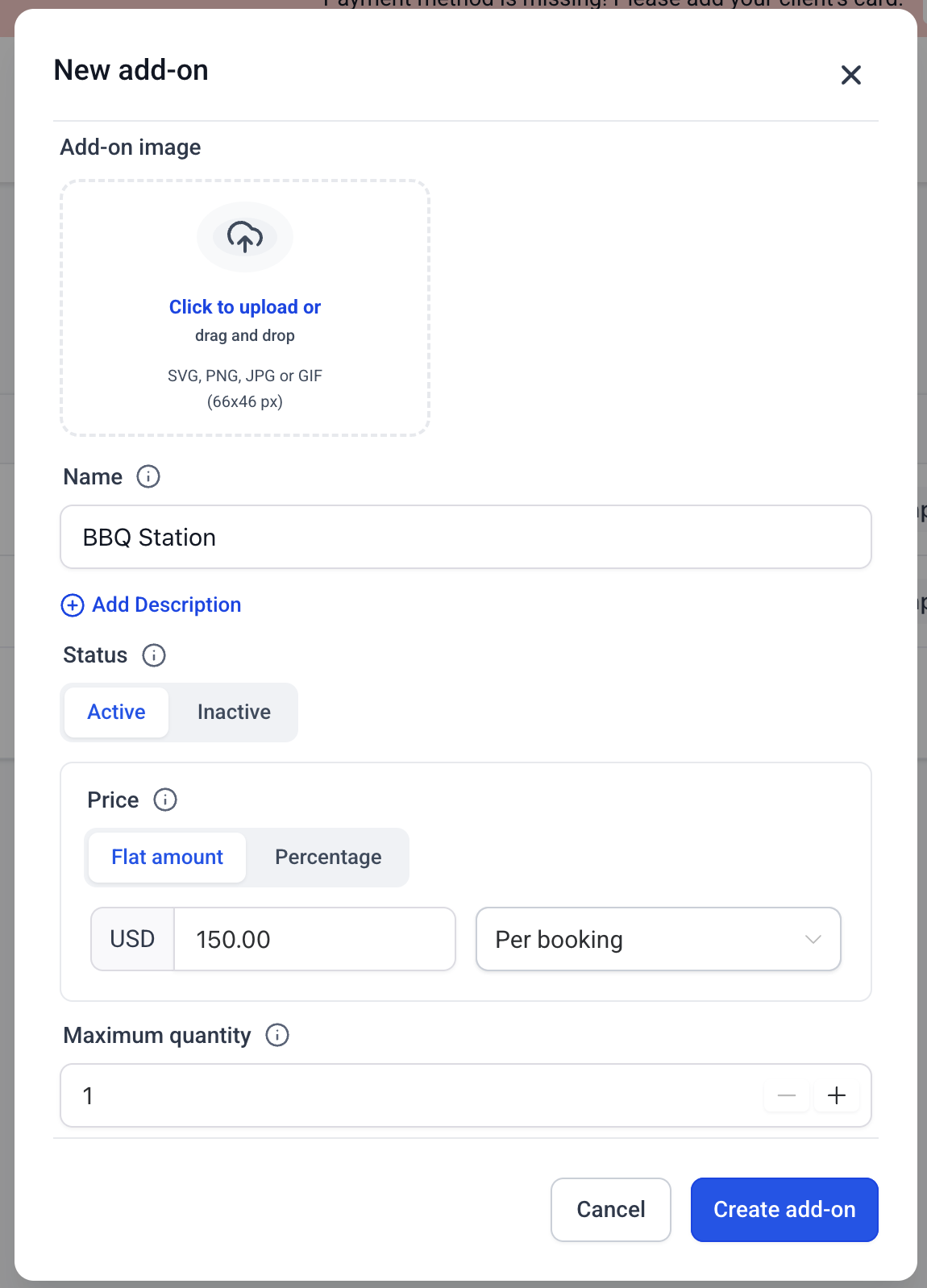
Tip: The image uploader supports SVG, PNG, JPG, and GIF formats and recommends an image size of 66 × 46 pixels.Manage Existing Add-ons
Created add-ons appear in the catalog with their names, prices, pricing units, assigned listings, statuses, and available actions.
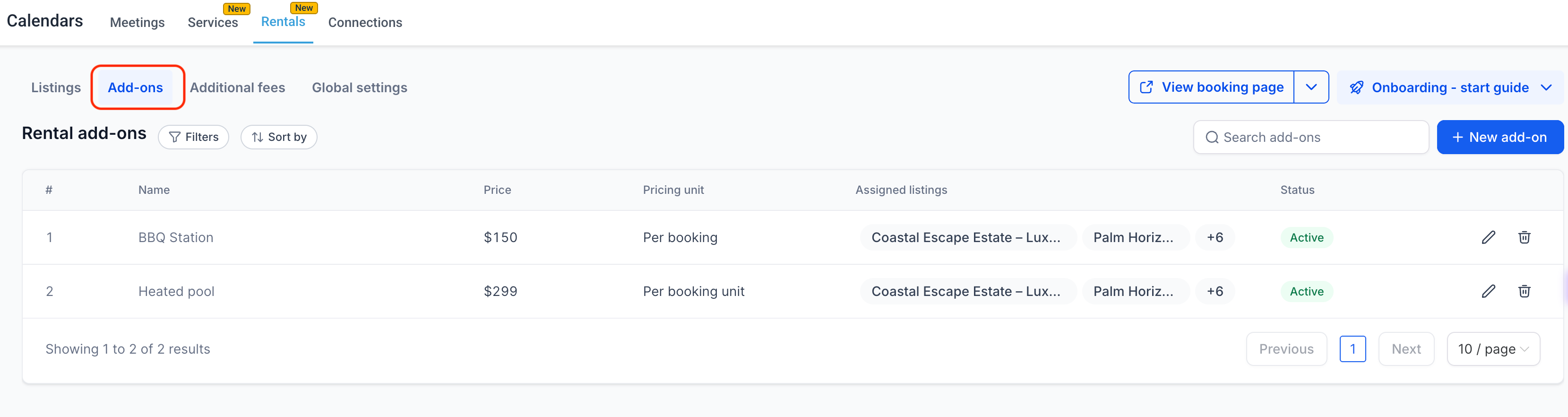
Use the Search bar to find add-ons by name, Filters to narrow results by associated listings, or the Edit and Deleteactions to manage existing entries.
If a listing filter returns no results, clear or adjust it to check for other add-ons in the catalog.
Important: Editing a global add-on updates its configuration across all associated listings. Deleting it removes it from those listings, but previously created bookings retain their recorded add-on details.Assigning Add-ons to Rental Listings
Add-ons can be attached to listings from the global catalog or directly through an individual listing. Both methods use the same global add-on records, helping businesses maintain consistent settings.
| Method | Steps |
|---|---|
| Global Catalog | Open Rentals → Add-ons, create or edit an add-on, select one or more listings, and save. |
| Individual Listing | Open Rentals → Listings, edit a listing, select the Add-ons tab, click + Add-on, and choose an existing add-on or + New Add-on. |
Multiple add-ons can be attached to a listing.
- Edit: Change an add-on's configuration from the listing's Add-ons tab and save. Changes apply globally.
- Remove: Detach an add-on from the current listing without deleting it from the global catalog.
Important: If different listings require different add-on prices or settings, create separate entries in the global catalog.
For more information, see Rentals – Create & Edit Listings.
Add-ons During the Booking Process
Customers can select optional extras while booking a rental, and admins can add or modify them when managing reservations. Selected add-ons contribute to the booking total and appear as individual charges on the associated invoice.
Customer Booking Page
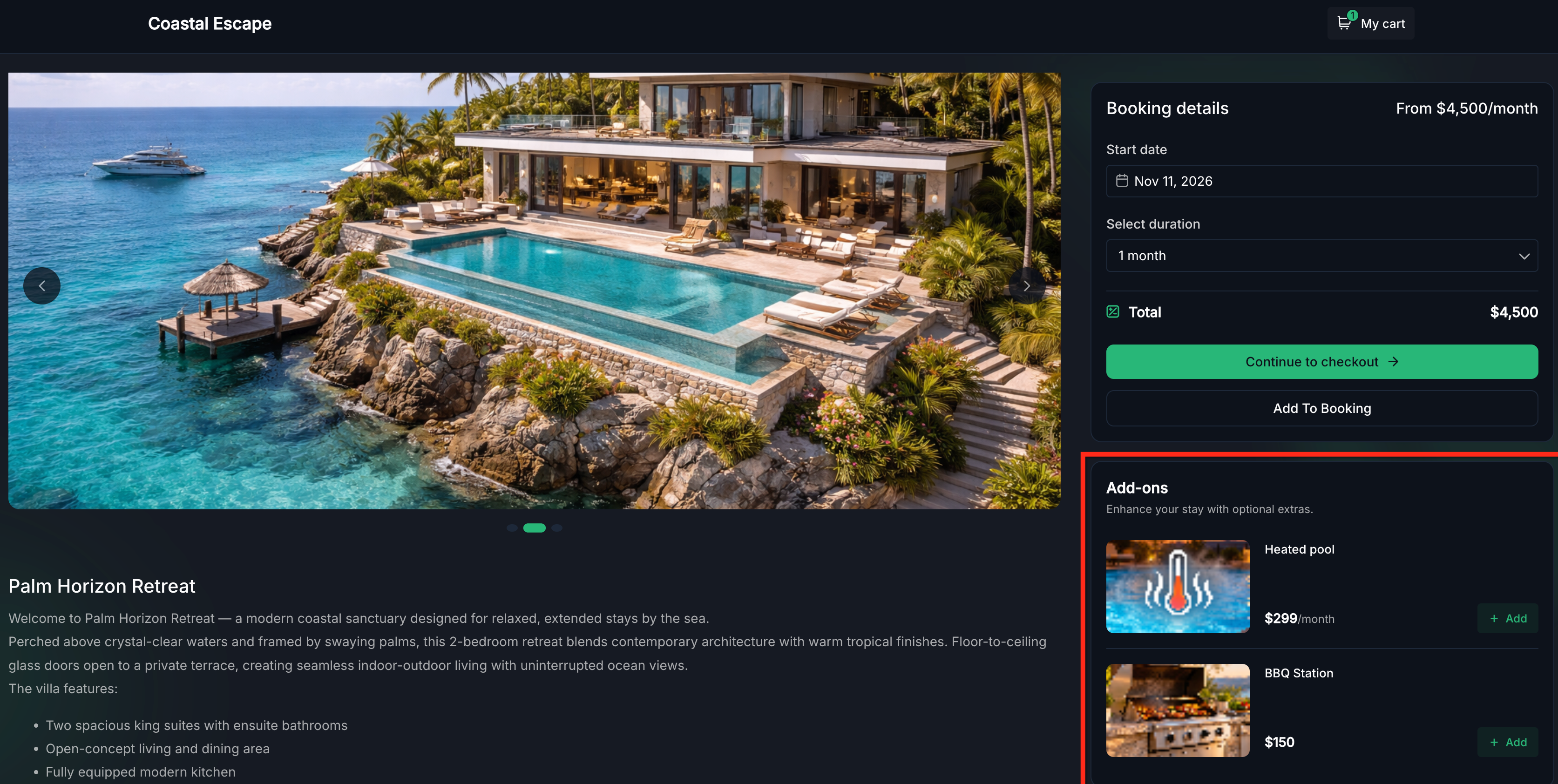
After selecting rental dates and quantities, customers see an Add-ons area displaying active, non-hidden extras assigned to the listing.
Each card can display the add-on image, name, description, price, and Add/Remove controls.
- Selecting or removing an add-on updates the total in real time.
- Quantity selectors appear only when the maximum quantity exceeds one.
- Hidden or inactive add-ons do not appear on the customer booking page.
Add-ons in Manual Bookings
Admins can attach optional extras when creating rental bookings, including add-ons hidden from customers.
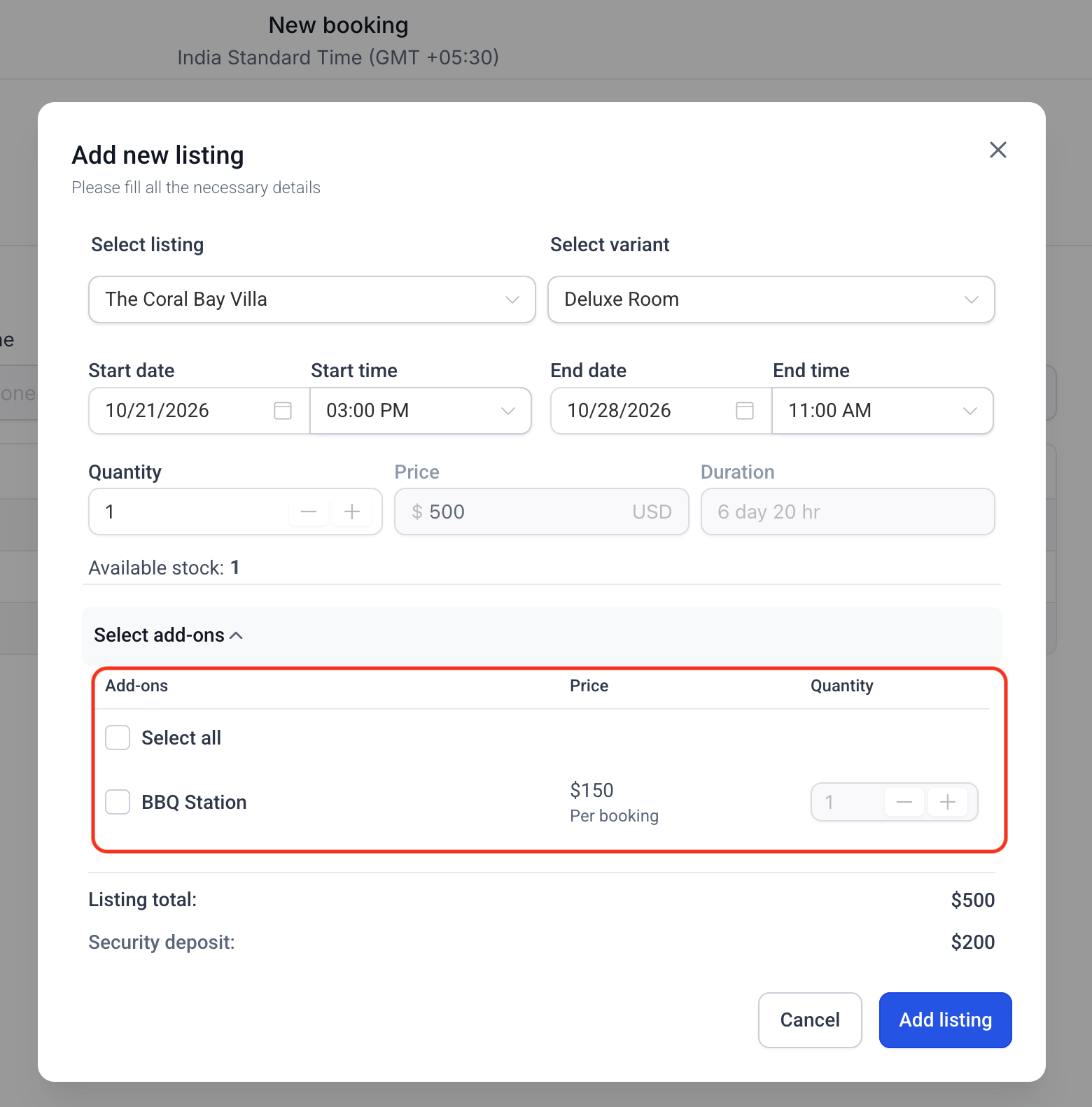
- Open the rental booking creation screen and click Add new listing.
- Select the listing, rental dates, times, and quantities.
- Expand Select add-ons.
- Select the extras and adjust their quantities.
- Review the charges and click Add listing.
View and Edit Existing Booking Add-ons
Admins can review selected extras in Booking details → Rental details, where add-ons appear beneath the corresponding rental listing.
To modify an existing booking:
- Open the booking and select Edit Booking.
- Add, remove, or adjust add-on quantities.
- Review the updated total.
- Click Save to apply changes or Discard to revert them.
Important: An Unsaved Changes banner appears until changes are saved or discarded. Updating add-ons affects the booking total and may require payment adjustments for paid bookings.
For additional information, see Rentals – Editing a Booking.
Add-on Taxes
Add-on taxes can be configured separately from the base rental, while status and visibility controls determine whether customers or admins can select an extra. These settings allow businesses to manage availability without changing previously recorded bookings.
Configure Add-on Taxes
- Navigate to Rentals → Add-ons.
- Edit an existing add-on and select Configure tax.
- Assign the applicable tax rate and save.
Taxes are calculated on the add-on's applicable line total, considering the selected quantity and pricing unit. Tax amounts appear separately from add-on charges on the invoice and are included in the customer-facing total where applicable.
For additional guidance, see Rentals – Taxes.
Frequently Asked Questions
Q: Can the same add-on have different prices across listings?
Not when using one shared add-on. Create separate global add-on entries for different prices or configurations.
Q: Is the maximum quantity based on the number of rental units?
No. The limit applies to the entire booking. For example, a maximum of two allows up to two units of that add-on regardless of how many rental units are booked.
Q: Can admins modify add-ons after a booking is paid?
Yes, subject to existing booking payment restrictions. Changes may require payment adjustments, and the updated total cannot be lower than the amount already paid.
Q: Are add-on charges included on invoices?
Yes. Selected add-ons appear as separate invoice line items, with applicable taxes included in the tax breakdown. Invoices are not necessarily emailed automatically when bookings are created.