
How to Set Up and Use Service Booking in the Client Portal
Clients can now book services directly from the new Chat To Clients CRM Client Portal, alongside their meeting appointments. Businesses choose which Services booking pages appear, so clients can find and book services without separate booking links. Client information is automatically filled in during booking, and eligible appointments can be managed from the same Appointments area. This guide covers configuration, the client booking experience, and appointment management.
Table of Contents
What is Service Booking in the Client Portal?
Service Booking allows clients to discover, book, and manage services directly from the Appointments area of the Chat To Clients CRM Client Portal.
Previously, the Client Portal appointment-booking experience focused on meeting calendars. With Service Booking, clients can also access Services booking pages that a business has enabled for the Client Portal.
When a client selects Book Appointment, available calendars and Services booking pages appear in one booking catalog.
Clients can choose a service, select an available date and time, and submit their booking without leaving the Client Portal. Depending on the booking-page configuration, they can book one or multiple services.
Businesses retain control over which Services booking pages appear and whether the Appointments feature is available in the Client Portal.
Key Benefits of Service Booking in the Client Portal
Service Booking reduces the effort required to schedule services while keeping booking availability and portal access under business control.
Unified Booking Experience: Clients can find meeting calendars and Services booking pages together under Appointments instead of using separate booking links.
Faster Booking: Available client information is automatically filled in during booking, reducing repeated data entry.
Multiple Service Selection: Clients can book one or multiple services in a booking session when the relevant Services settings allow it.
Appointment Self-Service: Clients can reschedule or cancel eligible service appointments directly from the Client Portal.
Centralized Appointment Management: Upcoming and Past views make it easier for clients to review scheduled and previous appointments.
Flexible Booking Visibility: Businesses choose which Services booking pages appear in the portal rather than automatically exposing every booking page.
Controlled Portal Access: App Permissions determines whether clients can access the Appointments feature.
How To Setup Service Booking in the Client Portal
Service Booking uses two configuration controls. First, make individual Services booking pages available to clients. Then enable Appointments in Client Portal App Permissions so clients can access those pages.
Step 1: Enable a Services Booking Page in the Client Portal
Each booking page must be explicitly enabled before clients can discover it through the Client Portal. This lets businesses choose which services are available through this booking channel.
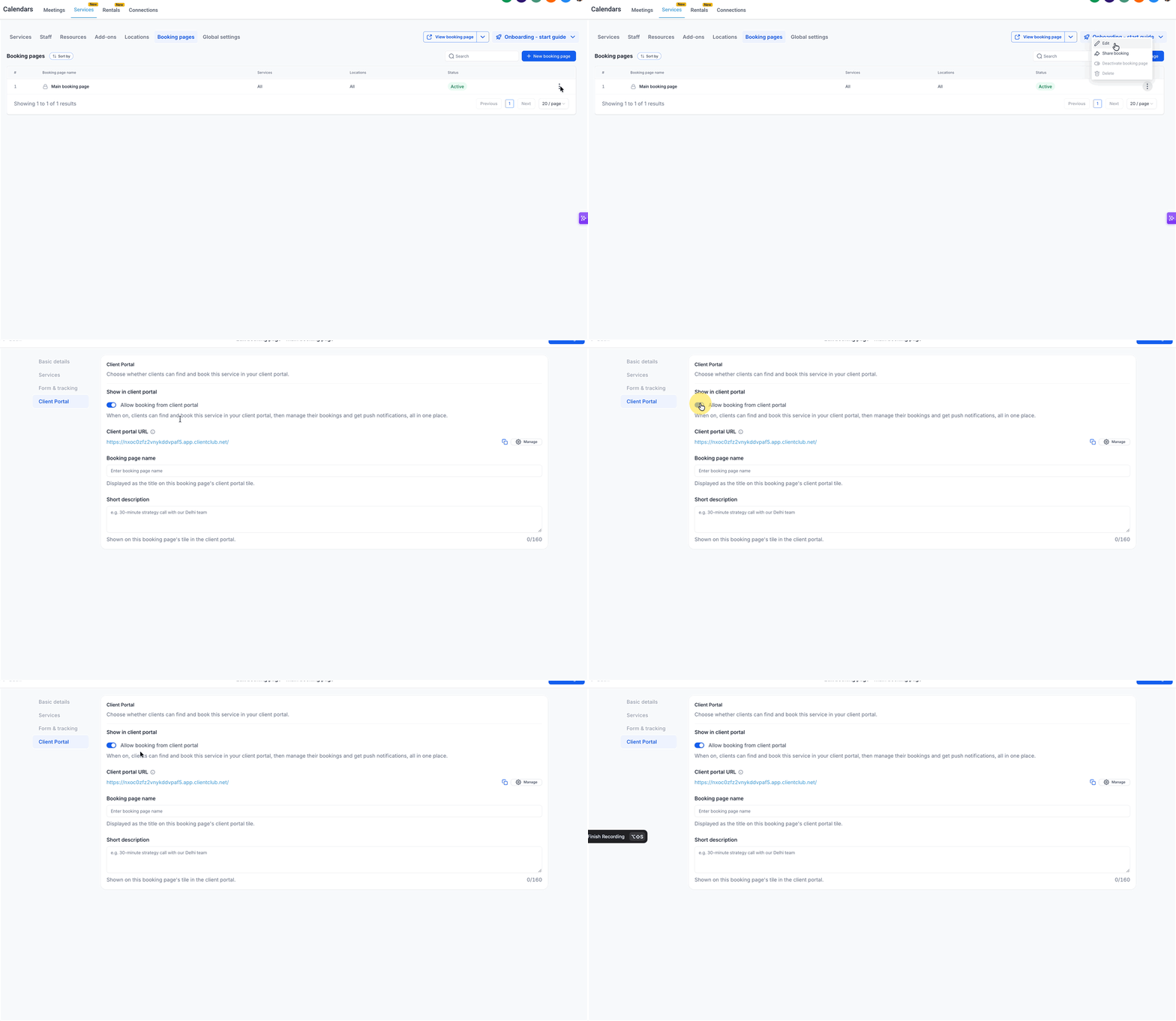
From the Chat To Clients CRM Sub-Account view, select Calendars from the left navigation menu.
Select Services, then open Booking Pages.
Locate the Services booking page you want to make available and open its editor.
In the Edit booking page screen, select Client Portal from the left-side settings menu.
Under Show in client portal, turn on Allow booking from client portal.
Review the Booking page name. This name appears as the title of the booking page's tile in the Client Portal.
Review the Short description. This description appears beneath the booking page name in the Client Portal.
Click Save changes.
Repeat these steps for each additional Services booking page you want to display.
Step 2: Enable Appointments in Client Portal App Permissions
The Appointments permission controls whether clients can access appointment booking and management from the Client Portal. Enable this permission in the same sub-account as the Services booking pages.
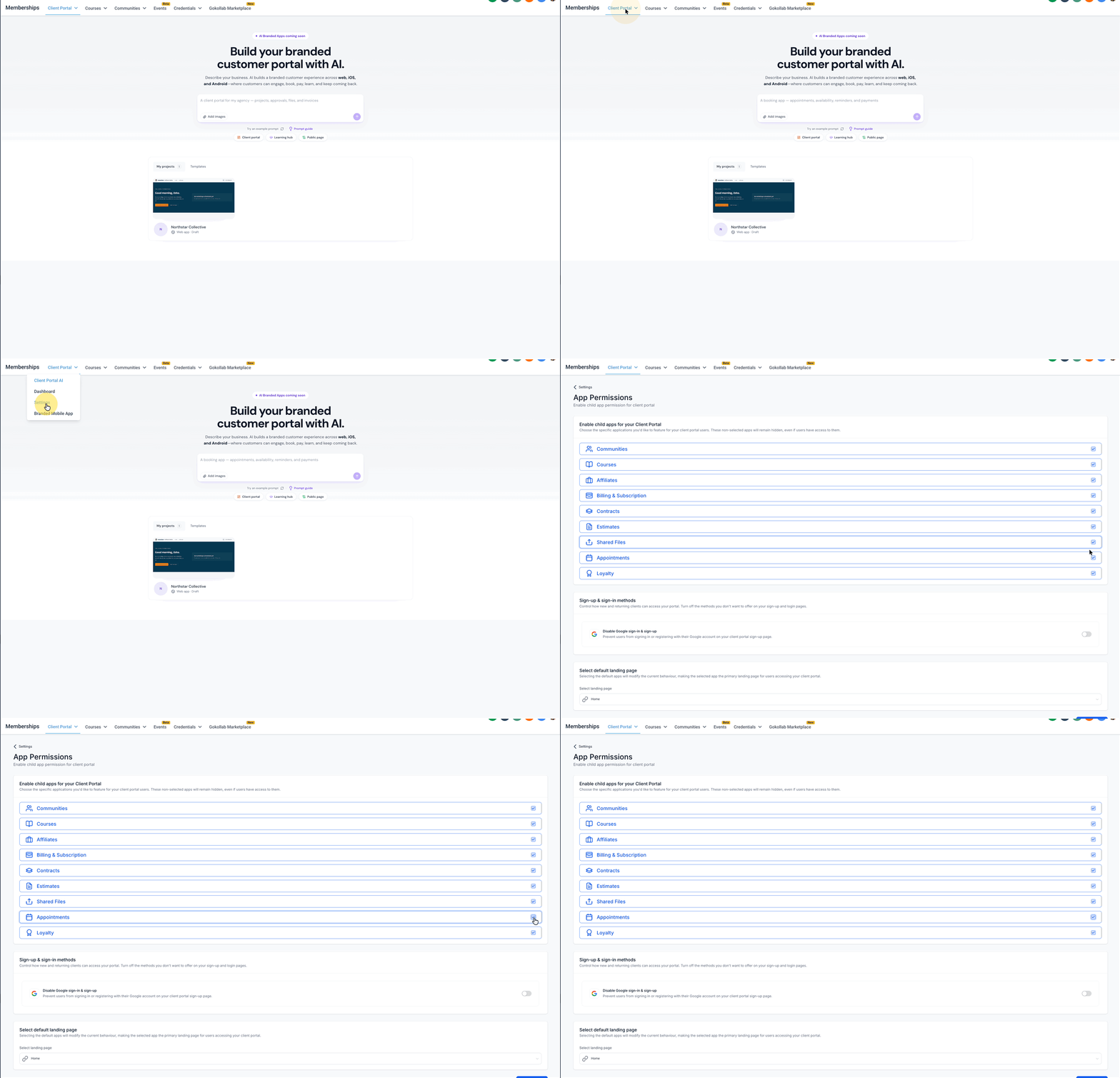
From the Chat To Clients CRM Sub-Account view, select Memberships from the left navigation menu.
Select Client Portal.
Open Settings.
Select App Permissions.
Locate Appointments in the list of available applications.
Turn on Appointments.
Click Save to apply the setting.
Result: Clients using the new Client Portal UI can access Appointments and discover Services booking pages that have Client Portal booking enabled.
How Clients Book Services
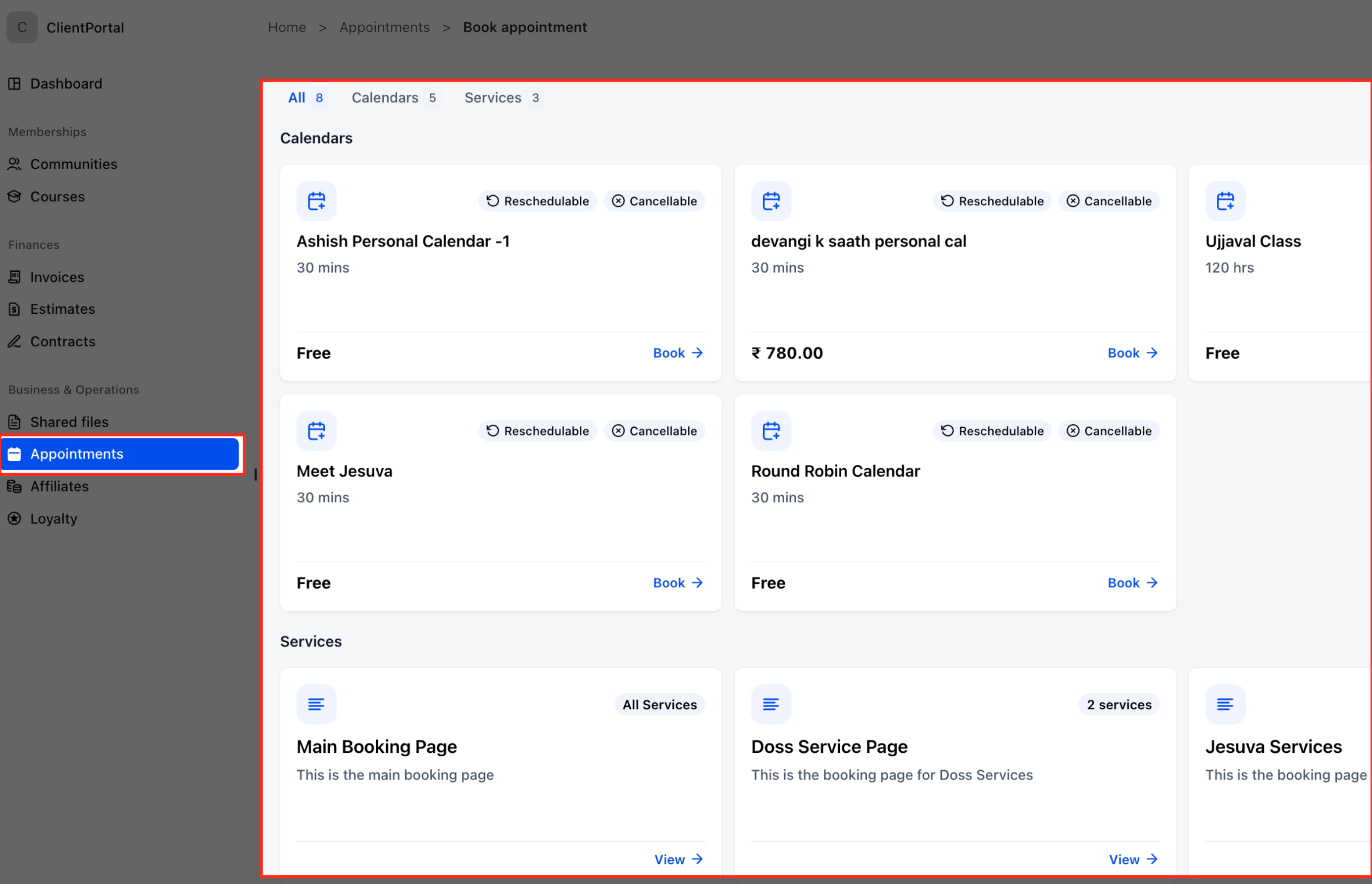
Clients can book services through the same Appointments area used for meeting calendars. The booking catalog provides access to enabled Services booking pages, while each page determines which services are available to select.
Step 1: Open the Booking Catalog
Clients begin from the Client Portal rather than using an individual service booking link.
Sign in to the new Client Portal.
Select Appointments from the left navigation menu.
Click Book Appointment in the upper-right corner.
In the booking catalog, select Services to view Services booking pages. Clients can also find Services booking pages in the All view.
Find the desired booking page.
Click View on that booking page's card.
Step 2: Select and Review Services
After opening a booking page, clients can choose the services they want. The available options depend on the business's service setup.
Select the desired service from the booking page.
On Review your booking, check the selected service, duration, and price.
If additional service selection is available, click Add another service to include another service.
Review the Booking details summary.
Click Next.
Step 3: Select a Date and Time
The booking calendar presents dates and times available for the selected service. Clients use these options to choose when their appointment should take place.
On Select Date & Time, review the displayed calendar.
Use the month navigation arrows if you need another month.
Select an available date.
Choose a time from the available time slots.
Click Select to confirm the chosen time slot.
Review the date and time in the Booking details summary.
Step 4: Complete the Booking
The remaining booking steps depend on the configured Services booking page. Available client information is automatically filled in during the booking process.
Review the booking information and any required form or payment details presented by the booking page.
Complete the required information.
Submit the booking using the page's final booking action.
Review the booking confirmation or appointment-request acknowledgment.
The confirmation screen can display the selected service, appointment date, time, duration, location, staff information, and amount.
Important: The example screenshot displays an appointment-request acknowledgment. Whether a booking requires manual confirmation depends on the configured Services settings.
View and Manage Service Appointments
Client Portal Appointments brings meeting and service bookings together so clients can review their schedules without switching booking platforms.
View Upcoming and Past Appointments
The Appointments page provides a calendar and appointment list for finding bookings by date or status.
Sign in to the Client Portal.
Select Appointments from the left navigation menu.
Use the appointment calendar to locate a booking.
Select Upcoming to review upcoming appointments.
Select Past to review previous appointments.
Click More details on an appointment card to review available information.
Reschedule or Cancel an Eligible Service Appointment
When service-booking policies permit changes, clients can manage their appointments from the Client Portal.
In the Client Portal, select Appointments.
Open Upcoming.
Locate the service appointment you want to manage.
Click More details.
If the appointment is eligible, use the available rescheduling or cancellation action.
Whether a client can complete an action depends on the cancellation and rescheduling rules configured for the service booking.
Frequently Asked Questions
Q: Can clients book more than one service in the same booking?
Yes. Clients can select multiple services when the Services configuration allows it. The Allow Multiple Service Selection setting in Services Global Settings controls this capability.
Q: Why might a booking display an appointment-request message rather than an immediate confirmation?
Services Global Settings includes Auto Confirm New Appointments. When this setting is disabled, new bookings remain unconfirmed until they are reviewed. The displayed acknowledgment also depends on the configured confirmation-page experience.
Q: Why can't a client cancel or reschedule a service appointment?
The business's service-booking settings control cancellation and rescheduling eligibility. These settings include whether the action is allowed and when its permitted period expires.
Q: Are Services booking pages the same as Calendar Service Menus?
No. This feature uses Services booking pages. The older Calendar Service Menus feature is a separate booking experience built around service calendars.
Q: Can different Services booking pages have different Client Portal visibility settings?
Yes. The Allow booking from client portal setting is configured for each booking page individually. This allows businesses to make selected booking pages available without enabling all of them.
Q: Does disabling Appointments in Client Portal App Permissions delete existing appointments?
No. Disabling the Appointments application removes access to that application from the Client Portal. It does not delete the underlying appointment records maintained in Chat To Clients CRM.