
How to Create Loyalty & Referral Programs in Chat To Clients CRM
Loyalty & Referral helps businesses reward repeat customers and encourage customer referrals without using a separate loyalty platform. You can create programs for online and in-store activity, define earning and redemption rules, customize the customer signup experience, and provide digital wallet passes. Chat To Clients CRM also provides program analytics, QR scanning, referral rewards, and access controls for teams and customers. This guide explains how to create, configure, and manage a Loyalty & Referral program.
TABLE OF CONTENTS
What is Loyalty & Referral?
Loyalty & Referral is Chat To Clients CRM's customer rewards experience for encouraging repeat purchases, rewarding engagement, and supporting customer referrals.
The product is available from:
Sub-Account → Marketing → Loyalty
From the Loyalty Programs page, you can create programs, monitor performance, search and filter programs, and continue configuring programs that are still in draft.
A program can support Online, Physical (In-store), or both types of customer activity.
Key Benefits of Loyalty & Referral
Loyalty & Referral keeps customer rewards, program activity, and performance data within the same Chat To Clients CRM environment.
- Reward repeat customers: Give customers points for supported actions and let them redeem those points for rewards.
- Encourage referrals: Reward existing customers for referrals and provide welcome points to newly referred customers.
- Support online and in-store programs: Configure programs for online purchases, physical-store activity, or both.
- Customize earning rules: Reward actions such as account creation, referrals, purchases, and birthdays.
- Offer flexible rewards: Configure discounts and supported free-product rewards.
- Customize the signup experience: Control signup content, form fields, and customer-facing design.
- Provide digital wallet passes: Configure loyalty passes for Apple Wallet and Google Wallet.
- Track program performance: Review enrollment, rewards earned, rewards redeemed, and redemption rate.
How To Set Up Loyalty & Referral
Program setup guides you through choosing where customers earn points, defining reward rules, customizing customer signup, and configuring a wallet pass.
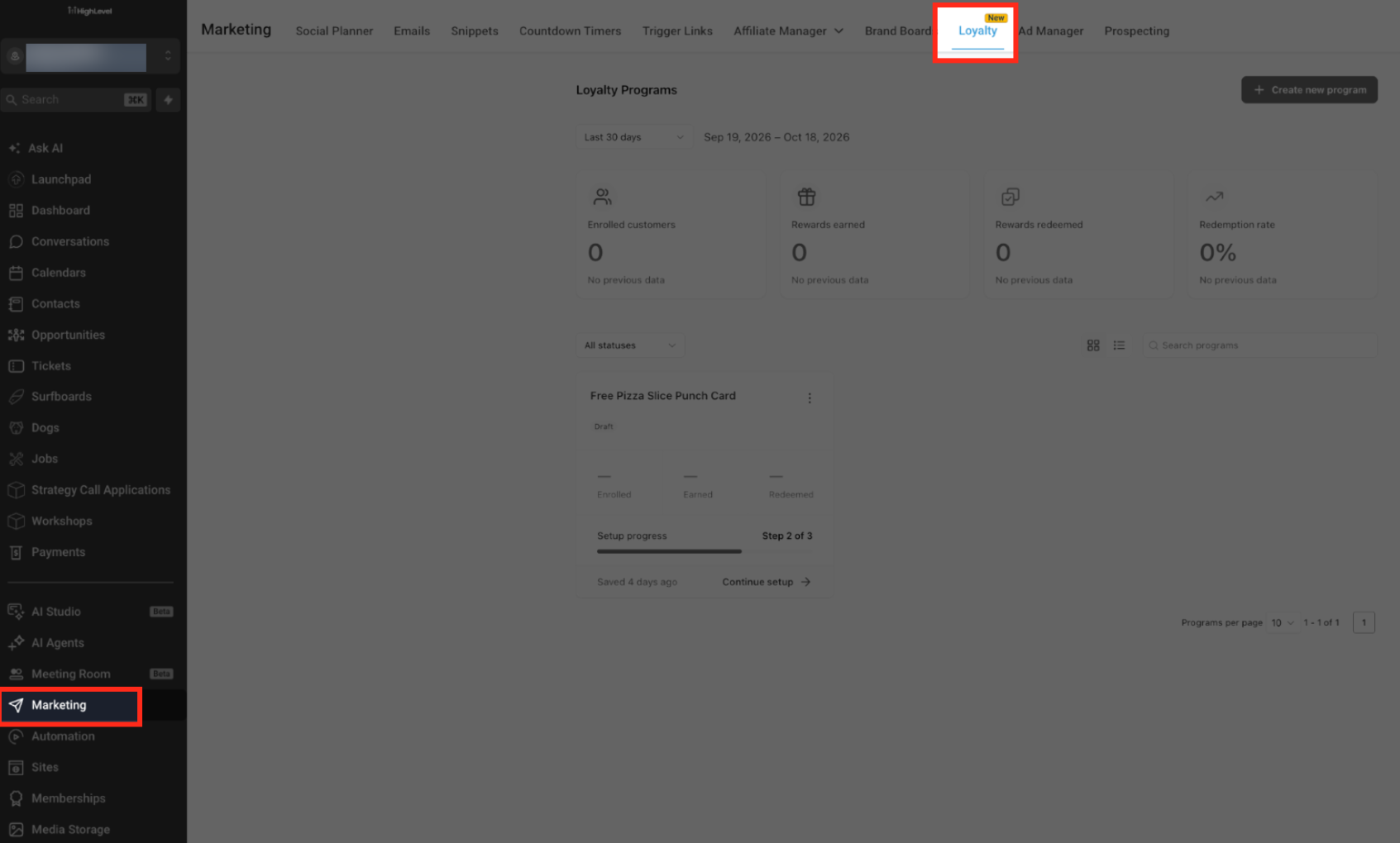
Open Loyalty
The Loyalty workspace is available from the Marketing area of the Sub-Account.
- Open the appropriate Sub-Account.
- Click Marketing in the left navigation.
- Select Loyalty from the top navigation.
- Review the Loyalty Programs page.
Create a New Loyalty Program
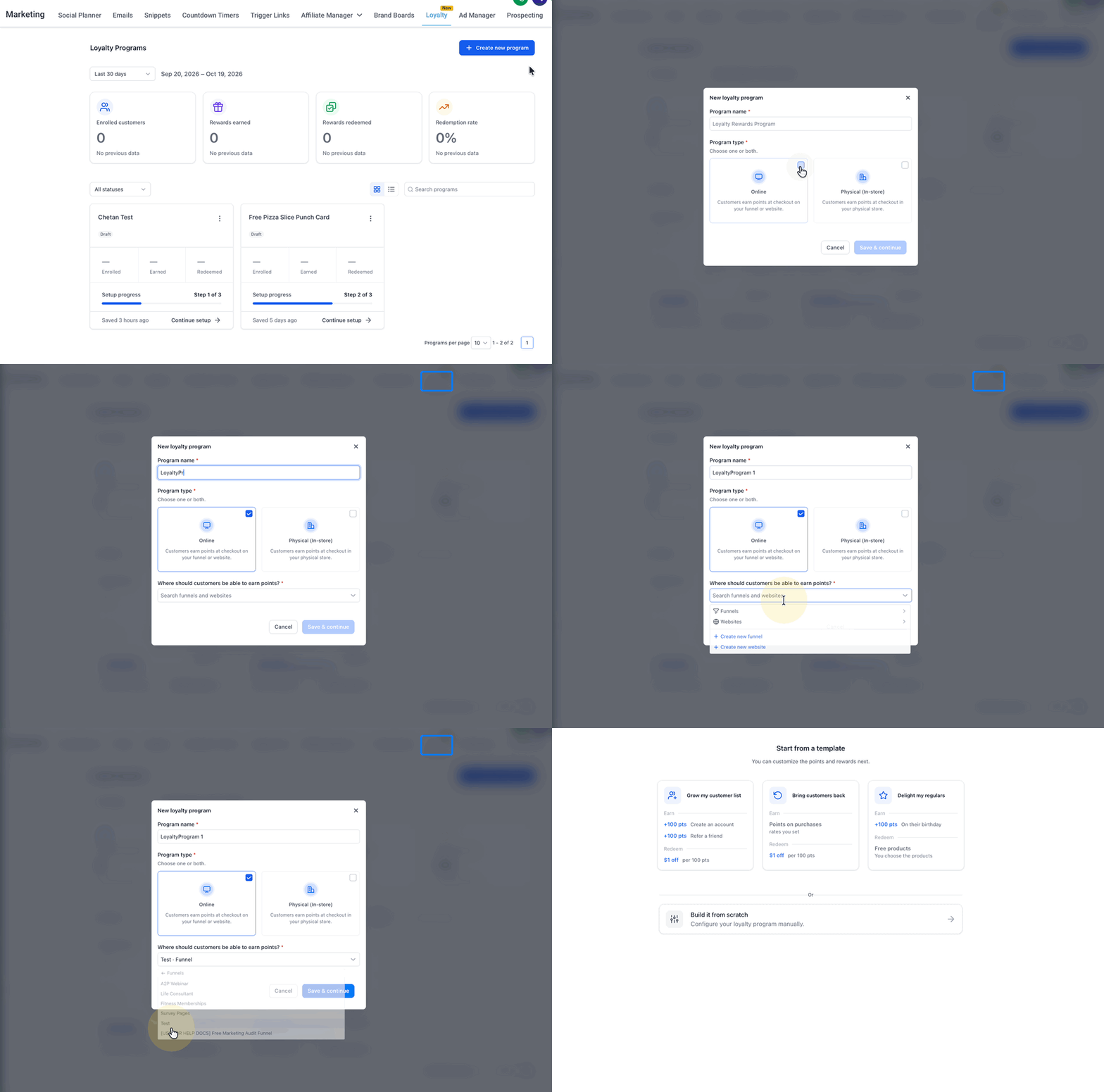
The first setup step defines the program name, program type, and where customers can participate.
- Go to Sub-Account → Marketing → Loyalty.
- Click Create new program.
- Enter a Program name.
- Under Program type, select one or both:
- Online
- Physical (In-store)
- If you select Online, choose where customers should be able to earn points.
- Select the applicable Funnels or Websites.
- Click Save & continue.
For Online programs, the selector also provides Create new funnel and Create new website when you need to create a new customer entry point.
- Online programs let customers earn points at checkout on a funnel or website.
- Physical (In-store) programs support earning points at checkout in a physical store.
Choose a Starting Template
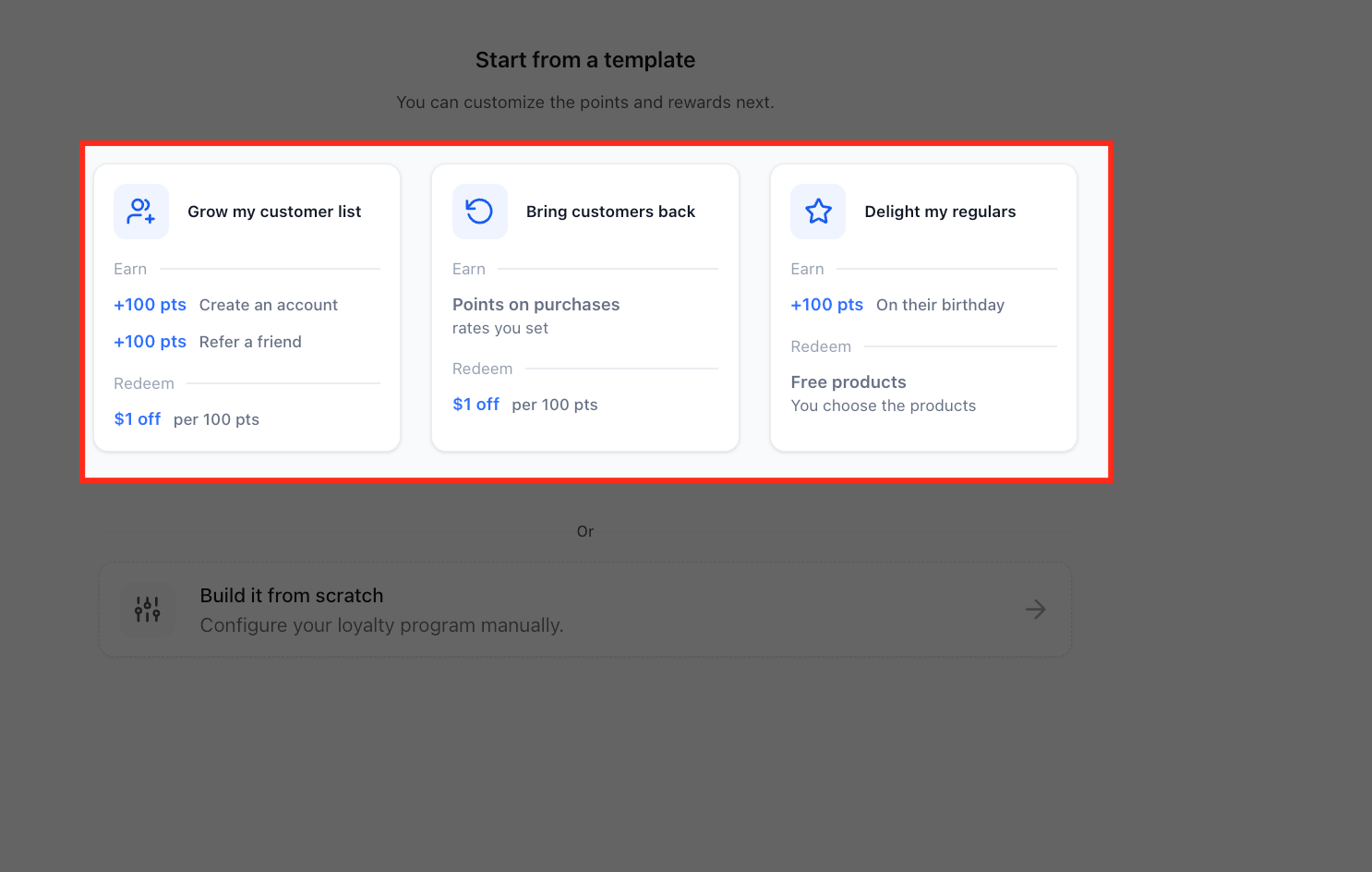
Templates give you a preconfigured loyalty structure that you can customize in the next steps.
- Grow my customer list: Rewards customers for creating an account and referring a friend. The shown template awards 100 points for each action and uses a $1 off per 100 points redemption rule.
- Bring customers back: Focuses on rewarding purchases. You set the purchase earning rate, and the shown template uses $1 off per 100 points as the redemption rule.
- Delight my regulars: Rewards customers on their birthday and uses free products as the redemption option. You choose which products customers can redeem.
Select Build it from scratch if you prefer to configure the earning and reward rules manually instead of starting from a template.
Configure Points and Reward Rules
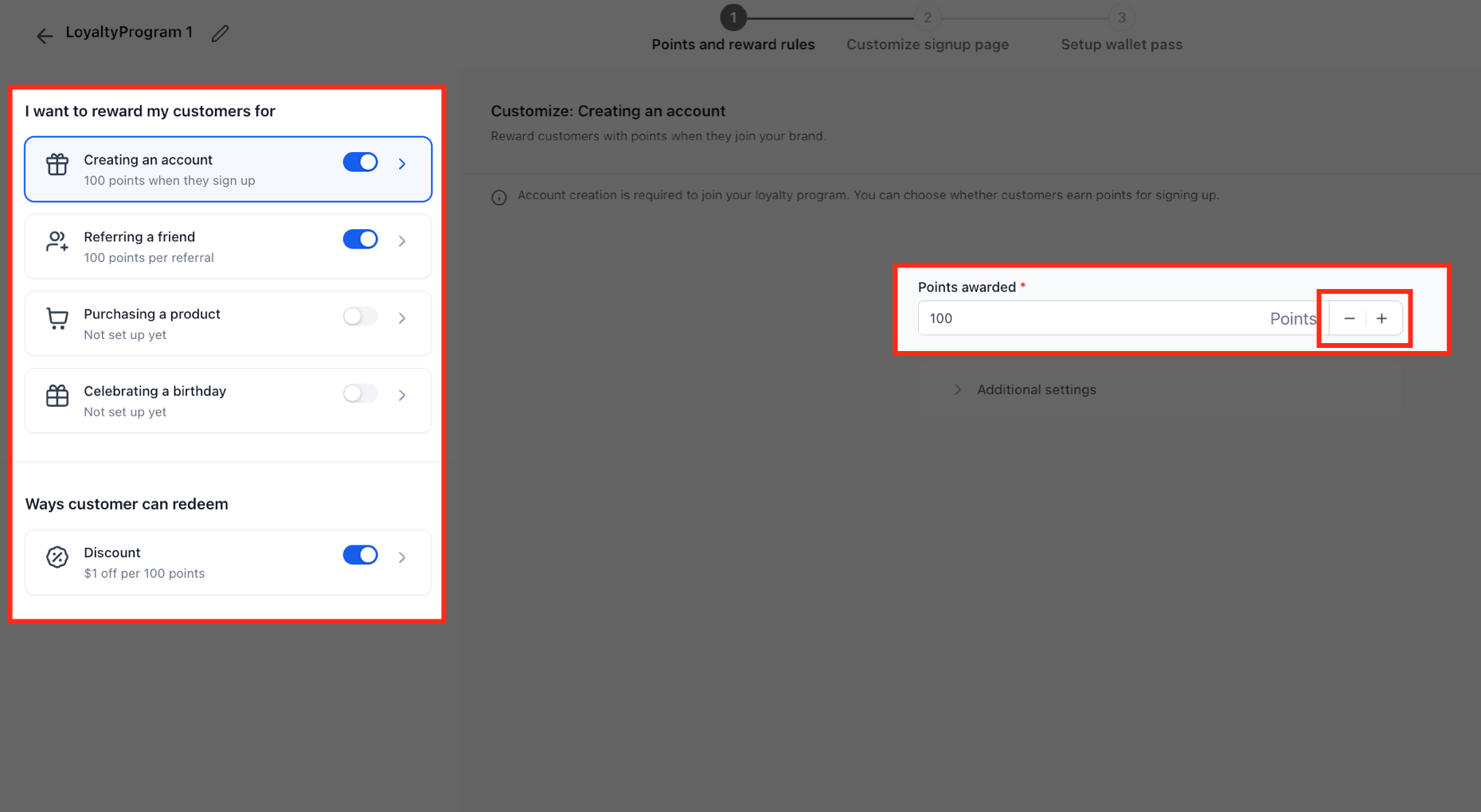
The Points and reward rules step defines which customer activities earn points and how customers can use those points.
The current experience provides earning rules for:
- Creating an account
- Referring a friend
- Purchasing a product
- Celebrating a birthday
Turn on the rules you want to use, then open each rule to configure its points.
Under Ways customer can redeem, configure the reward options you want to offer.
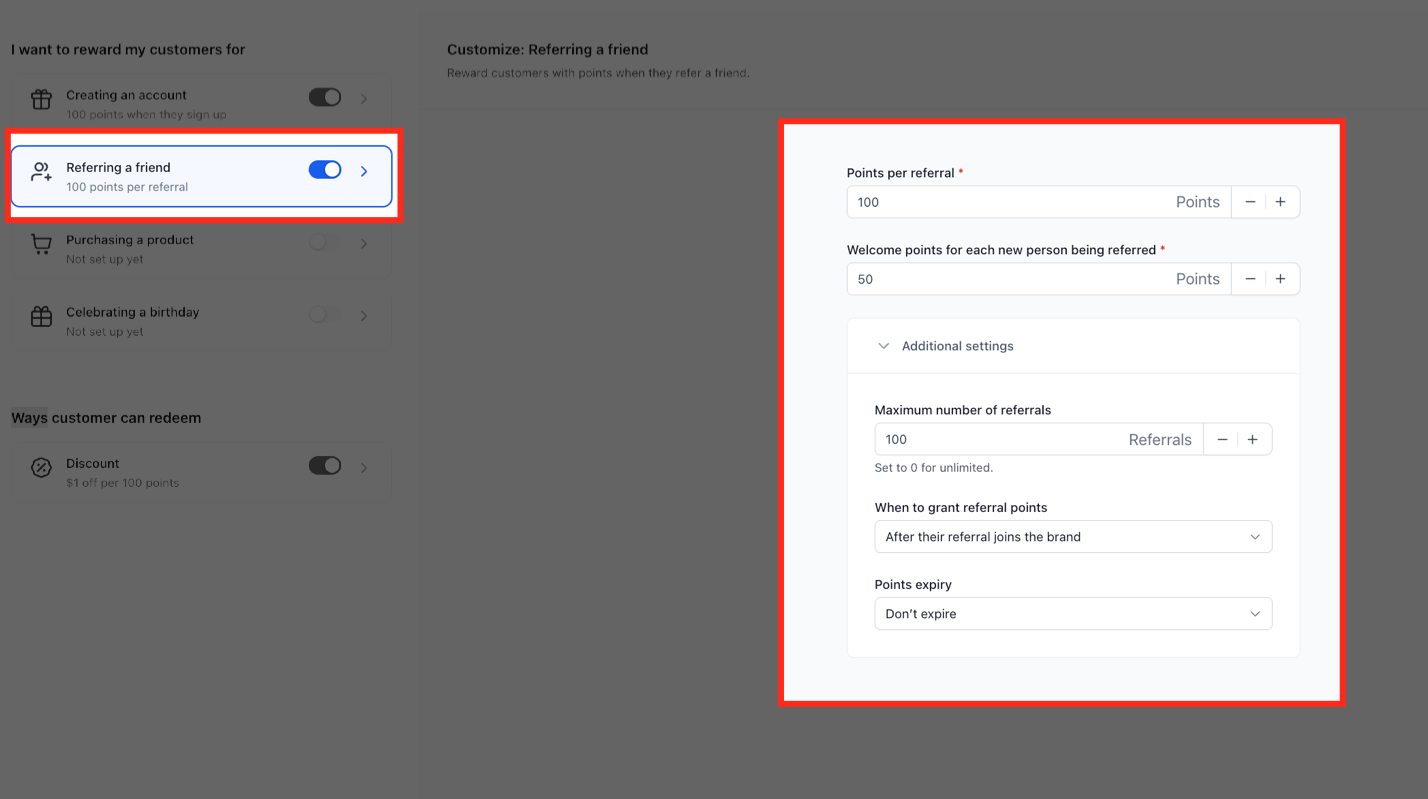
Configure Referral Rewards
Referral rules let you reward the existing customer and the newly referred customer separately.
When configuring Referring a friend, the current experience supports settings such as:
- Points per referral
- Welcome points for each new person being referred
- Maximum number of referrals through additional settings
This lets both the referrer and the new customer receive points according to the program configuration.
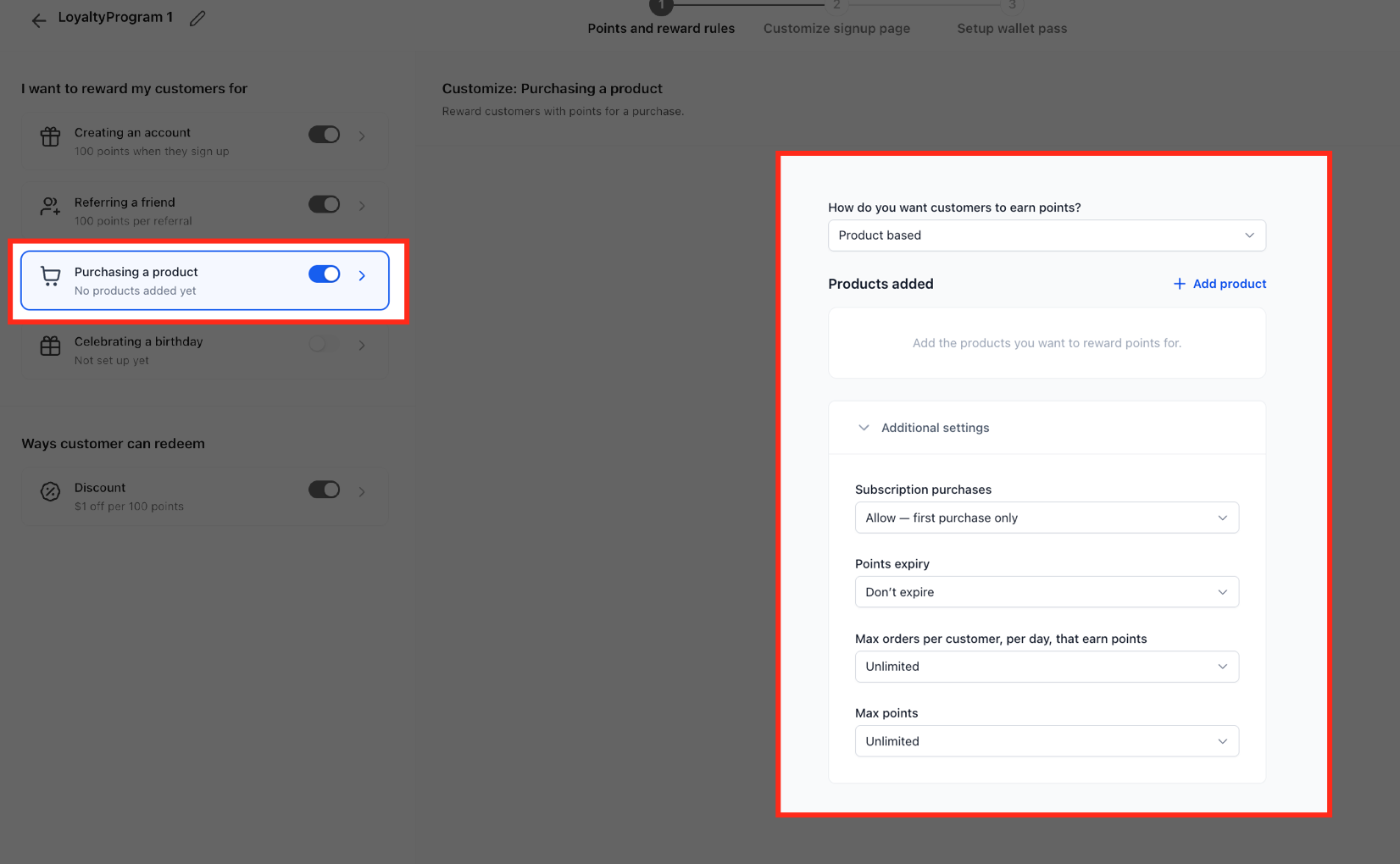
Configure Product Purchase Rewards
Use Purchasing a product to award loyalty points when customers buy selected products. Choose the qualifying products, then use Additional settings to control subscription eligibility, point expiry, daily order limits, and the maximum points customers can earn from this rule.
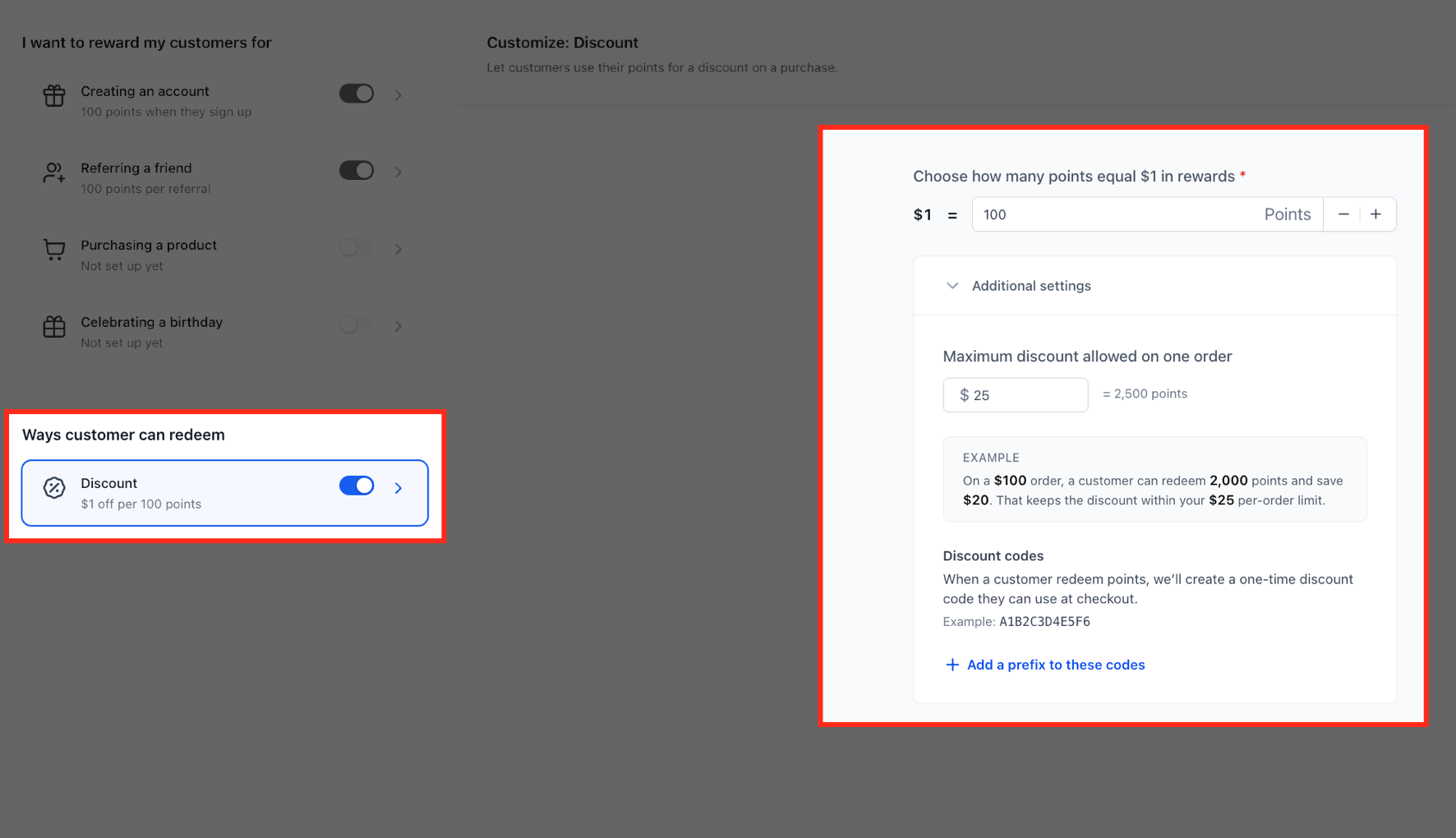
Configure Discount Rewards
Discount rewards define how customer points translate into monetary value at checkout.
Set how many points equal $1 in rewards, then configure any additional discount limits required for the program.
The current UI also supports a Maximum discount allowed on one order setting.
Configure Free-Product Rewards
Free-product rewards let customers exchange points for selected products.
Use Add free product to add supported products and define the points required for each reward.
Existing rewards can be edited or removed from the list.
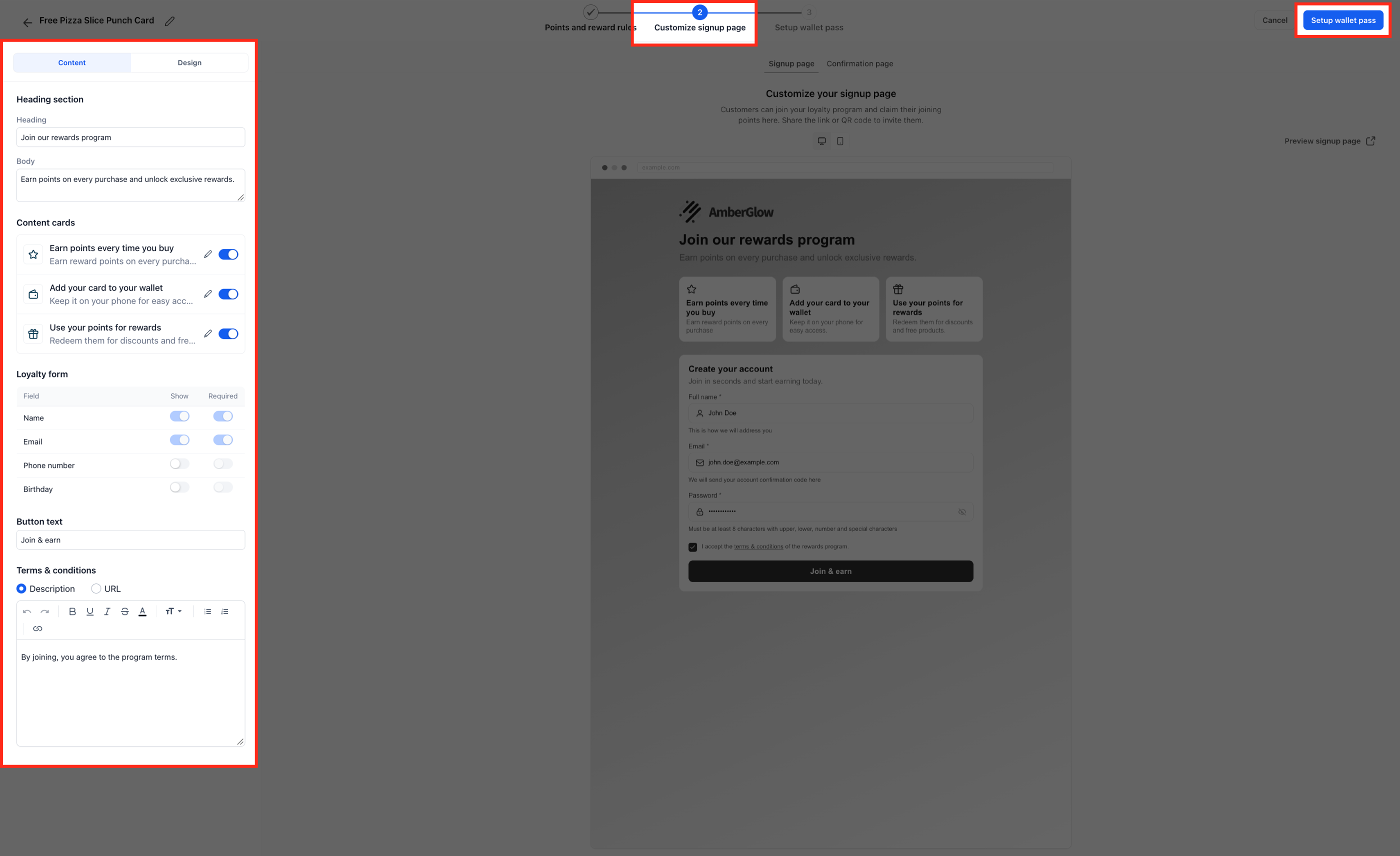
Customize the Signup Page
The signup page determines what customers see when joining the loyalty program.
- Continue to Customize signup page.
- Use Content to configure the page text and visible information.
- Use Design when you need to customize the appearance.
- Configure the Heading and Body.
- Review the available Content cards.
- Turn individual cards on or off as needed.
- Configure the fields in the Loyalty form.
- Set which fields should be shown and which are required.
- Update the Button text when needed.
- Preview the signup page.
- Click Setup wallet pass.
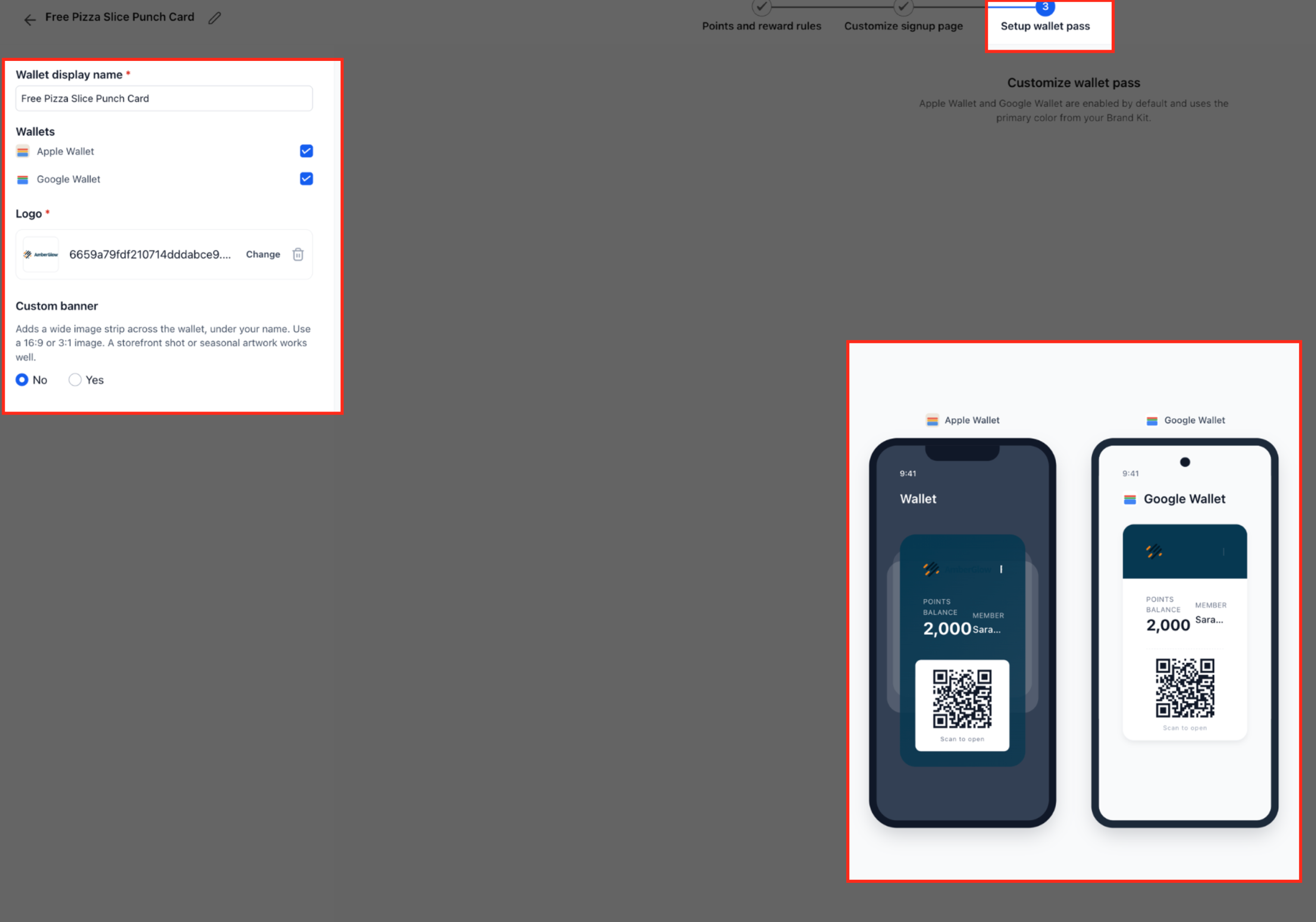
Set Up the Wallet Pass
Wallet configuration lets customers keep their loyalty membership and QR code available from a supported digital wallet.
Under the program's Wallet settings, configure:
- Wallet display name
- Apple Wallet
- Google Wallet
- Logo
- Custom banner
Apple Wallet and Google Wallet are shown as supported wallet options in the current UI.
When Custom banner is enabled, add the banner image you want to display.
Understand the Loyalty Programs Dashboard
The Loyalty Programs dashboard provides account-level performance metrics and tools for finding and managing individual programs.
Review Program Metrics
The dashboard summarizes customer participation and reward activity for the selected reporting period.
The current metric cards include:
- Enrolled customers
- Rewards earned
- Rewards redeemed
- Redemption rate
Each metric can also compare performance against the previous period when comparison data is available.
Manage Customers and Points
Customer-management tools help staff review loyalty balances, adjust points, and support in-store reward workflows.
Scan a Customer QR Code
QR scanning connects a customer's loyalty account to supported in-store activity.
Open the applicable loyalty program and click Scan customer QR to launch the web scanning experience.
The release confirms that scanning can be used to:
- Record customer visits.
- Redeem rewards.
- Support loyalty activity in physical workflows.
The mobile scanner is rolling out separately and may not yet appear for every user.
Adjust Customer Points
Authorized users can manually adjust a customer's loyalty balance when needed.
From the customer-management experience, use Adjust points to modify the customer's balance.
The customer view can also display the total points balance and point-expiration information.
Manage Loyalty Access and Permissions
Loyalty & Referral has separate controls for sub-account availability, team-member permissions, and Client Portal visibility.
Control Loyalty for a Sub-Account
Agency-level feature controls determine whether the Loyalty product is available inside an individual sub-account.
Use:
Agency View → Sub-Accounts → Select Sub-Account → Features & Limits
Enable or restrict Loyalty according to the access required for that sub-account.
Control User Permissions
User permissions determine which team members can manage programs or use the scanner.
- From the Sub-Account, go to Settings → Users.
- Edit the applicable user.
- Open Roles & permissions.
- Search for Loyalty.
- Expand the Loyalty permission group.
- Enable the permissions the user needs:
- View & manage loyalty & referral
- Manage scanner app
- Click Save.
You can enable either permission independently or grant both.
Control Loyalty in the Client Portal
Client Portal app permissions determine whether customers can access supported child apps from the portal.
Go to Memberships → Client Portal → Settings → App Permissions to manage available child apps.
Use the Loyalty Client Portal control to enable or disable customer access.
Frequently Asked Questions
Q: Where can I find Loyalty & Referral in Chat To Clients CRM?
Go to Sub-Account → Marketing → Loyalty.
Q: Is Loyalty & Referral available to everyone?
No. The product is currently in Private Beta and is enabled for selected beta customers.
Q: Can one program support both online and in-store activity?
Yes. The program setup lets you select Online, Physical (In-store), or both.
Q: What activities can customers earn points for?
The current setup includes account creation, referrals, product purchases, and birthdays.
Q: Can both people in a referral receive points?
Yes. Referral settings can define points for the referring customer and welcome points for the newly referred customer.
Q: What types of rewards can I configure?
The current experience includes discount rewards and free-product rewards.
Q: Can customers add their loyalty membership to a digital wallet?
Yes. The current Wallet experience supports Apple Wallet and Google Wallet.
Q: Can I control which employees can manage loyalty programs?
Yes. Use the Loyalty permissions under Settings → Users → Roles & permissions.
Q: Can I give someone scanner access without letting them manage programs?
Yes. Manage scanner app is separate from View & manage loyalty & referral.
Q: Is the mobile QR scanner available to everyone?
Not yet. The release states that the mobile scanner is rolling out separately, so availability may vary.