
How to Build Branded Mobile Apps with AI App Studio
AI App Studio lets you create a branded mobile app using a simple description of your business. Powered by AI and connected to your existing Client Portal, it generates mobile screens that reflect your branding and support your members, courses, and communities. You can customize the design, preview the generated experience, and refine it through conversation.
This guide walks you through building a branded mobile app and preparing an installable Android APK.
TABLE OF CONTENTS
- What is AI App Studio?
- Before You Begin
- How To Setup AI App Studio
- Customize Your Branded Mobile App
- Client Portal Features and Custom Objects
- Frequently Asked Questions
What is AI App Studio?
AI App Studio is an AI-powered app builder that creates branded mobile experiences using natural-language prompts. Instead of building each screen manually or relying on a fixed template, you describe the experience you want, select design preferences, and let AI generate the application's screens and code.
The builder connects to your existing Client Portal, allowing the generated experience to incorporate members, courses, communities, files, appointments, and other supported features.
You can review the application in a live phone-frame preview, request additional changes through conversation, and generate an installable Android APK.
Examples of Branded Mobile App Designs
AI App Studio's branding capabilities support different visual directions. The supplied examples illustrate how mobile interfaces can be tailored to different businesses.
Harbor Pilates: A wellness-inspired sign-in screen with a studio image, green branding, and email/password fields.
STRIDE RUN CLUB: A member dashboard design with weekly mileage, goals, data-entry fields, and bottom navigation.
Duende: A dance school sign-in design with a large hero image, red accents, and Spanish interface text.
Key features include:
Custom Branding: Apply a design system and brand board to keep your logo, colors, fonts, and images consistent.
Member Access: Built-in sign-in and sign-up, including code-based joining for new members.
Client Portal Integration: Connect courses, communities, shared files, appointments, and account settings.
Mobile Features: Support camera and photo access with automatically generated permission text.
Custom Objects: Include up to three custom objects with fields, dropdowns, and links. Members can view and add records from the app's bottom navigation.
AI Customization: Refine your app through follow-up prompts without rebuilding it from scratch.
Before You Begin
You'll need access to the AI App Studio private beta and a Chat To Clients CRM sub-account with AI Studio editing permissions.
Have your business description, branding assets, and any existing Client Portal resources you want to include ready.
How To Setup AI App Studio
AI App Studio guides you from an initial prompt to a generated mobile application. You describe your business, choose the mobile experience, answer any necessary questions, and select design preferences before AI builds the app.
Step 1: Open AI Studio and Describe Your App
A detailed initial prompt helps AI understand the app's purpose, intended users, visual style, and key features.
Log in to your Chat To Clients CRM account.
Open the relevant Sub-Account.
Select AI Studio from the left navigation menu.
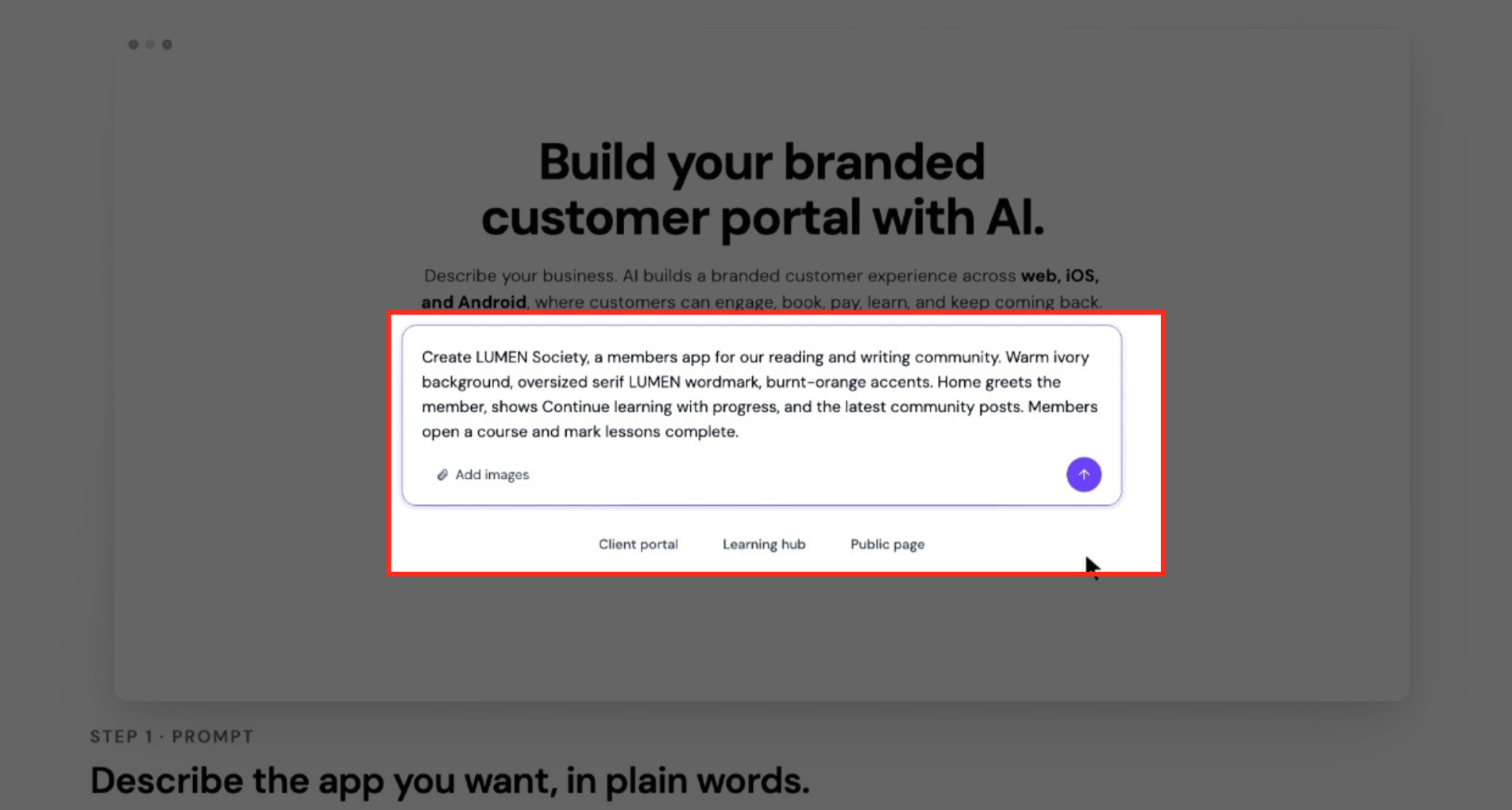
Locate the prompt field on the AI Studio home screen.
Enter a description of the application you want to create.
For example: Create a member app for my pilates studio. Members should be able to browse our courses, join community discussions, and access files we share with them. Use our brand colors and a clean, welcoming design.
To provide supporting visual references, click Add images and attach the relevant images.
Submit your prompt using the purple arrow button in the prompt field.
AI Studio uses your description to determine the experience you want to build.
Step 2: Choose Mobile and a Starting Point
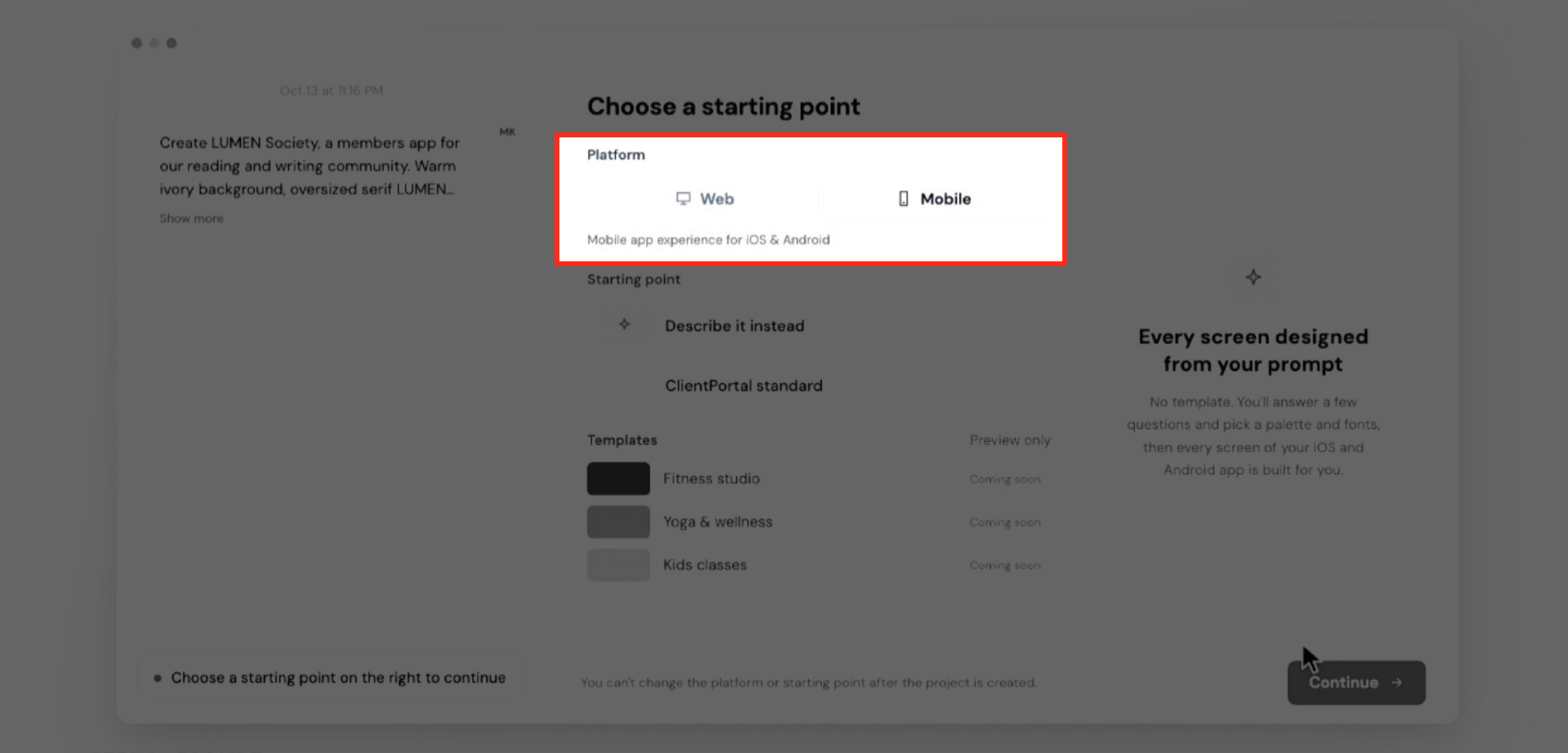
AI Studio supports Web and Mobile starting options. Select Mobile when creating a branded mobile application.
When Choose a starting point appears, locate the Platform selection.
Select Mobile.
Review the available starting-point options.
Select Describe it instead to build a mobile experience from your description.
Click Continue.
Important: you cannot change the platform or starting point after creating the project.
Step 3: Answer the Clarifying Questions
AI Studio may ask follow-up questions when it needs more information about the app's design or functionality. Your answers help shape the generated experience.
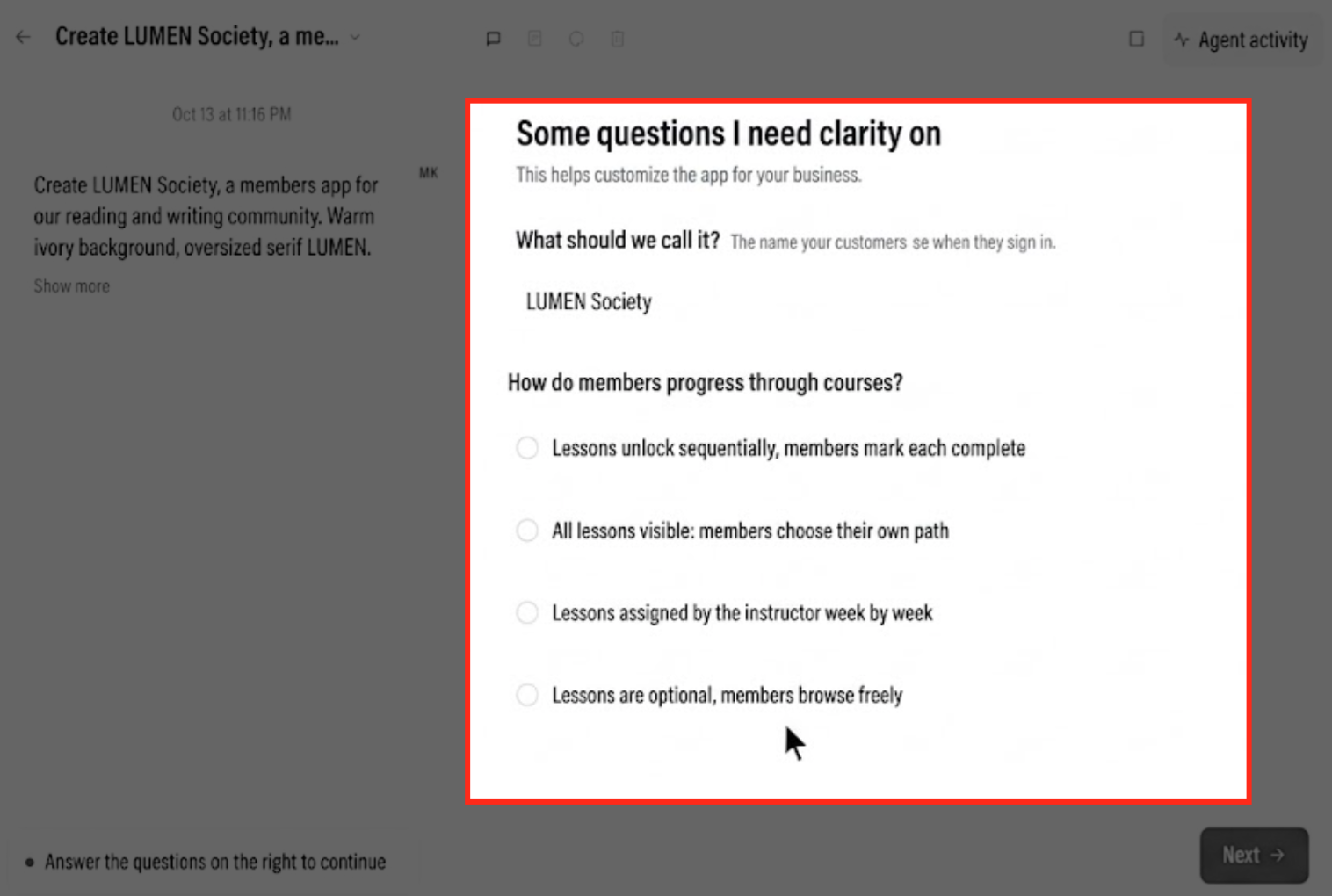
Review the questions under Some questions I need clarity on.
Confirm the name of your application if prompted.
Review the available answers for each question.
Select the options that best match your requirements.
Click Next to continue.
For example, AI Studio may ask how members should progress through courses.
These questions help define the requested course experience before AI generates the application.
Step 4: Choose Your Color Palette and Fonts
AI Studio lets you establish the application's visual direction before the build begins. Selected colors and fonts help maintain a consistent appearance across generated screens.
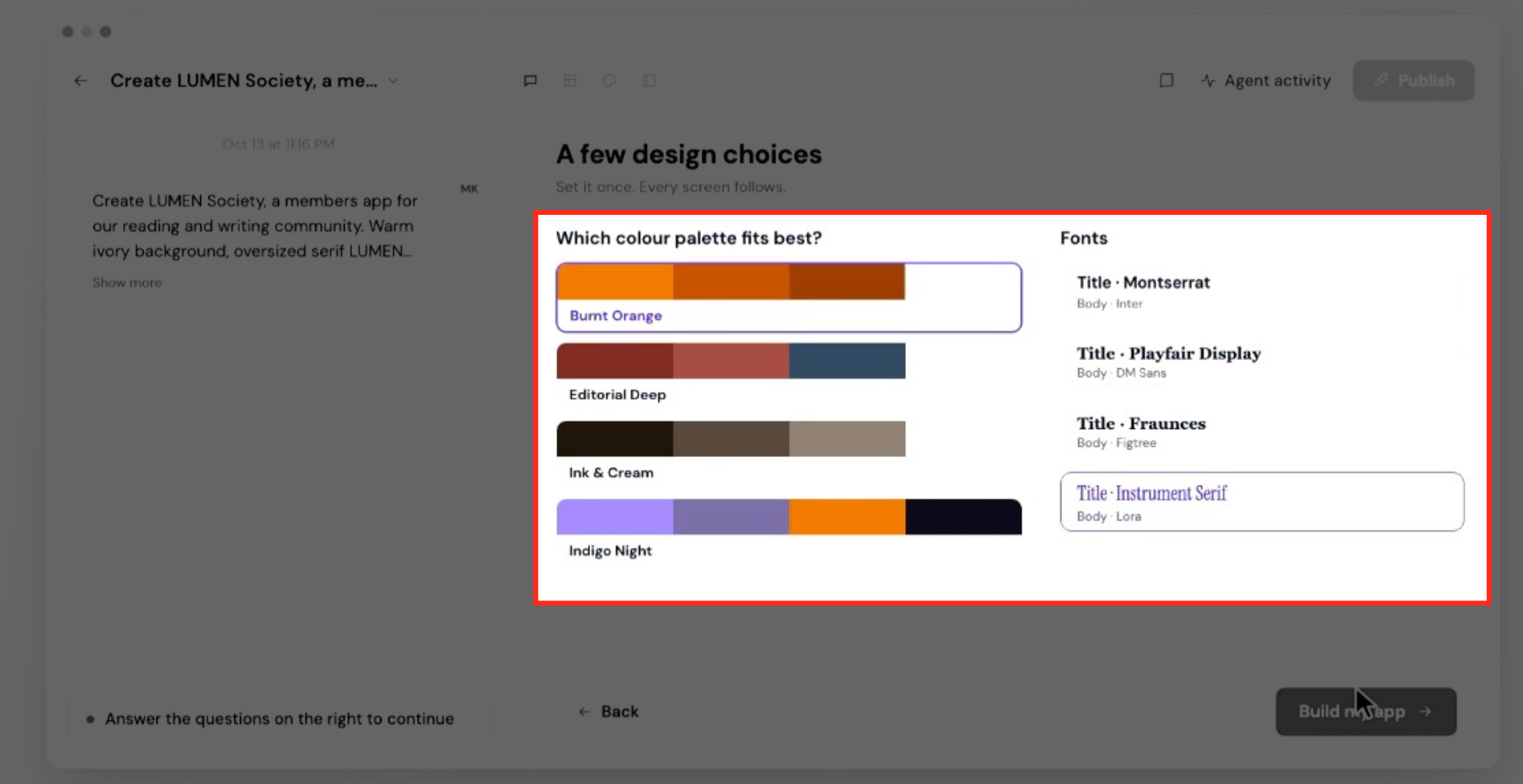
Review the A few design choices screen.
Find Which colour palette fits best?
Select your preferred color palette.
Review the available Fonts combinations.
Choose your preferred title and body fonts.
Click Build my App.
Step 5: Generate Your Mobile App
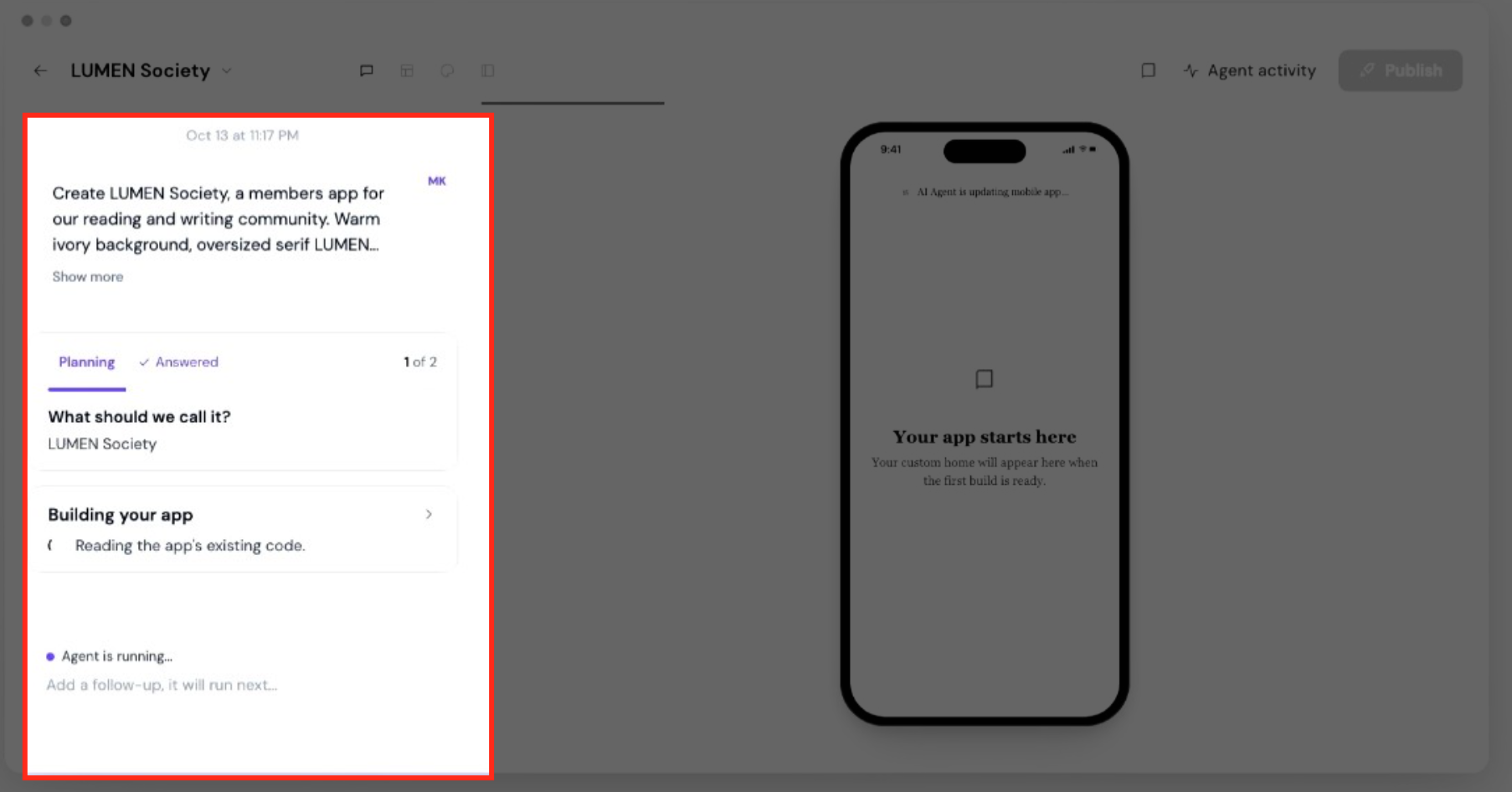
Once you submit your design choices, AI Studio begins generating the application based on your prompt and selected preferences.
Click Build my App after completing the design selections.
Review the progress information shown in the builder.
Monitor the AI agent's activity as it generates the application.
Review the phone-frame preview while the app is being built.
When the build completes, examine the generated screens.
The supplied build screen shows planning information, an AI build activity panel, and a mobile preview.
The agent generates application code while working with the Client Portal experience described in your prompt.
Step 6: Review the Generated Experience
Reviewing the initial app helps identify design or functional changes before publishing.
Check the generated experience against the requirements in your original prompt. Pay particular attention to:
The business name and branding.
The generated home screen.
Navigation between the app's screens.
Courses, communities, and other requested Client Portal resources.
Member sign-in and account-related screens.
Any forms, buttons, or other requested controls.
Customize Your Branded Mobile App
AI Studio allows you to continue improving the generated application after its initial build. You can request changes through conversation or use supported customization tools to refine the app's source.
Refine the App Through Conversation
Conversational editing lets you describe the changes you want without restarting the entire design.
For example, you can request:
A different arrangement of the home screen.
A change to the visual style or colors.
A different presentation of course progress.
Additional navigation or content areas.
AI App Studio preserves the existing design during follow-up requests unless you explicitly ask for a redesign.
You can continue submitting refinement requests as you review the result.
Edit the Application with the Customizer
The customizer can update the application's underlying source code.
Unlike a temporary visual preview, the edits saved through the customizer are applied to the application's own source. This means the saved changes are included in the code used for publishing.
Client Portal Features and Custom Objects
AI App Studio builds mobile applications around supported Client Portal functionality. This lets businesses create custom member experiences using the courses, communities, and resources associated with their existing portal.
Connected Client Portal Features
The release identifies several features that can be included in the generated mobile experience.
Courses: Give members access to course content and learning experiences.
Communities: Include community spaces and member interactions.
Files: Make shared resources available to members.
Appointments: Incorporate supported appointment-related experiences.
Account Settings: Provide access to account-related functionality.
Authentication: Include sign-in and sign-up experiences for members.
New members can join using a code.
Frequently Asked Questions
Q: Can I create a mobile app without selecting a prebuilt template?
Yes. AI App Studio supports creating an app from a description of your requirements. Select Describe it instead when choosing a starting point.
Q: Can I change from Web to Mobile after creating a project?
The supplied starting-point screen states that the platform and starting point cannot be changed after the project is created. Choose the intended platform before continuing.
Q: Can I publish my generated mobile app to the Apple App Store?
The supplied interface references iOS and Android mobile experiences. However, the release only confirms Android APK publishing. iOS publishing availability and steps require confirmation.
Q: How do new members join the mobile app?
The release confirms built-in sign-up and a code-based joining option for new members. The exact process for generating and sharing the code requires verification.
Q: What happens if my Android build fails?
AI App Studio retains the build failure reason, allowing you to identify the problem that needs correction. The exact retry procedure requires confirmation.