
AI App Builder: Build Branded Client Portal Apps for Web and Mobile
Create a fully customized, branded Client Portal with Chat To Clients CRM's AI App Builder using simple, natural-language prompts. Describe the experience you want, and AI designs and builds functional pages connected to your existing courses, communities, member accounts, and other Client Portal features. Customize the design, refine pages through conversation, and publish an application tailored to your business.
TABLE OF CONTENTS
- What is AI App Builder (Vibe Coding)?
- Key Benefits of AI App Builder
- Starting Points and Templates
- Design Systems and Reference Images
- Client Portal Integration and Supported Features
- Creating Mobile Apps with AI App Builder
- Conversational Editing, Prompt Guide, and Visual Edits
- Project Management and Builder Appearance
- Frequently Asked Questions
- Related Articles
What is AI App Builder (Vibe Coding)?
AI App Builder uses Vibe Coding to transform your ideas into functional Client Portal applications without requiring coding experience. Instead of working with fixed layouts, you can describe your business, answer a few questions, and select a design system to generate personalized pages.
The generated application works with your existing Chat To Clients CRM Client Portal, allowing members to access supported courses, communities, shared files, and account settings through a unified, branded experience.
Availability: AI App Builder Vibe Coding is being introduced through a private beta. Access and supported functionality may vary during the rollout.
Key Benefits of AI App Builder
AI App Builder simplifies application creation while giving businesses greater control over how members interact with their Client Portal.
- AI-Generated Pages: Turn simple descriptions into functional, customized application pages without manually designing or coding each one.
- Seamless Client Portal Integration: Bring existing courses, communities, shared files, and member accounts into one branded application without rebuilding your resources.
- Consistent Branding and Design: Choose from ready-made design systems, use reference images, and customize layouts to create a consistent experience across your application.
- Conversational and Visual Editing: Refine your application using natural-language prompts, ready-made suggestions, or visual edits without starting over.
Starting Points and Templates
Choosing the right starting point determines how your application is initially created. You can generate a new experience from your description or begin with an existing Client Portal foundation, depending on the level of customization you need.
AI App Builder provides the following starting options:
| Starting Point | Description |
|---|---|
| Describe it instead | Start fresh by describing the application you want. AI asks questions, applies your design preferences, and generates the pages. |
| ClientPortal standard | Start with your existing Client Portal experience. |
| Templates | Choose a predefined industry-specific starting point when available. |
| Request a template | Submit a request for an industry template that is not currently available. |
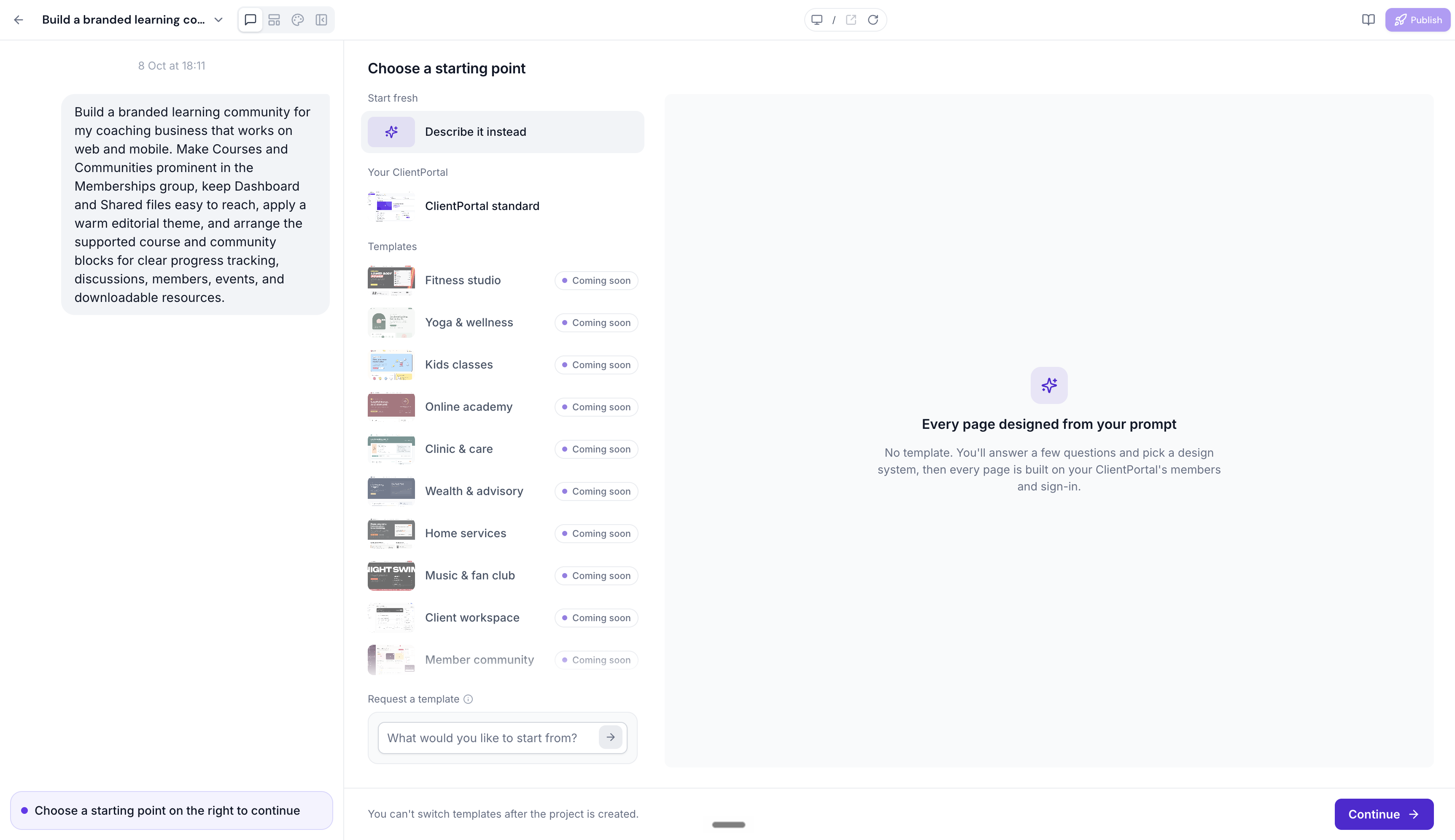
Important: Templates labeled Coming soon are not yet available for selection. The builder also indicates that you cannot switch templates after a project has been created, so review your starting point before continuing.Design Systems and Reference Images
Design systems control the overall appearance of your generated application. Selecting a coordinated visual style helps maintain consistency across pages without requiring you to configure individual typography, colors, layouts, and visual effects manually.
Once you describe your application and complete the initial questions, AI App Builder presents a selection of design systems.
The design system gallery includes visual styles such as:
- Bloom: Soft colors, gentle typography, and rounded architectural shapes.
- Studio: Bold typography, bright colors, and strong visual contrast.
- Counsel: Serif headlines, structured layouts, and professional styling. and more
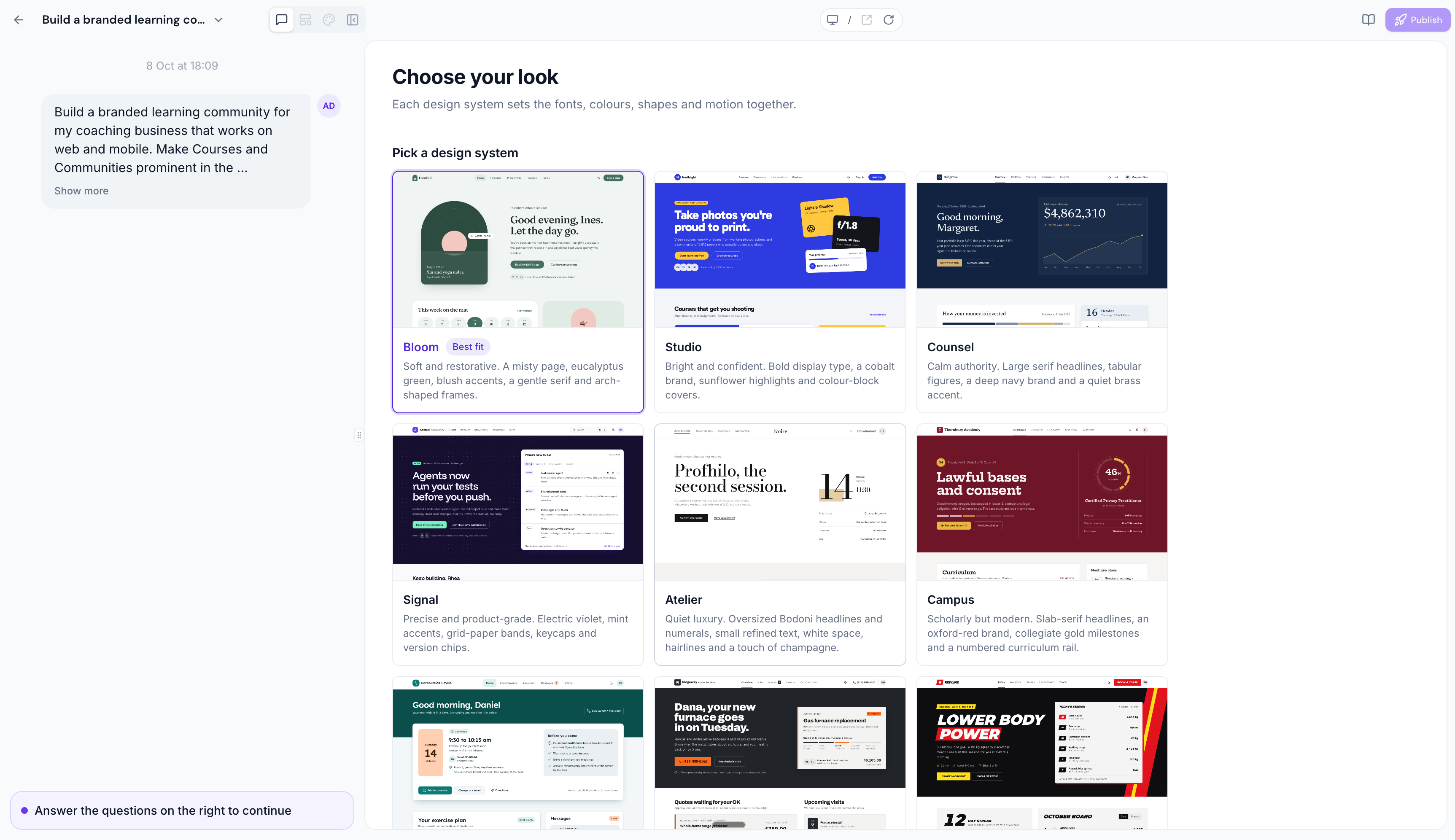
You can also attach images when describing your application. Reference images help AI understand the visual direction you want, such as brand colors, imagery, spacing, or layout style.
For example, you could attach a screenshot of a website you like and request: "Use the attached screenshot as inspiration for the homepage layout. Keep our brand colors and create a cleaner navigation experience for members."
Client Portal Integration and Supported Features
AI-generated applications are built around supported Chat To Clients CRM Client Portal functionality. This means your application can provide a custom interface for existing customer resources instead of creating a separate membership system.
The capabilities available to members depend on the resources, permissions, and integrations configured in your Chat To Clients CRM account.
| Feature | How It Can Be Used |
|---|---|
| Courses | Display available and enrolled courses, allow supported in-app purchases, launch lessons, and show learner progress. |
| Communities | Provide access to community groups, invitations, and supported member interactions. |
| Shared Files | Display files and resources shared with members through the Client Portal. |
| Appointments | Surface supported appointment experiences where available and enabled. |
| Member Profiles | Give members access to their profile and available account settings. |
| Authentication | Use the existing Client Portal member sign-in experience. |
| Payments | Support applicable course-purchase and payment experiences connected to the existing Client Portal setup. |
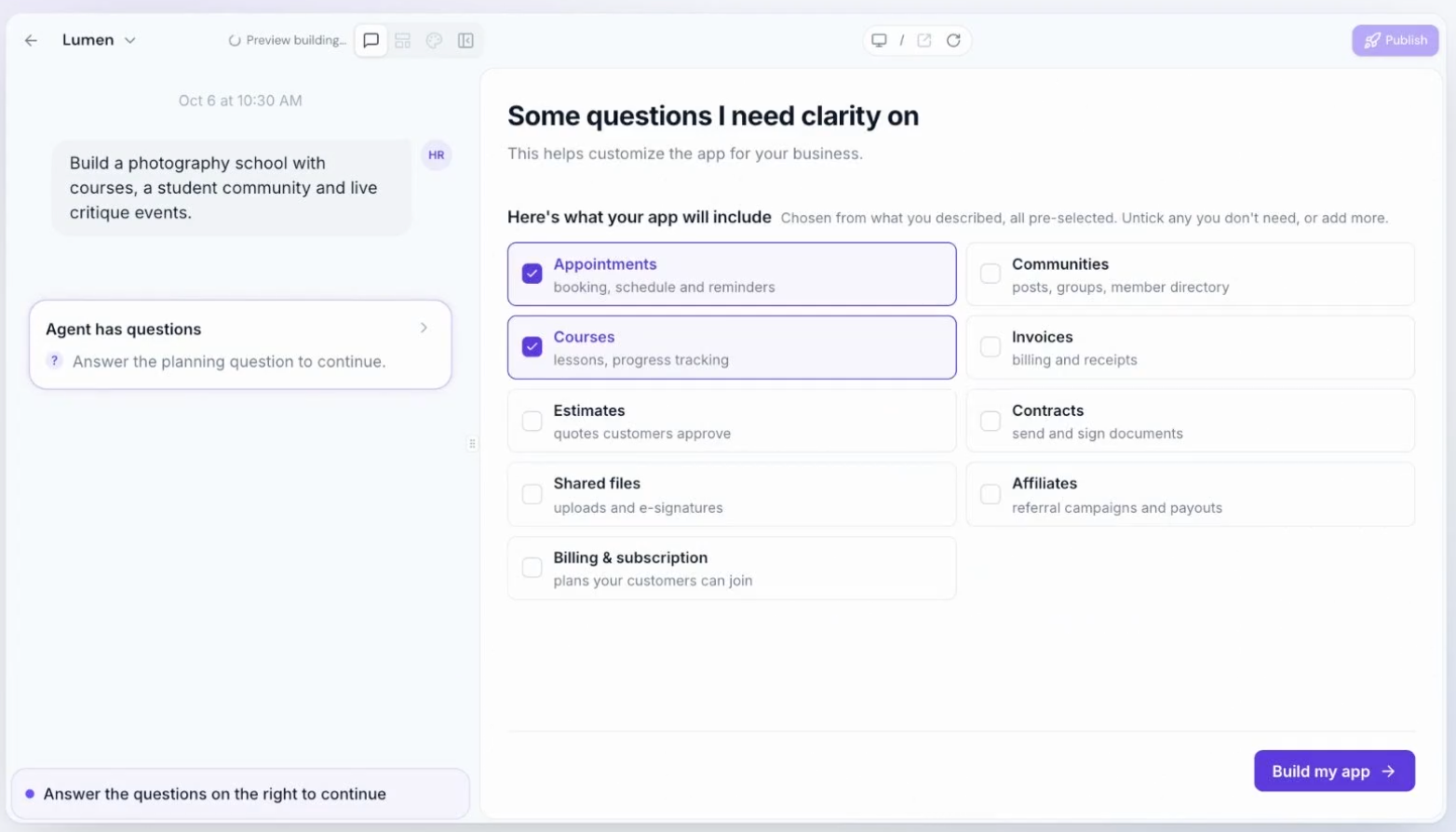
Important: AI App Builder does not replace the underlying configuration of Courses, Communities, or other Chat To Clients CRM features. Access remains dependent on the applicable setup, enrollment, and permissions. Appointment support also varies by portal experience; confirm availability before relying on it in a generated application.
For configuration details, refer to How to Set Up the Client Portal and App Permissions in Client Portal.
Creating Mobile Apps with AI App Builder
AI App Builder lets you create branded experiences for both web and mobile. During the application planning process, you can choose between a Web application for desktop and mobile browsers or a Mobile app experience designed for iOS and Android.
Selecting Mobile allows AI to generate a mobile-focused application based on your description and business requirements.
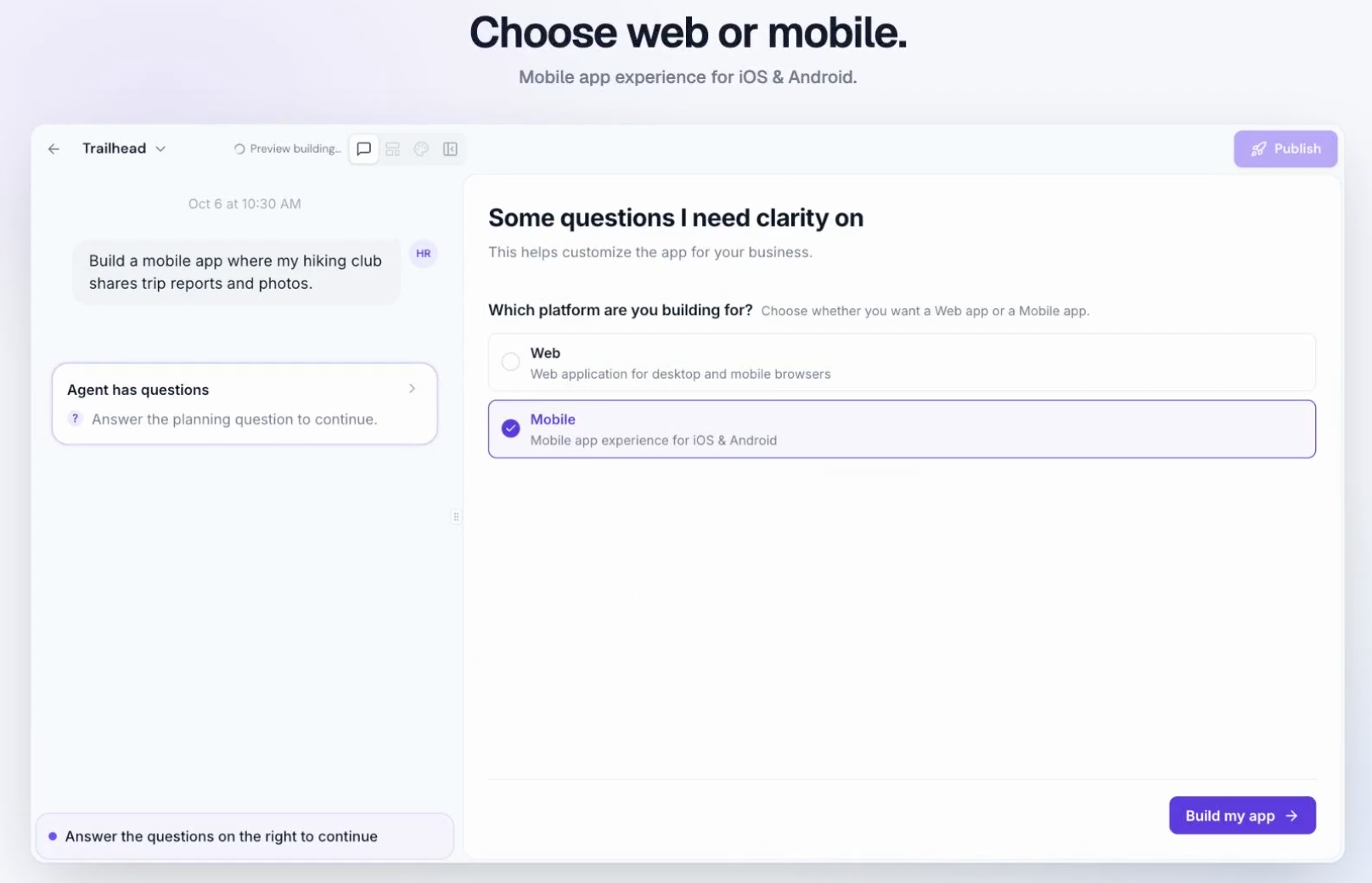
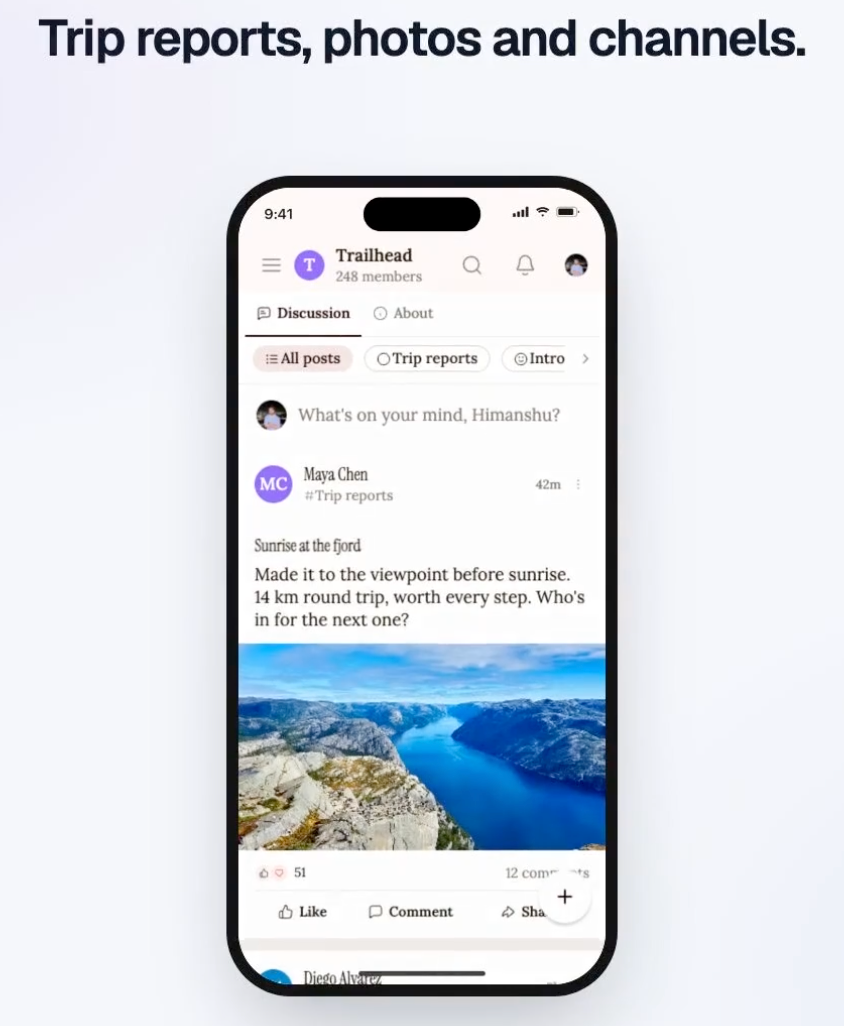
For example, a hiking club can create a mobile community where members share trip reports, upload photos, participate in discussions, and explore topic-based channels. AI designs the interface for mobile screens while connecting supported features to your existing Client Portal.
Conversational Editing, Prompt Guide, and Visual Edits
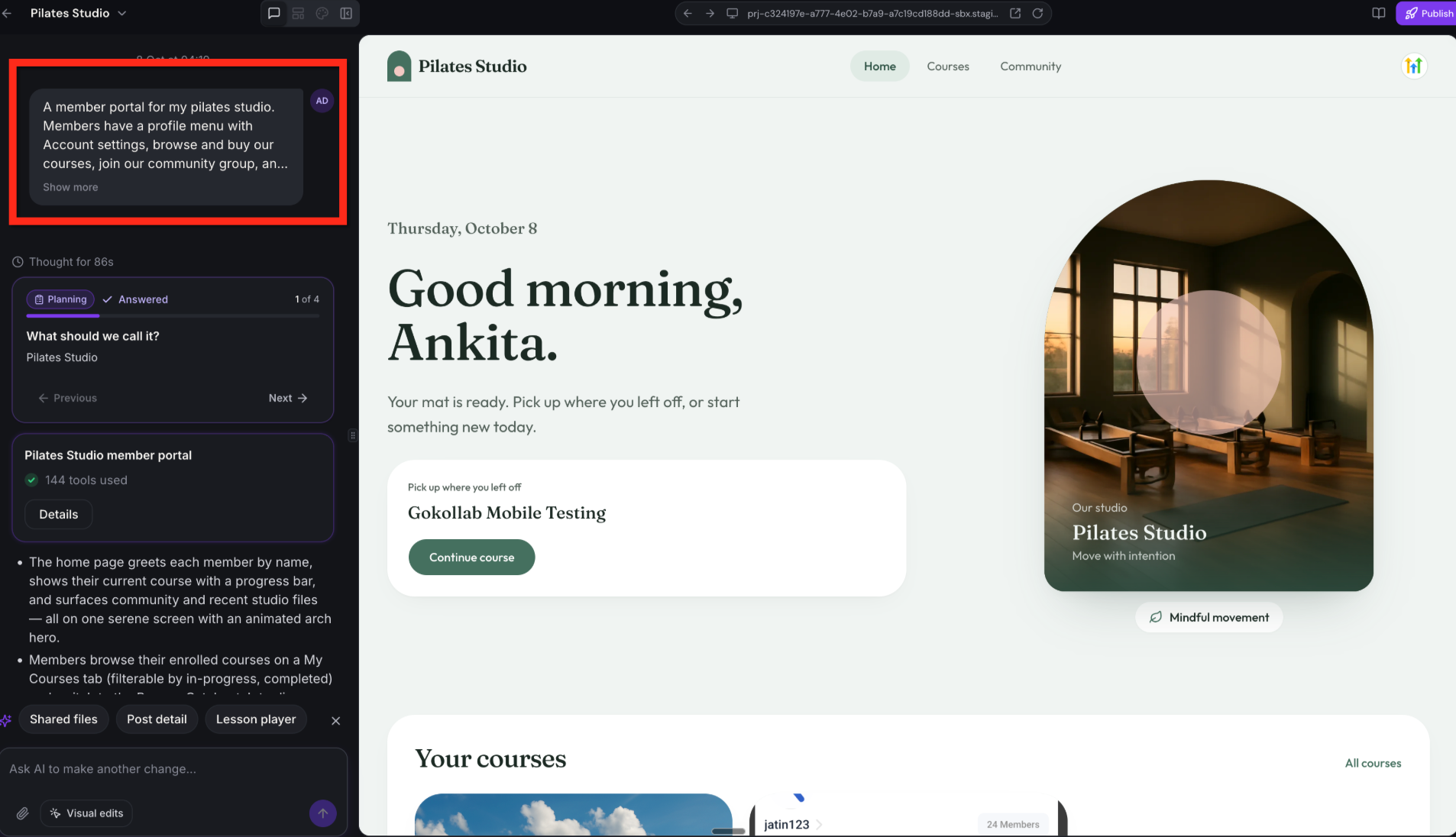
AI App Builder lets you refine an application through a conversation instead of manually rebuilding individual pages. You can describe a design change, request new functionality, or use the built-in prompt suggestions to guide your next update.
Conversational Editing
Use the chat interface to explain what you want to change. AI interprets your instruction and updates the generated application.
Example prompts:
- "Add a Community page where members can find our groups."
- "Make the homepage feel warmer with softer colors and larger headings."
- "Move the member's next class above the course list."
For clearer results, request one focused change at a time and review the updated preview before making another change.
Prompt Guide
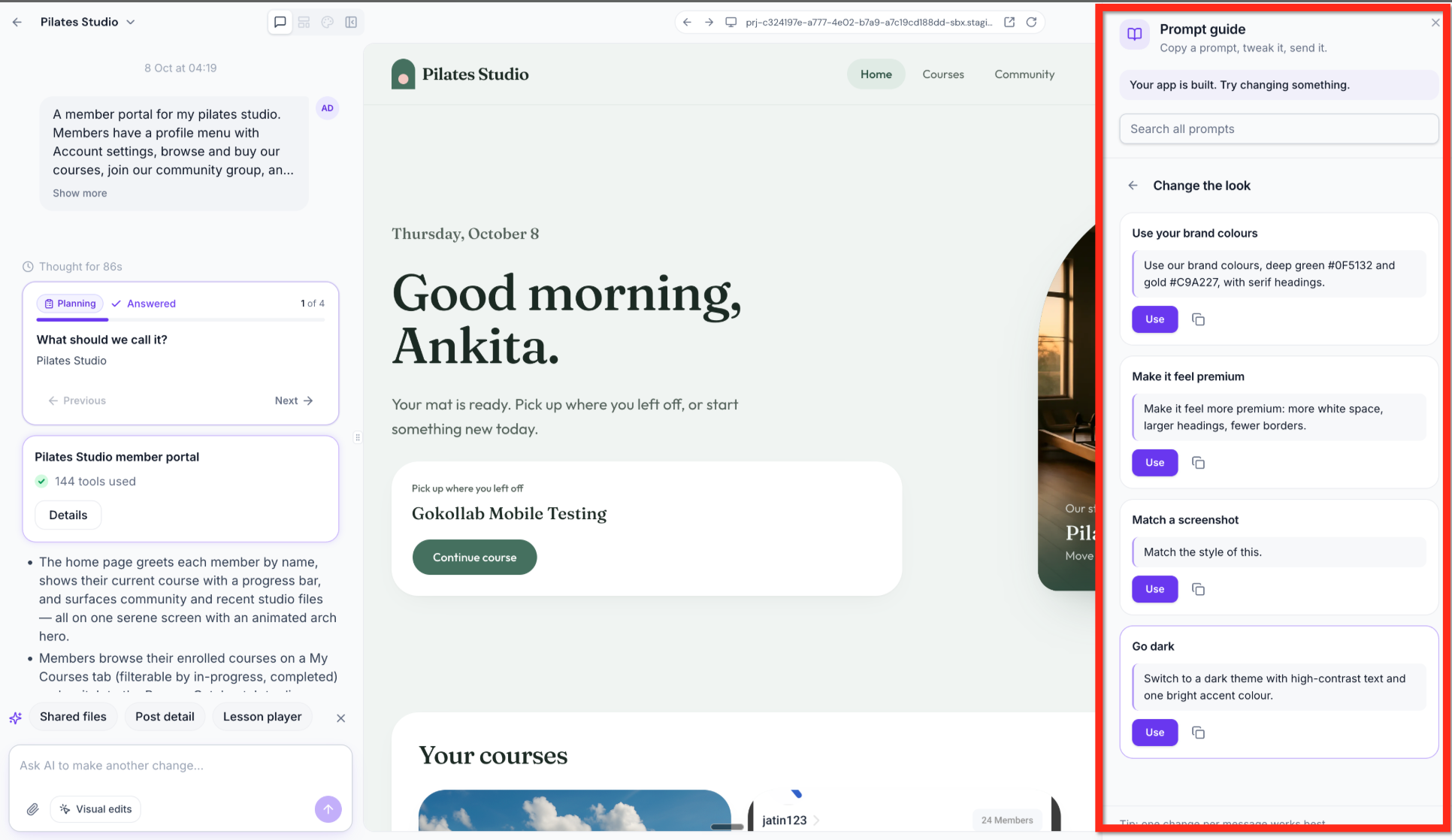
The Prompt Guide provides ready-to-use suggestions that you can apply or customize.
Available suggestions include:
- Use your brand colors: Apply your preferred colors and typography.
- Make it feel premium: Increase white space, use larger headings, and simplify visual styling.
- Match a screenshot: Use a reference image to guide the application's appearance.
- Go dark: Request a dark application theme with high-contrast text and accents.
Select Use beside a suggestion to apply it to your conversation.
Visual Editing
Visual editing lets you identify the exact part of the application you want to change. Instead of describing an element only by its location, select it in the preview and provide an instruction.
For example:
"Change this button to our primary brand color and make the corners more rounded."
AI App Builder can also display a Build this page action when a referenced page has not yet been generated.
Project Management and Builder Appearance
AI App Builder provides tools for managing generated projects and personalizing your editing environment. These controls make it easier to return to existing work and choose an appearance that suits your preferences without changing what customers see.
Project Gallery
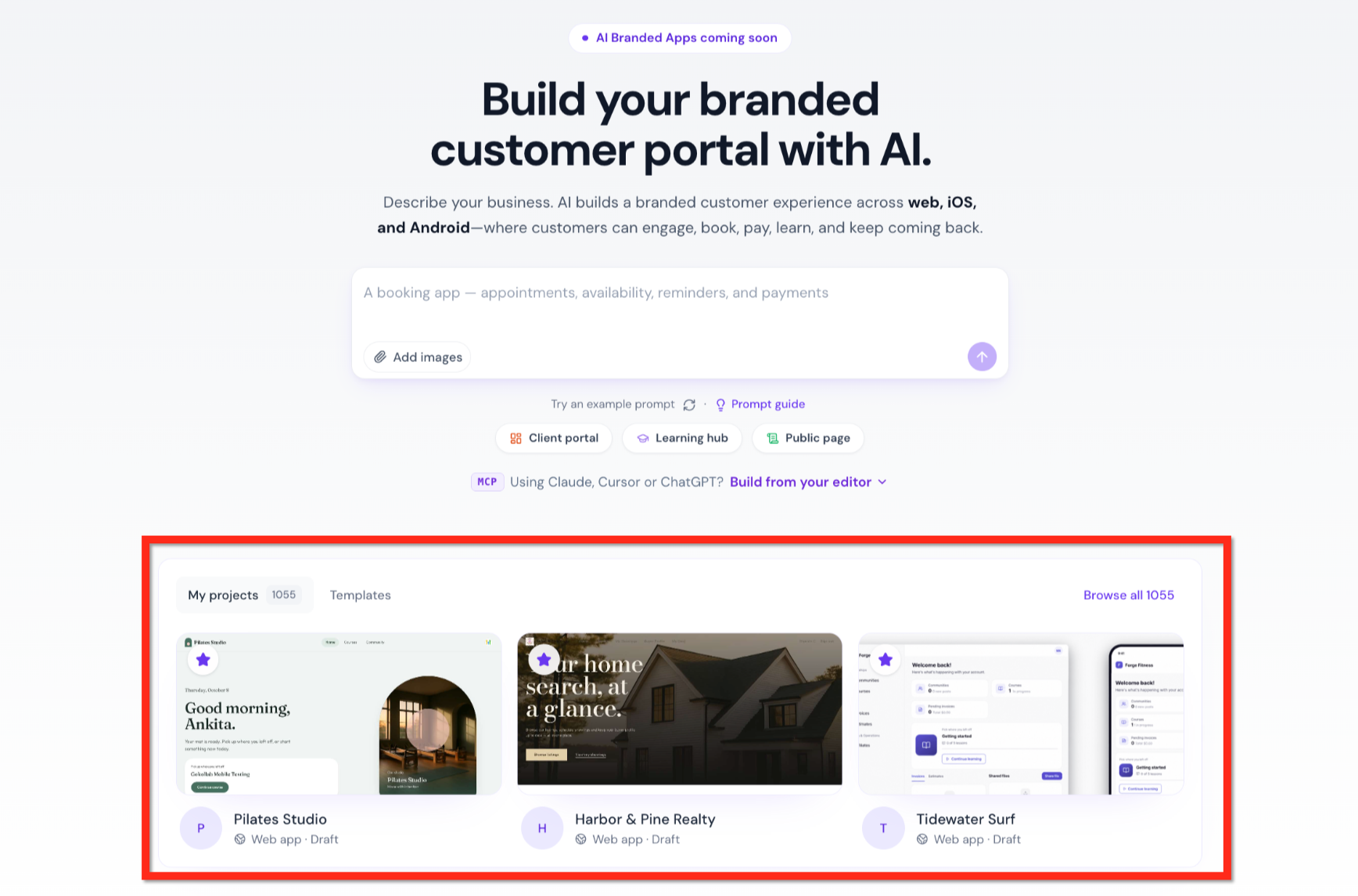
The project listing displays application thumbnails so you can visually identify the project you want to open.
Each project is represented by a preview image and project information, allowing you to distinguish multiple applications without opening them individually.
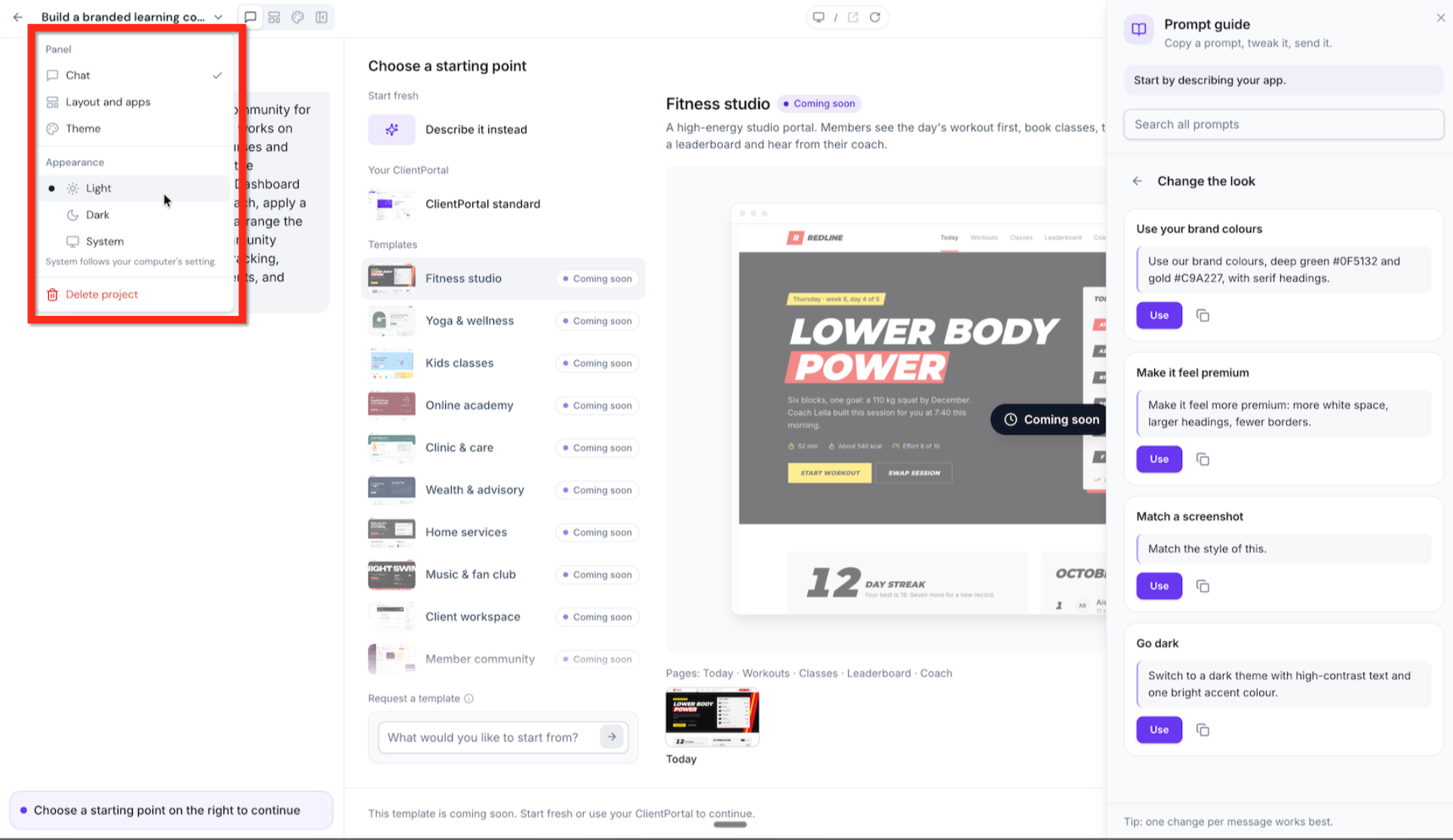
Builder Appearance
You can change the appearance of the AI App Builder interface using the project menu.
Three options are available:
- Light: Use the light interface.
- Dark: Use the dark interface.
- System: Follow your device's appearance preference.
This setting changes the builder's interface, not your generated application's design. Your application preview retains its own colors and styling so you can review the experience members will see.
Frequently Asked Questions
Q: Can I connect a custom domain to my AI-generated application?
Yes. AI App Builder allows you to change your application's web address and connect up to 10 custom domains. This lets you provide members with a branded URL, such as members.example.com, to access your application.
Q: Can I create multiple applications using AI App Builder?
Yes. You can create and manage multiple applications, each published as its own independent site. The project gallery displays application thumbnails, making it easier to identify and access your projects.
Q: What if members cannot access certain courses or communities in my application?
Check that the resources are configured correctly and that members have the required enrollments or permissions. AI-generated applications use your existing Client Portal resources, so access depends on their underlying settings.
Q: Why can't I find AI App Builder in my Chat To Clients CRM account?
AI App Builder Vibe Coding is currently being introduced through a private beta. Access may be limited to participating accounts during the initial rollout.