
Contact Activity Panel Upgrade: New Activity Cards, Filters, and Navigation
The upgraded Contact Activity Panel in Chat To Clients CRM provides a cleaner, more organized way to track activities and interactions associated with a contact. With new activity cards for opportunities, appointments, notes, and tags, along with advanced filters and expandable event details, users can review contact history more efficiently. The Activity panel is now positioned alongside Conversations by default, making it easier to switch between communication history and other contact events.
TABLE OF CONTENTS
- What is the Contact Activity Panel?
- Key Benefits of the Contact Activity Panel
- Activity Timeline and Redesigned Cards
- New Activity Cards: Opportunities, Appointments, Notes, and Tags
- Advanced Activity Filters
- Contact Activity Panel Placement and Customization
- Frequently Asked Questions
- Related Articles
What is the Contact Activity Panel?
The Contact Activity Panel in Chat To Clients CRM is a centralized timeline that displays recorded activities and interactions associated with an individual contact. It helps users understand what happened, when it happened, and who performed the activity, providing valuable context for sales, support, and follow-ups.
The upgraded panel introduces a refreshed interface with redesigned activity cards, additional activity types, and improved navigation. Activities are organized chronologically, and users can expand individual cards to review more information without leaving the Contact Detail Page.
Key Benefits of the Contact Activity Panel
- Centralized Activity Tracking: Review opportunity updates, appointments, notes, tags, and other supported interactions in one location, providing a more complete view of the contact's journey.
- Faster Activity Navigation: Use Duration, Activity, and Users filters to locate relevant events quickly, even when a contact has an extensive activity history.
- Detailed Event Insights: Expand activity cards to review important information, including opportunity changes, appointment details, note updates, and tag modifications.
- Flexible and Organized Workspace: Switch between Conversations and Activity in the center panel, or customize the layout to position Activity in the right panel according to your team's workflow.
Activity Timeline and Redesigned Cards
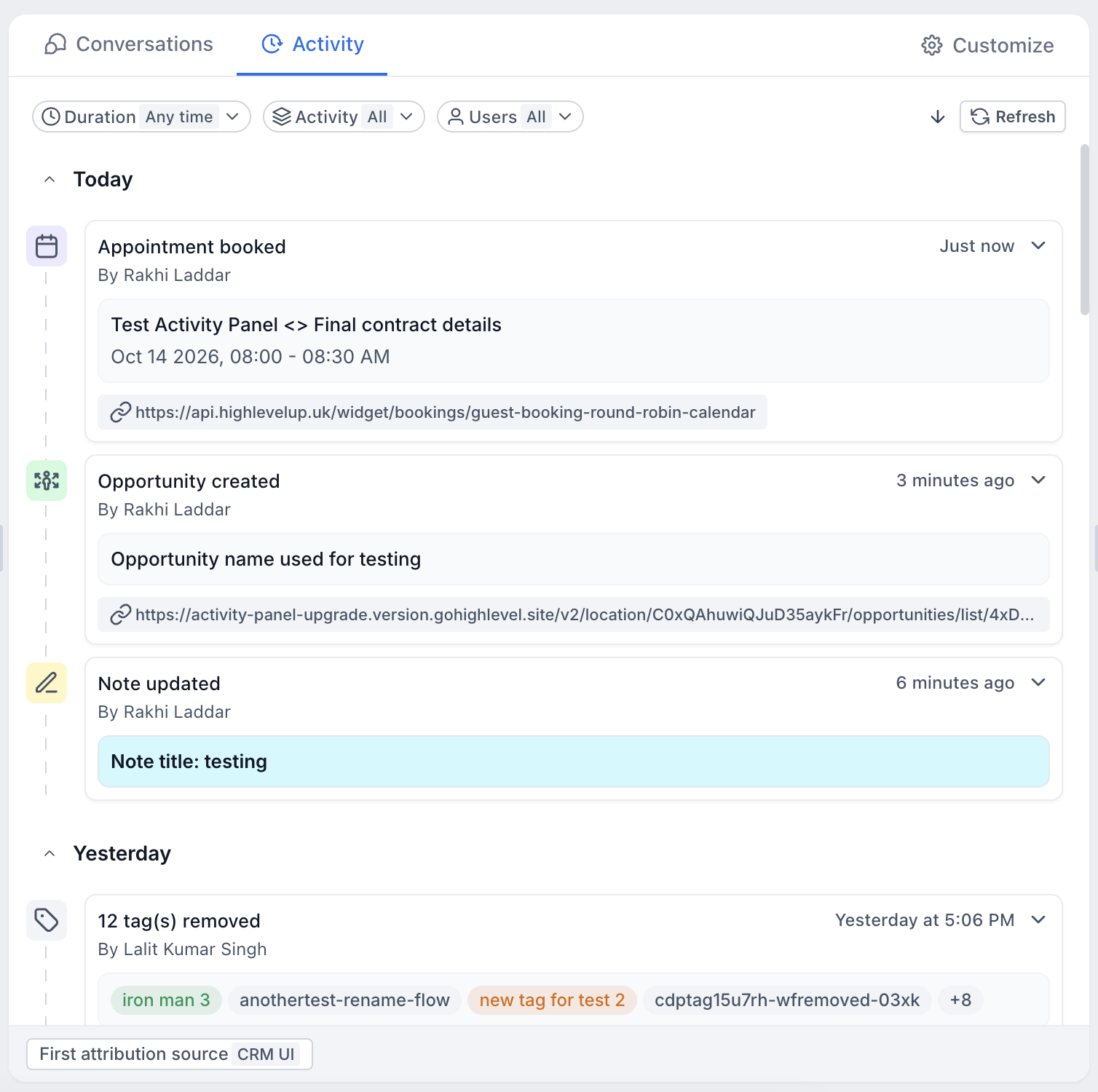
The refreshed Activity timeline organizes contact interactions chronologically, making it easier to understand recent activity and track changes over time. Redesigned cards use activity-specific icons, timestamps, and clear summaries to help users identify events without reviewing every detail.
Activities are grouped under date headings such as Today, Yesterday, or specific dates for older events.
Individual cards can be expanded or collapsed to reveal additional information while keeping the timeline easy to navigate.
Each activity card can display:
- Activity Type: The recorded event, such as Appointment booked, Opportunity created, Note updated, or Tag removed.
- Performed By: The user or system associated with the event.
- Timestamp: When the activity occurred.
- Activity Summary: Important information about the event or associated record.
- Related Links: Links to associated opportunities, appointments, or other records, when available.
New Activity Cards: Opportunities, Appointments, Notes, and Tags
The upgraded Activity panel introduces four additional activity-card categories to provide greater visibility into important contact interactions. Each card presents information relevant to its activity type, reducing the need to navigate between different modules to understand what changed.
Opportunities
Opportunity activity cards track supported sales-related events, including opportunity creation, pipeline stage changes, status updates, and other important modifications.
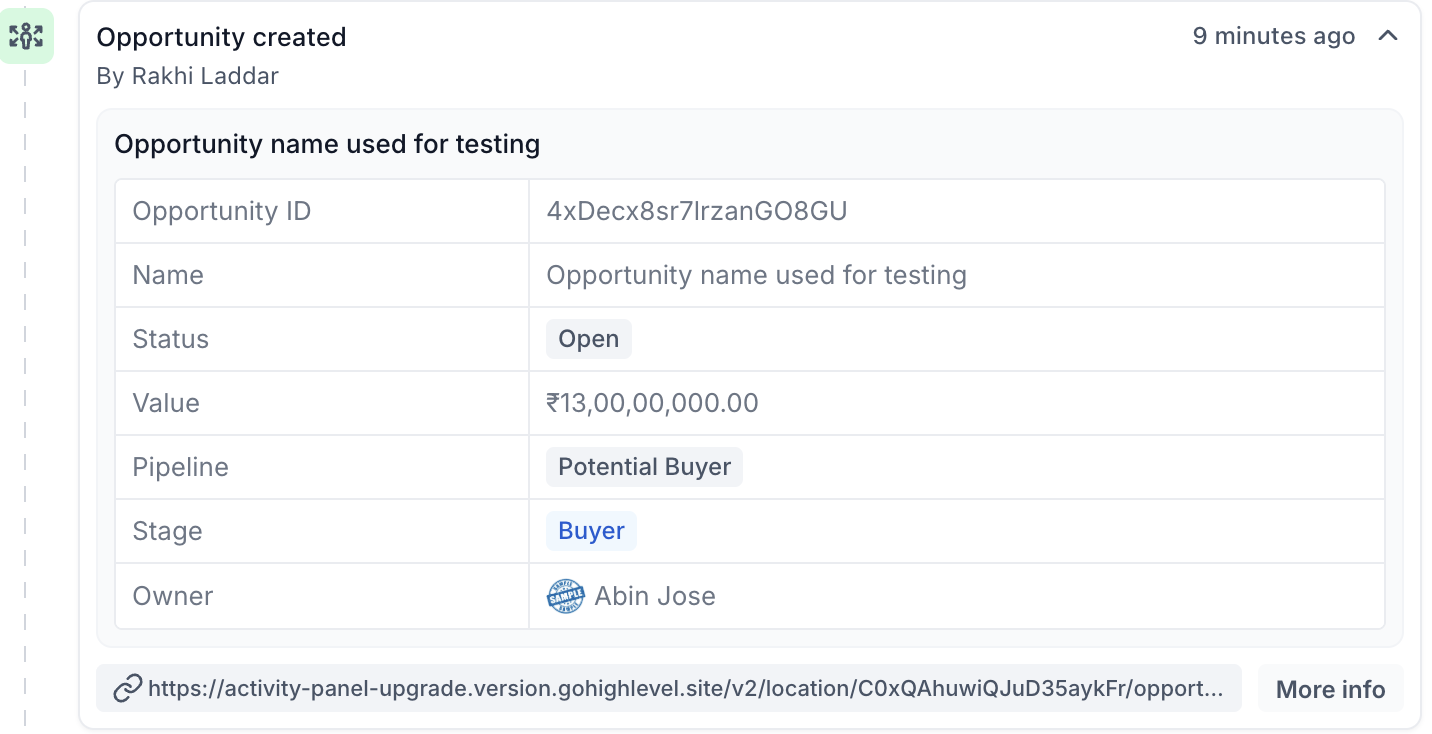
Expanding an opportunity card can display:
- Opportunity name and ID.
- Opportunity status and value.
- Associated pipeline and stage.
- Assigned opportunity owner.
For example, an Opportunity created event displays the opportunity name, while the expanded view provides additional details about its pipeline, stage, status, and ownership. A related record link may also be available to open the opportunity.
Appointments
Appointment activity cards provide visibility into appointment bookings, rescheduling, cancellations, and status changes associated with a contact.
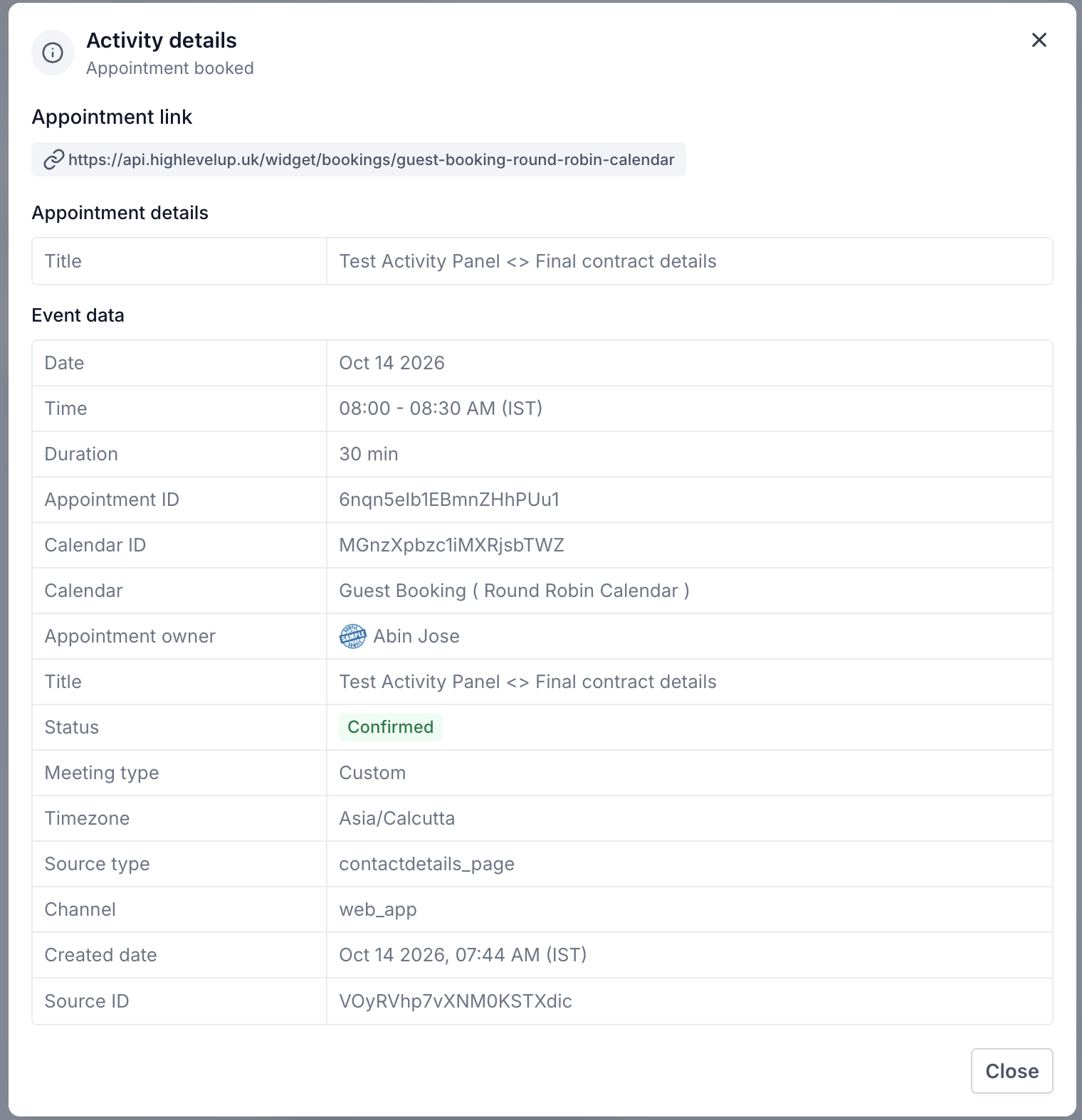
The activity summary can display the appointment title, date, and scheduled time. Additional details available through More info may include:
- Appointment date, time, and duration.
- Calendar and appointment owner.
- Appointment status and meeting type.
- Timezone and appointment identifiers.
- Source type, channel, and creation timestamp.
These details help users understand a contact's scheduling history without navigating to the Calendar module.
Notes
Note activity cards help users track important information added to or updated on a contact record. This provides visibility into internal observations, follow-up details, and information recorded by team members.
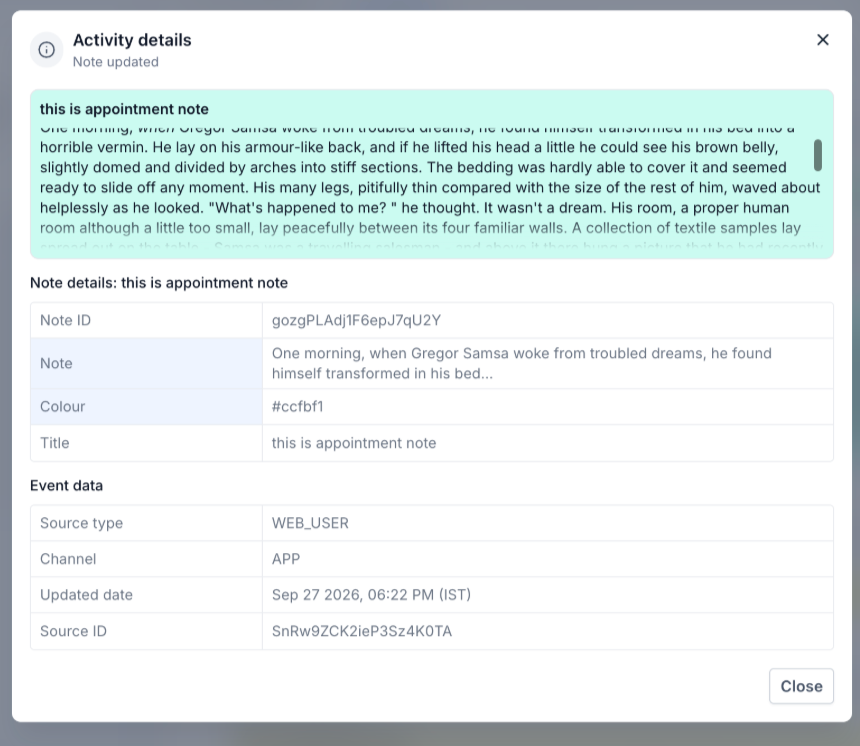
A note activity may display its title or a preview of the note content. Additional details can include:
- Note title and content.
- Note ID and color.
- Updated date.
- Source type and channel.
For supported events, users can open More info to review the recorded note information and associated event data.
Tags
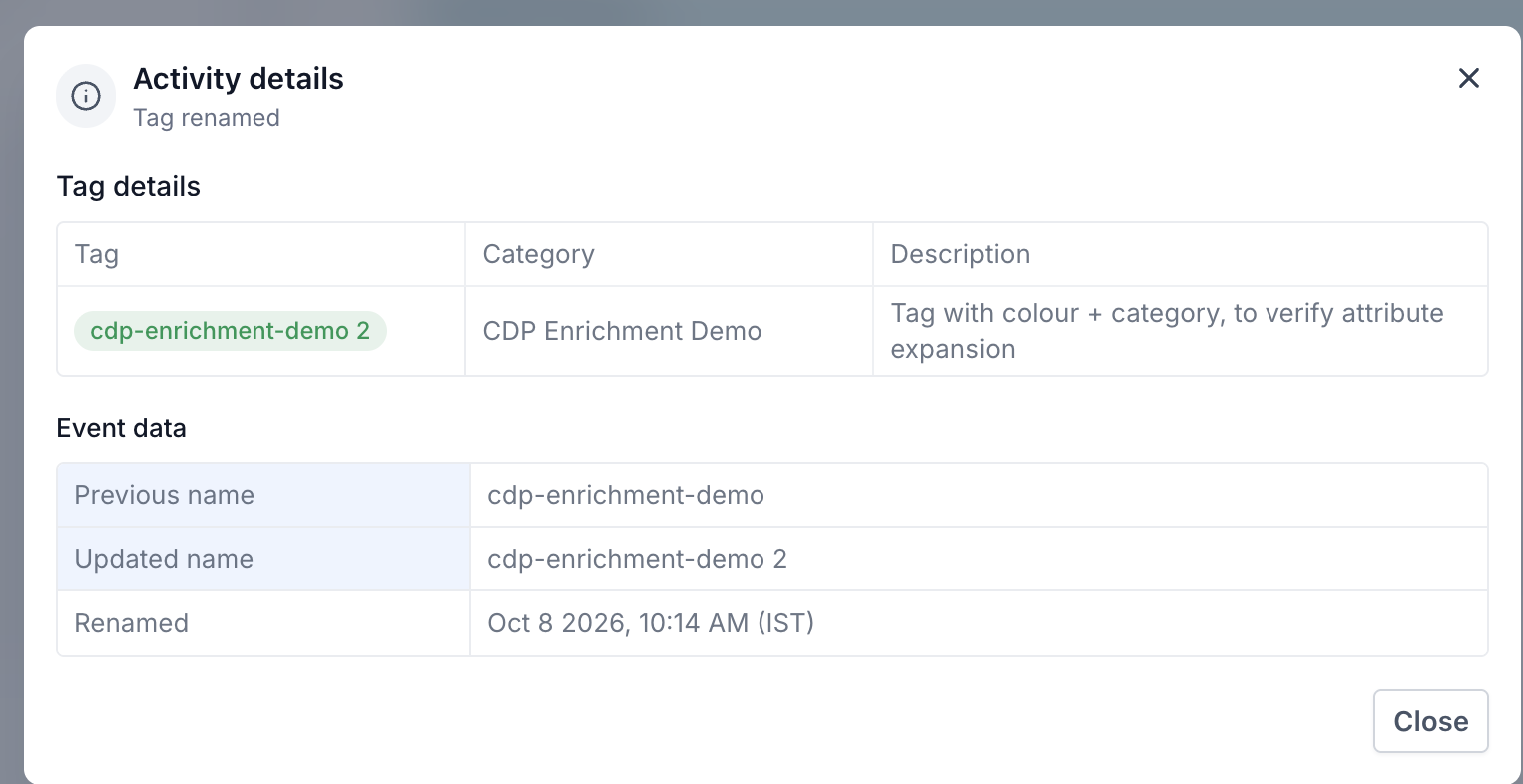
Tag activity cards help users track changes to contact categorization and segmentation, including tags being added, removed, or renamed.
Events involving multiple tags can display the number of affected tags, while labeled chips help identify individual tags.
For tag-renaming events, the expanded card can display:
- Previous tag name.
- Updated tag name.
- Tag category.
- Tag description.
The previous and updated names appear with an arrow indicating the change, making it easy to identify how the tag was renamed.
Advanced Activity Filters
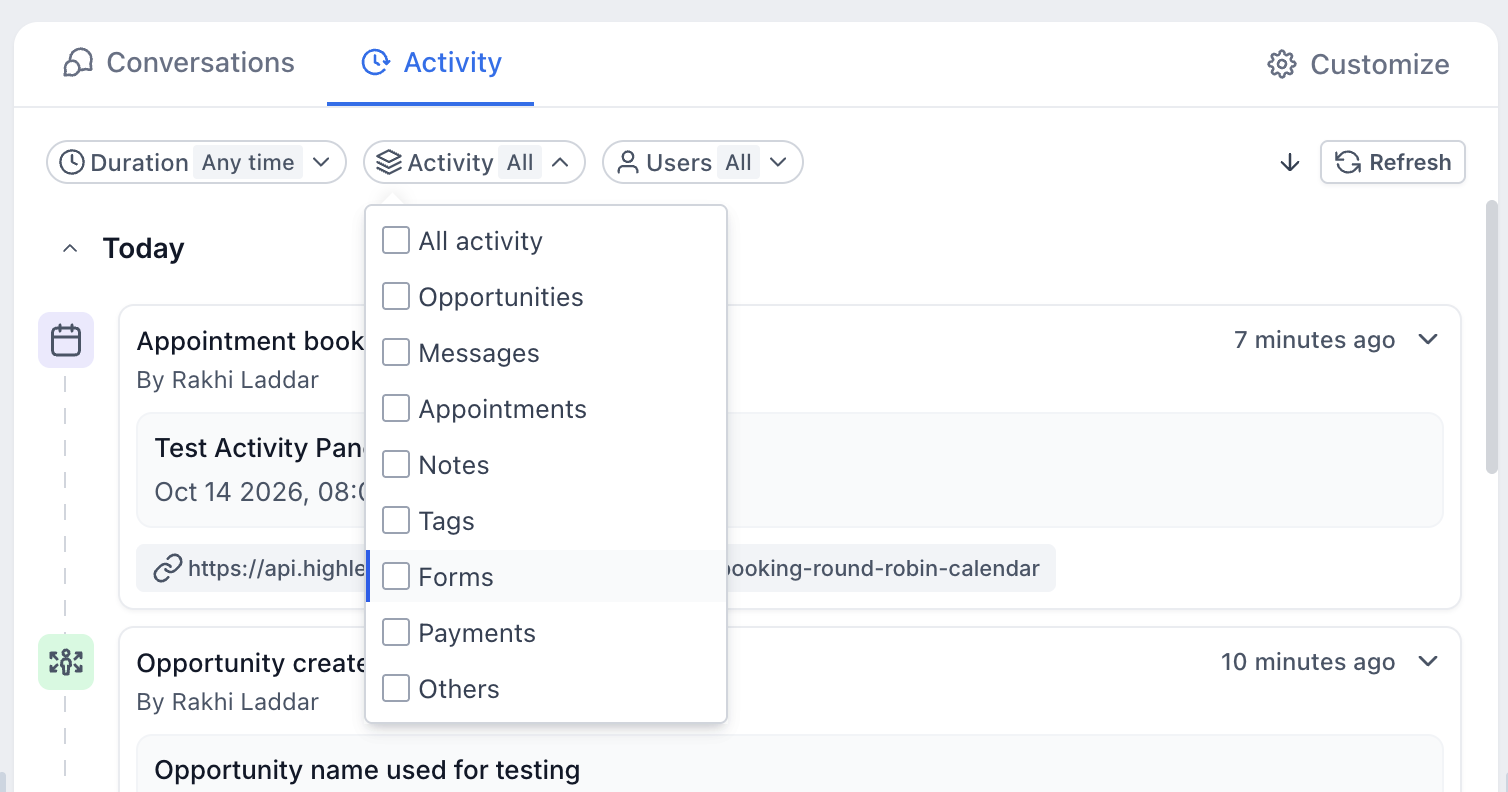
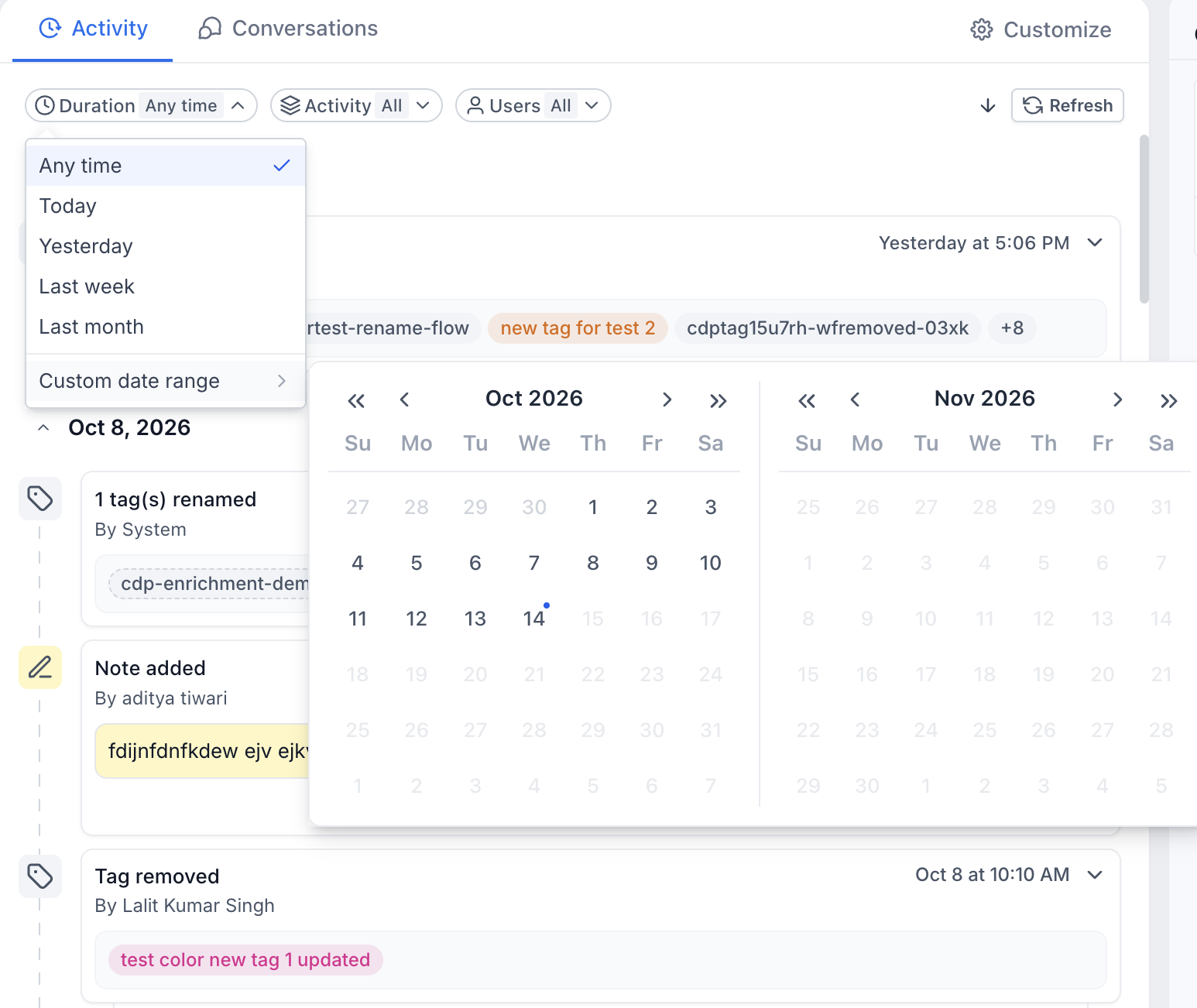
Activity filters help users narrow the timeline to specific dates, event categories, or team members. This is particularly useful when reviewing contacts with numerous recorded interactions, allowing users to focus on the information most relevant to their current task.
The upgraded Activity panel includes three filters: Duration, Activity, and Users.
| Filter | Available Options | Description |
|---|---|---|
| Duration | Any time, Today, Yesterday, Last week, Last month, Custom date range | Filters activities by a selected time period. Choose Custom date range to select a specific start and end date using the calendar picker. |
| Activity | All activity, Opportunities, Messages, Appointments, Notes, Tags, Forms, Payments, Others | Displays activities associated with selected modules or event categories. Use the dropdown checkboxes to select the relevant activity types. For example, select Opportunities to review sales pipeline events or Appointments to review scheduling activities. |
| Users | All or specific users | Filters activities associated with selected team members. This helps users review individual interactions when multiple people manage the same contact. Select All to return to a broader activity view. |
Contact Activity Panel Placement and Customization
The Activity panel now appears in the center of the Contact Detail Page alongside Conversations by default. This placement makes it easier to switch between communication history and recorded contact activities without navigating across different areas of the page.
Users who prefer the previous layout can have the Activity panel positioned in the right panel through Contact Detail Page customization.
Available placement options include:
- Center Panel: Recommended for users who frequently switch between Conversations and Activity or review detailed activity cards.
- Right Panel: Useful for teams that prefer keeping Conversations as their primary center-panel workspace while accessing contact activities from the side.
Administrators can manage supported module placements through customized Contact Detail Page views.
For detailed instructions, see How to Customize the Contact Detail Page.
Frequently Asked Questions
Q: Why do some activities show "By System" instead of a user's name?
Some activities are attributed to System rather than an individual team member. This indicates how the event was recorded and does not necessarily identify the underlying process responsible for the change.
Q: Why is an appointment's activity timestamp different from its scheduled time?
The activity timestamp indicates when the event was recorded, while the scheduled appointment time indicates when the meeting takes place. For example, an appointment booked today may be scheduled for a future date.
Q: What should I do if an expected activity is missing from the timeline?
Confirm that you are viewing the correct contact, review the selected Duration, Activity, and Users filters, and click Refresh. Event visibility also depends on whether the action was recorded as a supported activity.
Q: Does the Contact Activity Panel display every action performed in Chat To Clients CRM?
No. The Activity panel displays supported events associated with the selected contact. It is not a complete record of every account-level action and should not be treated as a replacement for administrative Audit Logs.