
Discover Courses and Offers in Chat To Clients CRM Client Portal
Discover helps you show your courses and offers to learners directly inside the Chat To Clients CRM Client Portal. Instead of sharing a separate purchase link every time you create something new, you can make your courses and offers available in one place where learners can explore and purchase them. Learners can search for courses, view prices, and choose what they want to learn next. You can also decide which courses and offers appear in Discover.
TABLE OF CONTENTS
- What is Discover for Courses and Offers?
- Key Benefits of Discover for Courses and Offers
- Understanding the Discover Page
- How Course and Offer Visibility Works in Discover
- What Happens When a Course Appears in More Than One Listing?
- How Learners Can Search and Filter Courses
- How Learners Can Purchase Courses and Offers From Discover
- How to Set Up Discover for Courses and Offers
- Frequently Asked Questions
- Related Articles
What is Discover for Courses and Offers?
Discover is a feature in the Chat To Clients CRM Client Portal that helps learners find new courses, course bundles, and communities.
The Client Portal is the place where your customers or learners log in to access their courses, communities, and other resources.
For example, imagine you sell three online courses. A learner purchases your first course and logs in to the Client Portal to start learning. With Discover enabled, that learner can also find your other available courses and purchase one that interests them.
You control which courses and offers are displayed using the Show in Discover setting.
Discover has two main tabs:
Communities: Shows communities that learners can explore and join.
Courses: Shows individual courses and bundles that learners can explore and purchase.
An offer is a product you create to sell access to one or more courses. In Discover, offers appear as Bundles.
Understanding the Discover Page
The Discover page is where learners can browse the courses, bundles, and communities available to them. Understanding how this page works helps you decide how your content should be displayed and what learners will see when they visit.
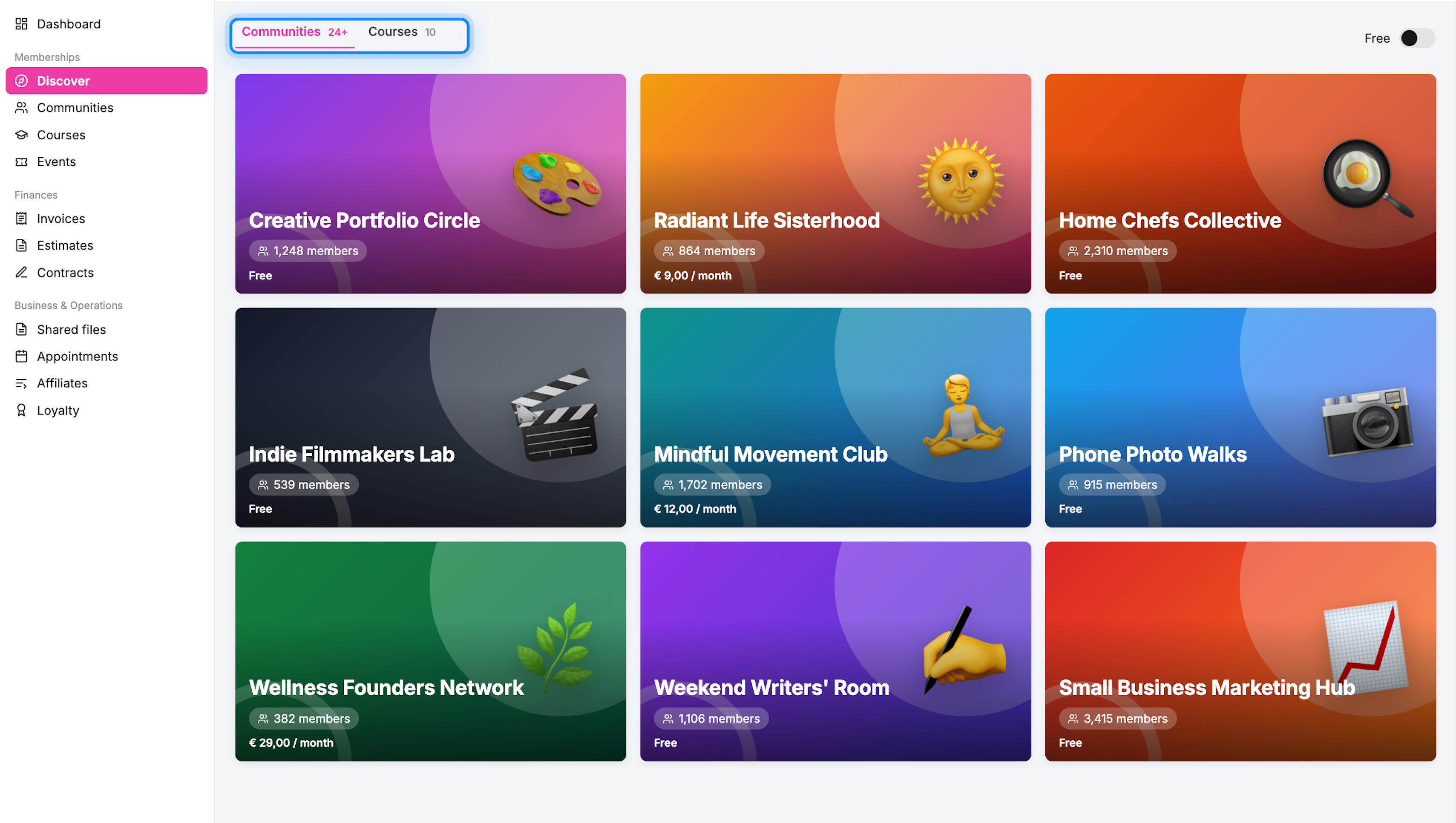
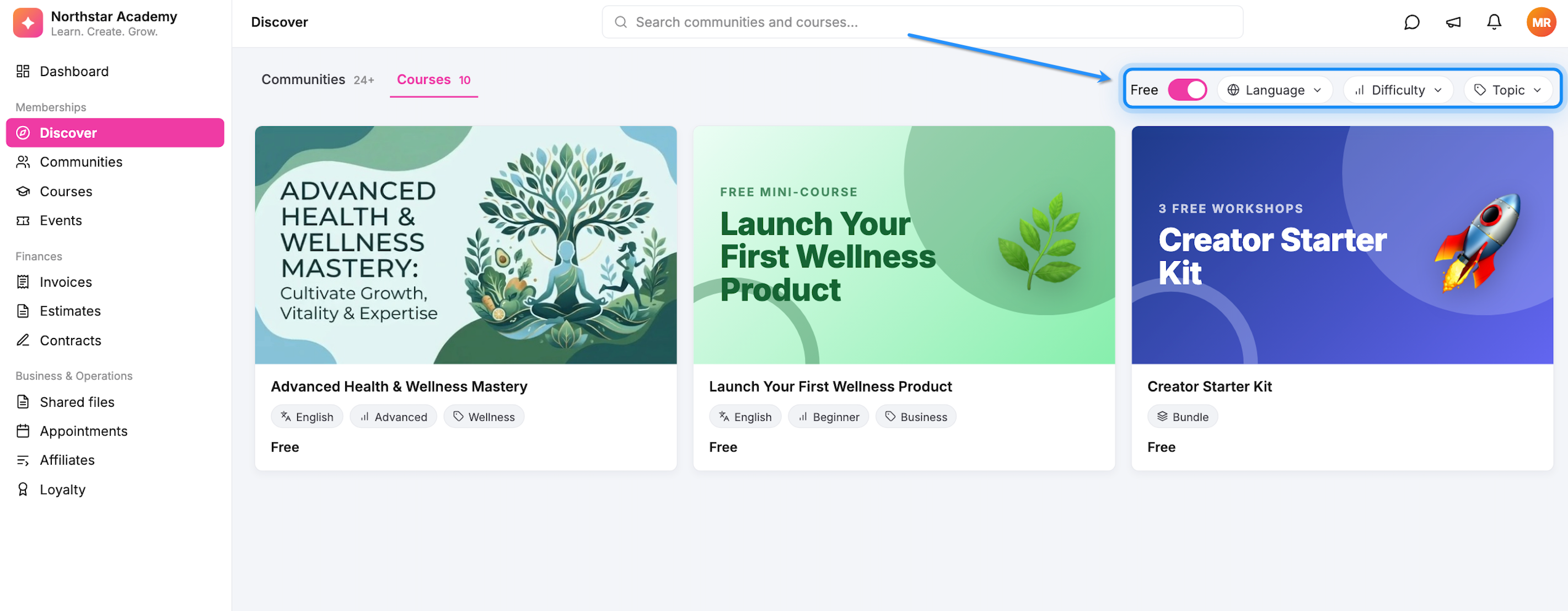
Communities and Courses Tabs
At the top of the Discover page, learners can switch between two tabs.
Communities
This tab shows available communities.
Each community card can display:
Community name
Number of members
Membership price, such as Free or a monthly fee
Learners can browse the communities they are interested in joining.
Courses
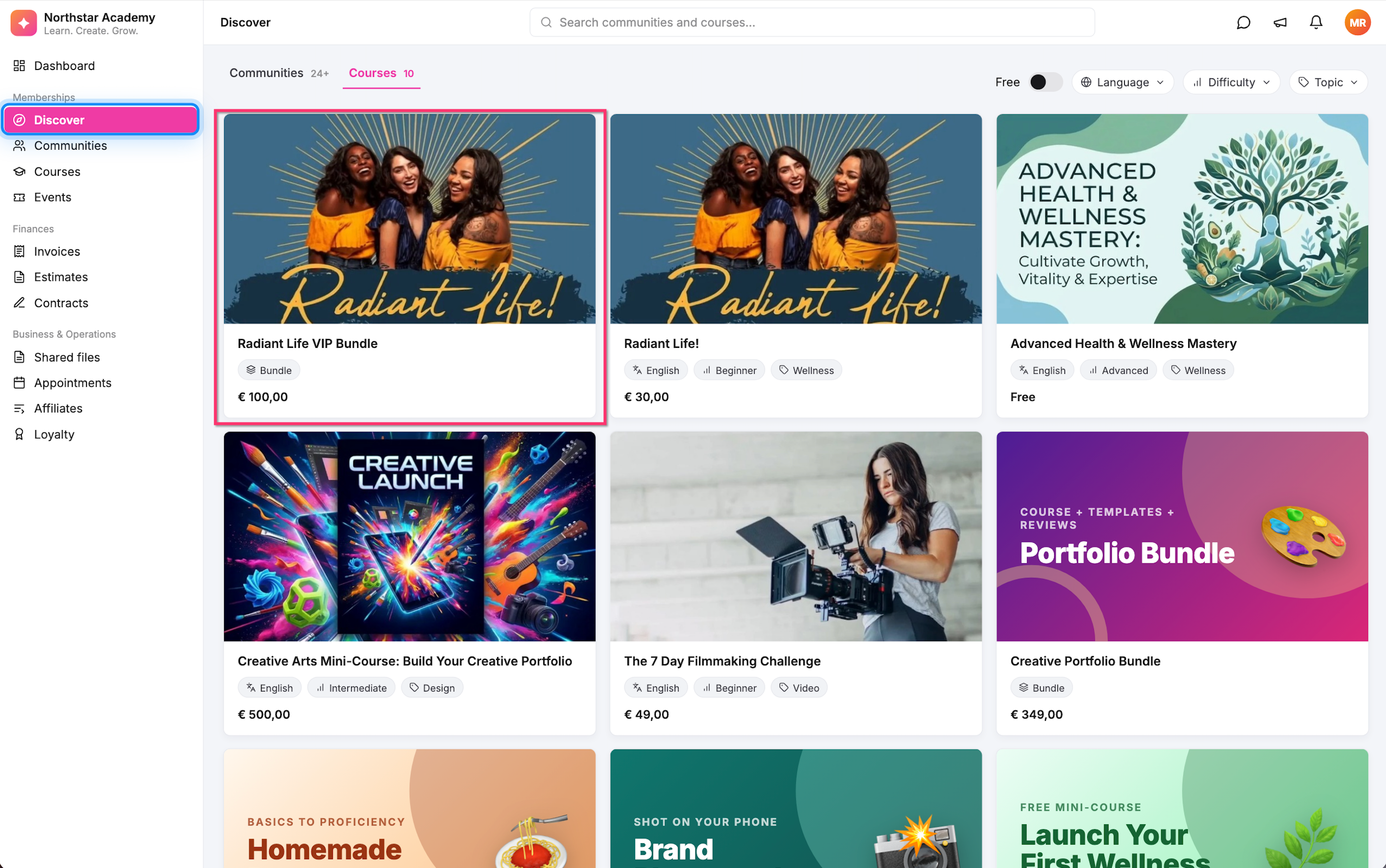
This tab shows available individual courses and course bundles.
Each listing appears as a card with basic information to help learners decide whether they want to explore it.
Understanding Course Cards
A course card is the small preview box learners see when browsing Discover.
Depending on the course, it may display:
Thumbnail: The image representing the course.
Title: The name of the course.
Price: How much the course costs, or whether it is free.
Language: The language used in the course.
Difficulty: Whether the course is suitable for beginners, intermediate learners, or advanced learners.
Topic: The subject covered by the course.
Learners can move their mouse over an individual course card to see more information, including the course description.
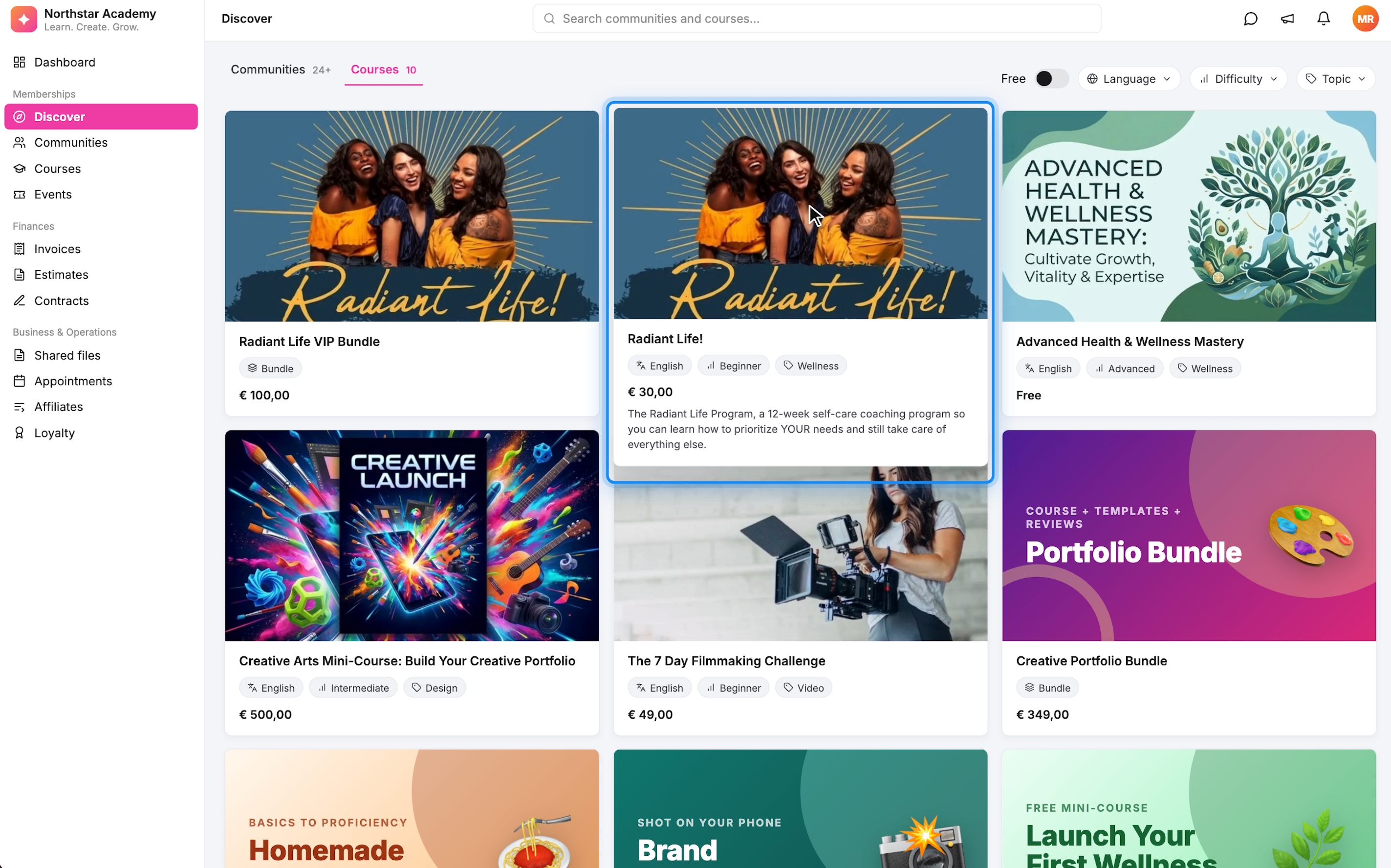
Note: Offers are displayed with a Bundle label so learners can tell the difference between an individual course and an offer.
How Course and Offer Visibility Works in Discover
Enabling Discover does not automatically make all your courses and offers visible. You need to choose which products you want learners to find.
Chat To Clients CRM provides a Show in Discover setting for individual courses and published offers.
When the setting is turned on, the selected course or offer can appear in Discover.
When the setting is turned off, that particular course or offer is not listed through Discover.
Showing Individual Courses
You can choose to display an individual course directly in Discover.
For example, if you sell a beginner photography course, you can enable Show in Discover so learners who have not enrolled can find it while browsing.
This setting is available in the course's Pricing tab, where you also configure how much learners pay for the course.
Individual course pricing can include:
Free: Learners do not need to pay for the course.
One Time: Learners pay once to purchase the course.
Recurring: Learners make repeated payments based on the configured pricing.
The available pricing options depend on the course pricing features supported in your account.
Showing Offers as Bundles
You can also show published offers in Discover.
An offer lets you sell access to course content as a product. For example, you might create an offer that includes multiple courses for one price.
When an offer appears in Discover, learners see it as a Bundle.
This helps learners recognize that they are purchasing an offer rather than an individual course.
Important: The offer must be published before you can make it available through the Show in Discover option.
What Happens When a Course Appears in More Than One Listing?
Sometimes you may sell a course individually and also include that same course in an offer.
For example:
You sell Photography Basics as an individual course for $30.
You also create a Photography Starter Bundle containing Photography Basics and another course for $50.
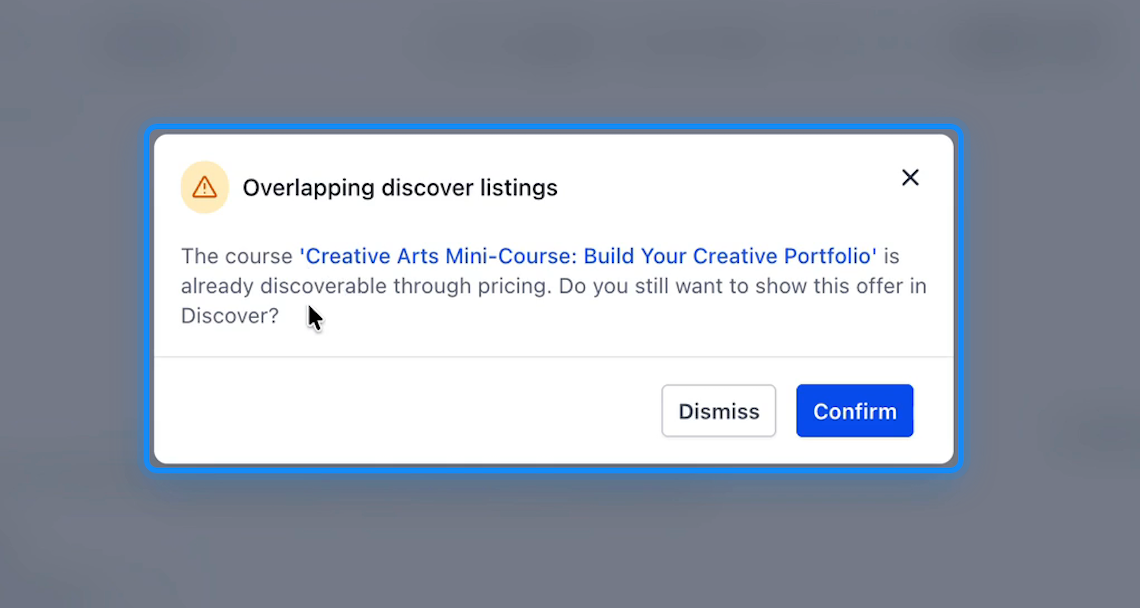
If Photography Basics is already listed in Discover and you try to list the bundle, Chat To Clients CRM may display an Overlapping discover listings warning.
This warning lets you know that a course included in the offer is already available in Discover through its individual pricing.
You will see two options:
Dismiss: Close the warning without confirming the overlapping listing.
Confirm: Continue with the offer listing even though the course is already available separately.
Tip: If your course and bundle have different pricing or provide different value, showing both may make sense. Review your pricing before confirming so learners understand what they are purchasing.
How Learners Can Search and Filter Courses
Discover includes search and filter options to help learners find courses that match their interests. These tools are especially helpful when you have several courses or offers available.
Searching for a Course
Learners can use the search bar at the top of the Client Portal to search for communities and courses.
For example, someone interested in photography can search for a photography-related course instead of scrolling through every available listing.
Filtering Courses
On the Courses tab, learners can use the following filters:
Free: Show only courses and bundles that are available for free.
Language: Find courses available in a preferred language.
Difficulty: Find courses based on their experience level.
Topic: Find courses related to a particular subject.
For example, a learner who is new to photography can use the Difficulty filter to look for beginner-level courses.
How Learners Can Purchase Courses and Offers From Discover
When learners find something they want to purchase, they can open its checkout page directly from Discover. This makes it easier to move from exploring content to enrolling in a course or purchasing a bundle.
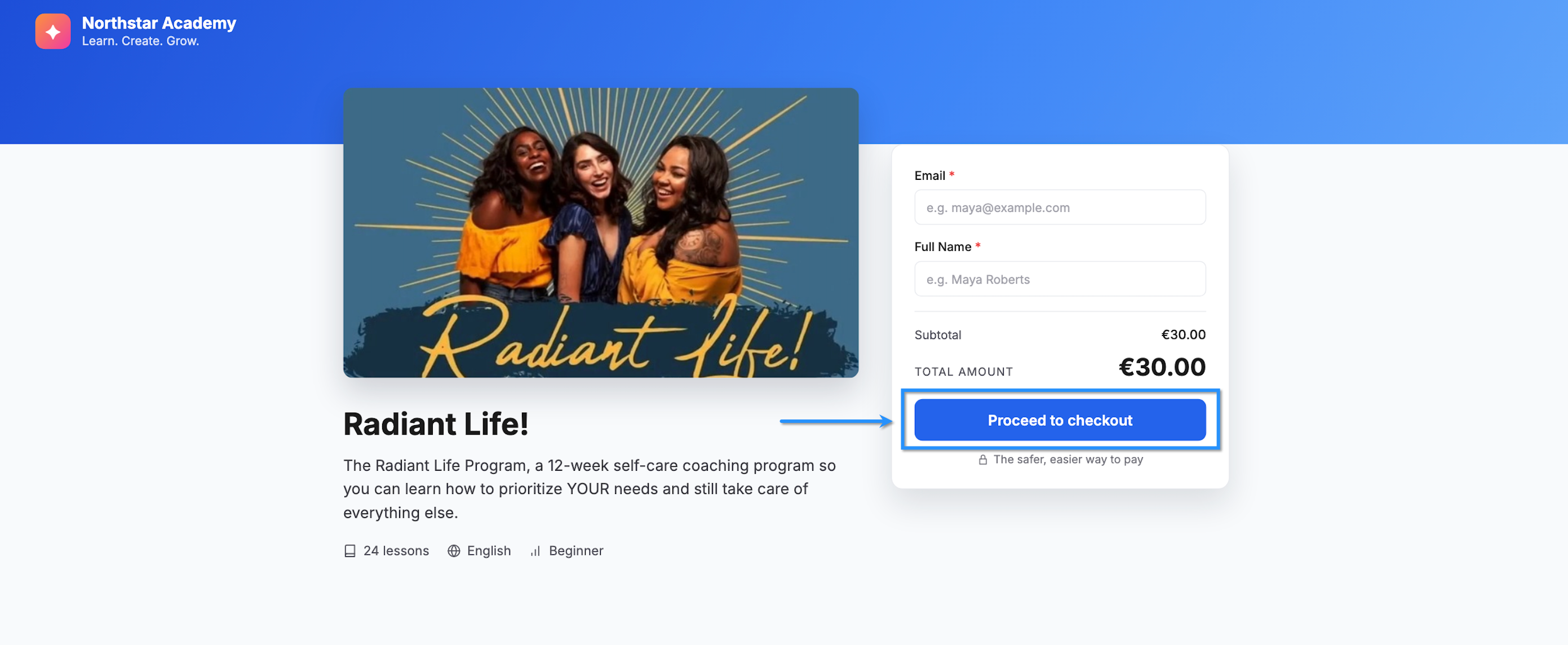
A checkout page is where learners review the course or offer they selected, enter their details, and continue with the purchase.
To purchase a course or offer:
Log in to the Client Portal.
Click Discover in the left sidebar.
Select the Courses tab.
Browse the available courses and bundles.
Click the course or bundle you want.
Review its details and price on the checkout page.
Enter the required information, such as your name and email address.
Click Proceed to checkout and follow the remaining instructions to complete the purchase.
How to Set Up Discover for Courses and Offers
Before learners can browse your courses and offers, you need to enable Discover and choose which products should appear. The setup involves a few settings in your Chat To Clients CRM account.
Follow the steps below in order to make sure Discover is available and your courses are displayed correctly.
Step 1: Enable Discover in Labs
First, enable the Discover feature in Chat To Clients CRM Labs.
Labs is where Chat To Clients CRM makes certain new features available before they become generally available to all accounts.
Log in to your Chat To Clients CRM account.
Open Labs.
Navigate to Subaccounts.
Find Discovery of Course and Offers.
Enable the feature for the sub-account where you want to use it.
Once the feature is enabled, you can continue configuring Discover.
Note: These instructions apply to the Labs release described here. The location and availability of this feature may change after its wider release.
Step 2: Enable Discover in Client Portal Settings
Next, allow learners to access Discover from the Client Portal.
Even if you have enabled the feature in Labs, you still need to enable the Discover app in your Client Portal settings.
Switch to the sub-account where your courses are located.
From the left menu, click Memberships.
Open Client Portal.
Select Settings.
Find the App Permissions area.
Locate Discover in the list of apps.
Check the box next to Discover to enable it.
Save your changes.
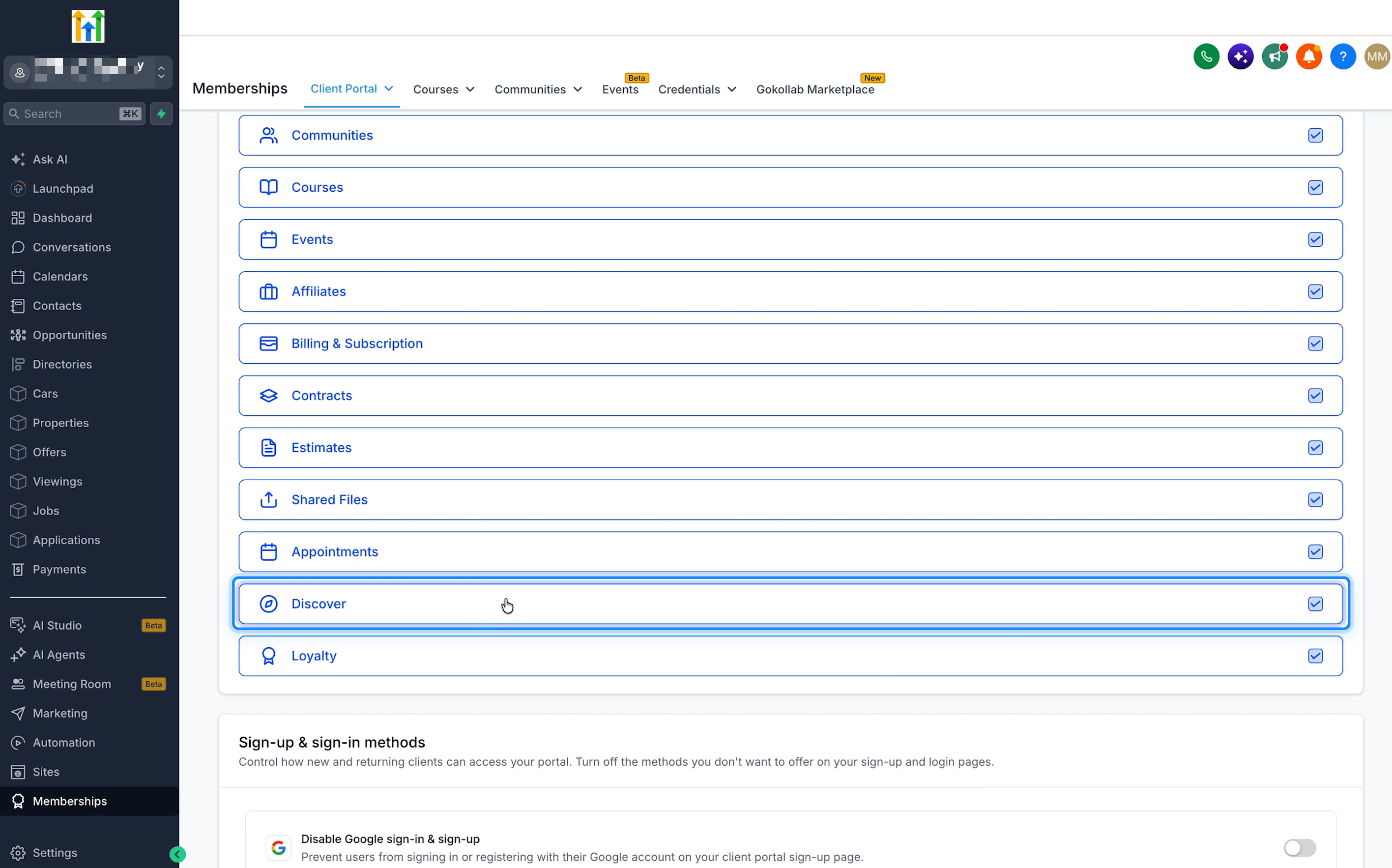
After saving, learners can access Discover from the sidebar of their Client Portal.
Important: This step enables the Discover page. It does not automatically display all your courses. You will choose which courses and offers to display in Steps 4 and 5.
Step 3: Make Discover the First Page Learners See (Optional)
You can choose which page opens first when learners enter their Client Portal.
This is called the default landing page.
For example, if Discover is the default landing page, learners will see the available courses and communities first instead of having to select Discover from the sidebar.
To set Discover as the default landing page:
Go to Memberships → Client Portal → Settings.
Scroll to Select default landing page.
Open the dropdown menu.
Select Discover.
Click Save Settings.
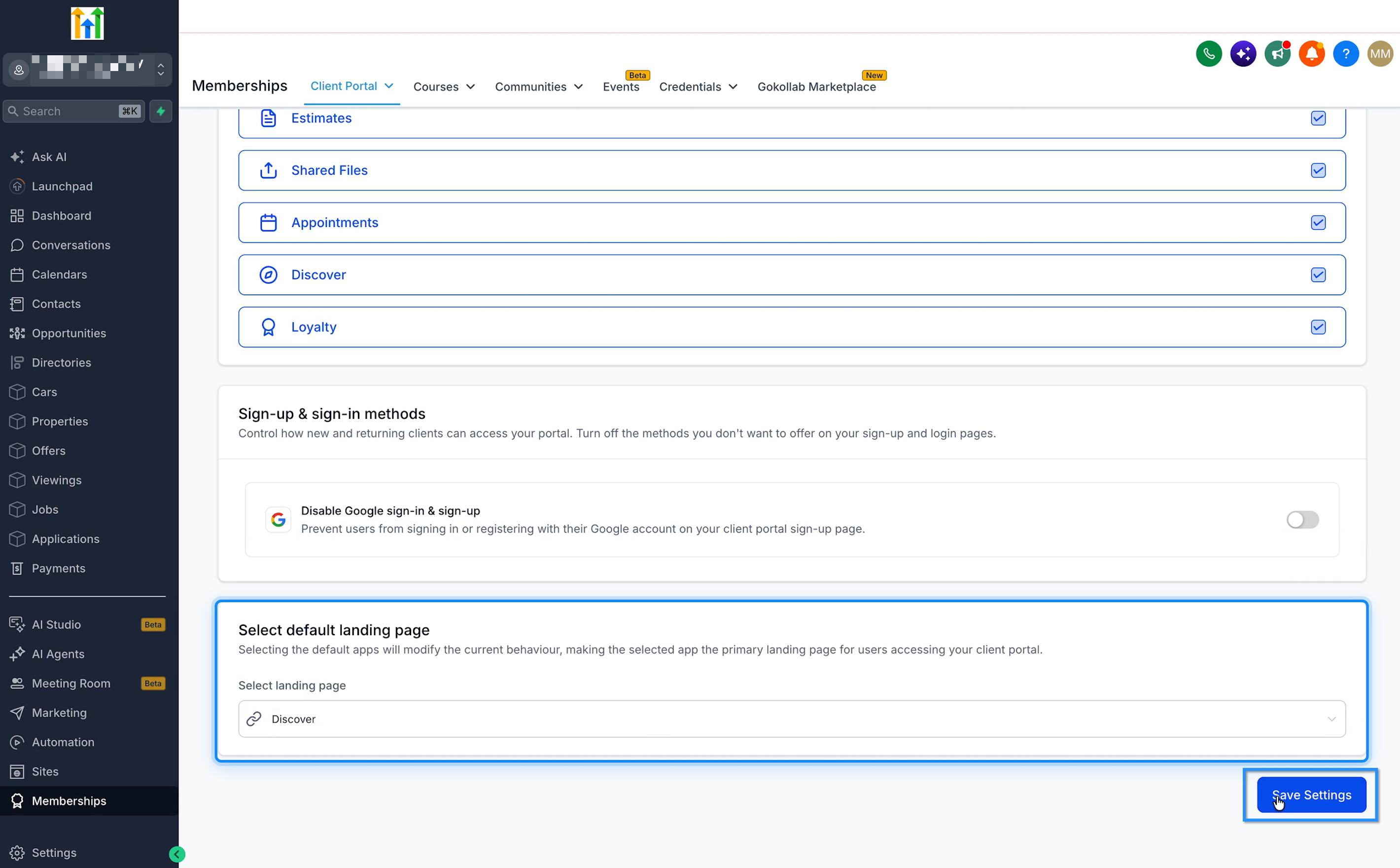
Note: This step is optional. If you do not set Discover as the default landing page, learners can still open it from the Client Portal sidebar.
Step 4: Show an Individual Course in Discover
Now choose which individual courses you want learners to find.
Before starting, make sure you have created a course and configured its pricing using the available Course Pricing options.
To show a course in Discover:
In your Chat To Clients CRM sub-account, click Memberships.
Navigate to Courses.
Open the course you want to display.
Select Pricing from the course menu.
Check that your course has the correct pricing:
Free if learners can access it without payment.
One Time if learners pay once.
Recurring if learners make recurring payments.
Find the Show in Discover option.
Turn the toggle ON.
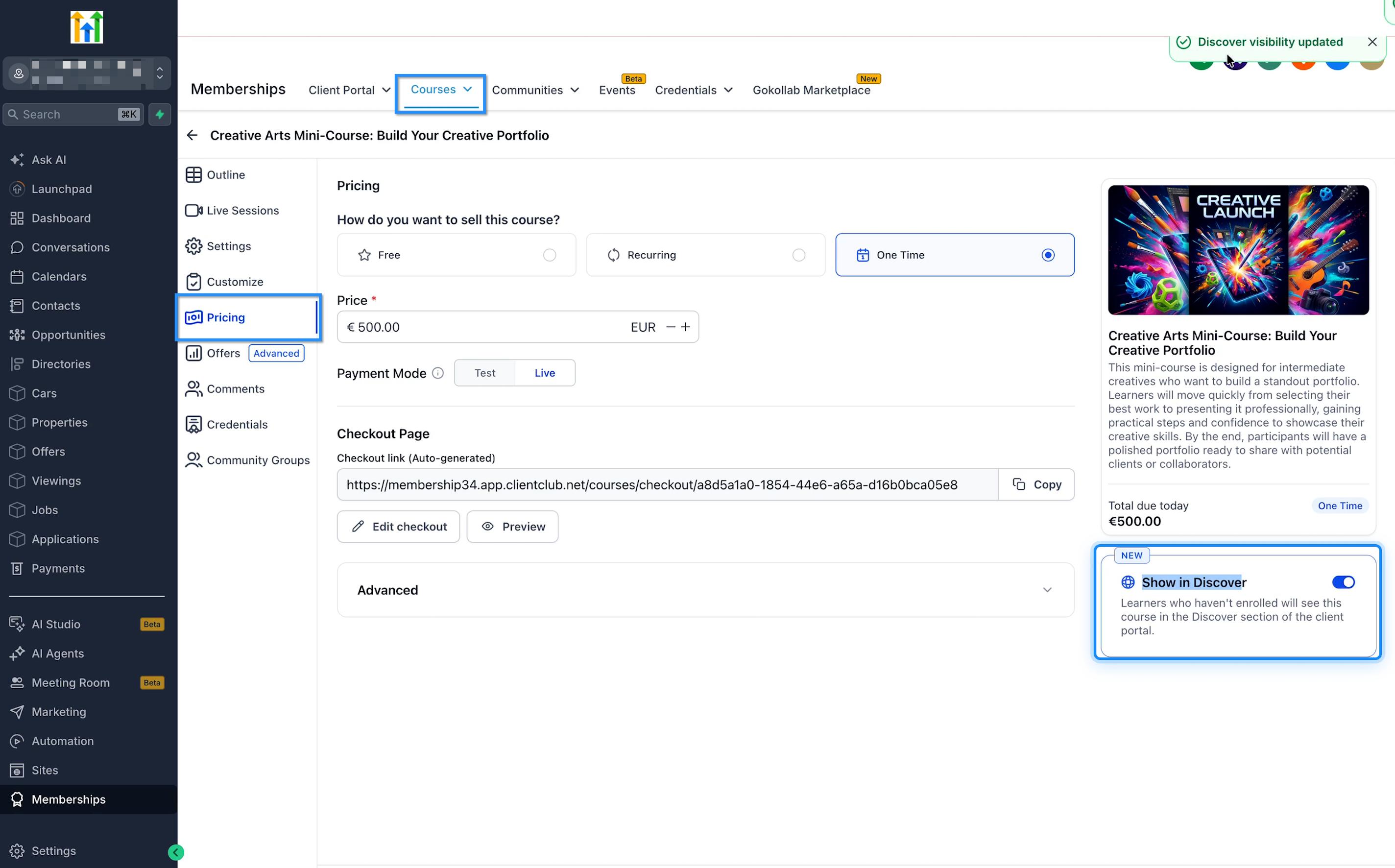
Once enabled, the course can appear in Discover for learners who have not enrolled in it.
Tip: If you do not see the Pricing tab, check whether direct Course Pricing is available in your account. You can learn more in Course Pricing: Sell Courses Without an Offer.
Step 5: Show a Published Offer in Discover
If you have created an offer, you can also make it visible in Discover.
Offers appear as Bundles, so learners can browse packaged courses alongside individual courses.
Before starting, make sure the offer has been created and published.
To show an offer in Discover:
Go to Memberships → Courses.
Open the relevant course and select Offers, or open the appropriate offer editor.
Select the published offer you want to display.
Find Show in Discover in the offer settings.
Turn the toggle ON.
If an overlapping listing warning appears, review the course mentioned in the message.
Click Confirm if you want to continue with the overlapping listing.
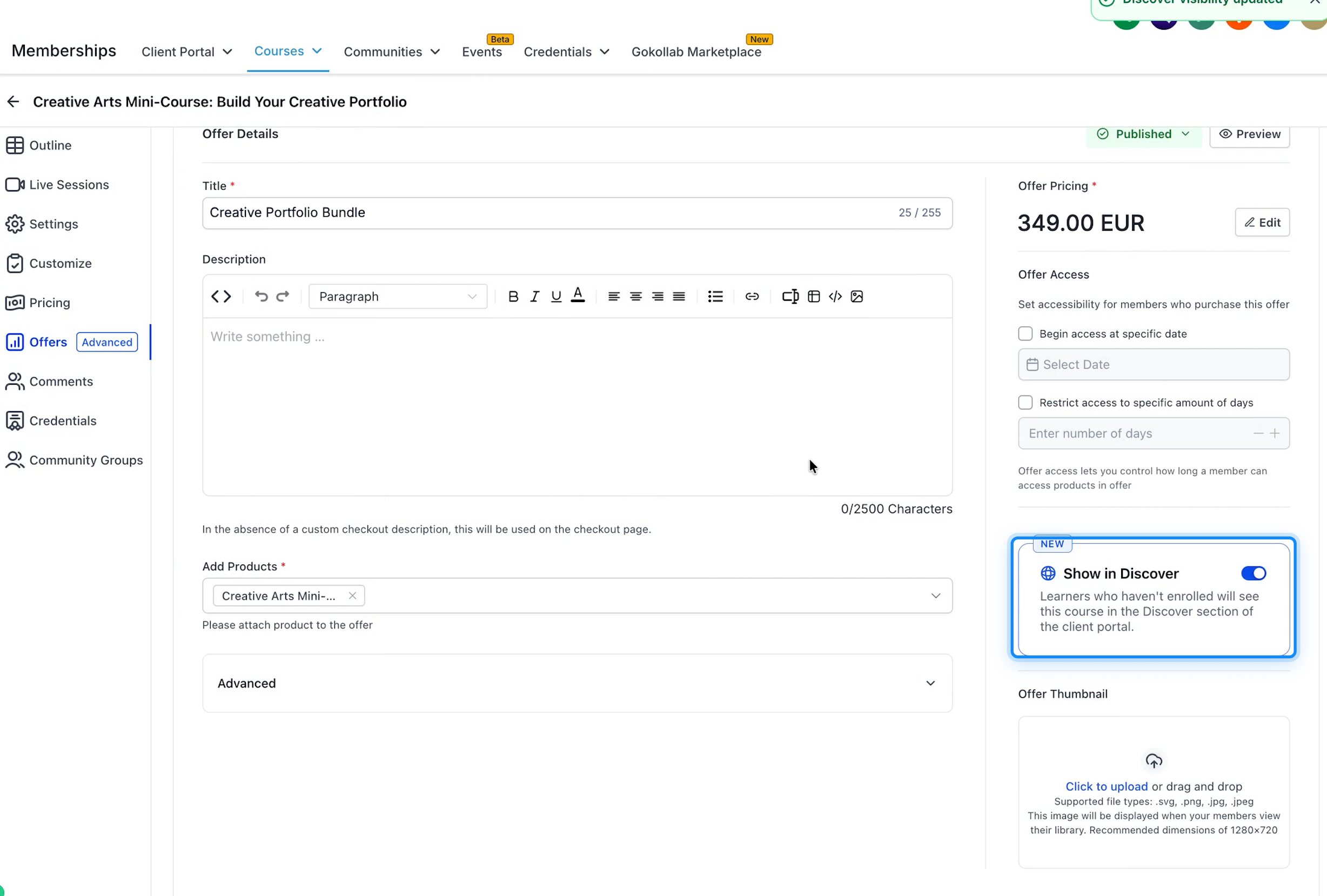
Your published offer can now appear in Discover with a Bundle label.
Step 6: Check What Learners See
After setup, it's a good idea to check the Discover page from a learner's point of view.
This helps you confirm that your courses and offers are displayed correctly before learners begin browsing.
Open your Client Portal.
Log in with a learner account that has not already enrolled in the course you want to check.
Click Discover in the sidebar.
Open the Courses tab.
Look for the course or bundle you enabled.
Check that the title, thumbnail, price, and course information are correct.
Try the filters to check how the course appears.
Click the course or bundle to confirm that its checkout page opens.
If a course is missing, check that the Discover app is enabled and that Show in Discover is turned on for the course or published offer.
Frequently Asked Questions
Q: Why can't I see Discover in my Client Portal?
A: Check that Discover has been enabled in Labs and that its checkbox is selected in Client Portal App Permissions. Save your settings and refresh the portal. Availability may depend on the feature rollout.
Q: I enabled Discover, but my courses are not showing. What should I do?
A: Opening the Discover app does not automatically display every course. Go to the course's Pricing tab and turn on Show in Discover. Also check that pricing is configured and that you are testing with a learner who has not already enrolled.
Q: Will all my courses appear automatically when I turn on Discover?
A: No. You decide which courses and published offers appear by enabling Show in Discover for each one.
Q: Can I display a free course in Discover?
A: Yes. Courses configured with the Free pricing option can be displayed in Discover when the required visibility setting is enabled.
Q: Can I sell a course without creating an offer?
A: Yes, if direct Course Pricing is available in your Chat To Clients CRM account. You can set a price in the course's Pricing tab and enable Show in Discover.
Q: Why am I seeing an Overlapping discover listings warning?
A: This warning appears when an offer includes a course that is already discoverable through its individual pricing. Review both listings before deciding whether to confirm the offer.
Q: Can I turn off Discover for a course later?
A: Yes. Open the course's Pricing tab and turn off Show in Discover to stop listing that course through Discover. For offers, use the corresponding toggle in the offer settings.
Q: Do I have to make Discover my default landing page?
A: No. This is optional. Learners can still open Discover from their Client Portal sidebar when the app is enabled.
Q: Is Discover the same as GoKollab Discover?
A: No. Client Portal Discover helps your learners find courses, offers, and communities through your Client Portal. GoKollab Discover is a separate marketplace experience for discovering creators and their content.