
How to Create and Manage Premium Channels in Communities
Premium Channels in Chat To Clients CRM let you create private community channels with flexible visibility and paid access options. You can keep channels hidden, make them discoverable without exposing their content, or charge members to join.
TABLE OF CONTENTS
- Understanding Private Channel Options
- How to Create a Premium Channel
- How to Manage Visibility and Pricing
- How Members Join Private Channels
- Important Notes
Understanding Private Channel Options
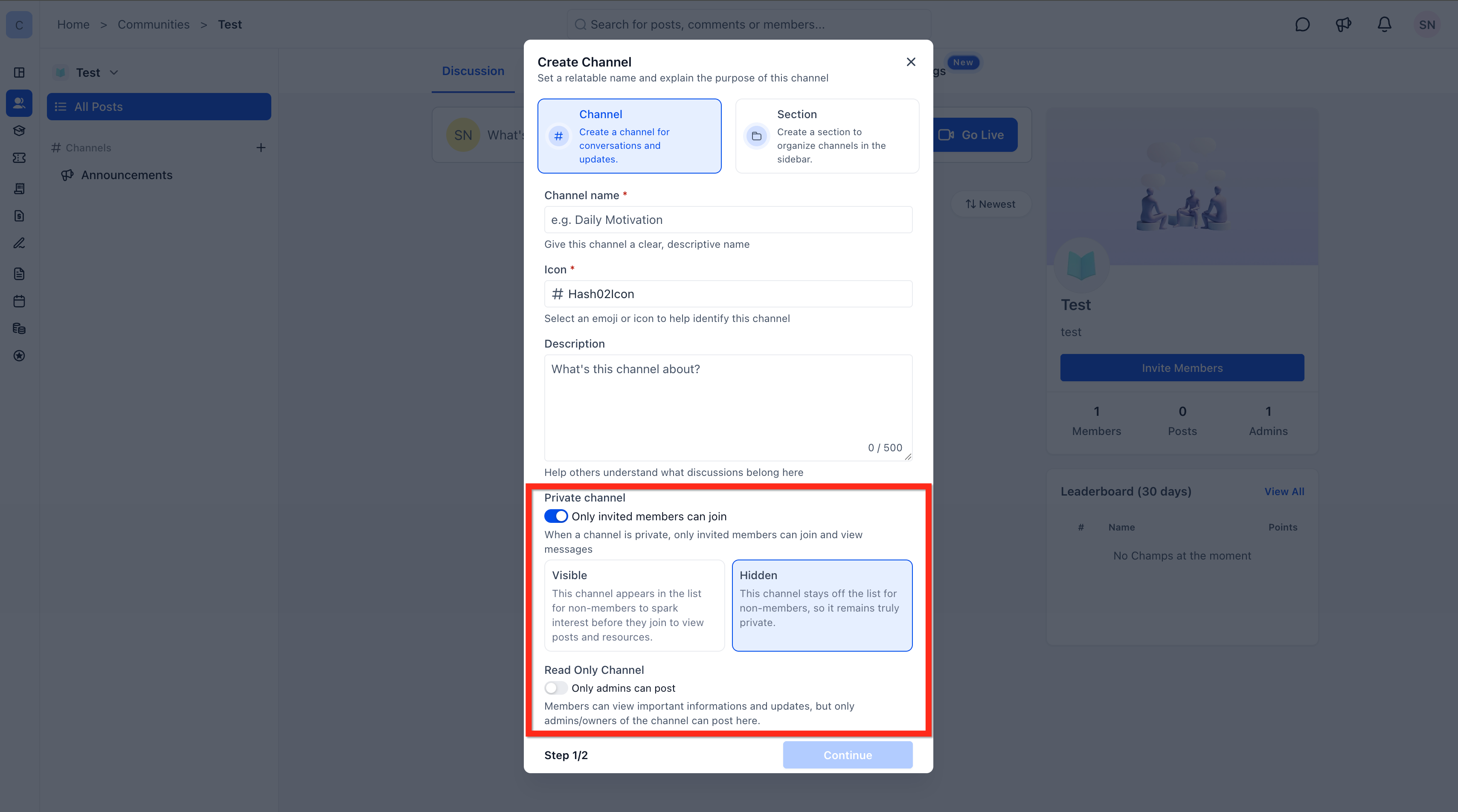
Channel Visibility
Choose how your private channel appears to members who don't have access.
| Option | Description |
|---|---|
| Visible | The channel appears in the sidebar. Non-members can view channel information, but posts and content remain locked. |
| Hidden | The channel doesn't appear in the sidebar for members without access. |
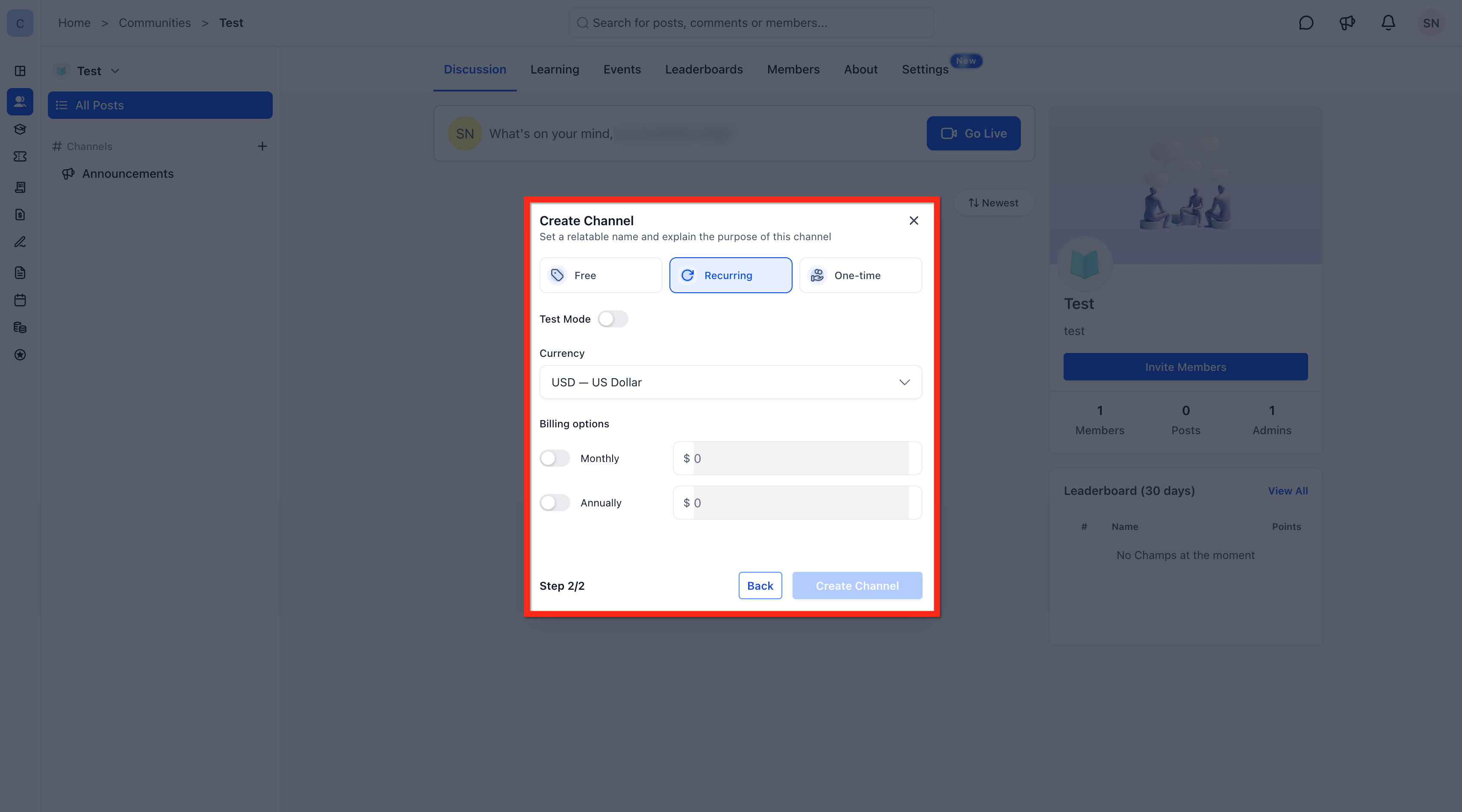
Channel Pricing
| Option | Description |
|---|---|
| Free | Members contact an admin or channel manager to request access. |
| Recurring | Members pay a monthly or annual subscription to join. |
| One-time | Members make a single payment to join. |
How to Create a Premium Channel
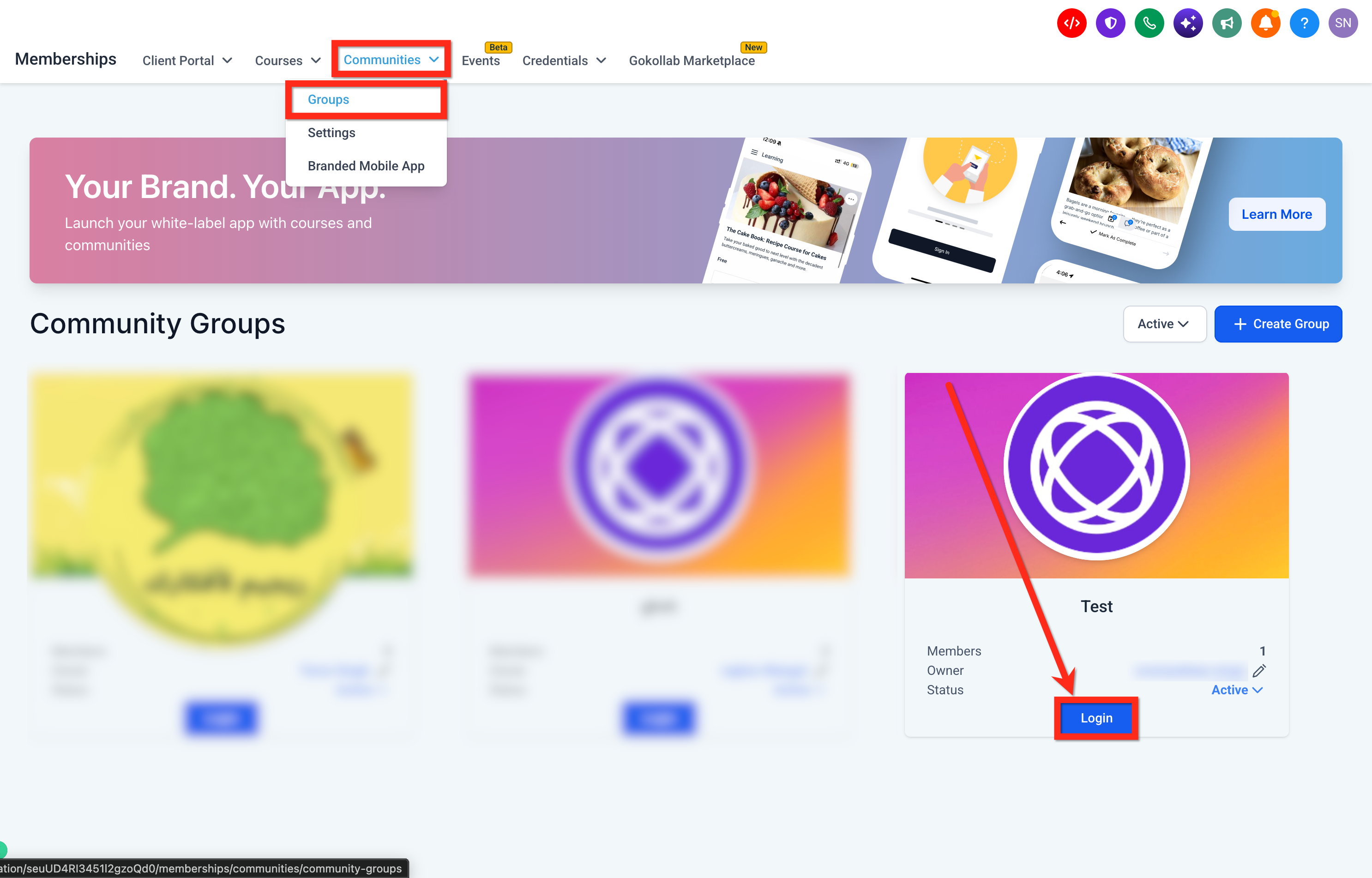
Note: You can use Test Mode when configuring paid channels to test the payment setup.Go to Memberships > Communities > Groups and log in to your community group.
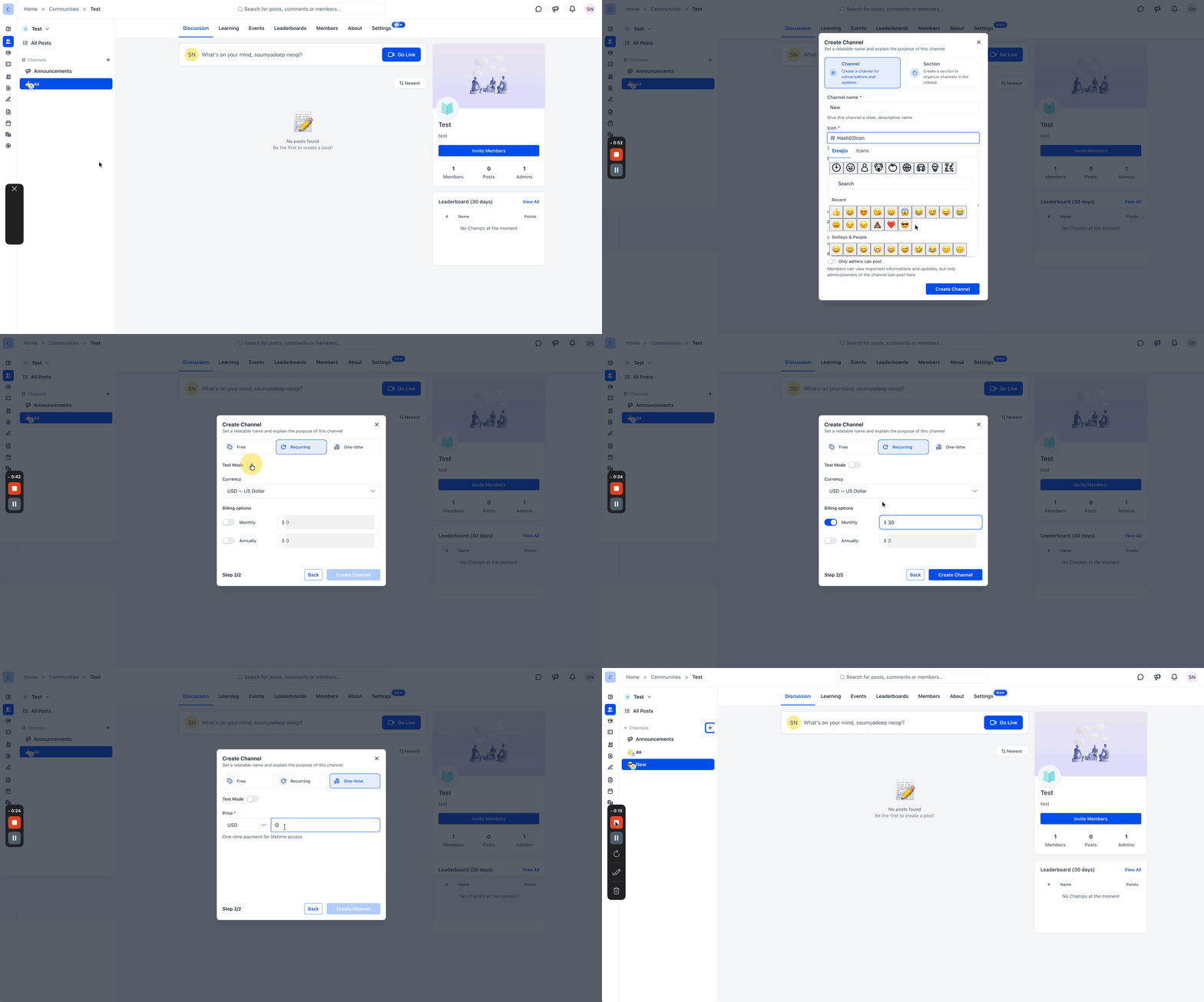
Under Channels, click the + icon.
Select Create a channel for conversations and updates.
Enter the Channel name, select an Icon, and optionally add a Description.
Enable Private channel and choose Visible or Hidden.
Click Continue.
Select your pricing option:
Free: Allow access without payment, with approval from an admin or channel manager.
Recurring: Select the currency, enable monthly or annual billing, and enter the corresponding prices.
One-time: Configure a single payment amount.
Click Create Channel.
How to Manage Visibility and Pricing
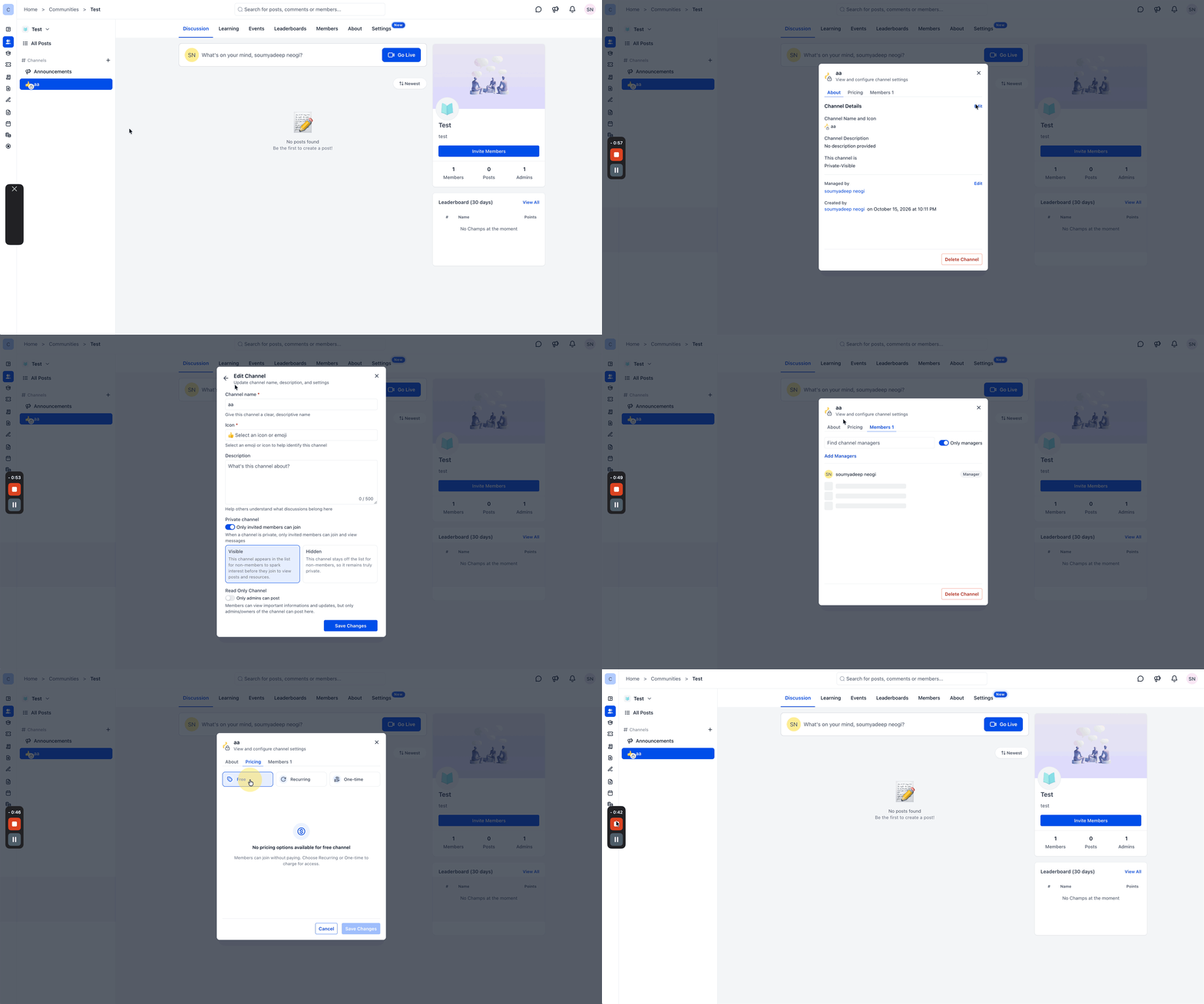
You can update private channel settings after creating a channel.
Open your community group and locate the channel in the sidebar.
Open the channel's Settings.
Under About, use Edit to manage channel details and visibility settings.
Open the Pricing tab to manage the channel's payment options.
Important Notes
Premium Channel visibility and pricing settings are available only for private channels. Public channels remain unchanged.
Visible private channels keep their posts and discussions restricted to members with access.
You can also enable Read Only Channel when creating a channel if only admins should be able to post.