Communities - Create and Manage Multiple Pricing Plans
Now you create multiple pricing plans within a single community. You can offer different membership tiers, set flexible pricing, and give members access to exclusive channels, courses, and events based on their subscription.
TABLE OF CONTENTS
- What Can You Do with Multiple Pricing Plans?
- How to Create a Community Pricing Plan
- How to Manage Existing Pricing Plans
- How to Make Your Community Free
- How Members Choose and Manage Plans
- Related Articles
What Can You Do with Multiple Pricing Plans?
Create multiple plans: Offer tiers such as Basic, Pro, VIP, etc with different benefits.
Set flexible pricing: Choose weekly, monthly, yearly, or one-time payments in different currencies, with optional free trials.
Bundle exclusive content: Include private channels, paid events, and paid or private courses.
Customize plans: Add descriptions and benefits, reorder plans, and highlight your most popular option.
Manage memberships: Activate, deactivate, edit, or delete plans and view member counts.
Allow plan switching: Members can upgrade, downgrade, or change their billing options.
How to Create a Community Pricing Plan
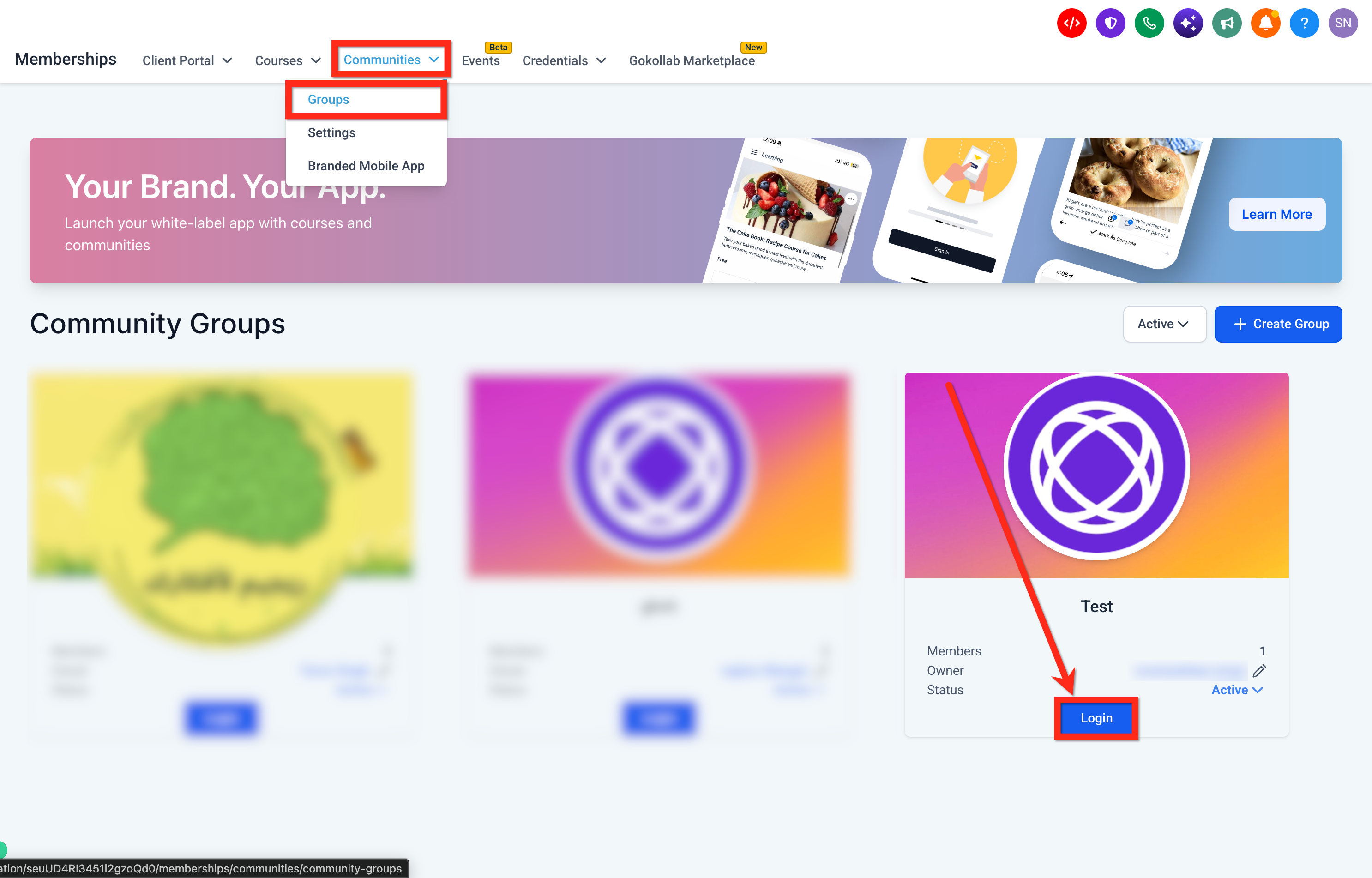
Go to Memberships > Communities > Groups, open your community.
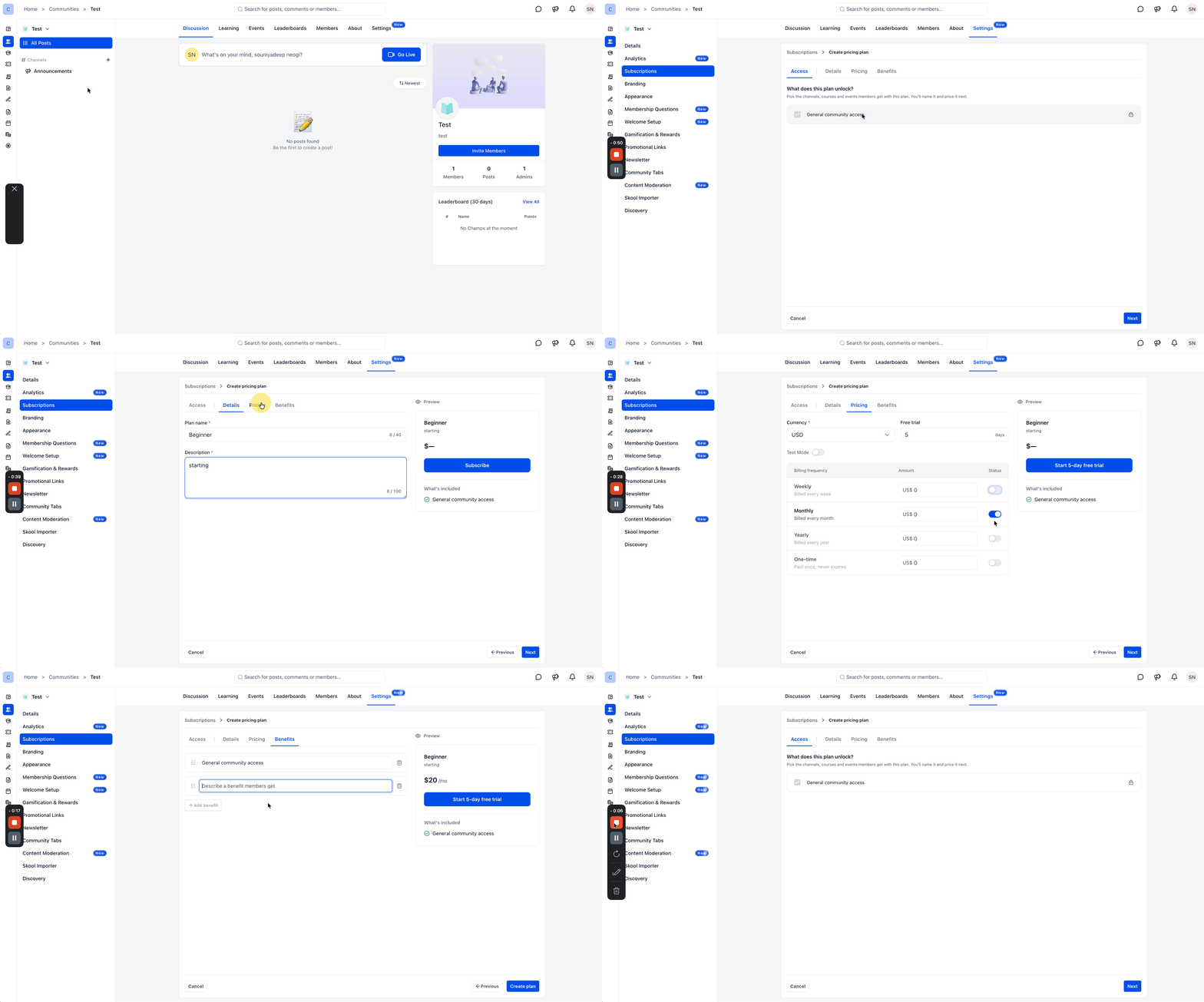
Open Settings > Subscriptions > Add plan.
Under Access, select the private channels, courses, and events included in the plan, or choose Full access to include everything.
Under Details, enter the Plan name and Description.
Under Pricing, select your currency, configure an optional Free trial, and enable your preferred billing frequencies:
Weekly
Monthly
Yearly
One-time
- Enter the amount for each enabled option. You can also enable Test Mode to test payments.
Under Benefits, add, edit, or reorder the benefits displayed to members.
Review the plan preview and click Create plan. Activate the plan from the subscription list if needed.
How to Manage Existing Pricing Plans
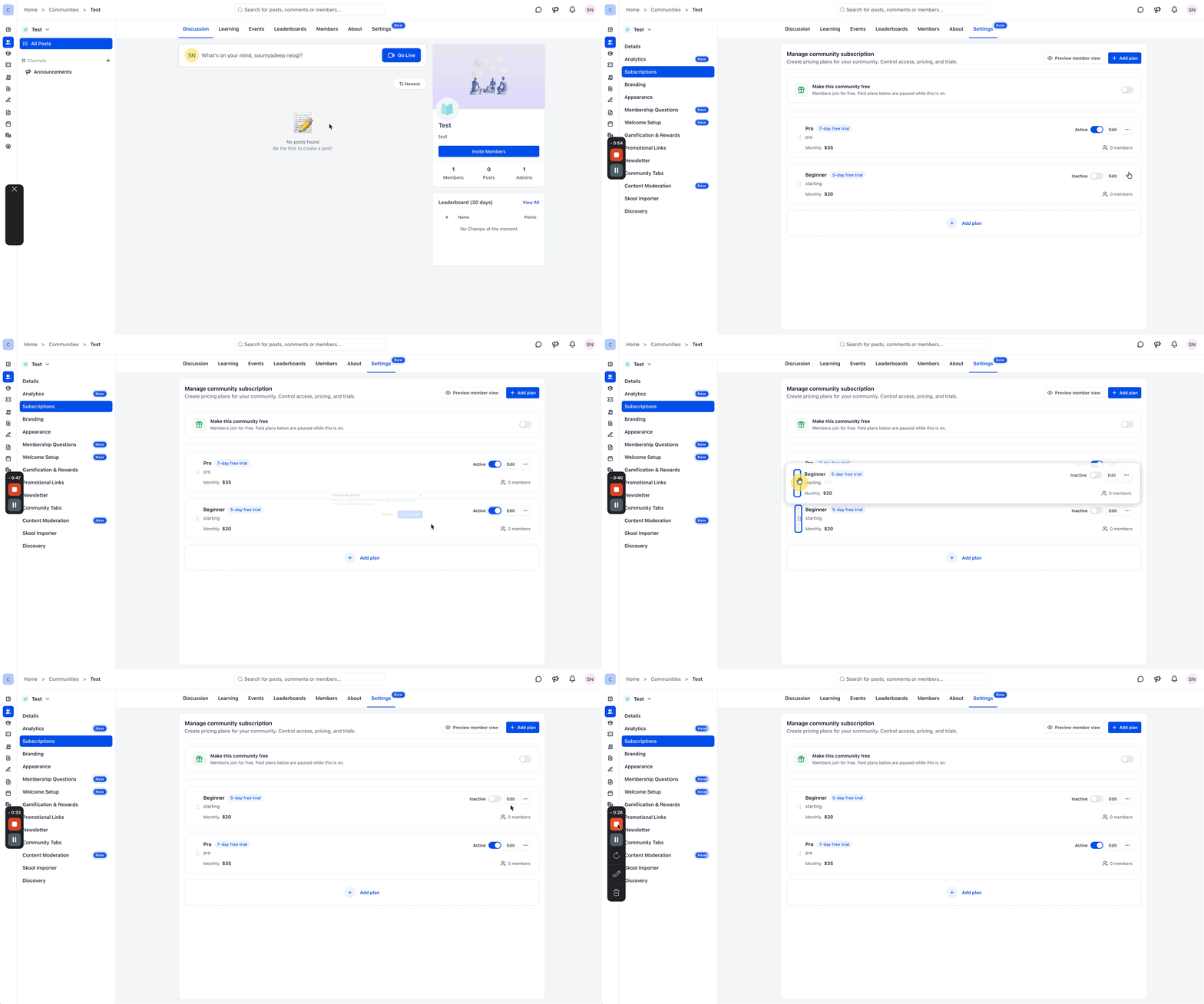
Open your community and go to Settings > Subscriptions.
From here, you can:
Activate or deactivate: Use the toggle beside a plan.
Edit: Click Edit to update plan settings.
View details or delete: Click the three-dot menu beside a plan.
Highlight a plan: Select Mark as most popular from the three-dot menu.
Reorder plans: Drag plans into your preferred order.
Track members: View the number of members subscribed to each plan.
Preview: Click Preview member view to see how plans appear to members.
How to Make Your Community Free
Turn on Make this community free under Settings > Subscriptions to allow members to join for free.
Note: Paid plans are paused while this option is enabled.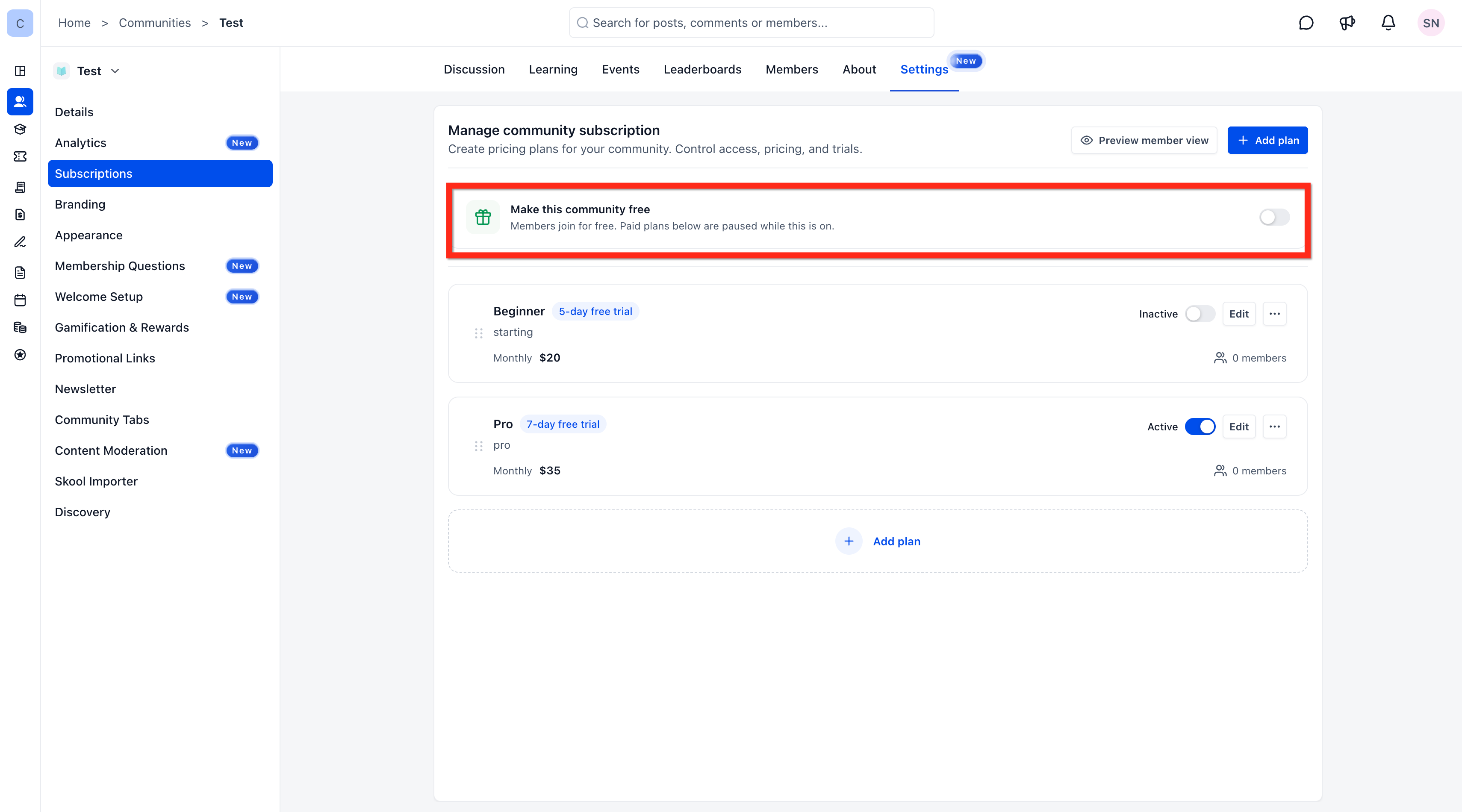
How Members Choose and Manage Plans
When a Member Joins a Community with a Pricing Plan
When joining a paid community, members can:
Compare available plans, pricing, and included benefits.
Click Choose plan on their preferred option.
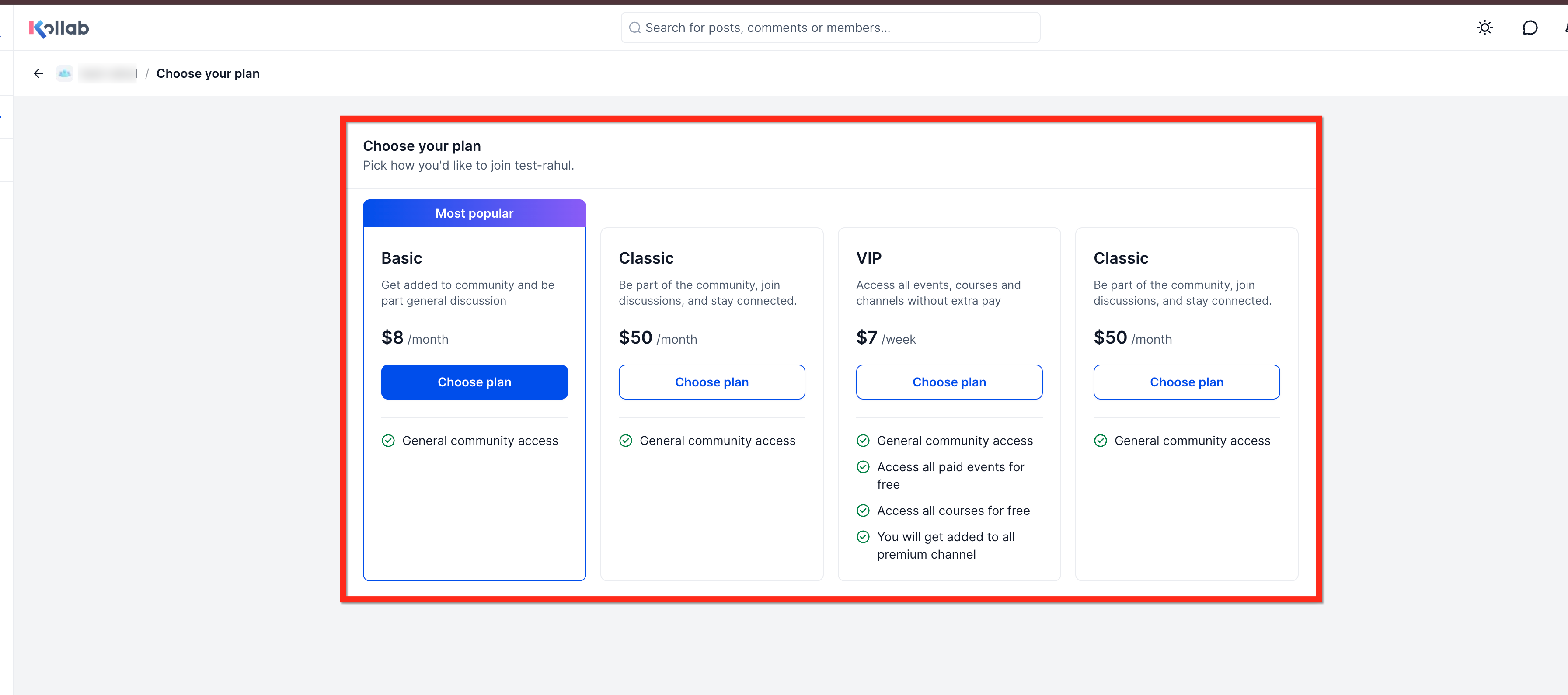
Complete the subscription payment.
Once the subscription is confirmed, members receive access to the channels, courses, and events included in their plan.
Change an Existing Plan
Members can switch between available plans without leaving the community.
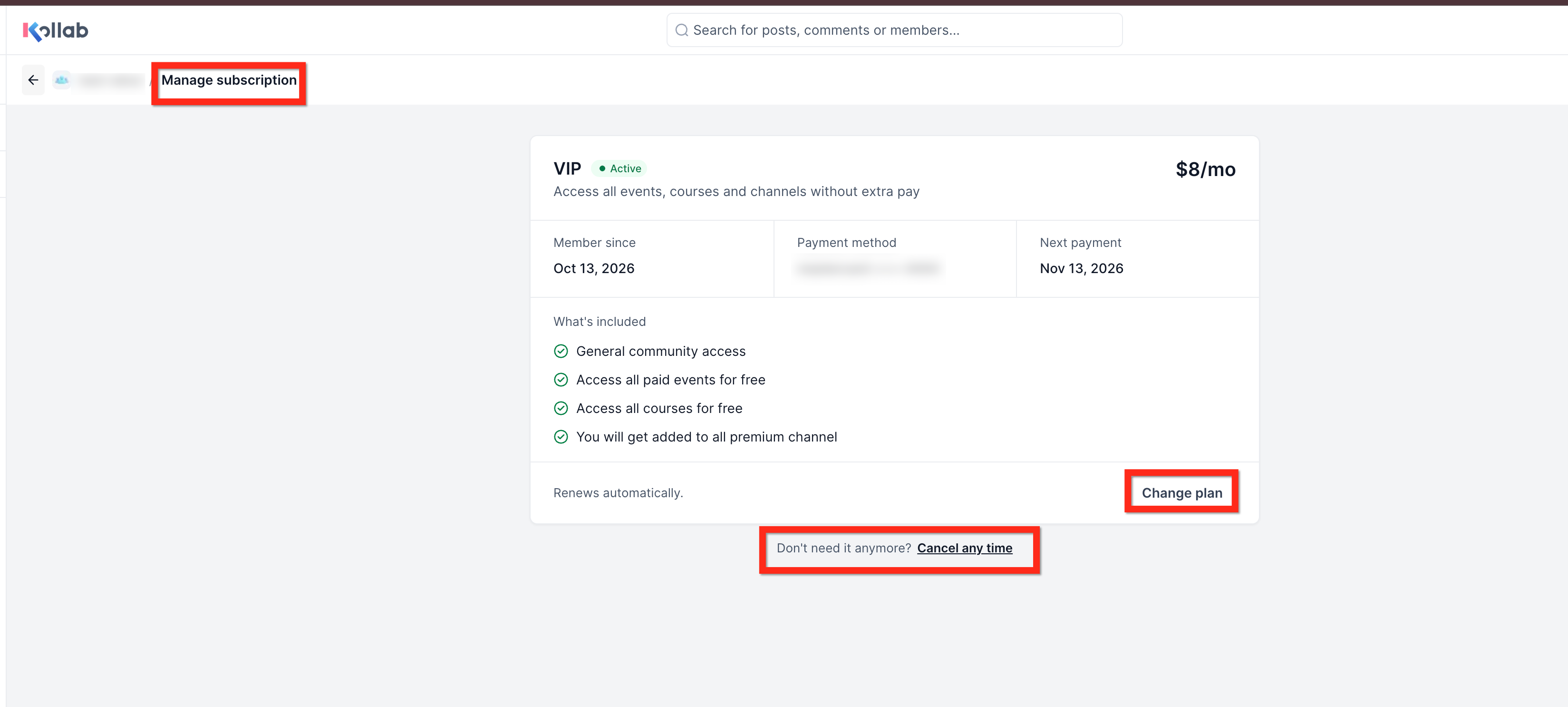
Open the community and click the Manage membership icon.
Click Change plan.
Review the available plans and click Choose plan on the preferred option.
Complete the subscription confirmation.
Note: The existing subscription remains active until the new subscription is confirmed. Access updates based on the newly selected plan.
View or Cancel a Subscription
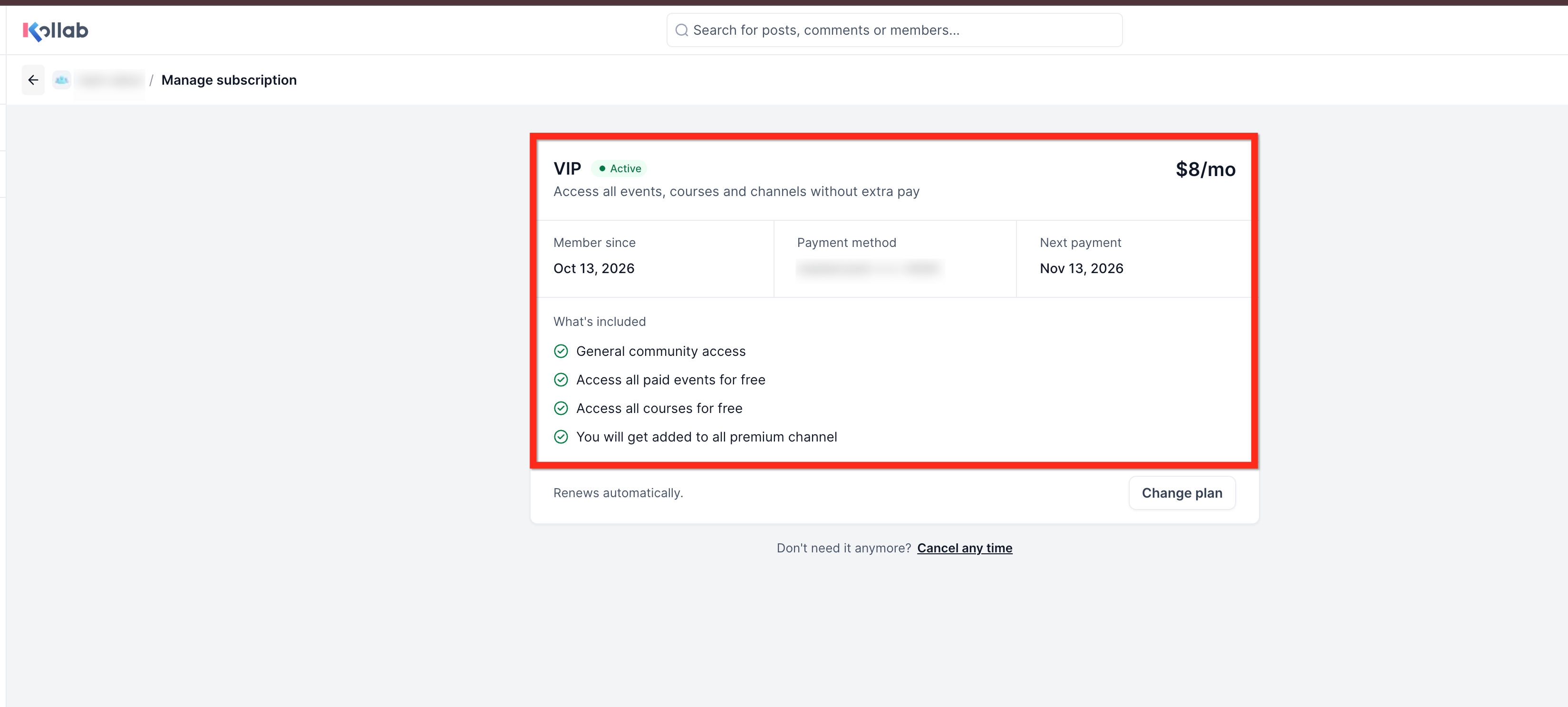
From Manage membership, members can:
View their current plan, payment method, and next payment date.
Click Change billing to switch available billing options.
Click Change plan to upgrade or downgrade.
Click Cancel any time to cancel their subscription.