
Courses - Video Analytics and AI Insights
Course Video Analytics helps you understand how viewers interact with your course videos. You can track views, watch time, engagement, and completion rates, identify where viewers drop off, and see which sections they rewatch.
With Course AI, you can also receive AI-powered insights and suggestions to improve your videos.
Video Analytics supports videos uploaded natively to Chat To Clients CRM Courses.
TABLE OF CONTENTS
- How to Access Video Analytics
- Understanding the Video Analytics Dashboard
- How to View Individual Video Analytics
- How to View Video Stats in the Course Editor
- How to Export Video Analytics
- aImportant Information
How to Access Video Analytics
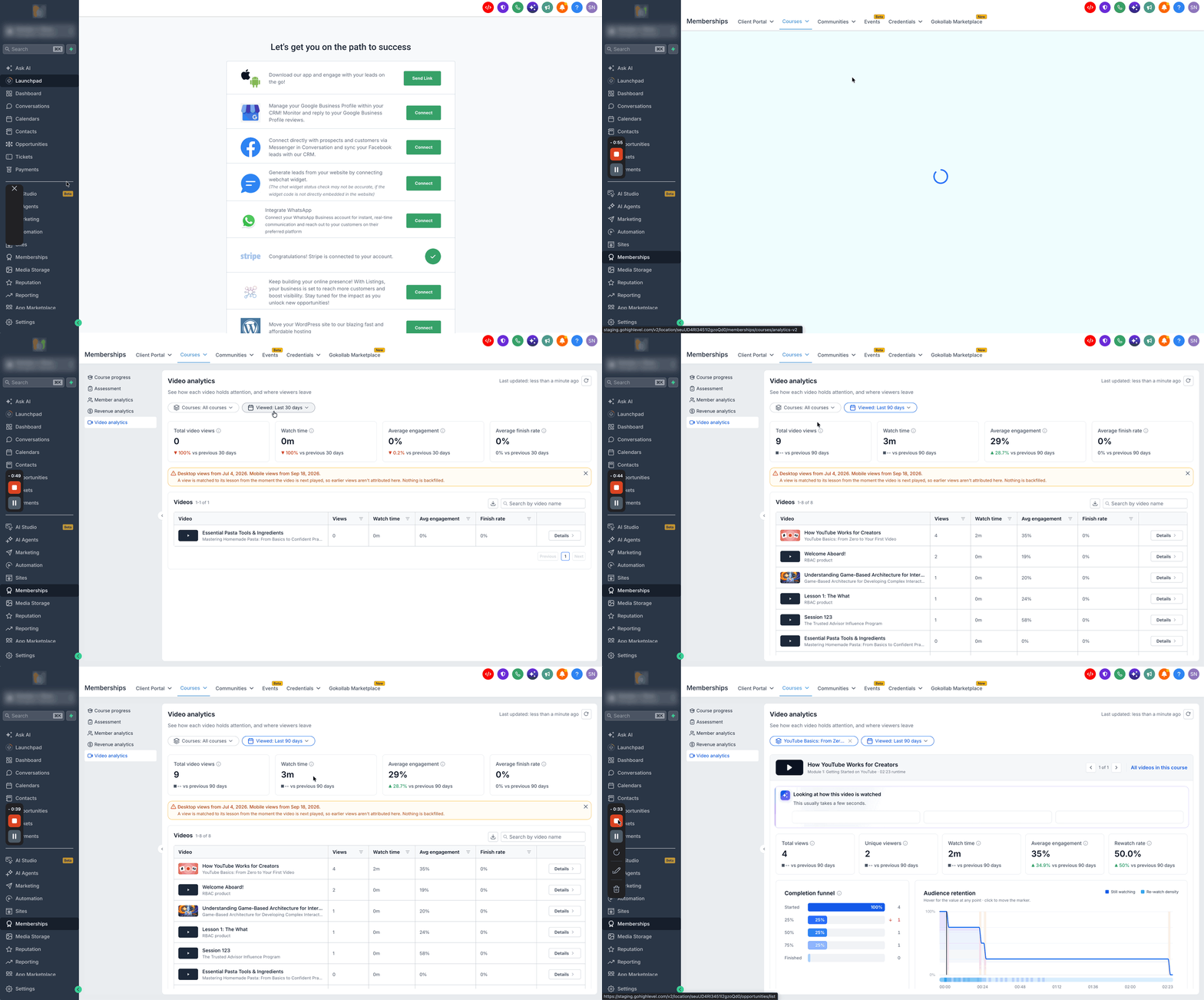
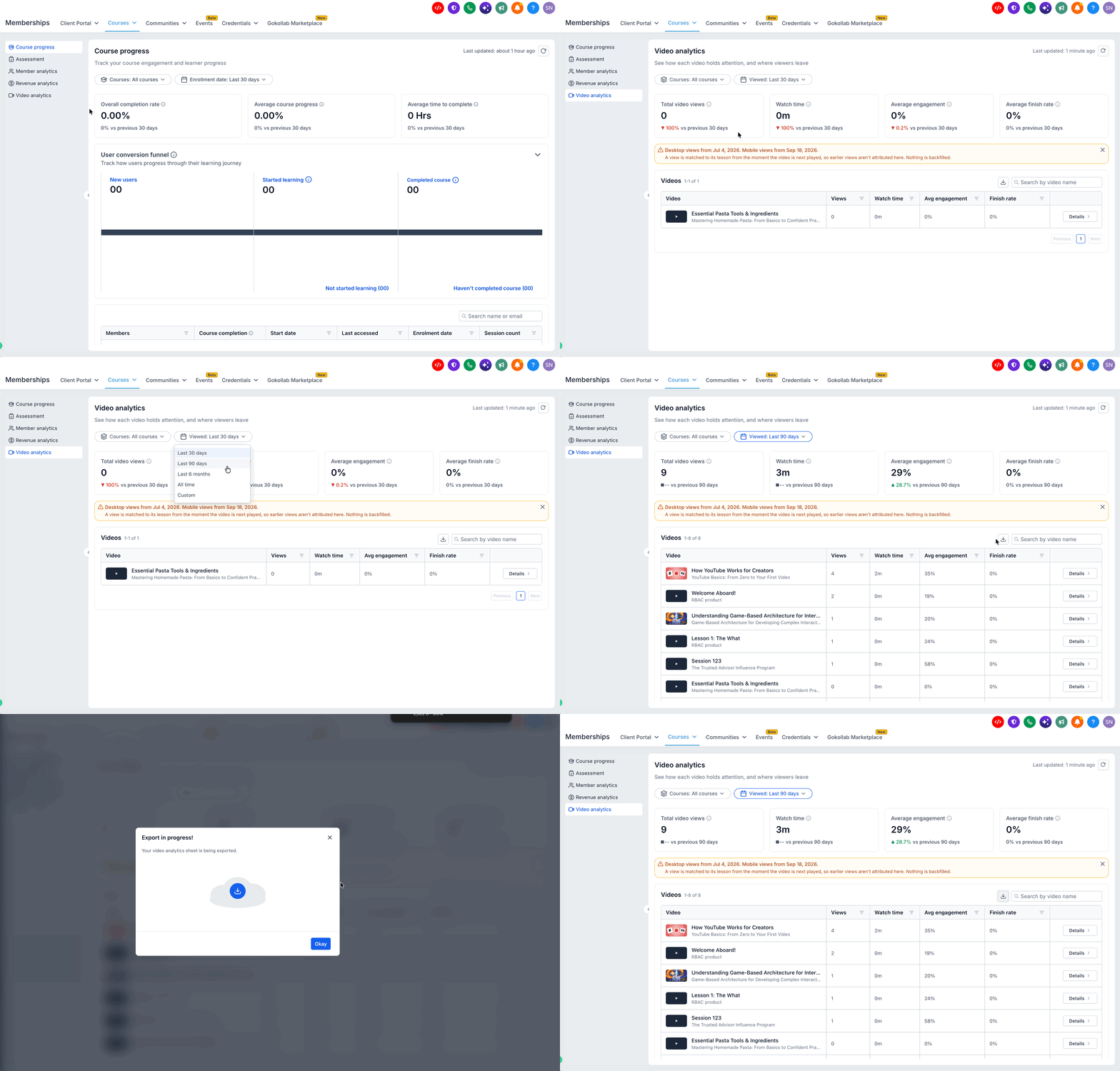
Navigate to Memberships > Courses > Analytics > Video analytics.
Use the Courses filter to select a specific course or view all courses.
Use the Viewed filter to select a date range:
Last 30 days
Last 90 days
Last 6 months
All time
Custom range
The dashboard updates based on your selected filters.
Understanding the Video Analytics Dashboard
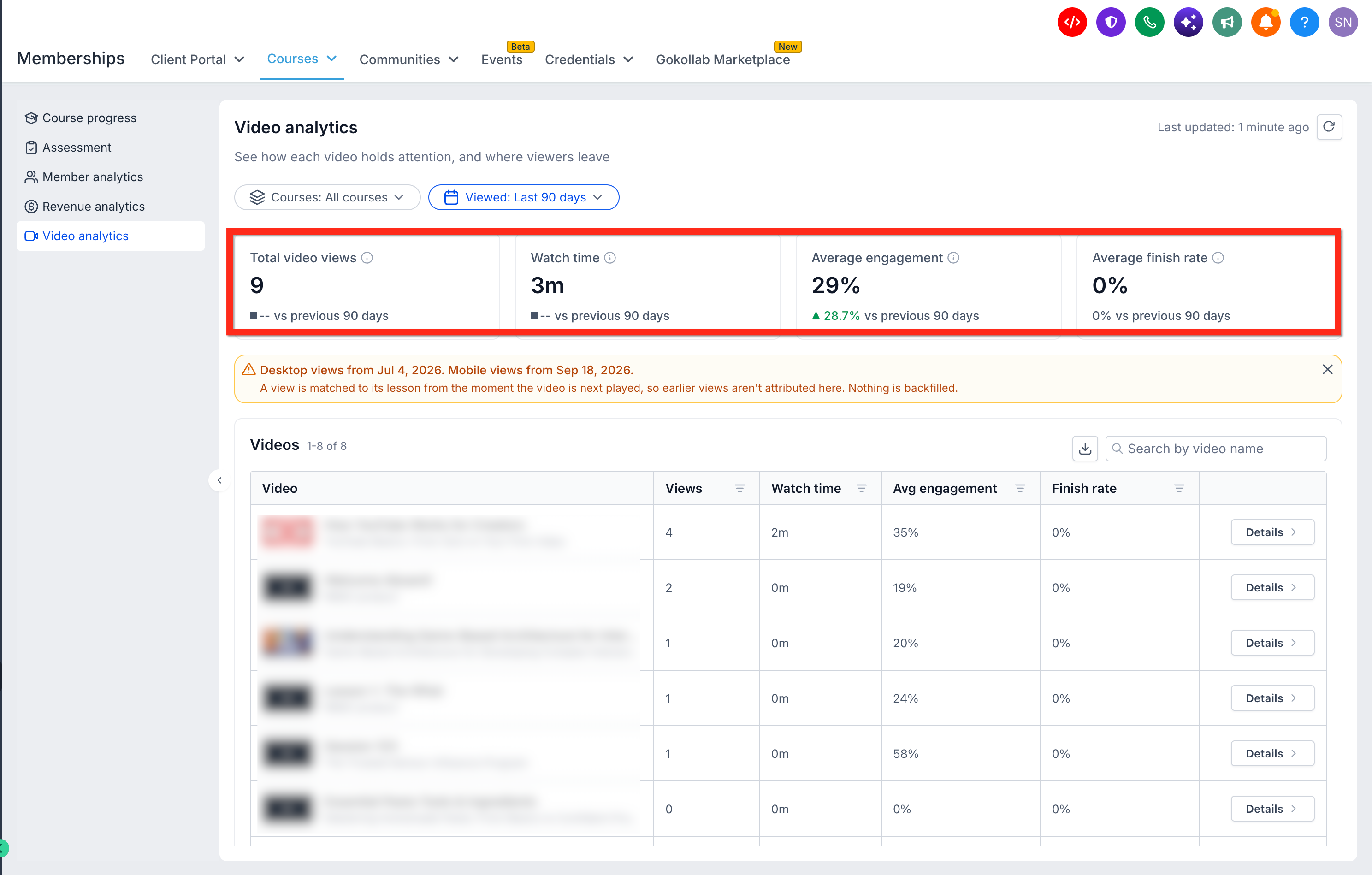
The dashboard displays four key metrics:
| Metric | Description |
|---|---|
| Total video views | Total number of video views. |
| Watch time | Total time viewers spent watching videos. |
| Average engagement | Average viewer engagement with the videos. |
| Average finish rate | Percentage of views that reach the end of a video. |
Each metric includes a comparison with the previous equivalent period when available.
Below the metrics, you can search for videos by name, sort the results, and review individual video performance.
How to View Individual Video Analytics
Locate a video in the Videos table.
Click Details beside the video.
Review the video's performance metrics and viewing behavior.
Video Performance Metrics
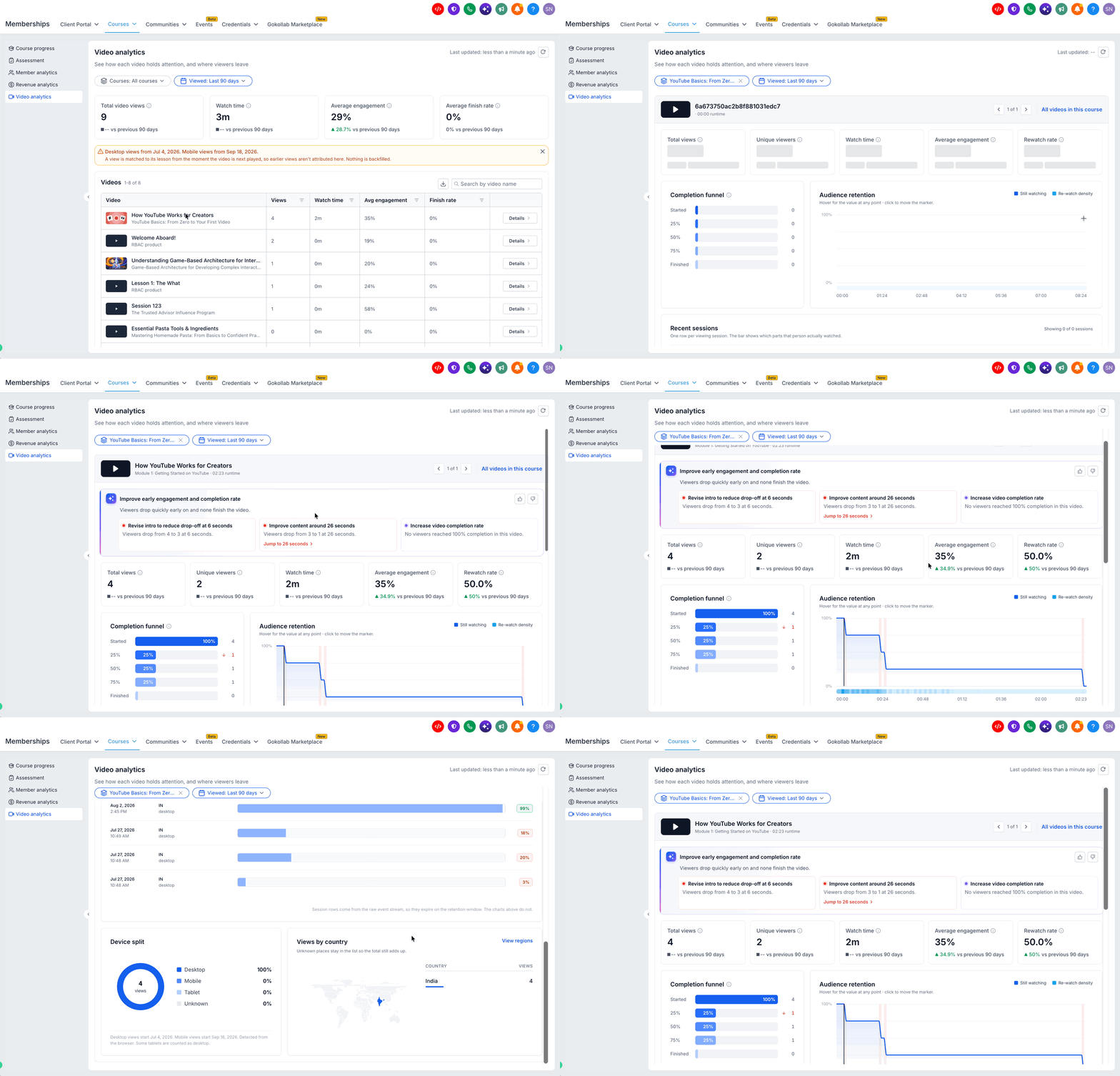
The individual video report includes:
Total views: Number of times the video was viewed.
Unique viewers: Number of distinct viewers.
Watch time: Total viewing time.
Average engagement: Average engagement with the video.
Rewatch rate: How frequently viewers return to watch the video again.
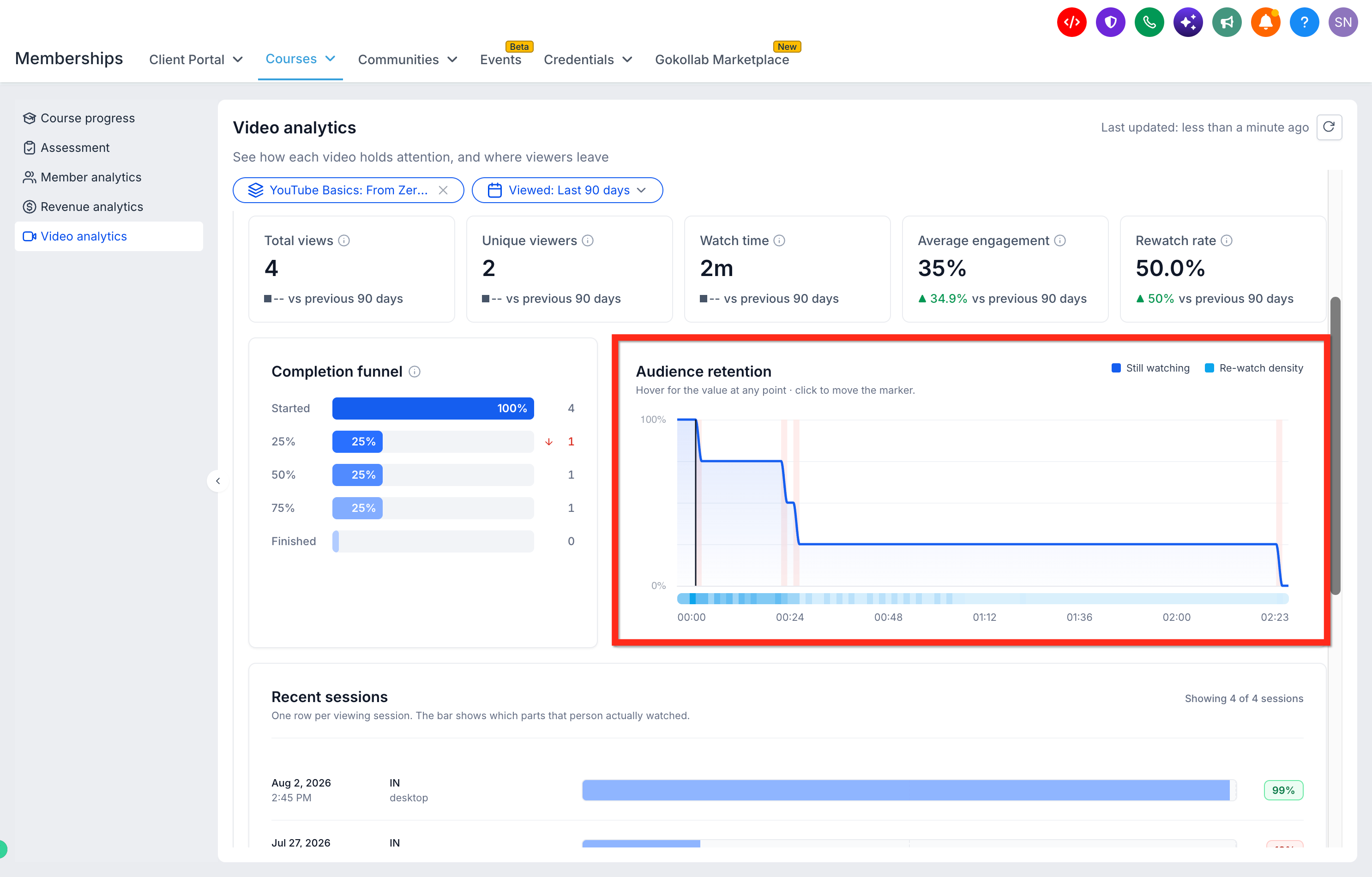
Completion Funnel
The Completion funnel shows how many viewing sessions reach each milestone:
Started
25%
50%
75%
Finished
Use this chart to identify where viewers stop watching. Significant drop-offs are highlighted.
Audience Retention
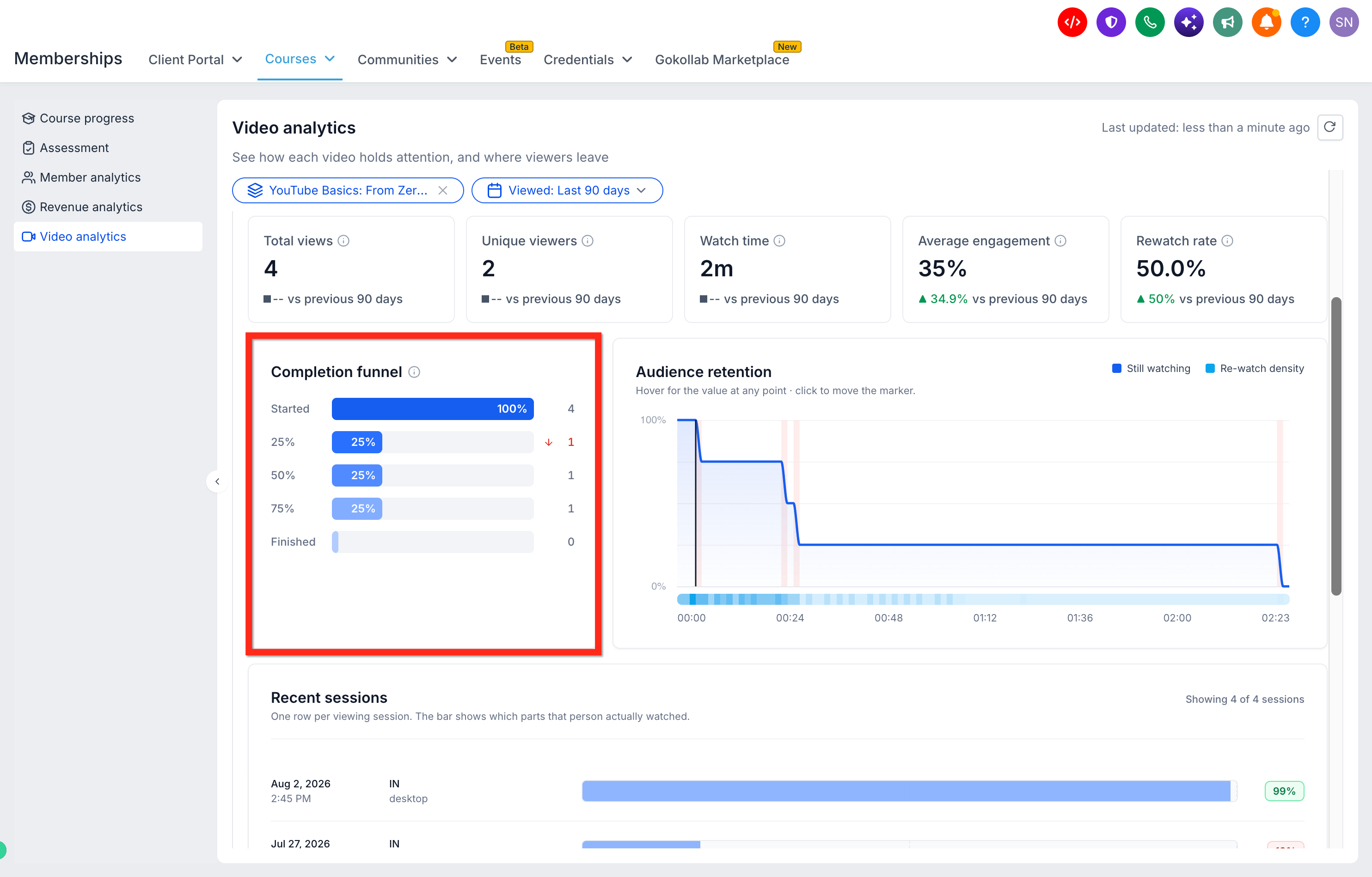
The Audience retention chart shows how viewer attention changes throughout the video.
You can:
Hover over the chart to inspect retention at specific moments.
Click a point to move the video marker to that timestamp.
Use the rewatch heatmap to identify frequently replayed sections.
Additional Viewing Insights
Scroll down to review:
Recent sessions: Individual viewing sessions and the portions watched.
Device split: Views from desktop, mobile, tablet, or unknown devices.
Views by country: Geographic distribution of video views.
View regions: A more detailed geographic breakdown.
Use the video navigation arrows to switch between videos within the selected course, or select All videos in this course to return to the course's video list.
How to View Video Stats in the Course Editor
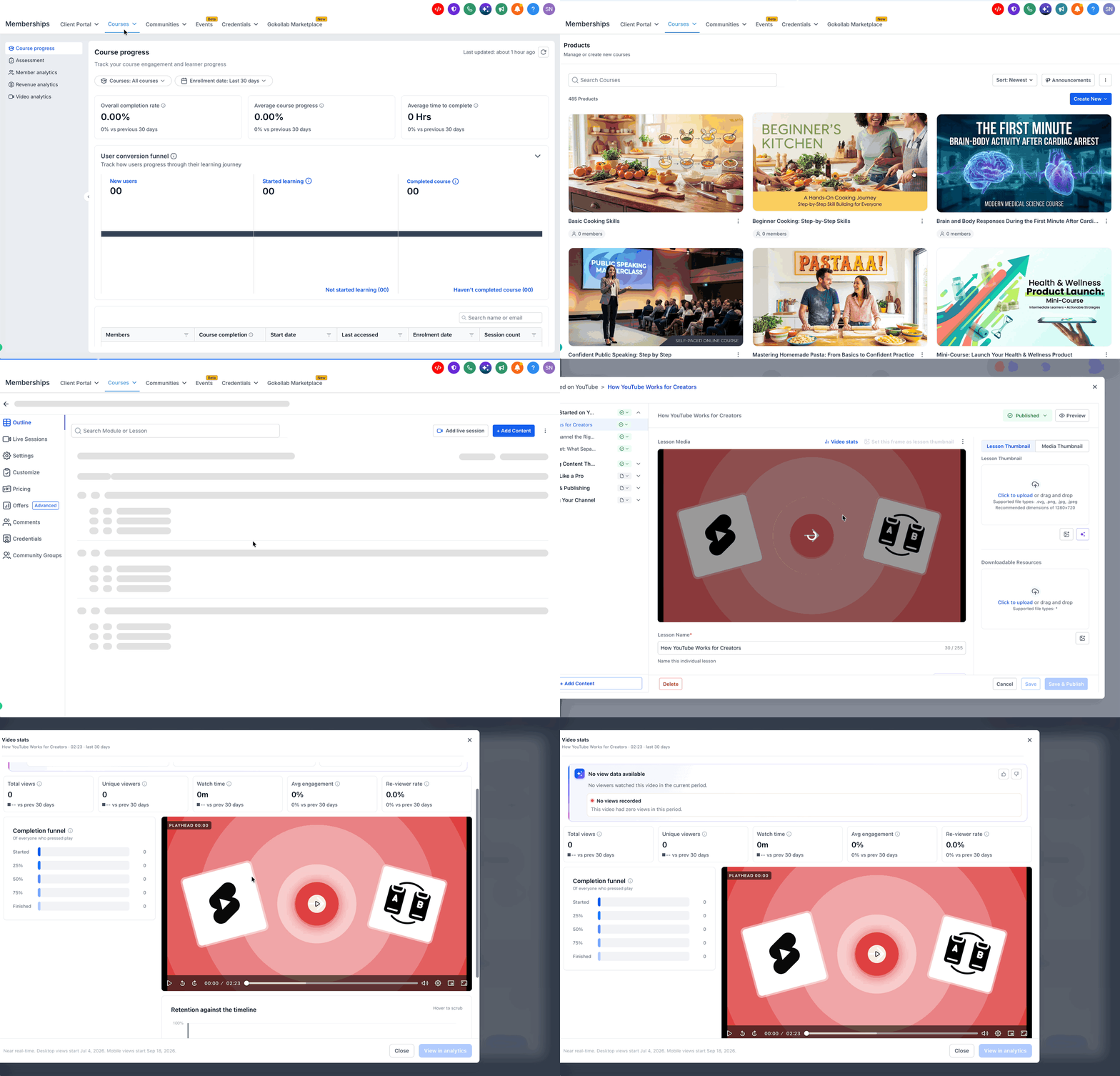
You can check video performance without leaving the lesson editor.
Navigate to Memberships > Courses > Products.
Open your course and select the lesson containing the video.
Click Video stats above the video preview.
Review the available metrics, completion funnel, and AI insights.
Click View in analytics to open the full video report.
The lesson-level report displays data from the last 30 days.
Note: The Video stats option becomes available once the video has finished processing and can be previewed. View in analytics is available after the video receives views.
How to Export Video Analytics
Open Memberships > Courses > Analytics > Video analytics.
Apply your preferred course and date filters.
Click the Download icon above the Videos table.
The export includes the video performance data for your selected view, including views, watch time, engagement, and finish rates.
Important Information
Video Analytics is supported for videos uploaded natively to Chat To Clients CRM Courses, not third-party embedded videos.
Desktop viewing data collection began July 4, 2026.
Mobile viewing data collection began September 18, 2026.
Views recorded before data collection began are not backfilled.
Existing video-to-lesson attribution begins when the video is next played; earlier views are not attributed retroactively.
Recent session records may expire according to the data retention window, while aggregated charts remain available.
You can use Video Analytics to identify engagement patterns, understand where viewers lose interest, and make informed improvements to your course content.