
How to Use Course AI to Create and Manage Courses
Course AI helps you create courses in Chat To Clients CRM using simple prompts and existing materials. You can generate course outlines, modules, lessons, quizzes, assignments, and images, then customize everything before sharing it with learners.
This article covers how to create a course with Course AI and use its tools throughout the Course Builder.
TABLE OF CONTENTS
- How to Create a Course with Course AI
- How to Customize Your Course Outline
- How to Generate Lesson Content from Videos
- How to Write or Edit Lesson Descriptions with AI
- How to Generate Quiz Questions with AI
- How to Generate Thumbnails with AI
- Important Things to Know
How to Create a Course with Course AI
Go to Memberships > Courses > Products.
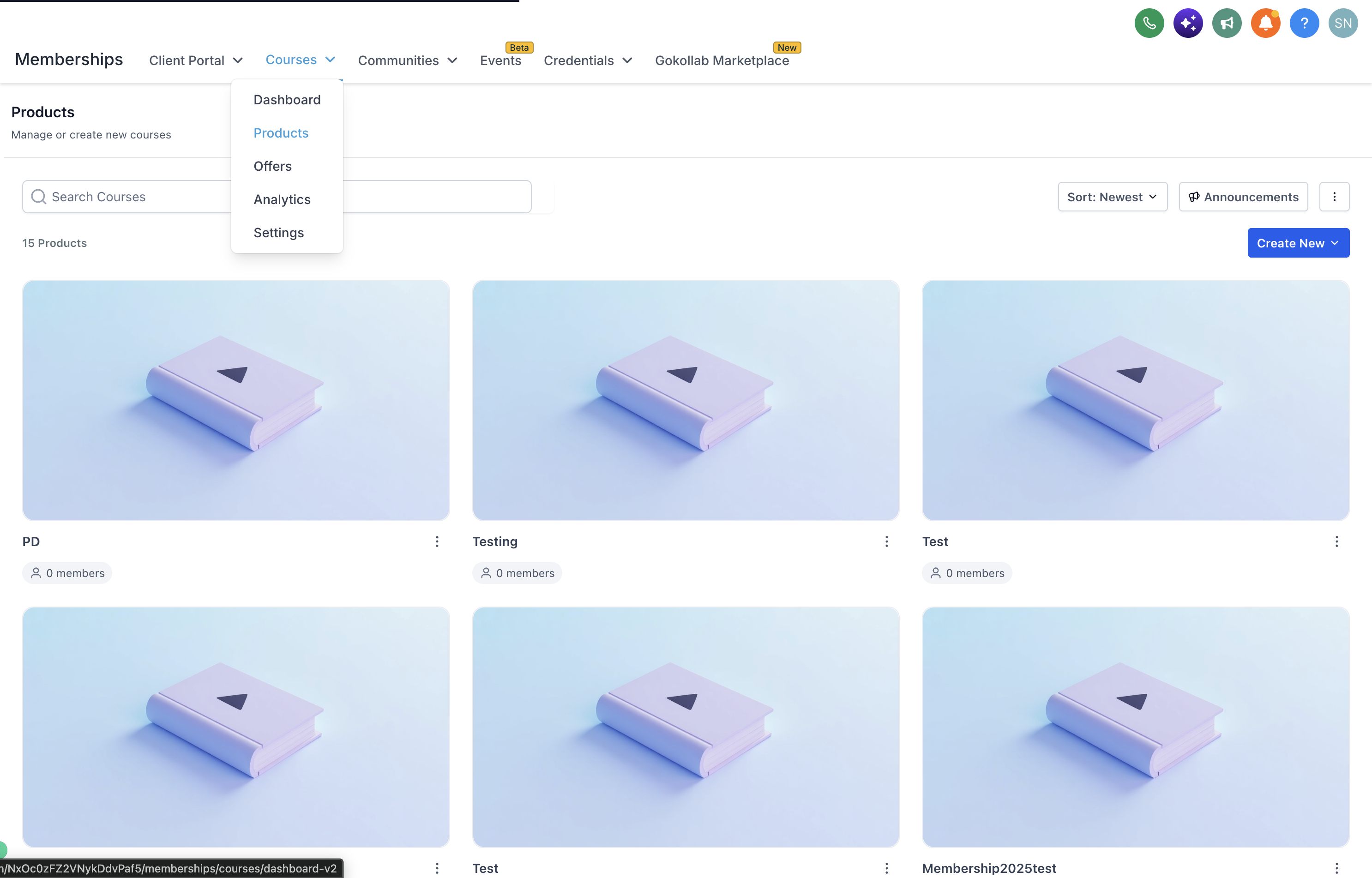
Click Create New > Start from scratch to open Course AI.
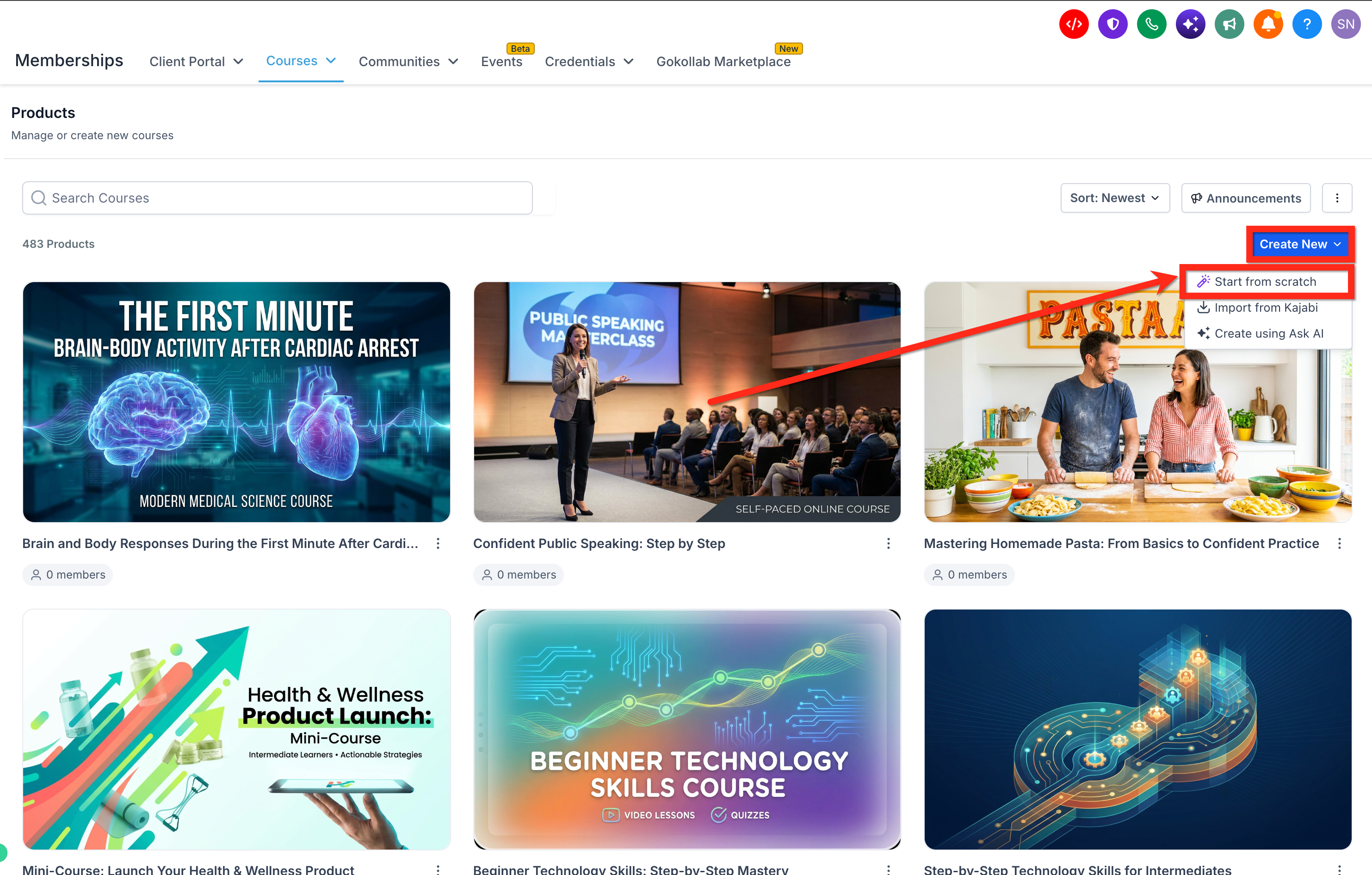
Choose a course type:
Self-paced skill course
Mini-course / lead magnet
Daily bootcamp / challenge
Certification program
Recording library / vault
Describe your course, including the topic, target audience, and what learners should achieve.
Optionally, attach images, PDFs, or public reference links. You can also use voice input.
Submit your prompt to generate a course outline.
How to Customize Your Course Outline
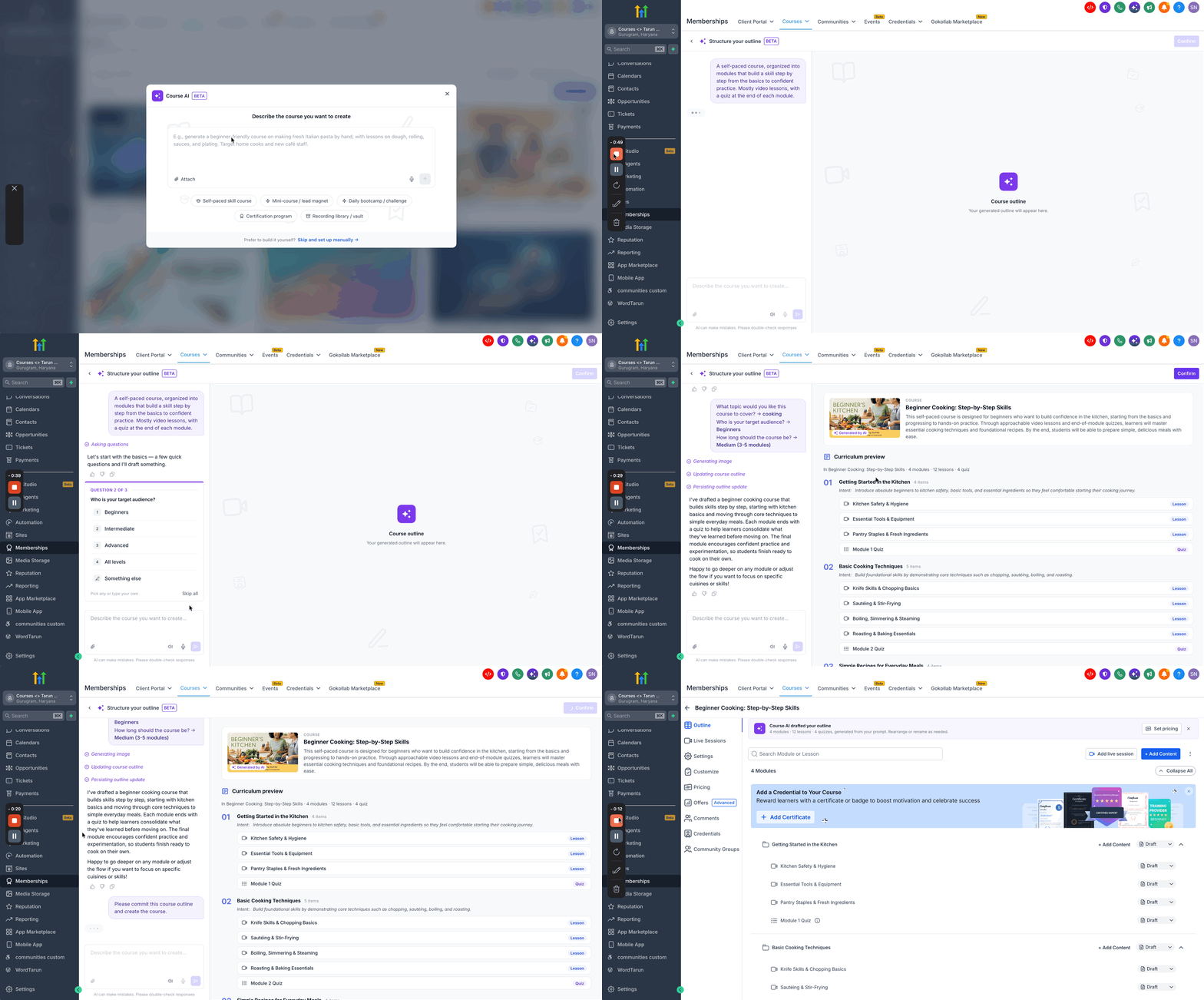
Course AI Studio displays your conversation on the left and a live course outline on the right.
You can refine the course before creating it.
Review the generated course title, description, modules, lessons, and quizzes.
Use the chat to request changes or select suggested follow-up responses.
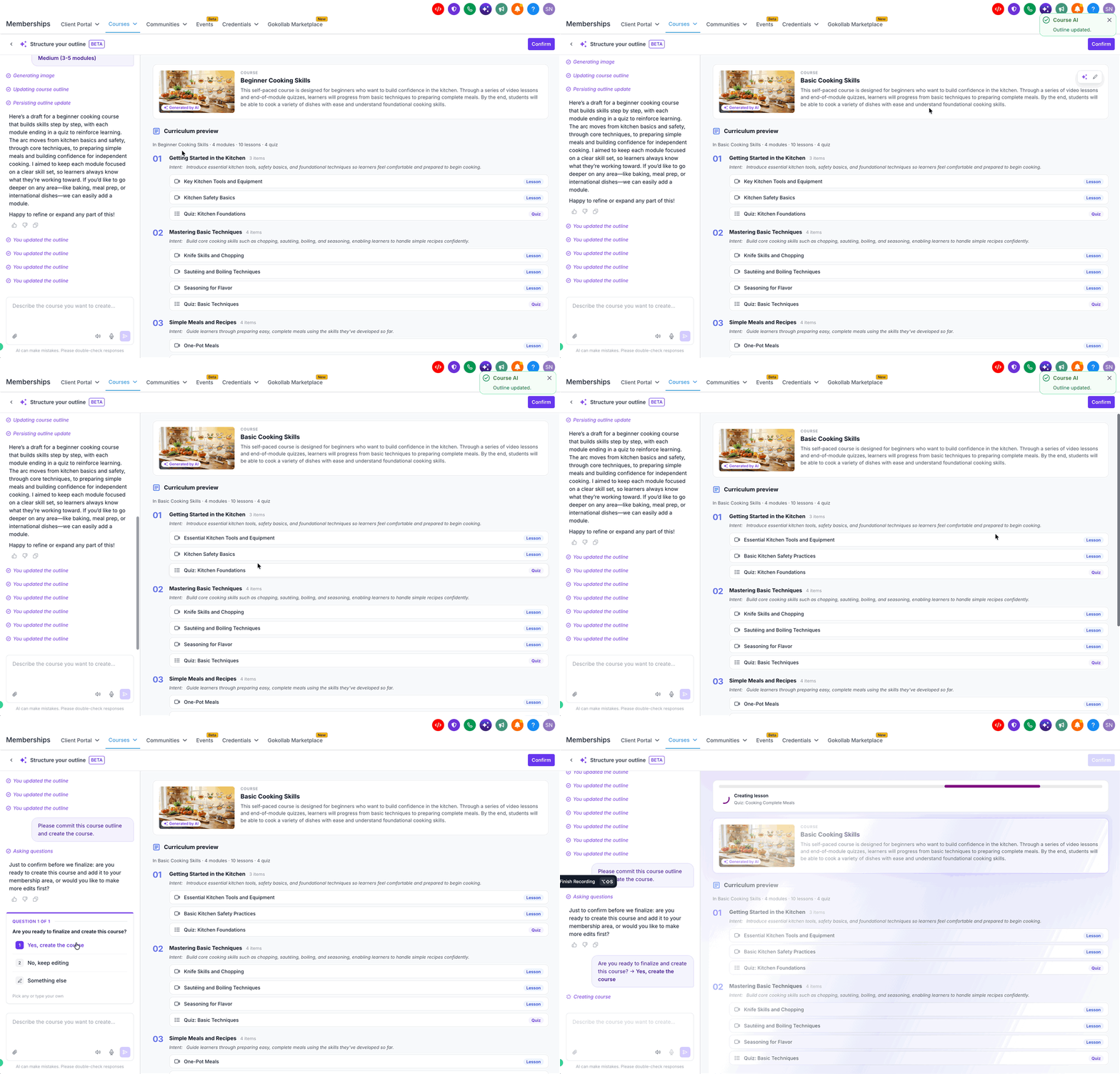
Edit or delete titles, modules, and lessons as needed.
Use AI rewriting options such as Clarify, Rephrase, Make specific, or Shorten to improve titles.
Generate a course cover image or upload your own.
Click Confirm when you're satisfied with the outline.
How to Generate Lesson Content from Videos
Course AI can analyze newly uploaded or imported lesson videos and suggest supporting content based on their transcripts.
Open your course and select a lesson.
Upload or import a lesson video.
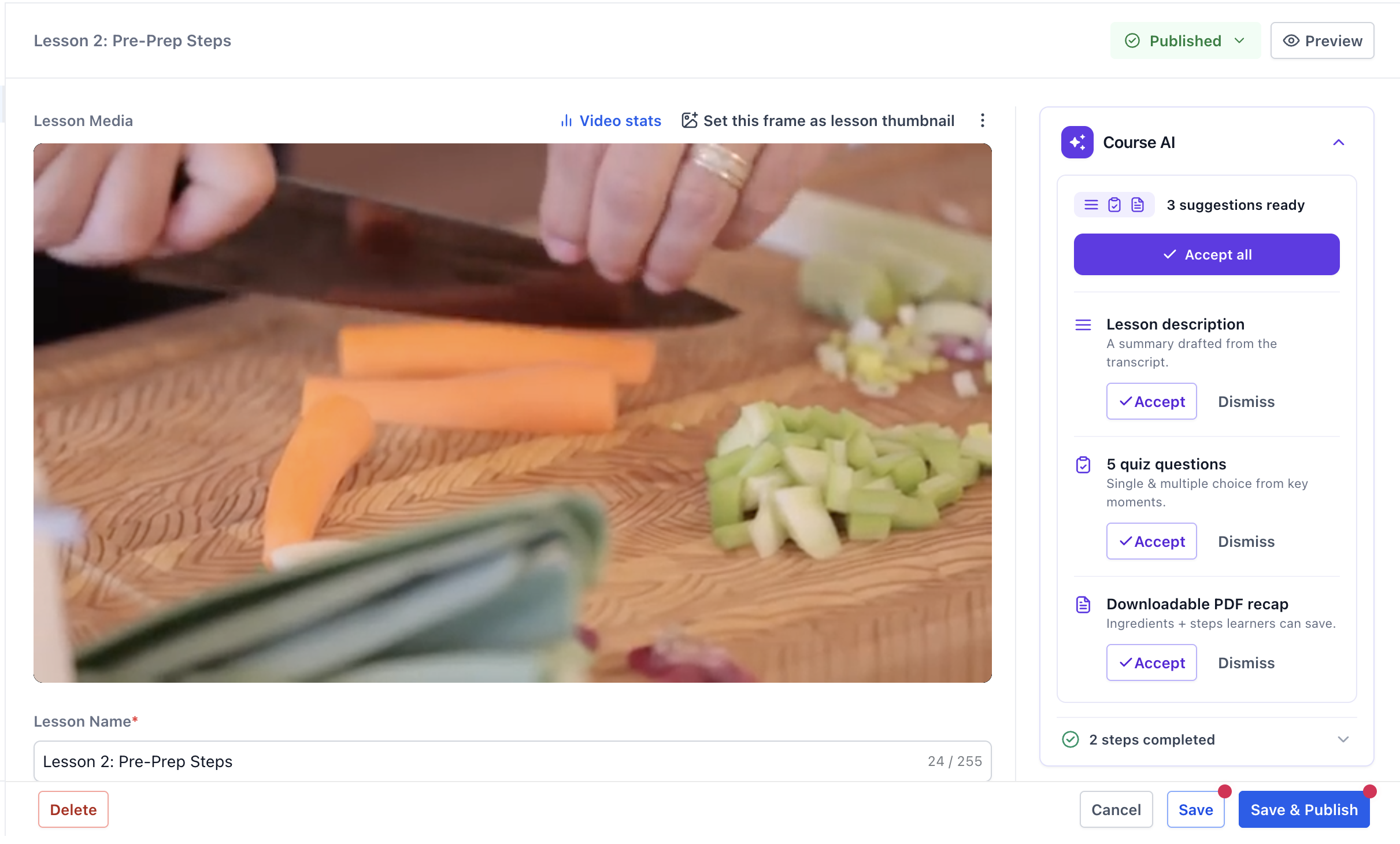
Once Course AI has processed the video, review the suggestions in the Course AI panel.
Depending on the video's content, suggestions can include:Lesson description: A summary of the video.
Quiz questions: Questions based on important moments in the lesson.
Downloadable PDF recap: A summary learners can save for reference.
Click Accept beside an individual suggestion, Accept all to use every suggestion, or Dismiss to skip one.
Save your changes using the available save or publishing option.
Accepted PDF recaps are added to the lesson's downloadable resources.
Note: Automatic transcript-based suggestions are available only for newly uploaded or imported videos.
How to Write or Edit Lesson Descriptions with AI
You can use Course AI to create descriptions or improve text you've already written.
Open a lesson in the Course Builder.
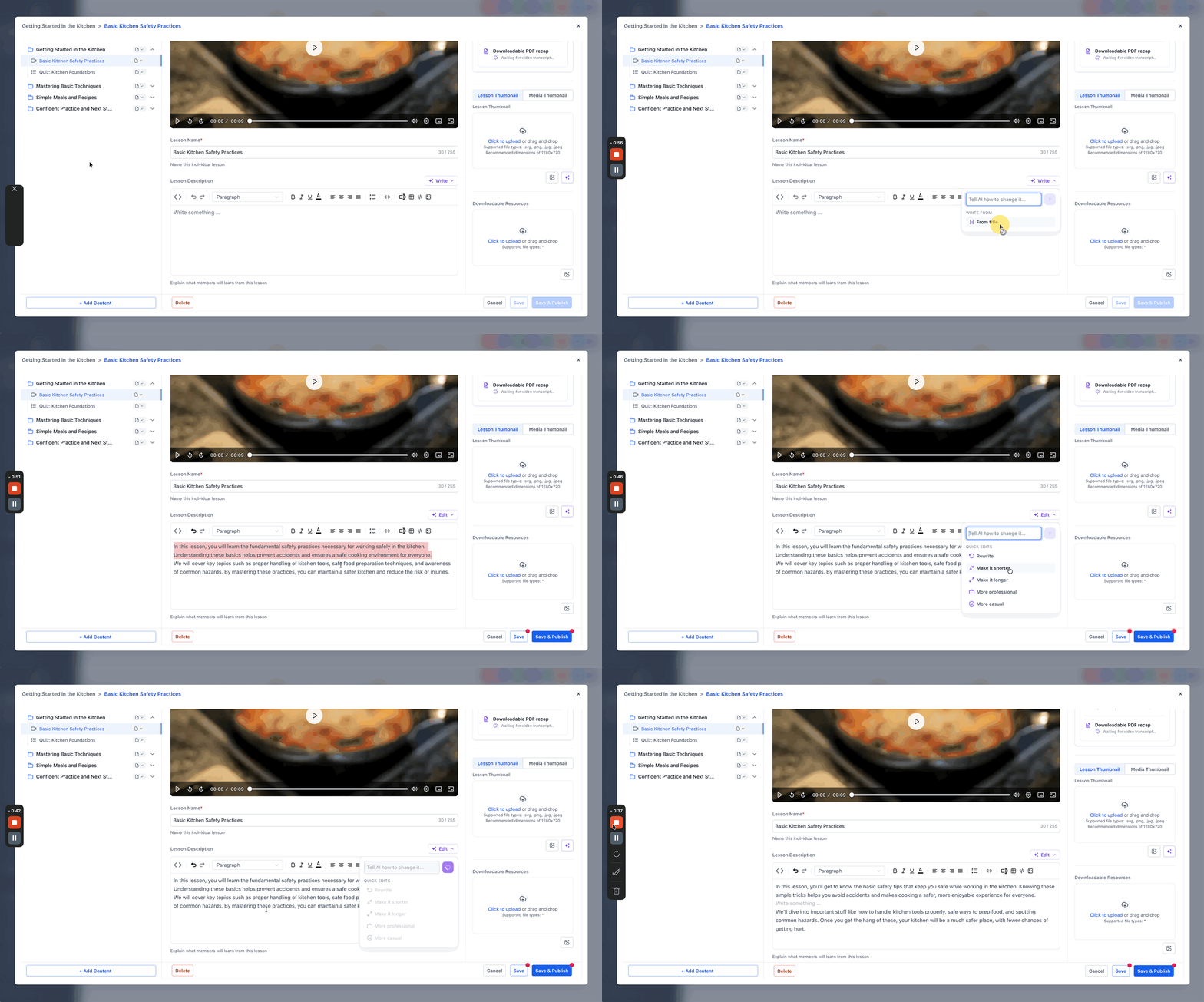
If the description is empty, use Course AI to generate one from the lesson title or an available video transcript.
If the description already contains text, open the AI Edit options.
Enter your own editing instructions or choose a quick edit:
Rewrite
Make it shorter
Make it longer
More professional
More casual
Review the updated description and save your changes.
How to Generate Quiz Questions with AI
Course AI can generate quiz questions from an individual lesson, an entire module, or the whole course.
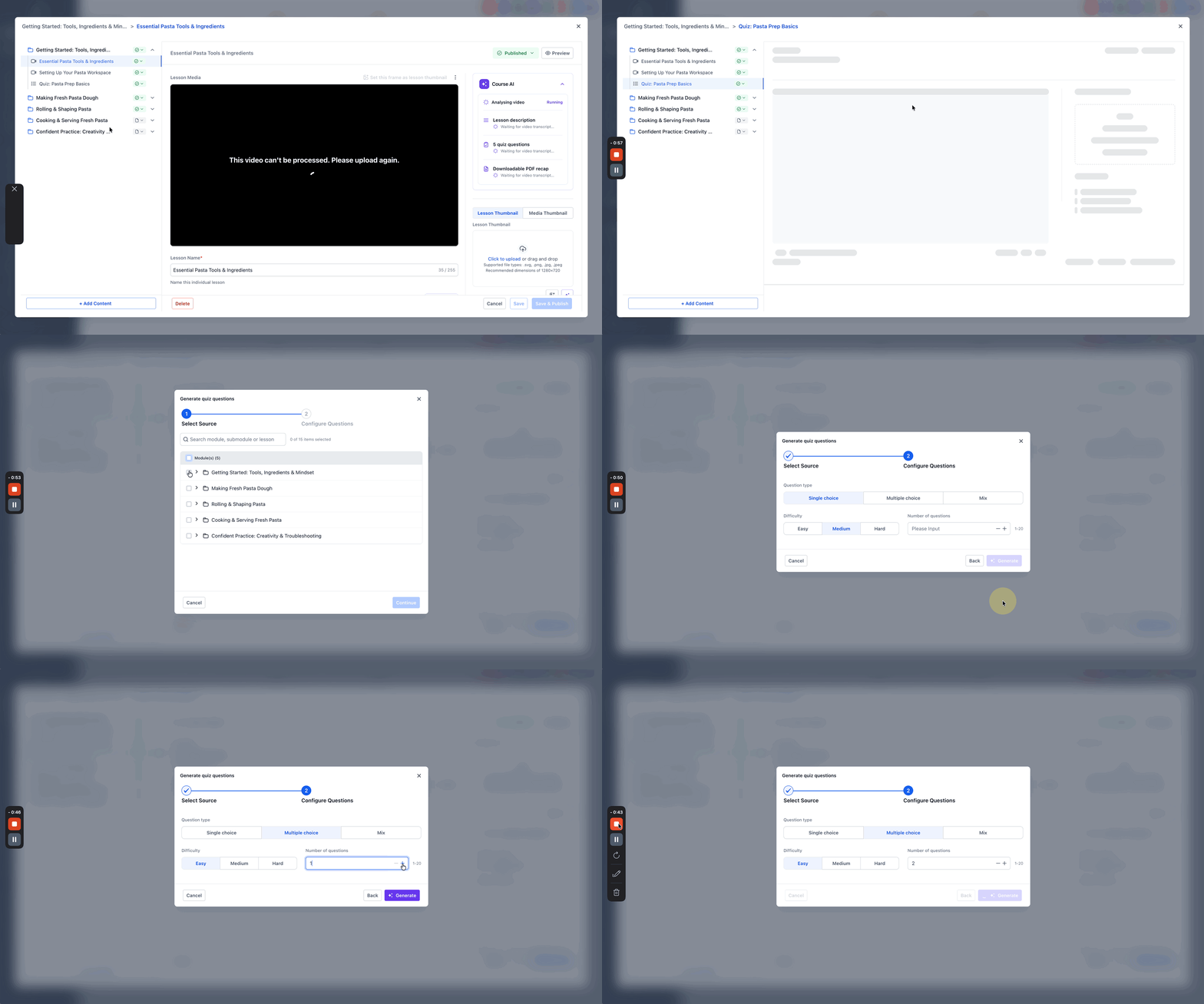
Open a quiz in the Course Builder and choose Generate quiz questions.
Select the source content you want AI to use.
Choose a Question type:
Single choice
Multiple choice
Mix
Select the difficulty: Easy, Medium, or Hard.
Set the Number of questions (1–20).
Click Generate, review the questions, and save your changes.
You can edit the generated questions before making the quiz available to learners.
How to Generate Thumbnails with AI
You can create AI-generated thumbnails for lessons, quizzes, and assignments.
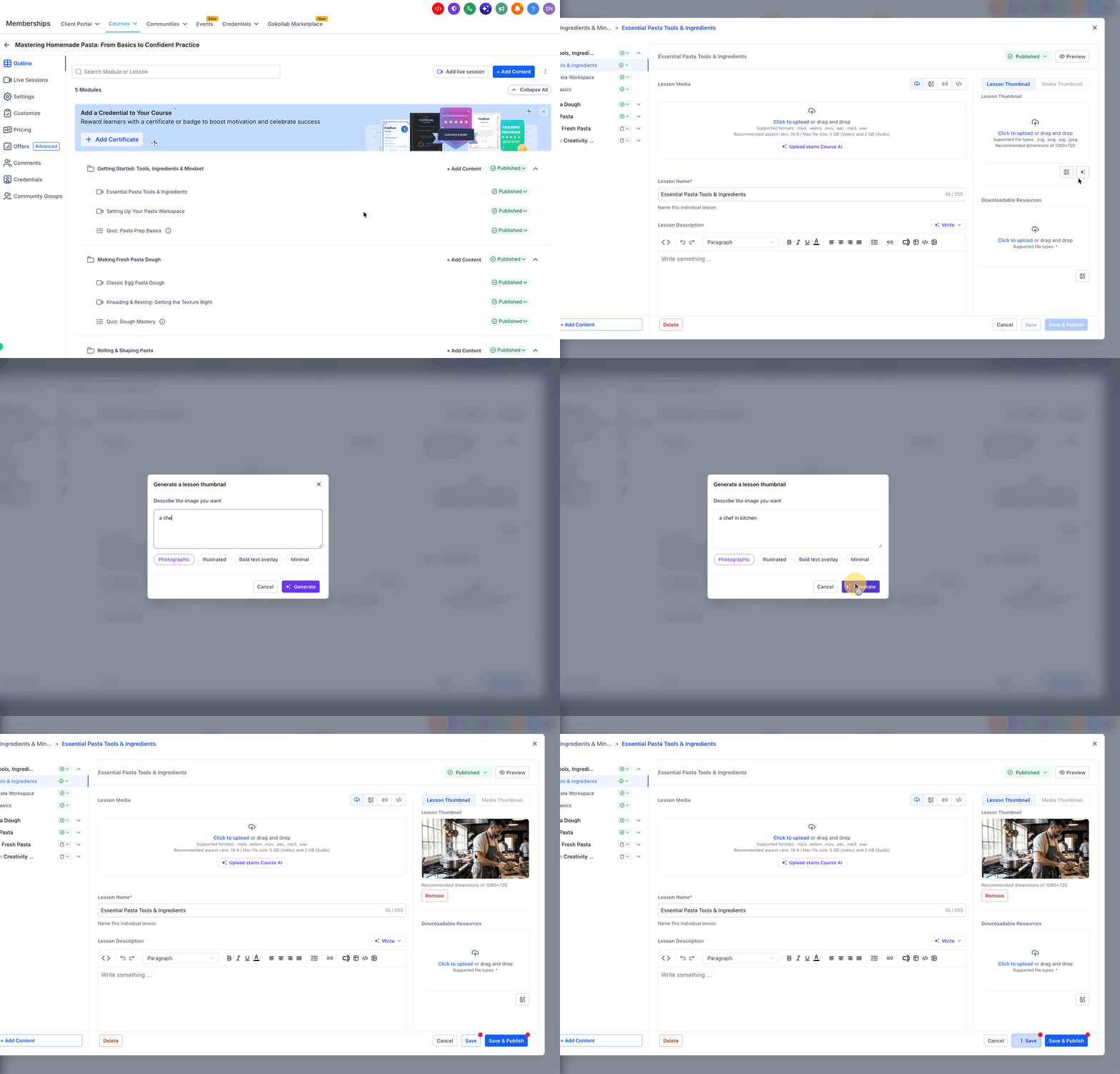
Open the lesson, quiz, or assignment you want to update.
Access its AI thumbnail generation option.
Describe the image you want to create.
Choose a style:
Photographic
Illustrated
Bold text overlay
Minimal
Click Generate.
Review the image and save your selected thumbnail.
Important Things to Know
File limits: You can attach up to 5 files, with a maximum size of 25 MB per file, when providing materials for course creation.
Reference links: URLs must be public and accessible to AI.
Video processing: Automatic lesson content suggestions work with newly uploaded or imported videos only.
AI content: Generated outlines, descriptions, quizzes, and images can be reviewed and edited.
Manual creation: Select Skip and set up manually if you prefer to build your course without AI.
Once your course content is ready, review its settings, preview the learner experience, and complete the necessary publishing and access setup.