Workflow Trigger – Social Planner Posts
The Social Planner Posts workflow trigger lets you automate actions based on your social media post activity in Chat To Clients CRM.
You can create workflows that respond when posts are scheduled, published, approved, rejected, or fail to publish. For example, you can automatically notify your team when a post fails to publish.
TABLE OF CONTENTS
- Important Notes
- Available Trigger Filters
- How to Set Up the Social Planner Posts Trigger
- Use Social Planner Post Details in Workflow Actions
- Related Articles
Important Notes
Only social accounts connected through Social Planner are supported.
Social accounts connected through Integrations are not currently supported by this trigger.
Your configured filters determine which post events start the workflow.
Available Trigger Filters
Use filters to control which Social Planner posts start your workflow.
| Filter | Options |
|---|---|
| Category | Existing Social Planner categories |
| Platform | Facebook, Instagram, Bluesky, Google Business Profile, LinkedIn, Pinterest, Threads, TikTok, YouTube |
| Post Status | Approved, Failed, Approval Rejected, Approval Requested, Published, Scheduled |
| Post Type | Carousel, Post, Reel, Short, Story |
| Social Accounts | Connected Social Planner accounts |
| Tags | Existing Social Planner tags |
You can combine filters to target specific posts. For example, select Platform: Facebook and Post Status: Published to run a workflow when a Facebook post is published.
How to Set Up the Social Planner Posts Trigger
Go to Automation > Workflows and create a new workflow or open an existing one.
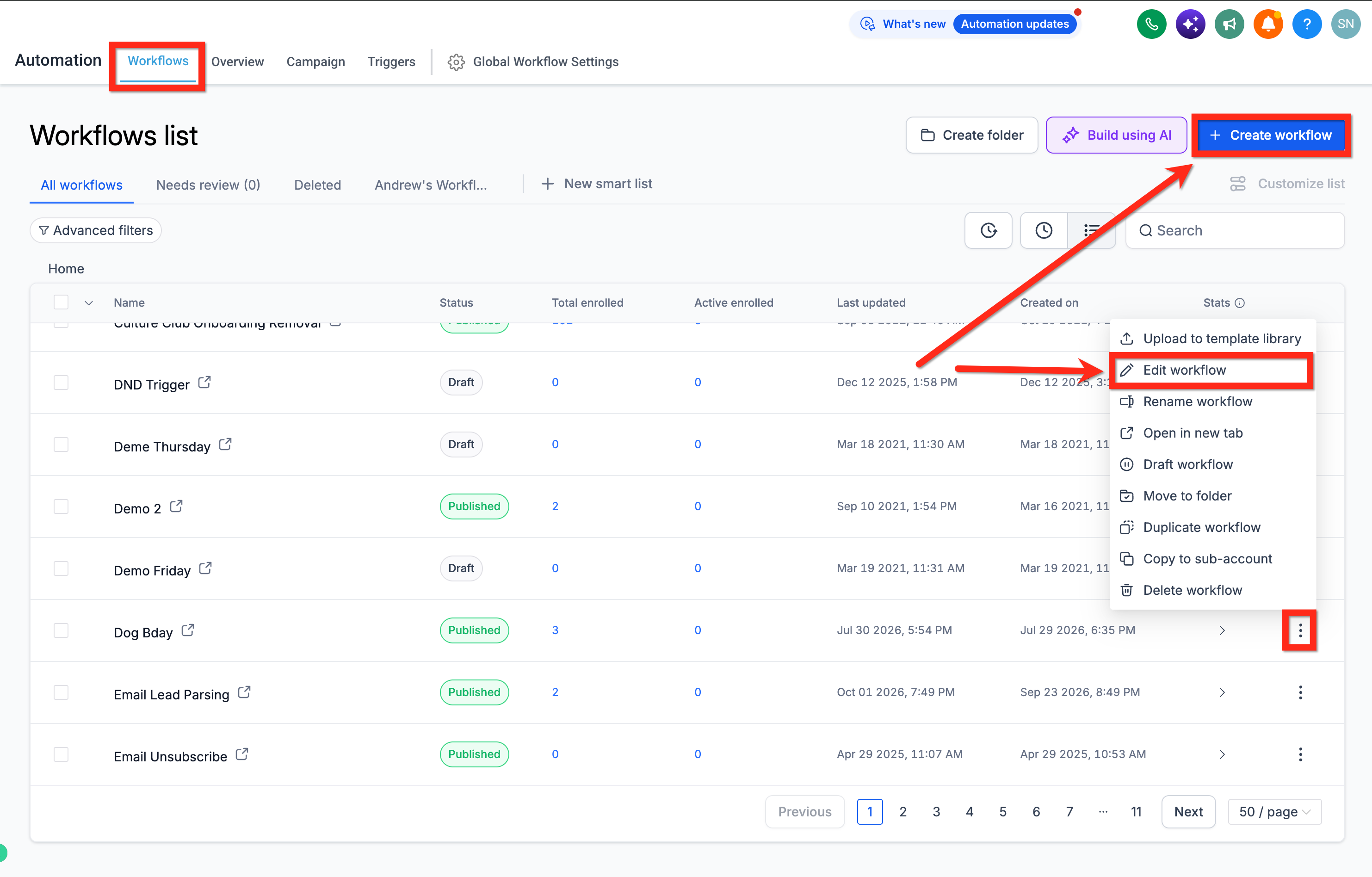
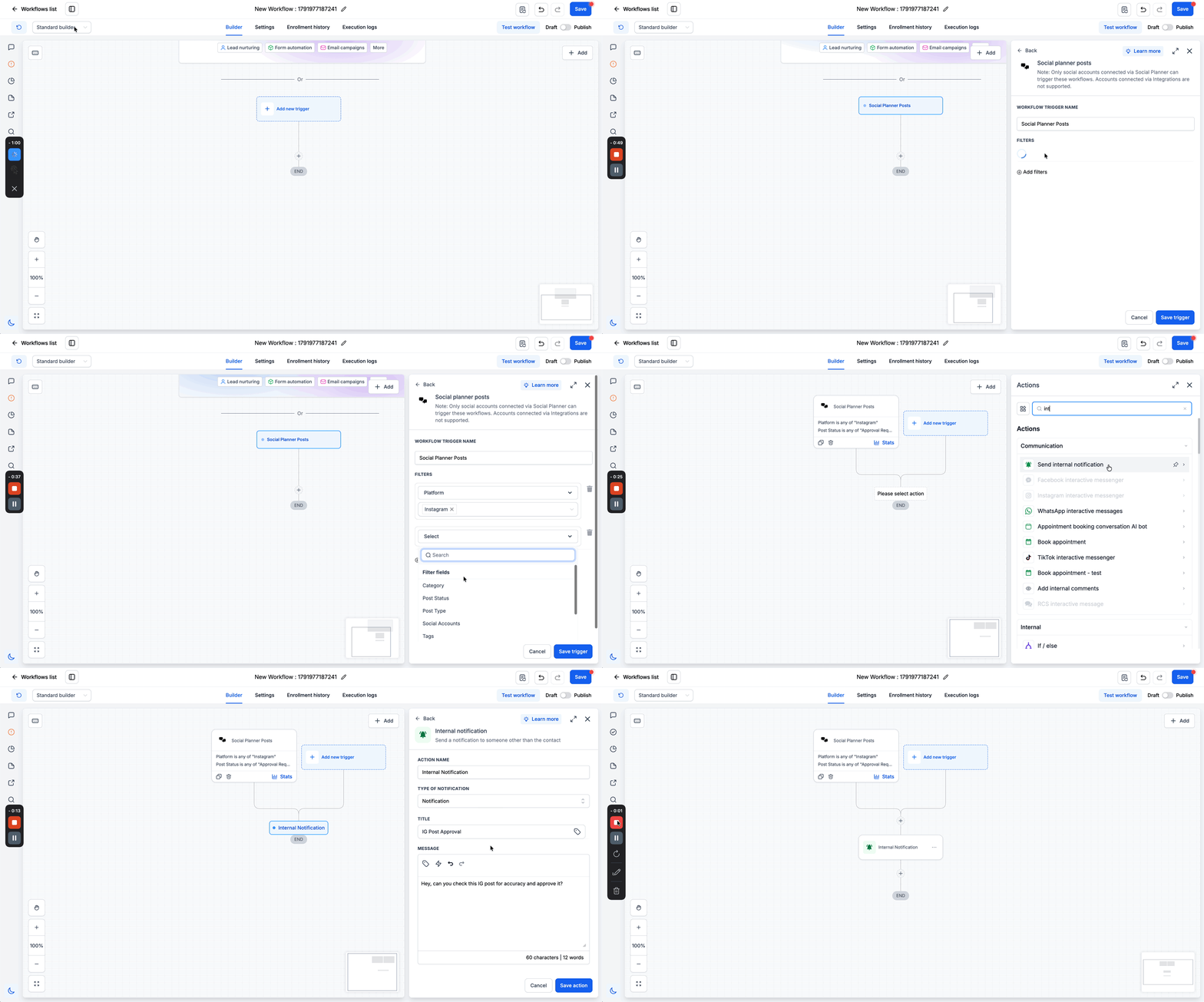
Click Add new trigger, search for Social planner posts, and select it.
Under Filters, choose your preferred conditions, such as Platform or Post Status.
Click Save trigger.
Add and configure your workflow actions, such as an internal notification or other follow-up action.
Save and Publish your workflow.
Use Social Planner Post Details in Workflow Actions
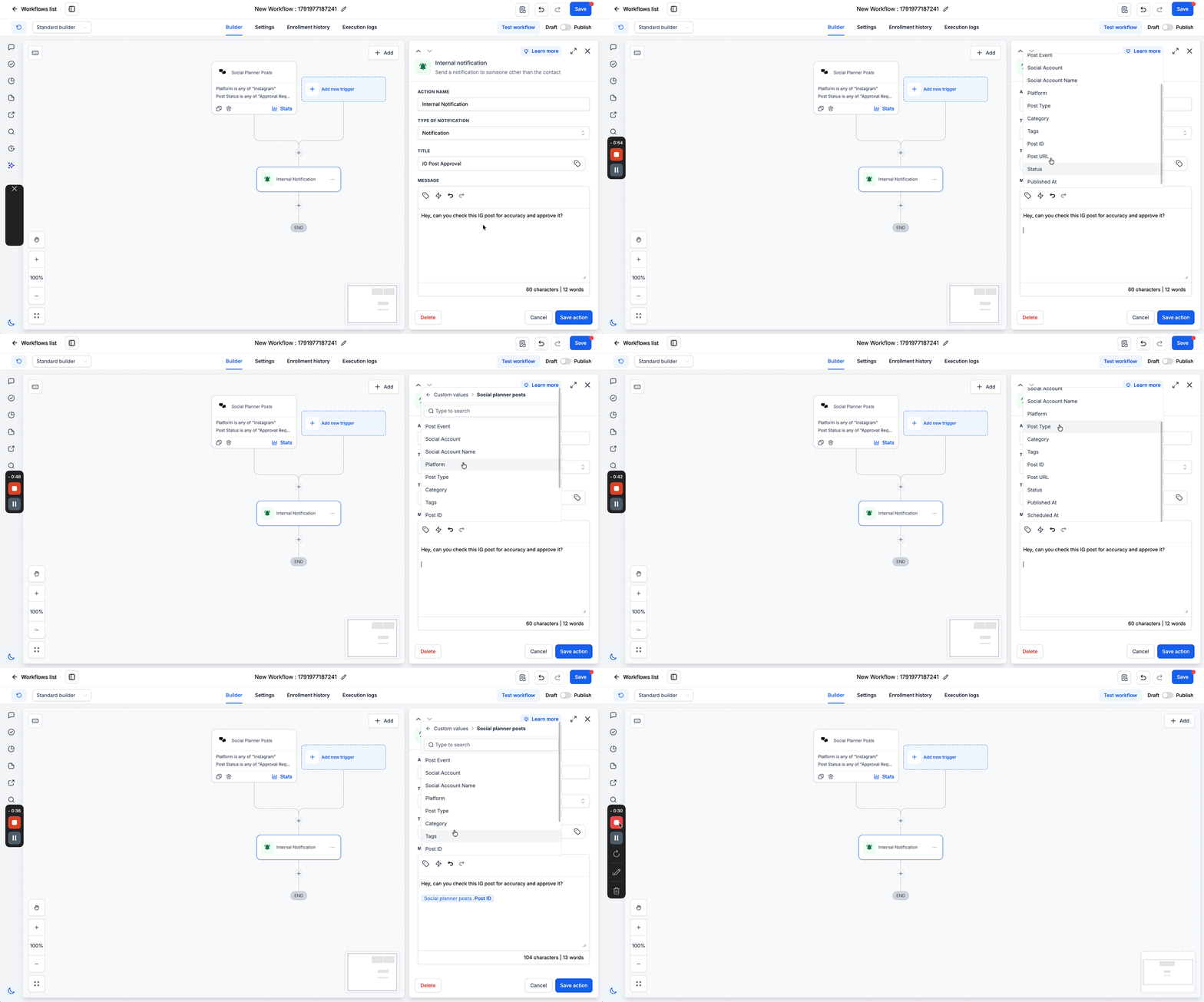
In supported message actions, select Custom values > Social planner posts to insert information about the triggering post.
Available fields include Post Event, Social Account, Social Account Name, Platform, Post Type, Category, Tags, and Post ID.
This lets you include relevant post details in automated messages.