
WhatsApp Limited-Time Offer Templates
WhatsApp Limited-Time Offer Templates
Create and send WhatsApp templates with built-in expiration dates and countdown timers to drive urgency and engagement for time-bound promotions.
Table of Contents
What Are Limited-Time Offer Templates?
A Limited-Time Offer (LTO) template is a Meta-supported WhatsApp template type that displays an expiration date and a running countdown timer directly inside the message. Unlike standard marketing templates, an LTO template makes the deadline visible to the customer — the timer counts down in real time.
LTO templates also include a Copy Code button, allowing customers to copy a promotional code with a single tap without having to remember or retype it.
These templates are only available under the Marketing category and must go through the standard Meta template approval process before they can be sent.
How the Template Looks to the Customer
An approved LTO template renders in the customer's WhatsApp as:
Availability note: The countdown timer is only visible on WhatsApp for iOS and Android. Customers viewing the message on WhatsApp Web or the desktop app will see a notice that the format is unsupported.
Before You Begin
How to Create an LTO Template
Open the Template Builder
Navigate to Settings → WhatsApp → Templates → Create Template. and click Blank template 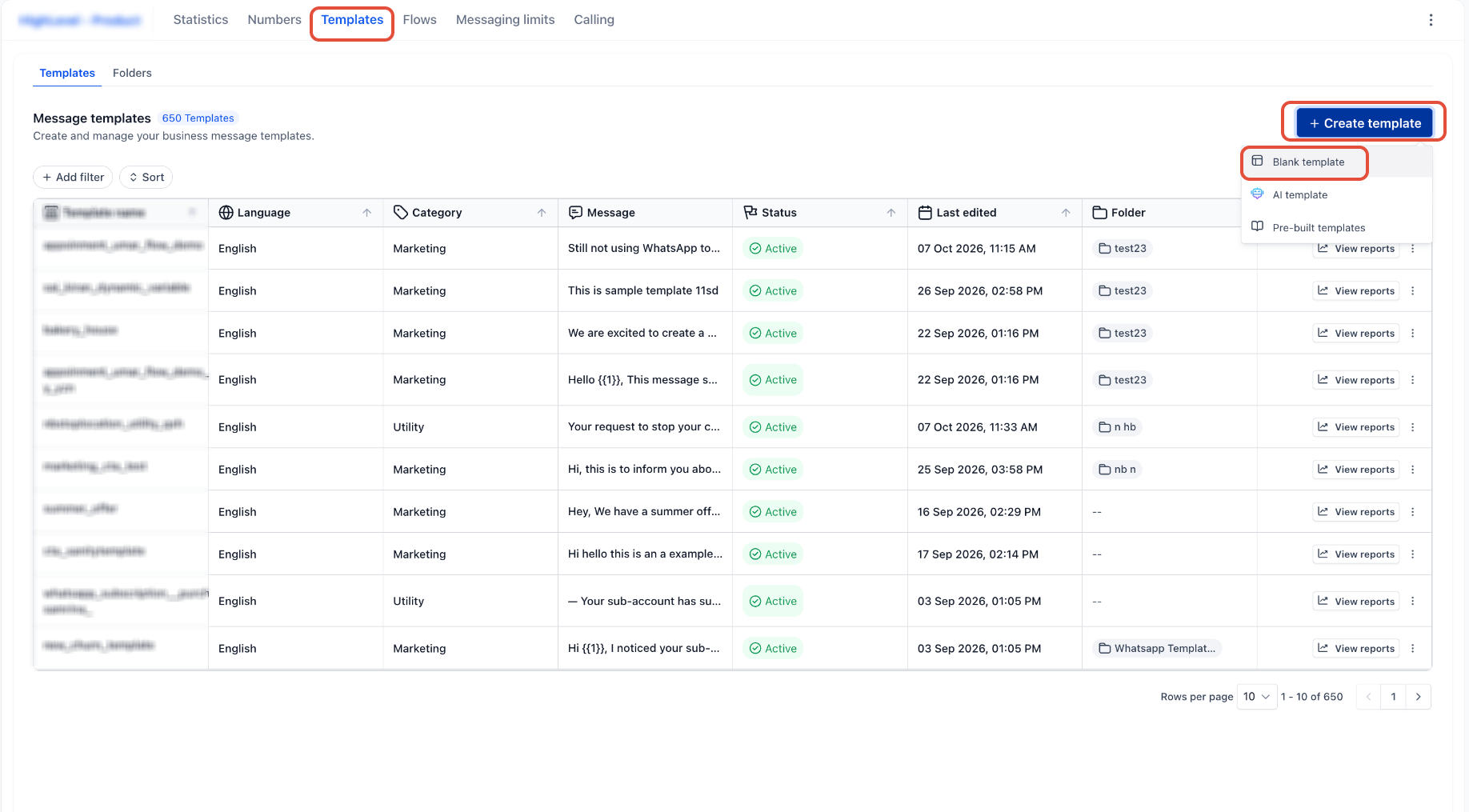
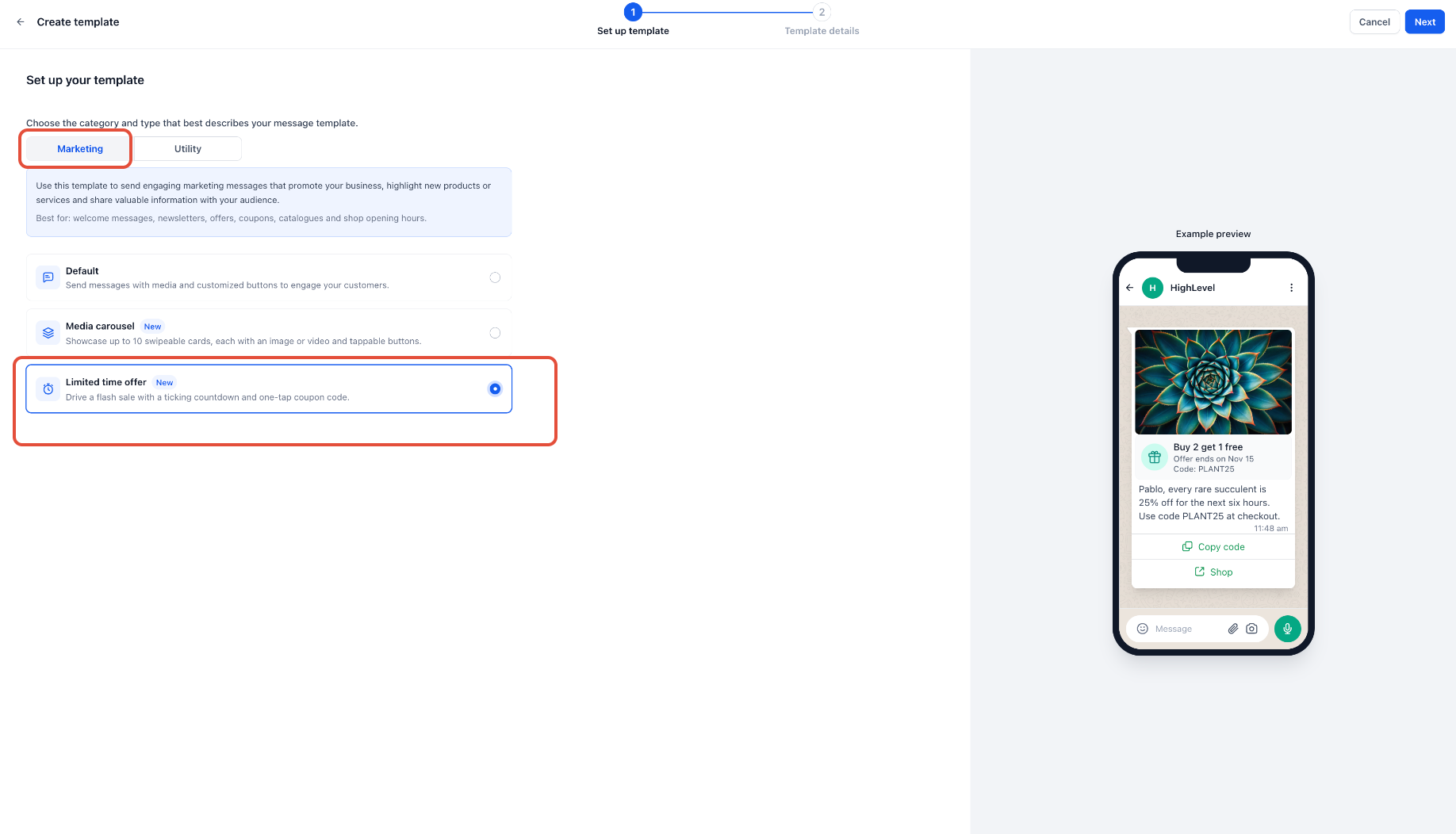
Set Template
- Click on Limited Time Offer template
Add Header, Body, and Buttons
- Header — Upload an image or video.
- Body — Write your offer message. Use variables such as
{{1}}for the customer name and{{2}}for the offer code. Provide realistic sample values for all variables. - Buttons — A Copy Code button is required. You may also add a URL button to direct customers to your offer page.
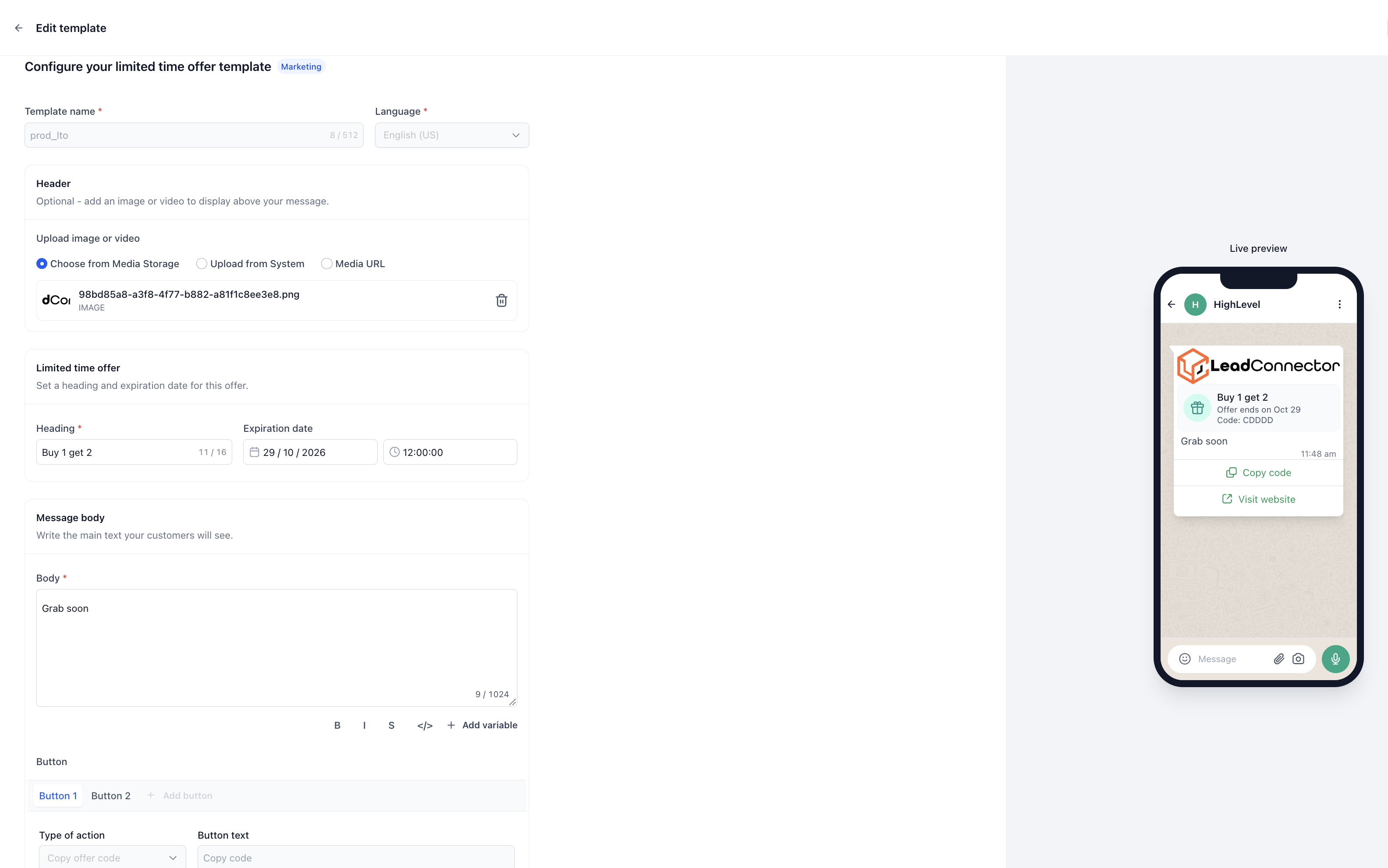
Note: LTO templates do not support a footer component. Do not add a footer — it will cause the template to be rejected by Meta.
Preview and Submit
Review the live preview, which shows the countdown timer bar, offer text, body, and buttons. When everything looks correct, click Create to submit the template to Meta for approval.
Monitor Approval Status
Return to Settings → WhatsApp → Templates to track the status. A template marked In Review is still being assessed. Once Approved, the template is ready to send. If rejected, review Meta's reason, correct the issue, and resubmit.
Phone View 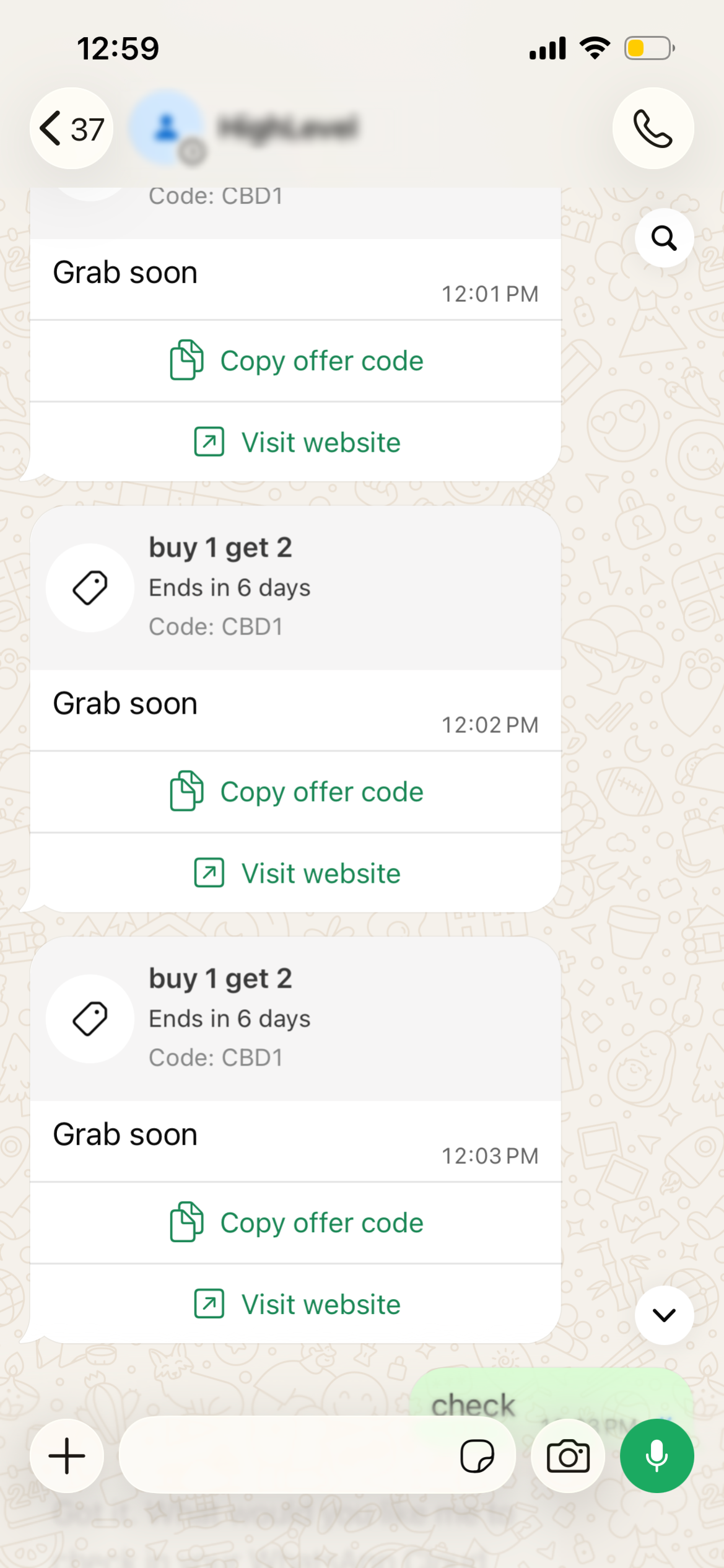
Once your LTO template is approved, you must set an expiration date and time each time you send it. The expiration is not stored in the template itself — it is supplied at send time, which means you can reuse the same approved template for different campaigns simply by updating the expiration and offer code.
From Conversations
Open the contact's conversation, select WhatsApp, and choose the approved LTO template from the template selector. Set the expiration date and time and enter the offer code before sending.
Through Workflows
Add a WhatsApp action in your workflow, select the approved LTO template, and configure the expiration timestamp and offer code fields. The workflow will send the template automatically when triggered.
Through Bulk Actions
Go to Contacts, select your audience, and start a WhatsApp bulk action. Choose the LTO template, set the expiration, enter the offer code, and launch or schedule the campaign.
Tip: Because the expiration is set at send time, you can reuse the same approved LTO template across multiple campaigns by simply updating the expiration date and offer code each time — no need to create and approve a new template for every promotion.
Constraints and Limitations
Use Cases
Flash Sales
Send a 4-hour flash sale message with a copy-code button. Customers see exactly how much time is left, reducing hesitation and driving immediate action.
Abandoned Cart Recovery
Trigger an LTO template via Workflow when a contact abandons a cart, offering a discount code valid for 24 hours to encourage completion.
Appointment Promotions
A salon or clinic can promote same-week availability at a discounted rate with a countdown that expires at end of day, filling empty slots efficiently.
Seasonal Campaigns
Run weekend or holiday promotions using a Bulk Action to reach a large audience simultaneously, with the timer creating shared urgency across all recipients.
Membership or Subscription Renewals
Alert customers to a renewal discount expiring at a specific date. The visible countdown replaces vague "limited time" language with a concrete deadline.
Frequently Asked Questions
Q: Do I need a new template for each promotion?
No. The expiration timestamp and offer code are supplied at send time, not stored in the template. You can reuse the same approved template for multiple campaigns by entering a different expiration and code each time you send it.
Q: Why can't my customer see the countdown timer?
The countdown timer is only visible on WhatsApp for iOS and Android. Customers using WhatsApp Web or the desktop app will see a notice that the format is unsupported — they can still read the message and use the copy-code button, but the timer will not display.
Q: Can I add a footer to my LTO template?
No. LTO templates do not support a footer component. Including one will cause Meta to reject the template. Remove any footer content before submitting.
Q: What happens when the countdown reaches zero?
The message remains visible in the customer's chat but the offer is marked as expired. The countdown stops and the copy-code button may no longer be actionable depending on how the offer code is validated on your end.
Q: Can I use an LTO template as a Utility or Authentication template?
No. LTO templates are only available under the Marketing category. You cannot submit them under any other category.
Q: Will my LTO template be approved faster because of Meta's existing LTO format support?
No. All templates go through the same Meta review process regardless of type. Following the category guidelines and providing accurate sample values gives your template the best chance of approval.
Q: Do LTO messages count against my messaging limits?
Yes. LTO templates are Marketing messages sent outside the 24-hour customer service window. They count toward your Meta messaging tier limits in the same way as any other business-initiated marketing template.