
Manage Settings for Forms, Surveys & Quizzes
Settings let you manage common Forms, Surveys, and Quizzes settings across an entire location from one place. You can enable or disable supported settings in bulk, then create individual exceptions when needed. Search, status filters, entity counts, and staged-change summaries help you understand the impact before saving. This guide explains how to configure location-wide settings, manage individual overrides, and review changes before applying them.
The Settings page under Forms, Surveys, and Quizzes lets you manage supported settings across multiple entities in a location. This is different from the settings available inside an individual Form, Survey, or Quiz builder. Use the product-level Settings page for bulk changes and individual overrides. Use builder settings when you are editing one specific entity.TABLE OF CONTENTS
- What are Settings for Forms, Surveys & Quizzes?
- Key Benefits of Settings
- How To Manage Settings Across Forms, Surveys & Quizzes
- Supported Settings
- Review and Save Changes
- How the Settings Page and Builder Settings Work Together
- Frequently Asked Questions
What are Settings for Forms, Surveys & Quizzes?
The product-level Settings page provide a centralized way to manage supported settings across Forms, Surveys, and Quizzes in a sub-account.
Each supported setting shows how many entities currently have it enabled. You can use Enable all or Disable all to stage a location-wide change, then override individual forms, surveys, or quizzes when exceptions are needed.
These controls manage the same underlying settings available inside each individual builder. Changes remain staged until you click Save changes.
Important: The Settings page described in this article is reached from Sites → Forms/Surveys/Quizzes → Settings. It is different from the settings inside an individual Form, Survey, or Quiz builder.
Key Benefits of Settings
Settings reduce repetitive configuration while preserving control over individual exceptions.
- Location-wide control: Enable or disable supported settings for every applicable entity in one action.
- Per-entity exceptions: Override individual forms, surveys, or quizzes without changing the rest of the location.
- Clear visibility: See how many entities currently have each setting enabled.
- Faster discovery: Search by entity name and filter loaded entities by All, Enabled, or Disabled.
- Safer bulk changes: Review the impact of staged updates before applying them.
- Reversible staging: Use Discard to undo everything staged since the last save.
- Two-way synchronization: Changes made here appear in the individual builder, and builder changes appear in Settings.
- Audit visibility: Settings changes update the entity's Updated on and Updated by information.
How To Manage Settings Across Forms, Surveys & Quizzes
The workflow is consistent across Forms, Surveys, and Quizzes. Start from the appropriate product-level Settings page, select a setting, then apply a bulk state or create individual exceptions.
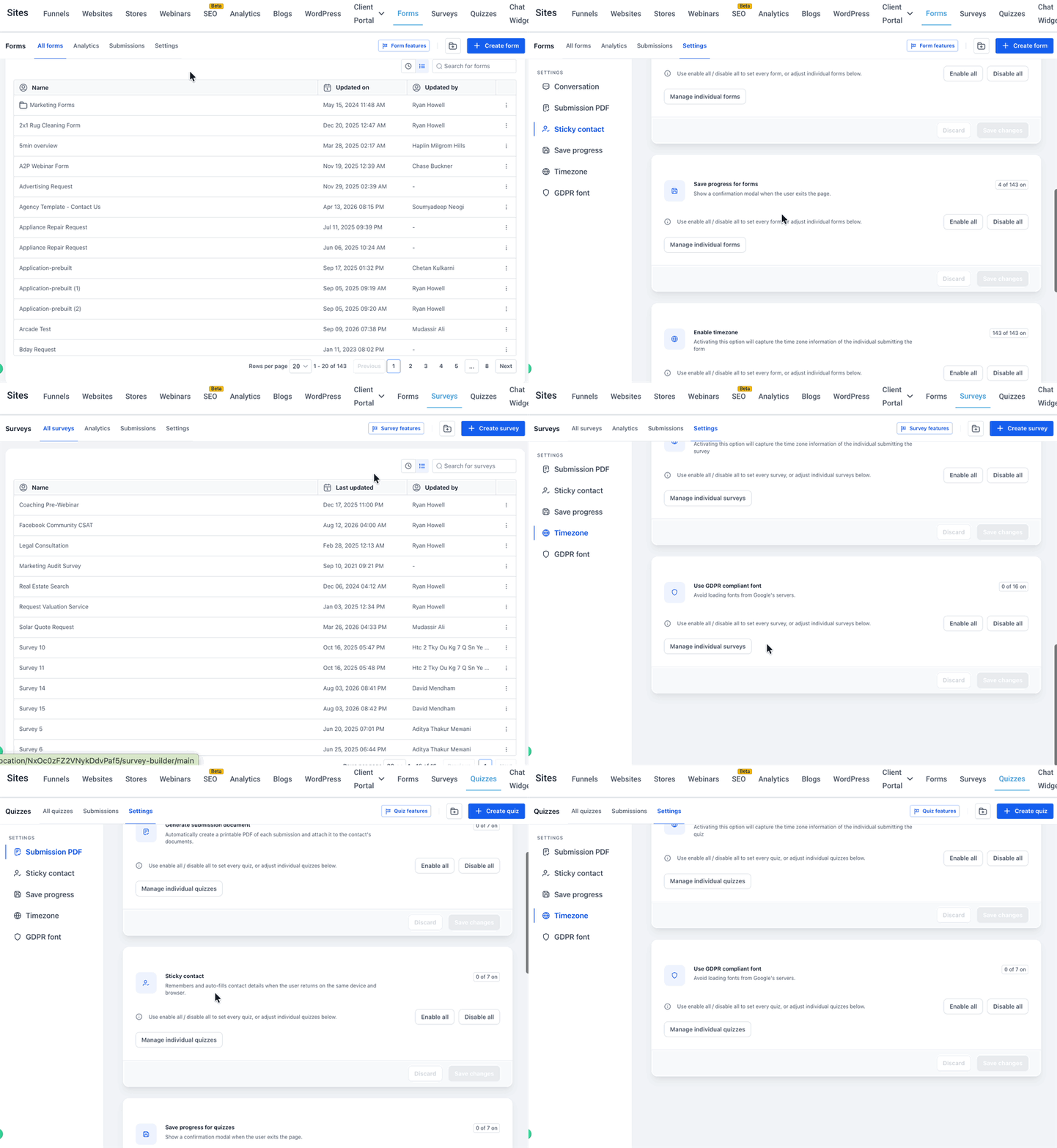
Open the Settings Page
Use the product-level navigation path below instead of opening an individual Form, Survey, or Quiz builder.
| Product | Navigation |
|---|---|
| Forms | Sites → Forms → Settings |
| Surveys | Sites → Surveys → Settings |
| Quizzes | Sites → Quizzes → Settings |
Forms include six supported settings. Surveys and Quizzes include five because Create conversation on submission is available for Forms only.
Apply a Setting in Bulk
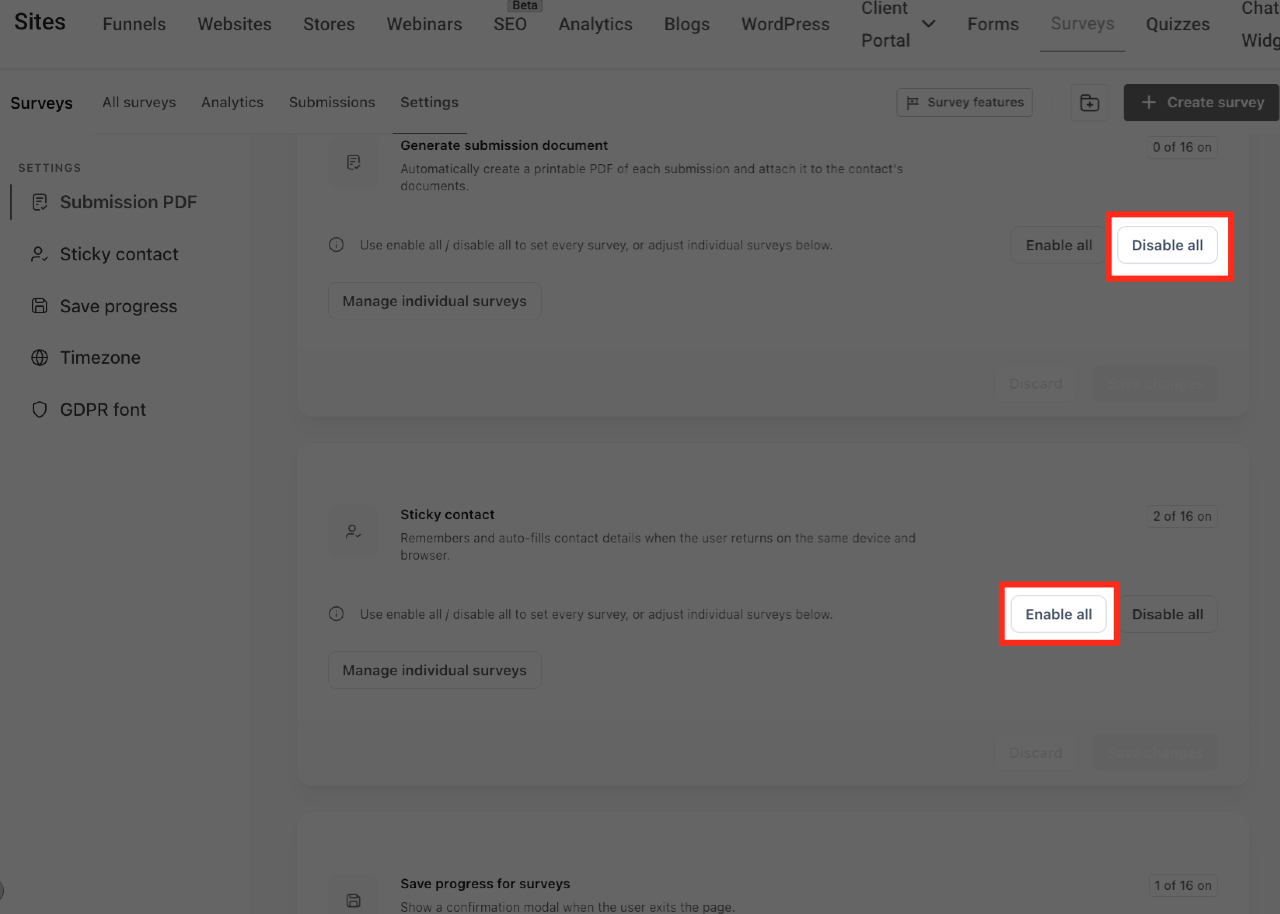
Bulk controls let you stage the same setting across all applicable entities in the selected product.
- Open the appropriate Settings page.
- Select the setting you want to manage from the menu on the left.
- Review the count showing how many entities currently have the setting enabled.
- Click Enable all to stage the setting as enabled for all applicable entities.
- Click Disable all to stage the setting as disabled for all applicable entities.
- Review the pending change before saving.
Bulk actions apply to the entire applicable entity set, including entities that are not currently visible.
Create Individual Exceptions
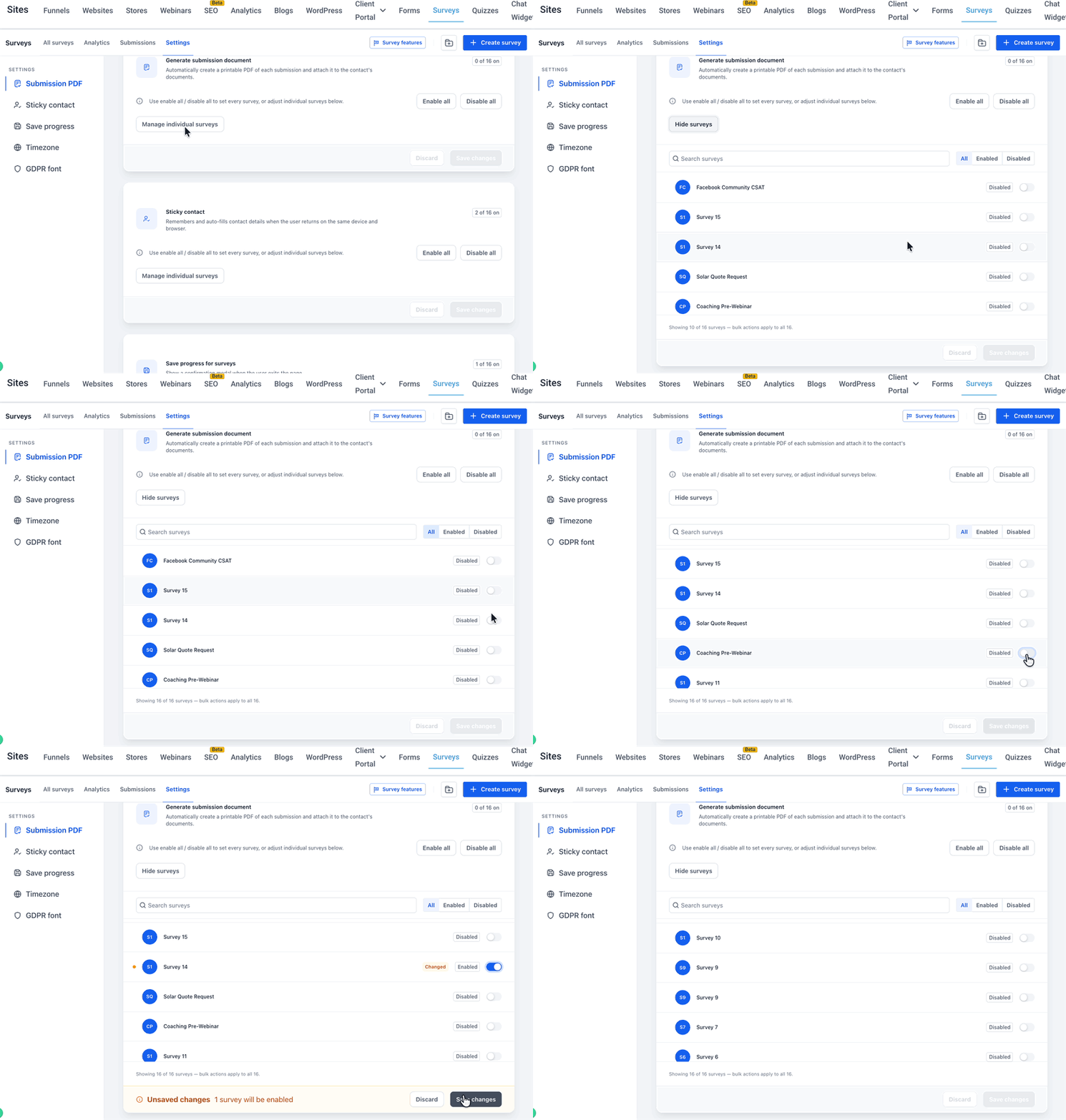
Individual controls let selected entities use a different state from the bulk setting before you save the changes.
Open the individual list using the applicable control:
- Forms: Manage individual forms
- Surveys: Manage individual surveys
- Quizzes: Manage individual quizzes
Then:
- Search for an entity by name when needed.
- Select All, Enabled, or Disabled to filter the entities currently loaded.
- Use the toggle beside an entity to stage an individual override.
- Repeat for any additional exceptions.
- Review the Unsaved changes summary.
- Click Save changes to apply the staged updates.
Modified rows can display Changed before they are saved.
The count below the list shows how many entities are loaded compared with the total. Bulk actions still apply to all applicable entities in the location.
For example: Showing 10 of 221 forms — bulk actions apply to all 221.
Supported Settings
The product-level Settings page centralizes existing builder settings so you can manage supported entities without opening each builder individually.
| Setting | Forms | Surveys | Quizzes |
|---|---|---|---|
| Create conversation on submission | Yes | No | No |
| Generate submission document | Yes | Yes | Yes |
| Sticky contact | Yes | Yes | Yes |
| Save progress | Yes | Yes | Yes |
| Enable timezone | Yes | Yes | Yes |
| Use GDPR compliant font | Yes | Yes | Yes |
The Settings sidebar uses these shorter labels:
- Conversation
- Submission PDF
- Sticky contact
- Save progress
- Timezone
- GDPR font
Surveys and Quizzes do not include Conversation.
Review and Save Changes
The Settings page stages updates before committing them, giving you an opportunity to review bulk changes and individual exceptions before they affect your entities.
When you modify a setting:
- Updated rows can display Changed.
- The bottom bar displays Unsaved changes.
- The save summary describes the pending result.
- Save changes applies all staged updates.
- Discard reverts changes staged since the last save.
Save summaries can include messages such as:
- “3 forms will be enabled”
- “All forms will be enabled, 2 disabled”
These are examples of the summary behavior and are not an exhaustive list of possible messages.
Nothing is written until you click Save changes.
Frequently Asked Questions
Q: Does Enable all affect only the entities currently visible on screen?
No. Enable all and Disable all apply to every applicable entity in the location, including entities that are not currently visible.
Q: Can I enable a setting for most entities but disable it for a few?
Yes. Apply the bulk setting, then use the individual-entity controls to create exceptions before clicking Save changes.
Q: Are changes applied as soon as I use a toggle?
No. Changes remain staged until you click Save changes.
Q: Do the Enabled and Disabled filters search every entity in the location?
No. Those filters apply to entities loaded in the list so far. The count beneath the list shows how many entities are currently loaded.
Q: Do Settings replace the settings inside each builder?
No. The location-level Settings page and the individual builders control the same underlying settings and remain synchronized.
Q: Is Create conversation on submission available for Surveys and Quizzes?
No. Create conversation on submission is available for Forms only.
Q: Will existing Forms, Surveys, or Quizzes change automatically when Settings becomes available?
No. Existing entities remain unchanged until you stage and save a setting change.