
How to Send Chat To Clients CRM Forms Through WhatsApp Flows
WhatsApp Flows lets you send supported Chat To Clients CRM form fields directly inside WhatsApp, so customers can complete and submit information without being redirected to an external page. You can use an existing form or create a new one, preview the WhatsApp experience, configure the message template, publish the Flow, and send it through Conversations, workflows, or Bulk Actions.
TABLE OF CONTENTS
- What Are WhatsApp Flows?
- Key Benefits of Forms in WhatsApp Flows
- Prerequisites and Limitations
- How to Send Chat To Clients CRM Forms Through WhatsApp Flows
- Where to View Form Submissions
- What Happens When the Original Form Changes?
- Troubleshooting
- Frequently Asked Questions
- Related Articles
What Are WhatsApp Flows?
WhatsApp Flows provide an interactive experience directly inside WhatsApp. Customers tap a button in a WhatsApp message to open a guided form, answer questions, and submit their information without leaving the app.
Chat To Clients CRM uses the supported fields from your form to create the WhatsApp experience. The complete web form is not embedded exactly as it appears on a website.
Forms via WhatsApp Flows can be used for lead qualification, customer onboarding, feedback collection, registrations, and other information-gathering workflows. Completed submissions are associated with the corresponding contact in Chat To Clients CRM.
Key Benefits of Forms in WhatsApp Flows
Forms in WhatsApp Flows make it easier to collect information while keeping the customer inside the WhatsApp conversation.
- In-app form completion: Customers answer and submit supported form questions without opening an external page.
- Reuse existing forms: Select an existing Chat To Clients CRM form or create a new form for the Flow.
- Live preview: Review how supported fields will appear inside WhatsApp before publishing.
- Contact association: Completed submissions are associated with the corresponding contact.
- Flexible sending: Send approved templates through Conversations, workflows, or Bulk Actions.
Prerequisites and Limitations
Before creating a form-based WhatsApp Flow, confirm that the required WhatsApp connection, permissions, and form content are ready.
- Confirm your WhatsApp account is connected in the relevant Chat To Clients CRM sub-account.
- Make sure your user has access to the required WhatsApp and Forms settings.
- Review the information you want to collect before selecting a form.
- Unsupported form fields are excluded from the WhatsApp Flow experience.
- Before sending business-initiated WhatsApp messages, ensure you have the appropriate permission to contact the recipient.
Note: Always review the WhatsApp preview before publishing to confirm which form fields customers will see.
How to Send Chat To Clients CRM Forms Through WhatsApp Flows
Follow the steps below to select a form, review its WhatsApp experience, configure the associated template, and send the published Flow.
Step 1: Open WhatsApp Flows
- From the relevant Chat To Clients CRM Sub-Account, navigate to Settings → WhatsApp → Flows.
- Click Create Flow.
- Give the Flow a descriptive name, such as New Customer Inquiry or Lead Qualification.
- Continue to the form-selection step.
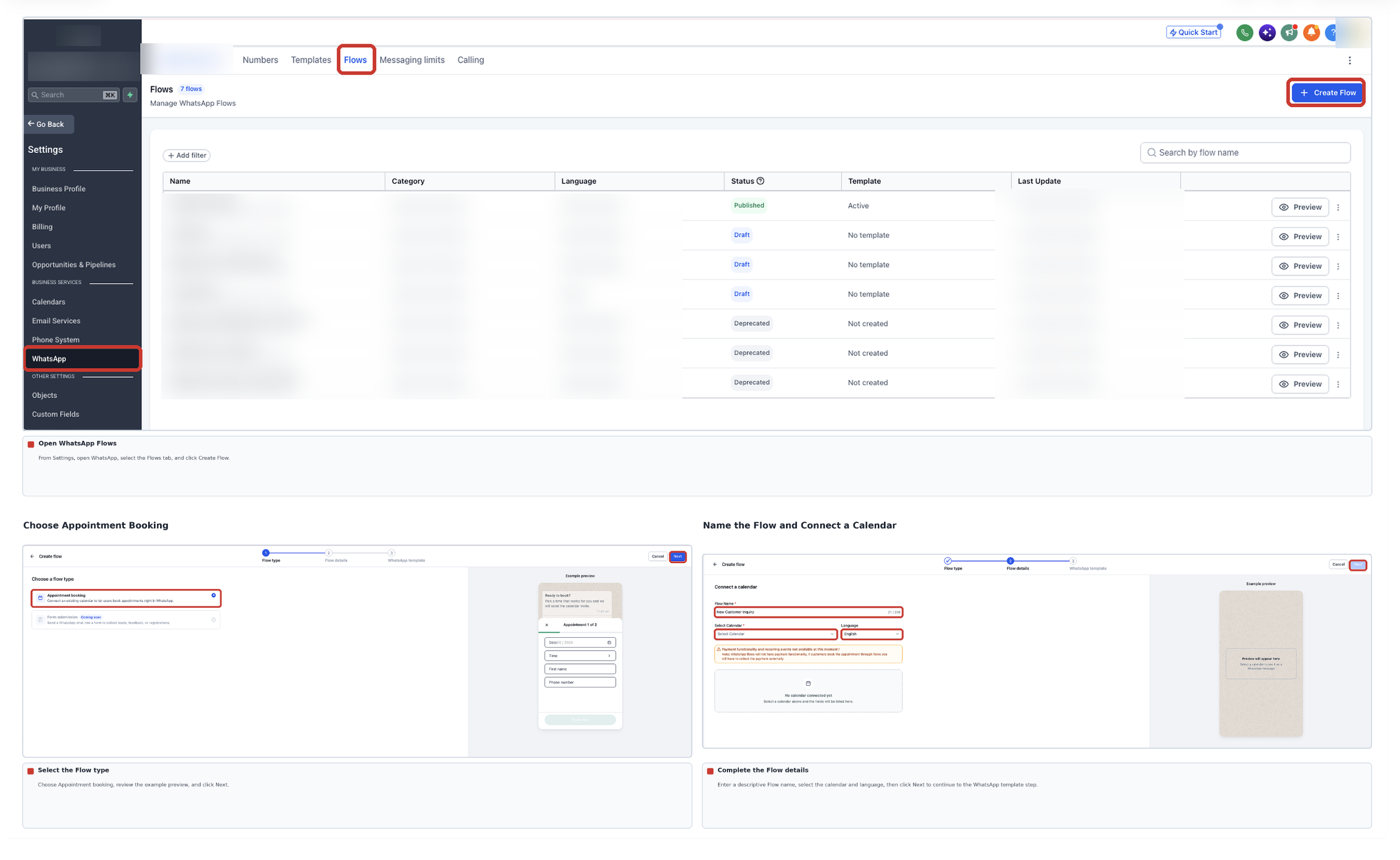
Step 2: Select or Create a Form
Choose Form submission when configuring the WhatsApp Flow. You can use an existing Chat To Clients CRM form or create a new form from the Flow setup experience.
Use an Existing Form
Select the Chat To Clients CRM form you want to use. The Flow builder reviews the form fields and displays the supported content in the WhatsApp preview.
Create a New Form
If you need a new form, use the form-creation option available from the Flows screen. After creating the form, select it for the Flow and continue to the preview.
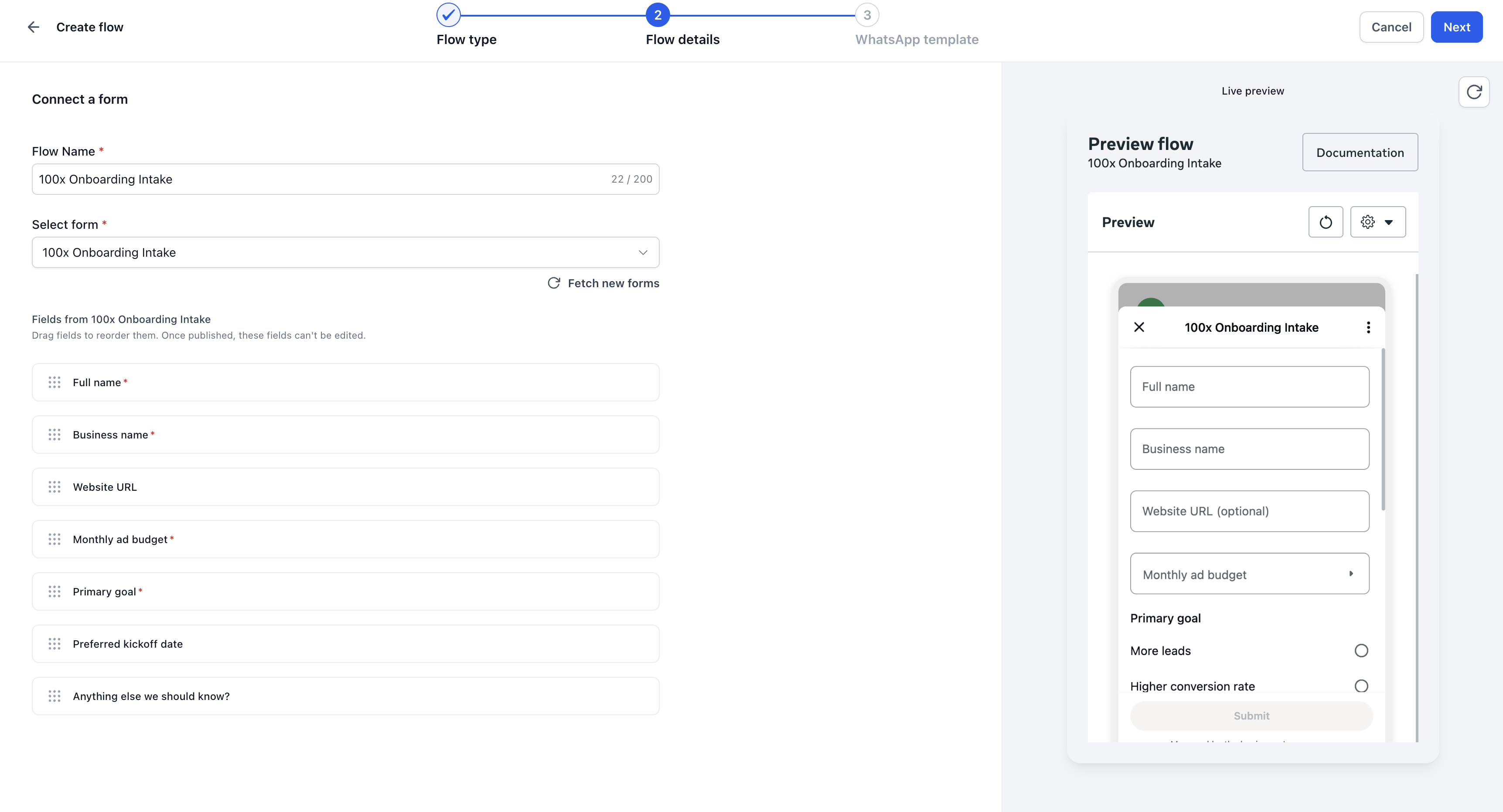
Tip: Build the form around the information you actually need to collect. Always review the WhatsApp preview before publishing the Flow.
Step 3: Review the WhatsApp Preview
The WhatsApp preview shows how the supported form content will appear to customers. Review the questions and available inputs before publishing.
Unsupported field types are excluded during Flow creation. Use the preview to confirm that customers can provide all the information required for your process.
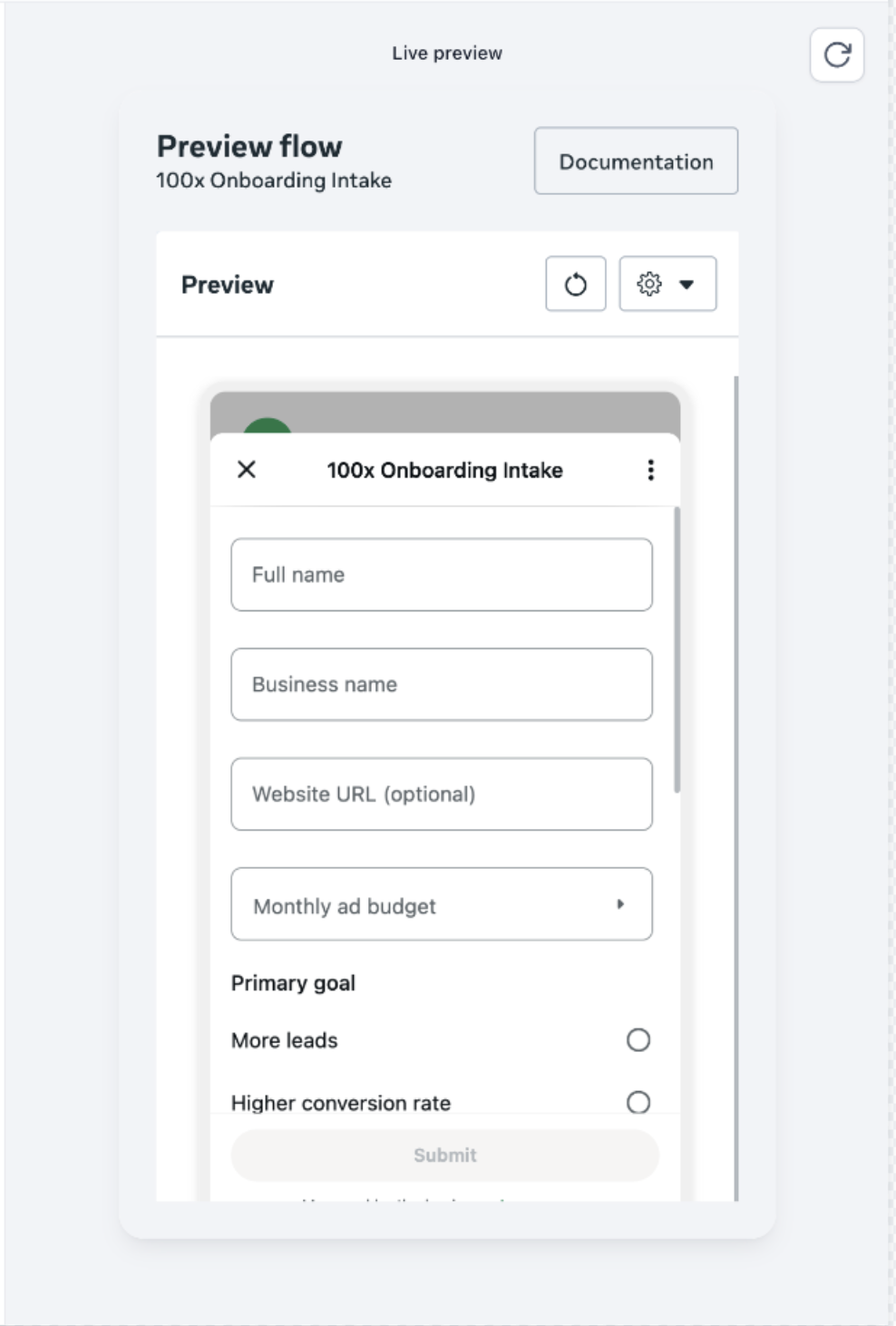
Important: A field appearing in the Chat To Clients CRM form builder does not guarantee that it will appear in the WhatsApp Flow. Review the WhatsApp preview before publishing.
Step 4: Configure the WhatsApp Template and Publish
After reviewing the supported form fields and WhatsApp preview, configure the WhatsApp message that customers will use to open the form.
- Continue to the WhatsApp message template configuration in the Flow builder.
- Enter the message content, including the Header, Body, and Footer, where available.
- Configure the Flow button customers will tap to open the form.
- Enter the Button text when prompted.
- Review the message and confirm that the button opens the intended form-based WhatsApp Flow.
- Select Publish when the Flow is ready.
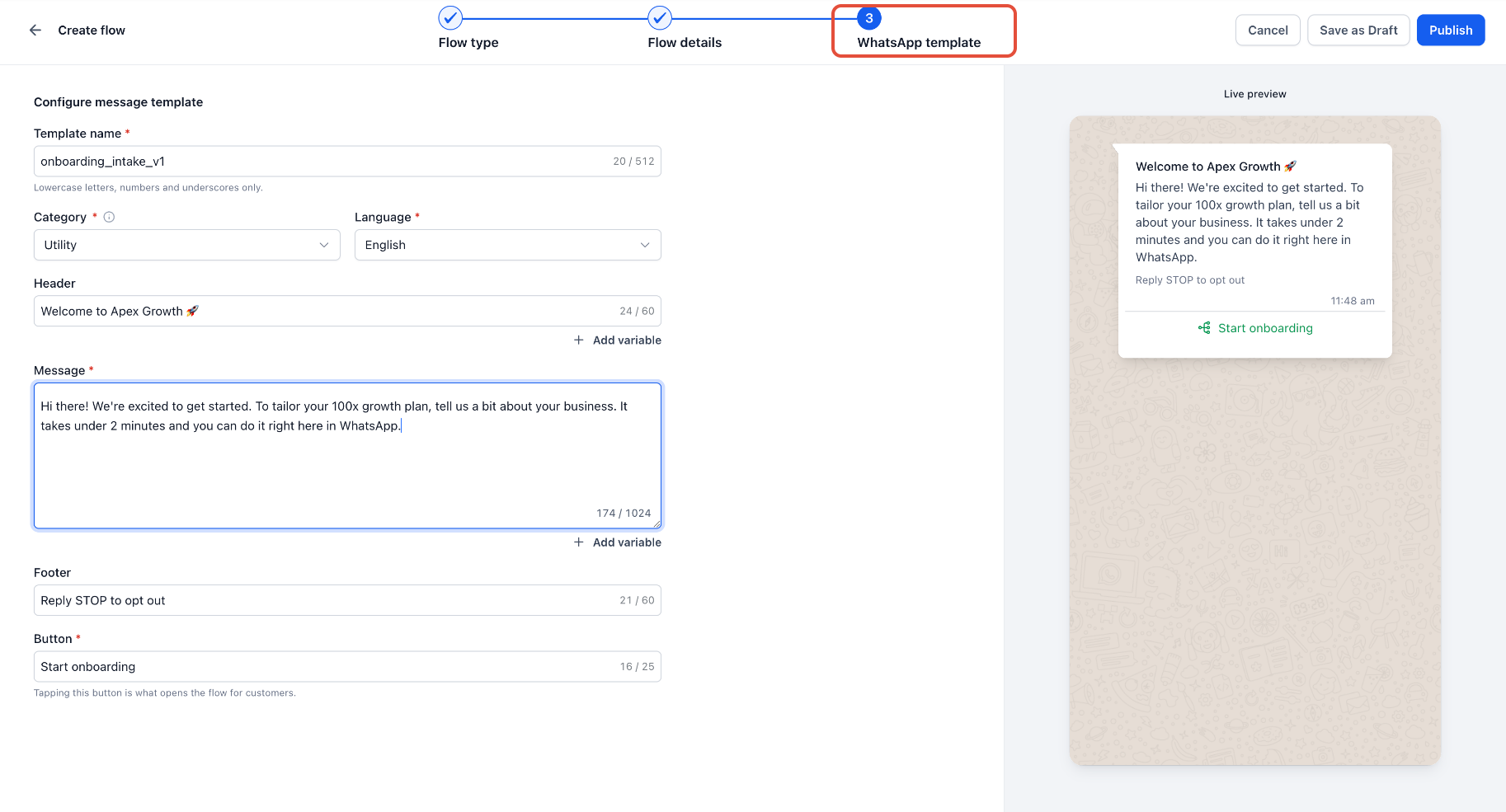
Important: Publishing a WhatsApp Flow does not automatically send it to contacts. The associated WhatsApp message template must complete the applicable Meta approval process before it can be used as an approved template message.
Step 5: Send the Form Through a Template
Once the Flow is published and its associated WhatsApp template is approved, you can send the form through Conversations, a workflow, or Bulk Actions. Customers tap the Flow button in the message to complete and submit the form inside WhatsApp.
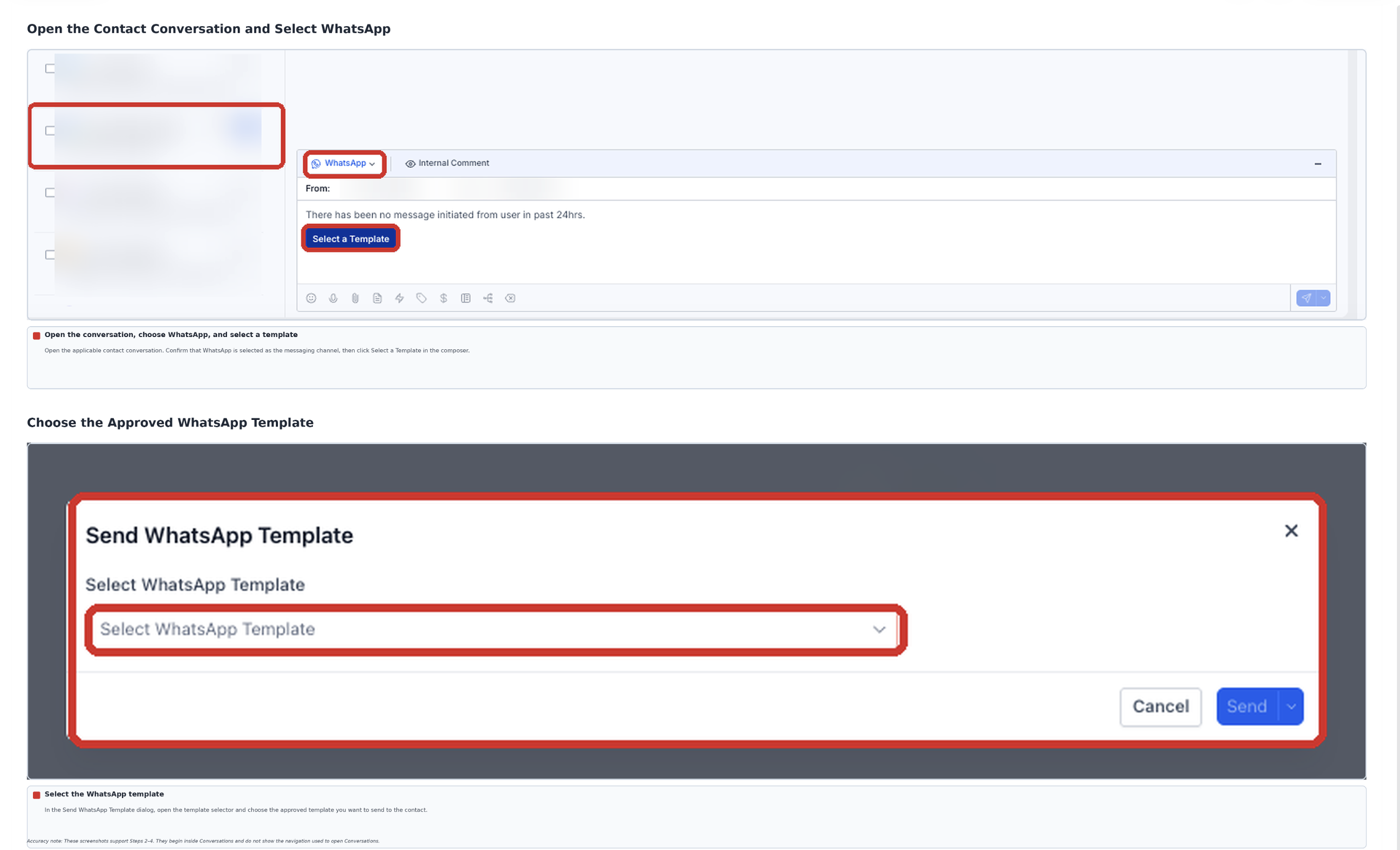
Send Through Conversations
Use Conversations when you want to send the approved WhatsApp template to an individual contact.
- Open Conversations in the Chat To Clients CRM sub-account.
- Open the conversation for the contact you want to message.
- Select WhatsApp as the messaging channel.
- Choose WhatsApp Template from the message composer.
- Select the approved template associated with the published Flow.
- Review the template.
- Click Send.
Send Through a Workflow
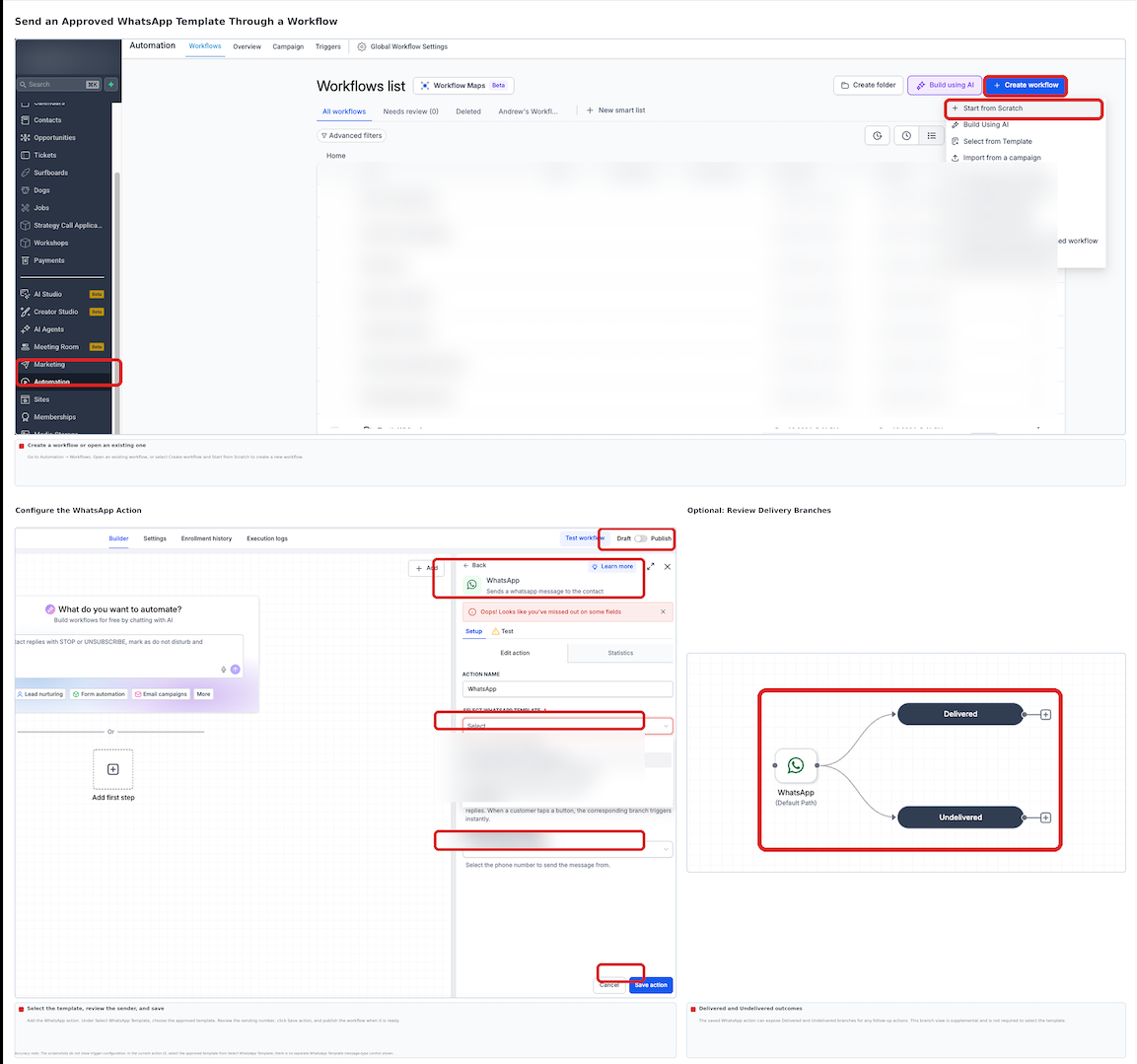
Use a workflow when the approved WhatsApp template should be sent automatically after a configured trigger or condition.
- Navigate to Automation.
- Create a new workflow or open an existing workflow.
- Configure the trigger that determines when the WhatsApp message should be sent.
- Add the appropriate WhatsApp action.
- Choose WhatsApp Template as the message type.
- Select the approved template associated with the published Flow.
- Review the action settings.
- Save the action and publish the workflow when it is ready.
Send Through Bulk Actions
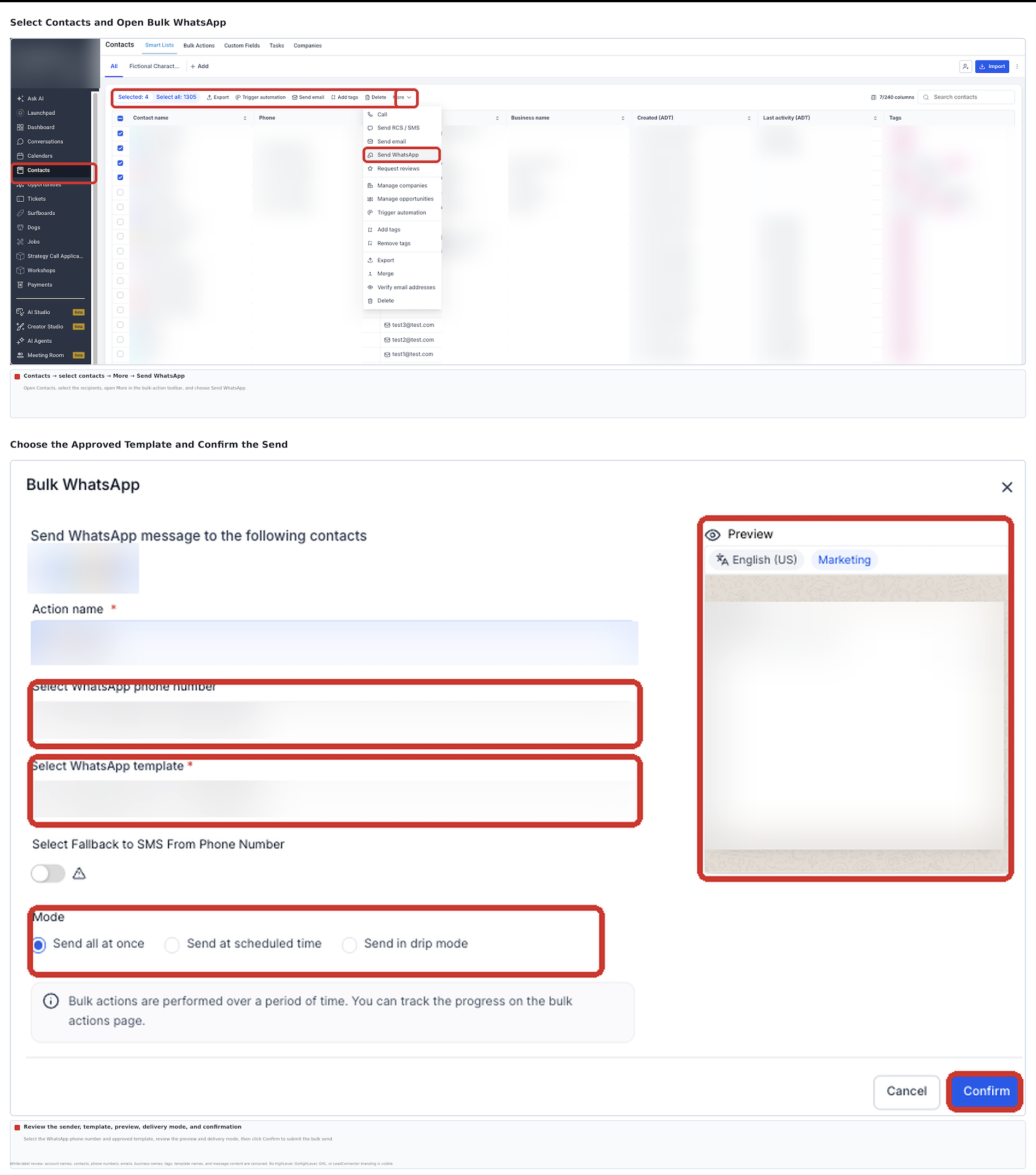
Use Bulk Actions when you want to send the approved WhatsApp template to multiple selected contacts.
- Navigate to Contacts.
- Select the contacts you want to message.
- Choose Bulk Action → Send WhatsApp.
- Select WhatsApp Template.
- Choose the approved template associated with the published Flow.
- Review the template and sending details.
- Confirm the bulk send.
Recommended: Send the Flow to an internal test contact first. Complete the form and confirm that the submission appears under the expected form and contact before sending it to customers.
Where to View Form Submissions
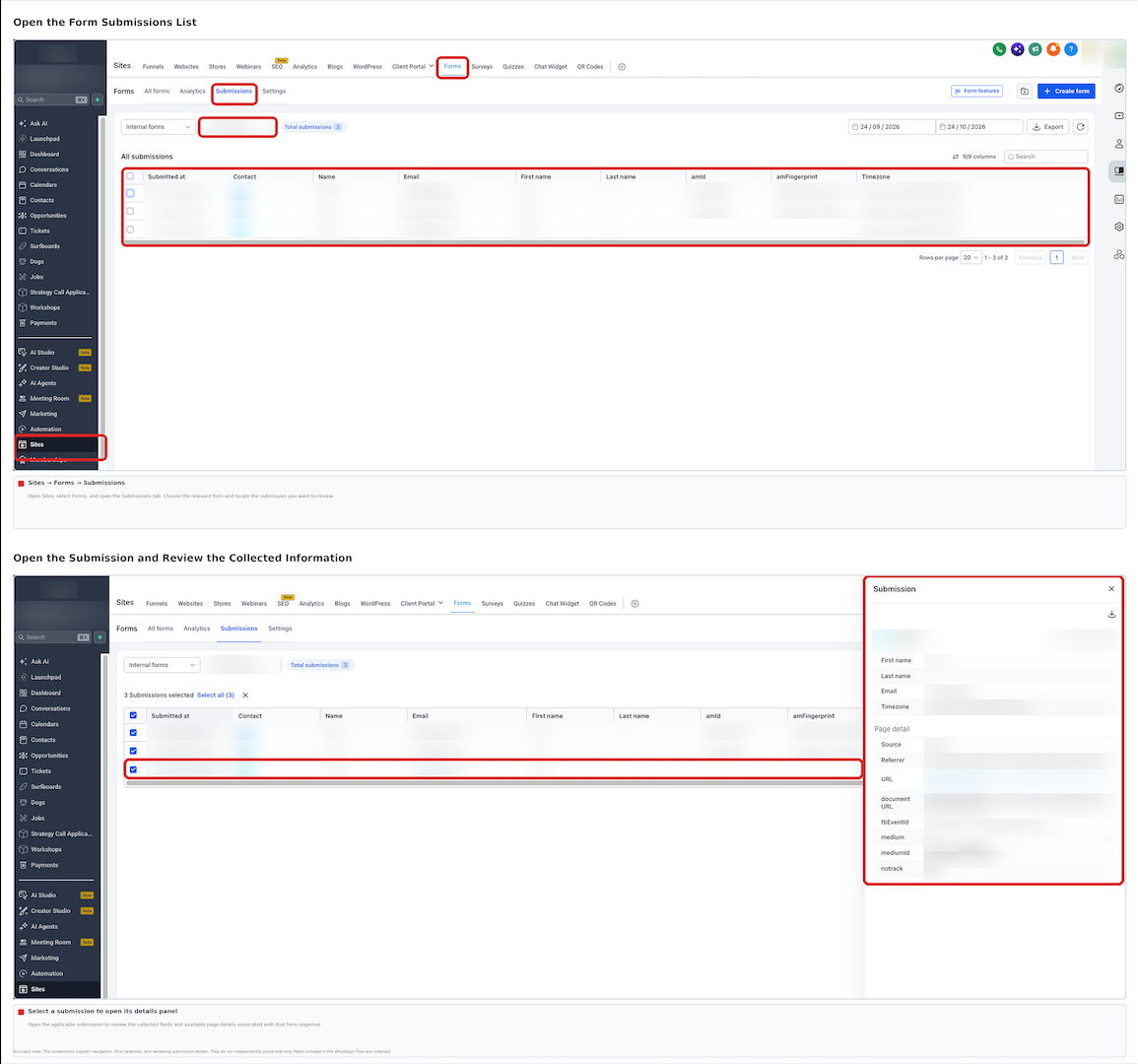
Completed WhatsApp Flow submissions are stored with your Chat To Clients CRM form submissions and associated with the corresponding contact.
- Navigate to Sites → Forms → Submissions.
- Locate the relevant form.
- Open the submission to review the submitted information.
Only the fields included in the WhatsApp Flow are collected through that submission.
What Happens When the Original Form Changes?
Editing the original Chat To Clients CRM form does not automatically change a WhatsApp Flow that has already been published.
If you make changes to the source form, review the WhatsApp Flow before using it for future messages to confirm that the customer experience includes the intended questions.
Troubleshooting
Use the checks below when the Flow, preview, template, or submission does not behave as expected.
| Issue | What to Check |
|---|---|
| Some form fields are missing from the preview | Review the WhatsApp preview. Unsupported fields are excluded from the Flow experience. |
| The Flow cannot be published | Review the configuration and resolve any validation errors shown in the Flow builder. |
| The WhatsApp template cannot be sent | Confirm that the template has completed the applicable Meta approval process. |
| Changes to the original form are not appearing | Changes to the original form do not automatically update an already-published Flow. Review the Flow configuration before using it again. |
| A submission cannot be found | Confirm that the customer completed the final submission step, then check Sites → Forms → Submissions in the correct sub-account. |
Frequently Asked Questions
Q: Do I need to recreate my existing Chat To Clients CRM form?
No. You can select an existing Chat To Clients CRM form when creating the WhatsApp Flow. You can also create a new form from the Flow setup experience.
Q: Does the form open on an external website?
No. Customers complete the supported form questions directly inside WhatsApp without being redirected to a separate landing page.
Q: Why are some fields from my form missing in WhatsApp?
WhatsApp Flows only includes fields supported by the integration. Unsupported fields are excluded during Flow creation. Review the WhatsApp preview before publishing to confirm what customers will see.
Q: Where are WhatsApp Flow form submissions stored?
Completed responses are available under Sites → Forms → Submissions and are associated with the corresponding contact.
Q: Does editing the original form update an already-published WhatsApp Flow?
No. Changes made to the original Chat To Clients CRM form do not automatically update an already-published WhatsApp Flow. Review the Flow after making changes to the source form.
Q: How can I send a form-based WhatsApp Flow?
After the Flow is published and the associated WhatsApp template is approved, you can send it through Conversations, a workflow, or Bulk Actions.
Q: Does publishing the Flow automatically send it to customers?
No. Publishing makes the Flow available for use. You still need to send the approved WhatsApp template through one of the supported sending methods.